-
-
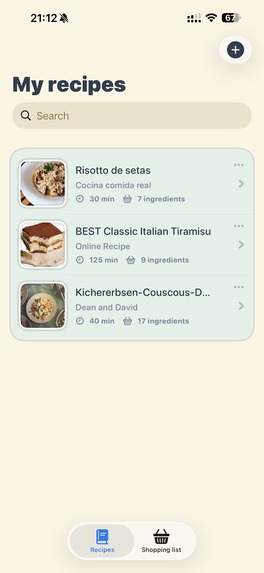
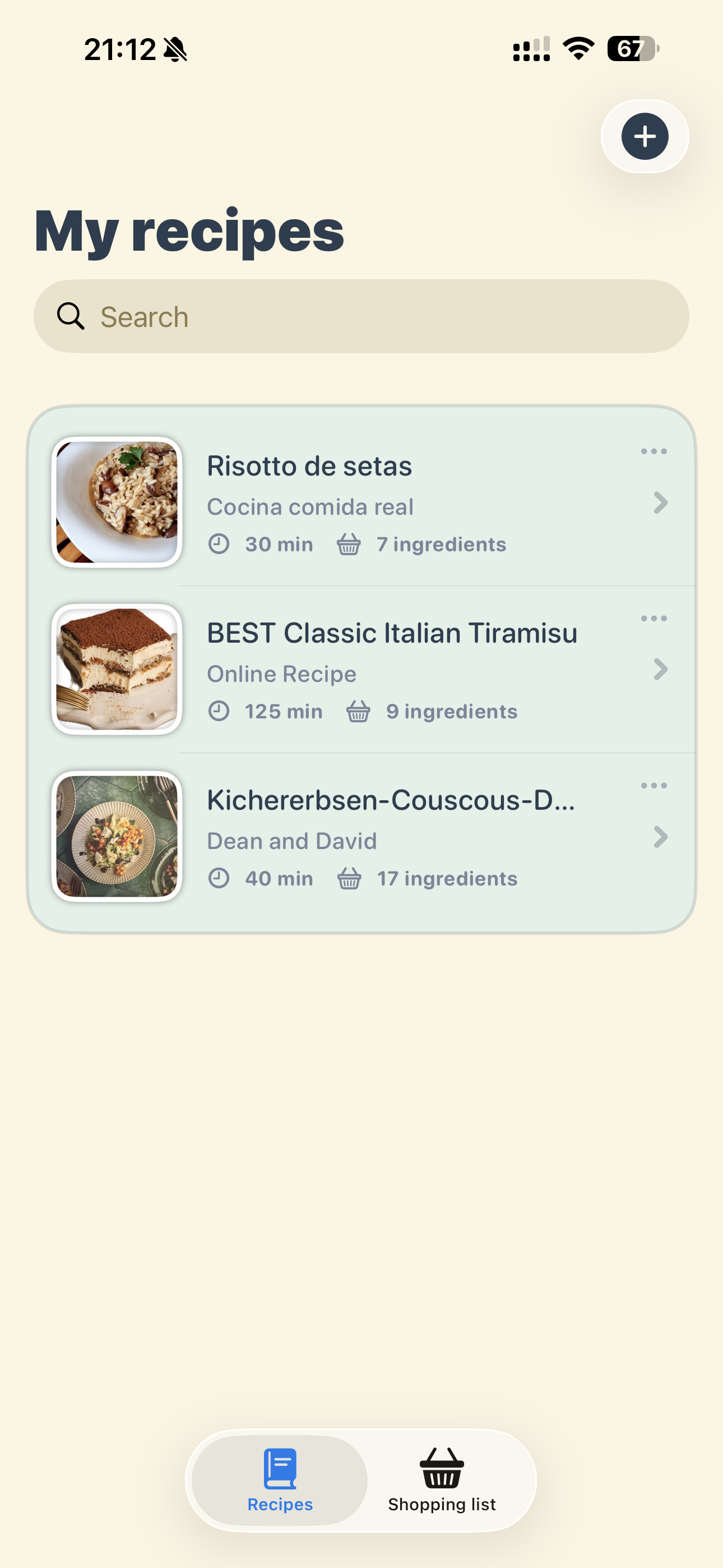
All your recipes in one place.
-
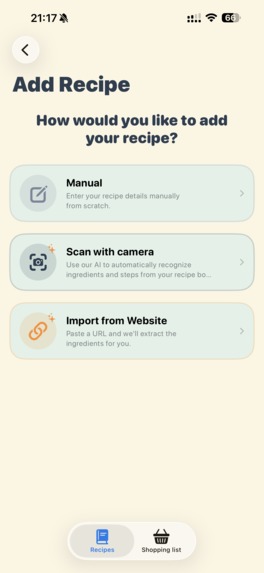
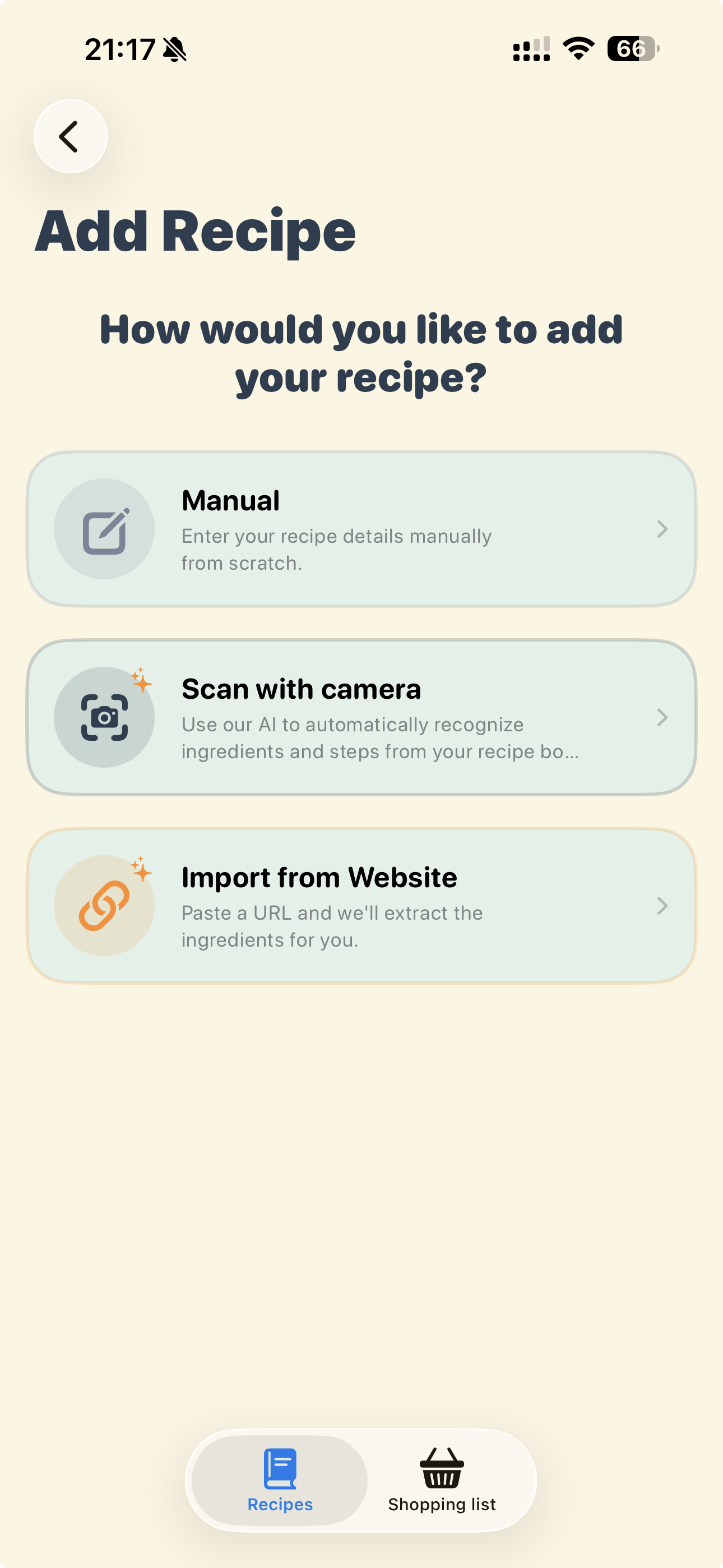
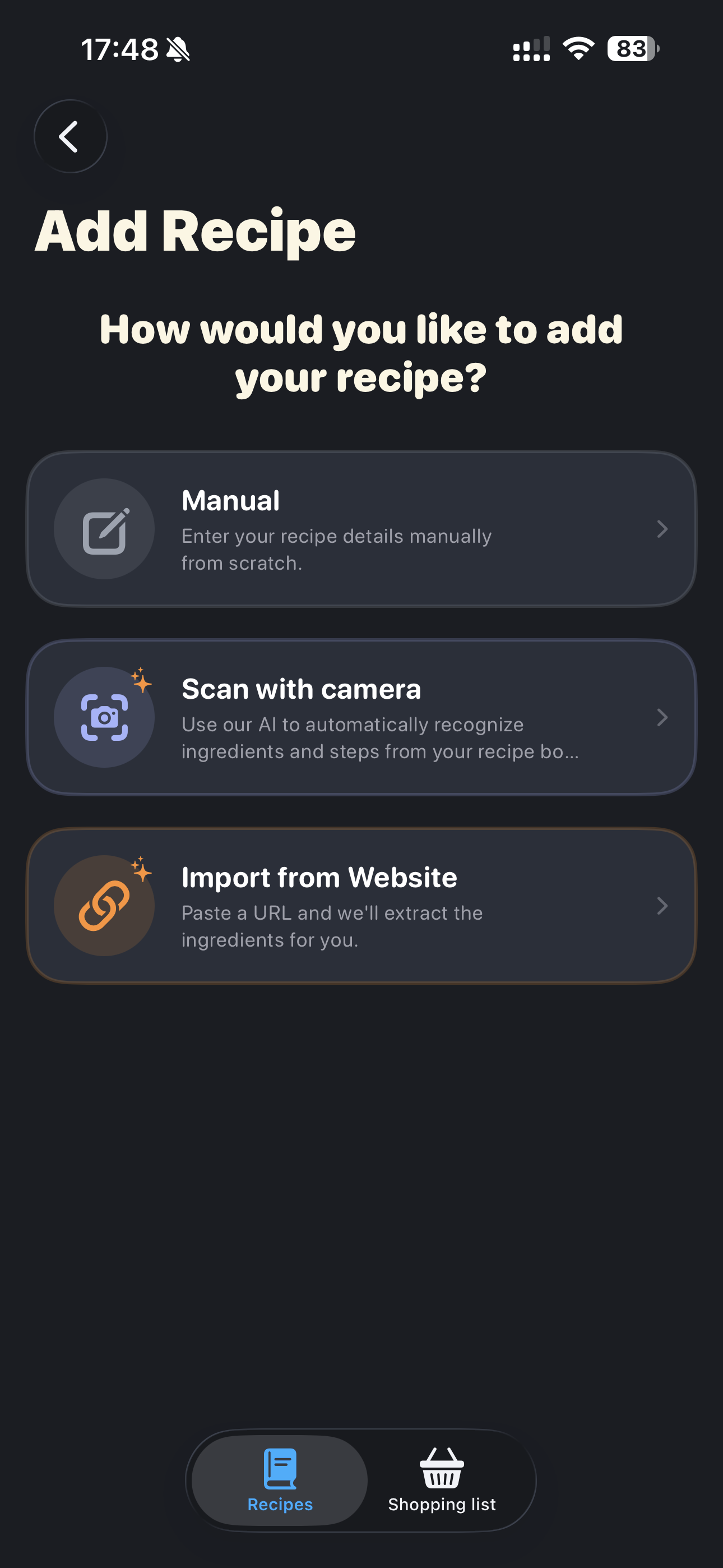
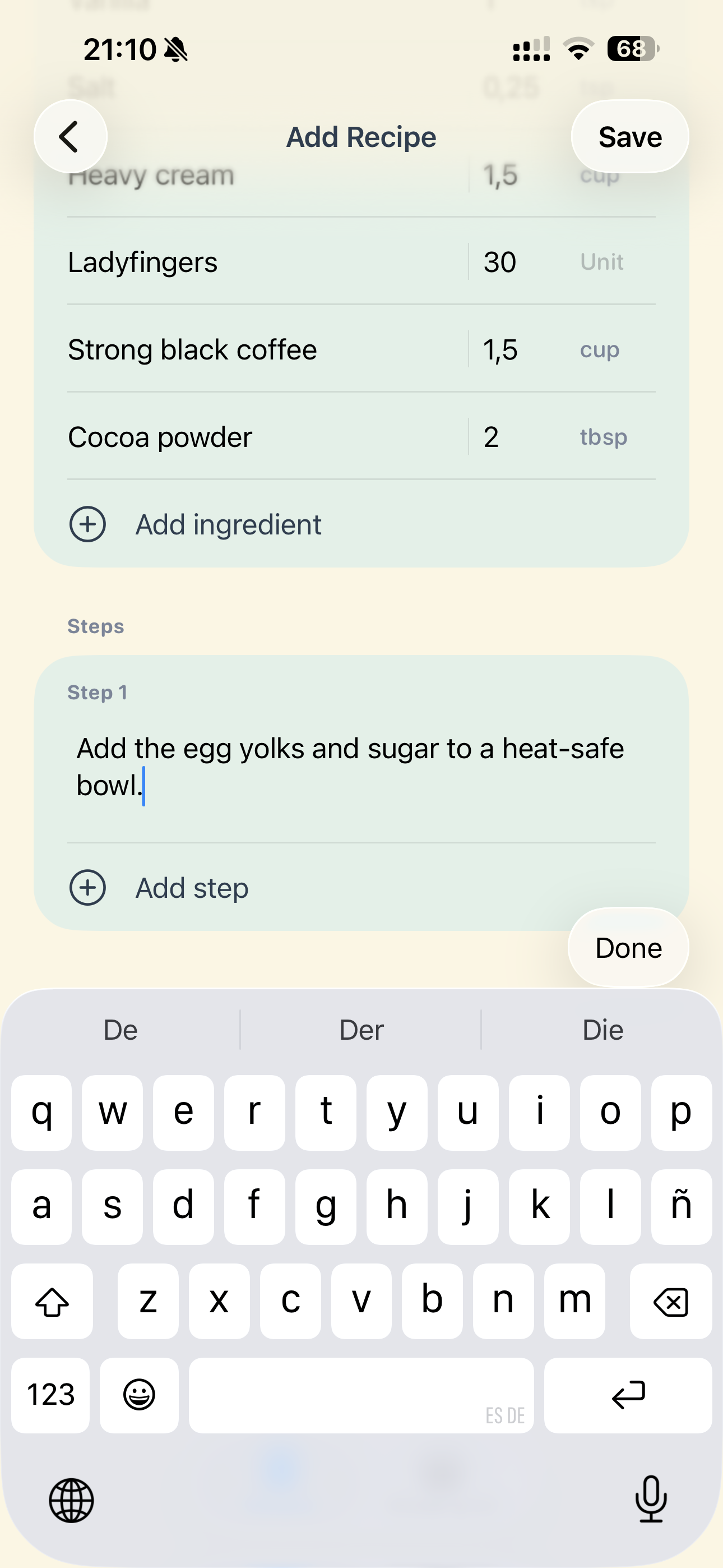
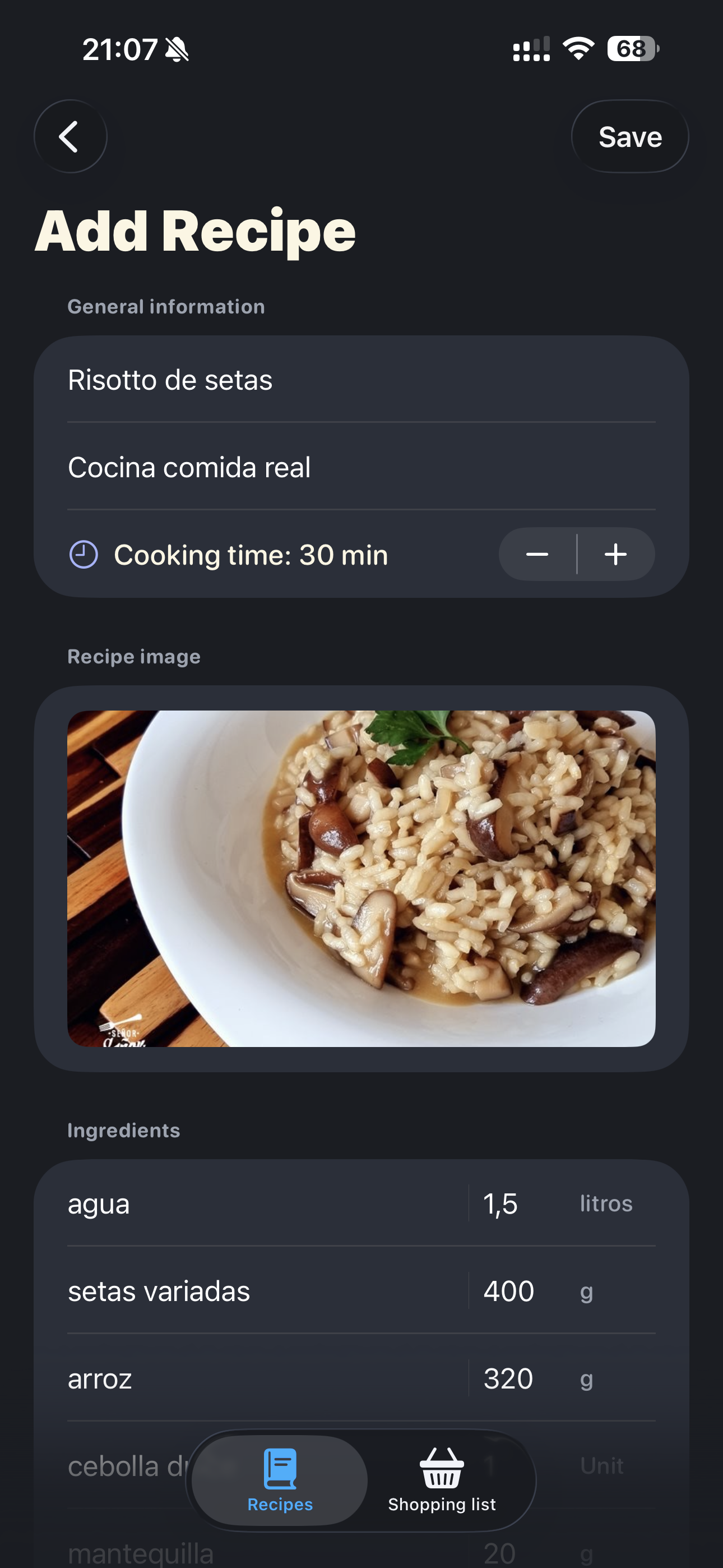
Add your recipes manually, using your iPhone's scanner, or by importing them from a URL. We use an AI service to understand those recipes.
-
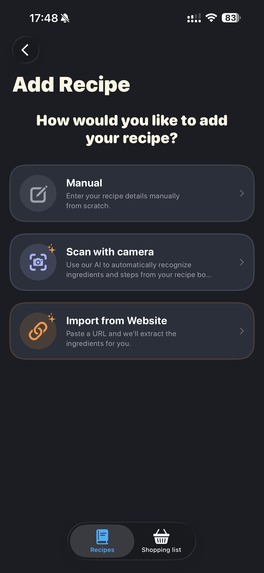
Add your recipes manually, using your iPhone's scanner, or by importing them from a URL. We use an AI service to understand those recipes.
-
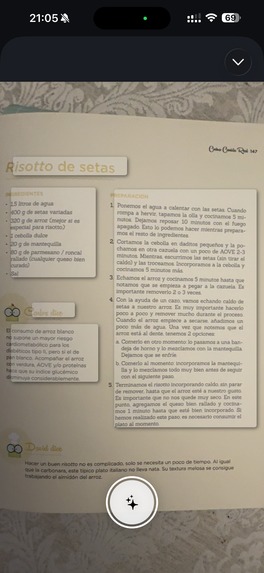
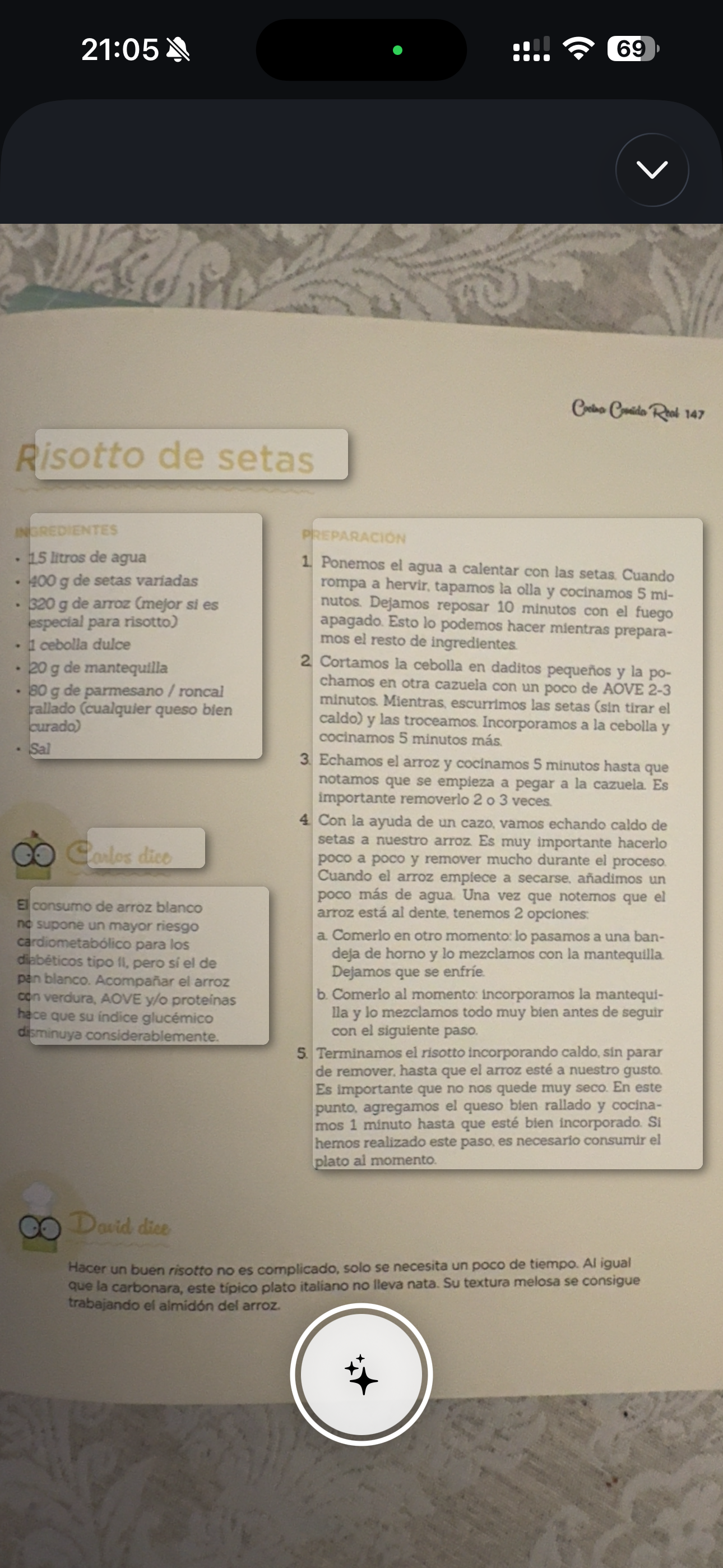
Just take a picture.
-
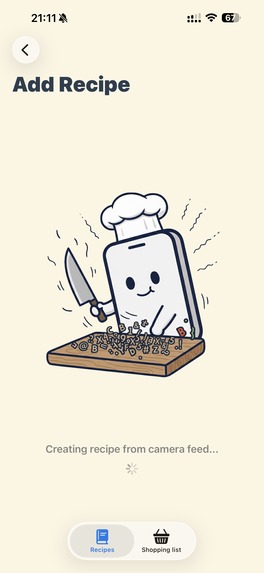
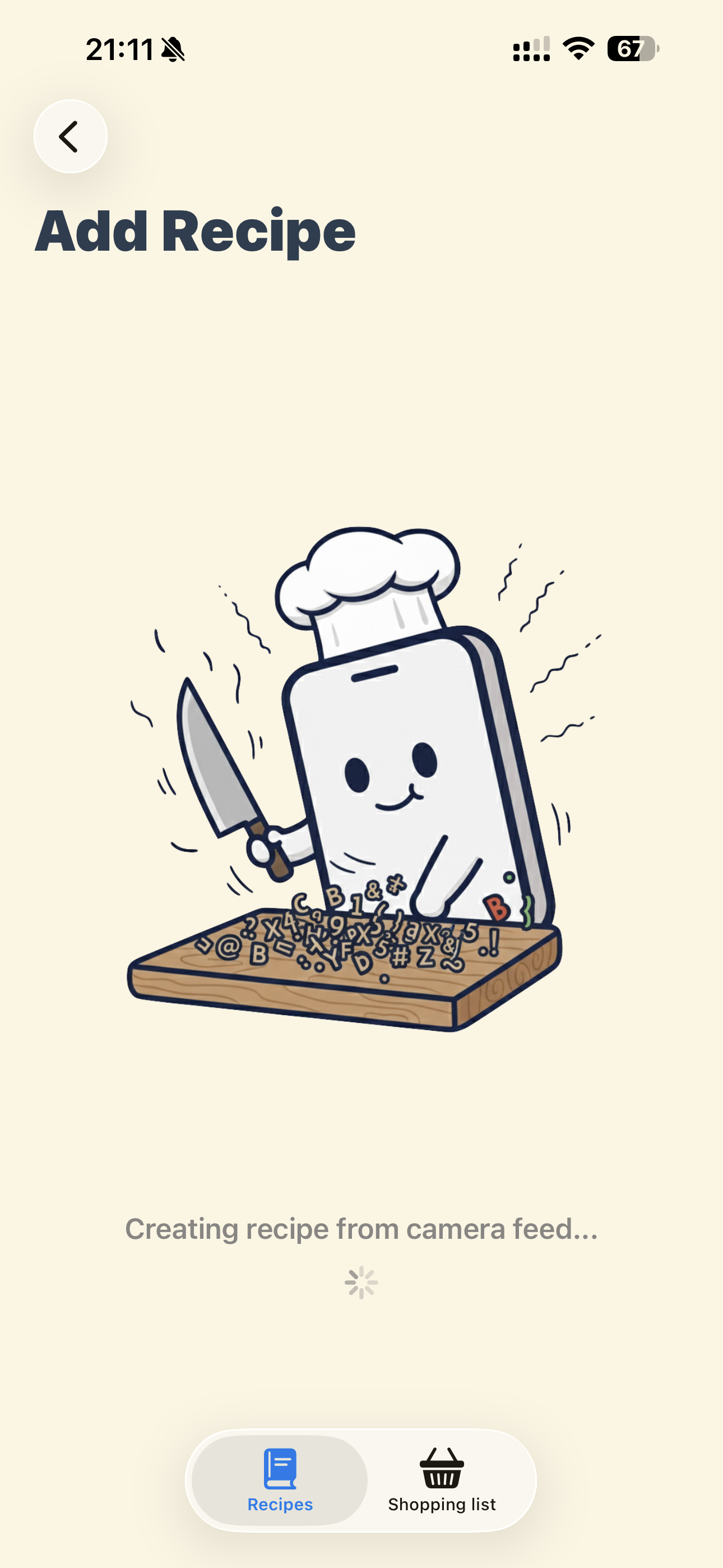
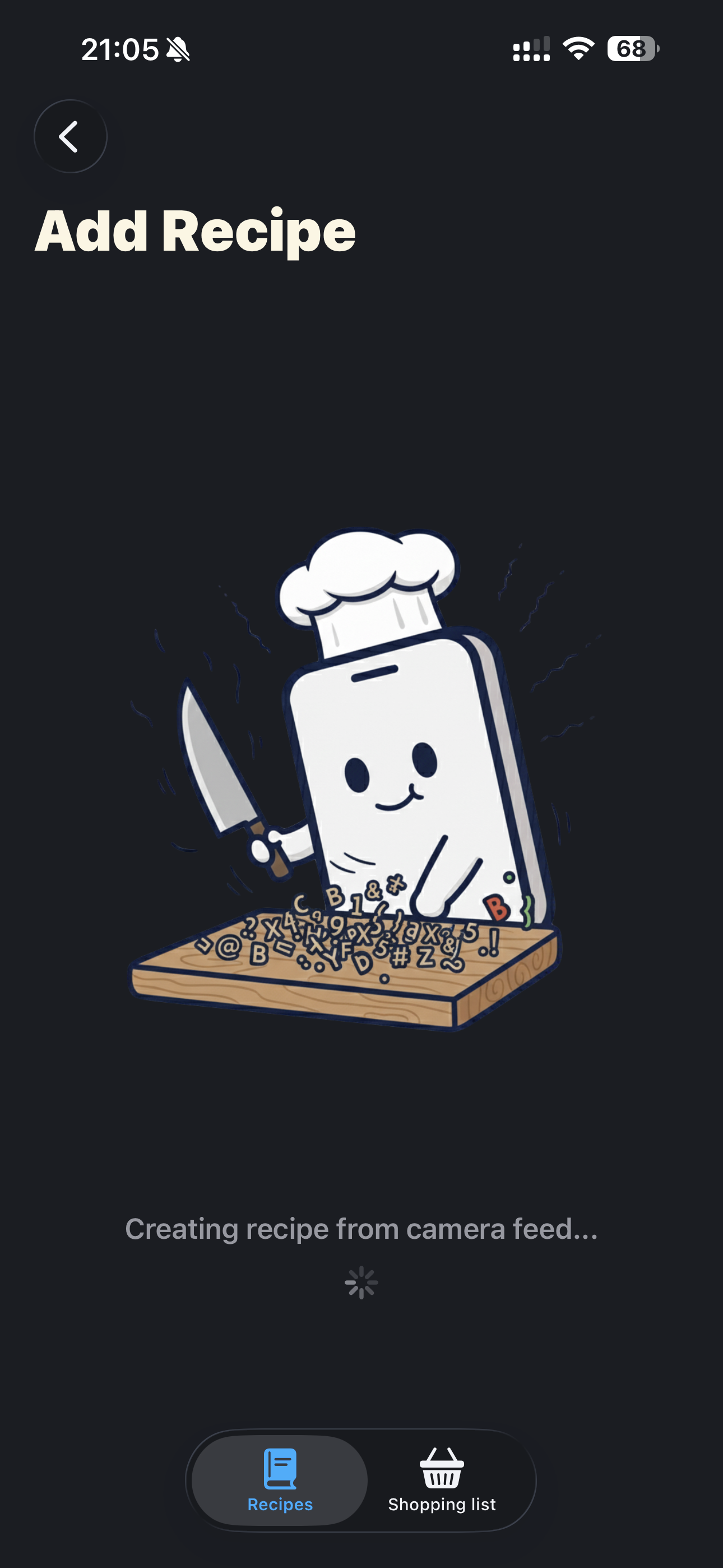
And let your Paper Chef do the work.
-
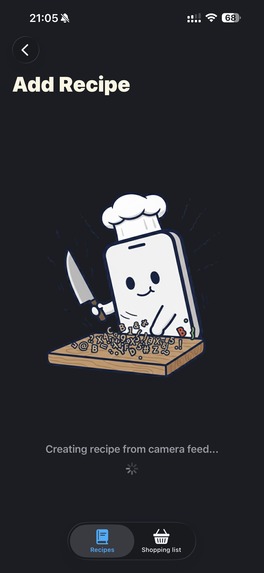
And let your Paper Chef do the work.
-
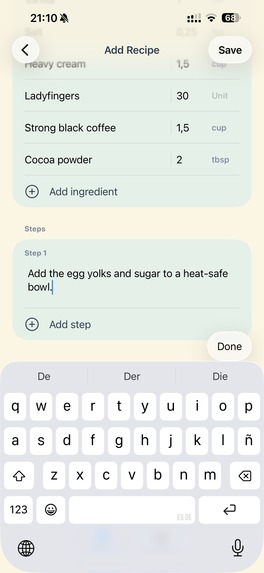
And let your Paper Chef do the work.
-
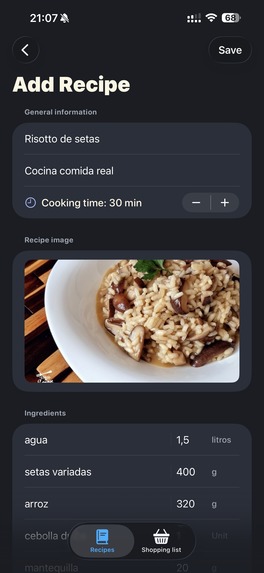
And let your Paper Chef do the work.
-
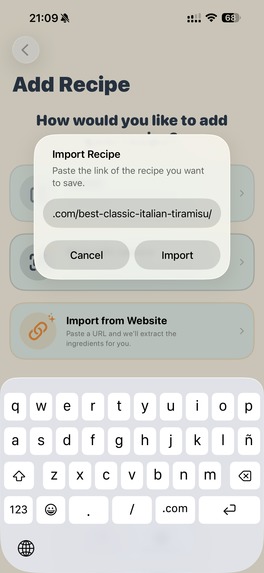
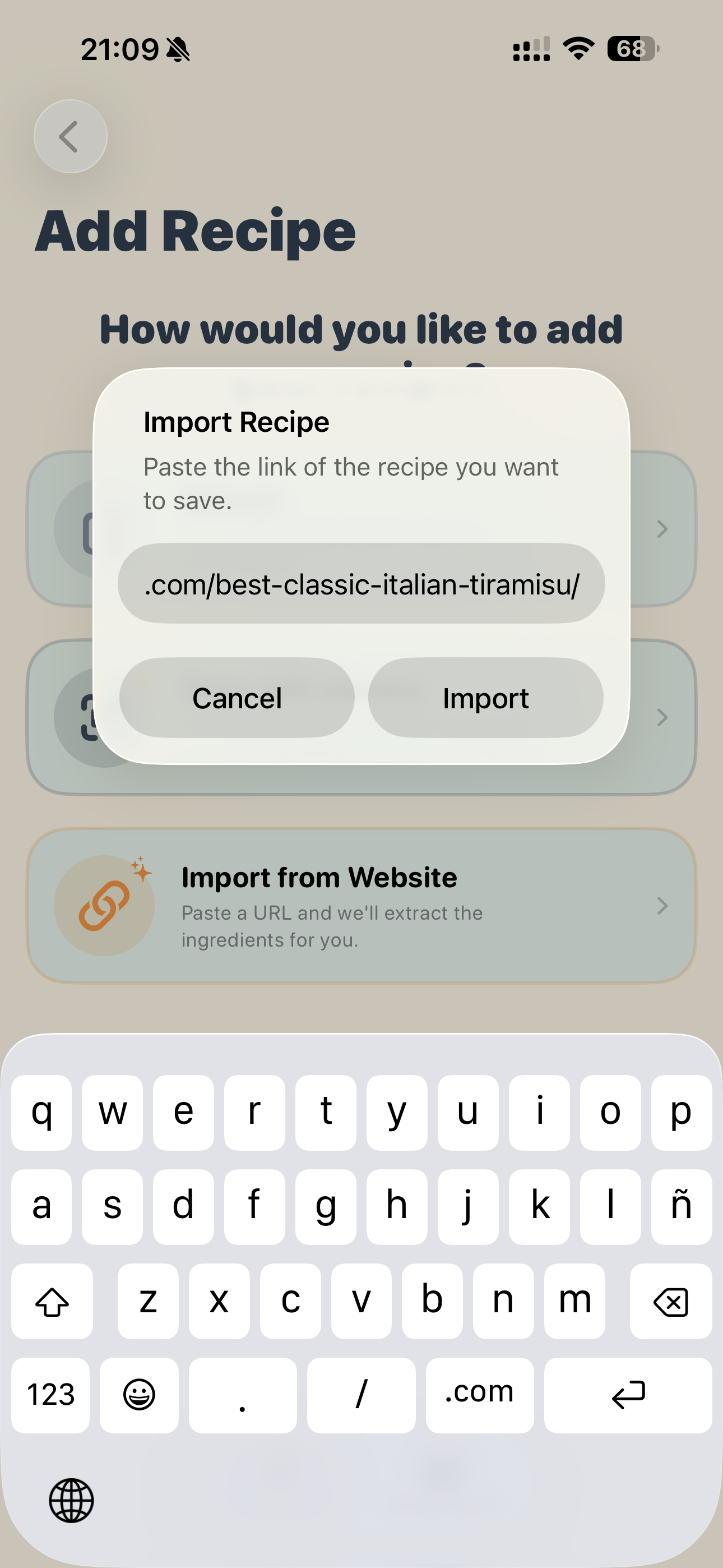
Or you can paste a URL and let us write the recipe for you.
-
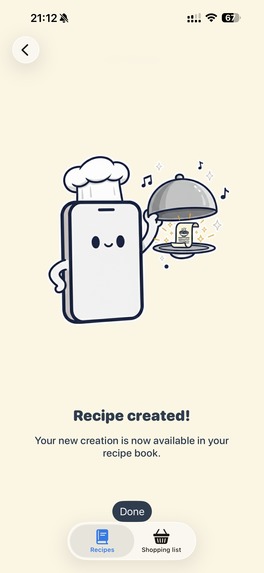
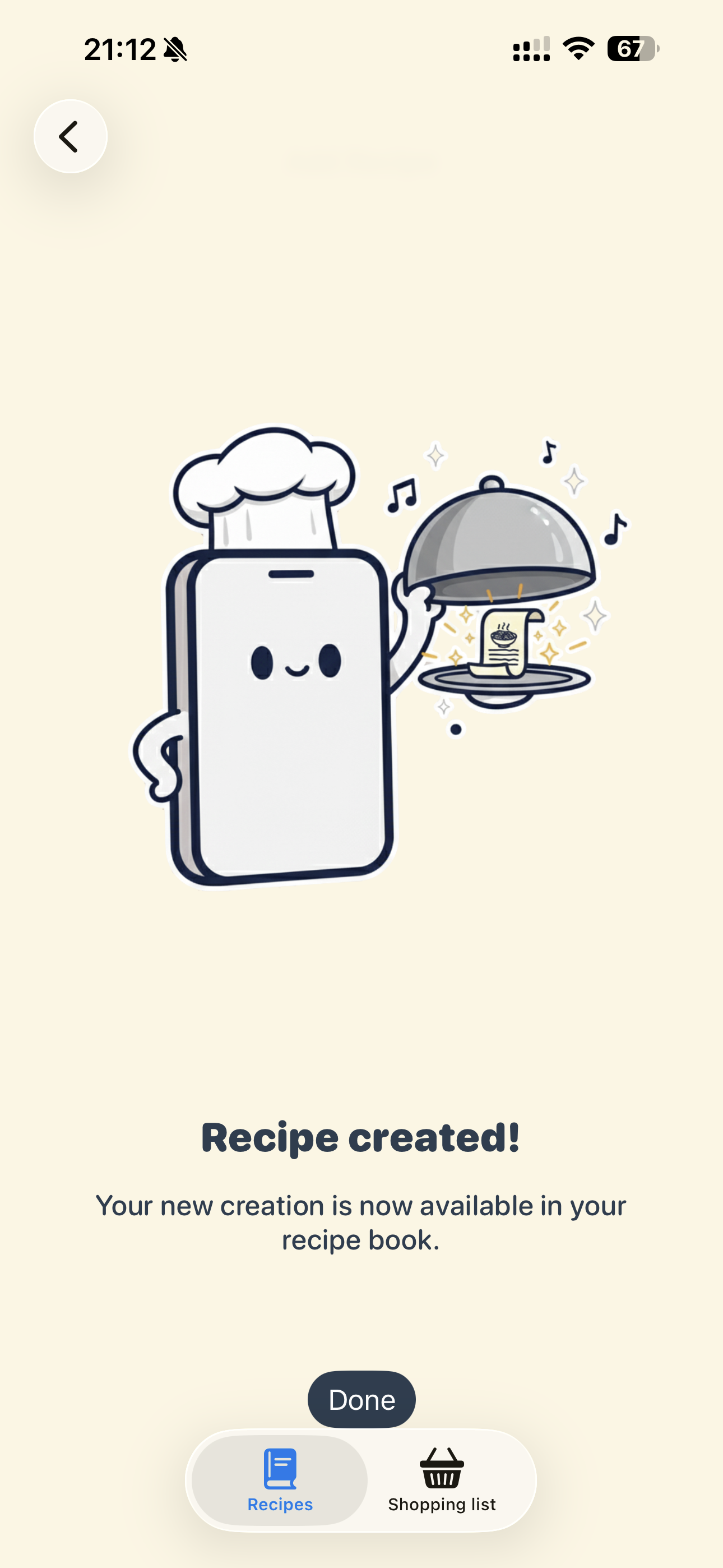
In less than a minute, your recipe will be saved forever in a specific location on your iPhone.
-
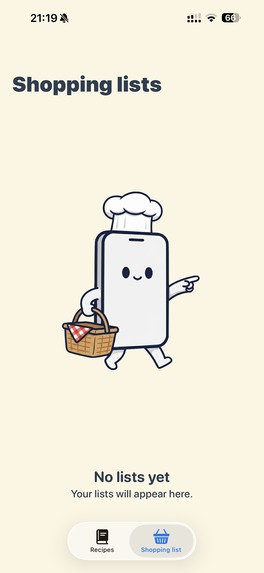
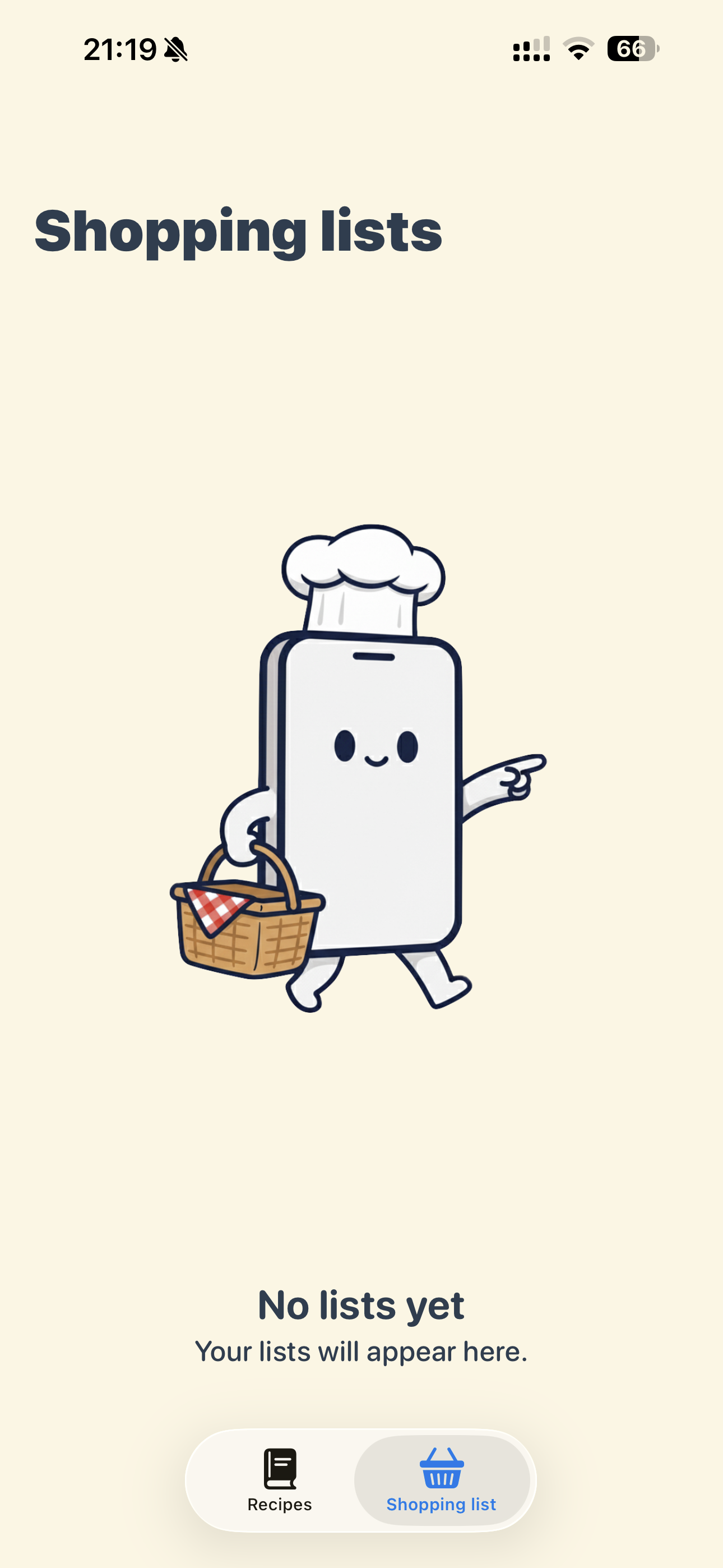
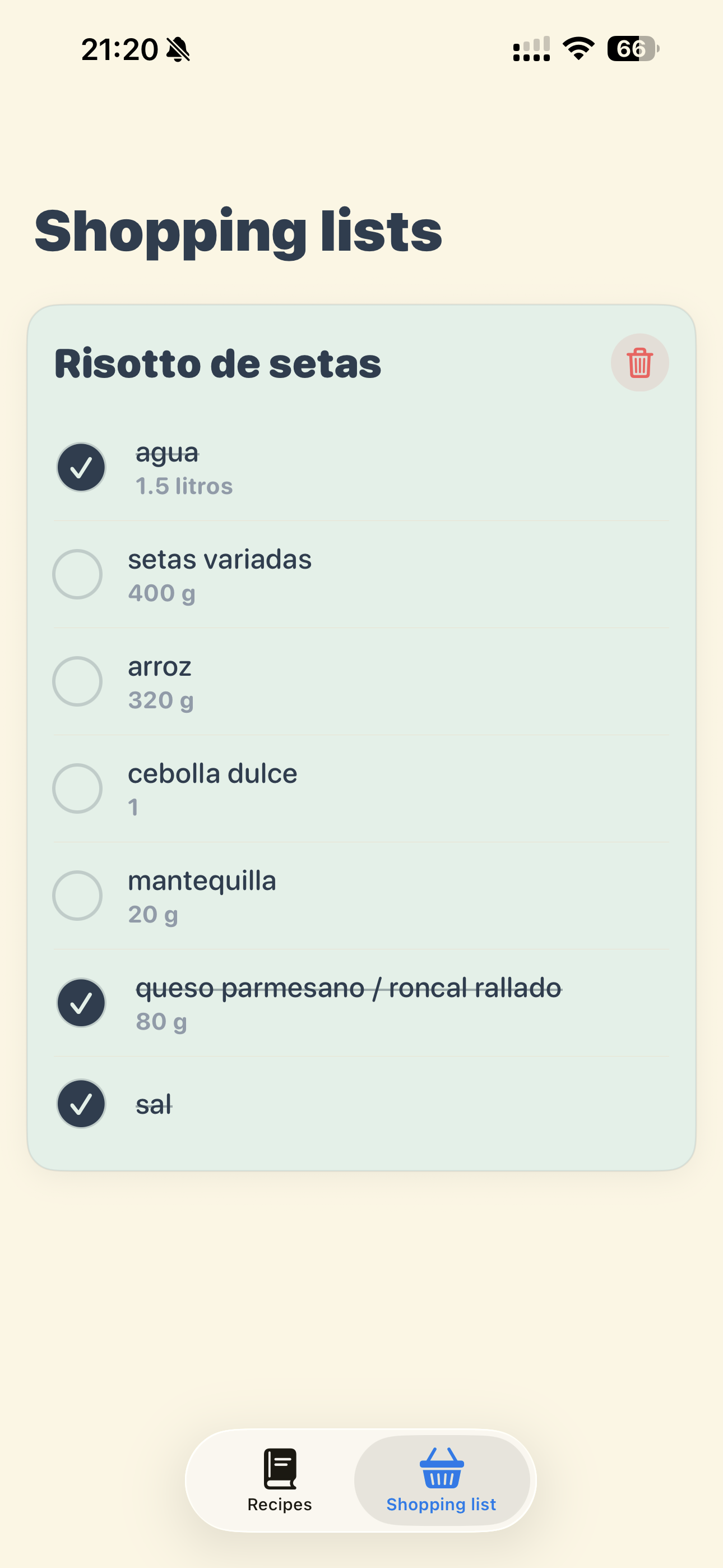
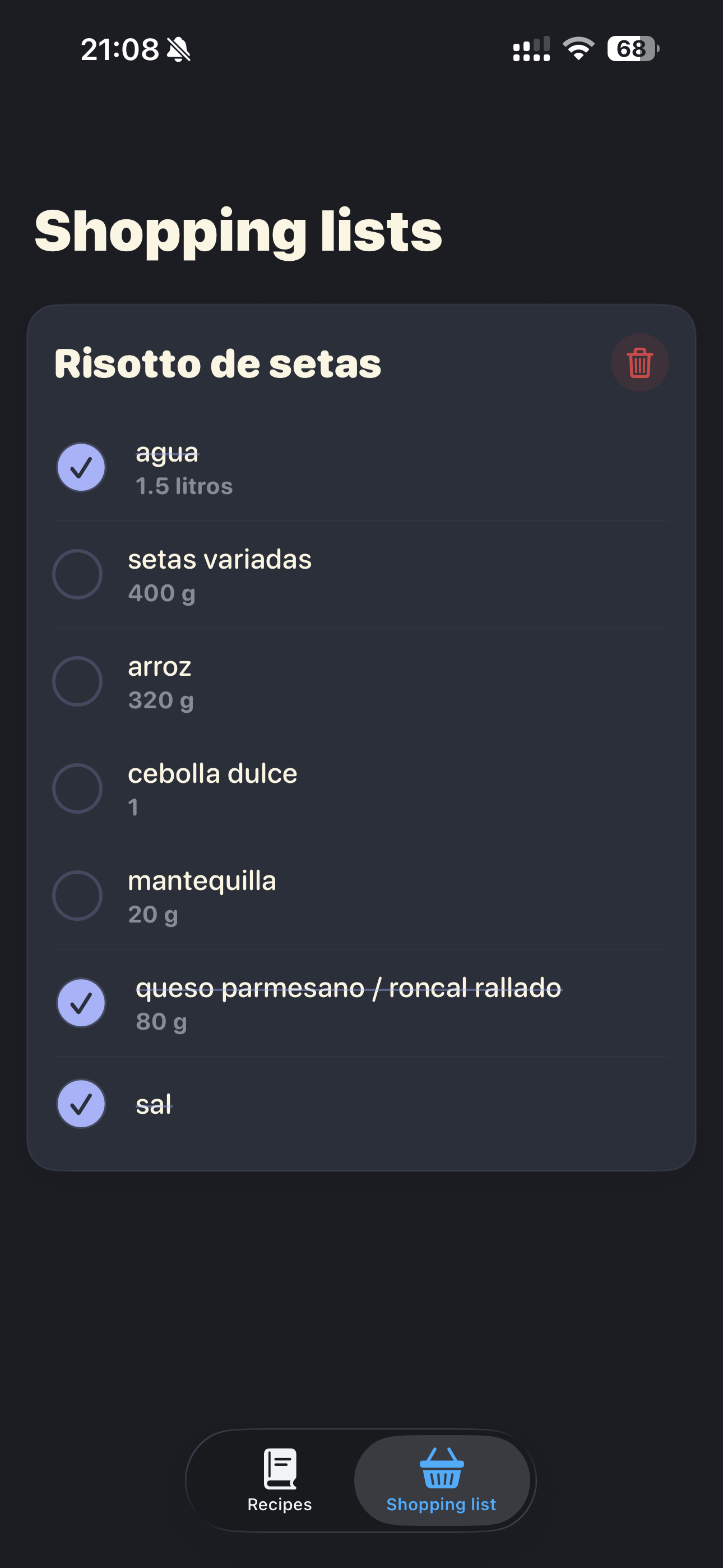
And you can always quickly create a shopping list for each recipe.
-
And you can always quickly create a shopping list for each recipe.
-
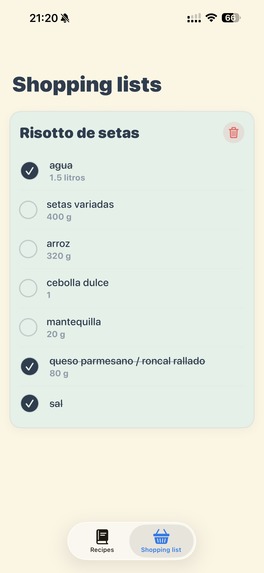
And you can always quickly create a shopping list for each recipe.
-
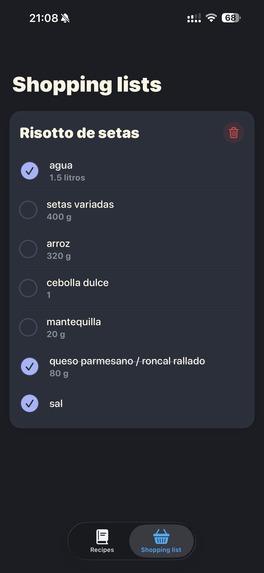
And you can always quickly create a shopping list for each recipe.
Inspiration
I usually release my frustrations and stress in the kitchen. There, the methodology of cooking and the joy of eating something I’ve made myself becomes a sort of trance and self-help that always makes me feel better. However, whenever I want to rescue old recipes my mother taught me or try a new one online… the flow gets interrupted. Physical recipes get wet, covered in oil, or can even get burned. On the other hand, many websites are so cluttered with ads and boilerplate text that it’s impossible to be efficient.
So, when I saw Eitan’s video… it was love at first sight. I had to build exactly that: an app that brought all that recipe chaos into a specific, orderly, intimate, and functional place. That’s why I created Paper Chef.
What it does
Exactly what I just mentioned: it brings a whole world of recipes into one single place. To achieve this, you can either scan physical recipes using your iPhone’s camera or import a URL of your favorite recipe from the Internet. An OpenAI API reads that raw text and returns a draft that the user can further edit or add notes to. There is also an option to enter recipes manually from scratch.
Additionally, in the final days of development, we managed to implement a grocery list system. No more taking photos or screenshots of recipes every time you go shopping and having them scattered all over your gallery.
How we built it
The primary language and framework used to create this iOS app were Swift and SwiftUI, respectively. Our app also utilizes the VisionKit framework to extract text from the iPhone’s integrated camera and send that text to a backend function.
This function is a Firebase Cloud Function service. It handles loading the OpenAI API key securely and uses it to transform raw text into a readable JSON for our app. Furthermore, we integrated Jina.ai to ensure fast and reliable scraping of any URL the user inserts.
And, of course, we used RevenueCat to manage the user’s subscription status and the paywall. Thanks to the tools provided by RevenueCat, we were able to easily control the callbacks when a user completes (or fails) a payment, allowing us to correctly manage the app's business logic.
Challenges we ran into
We knew our app had to offer the possibility of importing online recipes; we couldn't restrict ourselves solely to physical ones. But when we truly understood the complexity of scraping any recipe website… we almost gave up. Luckily, we found Jina.ai, which solved the entire problem by simply using
reader_url = f"https://r.jina.ai/{url}"
Accomplishments that we're proud of
We have created a self-contained, simple, and functional app. In just a couple of days, we made a Figma sketch that went from A to Z, and we managed to implement every single point. We are very proud to present our first project to Devpost. Moreover, it makes us infinitely happy to have created something that we ourselves now use in the kitchen or while shopping.
On the technical side, we are glad to have successfully built that Firebase Function that securely stores our key using SecretParam.
What we learned
At an architectural level, we learned to clearly differentiate business logic from the Data and Presentation layers. It is very tempting to use SwiftData directly in the views or import RevenueCat just to fetch CustomerInfo.
We also enjoyed learning how to use the OCR scanner (for text extraction) offered by VisionKit. It saved us many tokens by avoiding having to send an image instead of text to OpenAI. Finally, sticking to an MVP within a defined timeframe isn't always easy during the daily hustle of life, so we learned how to manage our time effectively.
What's next for Paper Chef
Organization and interactivity. On one hand, we are aware that as the number of recipes in the app grows, our current search bar won't be enough. We need to add filters and allow the user to organize by tags—imagine searching by books, breakfasts, or specific ingredients.
On the other hand, we plan to add timers, voice control, and a dedicated "Cooking Mode" for when the user is actively following a recipe.


Log in or sign up for Devpost to join the conversation.