-
-
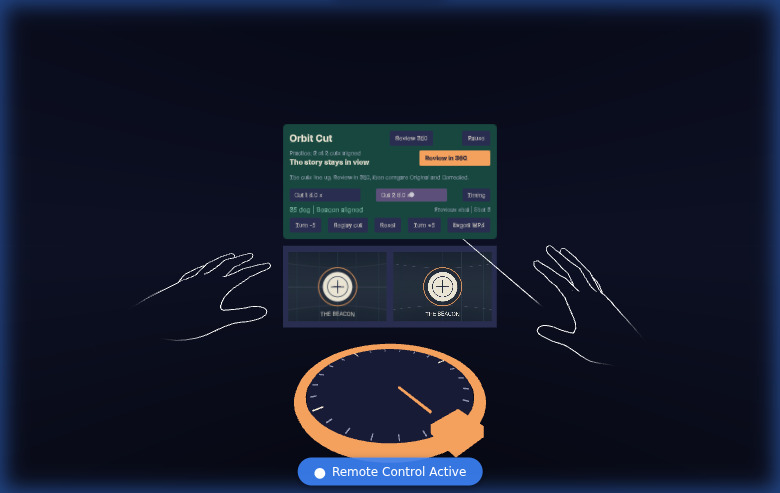
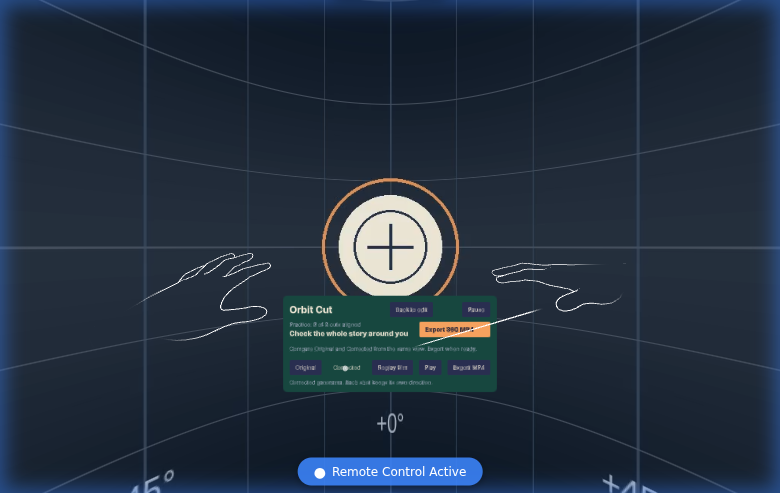
Two cut points. Keep the subject in view with the orange hand wheel.
-
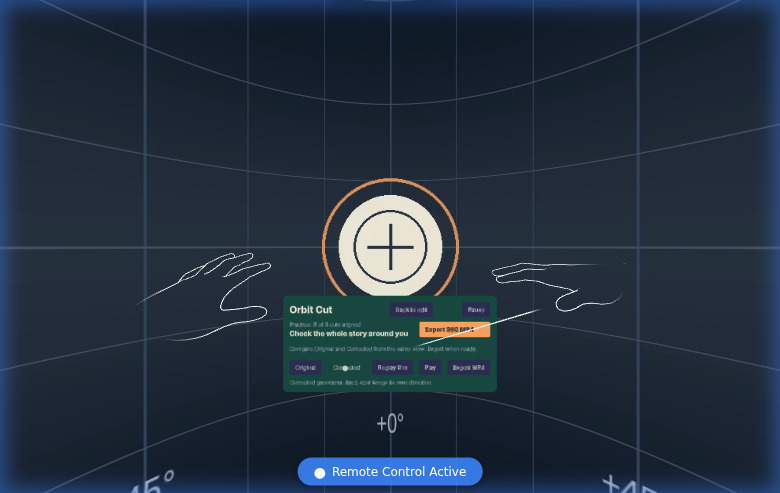
Compare Original and Corrected from the same viewing direction.
-
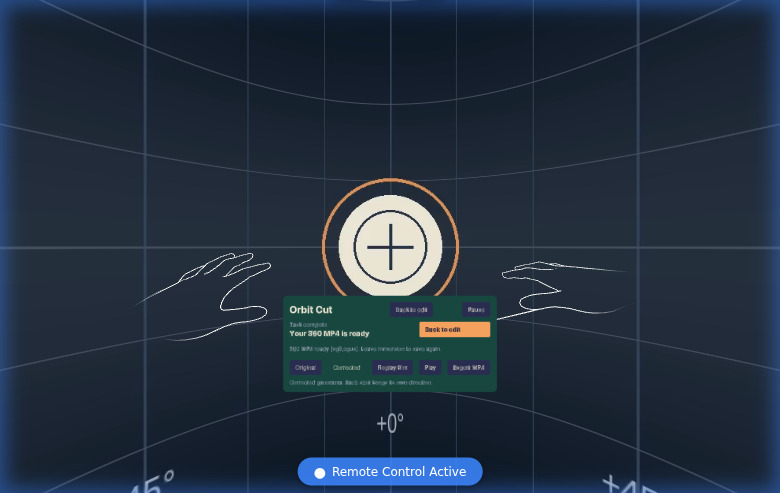
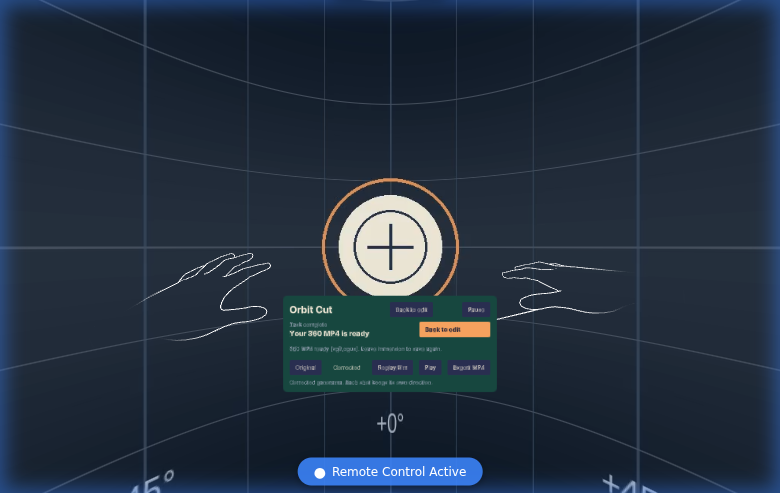
Both cuts aligned; review, export with sound, and reopen the 360° MP4.
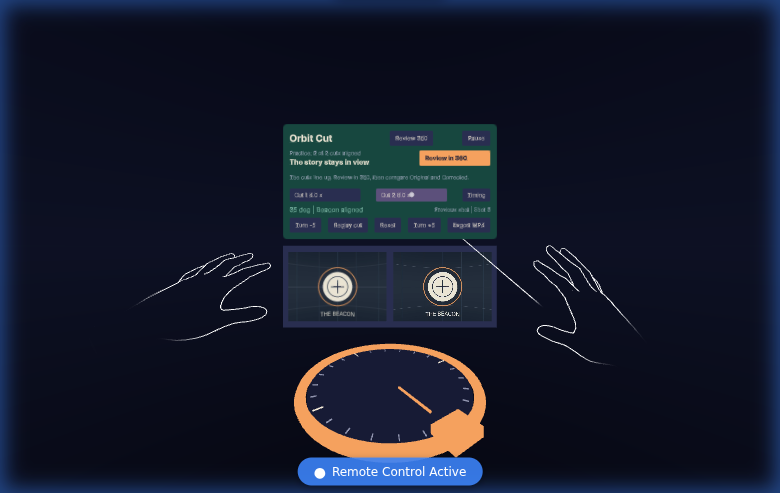
Keep the story in view
The next shot starts. The landmark you were following has jumped behind you. In a 360° film, a good cut depends on where the viewer is looking.
Orbit Cut is a seated, hands-first finishing workbench for that moment. It helps educators, documentary makers and virtual-tour editors preserve the viewer's direction across two cuts, then leave with a corrected 360° MP4, including sound.
Two matching lenses show the corrected previous shot and the incoming shot. Pinch the orange wheel and turn until the subject lines up. Each cut keeps its own correction, and the preceding shot remains the reference. Open panoramic review to watch Original and Corrected from the same viewing direction. The difference is immediate: the story stays where you are looking.
The built-in twelve-second film makes the task easy to reproduce: align the beacon at two cuts, watch progress reach two of two, then follow the orange next-step button into review and export. Pause and Continue retain your film, selected cut and edits in the current tab. An interrupted export can be restarted from those edits.
Open your own monoscopic 2:1 MP4, or use the attributed waterfall practice clip. Processing happens in your browser. Export renders the rotations into the video pixels, carries the soundtrack and adds explicit equirectangular 360° metadata. Save and reopen the result in Orbit Cut to review the changes in the file itself. FFmpeg and MediaInfo also recognize the exported projection.
The fifty-second flight exercise provides a longer real-camera task: restore two deliberately changed headings, export the whole film with its soundtrack, and compare a completed native export. The downloadable sample includes its source license and measured export/reopen results.
We built this new experience during the competition with TypeScript and Meta's Immersive Web SDK. WebXR provides immersive sessions in the browser; the workbench combines hand interaction, per-shot video rotation and browser-native recording. Development used AI coding tools. Published interaction evidence uses IWER, the SDK's browser-based immersive emulator, with emulated hand input. The current Chromium export path produces VP9/Opus review MP4s; compatible browsers can select H.264/AAC.
The preview is live. Our target is a public WebXR beta on November 17, 2026. The next work centers on an independent editor completing the full task on Quest 3/3S, including their own camera footage. Their task results and device measurements will guide the next iteration of the workbench.
Hand interactions and the future of VR
Point and pinch to choose a cut, replay, compare, pause or export. Pinch and turn the orange wheel to rotate a shot; five-degree step controls provide finer adjustments. The seated layout keeps the reference views, controls and wheel together. Source-file selection and saving use the browser before and after immersion.
What excites us is putting an editing decision in the space where the audience will experience it. A creator can check a cut by looking around, make a physical adjustment with one hand, and take a useful film back into their existing workflow.
Judge's quick start
One-minute alignment challenge: keep the round beacon in the same direction through both cuts. Start with the included film.
- Open the workbench in the Quest browser and choose Enter immersive workbench.
- At Cut 1 (4 seconds), pinch and turn the wheel until the beacon matches between the two lenses. The correction is approximately −55°.
- Select Go to Cut 2 (8 seconds) and align it too, to approximately +35°. Progress reaches 2 of 2 cuts aligned.
- Select Review in 360. Watch Original, then Corrected, from the same direction. The corrected beacon stays in view across both cuts.
Finish the editing loop: try Pause → Continue, then Export 360 MP4. Export runs in real time, so allow roughly the twelve-second clip duration. Leave immersion, save the MP4, select Continue editing, and use Open 360 video to reopen it. Review the saved film and listen to its soundtrack. Keep the editing tab open to retain the current session.
For a device trial, use the eight-minute feedback task. The one-minute challenge is a suggested starting exercise; the linked trial asks independent testers to record their first-use time.
Built With
- canvas
- iwsdk
- mediarecorder
- three.js
- typescript
- web-audio
- webxr

Log in or sign up for Devpost to join the conversation.