-
-
OOPS! BOMB
-
AI Detective
-
Verified Submission
-
Anonymous AI Review + Collaboration Record
-
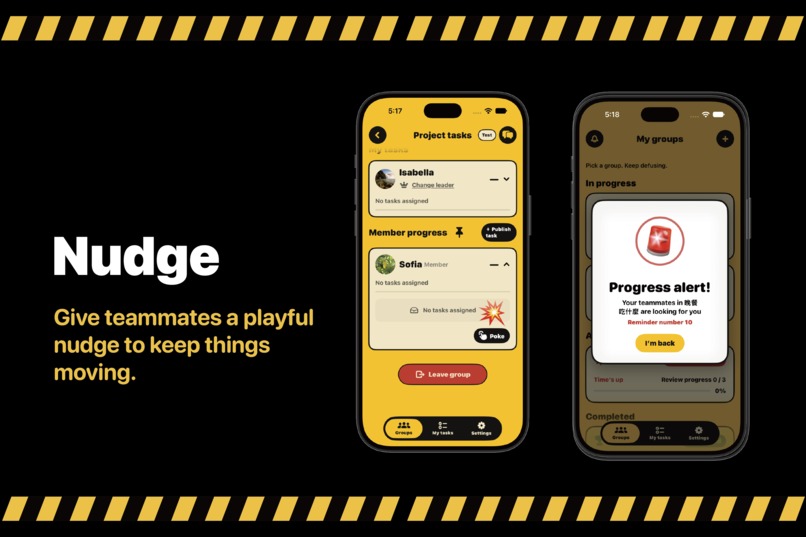
Nudge
-
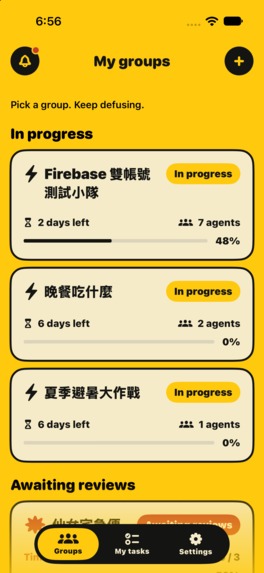
Home
-
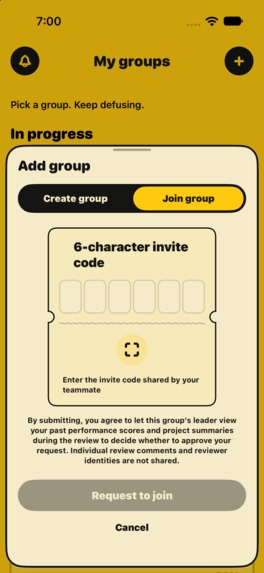
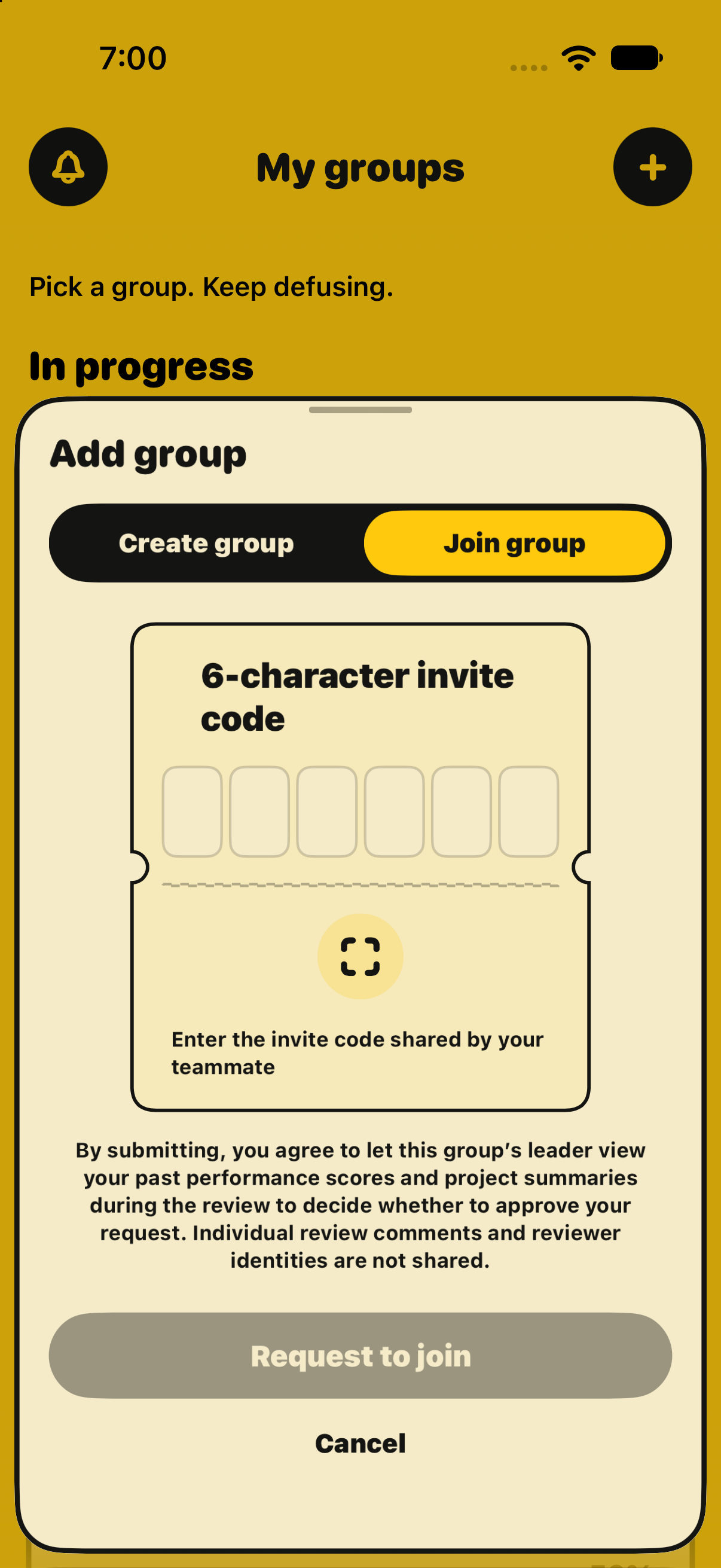
Join Group
-
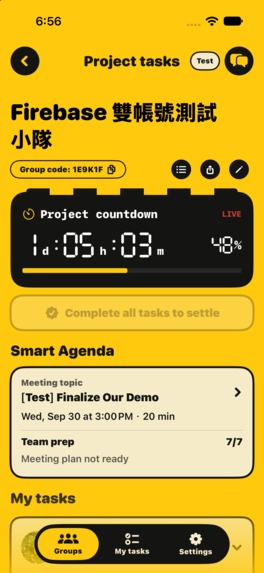
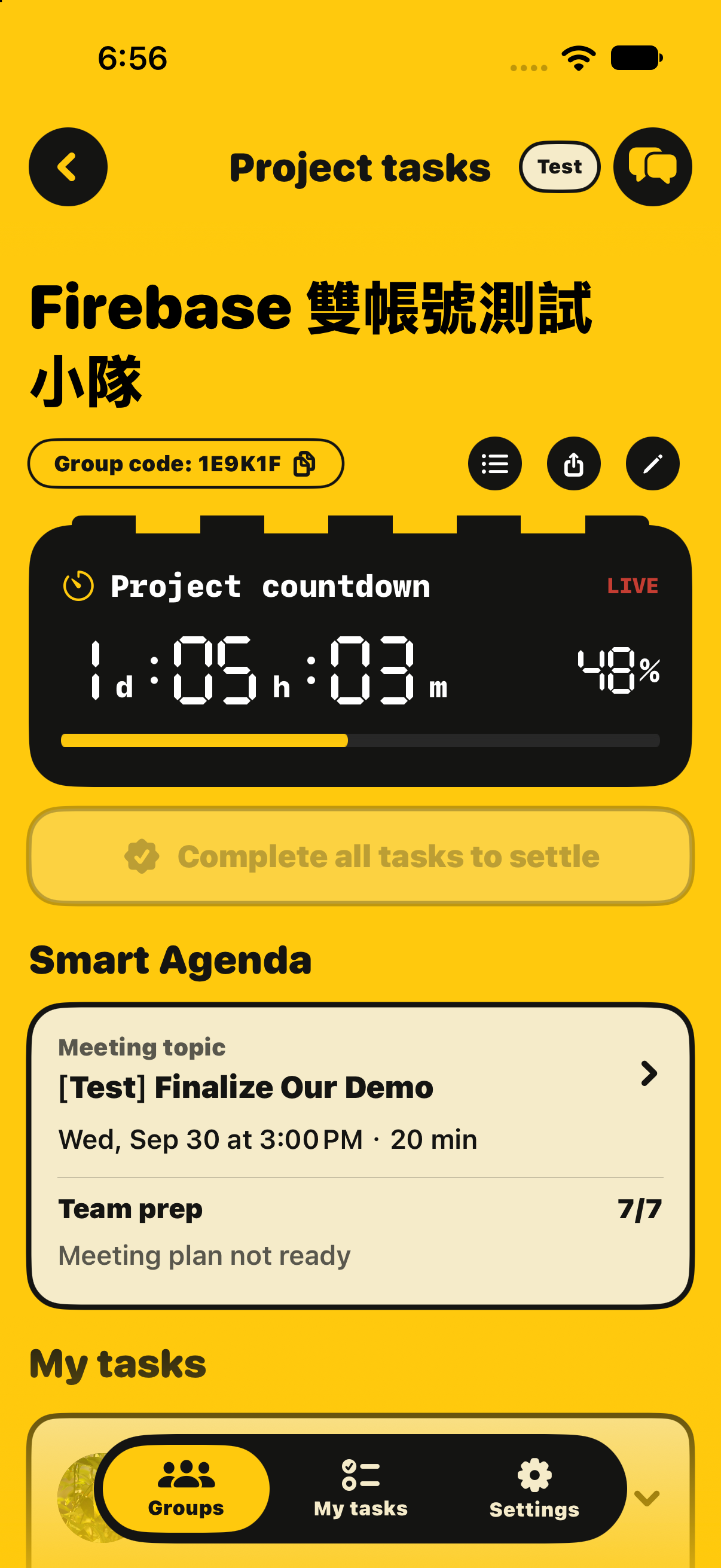
Project tasks
-
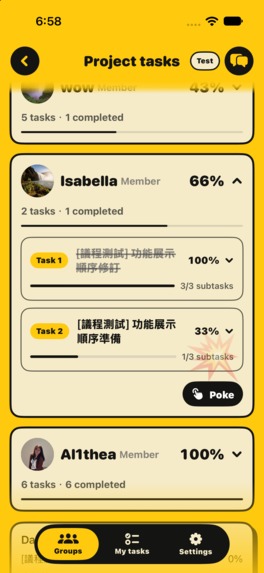
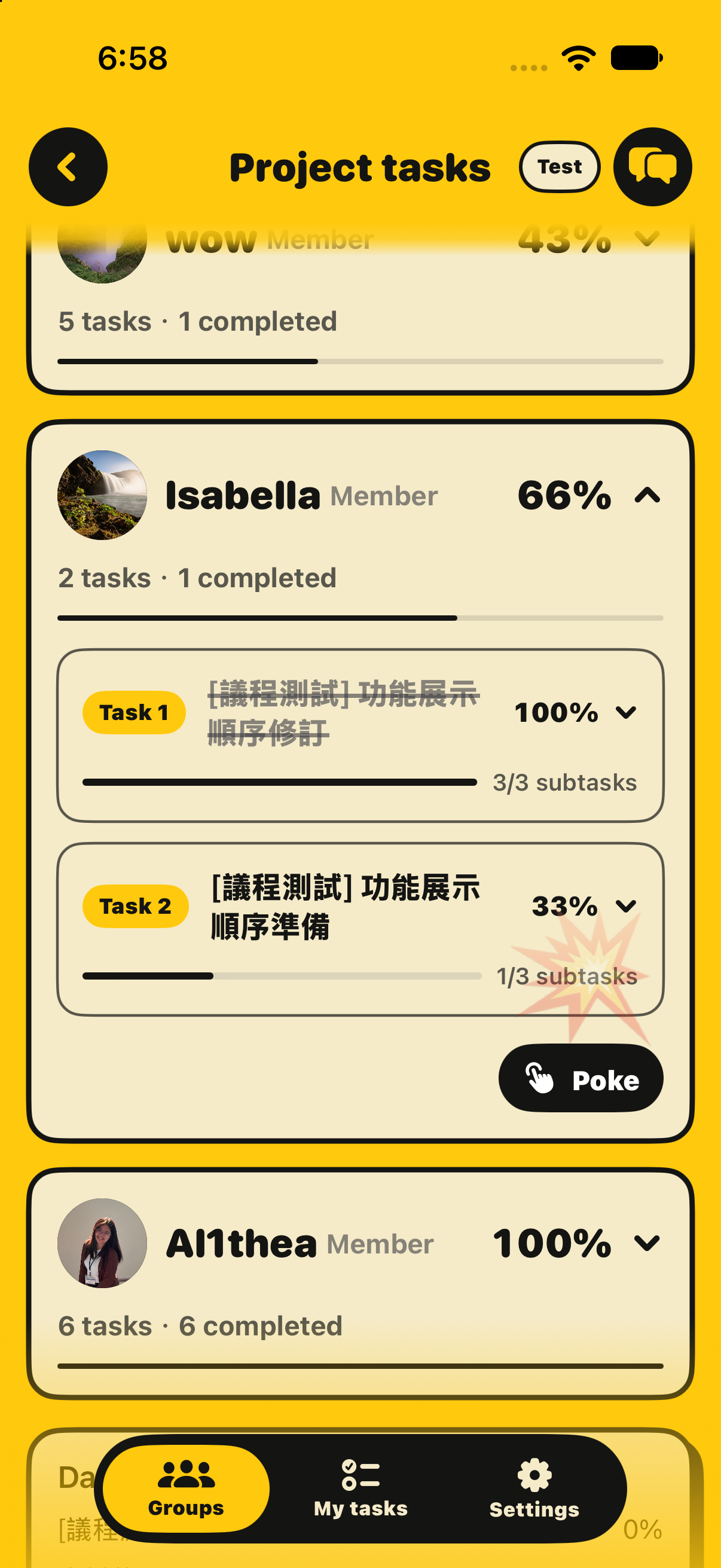
Nugde
-
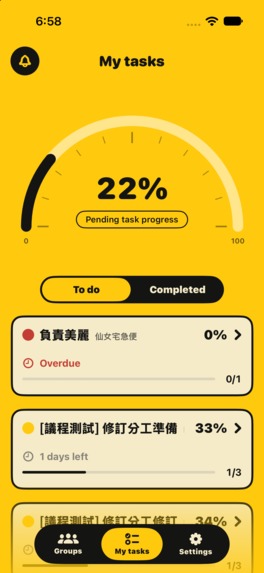
My tasks
-
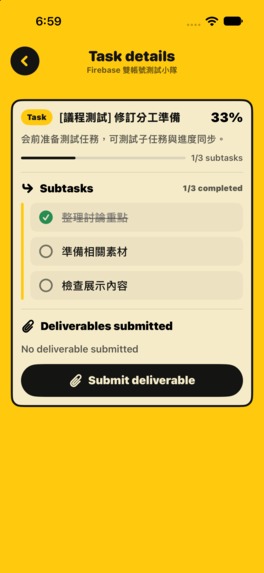
Task details
-
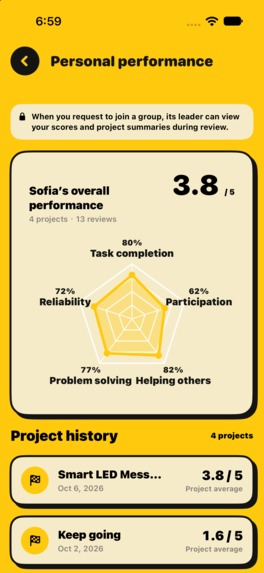
Personal performance
-
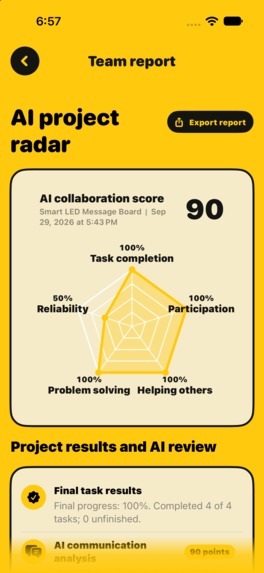
Team Report
-
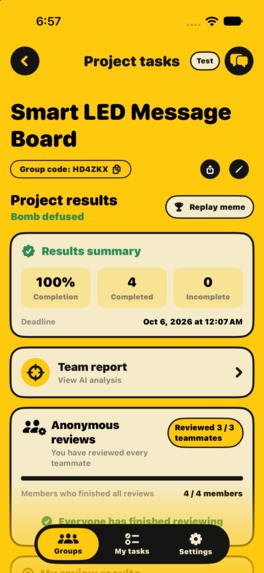
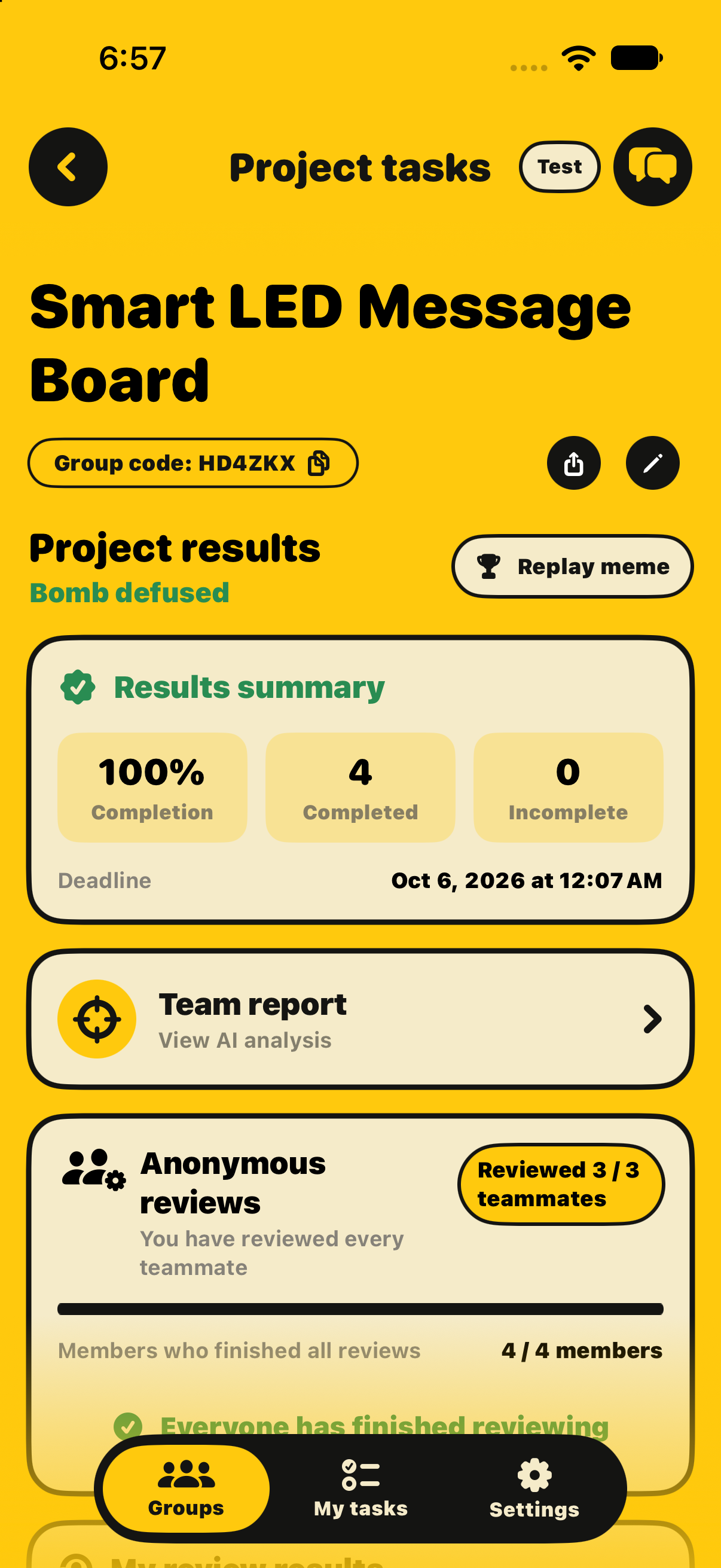
Project results
-
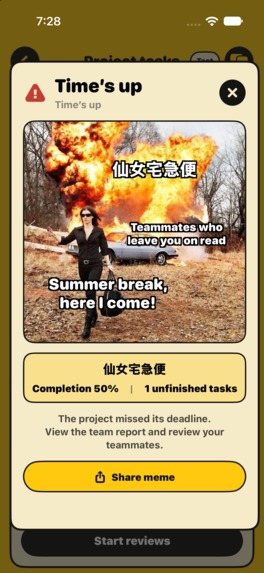
Meme
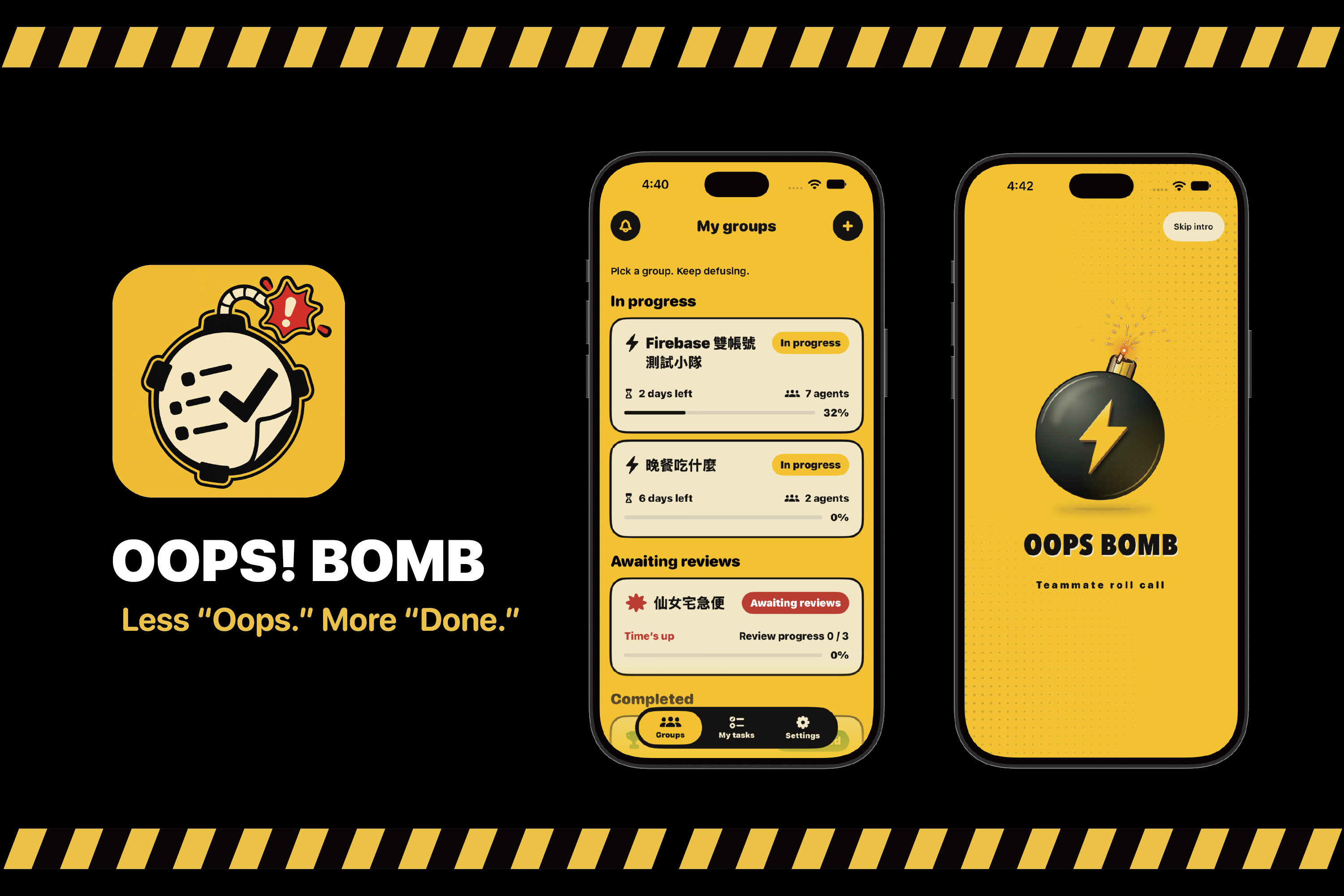
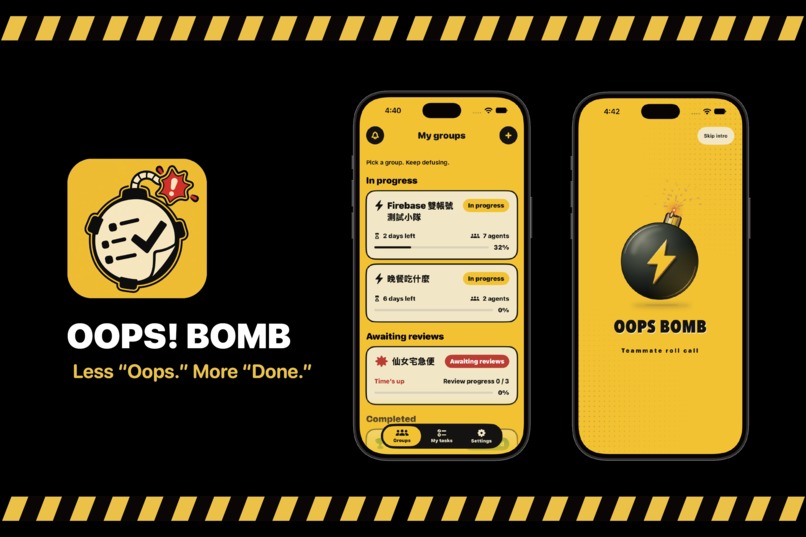
Oops! Bomb · 雷包點點名
Less “Oops.” More “Done.”
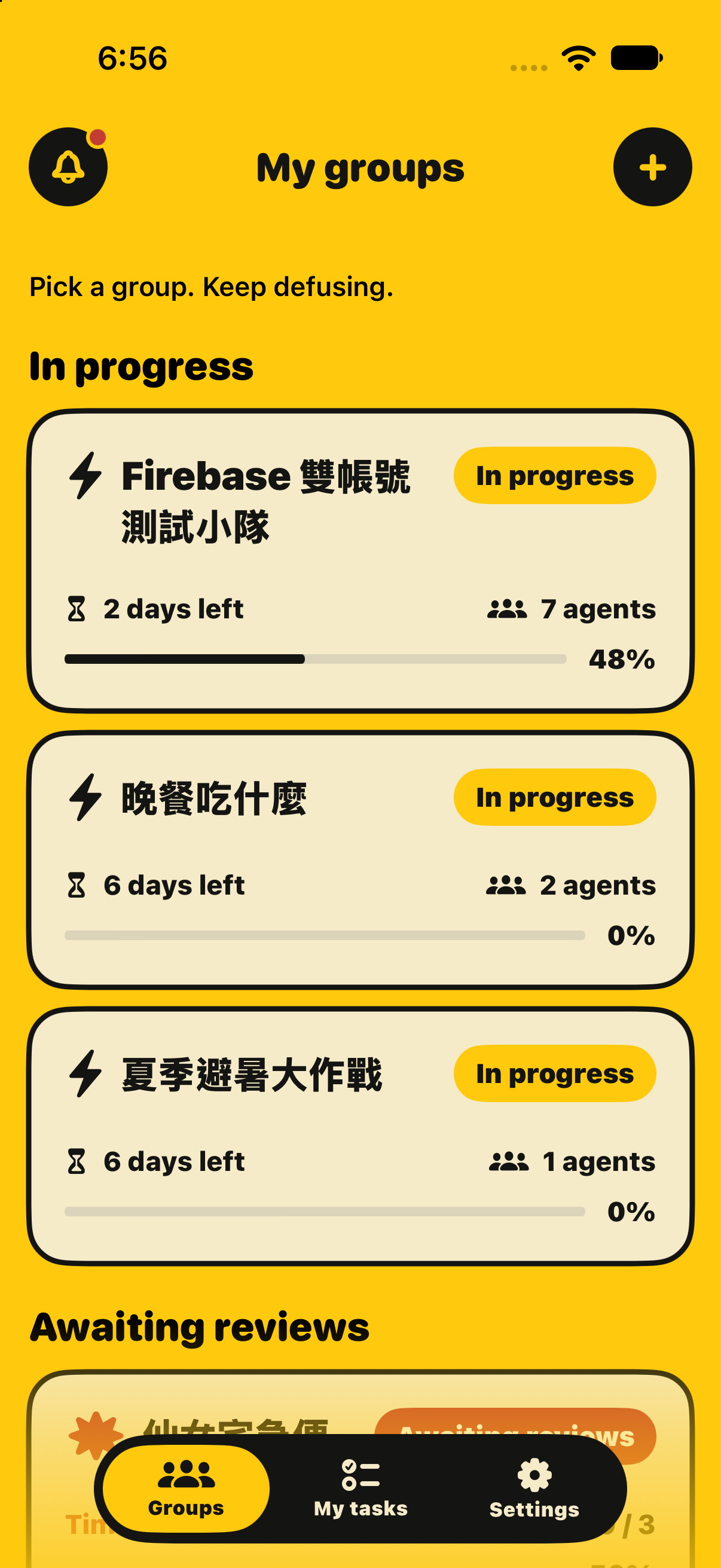
Oops! Bomb is a collaborative iOS app for teams working toward a shared deadline. It connects the work before, during, and after a project: choosing teammates, assigning responsibilities, preparing meetings, sharing proof of work, and learning from the collaboration.
Group projects often scatter important information across chats, files, and individual to-do lists. Oops! Bomb brings those pieces together so members can see what needs doing, what has been submitted, and what still needs the team's attention. Its yellow-and-black American retro design, bomb-themed countdown, and playful reminders give accountability a recognizable personality.
Built by Oops Lab.
Features
1. Teamwork Profile
Your teamwork leaves a track record.
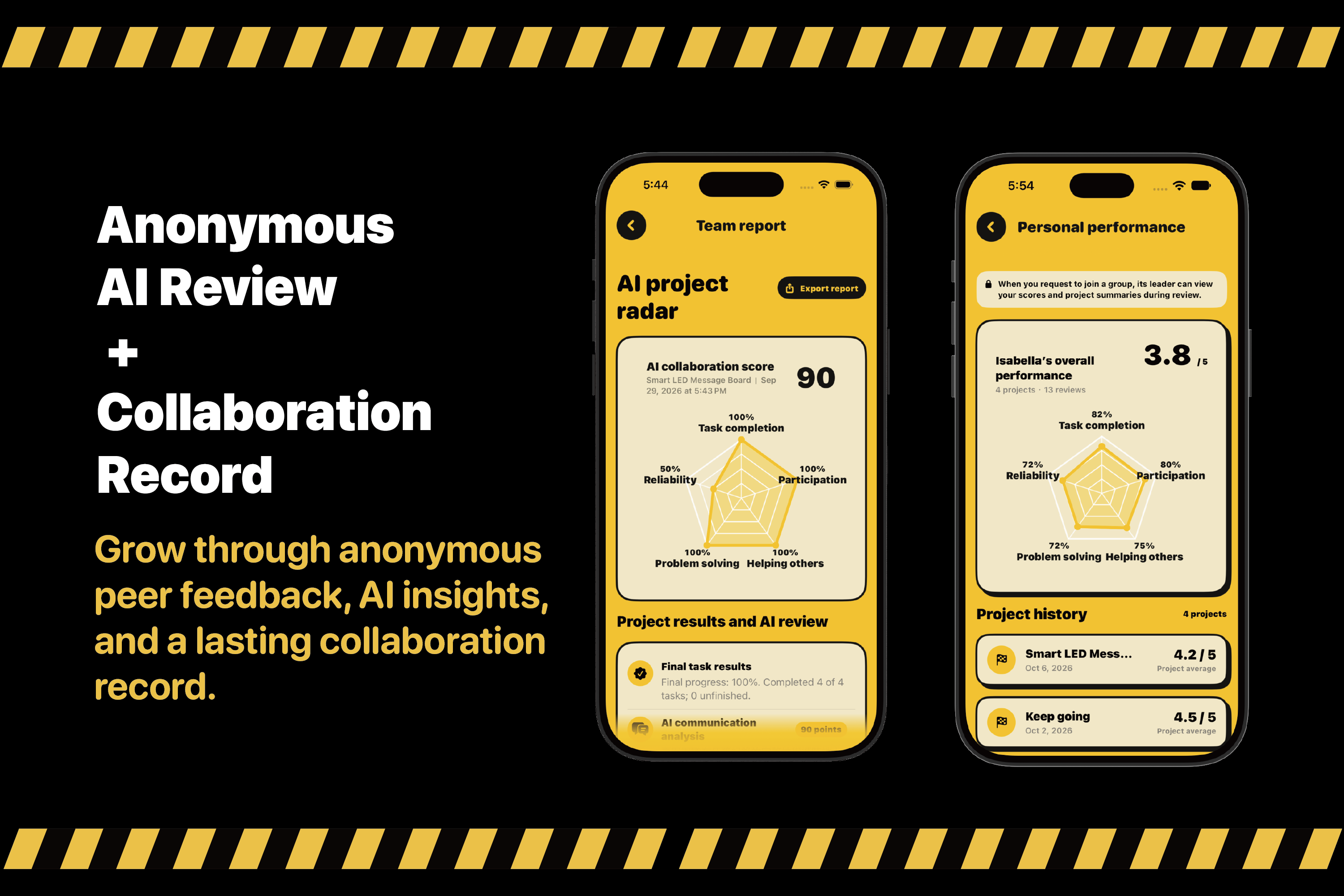
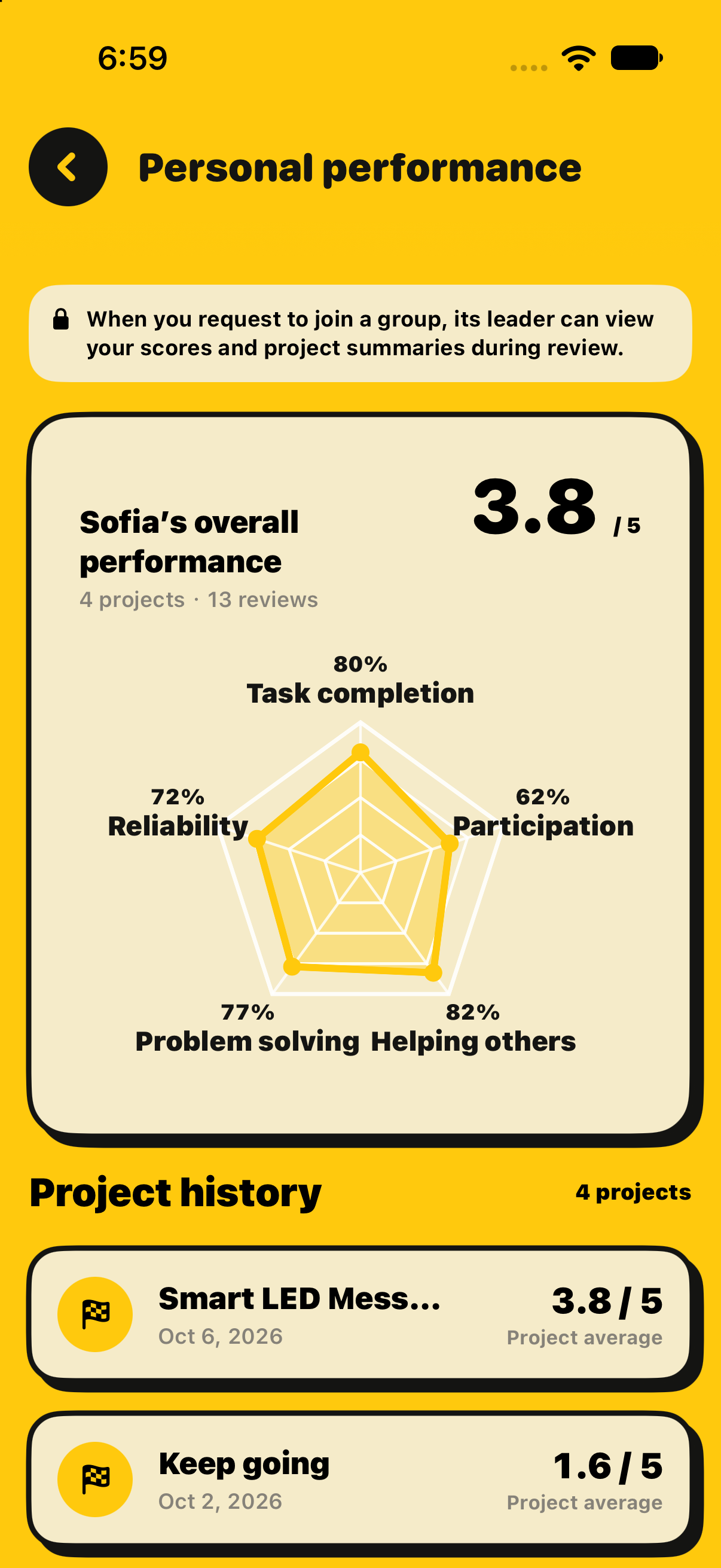
A project ends, but the experience of working together can inform the next one. Teamwork Profile brings a member's published peer-review results and project history into a personal collaboration record.
- View a five-dimension profile covering task completion, discussion participation, proactive help, problem solving, and reliability.
- Review results from individual projects alongside an overview of past collaboration.
- Export a personal performance report as a PDF.
- When applying to join a group, let its leader review the published performance summary and project history before approving the request. This view does not expose raw reviews, private comments, or reviewer identities.
This connects project feedback → collaboration history → more informed team formation. The profile reflects received peer feedback; it is not a guarantee of future performance.
2. My Tasks
Every task. Every project. One clear view.
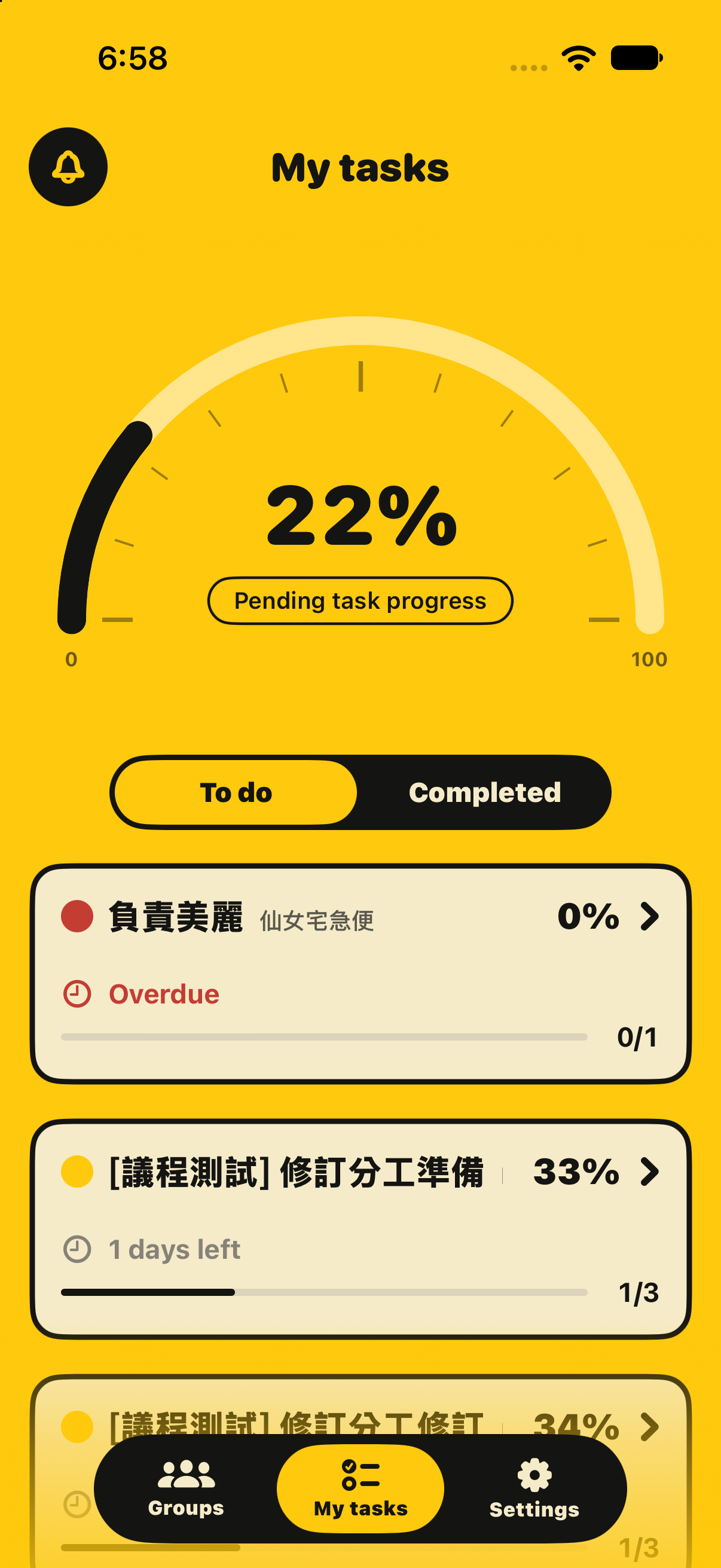
My Tasks collects the signed-in member's assignments across projects, making it easier to decide what to work on next without opening each group separately.
- Switch between pending and completed tasks, ordered by deadline.
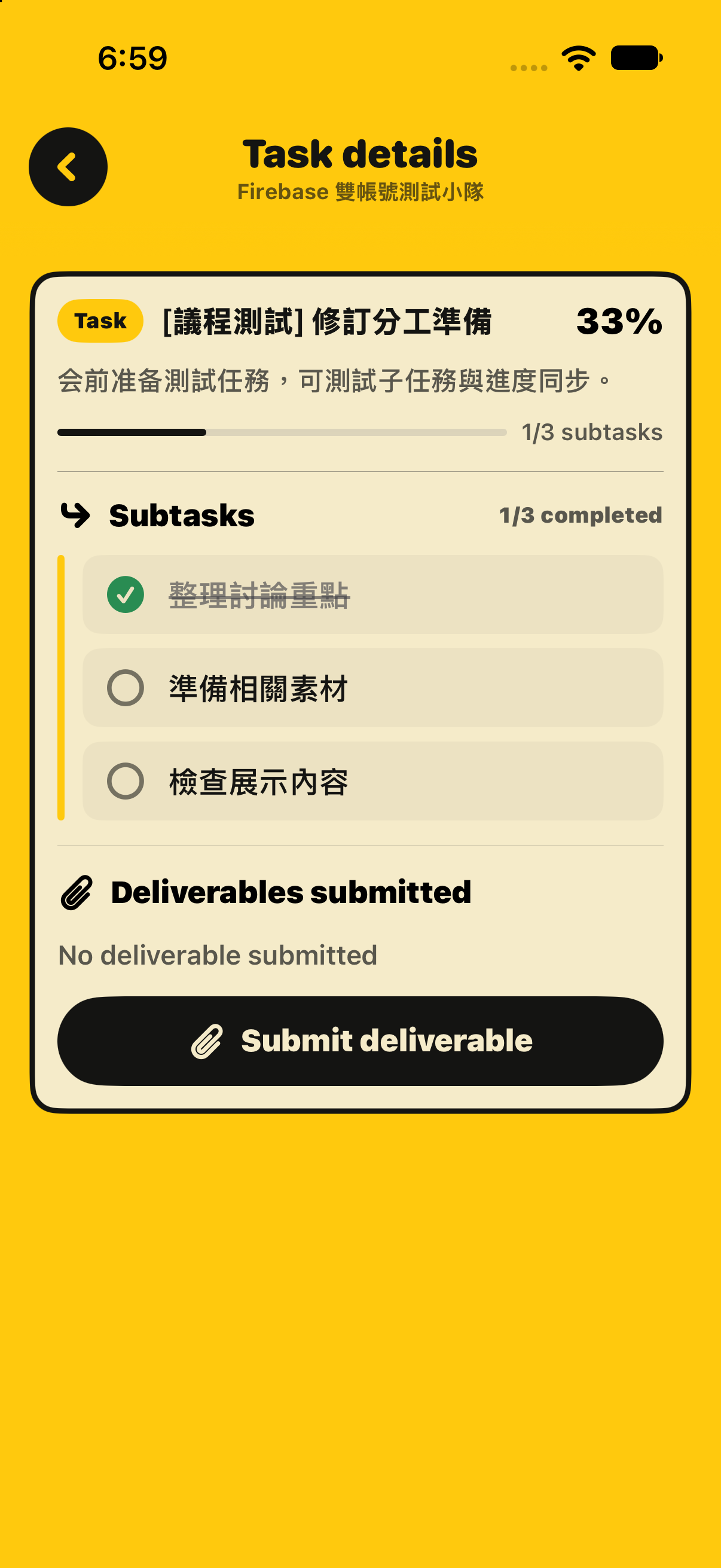
- Open a task to review its requirements, update subtasks, and manage deliverables.
- Check or uncheck a subtask to update its completion state. Weighted subtasks drive the displayed task percentage and feed member and project progress.
- See each assignment's project context rather than losing track of which team needs the work.
Home Screen widgets extend that view beyond the app. The My Tasks widget displays a compact checklist of pending work grouped by task, with a link back into My Tasks. A separate project widget shows countdowns and progress. Both use snapshots shared by the app.
Your next task, right where you can see it.
3. Smart Agenda
Come prepared. Stay on point.
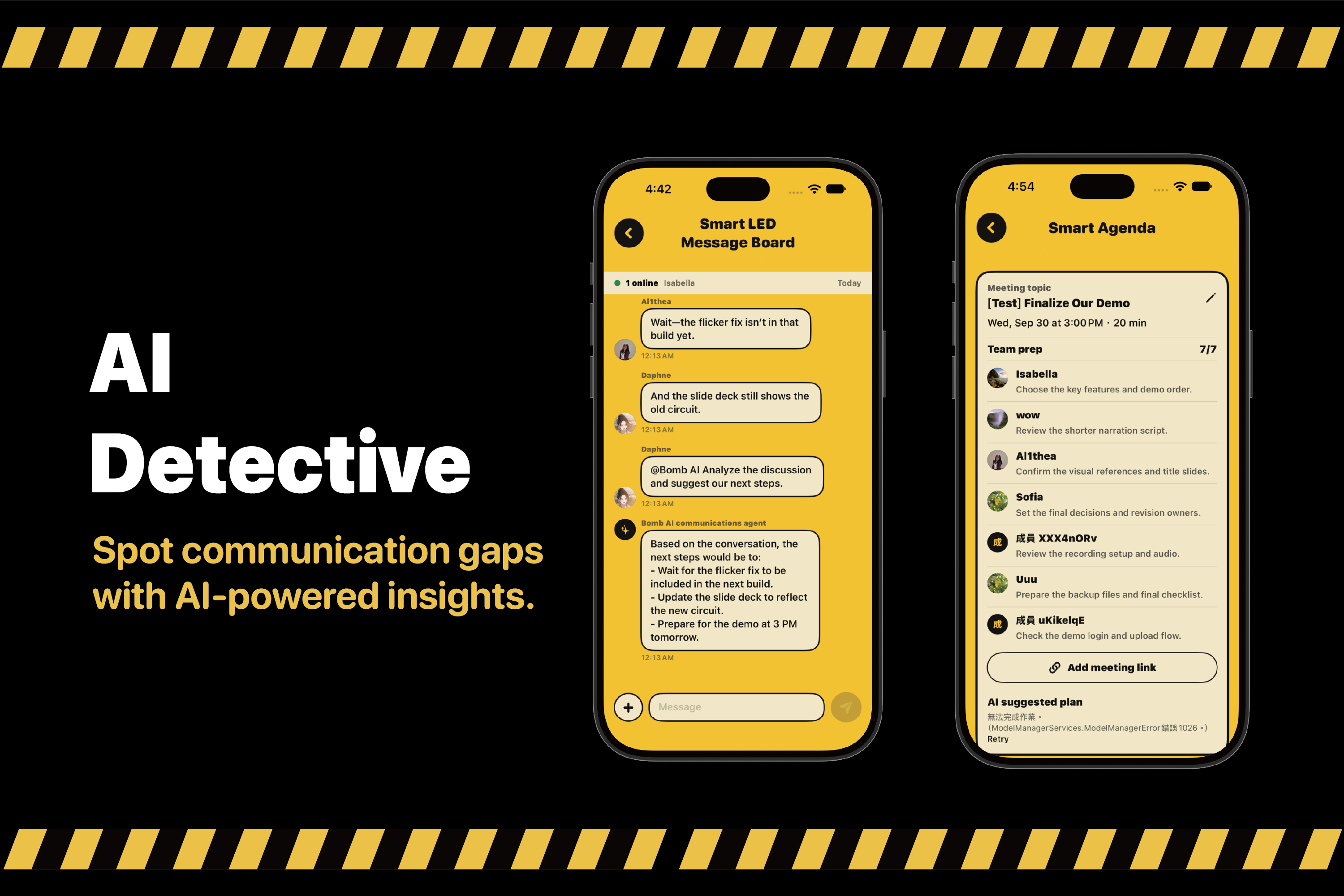
Smart Agenda, shown as 自動化議程 in the Traditional Chinese interface, combines meeting preparation with a time-limited discussion plan. It helps the team arrive with something to discuss and leave each phase with a concrete outcome.
Meeting setup: The leader can create, edit, and delete multiple meetings within the same project. Each meeting has its own topic, date, time, duration, preparation materials, links, and plan.
Preparation and planning:
- The leader sets the meeting topic, date, time, and duration.
- Each member adds preparation notes, an attachment, or both. Members can edit only their own preparation.
- The agenda counts prepared members, including the leader. Additional entries from the same person do not inflate the count.
- Once everyone is prepared, a supported device uses Apple Intelligence to generate 3–4 phases, each with a time range, discussion topic, and concrete goal. Phase durations add up to the meeting's total length.
- Firebase validates and stores the plan so other members can view it, including on devices that cannot generate AI content themselves.
For example, a 20-minute meeting could allocate 5 minutes to reviewing materials, 7 minutes to deciding feature order, and 8 minutes to approving the next steps. This is an illustrative plan; actual output is generated from the team's preparation.
Before the meeting: Members can access shared meeting links, and a scheduled summary appears in group chat within the 30 minutes before the start. It highlights the topic, timing, prepared members, missing preparation, and available discussion topics.
Generation uses the meeting topic, duration, preparation notes, and attachment filenames. It does not analyze attachment contents. Model inference runs on the device; preparation and the generated plan are shared through Firebase.
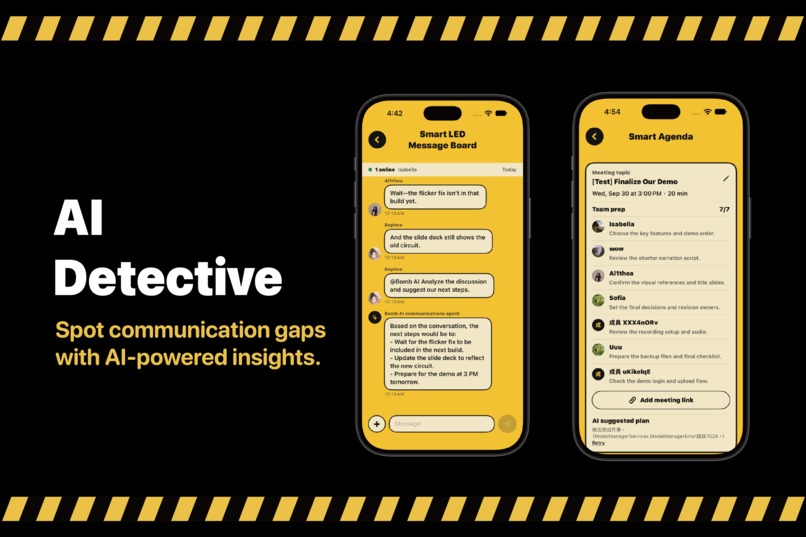
4. AI Detective
From messy chats to clear goals.
AI Detective brings a collaboration assistant into the group conversation. When ideas, questions, and competing suggestions pile up, members can ask for help interpreting the discussion and identifying a useful next step.
- Mention the assistant in chat or use its shortcuts to ask a question about the recent conversation.
- Ask it to summarize a disagreement, clarify the options, or suggest a shared objective. Suggestions appear in the conversation for the team to discuss.
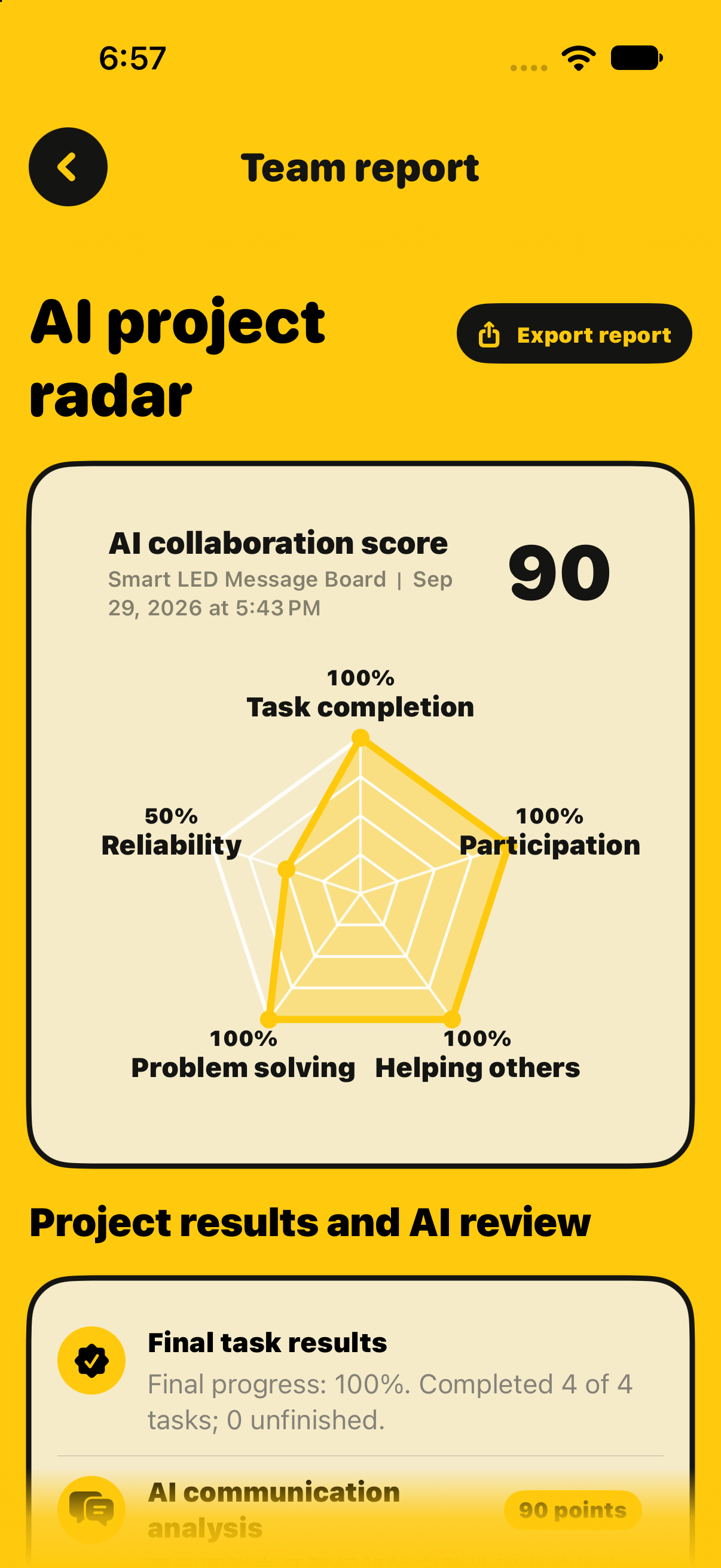
- Request project analysis using the team's task records and recent chat. The result includes a summary, strengths, improvement suggestions, and five project-level scores.
- Share the generated response or analysis through the group chat so the team can work from the same information.
The assistant uses Apple Intelligence on a supported device. It is instructed to use the supplied evidence and identify missing information. Its suggestions support the team's decisions; they do not automatically assign tasks, resolve disagreements, or change deadlines.
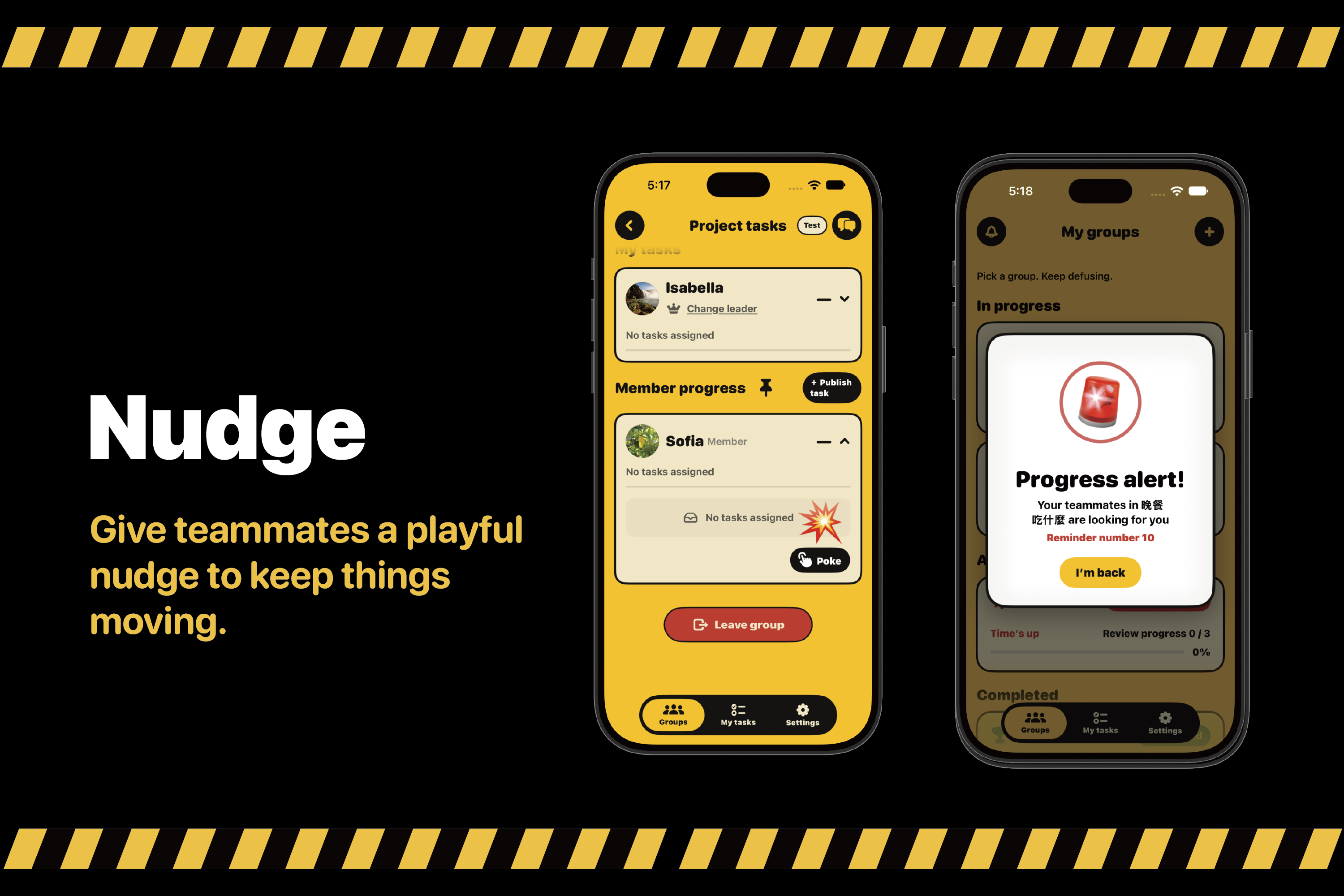
5. Nudge
Can't reach through the screen? Send a Nudge.
Nudge gives members a playful way to get a teammate's attention without typing another reminder into the chat.
- Send a poke to another member of the same group from the member-progress interface.
- Choose a reminder style that fits the moment, including a lighthearted meme-style nudge.
- Deliver the nudge through Firebase, with an in-app reception effect and push notifications when configured and permitted.
- Control poke reception in notification preferences.
It carries Oops! Bomb's humor into everyday coordination while keeping the recipient in control of notifications.
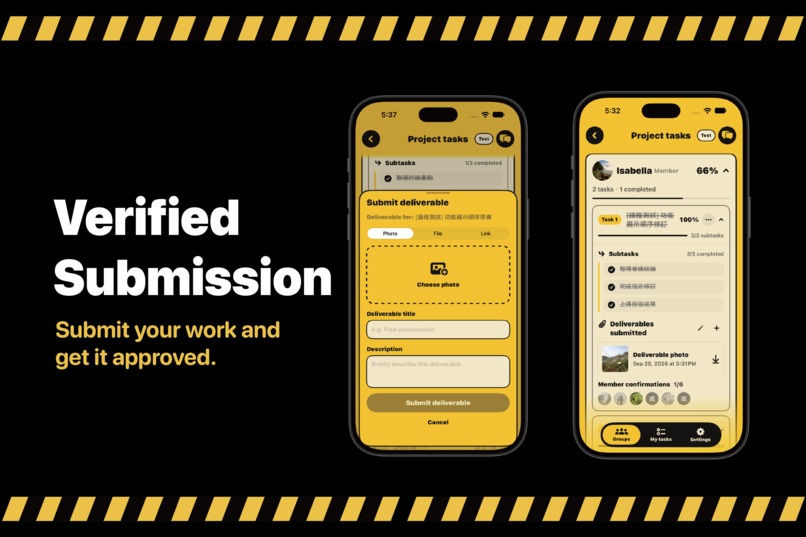
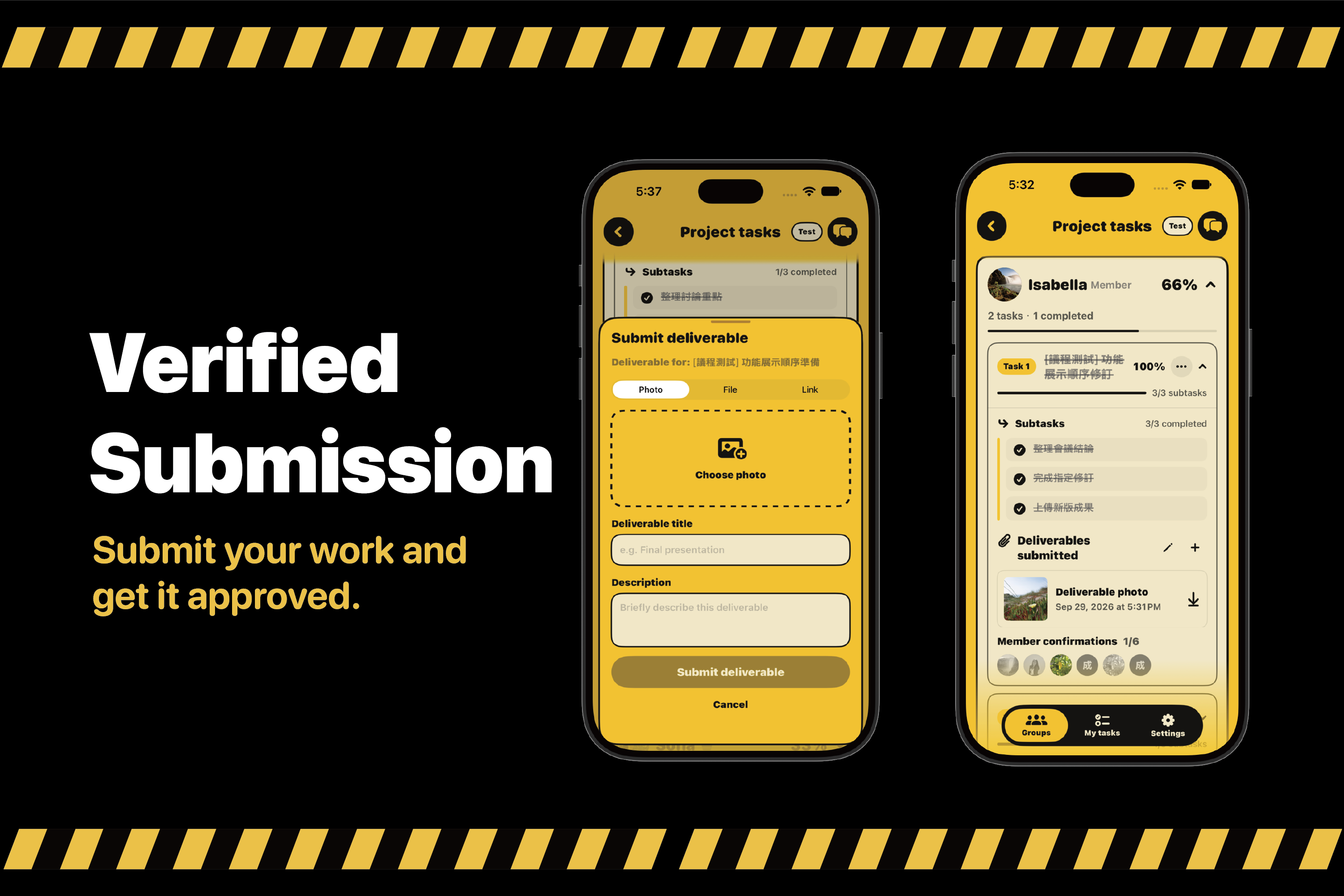
6. Verified Submission
It's not done until the team says it's done.
Finishing a checklist and having teammates accept the result are two distinct steps. Verified Submission connects a deliverable to the people who need to review it.
- The task owner completes the subtasks and uploads proof of work, or attaches an external result link.
- Other group members can open or download the shared submission.
- Each eligible teammate confirms the result. The task owner does not review their own task.
- The backend records verification against the current submission and marks its review complete when the required confirmations are present.
Reviewer avatars make the confirmation state visible: pending reviewers are dimmed, and confirmed reviewers are highlighted. Changing the checklist or replacing the current submission requires renewed confirmation, so an earlier approval does not silently carry over to different work.
Checklist percentages and submission verification are tracked separately: the percentage shows work progress, while confirmations record the team's acceptance of the deliverable.
No proof. No pass.
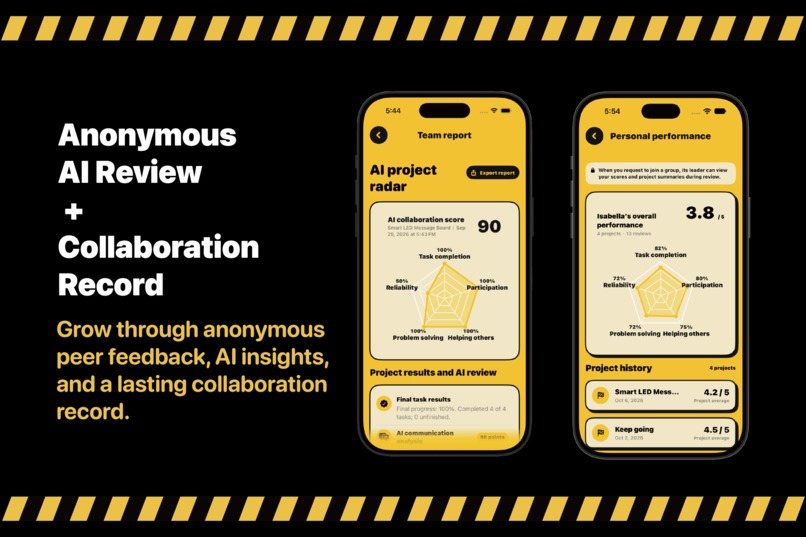
7. Anonymous AI Review
Speak honestly. Improve together.
The end-of-project experience combines two perspectives: anonymous feedback from teammates and AI analysis of the project's recorded work and discussion.
Anonymous peer review
- Members evaluate their teammates across five collaboration dimensions and can leave written feedback.
- The app tracks completion of the review round and releases results after all participating members have finished.
- Members see the feedback they received without reviewer identities. Published personal results contribute to their Teamwork Profile and project history.
AI project analysis
- Apple Intelligence uses task facts and team conversation to produce project-level scores, a summary, strengths, and improvement suggestions.
- The prompt asks for evidence-based assessment and explicitly identifies situations where information is insufficient.
- AI analysis is separate from peer-review calculations: private anonymous feedback is not sent to the model to generate those project scores.
Together, these views help teams reflect on what happened and carry useful lessons into the next project. AI output remains a reference for discussion, not an authoritative judgment of an individual.
8. AI Project Meme
Turn project chaos into a meme.
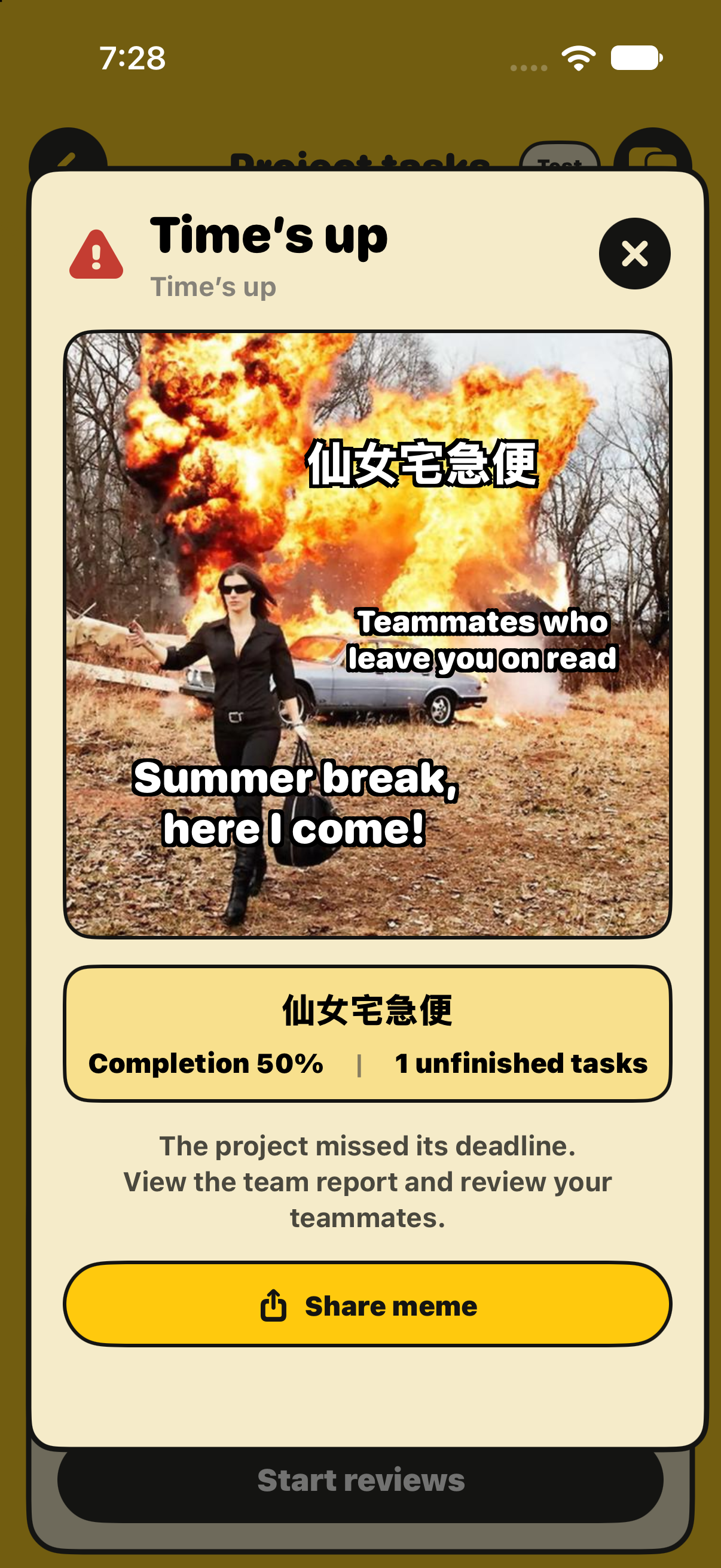
Project endings have a visual punchline. Oops! Bomb presents a project-specific meme when a project succeeds or reaches its deadline with unfinished work, keeping the outcome connected to the app's bomb-themed personality.
- Show the project's name in the outcome artwork.
- Use different success and unfinished-project presentations.
- Reopen the outcome meme from the settlement screen and share the rendered image.
Current implementation: This demo feature uses bundled artwork and programmatically composed project captions. Despite the demo chapter name, the current build does not generate new meme images with an AI model.
9. Project Essentials
Everything your team needs, all in one place.
The everyday collaboration tools connect the feature highlights into a usable project workflow:
- Create and join: Set up a group and deadline, share its code or QR invitation, and manage join requests. The creator becomes the initial leader.
- Assign and organize: Publish tasks, select owners, add weighted subtasks, and edit task details. Pin a member's card in the progress list and keep the project countdown visible.
- Upload and share: Add multiple attachments, manage their titles and descriptions, replace or delete files, and share external links. Firebase Storage stores file contents, while Firestore stores their shared metadata.
- Keep membership current: Transfer leadership, vote for a replacement when needed, and decide whether departed members' archived work remains in project progress. Rejoining members start without taking back their old assignments.
- Stay connected: Use group chat, read receipts, pinned messages, deadline reminders, and a notification inbox.
- Make it personal: Set a nickname and photo, use English or Traditional Chinese, and choose notification preferences. The interface can follow the system language.
These features use the same project and member data, so task details, attachments, preparation, and review state can be shared across accounts and devices through Firebase.
Supported attachments
| Location | Formats |
|---|---|
| Task deliverables | PNG, JPG/JPEG, PDF, DOCX, PPTX, XLSX, ZIP, and external links |
| Agenda preparation | PNG, JPG/JPEG, PDF, DOCX, PPTX, XLSX, ZIP, MOV, and MP4 |
Files must be non-empty and no larger than 20 MB. Task PNG and JPEG uploads preserve their original format and bytes. Profile photos are resized and stored separately as JPEG.
Tech Stack
| Area | Technology |
|---|---|
| iOS app | Swift, SwiftUI, Swift Observation |
| On-device AI | Apple Intelligence through the Foundation Models framework |
| Authentication | Firebase Authentication: email/password and anonymous sessions |
| Shared data and files | Cloud Firestore, Firebase Storage, Security Rules |
| Backend | Cloud Functions for Firebase, Node.js 22, scheduled meeting reminders |
| Notifications | Firebase Cloud Messaging, APNs, UserNotifications |
| App verification | Firebase App Check: debug provider in Debug, App Attest in Release |
| Widgets | WidgetKit and a shared App Group |
| Dependencies | Swift Package Manager and npm |
The current app does not integrate RevenueCat or a subscription paywall. No RevenueCat configuration or OpenAI API key is required to run this version.
Setup Instructions
Requirements
- A Mac with Xcode 26.5 or later and the iOS 26.5 SDK. The app and widget currently target iOS 26.5+.
- An iOS 26.5+ simulator or compatible iPhone. Use a physical device to verify Apple Intelligence generation and push notifications.
- For AI features: Apple Intelligence must be supported, enabled, and fully downloaded. Agenda generation checks support for both English and Traditional Chinese. See Apple's Foundation Models documentation.
- Your own Firebase project with Authentication, Firestore, and Storage enabled. Deploying the backend requires the Firebase Blaze plan; cloud usage is billed to that project.
- Node.js 22, npm, and the Firebase CLI for backend setup. Use JDK 21+ for local emulator testing.
- An Apple development team with the capabilities needed to sign the app and widget when running on a physical device.
1. Clone the repository
git clone --branch main https://github.com/sylvia0716/Slacker-ios-summer-camp.git OopsBomb
cd OopsBomb
2. Configure Xcode signing and identifiers
Open group.xcodeproj and select the group scheme. Allow Xcode to resolve the Swift Package Manager dependencies.
In Signing & Capabilities, select your development team for both group and GroupBombWidget. Use bundle identifiers registered to your team. The repository currently uses con.sylvia.group and con.sylvia.group.widget.
Register a shared App Group and use the same identifier in all four locations:
group/group.entitlementsGroupBombWidget/GroupBombWidget.entitlementsgroup/Shared/Services/WidgetSnapshotStore.swiftGroupBombWidget/WidgetSnapshotStore.swift
The current App Group identifier is group.con.sylvia.group. Both targets must have access to the same group for widgets to receive app snapshots.
3. Configure your Firebase project
- Register an iOS app in the Firebase Console using the app bundle identifier from the previous step.
- Download its
GoogleService-Info.plistand replacegroup/GoogleService-Info.plist. Verify that the file belongs to the group app target. - In Authentication, enable Email/Password and Anonymous sign-in. Anonymous sign-in supports entering without an email account.
- Create the default Firestore database and a default Storage bucket.
- Configure App Check for your iOS app. For simulator/Debug builds, register the debug token printed by Xcode in your own Firebase project. Release builds use App Attest. See Firebase's debug-provider setup.
The checked-in Firebase configuration and .firebaserc reference the team's project. Replace the client configuration and explicitly select your own project for deployment.
4. Install and deploy the backend
From the repository root:
npm install -g firebase-tools
npm ci --prefix functions
firebase login

FIREBASE_PROJECT_ID="your-firebase-project-id"
firebase deploy --project "$FIREBASE_PROJECT_ID" \
  --only firestore:rules,firestore:indexes,storage,functions
Use the existing firebase.json; there is no need to initialize a new backend in this repository. The app calls Functions in asia-east1, matching the backend source. Deploy all exported functions so membership, tasks, account notification cleanup, agendas, and reminders are available together.
This deployment includes scheduled meeting reminders. Firestore indexes may take time to become ready. File access and data mutations rely on the supplied Security Rules and authenticated backend checks.
5. Configure push notifications and password reset
- Push notifications: Enable Push Notifications for the app identifier and upload your APNs authentication key to Firebase Cloud Messaging. Build with your team's signing configuration and allow notifications on the device. See Firebase's Apple-platform messaging setup.
- Password reset: The app sends reset emails through Firebase Authentication. Firebase's default reset page can be used without deploying a separate website.
- Optional branded reset page:
auth-web/contains a bilingual reset page and email templates. Before hosting your own copy, replace the project API configuration inauth-web/public/config.jsand the fallback Firebase action-page domain inauth-web/public/app.js. Follow the auth-web setup notes and configure your own Firebase email action URL.
6. Build and try the app
Select an iOS 26.5+ destination in Xcode and press Run using the group scheme.
For a collaboration walkthrough:
- Register two test accounts on your Firebase project.
- Create a group with the first account. Submit a join request from the second account using its invitation code, then approve it as the leader.
- Assign tasks and subtasks, upload a deliverable, and check that the other account can see it.
- Open the agenda-management icon beside Share, create a meeting, and submit preparation from both accounts.
- On an eligible device, generate the meeting plan and verify that the other account receives the saved result.
The simulator can exercise the interface and Firebase flows. If its system language model is unavailable, it cannot validate actual AI generation. Existing shared plans remain readable. Developer-only sample-data tools require an administrator-granted claim and are not part of normal registration; ordinary test accounts can create their own projects.
Run tests
From the repository root, after selecting the full Xcode toolchain:
export DEVELOPER_DIR=/Applications/Xcode.app/Contents/Developer

# Swift model, repository, localization, and state tests
swift test

# Backend unit tests
npm ci --prefix functions
node --test functions/*.test.js functions/*.test.cjs

# Firebase integration and Security Rules tests
npm ci --prefix firebase-rules-tests
firebase emulators:exec --project demo-group-bomb \
  --only auth,functions,firestore,storage \
  'npm --prefix firebase-rules-tests run test:rules'
The integration suite targets the local demo-group-bomb emulator project. Its endpoints are configured by the tests; starting emulators does not automatically redirect the iOS app away from the project in its plist.
Repository Structure
OopsBomb/
├── README.md              # Project overview and setup instructions
├── LICENSE                # MIT license
├── group/                 # SwiftUI app, models, stores, services, and resources
├── group.xcodeproj/       # App and widget targets; Swift package dependencies
├── GroupBombWidget/       # Project progress and My Tasks widgets
├── functions/             # Firebase backend and unit tests
├── firebase-rules-tests/  # Emulator integration and access-control tests
├── ios-cloud-tests/       # Swift tests
├── auth-web/              # Optional password-reset website and email templates
├── firebase.json          # Backend deployment and emulator configuration
├── firestore.rules
├── firestore.indexes.json
└── storage.rules
Demo
YouTube demo: Coming soon — the team will add the video link here.
The demo follows the nine feature chapters above, with particular attention to four moments:
| Highlight | What it demonstrates |
|---|---|
| AI Detective | A busy team conversation becomes a clearer question, discussion summary, or proposed shared goal. |
| Verified Submission | A member submits proof, teammates inspect it, and their confirmations become visible. |
| Anonymous AI Review + Teamwork Profile | A project closes with feedback, contributes to a collaboration record, and informs a future group's admission decision. |
| Nudge | A member sends a playful reminder and the teammate receives it. |
The walkthrough in Build and try the app covers the core collaboration and Smart Agenda flow.
Team
Oops Lab — the team behind Oops! Bomb / 雷包點點名.
License
This project's original code is licensed under the MIT License. See LICENSE for the full text.
Third-party dependencies and assets retain their respective licenses. The bundled DSEG font is licensed under the SIL Open Font License 1.1; its notice is included in DSEG-LICENSE.txt.

Log in or sign up for Devpost to join the conversation.