Inspiration
I once saw an older couple waiting in an airport queue. They seemed unsure what to do next, where to go, or whom to ask. They appeared to miss their flight.
Airport information is often shown on distant screens with small text. Travelers have to keep checking for changes. I wanted to make the next step easier to see and hear on a phone.
What it does
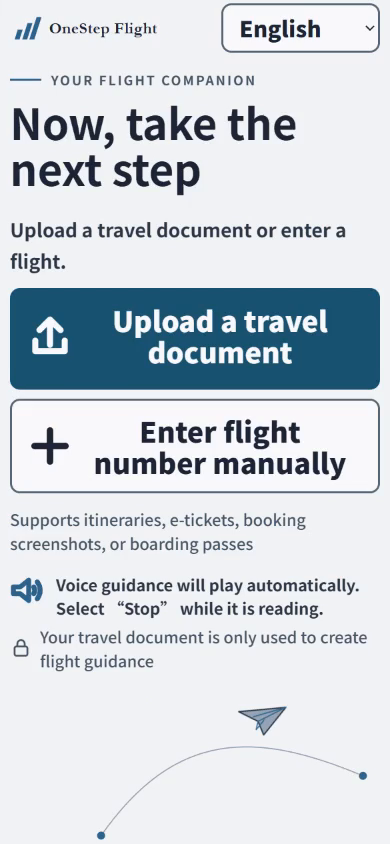
Travelers upload an itinerary, e-ticket, booking confirmation, or boarding pass. They can also enter a flight manually.
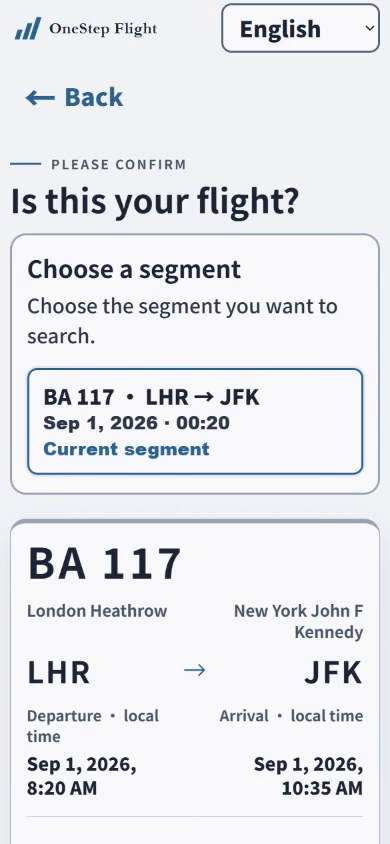
Multi-segment trips are supported. Travelers choose their current segment and check the extracted details.
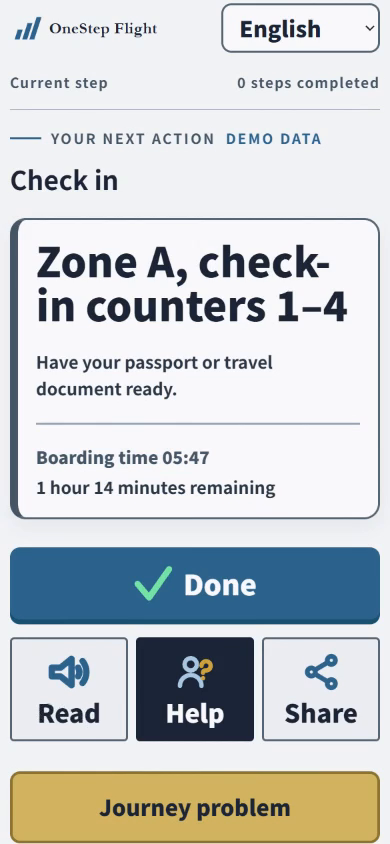
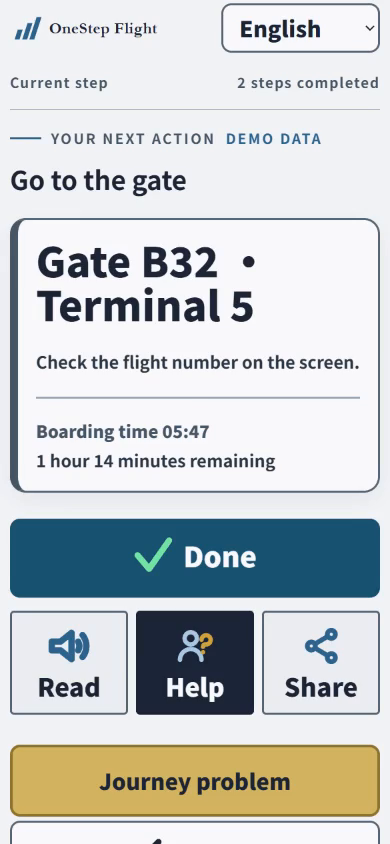
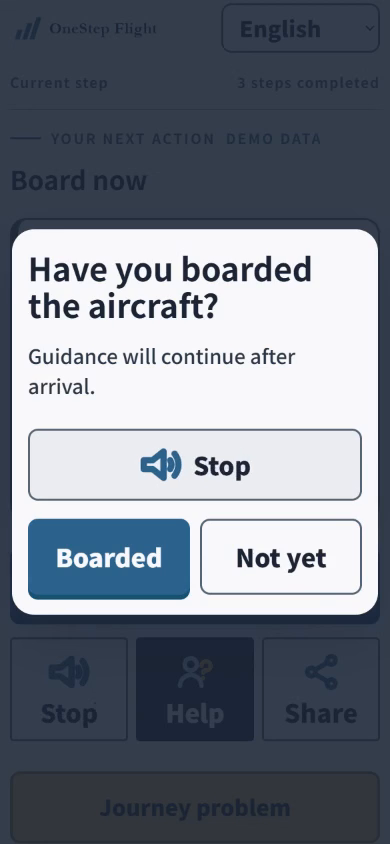
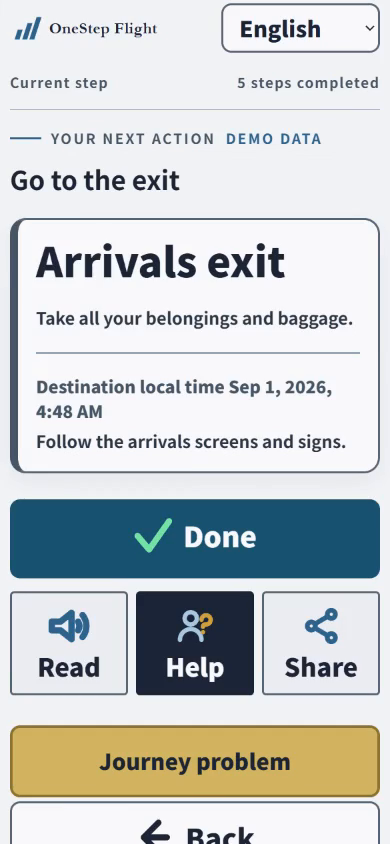
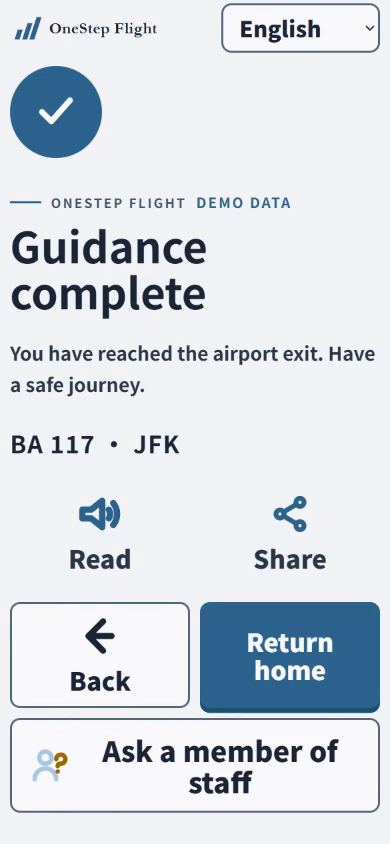
OneStep Flight guides travelers through check-in, bag drop, security, getting to the gate, boarding, baggage claim, and leaving the airport.
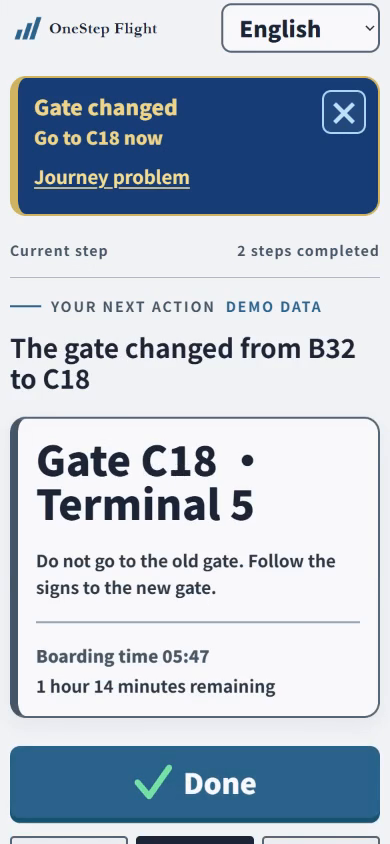
It checks the latest terminal, gate, time, and flight status every few minutes.
A confirmed change is highlighted and announced once.
The app supports English, Chinese, and Spanish. When travelers open a step or tap an action, the relevant content is read aloud in their selected language.
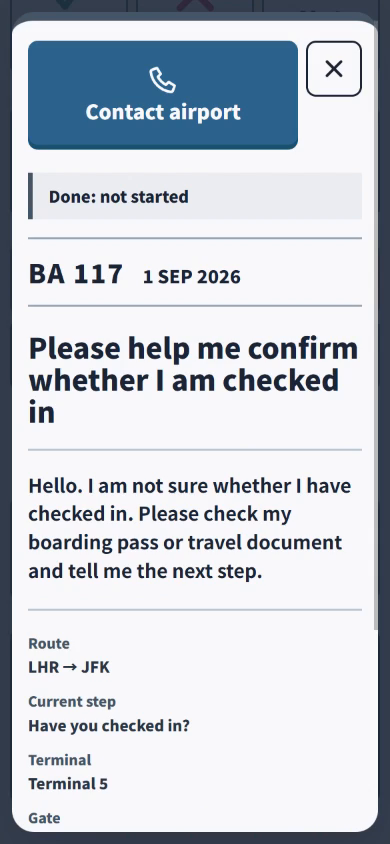
“I am not sure” and “Ask a member of staff” open a large help card for the current step.
Chinese and Spanish help cards also show English. The app tells travelers in their selected language to show the screen to staff.
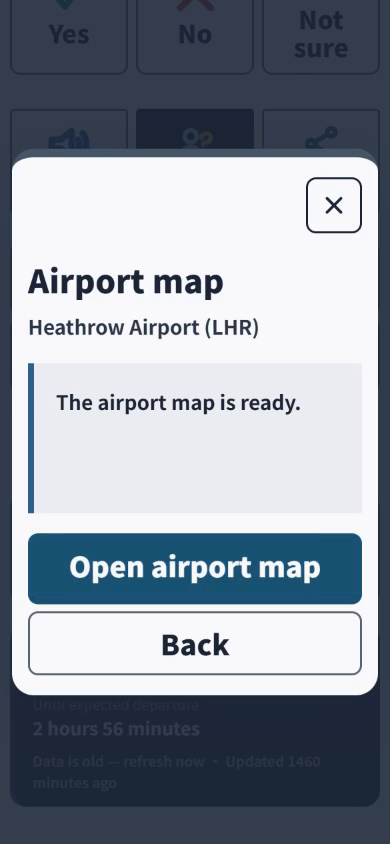
Travelers can find a verified airport map and the airport’s main passenger phone number.
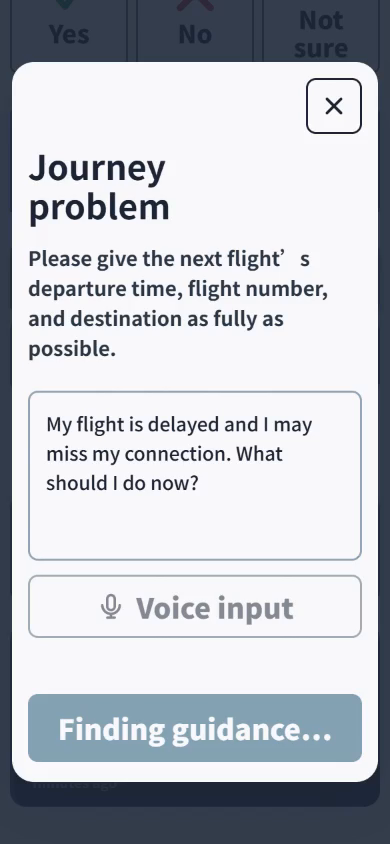
The Journey problem tool accepts text or voice questions. It gives one or two short, calm sentences with the next action and reassurance.
If a flight is cancelled and a suitable later flight appears in the live results, the app can suggest asking airline staff about it.
How we built it
Nutrient DWS
- Used for: Reading flight details from PDF, JPG, and PNG travel documents, including documents with several flight segments.
- How it works: The Data Extraction API returns structured flight fields with field evidence and citations. Travelers can check, correct, or complete the fields before the live flight lookup begins.
SerpApi
- Used for: Current flight information, airport maps, passenger phone numbers, and answers to traveler questions.
- How it works: Flight Results supplies operational flight data. Google Search and Google Maps find airport resources. AI Mode answers Journey problem questions using the current flight, route, airport, connection, and recent changes. Resource results are matched to the airport, checked against official sources, classified, scored, and checked for conflicts. Careers, media, lost-property, and unrelated pages are filtered out.
Journey and data rules
- Used for: Choosing the current step and comparing enabled flight-data providers.
- How it works: Java 17 and Spring Boot run the journey rules and compare SerpApi, AeroDataBox, and VariFlight when available. Scheduled updates refresh the journey every few minutes.
Interface and voice
- Used for: Mobile journey screens, language switching, automatic speech, and voice questions.
- How it works: HTML, CSS, and JavaScript build the interface. The Web Speech API handles speech synthesis and recognition. The layout uses large controls, high contrast, ARIA labels, reduced motion, and 200% zoom support.
Storage and deployment
- Used for: Saving journey data, family-share sessions, and running the public demo.
- How it works: Spring Data JPA and PostgreSQL store the data. Flyway manages database changes. Maven builds the app, and Docker runs it on Render.
Challenges we ran into
The hardest layout problem came from fitting large text on a small phone. Spanish often needs more lines for the same instruction. I shortened the copy, removed repeated details, and kept cutting features until the next action was easy to see.
Live providers use different labels and update at different times.
Terminal 1andT1, orGate 08and8, first looked like different values. I added field-specific normalization and change rules so matching values are compared correctly. I also had to make real updates appear quickly, play once, and stay quiet after acknowledgement.
Accomplishments that we're proud of
I built and deployed the working prototype independently. The main flow works on a real phone.
The read-only family link has practical value for me. It shows the traveler’s current step and updates as the trip moves forward. I often worry when older relatives fly and I cannot go with them, so this is a feature I would actually use.
What we learned
One clear next step is easier to follow when someone is tired or anxious.
Text that works on screen may still be difficult to follow through speech. Voice instructions need shorter sentences and better pauses.
When an answer cannot be confirmed, the app needs a direct handoff to airport staff with the relevant details already shown.
What's next for OneStep Flight
Add more languages.
Connect more live flight-data providers and improve cross-source checks.
Expand the current onboard mode so key trip details, arrival steps, and calming content can be saved before takeoff. I still need to decide what the best offline flow should include.
Explore support for people who are afraid of flying, with simple explanations of normal flight stages, breathing or grounding prompts, and calm answers to common questions.
Built With
- api
- css3
- docker
- html5
- java
- javascript
- maven
- nutrient
- postgresql
- render
- serpapi

Log in or sign up for Devpost to join the conversation.