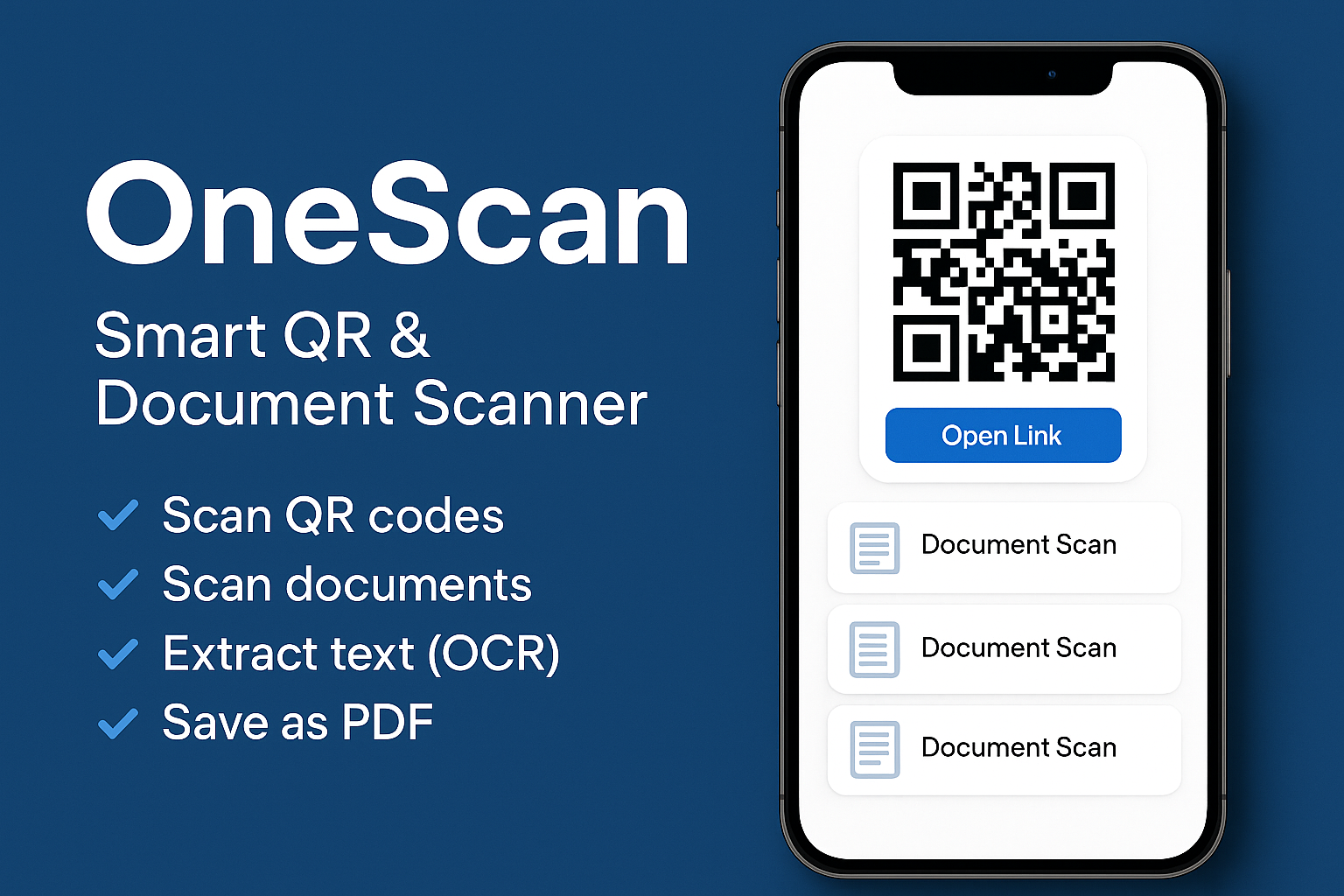
OneScan – Smart QR & Document Scanner
OneScan is a fast, lightweight mobile app that lets anyone scan documents, read QR codes, extract text using OCR, and export results as PDFs or images. It’s designed to be simple enough for everyday users and powerful enough for students, workers, families, and small businesses.
🔹 Inspiration
Most people use different apps for QR codes, document photos, PDF export, and text recognition. This is slow, confusing, and wastes storage, especially on low-end phones.
I wanted a single, clean and free tool that does all types of scanning in one place. OneScan is my attempt to solve that problem.
🔹 What OneScan Does
✅ QR Code Scanner
- Instantly scans any QR code.
- Supports links, Wi-Fi, contacts, and plain text.
- Saves a history of scanned codes for quick access.
✅ Document Scanner
- Uses the camera to capture paper documents.
- Auto-detects edges and corrects perspective.
- Enhances readability with simple filters (clear text, grayscale).
- Supports multi-page scans.
✅ OCR Text Extraction
- Extracts text from scanned documents or photos.
- Lets the user copy, edit, or share the text.
- Runs on-device for speed and privacy (no upload required).
✅ PDF & Image Export
- Exports scans as PDF or image files.
- Can merge multiple pages into a single PDF.
- Shares results via email, messaging apps, cloud drives, and more.
✅ Smart History & Organization
- Automatically saves each scan with a thumbnail.
- Lets users rename scans and search by title.
- Keeps everything local and lightweight.
🔹 How It Works (High-Level Flow)
- The user opens OneScan and taps Scan.
- They choose between QR Scan or Document Scan.
For QR:
- The camera reads the QR code in real time.
- If it’s a link, OneScan can open it or save it.
- The result is added to scan history.
For documents:
- The user takes a photo of the paper.
- OneScan detects the document edges and crops the image.
- The image is enhanced for readability.
- The user can then:
- Save as image or PDF,
- Run OCR to extract text,
- Or share the result directly.
All scans are stored in a simple history screen.
🔹 Tech Stack
You can adapt this to your actual implementation (Flutter or React Native).
- Framework: Flutter (Dart) or React Native (JavaScript/TypeScript)
- Platforms: Android, iOS
- Camera & Media: Native camera APIs via plugins
- QR Scanning: Open-source QR code library
- OCR (Text Recognition): Google ML Kit on-device text recognition
- Storage: Local storage / SQLite / Hive
- Design: Figma for UI wireframes and mockups
- Optional Backend: Firebase for backup and sync (free tier)
🔹 Challenges
- Making the UI extremely simple while still supporting multiple features (QR, documents, OCR, PDF).
- Keeping OCR and image processing fast on low-end devices.
- Handling poor lighting and angles when detecting document borders.
- Managing file sizes so that scans don’t consume too much storage.
🔹 Accomplishments
- Created a working all-in-one scanner that:
- Reads QR codes,
- Scans and crops documents,
- Extracts text,
- Exports to PDF and images.
- Uses only free tools and on-device processing.
- Designed a clean interface that most users can understand without a tutorial.
🔹 What I Learned
- How to integrate the camera, QR scanning, OCR, and PDF generation in a mobile app.
- How to optimize image processing for performance and memory.
- How important UX and speed are in everyday utility apps.
- How to design with accessibility and low-end devices in mind.
🔹 Future Improvements
- Cloud sync and backup across devices.
- Folders, tags, and better search for organizing scans.
- Built-in translation for extracted text.
- Dark mode and improved accessibility options.
- Smarter OCR post-processing to clean up formatting.
- Specialized modes for receipts, IDs, and school documents.
🔹 Built With
- flutter / dart (or react-native / javascript / typescript)
- google-ml-kit
- camera
- qr-code-scanner
- android
- ios
- firebase (optional)
- figma
Built With
- android
- camera
- dart
- firebase
- flutter
- google-ml-kit
- image-processing
- ios
- pdf-generator
- qr-code-scanner

Log in or sign up for Devpost to join the conversation.