-
-
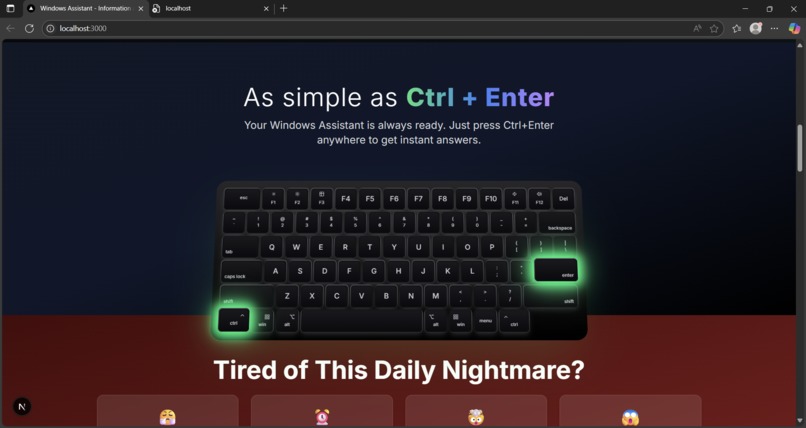
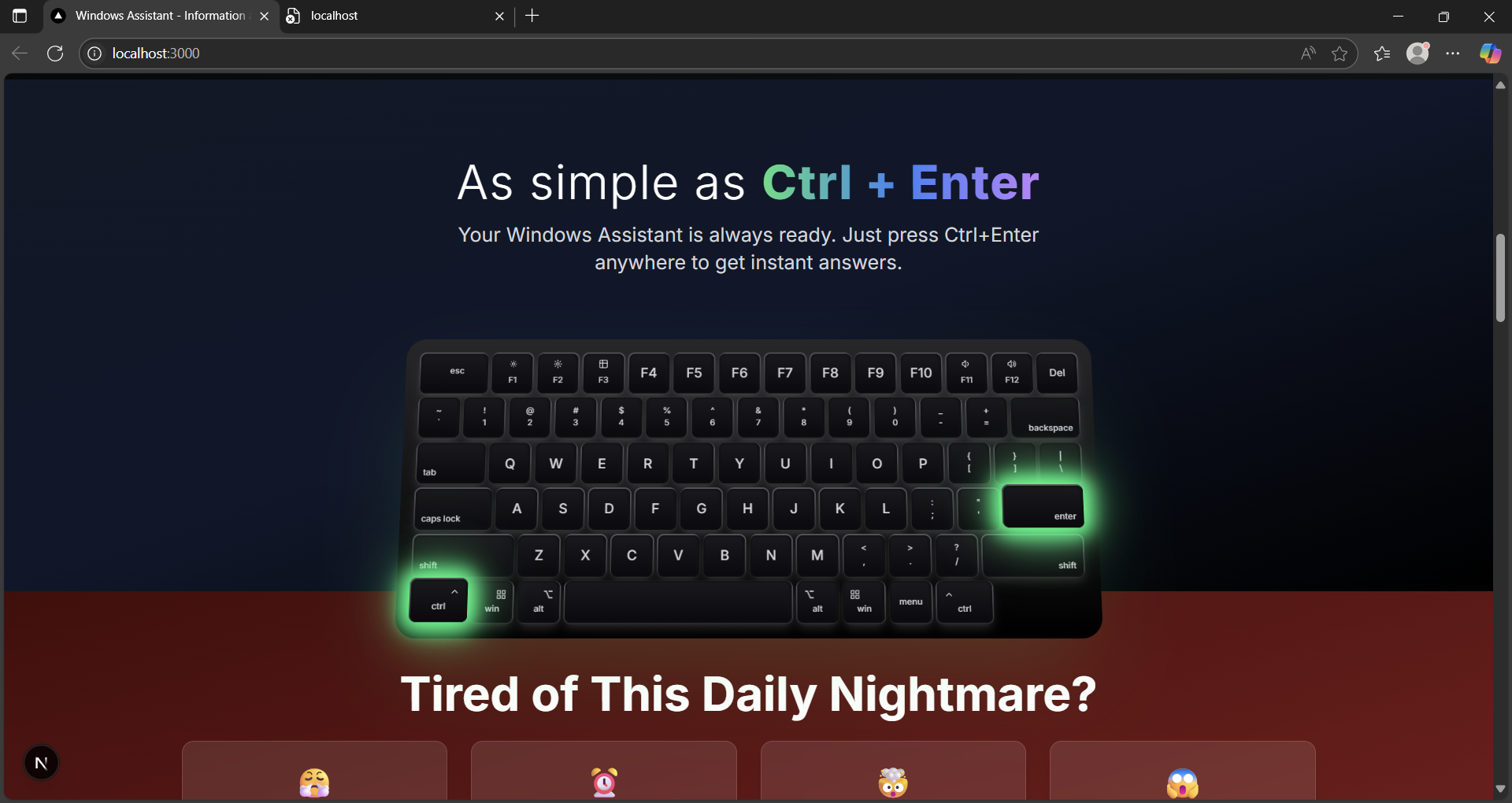
Just enter ctrl+ enter
-
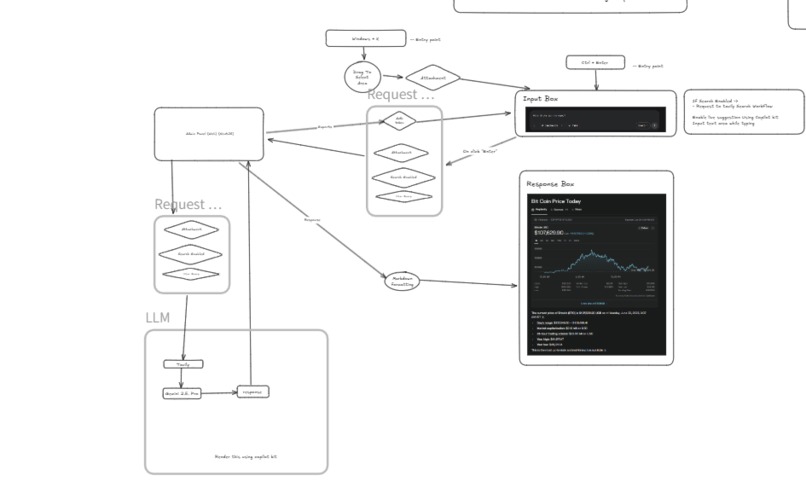
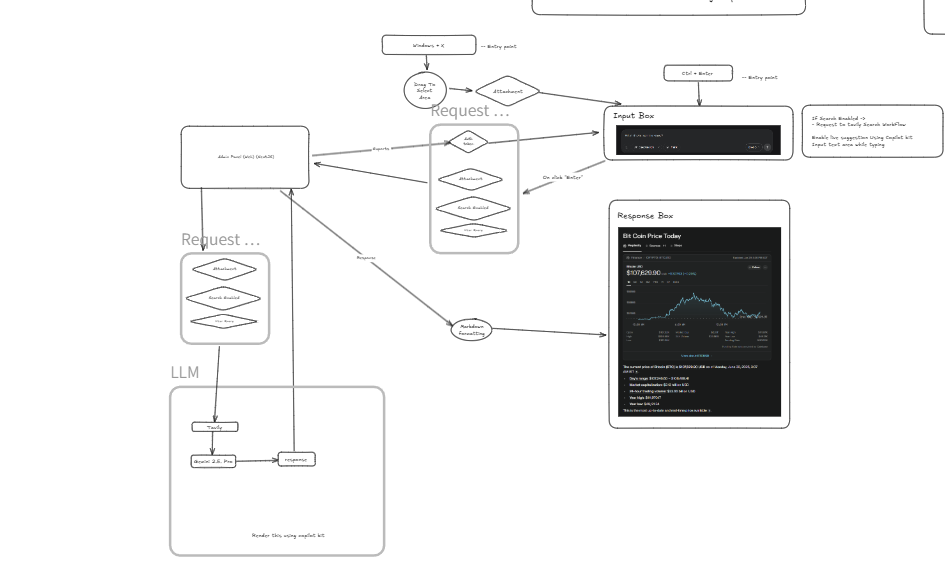
Project Architecture
Project Story — OneClick AI
About the Project
OneClick AI is a lightweight, always-on desktop assistant for Windows that gives users instant, context-aware AI help—right on their screen. No need to open a browser, no tabs, and no distractions.
We built it for a simple reason: most people frequently break their workflow just to look up something small—an error, a formula, a concept, a reply, or even design feedback. These moments may seem minor, but they add up and cause significant context-switching fatigue.
So we asked ourselves: what if you could search and get help from exactly where you are—without ever leaving your current screen?
What Inspired Us
Our inspiration came from Google's "Circle to Search" on Android—a simple gesture-based feature that lets you search anything on your screen without opening a new app.
That concept felt like magic. We thought: what if we could bring something similar to desktop users—specifically for Windows?
But we didn’t just want to replicate it—we wanted to improve on it. Instead of a gesture, we opted for a keyboard shortcut. And instead of just showing search results, we wanted it to give you the answer directly using AI.
The result is OneClick AI—an invisible desktop assistant that stays out of your way, but shows up exactly when you need it.
How We Built It
We used a combination of tools and technologies to bring this experience to life:
- Electron.js: To build the always-on-top overlay interface
- Node.js: To manage keybindings and OS-level interactions
- Global Shortcuts:
Ctrl + Enterto ask anything,Windows + Xto select part of the screen - Screenshot & OCR: Captures user-selected areas and extracts text using Tesseract.js
- OpenAI API: Powers the AI that generates relevant, context-aware responses
- Custom Prompt Engine: Processes screen content, clipboard data, and selected regions
- Exe Packaging: Built into a portable Windows installable application
What We Learned
Throughout this project, we picked up several key technical and product lessons:
- How to create a natural and responsive overlay that doesn’t interfere with the user's desktop
- Managing screen capturing efficiently and cleanly
- Combining multiple context signals (selected text, screen area, clipboard) into effective prompts
- Handling API latency to keep the user experience as real-time as possible
- Designing a UX that feels like a native Windows feature, not a separate app
Challenges We Faced
1. Implementing Circle-to-Search-like Feature on Windows
One of the hardest challenges was recreating the "Circle to Search" experience on a platform that doesn’t natively support it. Android allows gesture-based screen interactions, but Windows doesn’t offer easy APIs for free-form selection and analysis.
We had to:
- Create a custom screen overlay with transparent layers that let users select a region
- Make it feel smooth and snappy while working across any app
- Handle multiple screen resolutions and DPI settings
- Ensure screen capture happens cleanly with high accuracy
- Deal with permission restrictions for capturing the screen or extracting content
It took a lot of fine-tuning, but we eventually developed a system where a user can press Windows + X, drag to select any region, and get meaningful help based on that content in seconds.
2. OCR and Context Accuracy
Extracting clear and usable text from a screen region isn't as straightforward as it seems. Fonts, themes, and even anti-aliasing made OCR results messy. We had to build preprocessing steps to clean up text before feeding it to the AI.
3. Speed and Responsiveness
We wanted OneClick AI to feel instant. That meant trimming every second—from how fast the screenshot happens, to how long the AI takes to respond. Caching, async processing, and smart prompt optimization were essential to achieving this.
4. Keeping It Lightweight
Since this runs in the background, it had to be efficient. We kept memory and CPU usage minimal by selectively activating only the required services when triggered by a shortcut.
The Result
OneClick AI feels like a native part of your desktop—ready to help you whenever you're stuck, confused, or curious. It brings the power of AI directly to your screen, so you never have to break your flow again.
Tools and Technologies We Used
- Tavily API – Used for real-time web search, ensuring up-to-date information in responses
- Gemini (Google AI) – Used as the LLM backend to provide accurate, contextual answers
- Electron.js – Powering the desktop app with global shortcuts and screen overlay capabilities
- Next.js – Used for building the website and admin panel, ensuring fast performance and SEO
- Bolt.new – Used for designing the UI/UX, creating a modern and intuitive interface
Built With
- bolt.new
- electronjs
- gemini
- nextjs
- vercel


Log in or sign up for Devpost to join the conversation.