-
-
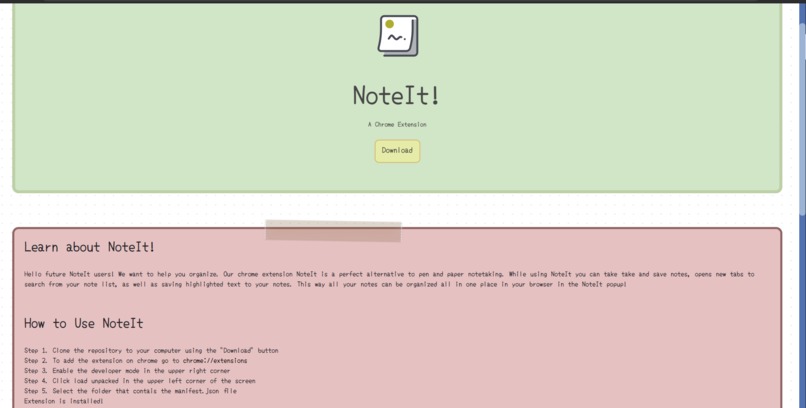
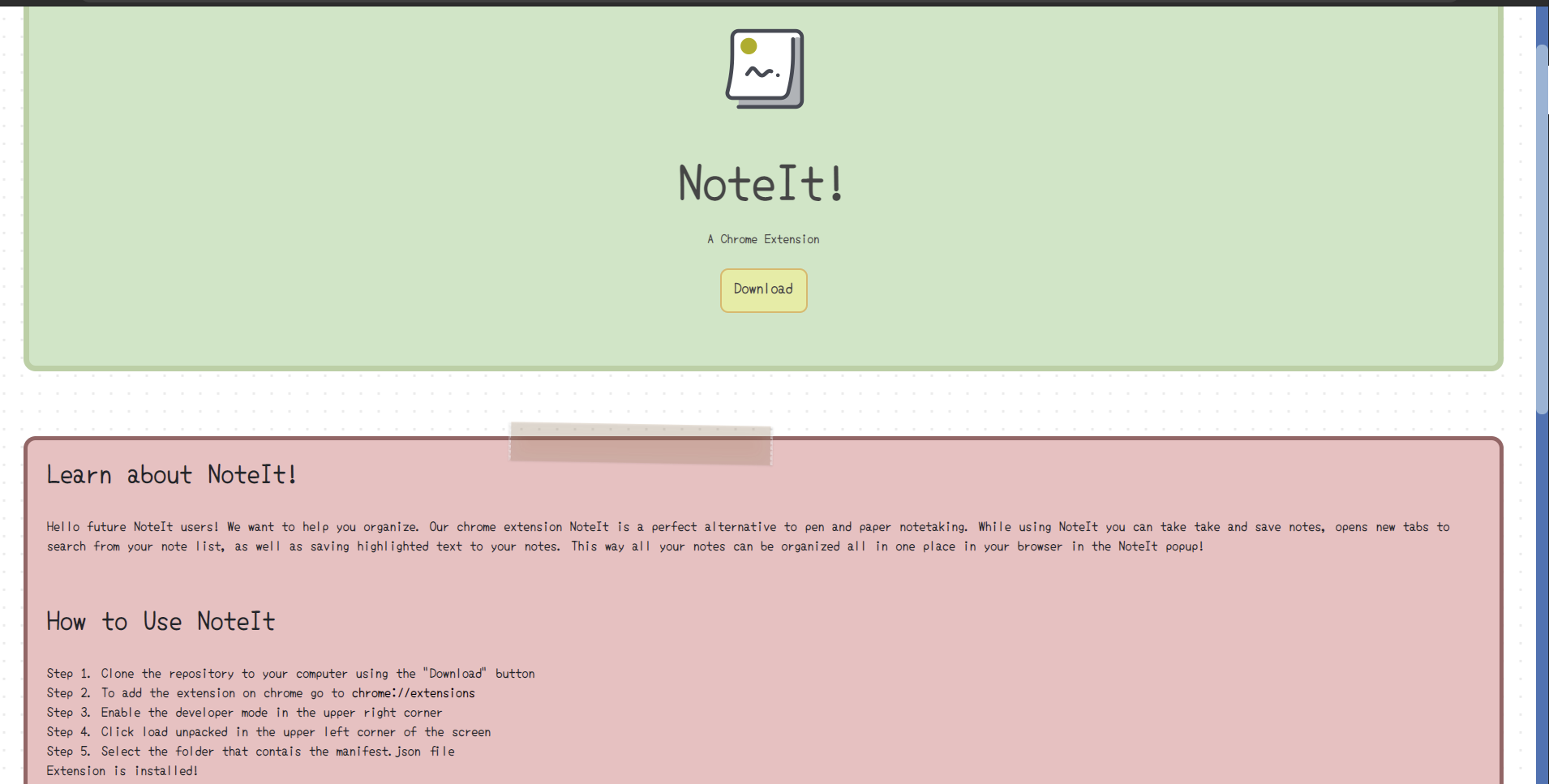
NoteIt Website!
-
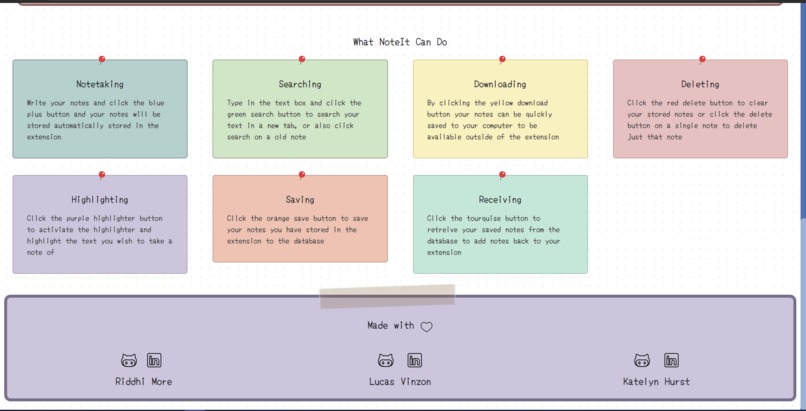
NoteIt Website!
-
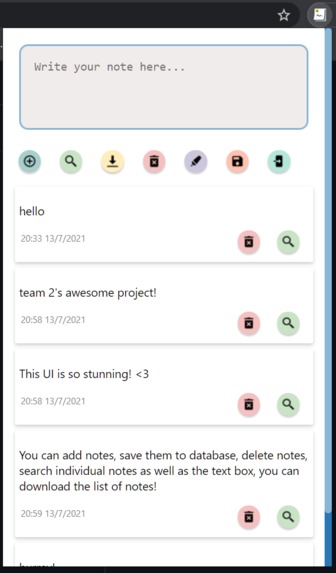
Extension UI
Inspiration
Our Team was inspired by the developer tool’s theme of the Pre-Fellowship project. We wanted to create a useful application that made it easy for developers or anyone to be able to take notes while researching without having to even leave the browser or write anything down! Organization and efficiency increases productivity and we wanted to create a tool that helps our users work better.
What it does
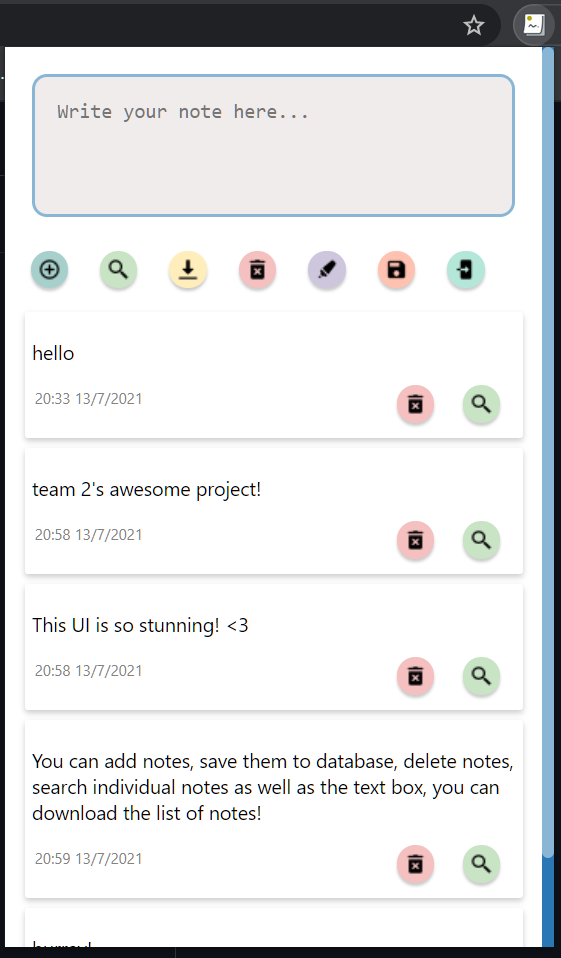
NoteIt is a chrome extension that that helps you organize! NoteIt is a chrome extension that can be used to take and save notes, open tabs to search from your notes directly, as well as saving highlighted texts, and much more!
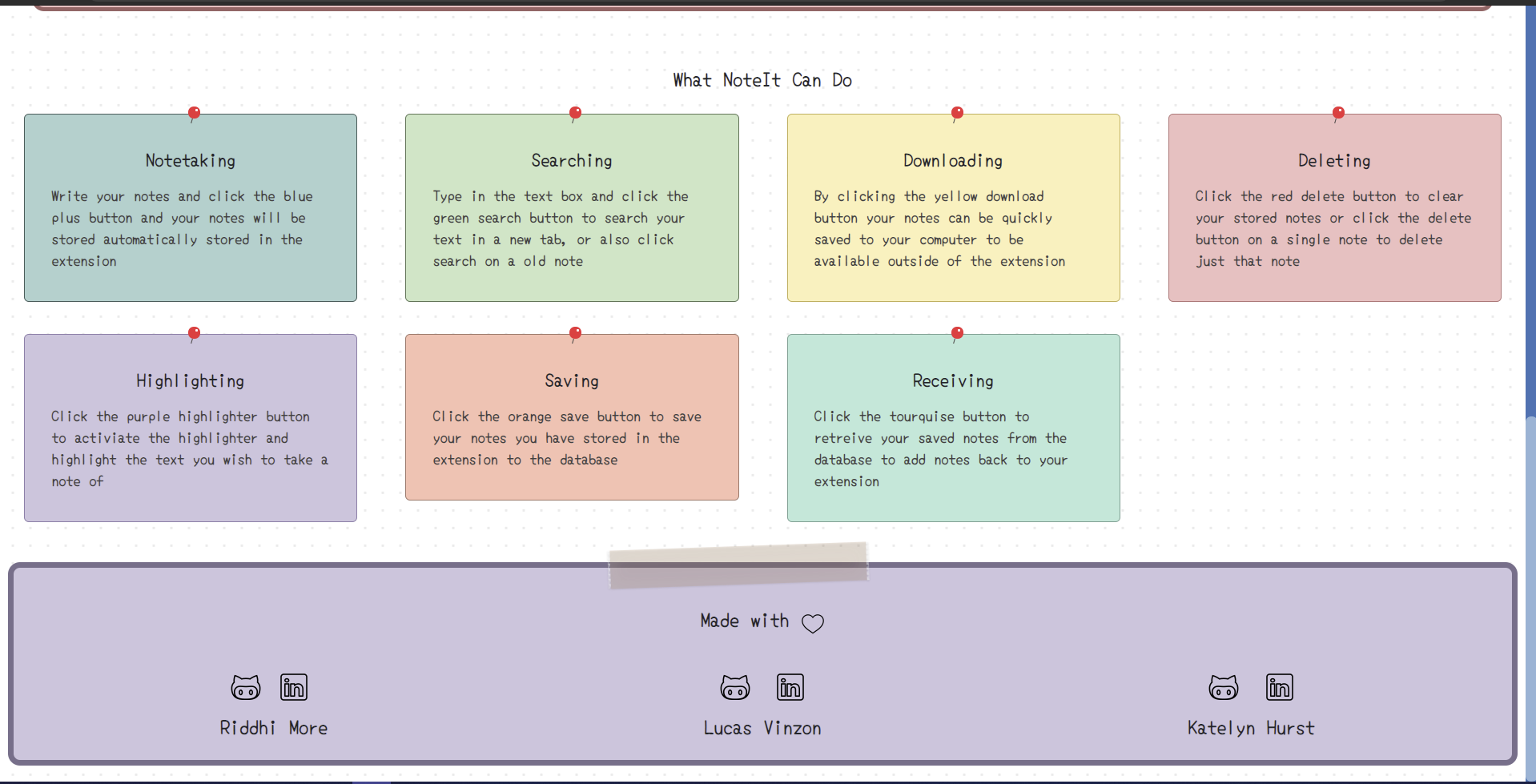
Blue Add Note Button
When you want to take a note, you simply type your note into the text box that says, “Write your note here…”, then you can press the Add Note button to store your note in your list of notes in the extension. The extension will save your notes for as long as you like.
Green Search Web Button
There are two different ways to use the Search Web button. First, you may type into the “Write your note here…” text box and click the Search Web button in the options menu. This will open a new tab in your browser Google searching your test. You can also search a previous note that is NoteIt has saved in the pop out for you by clicking the Search Web button on that note! Awesome right?
Yellow Download All Button
The Download All button on the options menu lets you save your list of notes to your computer as a file for offline access.
Red Delete Button
When you no longer need your saved notes, you can clear your list of notes by clicking the Delete All button in the options menu. If you would like to just delete a single note from the list, you can select the Delete Note button one that singular note.
Purple Highlight Button
To save time from typing if you would like a shortcut, you can turn on the highlight button and then select the text you want from the webpage, and this will add your selected text to your list of notes in the extension!
Orange Save Notes Button
If you want a place to store your notes outside of the extension or your computer, you can click the Save Notes button, and this will save your current list of notes to a database that you can easily retrieve from when you would like. Note – you can only store one list of notes to the database at a time when you retrieve your saved notes the database will be cleared to make room for a new list you would like to save in the future!
Turquoise Retrieve Old Notes Button
If you have notes saved in the database, you can use the Retrieve Old Notes button to bring back your last set of saved notes from the database. Note – when you retrieve old notes from the database anything that is currently in your notes list in NoteIt will be replaced by the retrieved notes, so make sure you download any notes you want to keep to your computer!
Accomplishments that we're proud of
We are proud of in a short time of three weeks we have worked together to create a great project that could be of use to all who use it
What's next for NoteIt
We have high hopes of getting onto the chrome extension store!
Sponsor Technology
- Linode
- .tech domain
- CockroachDB
Built With
- .tech
- coackroachdb
- css3
- html5
- javascript
- linode


Log in or sign up for Devpost to join the conversation.