Inspiration
Ever wish AI just knew what you were talking about?
We use AI everyday, but it doesn’t know our world: the articles we’ve been reading on the web, the project notes we just updated, or the pictures we’ve saved for inspiration. So we end up the tab-hopping, copy-pasting context, and re-explaining ourselves to get a useful answer. This breaks our flow and wastes time.
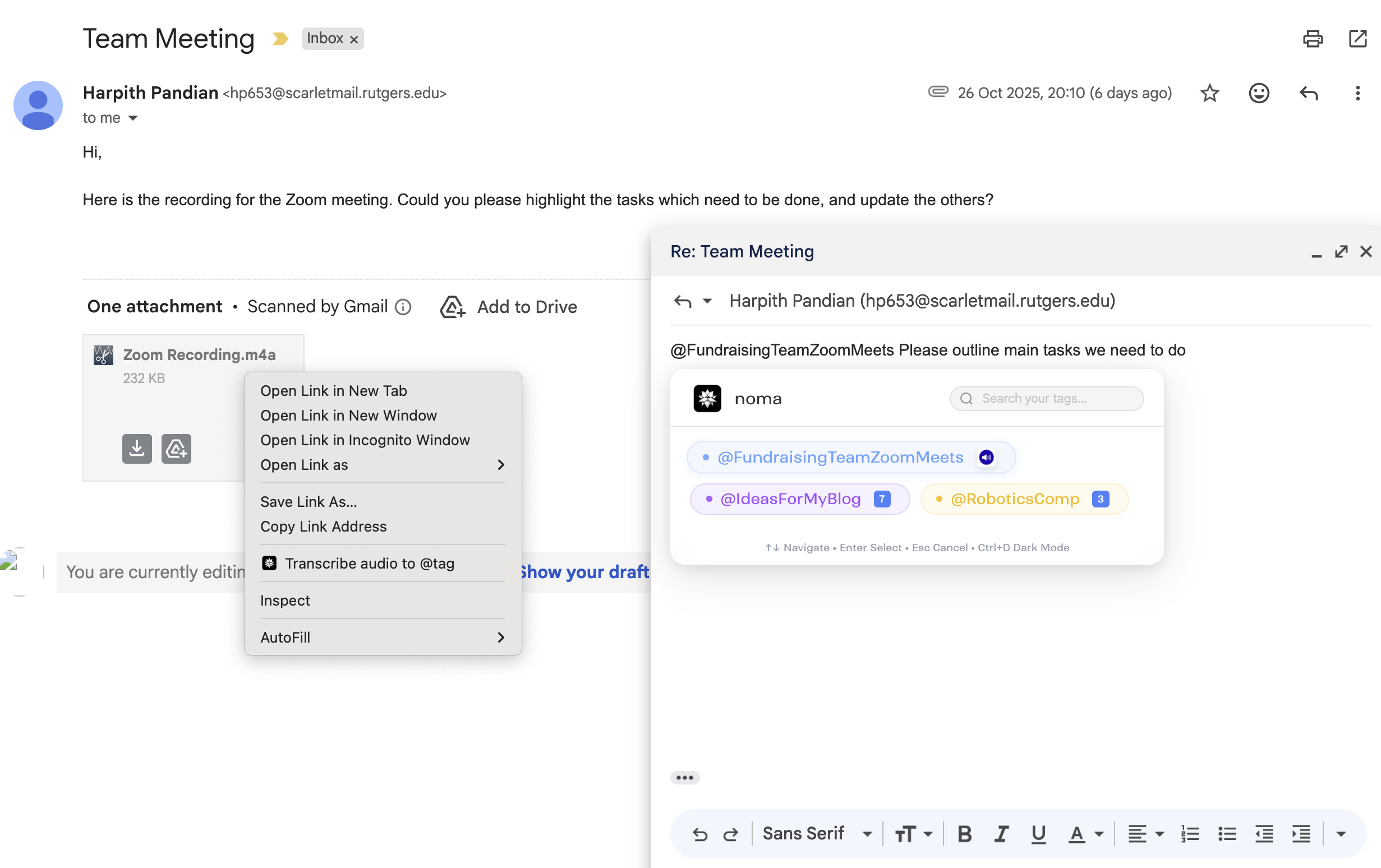
What if you could just say “compare the hotel reviews I’ve been reading on the web," “write a birthday invite based on my Pinterest inspo,” or “draft an email with the ideas we discussed in our Zoom Meeting” – all without tab-hopping, copy-pasting, or repeating yourself?
That’s the gap we wanted to close with Noma – a chrome extension that brings context-aware AI to your cursor. Through curated tags, it brings your personal context – ideas you save while browsing, docs, audio notes, Notion pages and even Pinterest boards – straight into the conversation, wherever you’re working. No switching, no searching, no starting from scratch. Just inline AI that finally understands what you mean.
How it works
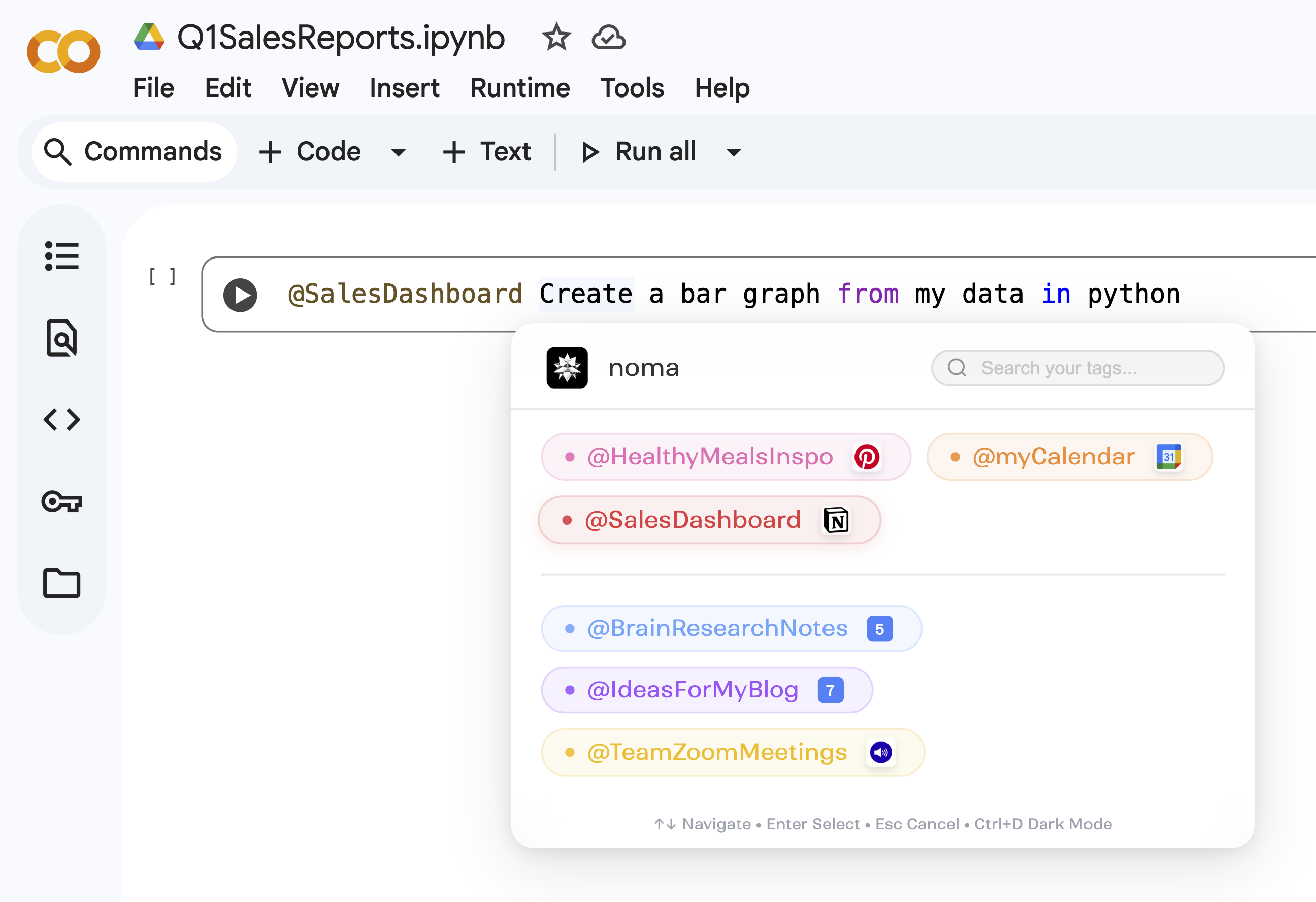
What are Tags? Noma turns any context you save into “tags”. Whenever you call @tag and then type a prompt for the AI model, Noma injects the tag context into your AI prompt. The final input (Tag Context + Your Prompt) is sent to Gemini Nano via the Multimodal Prompt API and your answer is returned inline.
With so many use cases at hand, you could create a tag to save insights from different articles you’re reading or even a tag that links to your Vacation Planner on Notion! The best part: you only have to save your context to a @tag once, and you can use it again anytime – tomorrow, next week, or even months later. To create a tag, or save context to an existing tag, right click on any selected text / image / audio file on the web. To save context from PDFs, go to Noma icon → Settings → Connect Document.
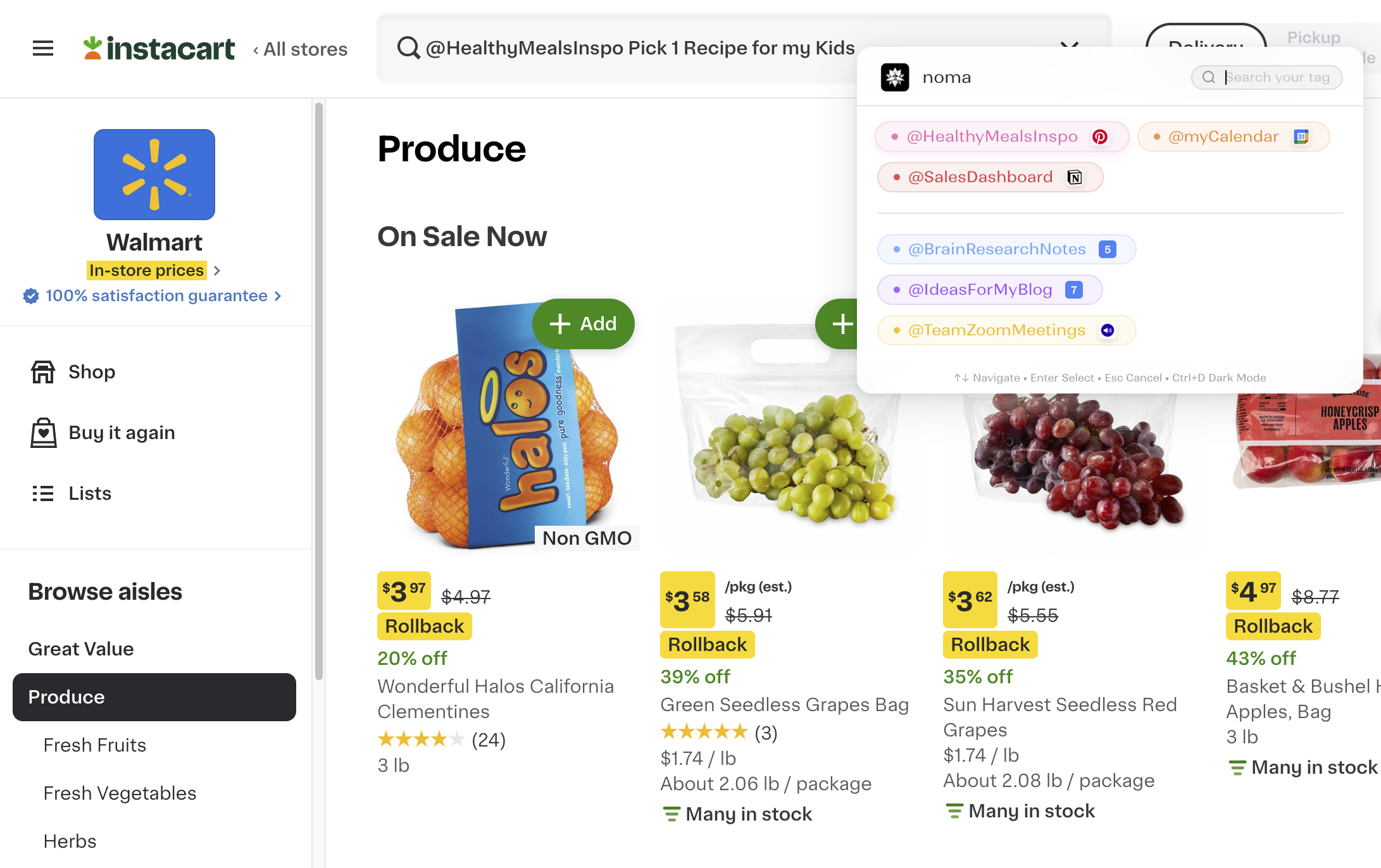
How to use Noma while you work: Press Ctrl + Q to open Tag Selector anywhere, pick a @tag, type your prompt, then press Ctrl + Space to hit Enter. Keyboard commands are the same for Mac/Windows. You can also just type @yourTagName instead of selecting it via the Tag Selector. Watch the Demo video to see how Noma can be used across multiple platforms like Gmail, Slack, Linkedin, Google Colab, etc!
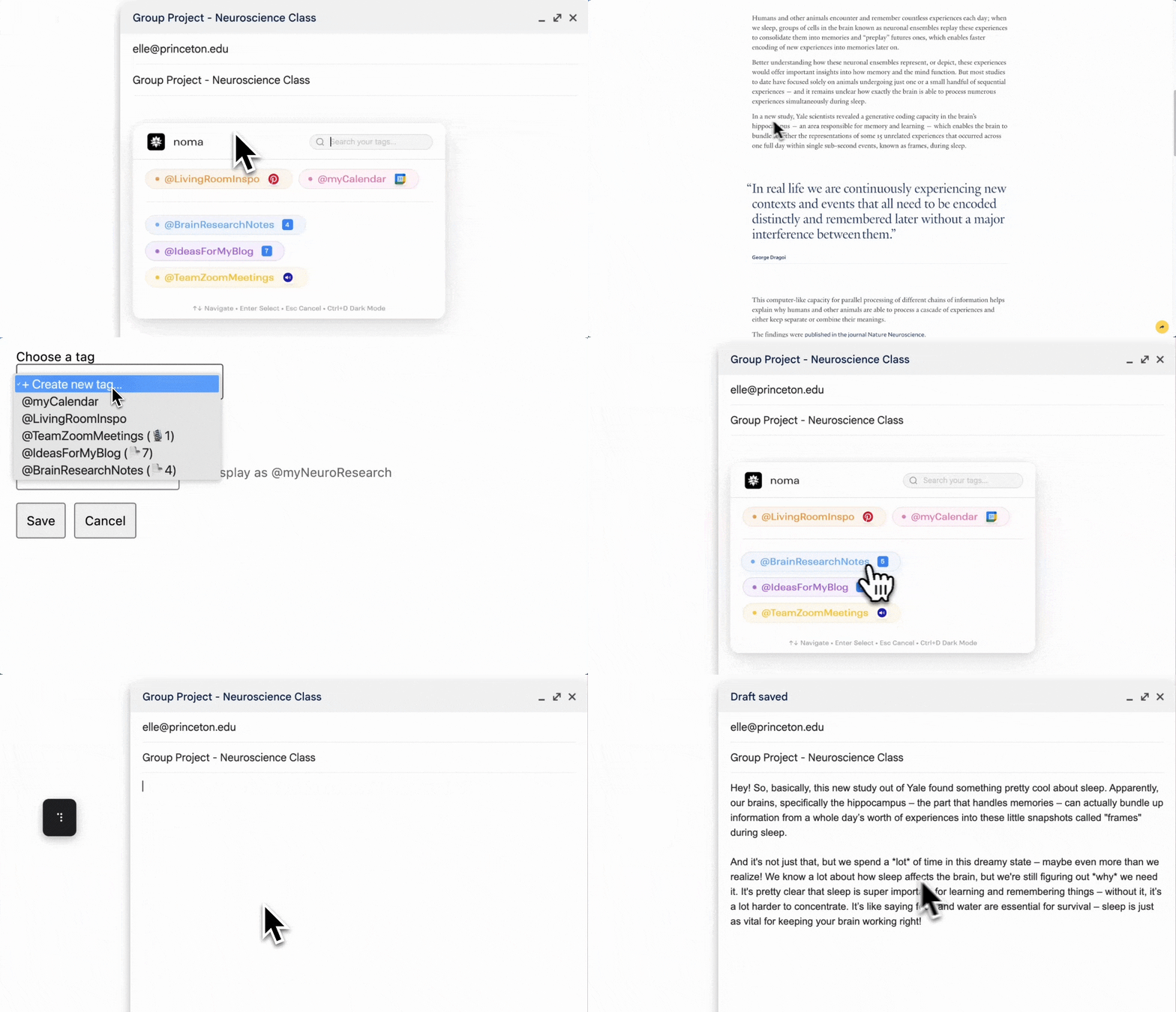
You can edit or delete tags anytime in Settings. Also, if you want to use temporary context without saving it to a tag (e.g., use some text from an email or Slack message on your screen), simply select the text and click the Noma spinner (“Shared with Noma!”). Then choose a tag and hit Ctrl + Space as usual. This time, the final input (Temporary Context + Tag Context + Your Prompt) is sent to Gemini Nano.
Integrations
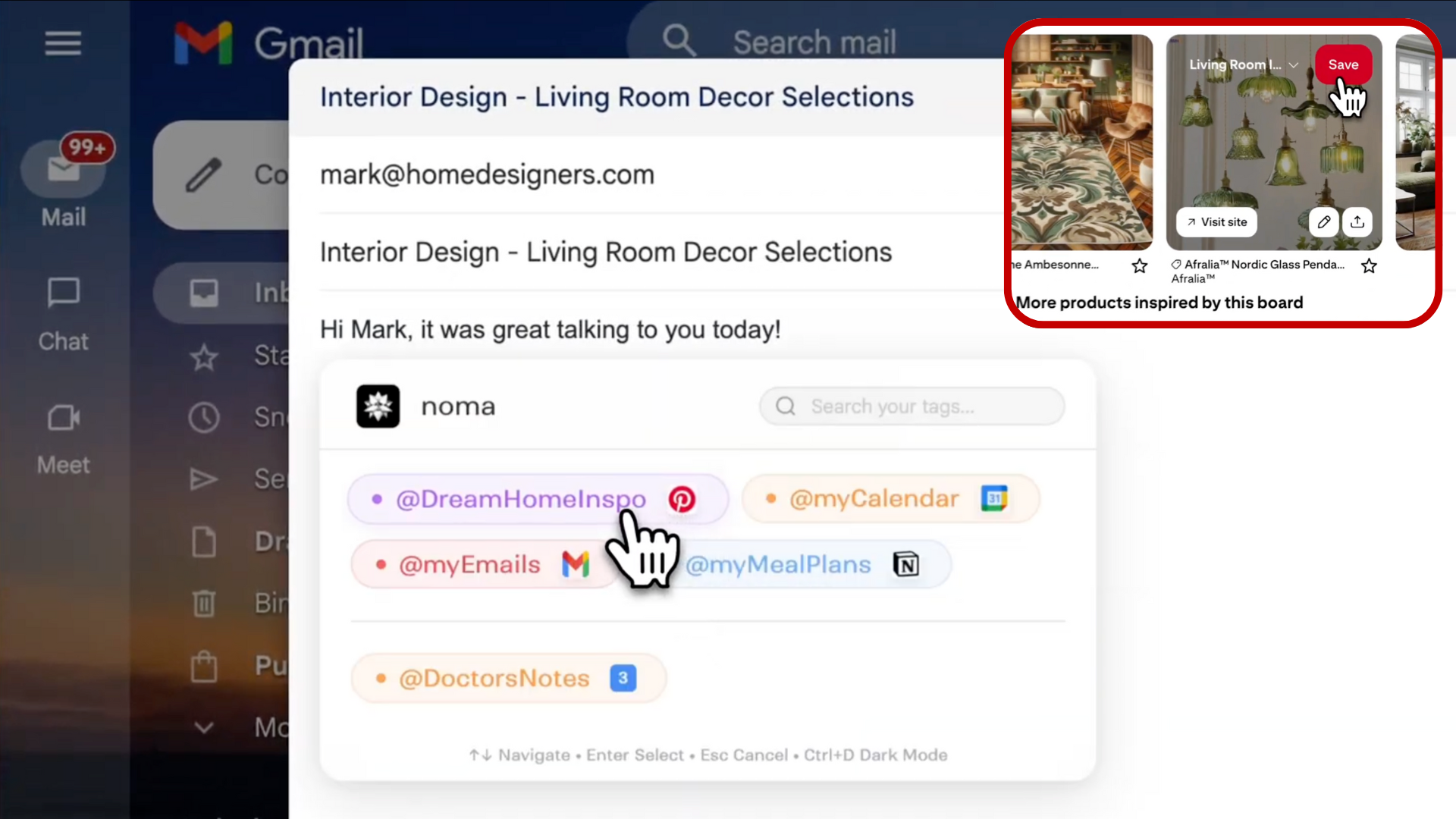
Noma currently supports linking data from Third Party Apps including Notion, Gmail, Pinterest, and Calendar! For dynamic tags, go to Settings → Integrations to connect your web apps. A Notion tag requires your integration token and the target page link you want to sync. A Pinterest tag only needs your public board link (no login; private boards not supported in this mode). @myCalendar and @myEmails use OAuth sign-in to your Google account to access data from your Google Calendar & Gmail. Please see the Github for full set up instructions!
Client-side AI (Chrome Built-In-AI Tools)
By default, Noma runs on-device with Gemini Nano and uses the Multimodal Prompt API to process text and image inputs for providing text responses. That means you can save text (like article snippets or meeting notes) or images (like pins from a pinterest board or web images) to your context and have Noma reference it later. All of this runs client-side with Gemini Nano in the Browser, which is a good option for users who want their data to be processed by private, on-device AI.
Hybrid Server-side AI
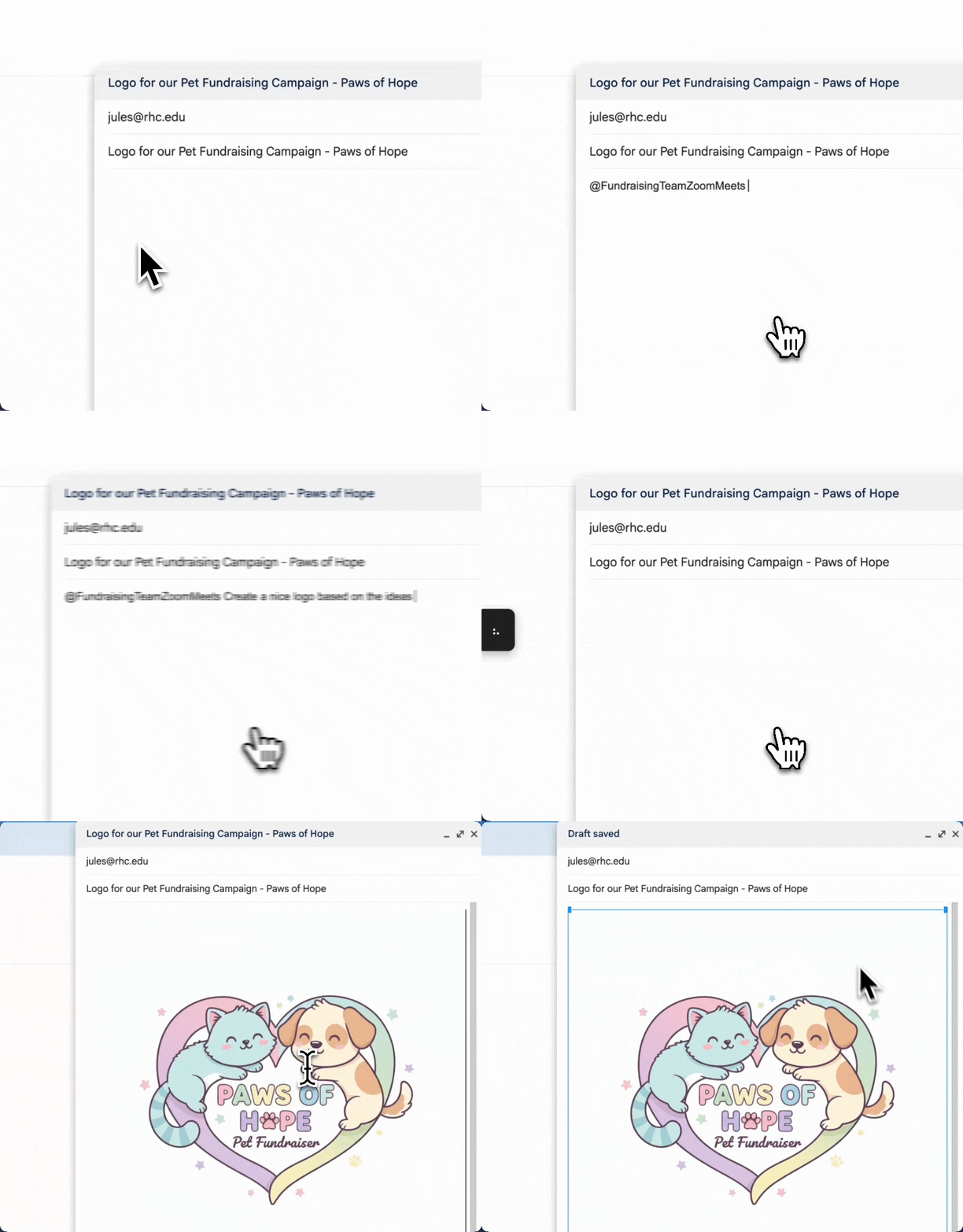
Noma also offers useful Server Side AI features, that users may wish to enable (Optional): To generate an image using your context, Noma uses Gemini 2.5 Flash Image via the Gemini Developer API. Imagine you had a Zoom call last week with a couple friends, talking about design ideas for a project:
Also, if the working context exceeds what Nano handles comfortably (we found it to be ≈30k chars), we switch to a lightweight RAG processing path:
- chunk the context and compute OpenAI text-embedding vectors.
- pick the top-K chunks relevant to the user’s current intent; optionally cluster to reduce redundancy.
- generate a context brief (bulleted summary + citations to the original chunks).
- send the brief (and minimal supporting snippets) back through the Prompt API → Gemini Nano so final generation/editing still happens on-device. Enabling the RAG pathway requires an OpenAI API key (user-provided) for embeddings.
What's next for Noma
We built Noma to make writing, brainstorming, and planning faster for anyone, whether you’re a developer at a tech company, a student, or a stay-at-home parent. The goal remains the same: help people get things done more productively, without constant tab-switching to get AI to understand their context. Moving forward, we hope to make Noma more agentic. The idea is to move from “Noma helps you write / plan” to “Noma can also act for you.” Imagine giving it a tag like @FamilyChristmasWishlist and saying, “add these things to my Target cart,” or “pull my @apartmentHunting notes and email the landlord asking about tours.”
Today, people want a balance between being in control and using AI to automate their workflows. That’s why we’re designing Noma as an on-demand agent – you invoke it when you need it, where you need it, and it uses only the @tags you provide. When releasing Noma to users, we want to deliver this balance of automation and control to help people enjoy new ways to work on the Web with AI.
Built With
- built-in-ai
- chrome
- embeddings
- gemini-flash
- gemininano
- hybrid-server-side-ai
- javascript
- multimodal-prompt-api
- nano-banana
- promptapi
- rag
- vectorstore

Log in or sign up for Devpost to join the conversation.