-
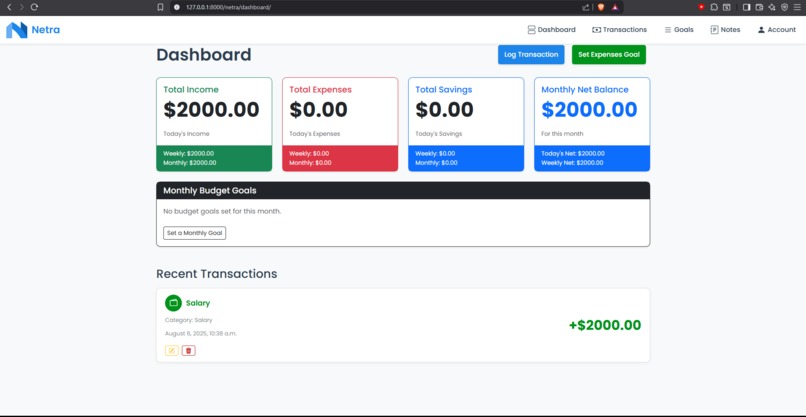
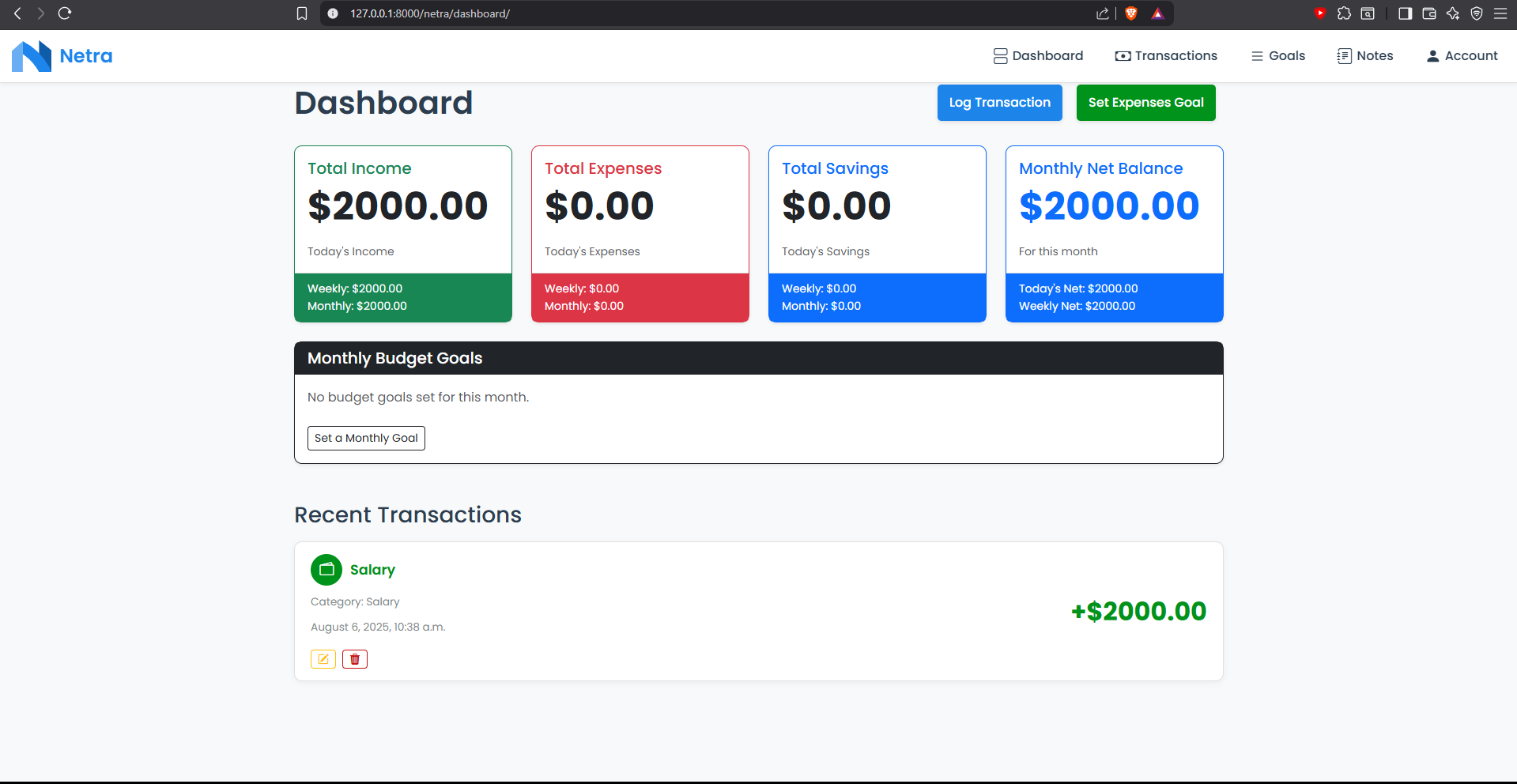
Dashboard
-
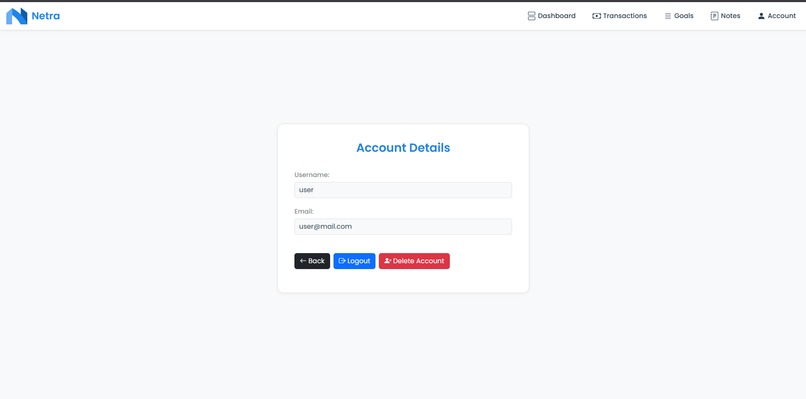
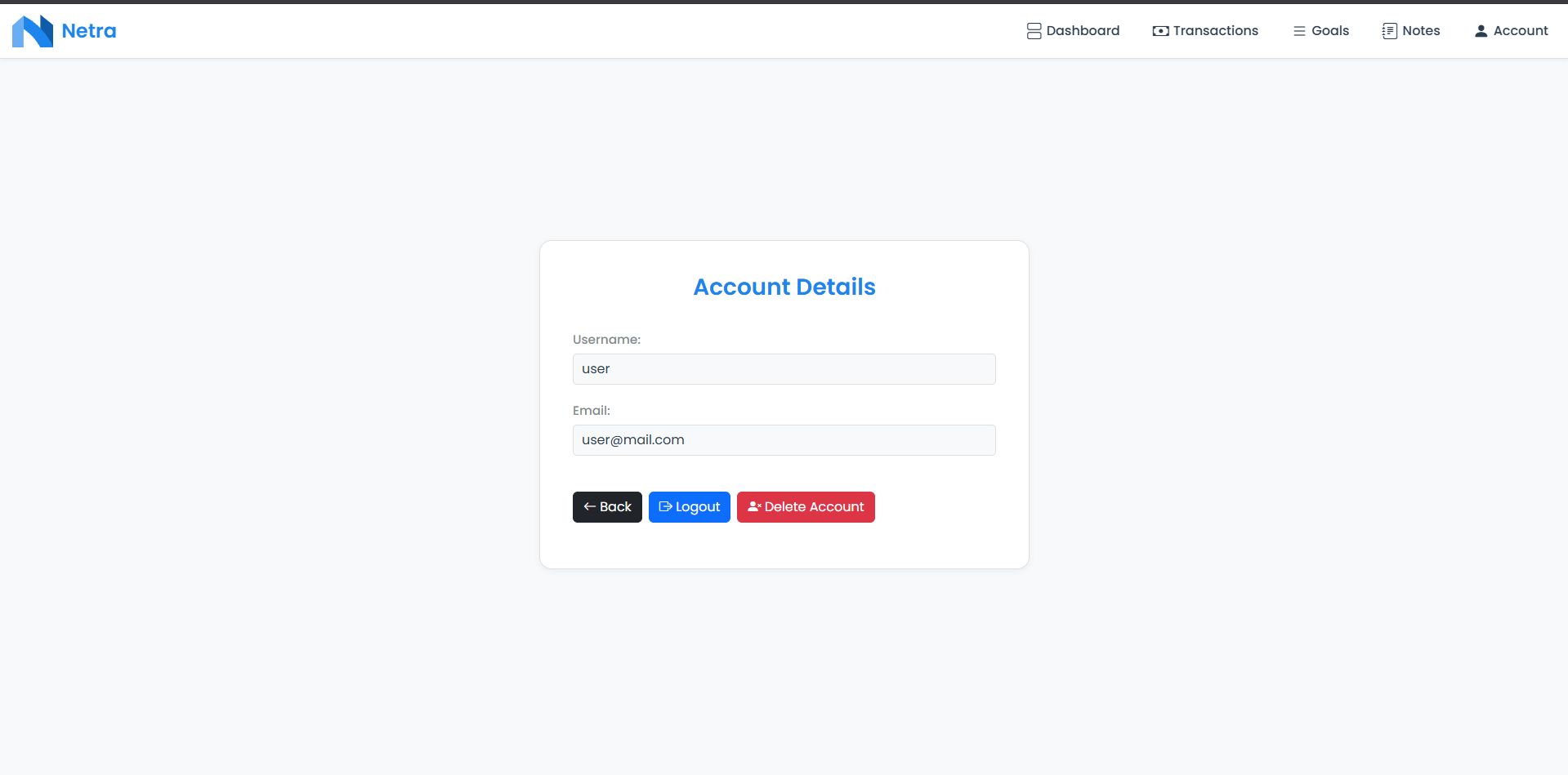
Account details
-
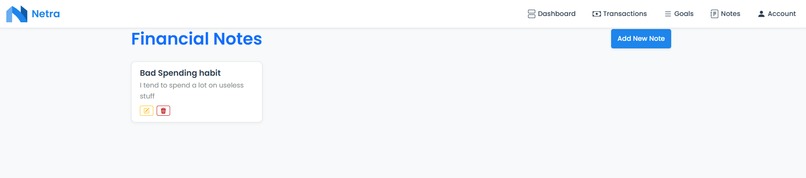
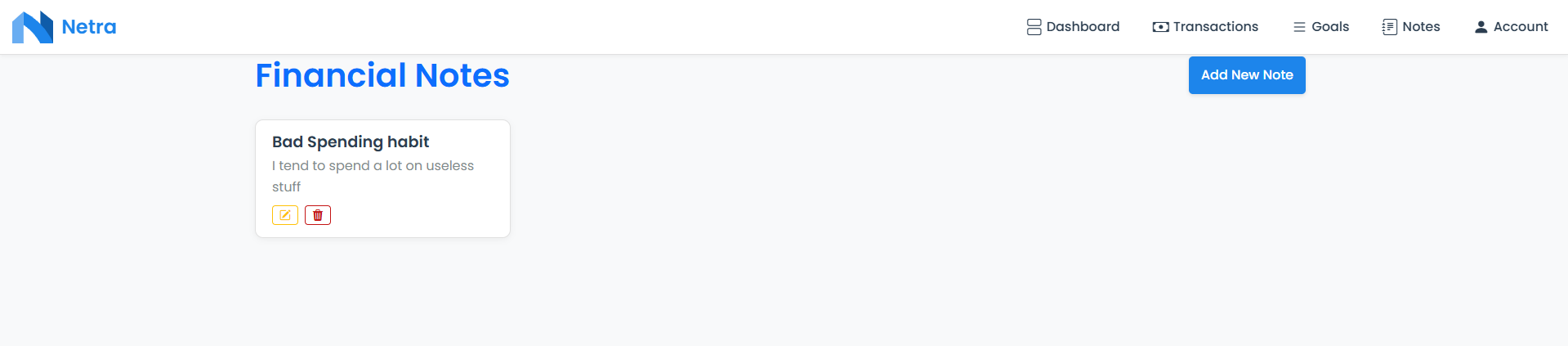
Notes
-
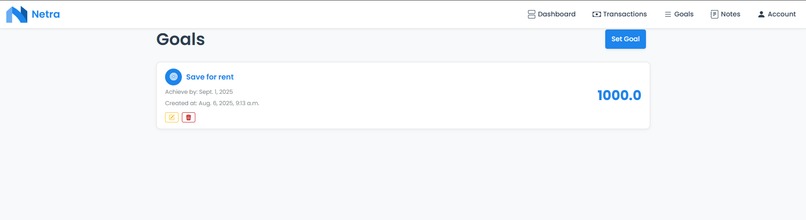
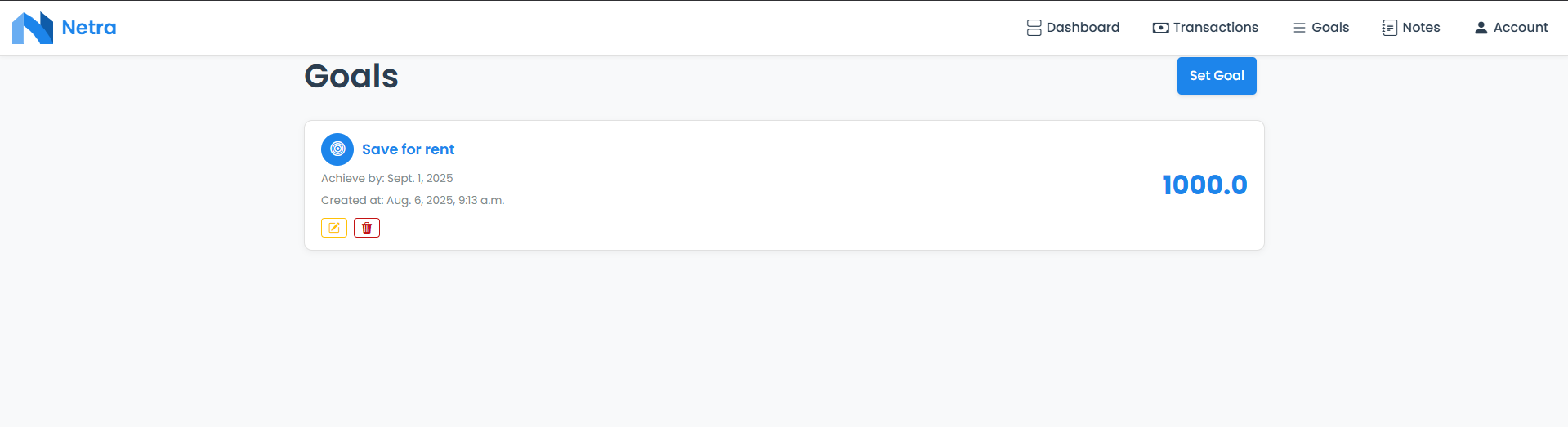
Goals
 Netra
Netra




📽️ Project Overview
A webapp that allows you to manage and track your finances.
📱Features
Seamless Account Management
Take control with a simple, secure account. Easily log in, log out, and manage your profile—including the power to delete your account whenever you choose.Effortless Transaction Logging
Track every dollar with our intuitive system. Log all your Savings, Expenses, and Income in one place to see where your money is going.Your Personal Finance Journal
Go beyond the numbers. Create Financial Notes to capture your thoughts, strategies, and observations about your spending habits.Achieve Your Goals
Turn your ambitions into reality. Set Goals to save for big purchases, pay down debt, or plan for the future.Instant Financial Insights
Get a clear picture of your finances at a glance. Our powerful Statistics feature gives you a quick overview of your daily, weekly, and monthly expenses and income.⚙️ Used Technologies & Libraries
- Django - web framework
- Python - main language
- HTML, Bootstrap & CSS3 - page styling
- Bootstrap icons
- Django Widget Tweaks
- The rest can be found in
requirments.txt## 📋 Prerequisites Before you start, ensure you have the following installed on your machine:
Python 3.8+
Django 3.0+
You can install Python and Django by following the instructions on their official websites:
Alternatively, you can install Python and Django using pip.
🐍 Install Python
If you don’t have Python installed, you can download it from python.org. Once installed, verify the installation by running:
python --version
🟩 Install Django
You can install Django using pip. Open your terminal/command prompt and run:
pip install django
📦 Installation of the project
Clone the project reposiotry to your local machine
git clone https://github.com/GeorgievIliyan/NetraCreate a virtual environment: It’s good practice to use a virtual environment to manage your project’s dependencies. Run the following commands:
# For Windows:
python -m venv [environment_name]
[environment_name]\Scripts\activate

# For Mac/Linux:
python3 -m venv [environment_name]
source [environment_name]/bin/activate
Install the dependencies: With the virtual environment activated, install the project dependencies:
pip install -r requirements.txtOpen project folder
cd netraRun migrations
crucial
python manage.py makemigrationsCreate a super user or use existing one
# create superuser (admin):
python manage.py createsuperuser

# or use existing one
username: admin
password: admin
Run the development server
Start the development server with the following command:python manage.py runserverYou should recieve output like this:
Starting development server at http://127.0.0.1:8000/🔨 Usage
- To use the app navigate to the following addres in your search bar:
http://127.0.0.1:8000/ #or localhost:8000- To enter the admin panel navigate to the following addres:
http://127.0.0.1:8000/admin/

#or

localhost:8000/admin/
now can log in into the provided account or the one created by you.
Log into the existing user account:
username: user
email: user@mail.com
password: 1234

URL:

http://127.0.0.1:8000/auth/login

#or

localhost:8000/auth/login/
or create a new one by navigating to:
http://127.0.0.1:8000/auth/register/

#or

localhost:8000/auth/register/
👤 Author & Contacts
Iliyan Georgiev / Илиян Георгиев - High School Student
GitHub: @GeorgievIliyan
Discord: Bilko / bilko240
📁 Misc
- The name: Netra, a name derived from Sanskrit and Hindi meaning "eye," suggests a watchful and clear perspective. This app aims to give users a sharp and insightful view into their financial world.

Log in or sign up for Devpost to join the conversation.