-
-
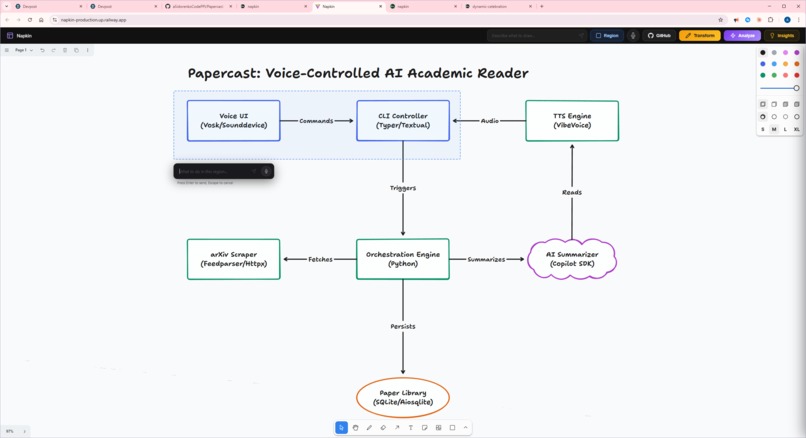
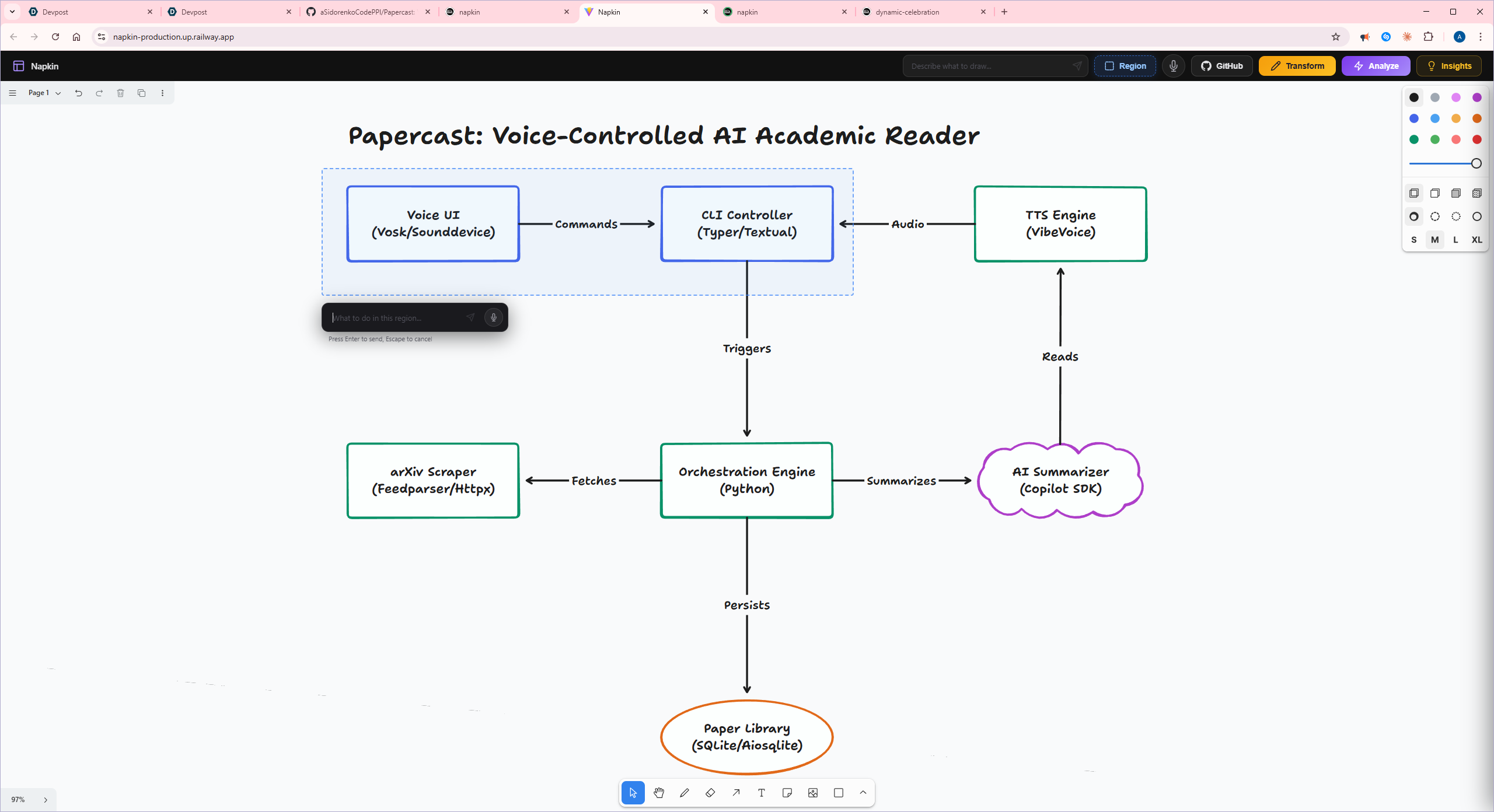
Region select popup
-
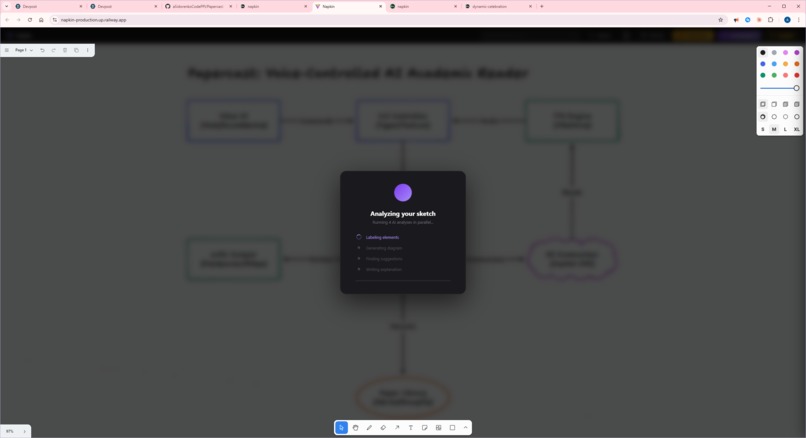
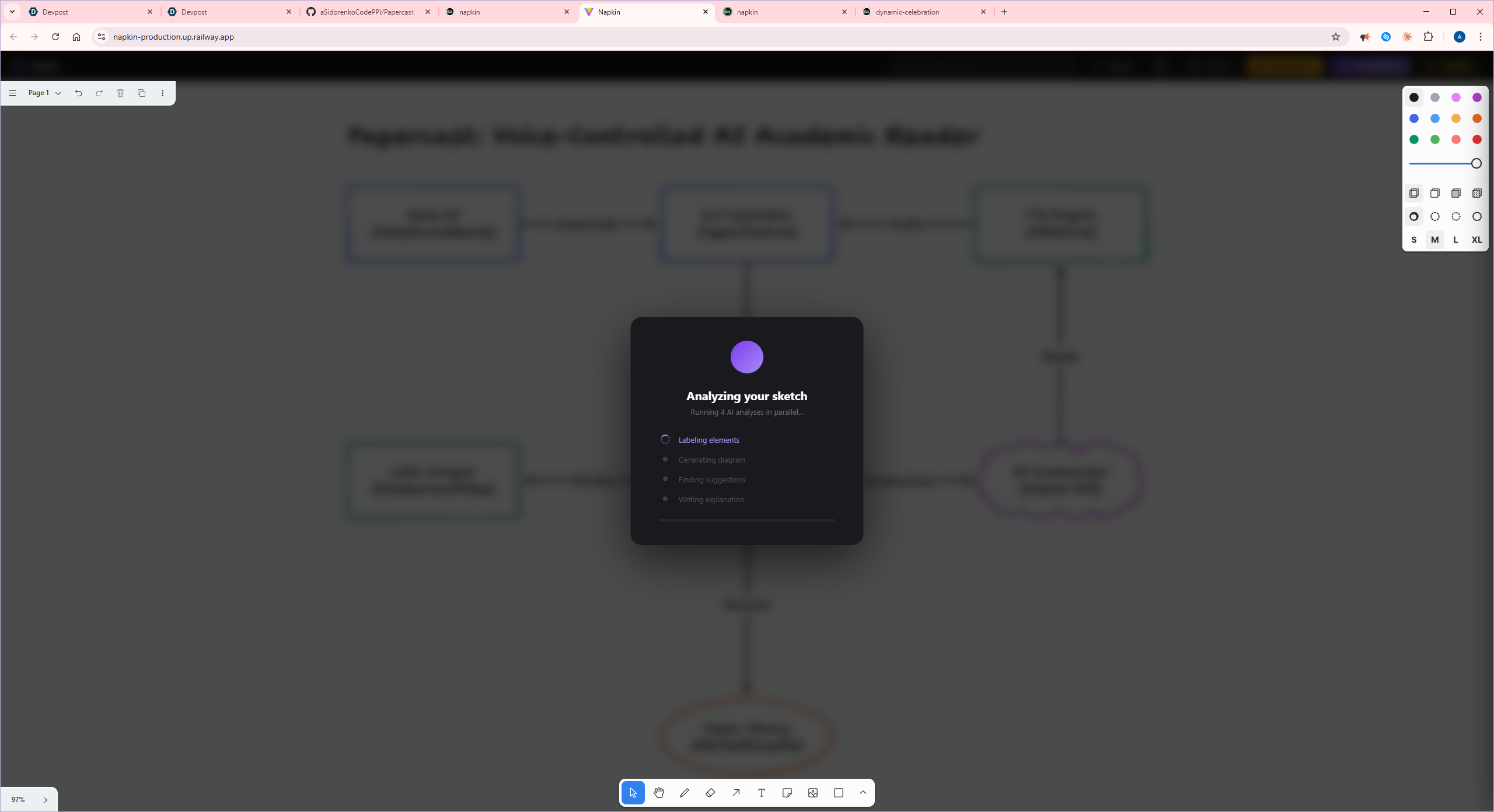
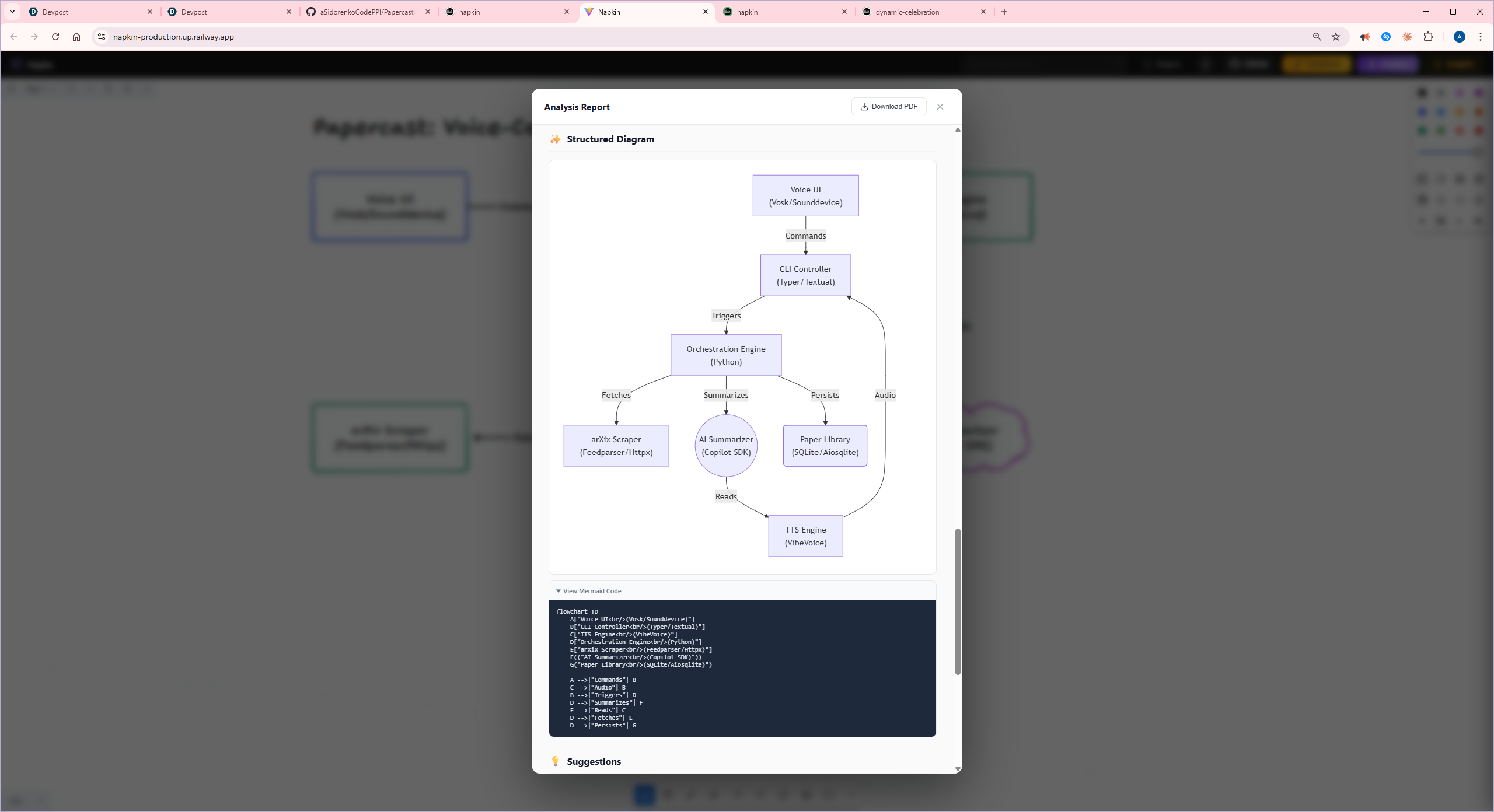
analysis report step 1 parallel AI execution
-
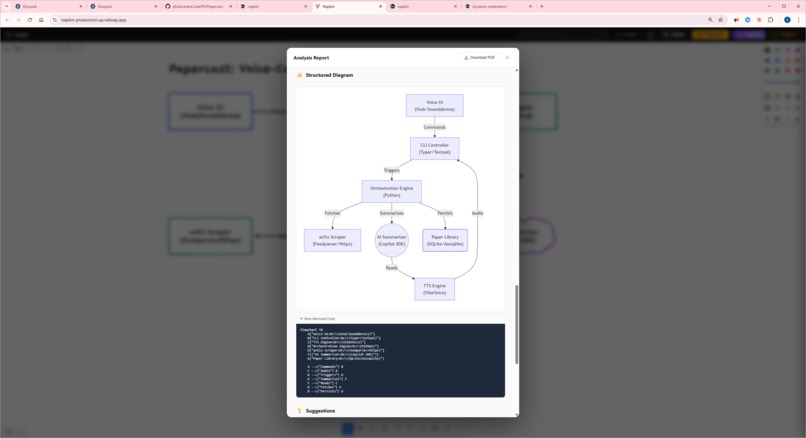
analysis report structure diagram with mermaid code
-
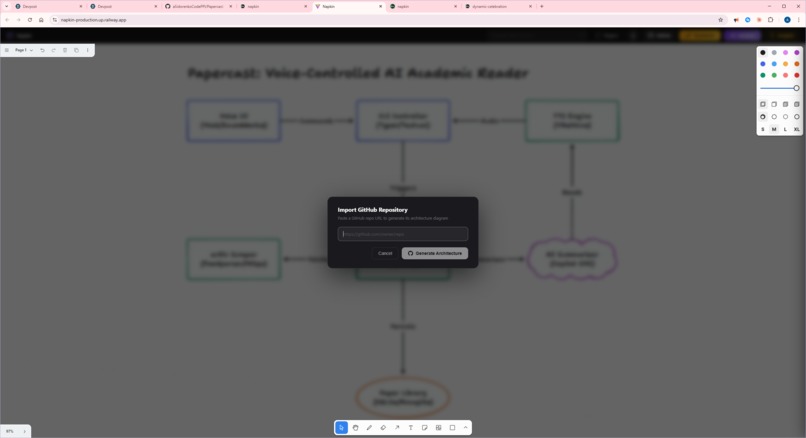
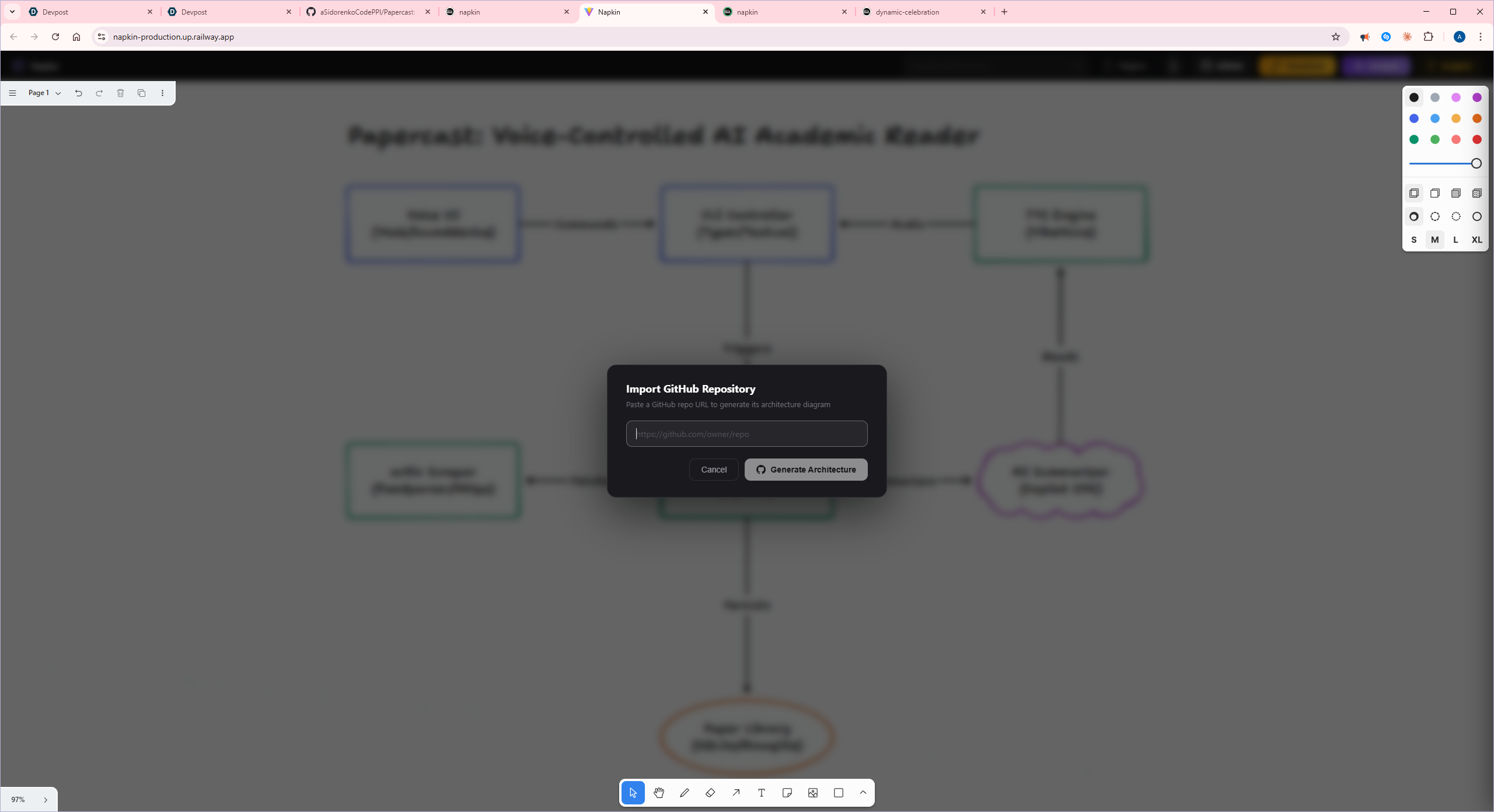
github repo import popup
-
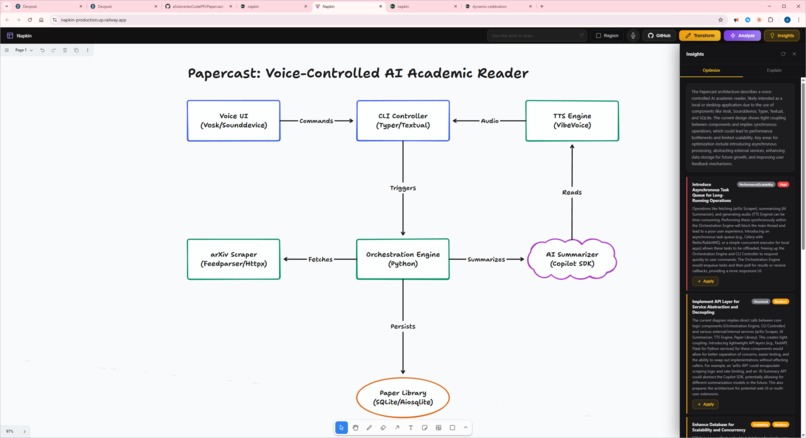
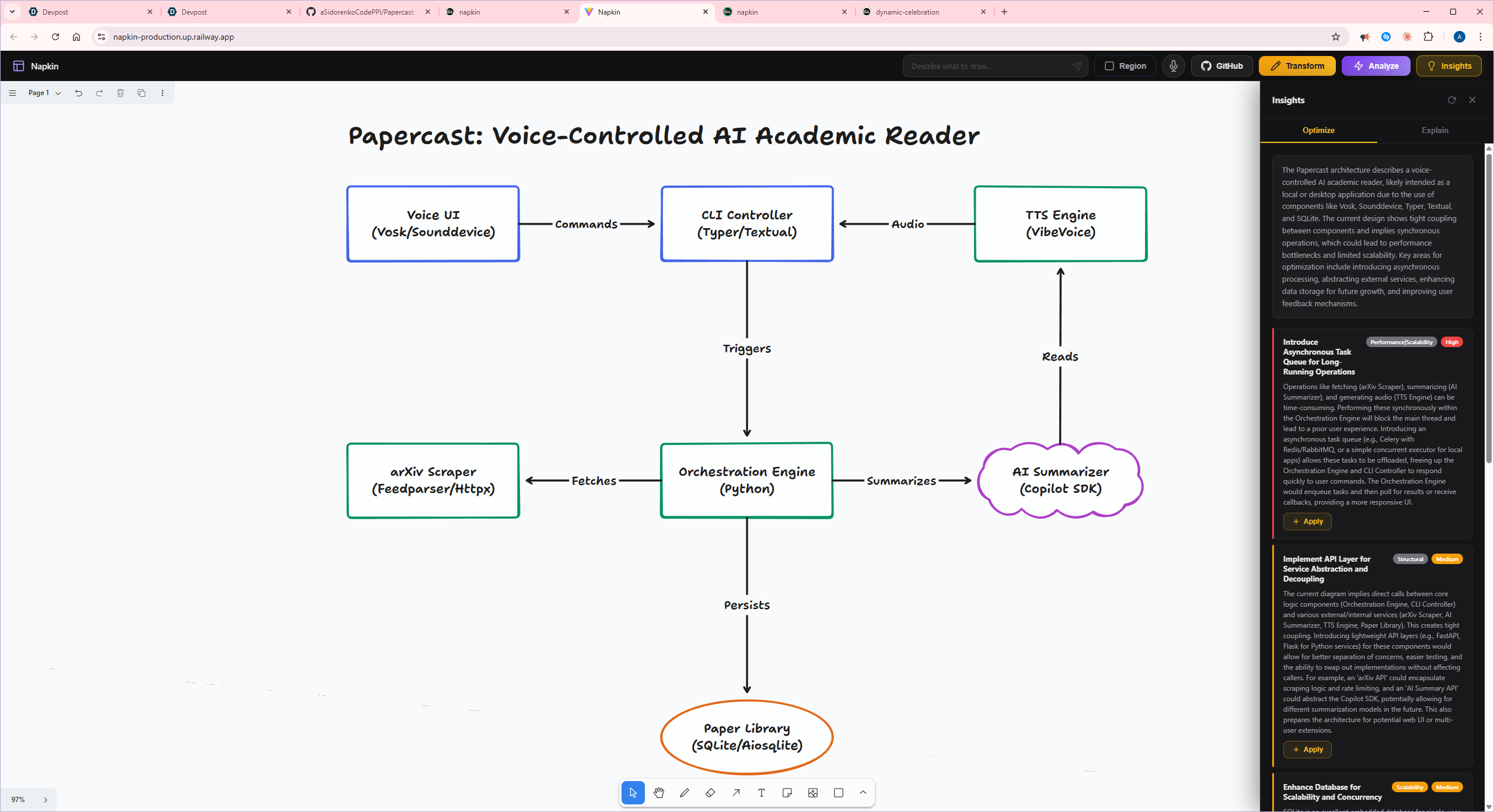
Insights optimize tab
-
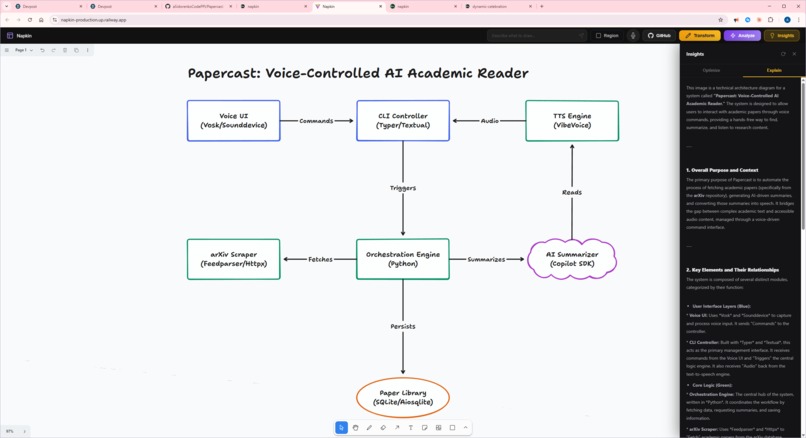
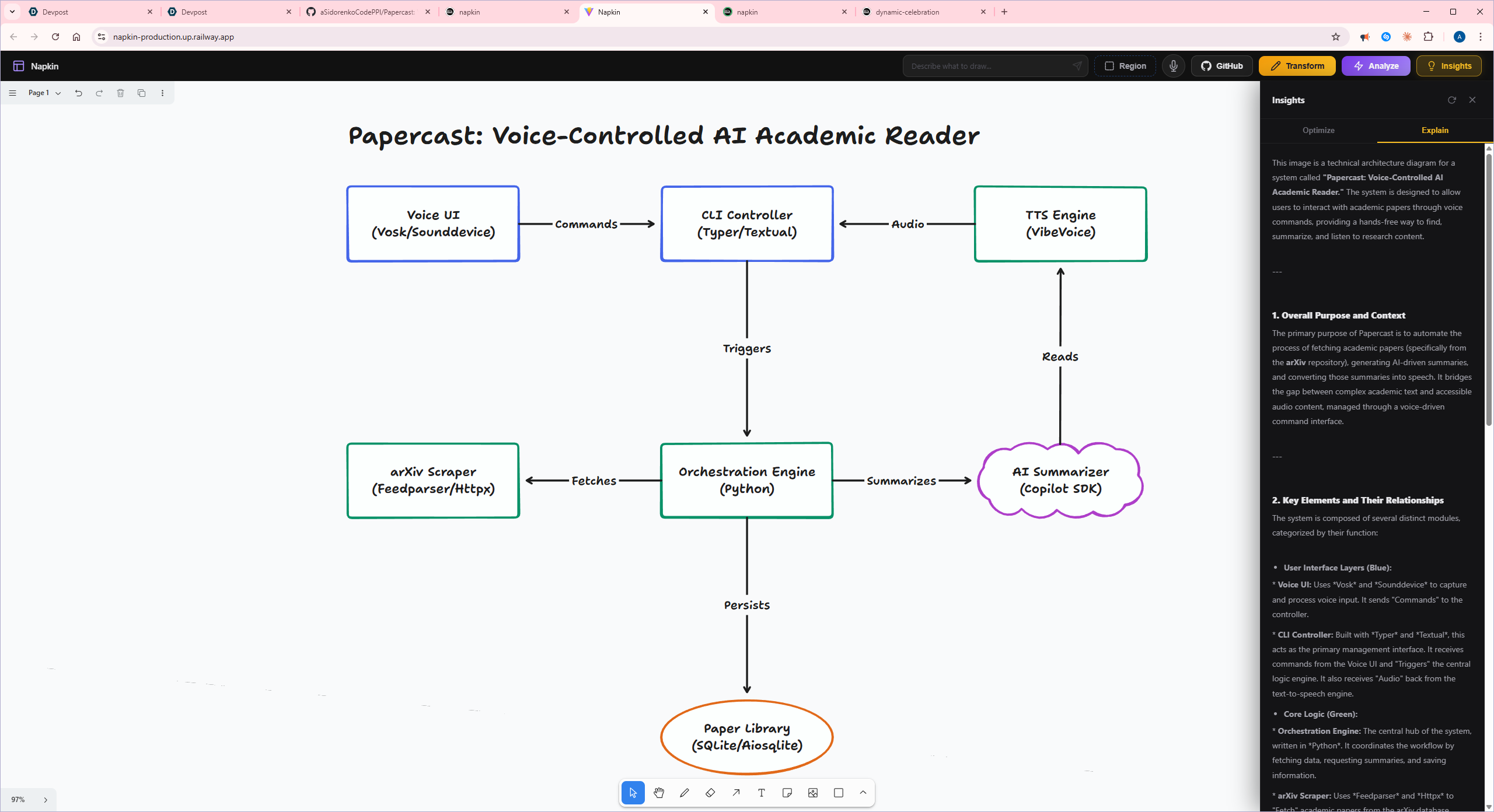
Insights explain tab
Inspiration
Every developer, designer, and student knows the friction: you have an idea in your head — an architecture, a flowchart, a system design — and the fastest way to get it out is to scribble it on a napkin or whiteboard. But those scribbles stay messy. Cleaning them up in a proper diagramming tool takes longer than the thinking itself.
I asked myself: what if the napkin could clean itself up? What if you could sketch freely, speak naturally, or just type a sentence, and an AI would turn that raw input into a polished, structured diagram — instantly, right on the same canvas?
That question became Napkin.
What I Learned
Prompt engineering is the real product. Getting Gemini to output valid, non-overlapping diagram JSON required dozens of iterations. I learned that strict grid-layout rules, explicit spacing constraints (550px horizontal / 450px vertical minimum), and one-word arrow labels were essential to prevent visual chaos. Small changes in prompt wording caused dramatic differences in output quality.
Multimodal AI unlocks new interaction paradigms. Gemini's ability to understand both text prompts and canvas screenshots simultaneously meant I could build context-aware generation — the AI sees what's already on your canvas and adds to it rather than replacing it. This felt genuinely magical to use.
tldraw is an incredible foundation. The tldraw library gave me a full-featured infinite canvas with shape bindings, arrow connections, and coordinate systems out of the box. Mapping Gemini's JSON output to tldraw's shape API (with
createShapeId,createBindingId, andtoRichText) was the key integration challenge.Bidirectional arrows are surprisingly hard. When two shapes have arrows going both directions, the arrows overlap perfectly and become unreadable. I had to build a custom anchor-offset algorithm that detects bidirectional pairs and spreads them apart — checking whether the connection is horizontal or vertical to offset on the correct axis.
How I Built It
Napkin has two layers connected by a REST API:
Frontend — React 19 + TypeScript + Vite, built on top of the tldraw canvas library. The frontend captures canvas snapshots as base64 PNG images, sends them to the backend, and renders AI responses directly as tldraw shapes with proper bindings. Key custom hooks:
useShapeGenerator— the core engine that parses Gemini's JSON, creates shapes in three passes (deletes, edits, adds), handles arrow bindings, and manages bidirectional arrow offsetsuseCanvasSnapshot— captures the current canvas state as a base64 image for Gemini's vision inputuseVoiceInput— browser Speech Recognition API integration for hands-free diagram generationuseGeminiAnalysis— runs four parallel AI analyses (label, cleanup, suggest, explain) on the canvas content
Backend — Python + FastAPI, acting as a thin orchestration layer between the frontend and Google Gemini. Each feature has its own carefully engineered prompt:
- Generate — takes a text description and outputs a JSON array of shapes on a strict grid layout
- Transform — takes a canvas screenshot and converts rough sketches into clean digital shapes
- Analyze — runs multiple analysis modes in parallel (labeling, Mermaid conversion, suggestions, explanations)
- GitHub Import — fetches a repo's structure via the GitHub API, feeds it to Gemini, and gets back a color-coded architecture diagram
The AI layer uses Gemini 3 Flash preview (Gemini 2.5 Flash as fallback) for its speed and multimodal capabilities — it can process both text prompts and canvas images in the same request.
Challenges I Faced
JSON reliability from LLMs. Gemini occasionally wraps responses in markdown fences or adds commentary. I built a
cleanJsonResponseutility to strip fences and extract pure JSON, but edge cases kept appearing. Strict prompt instructions ("Return ONLY valid JSON, no markdown fences") helped but didn't eliminate the problem entirely.Shape overlap prevention. Early versions produced diagrams where boxes piled on top of each other. The solution was enforcing a mandatory grid system in the prompt — fixed column positions at $x \in {100, 650, 1200, 1750}$ and row positions at $y \in {150, 600, 1050, 1500}$ — with explicit minimum spacing rules.
Context-aware editing. When the canvas already has shapes and the user asks for modifications, the AI needs to understand what exists and produce targeted add/edit/delete operations rather than regenerating everything. I built a two-pass shape serialization system (
buildExistingShapeInfo) that maps tldraw's internal IDs to simple integers the AI can reference, handling non-arrow shapes first and then resolving arrow bindings in a second pass.Region-scoped generation. Letting users draw a rectangle and scope AI changes to just that area required converting screen coordinates to page coordinates (accounting for UI chrome offsets), filtering shapes by AABB intersection, capturing region-only snapshots, and augmenting prompts with spatial constraints — all while keeping the rest of the canvas untouched.
Arrow binding mechanics. tldraw arrows connect to shapes through a binding system with normalized anchors, precision flags, and snap modes. Translating Gemini's simple
{"from": 0, "to": 1}format into propercreateBindingcalls with correct terminal types, anchor positions, and edge snapping required careful reverse-engineering of tldraw's internals.
Built With
- fastapi
- gemini
- gh-rest-api
- mermaid.js
- python
- react
- tldraw
- typescript
- uvicorn
- vite
- web-speech-api

Log in or sign up for Devpost to join the conversation.