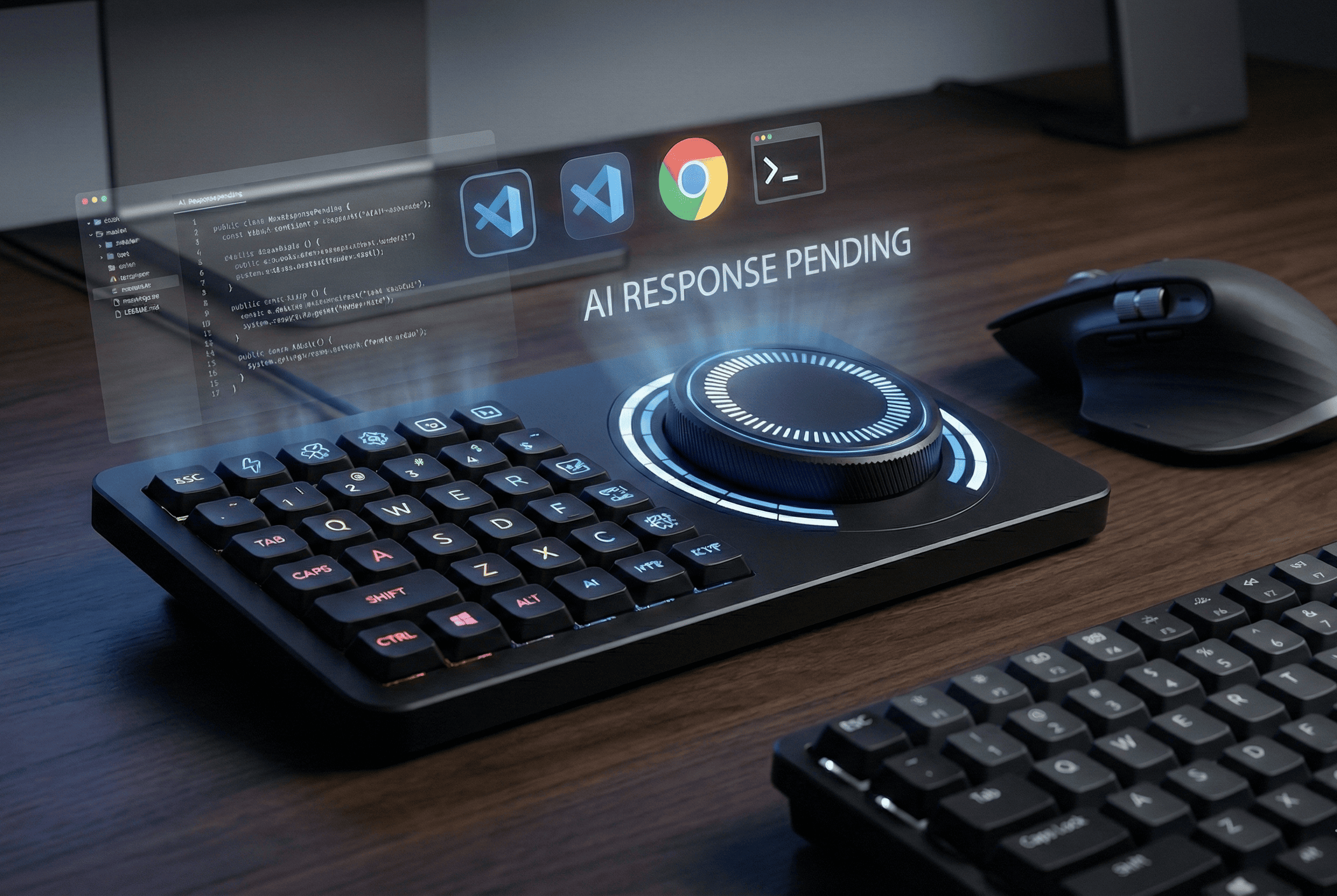
MX Command Console
1️⃣ The Problem – A Developer’s Reality
I’m a developer, and every day I work inside a loop that silently kills productivity.
My daily workflow looks like this:
- Write code in VS Code
- Switch to the browser to read documentation
- Open ChatGPT to debug an error
- Jump to the terminal to test something
- Go back to VS Code
This cycle repeats 40–60 times a day.
Even though shortcuts like Alt + Tab exist, they are not optimized for deep work. They cycle through every open window — music apps, notifications, random tabs — breaking focus.
On top of that, using AI requires constant copy-paste:
- Select code
- Copy
- Switch tab
- Paste
- Wait
- Copy response
- Switch back
- Paste again
These micro interruptions fragment attention.
Developers lose flow — the most valuable state for problem-solving.
And this isn’t just my problem.
It’s a universal productivity gap faced by millions of developers, students, and creators.
That’s why I built FlowDeck.
2️⃣ The Solution – MX Command Console
MX Command Console transforms the Logitech MX Creative Console and MX Master into a physical developer command center.
Instead of using the keyboard and mouse for everything, developers can:
- Switch between core work apps instantly
- Trigger AI actions without leaving the current window
- Adjust AI behavior dynamically using tactile controls
Logitech hardware becomes the bridge between human focus and intelligent automation.
3️⃣ Core Features & Functionality
1. Smart Tab Switching (Developer App Loop)
MX Command Console allows users to configure a Developer App Loop — a curated list of core work tools:
- VS Code
- Browser (Docs)
- Terminal
- GitHub
- ChatGPT
With one button press, users cycle only between these apps — ignoring distractions.
Using the Actions Ring:
- Rotate → Select target app
- Press → Jump instantly
This eliminates unnecessary window hunting and preserves mental momentum.
2. Instant AI Actions (No Copy-Paste)
Inside VS Code or any text editor:
- Select code
- Press AI button
- MX Command Console sends the selected content to the AI
- Response appears as an overlay or inline suggestion
No browser switching.
No manual copying.
No breaking concentration.
3. Dynamic AI Mode Control
The Actions Ring allows users to switch AI behavior instantly:
- Debug
- Optimize
- Explain
- Document
- Refactor
Rotate to change mode.
Press to execute.
This creates a tactile, intuitive way to interact with AI — not just through typing prompts.
4️⃣ Technical Architecture
FlowDeck consists of:
- Logitech Actions SDK integration
- Lightweight desktop companion app
- OS-level active window detection
- Text selection capture system
- LLM API integration
- Overlay UI renderer
The system is realistic, scalable, and compatible with modern development environments.
5️⃣ Market Opportunity & Practical Impact
AI adoption among developers is rapidly growing.
Millions use AI daily — but workflow integration remains inefficient.
FlowDeck targets:
- Professional developers
- Engineering students
- Remote teams
- Tech creators
By turning Logitech devices into productivity accelerators, FlowDeck:
- Increases hardware value
- Enhances ecosystem stickiness
- Encourages deeper Logitech integration
This is not a niche feature — it’s a new interaction layer between humans and AI.
6️⃣ Vision
FlowDeck redefines how developers interact with software.
Instead of switching tools constantly, the tools adapt around the developer.
With Logitech hardware at the center, AI becomes:
- Instant
- Contextual
- Physical
Preserving the most important resource in modern work: Focus
Built With
- console
- hardware
- mx


Log in or sign up for Devpost to join the conversation.