Inspiration
Claude didn't have a pet, so I made one for myself. I wanted a companion that lives alongside my work: one that tells me when things finish, asks for my attention when a chat needs me, and shows how much of my limit is left, without my having to watch every chat.
What it does
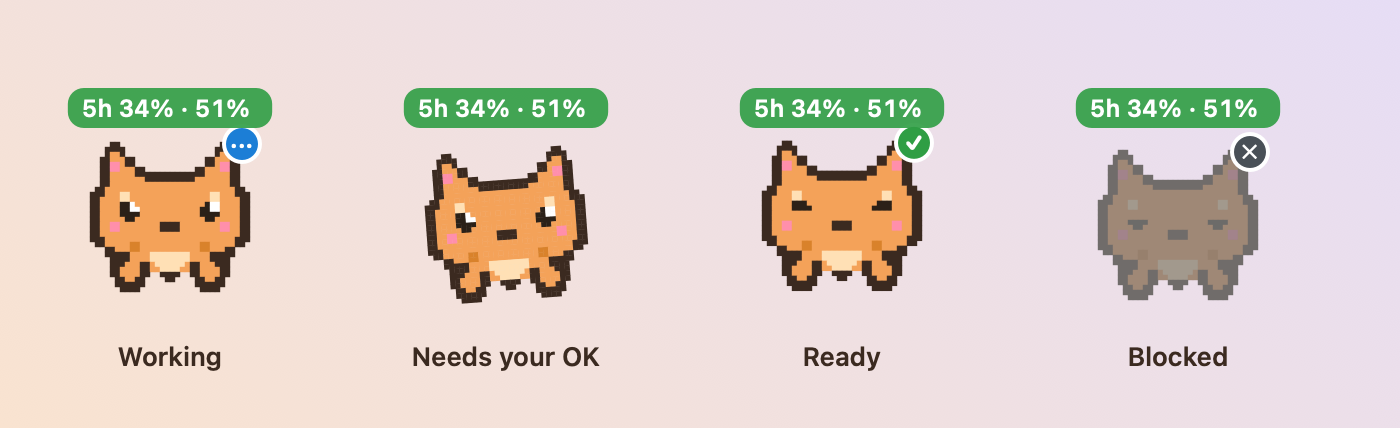
She shows what each chat is doing
Her pose, her badge, and her colours tell you the state of your chats at a glance.
- Walking, dots on her badge: Claude is working
- Wiggling, sound: Claude needs your OK or has a question
- Hopping, green check: Claude has finished; she stays "ready" until your next message
- Grey, squinting: a reply was interrupted or failed
Her mood follows your limit. Past 70% of either limit her eyes get a lid, so she looks tired. With less than an hour left in the 5-hour window, a countdown sits on the right end of the usage bar. It is orange, then red in the last 30 minutes.
You can answer from her card
When a chat asks for your OK, her card has Allow and Deny buttons, so you can answer without switching to Claude. It is laid out like Claude's own permission dialog: the question, the whole command or path in a box, and Deny and Allow once with their keys. The mode keys are listed only in chats that can switch modes.
Claude gives her about 8 seconds to answer before its normal prompt appears, so click quickly. Requests that only read or search files, or run read-only commands like ls or git status, never show a card; Claude still asks you in its own window. Turn the card off in her right-click menu, and the normal prompt shows at once.
By default she only pops up for a chat that needs your OK. Finished work, usage warnings and her thoughts go to her list, not to a card or sound. Turn on everything from her right-click menu.
Every chat in one list
Click her to see your recent chats in boxes, grouped by what they are doing.
- Running now is always at the top, with the chats that are working right now.
- Waiting chats follow, with Allow and Deny under each one.
- Finished shows the latest ten, and Resting holds the rest.
- The list updates as chats change, and the heading counts the chats waiting for you. Click a box to open that chat in Claude.
- Every chat has its own coloured dot on its cards and its line in the list, so you can tell chats apart at a glance.
- Option-J, or a click on her red badge, opens the chat that has waited longest for your OK.
Plan usage
A label above her shows your 5-hour and weekly limits. Clicking it opens a box with the state (on track, getting high, almost out, or out of usage), both limits as bars, and when each one resets. Refresh asks Claude for the exact numbers, the same as /usage. If you are out of usage, the box shows when you can continue.
Quick note and talk
Three round buttons appear under her when you move the pointer near her.
- Pencil: opens a small box. Press Enter to start a new Claude Code session with your note.
- Microphone: types what you say into the same box, using your Mac's speech recognition. Nothing is sent until you press Enter. The button turns red while she listens.
- Scroll: opens her week and diary.
While a live chat is in Auto mode (a model decides which requests to approve), gold sparkles appear around her. They go away when the mode changes.
Her week and diary
The scroll button opens two tabs. This week shows the week's turns and approvals each day, that day's peak 5-hour usage, the most active chats, and your week limit. Diary shows twelve weeks as squares, the darker the busier, with the busiest day, active days and your streak. Mochi keeps a small daily count in ~/.claude/mochi/days.json, with no chat content.
Little thoughts
Now and then she thinks out loud in a bubble above her: how long is left in her 5-hour window, a warning near the limit, chats that are ready, or a fun fact. One at a time, only when nothing needs you, and she stays quiet when you ask her to.
Quiet, and tidy
- Quiet for 1 hour, or Quiet until I turn sounds back on, from her right-click menu, silences her sounds, and the cards and Mac notifications for finished work. Questions and approval cards still show, and the same item ends the quiet early.
- She tidies up after herself: status files from chats untouched for a week, and answer files untouched for two weeks, are deleted at launch and every hour, so she stays quick.
Make her yours
Six skins, chosen from her right-click menu under Skin.
Mochi Studio is a small app to change her body, eyes, accessory (none, bow, hat, or scarf), and name, with a live preview. It saves to the same file Mochi reads, opens with the look you saved, and previews her in the skin chosen in Mochi's menu, drawn the way Mochi draws it. Undo and redo (⌘Z and ⇧⌘Z) step back through every change.
How we built it
Mochi has three parts:
pet-mod/: a Claude Code plugin in TypeScript, run with Bun. It reports what each chat is doing and waits for your answer to an approval.mochi-desktop/: the macOS app that shows Mochi on your screen, written in Swift with AppKit.mochi-studio/: the look editor, written in Swift with SwiftUI.
The plugin and the apps talk only through plain files in ~/.claude/mochi/.
How Mochi grew, step by step:
- A text pet in the side panel. A small character with a status line, drawn with Claude Code's plugin system.
- A pet that walks. It moved while Claude worked, and reacted when work finished or was blocked.
- A strip above the message box. It moved out of the side panel, so it no longer took up space.
- Pixel art. A 16×16 pixel cat with a status badge, later with a blinking, animated look.
- A floating app. Mochi became her own small window that you can drag anywhere, with a list of every chat.
- Notification cards. Finished work, questions, and approvals appear beside her as Liquid Glass cards that open their chat when clicked.
- Plan usage. A label showing your 5-hour and weekly limits, and when you can continue.
- Skins. Six looks to choose from.
- Mochi Studio. A preview app for designing Mochi's look.
- Quick note and talk. Two buttons under Mochi: type a note or speak it, and start a session with it.
- Allow or deny from Mochi, shortcuts, and undo. Answer a chat's request from her card, open the note or talk from any app, and undo your painting in Mochi Studio.
- Jump, colours, and tidying. A shortcut and badge click to reach the chat waiting for you, a colour dot for each chat, and old status files cleaned up.
- Quiet hour, and tidier files. A right-click item that silences her for an hour, and old answer files cleaned up along with the status files.
- A clearer chat list and usage box. Chats grouped by what they are doing, with the running and last finished session named at the top, larger text, and a usage box with bars and a Refresh button. Quiet can now last until you turn it off.
Challenges we ran into
- Timing. Claude waits about 8 seconds for your answer, and Mochi has to respond before its normal prompt appears. The plugin only waits while Mochi says she is showing the request, so both sides have to agree on what is on screen.
- Keyboard shortcuts. On a Mac the F-keys control brightness and volume unless you hold Fn, so the answer keys also work as Control-Option-1 to 4.
- Usage data from two places. Mochi reads usage from the plugin and from the Claude app's saved data, and uses whichever is newer. Refresh runs Claude's own usage check to get exact numbers.
- Layout. The countdown, the chat list, and the usage box each took many small passes to get the position and spacing right.
- Testing a floating macOS window. The tests run against the real code, and the screenshots are drawn from the app's views, because screen capture needs permission.
- Older macOS versions. The Liquid Glass look needs macOS 26, so earlier versions get a frosted style instead.
Accomplishments that we're proud of
- A working pet across three parts: a Claude Code plugin, a floating macOS app, and a look editor. They talk through plain files.
- Allow and Deny from a card beside her, with answer keys that work from any app.
- Over 100 commits in about ten days, with a test script that covers the approval logic, both apps, and both builds.
- Mochi makes no network requests of its own, and it only reads and writes files in its own folder and Claude's.
- Open source under the MIT licence, with a README, screenshots, and install steps.
What we learned
- Plain, readable files were the simplest link between the plugin and the app, and the log made failures easy to trace.
- Keeping the logic in small functions, such as which chat a key answers, the countdown, and the usage state, made them easy to test without the UI.
- Preparing it for other people showed the gaps: install paths, notarisation, and documentation need as much care as features.
- Working with Claude Code changed how I build. I approved one idea at a time, and each was built and tested before it reached main.
What's next for Mochi
- Real screen captures of Liquid Glass, the quick note box, and the right-click menu
- Sign and notarise the desktop app so it opens without warnings
- Support for Claude chats outside Claude Code
Try it out
- Install the Xcode command line tools:
xcode-select --install. Mochi builds from source, so this is required. - Download this repository, open Claude Code in the folder, and say: Follow CLAUDE-SETUP.md in this folder to set up Mochi.
- Mochi appears in the bottom-right corner of the screen. Allow notifications when macOS asks.
Requirements: macOS 13 or later (the Liquid Glass look needs macOS 26; earlier versions use a frosted style), Claude Code 2.1 or later with the Claude desktop app, and the Xcode command line tools. The app is not notarised yet, so macOS may show a warning the first time you open it.
To install by hand, follow the full steps with checks in CLAUDE-SETUP.md. In short, run these in Terminal:
mkdir -p "$HOME/Documents/Claude Mods/Mochi Desktop"
cp -R mochi-desktop/. "$HOME/Documents/Claude Mods/Mochi Desktop/"
(cd "$HOME/Documents/Claude Mods/Mochi Desktop" && sh build.sh)
open "$HOME/Documents/Claude Mods/Mochi Desktop/Mochi.app"
Then, in a Claude Code chat, install the plugin (choose the user scope):
/plugin marketplace add <path to this folder>
/plugin install pet-mod@mochi
Start a new chat and send a message. Mochi should show "Working", then "Ready".
Built With
- claude
- macos
- swift

Log in or sign up for Devpost to join the conversation.