-
-
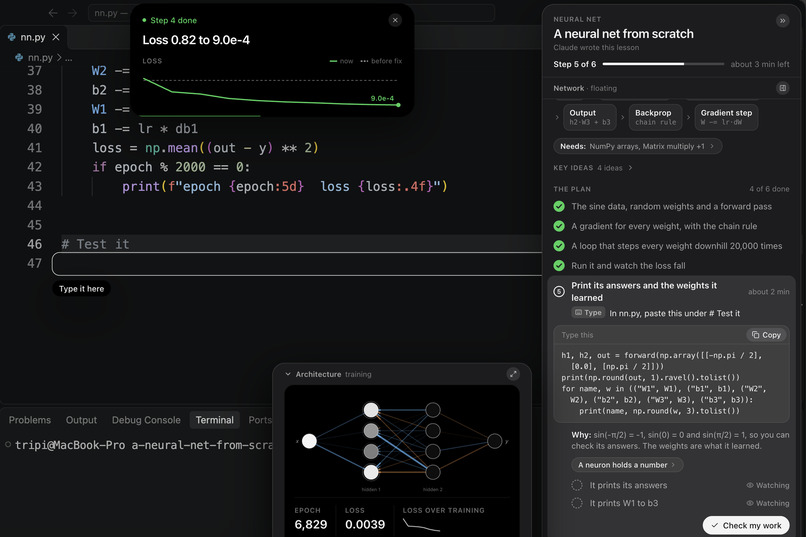
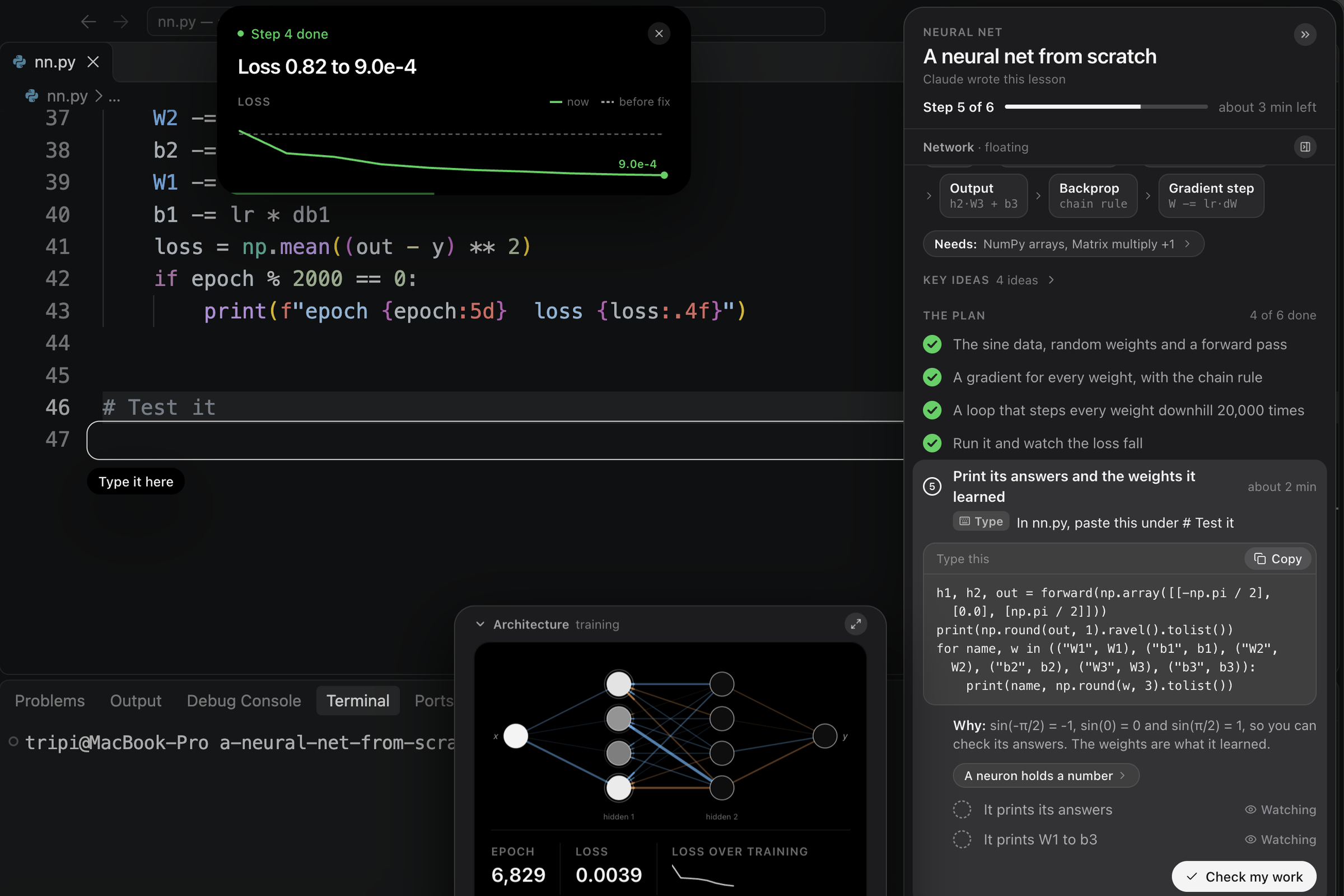
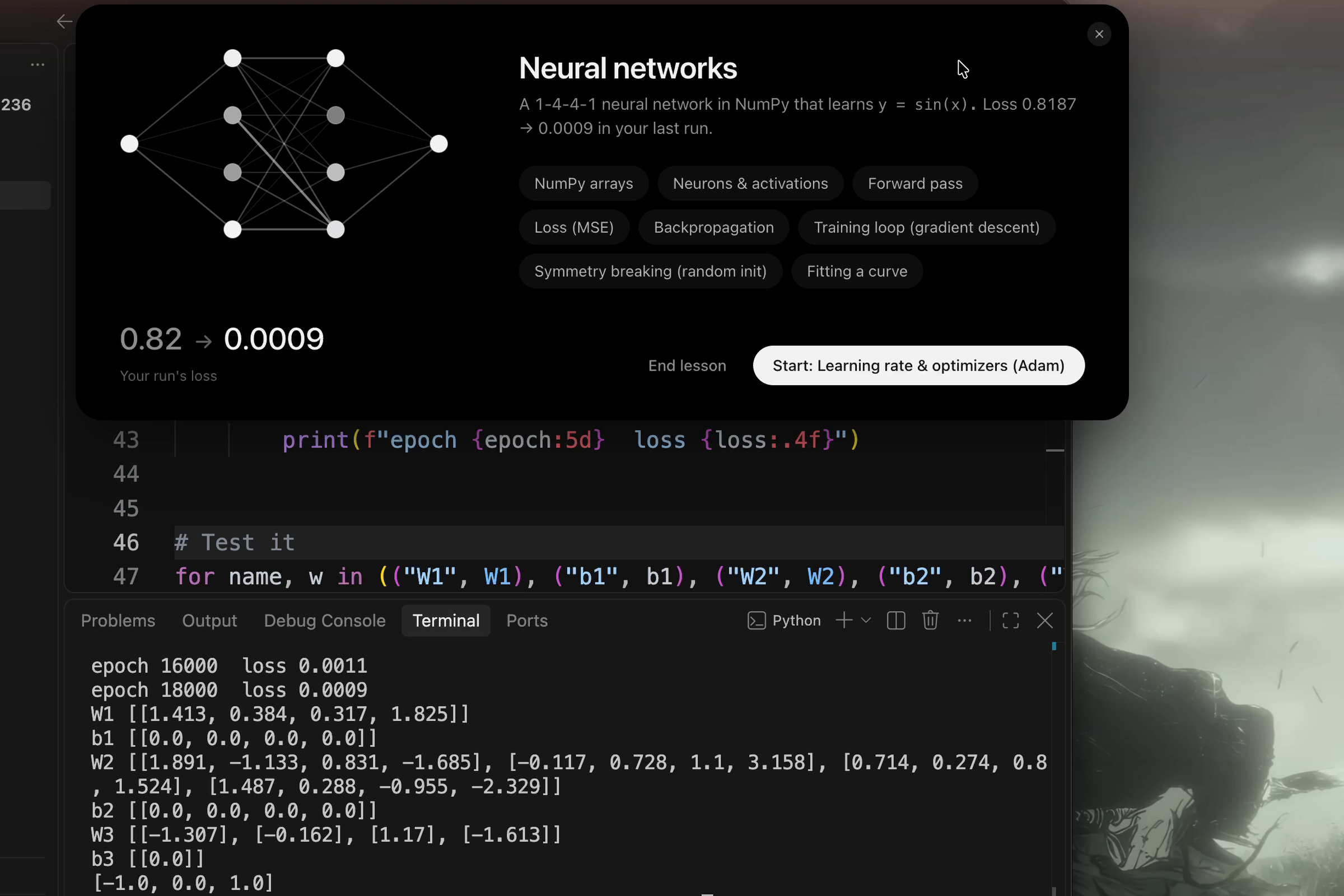
Training passed: the loss fell from 0.82 to 0.0009 while the network trained on screen.
-
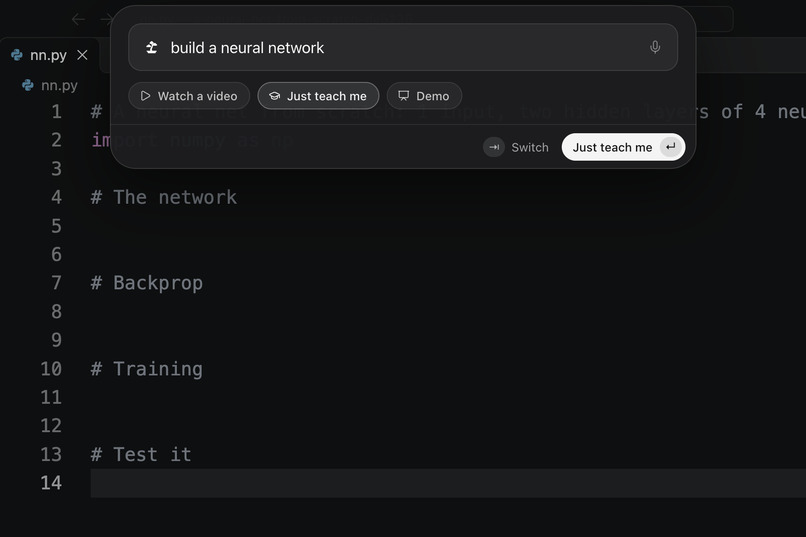
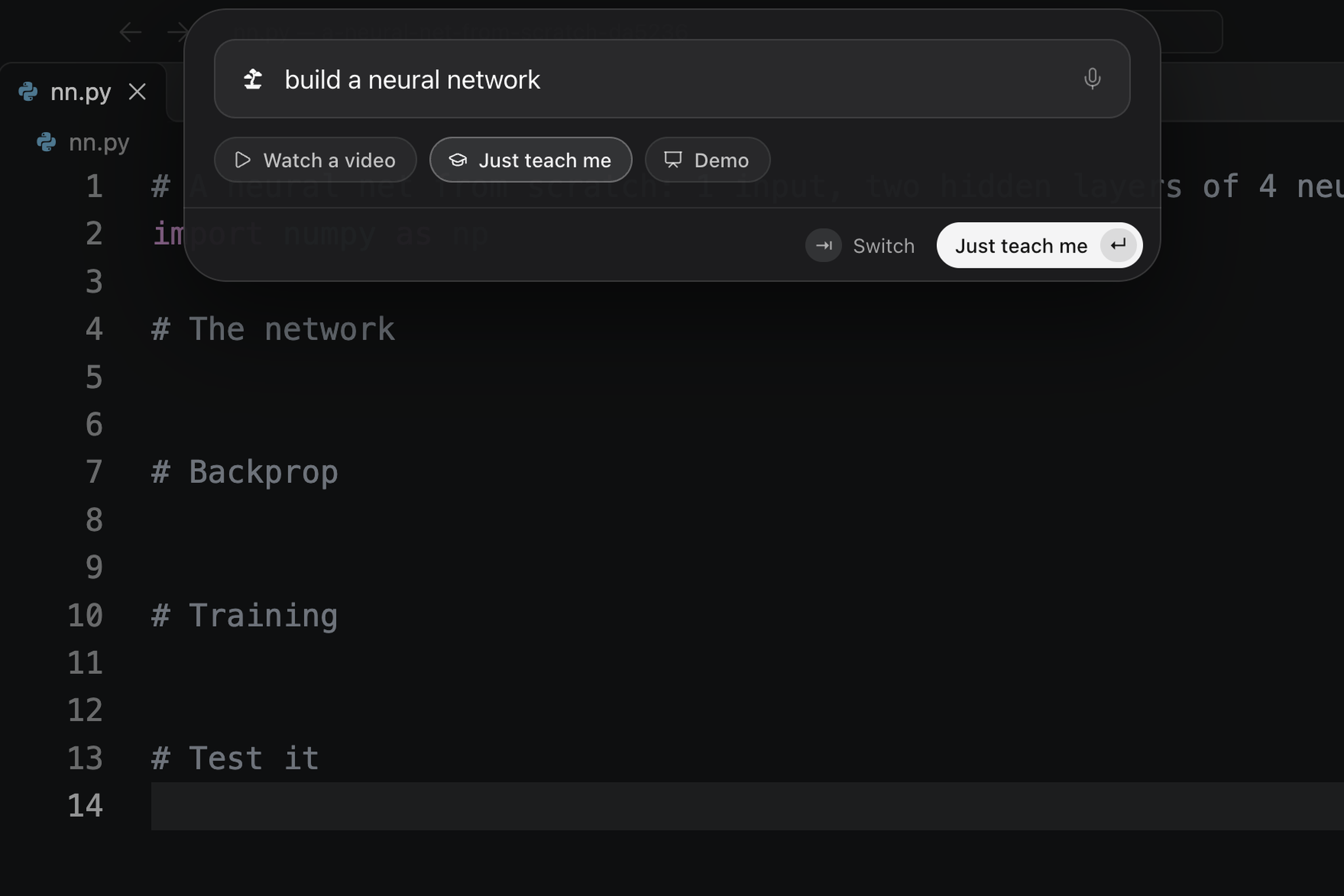
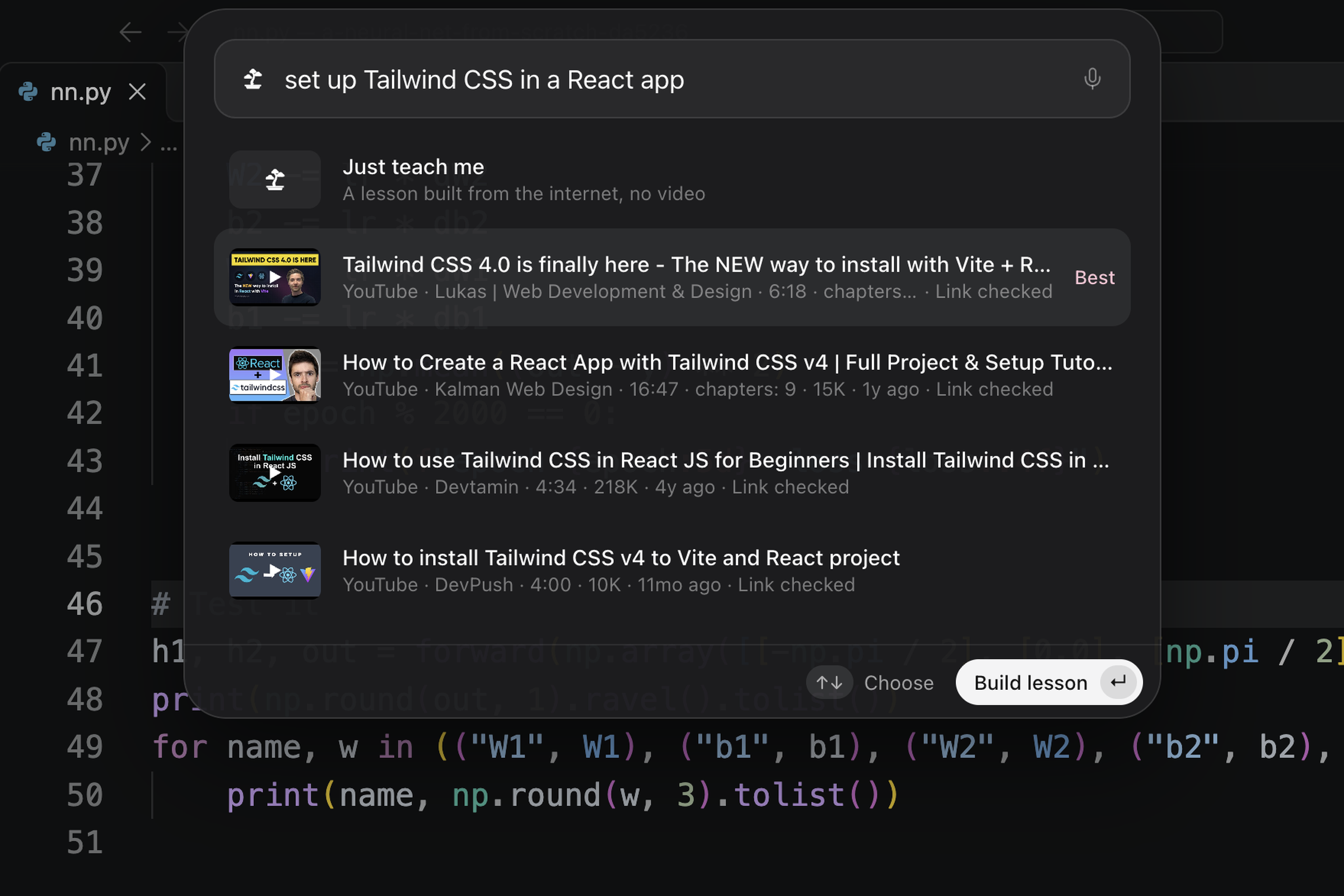
Press ⌥Space and type what you want to learn.
-
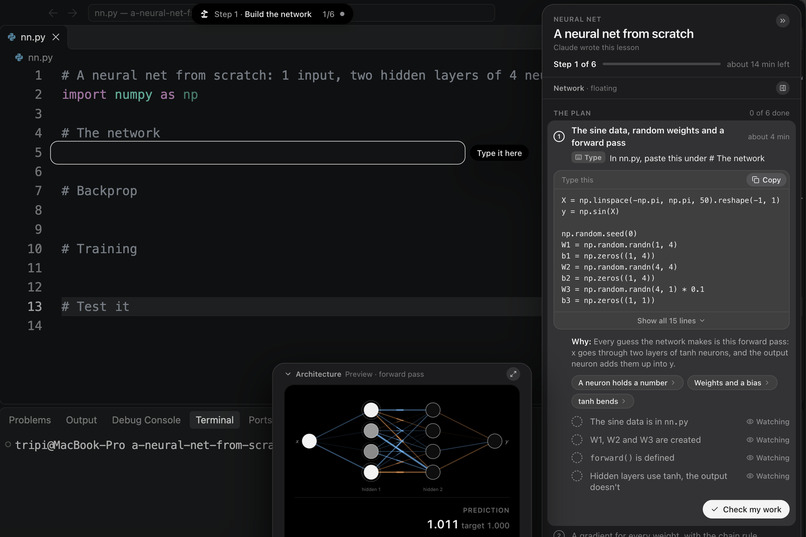
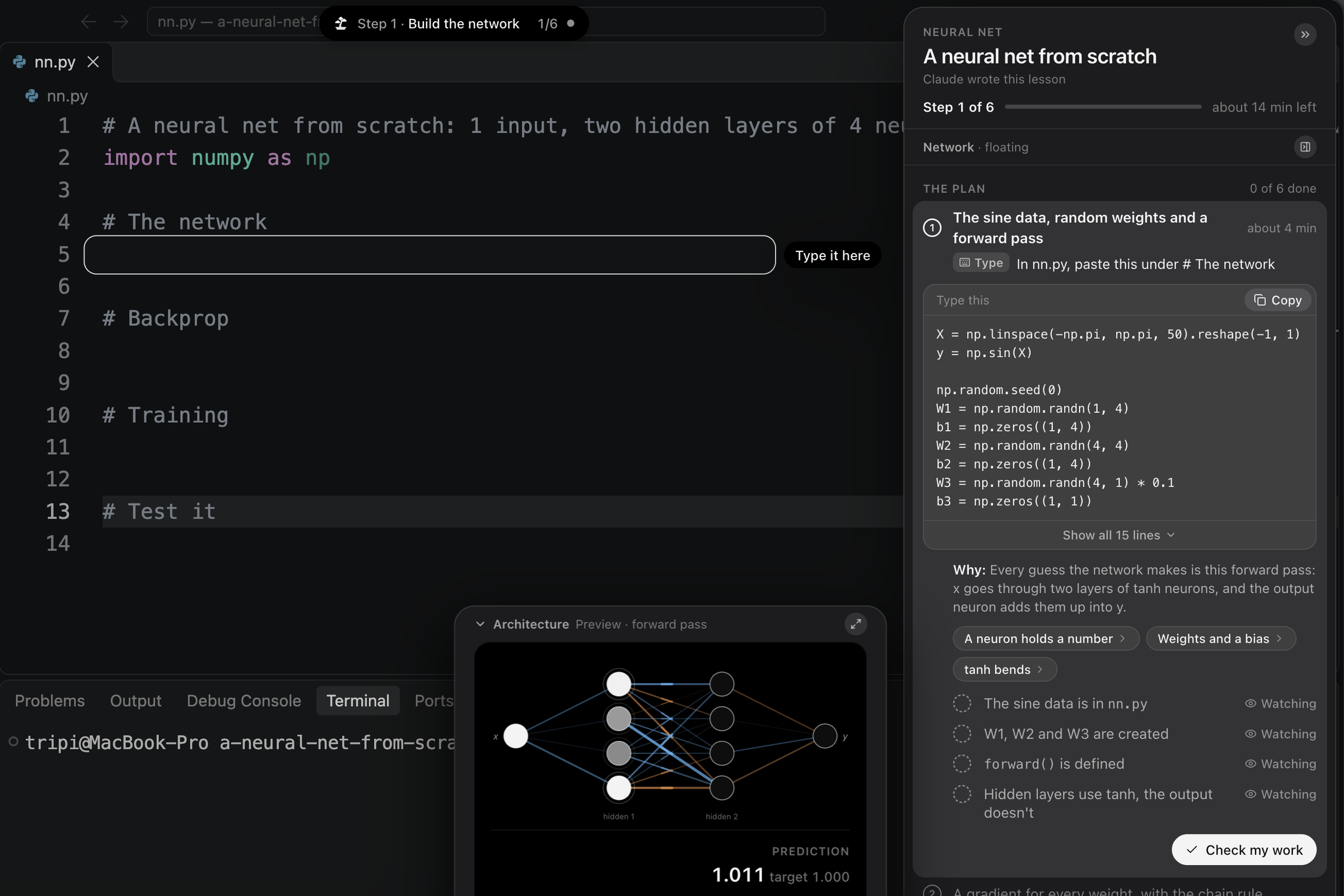
Step 1: a box marks the exact line to type on, and the drawer has the code.
-
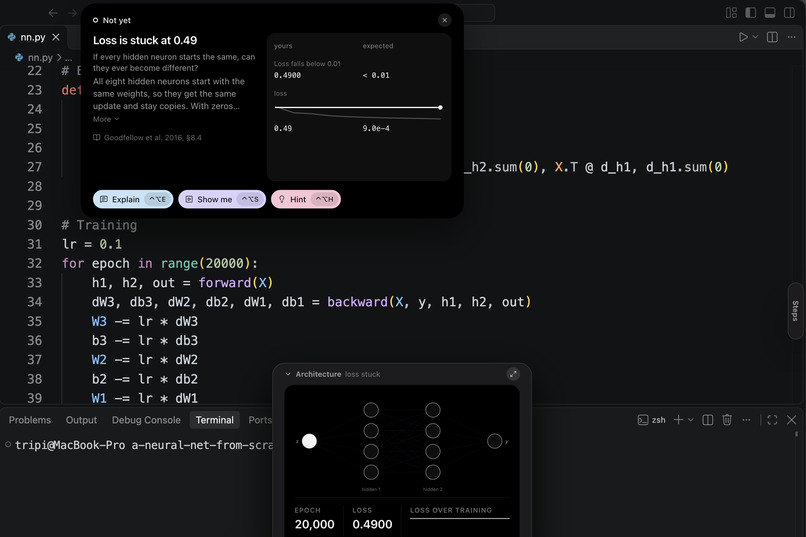
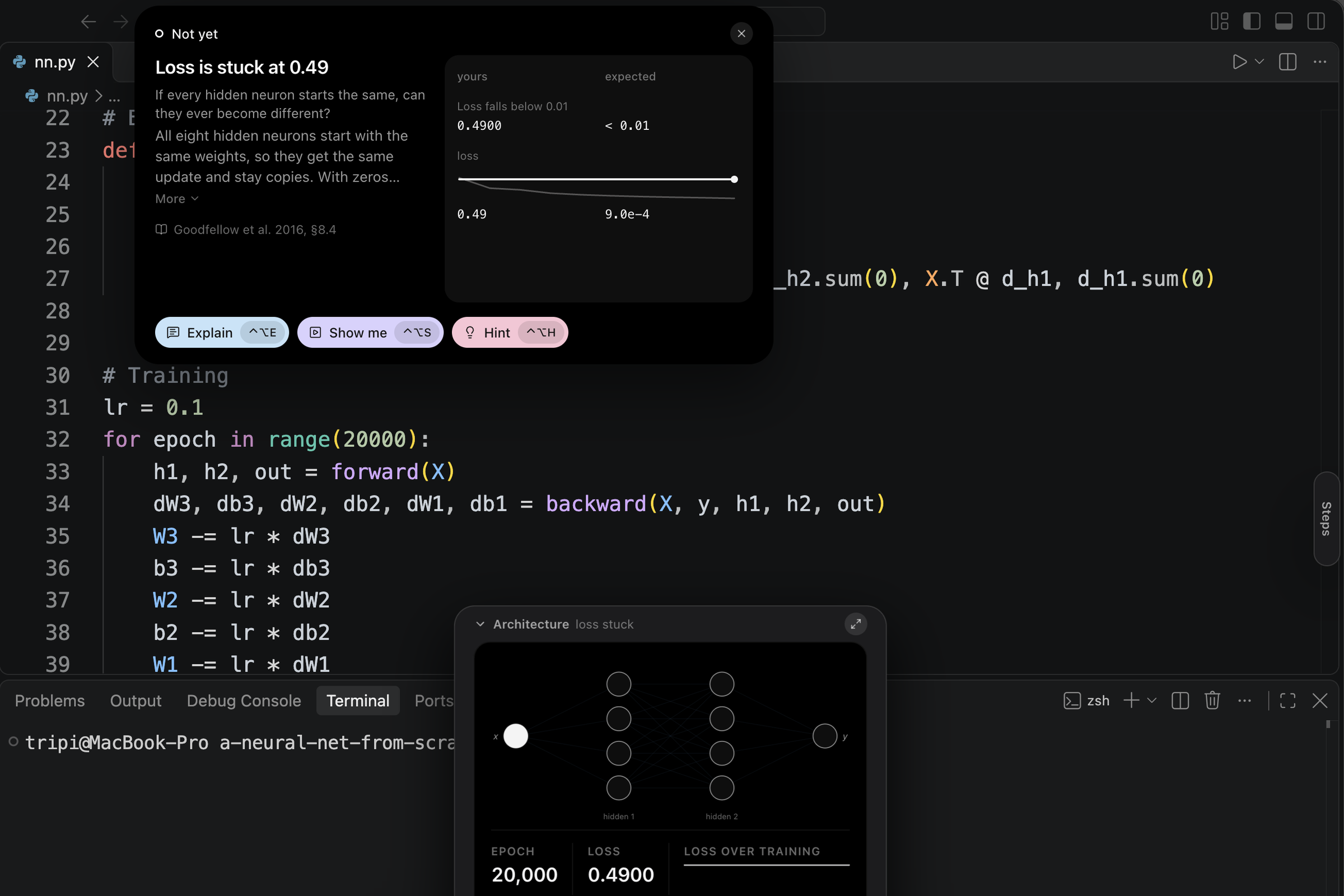
The loss is stuck at 0.49, so the step stays open and the card asks why.
-
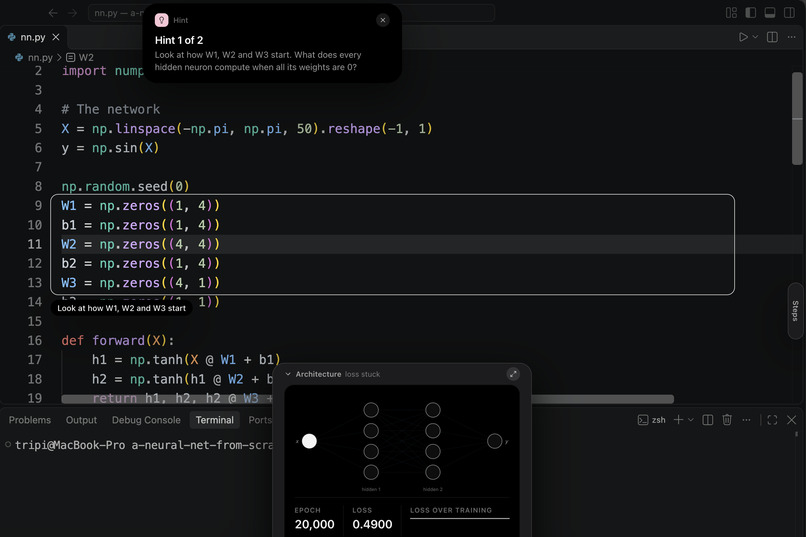
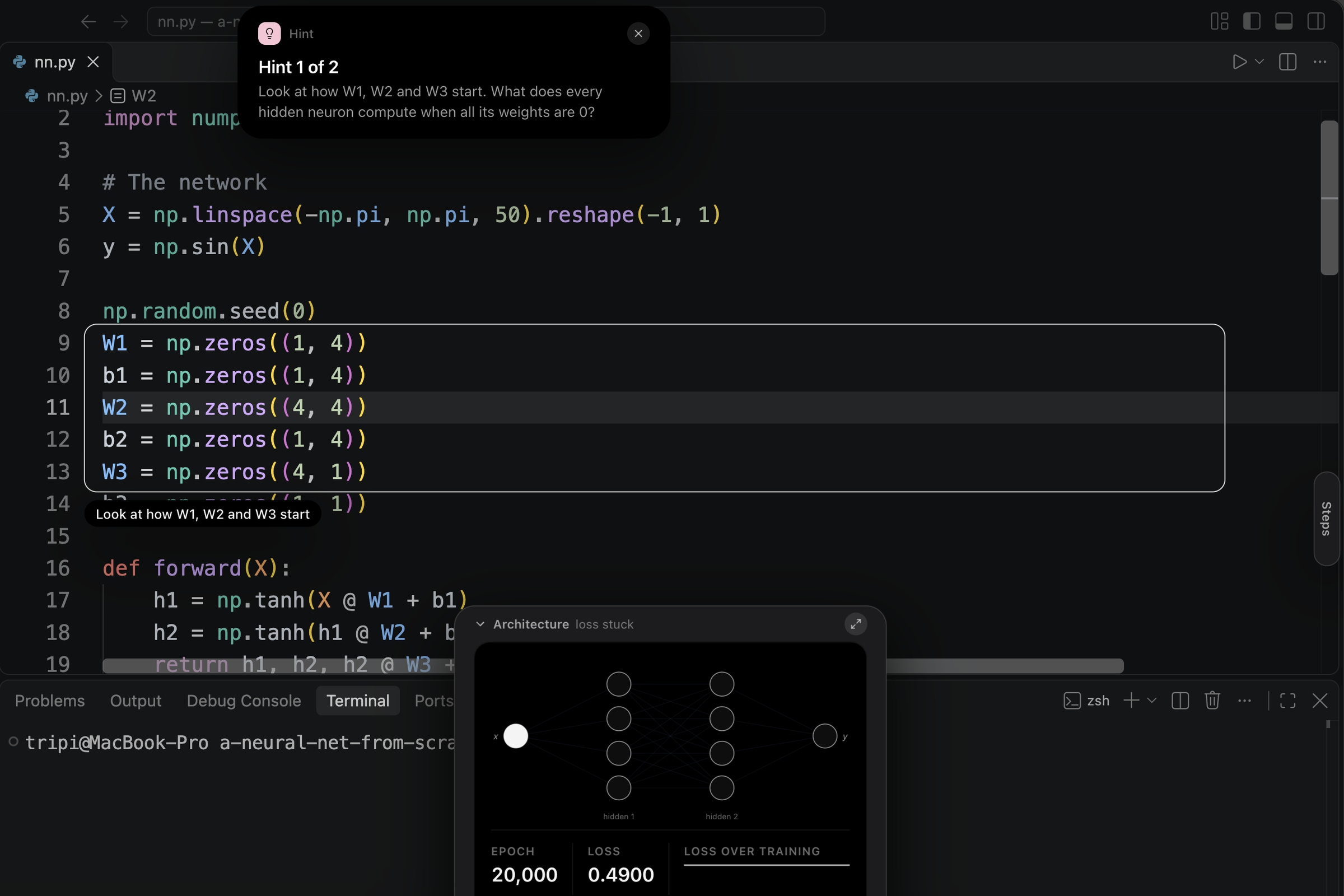
The first hint is a question, and it boxes the lines where the weights start.
-
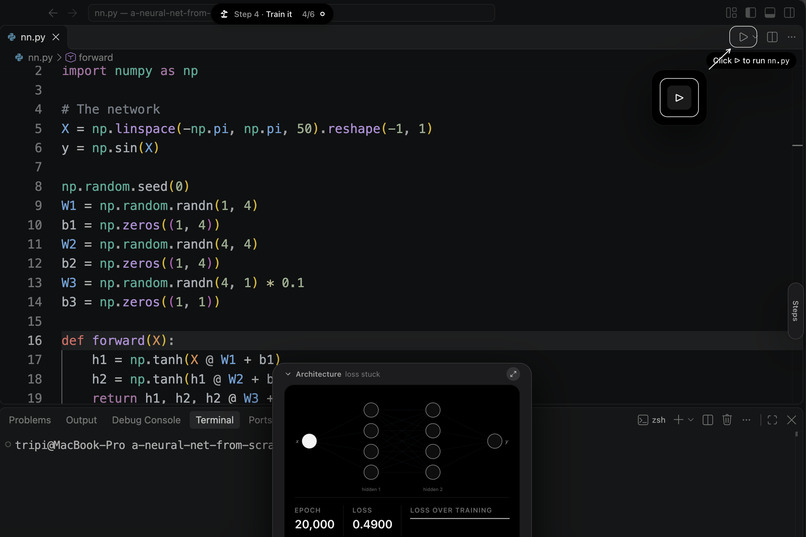
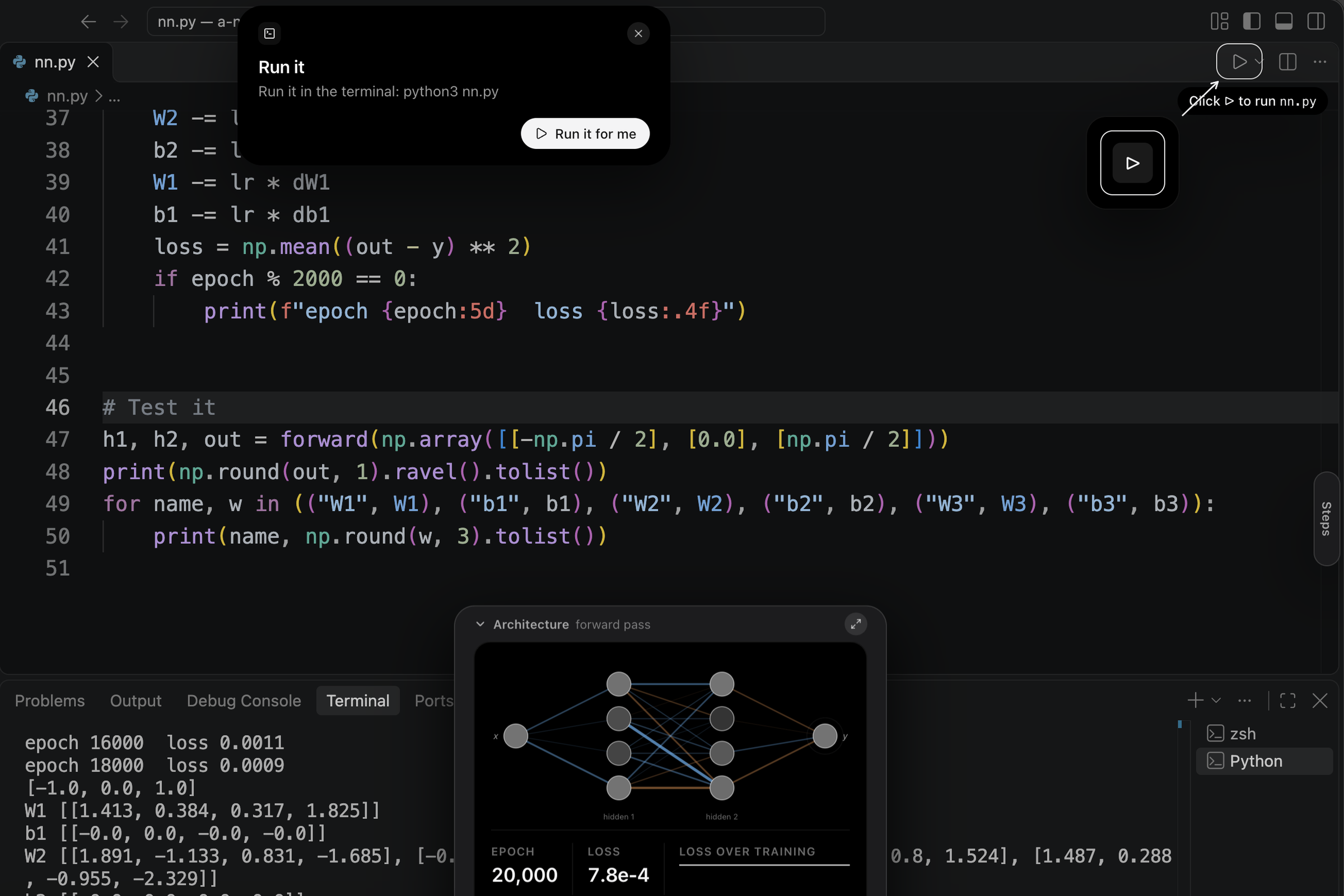
After the fix, miyagi finds VS Code's real Run button and zooms in on it.
-
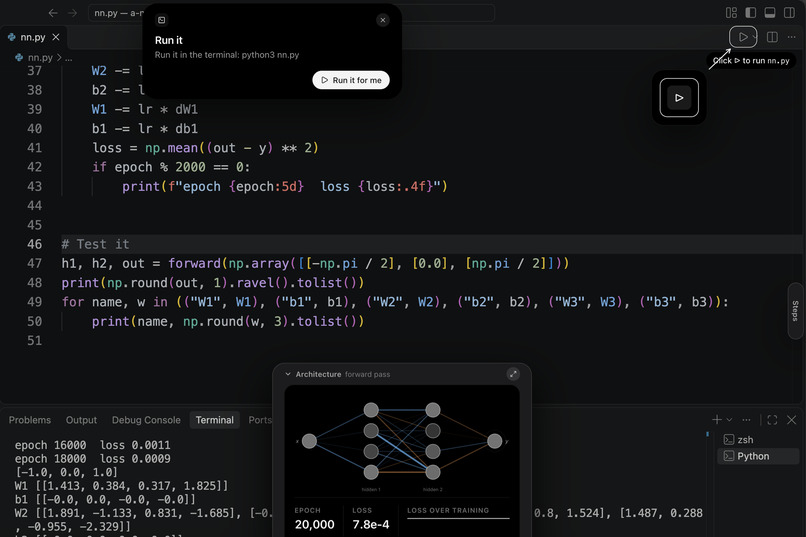
A real run: the loss reaches 0.0009 and the net answers -1, 0 and 1.
-
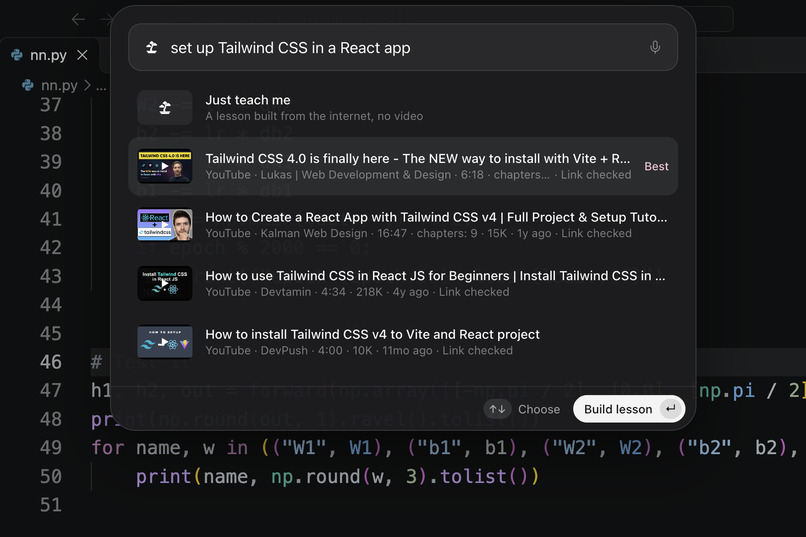
Watch a video: YouTube tutorials found and ranked for your goal.
-
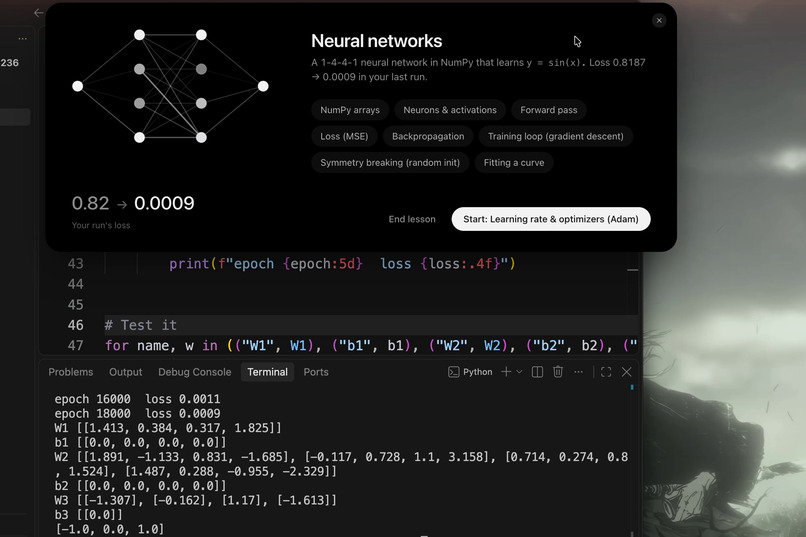
The end of the lesson: eight skills mastered, your run's loss, and what to learn next.
-
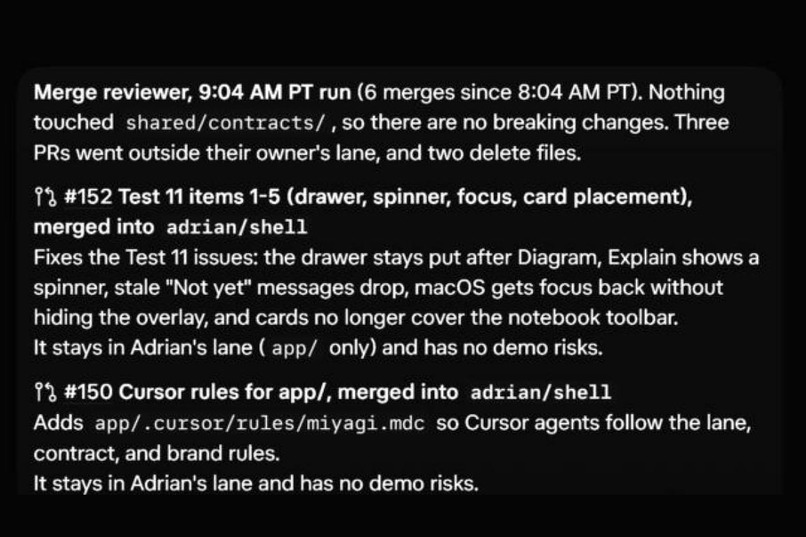
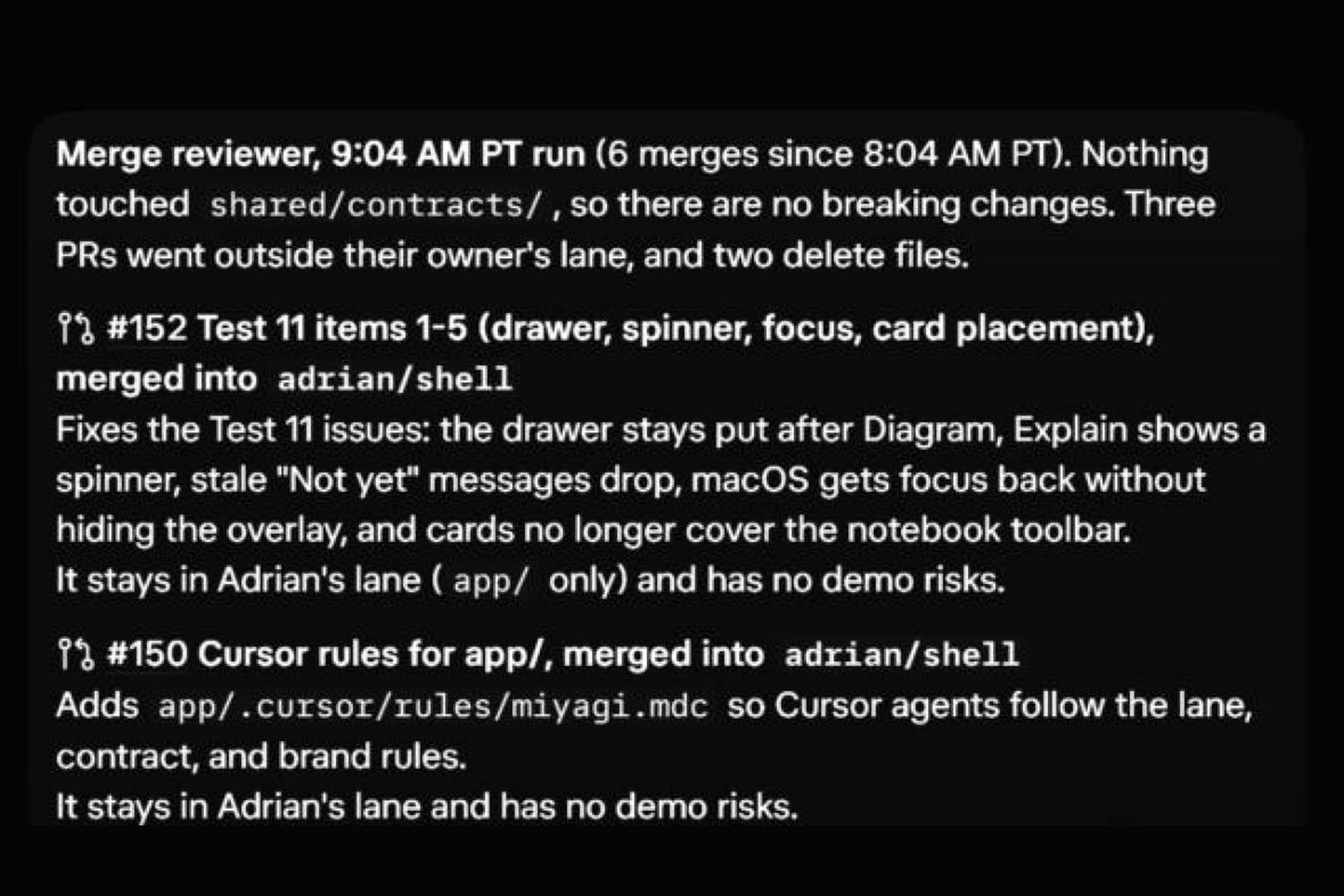
Our Grok Bot reviews every merge for contract changes, lane crossings and demo risks.

Inspiration
Every coding tutorial breaks at the same spot. The instructor's code runs, yours doesn't, and the video keeps playing. You scrub back and compare their screen to yours by eye. If you paste the error into a chatbot, it has never seen the video, so it guesses.
We wanted the tutor who sits next to you instead: someone who knows the video, can see your screen, and stops you at the step where you went wrong. We named it after the teacher in The Karate Kid, because the deal is the same. You do every step yourself, and you don't move on until it works.
What it does
miyagi is a desktop app for learning anything by doing it on your own computer. It lives in a small island under the notch. Press ⌥Space, type what you want to learn, and it finds YouTube tutorials ranked for that goal. If you'd rather skip the video, Claude writes the lesson for you.
Once you pick one, miyagi splits the tutorial into steps, makes a project folder and opens VS Code. The video plays one step and pauses, and a box on your screen shows where to type. When miyagi sees the step working on your screen, the next part of the video plays.
When it isn't working, a "Not yet" card shows what you have next to what you should have. The hints start as a question and end with the exact fix. Fix it can apply that fix to your file, but only after you've seen the diff and said yes.
The demo
We ask for a neural network from scratch in NumPy: one input, two hidden layers of four, one output, learning to draw sin(x). In step 2 we plant one wrong sign in the tanh slope, the kind of bug that's easy to miss. The shapes are right, so the step passes. When we train it, the loss stalls and miyagi won't let the step close. The "Not yet" card names the bug, Show me boxes the line in VS Code, and the hint says which line to fix. After the fix, the loss falls from 0.82 to 0.0009, and a real run in VS Code prints [-1.0, 0.0, 1.0].
This lesson is curated: its steps, hints and network drawings are written ahead of time, so it starts instantly and works without Wi-Fi. The five other tutorials we tested built live, in 24 to 65 seconds each.
How we built it
There are two of us. Adrian built the desktop app (the overlay, cards, drawer, site and Windows build) and Michael built the engine, which finds videos, builds lessons, reads the screen and grades each step. The halves talk over a WebSocket through one shared event contract. We wrote most of the code with Claude Code, many sessions at once, each in its own git worktree. Overnight, Michael ran seven full tests on his Mac, recorded a frame every 2 seconds, and emailed the app bugs back to Adrian's side.
On Sunday morning we added a Grok Bot, Repo Steward, to the workflow. Every 20 minutes it reads each newly merged pull request and reports what changed, whether it touched the shared contract, whether it crossed into the other person's folder, and anything that could break the demo. Its first run reviewed six merges and flagged three lane crossings and two deleted files.
To find tutorials, Claude searches the web and Bright Data's SERP API pulls Google's video results, then Claude scores each video for your goal and hides the weak ones. Bright Data's Web Scraper API reads the comments on the top videos, so if commenters say a tutorial no longer works, you see that before you start.
To build a lesson, Gemini watches the video instead of reading the transcript. On a FastAPI tutorial it read the pinned package versions off the screen, which the narrator never says out loud, and added an install step for them. Claude builds the same lesson from the transcript in parallel and takes over if Gemini hasn't answered in 75 seconds. Claude also does the search, scoring, checks and coaching.
Every step, failed check and loss value goes into Tiger Data hypertables, and continuous aggregates drive a live stats page: your loss curve against the tutorial's, time per step, and where people get stuck, down to 15 seconds of video. The landing page and downloads are on miyagi.study, a .study domain from GoDaddy Registry.
Challenges we ran into
The hardest part was getting miyagi to understand the screen fast enough to matter, without being wrong. If it's slow, you've moved on before it says anything. If it's wrong, it blocks a step you got right or waves through one you didn't, and after that you stop trusting it.
First we couldn't get frames at all. On macOS 26 the system's capture service dropped our ScreenCaptureKit connection thousands of times a second, and the older CoreGraphics call hung for 5 seconds and returned nothing. We fall back to Apple's own screencapture tool now, and during the next stall we still got 23 frames in 45 seconds with no errors.
Then we found out which shortcuts were fast but wrong. Reading code with OCR flipped checks between pass and fail while Michael was still typing. It mistook README.md in the sidebar for the open file, boxed the breadcrumb bar as if it were code, and read miyagi's own cards back as screen text. A hover tooltip once turned def subtract(a, b): into def b: Any.
The careful options were too slow. Asking Claude Haiku where to draw the box was usually right, but each answer took about 2 seconds, the per-minute budget ran out mid-lesson and left the box stale, and once it boxed miyagi's own "Not yet" card. Whole-screen OCR took about 0.3 seconds a frame and ran on the engine's main loop, so everything else waited behind it.
What worked was asking the source instead of guessing from pixels. A small VS Code extension hands the engine the exact text in the editor, unsaved edits included, plus every terminal command with its exit code and output. OCR is only the fallback now, and it only runs on frames that changed. macOS Accessibility gives the exact rectangle of every editor line and button, which is how miyagi points at VS Code's real Run button, terminal tab and unsaved-file dot. The first box of each step comes straight from the lesson's files, so it shows up at once, and Haiku only adjusts it.
Grading follows the same rule: cheap, certain checks first, and a model only when they can't decide. In Michael's tests, a good training run passed 0.19 seconds after it finished, and a rule like "save your file" answered in under half a second. A typo like python 3 nn.py is caught by comparing the command with the step's, with no model call. The model is saved for what needs judgment. Naming the bug on the "Not yet" card is a 3 to 6 second Claude Sonnet call, and a Check that needs the judge takes about 3 seconds. The judge can never overrule a check that failed.
The loss checks needed their own fix. A noisy loss that isn't improving often slopes down by luck, and our first check called up to 136 of 300 of those curves "improving". Rank-based trend tests (Mann-Kendall and Theil-Sen) cut that to 3 or fewer.
It still isn't perfect. In test 6, four of six steps got the right box the first time. Most misses came from VS Code scrolling to the step about half a second after the box went up, so the box now re-reads its row on every new frame. Replaying those exact moments offline, it went from 3 of 3 wrong to 3 of 3 right.
On the app side, the hard part was an overlay that covers the whole screen but acts like it isn't there. It has to take clicks on its own buttons, let every other click through to the app underneath, and never take the keyboard from your editor. Electron only hands a click-through window the mouse after it sees a hover, so a quick click on the pill landed on the wallpaper, and dragging to select text in the drawer brought Finder to the front. Now the main process checks the cursor every 25 ms and grabs the mouse a few pixels before it reaches any of our controls. On macOS miyagi runs as an accessory app, so clicking it never pulls focus from VS Code or switches Spaces. And when another app's always-on-top window (Wispr Flow's status bar) kept covering our buttons, we made the overlay raise itself again on every lesson event.
Accomplishments that we're proud of
It works end to end on a real Mac. In Michael's sixth test, at 3:33 in the morning, he planted a wrong sign in the tanh slope. The loss stalled around 0.04 to 0.05, and about 7 seconds after the run the card said: "Wrong sign in tanh slope. In VS Code, change + to - on line 23 of nn.py." After the fix the loss fell from 0.82 to 0.0009, the step passed, and the lesson ended on the skill map.
In a physics-informed neural net lesson, a learning rate of 0.3 leaves the loss stuck near 17. A few seconds after the run ends, the coach names lr = 0.3 as the cause without being told, and putting back the video's value makes the step pass.
Five tutorials outside our demo, in React, git, pandas, Rust and FastAPI, each became a valid lesson, and all 43 step titles matched what the transcript says happens in that step.
What we learned
Speed and accuracy only fight if every decision costs the same. Most of what miyagi needs to know is cheap and certain, like whether a line exists or what number the script printed, so we check that constantly and save the model for the moments that need judgment.
Ask the source before you read the pixels. The editor already knows its own text and where every line sits, and most of our wrong verdicts came from guessing what it could have told us.
Test on the real machine early. Most of our overlay bugs only showed up when Michael ran the real app on his Mac.
What's next for miyagi
Screen reading on Windows, where the overlay already installs and runs. A view for tutorial creators that shows exactly where learners get stuck. And lessons beyond the code editor, since the checks already work on anything that prints to a terminal.
Built With
- anthropic
- apple-vision
- bright-data
- claude
- electron
- fastapi
- framer-motion
- gemini
- github
- postgresql
- pyobjc
- python
- pytorch
- react
- screencapturekit
- tailwindcss
- three.js
- tiger-data
- timescaledb
- typescript
- vscode
- websockets
- youtube


