-
-
Mimir: Mind-Input Mouse with Iterative Refinement
-
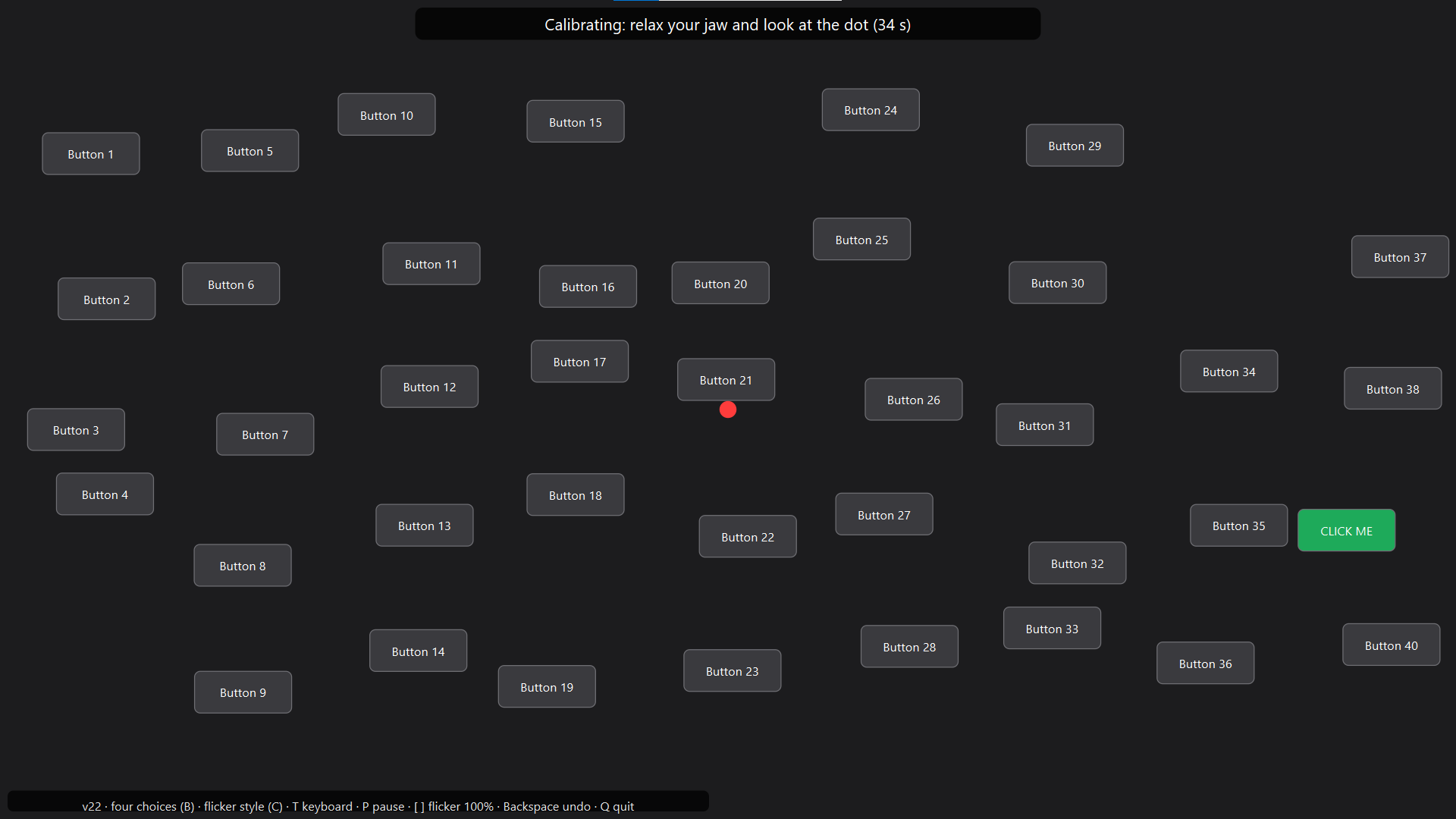
Calibration for screen selection demo
-
Initial selection for screen selection demo
-
Flashing boxes of different frequencies for each option
-
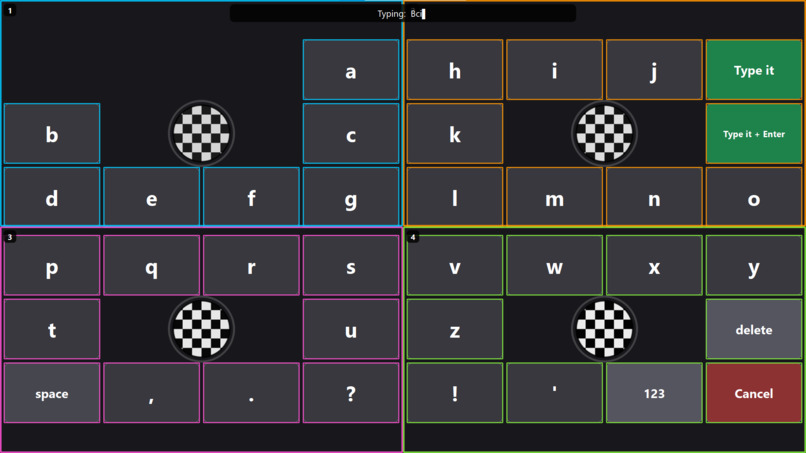
Text selection screen after a text box is selected into or the text toolbar item is chosen
-
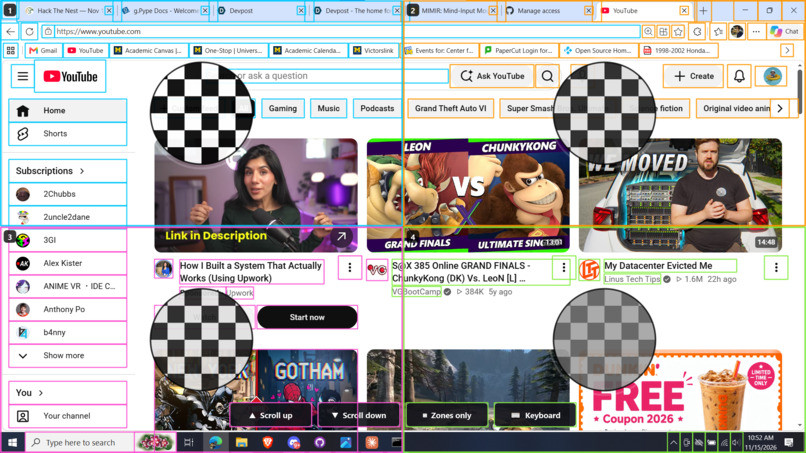
Selection overlay on Youtube
-
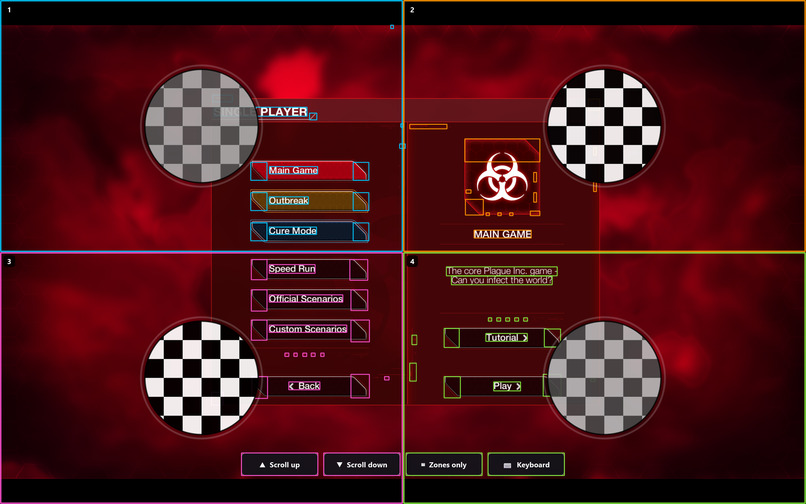
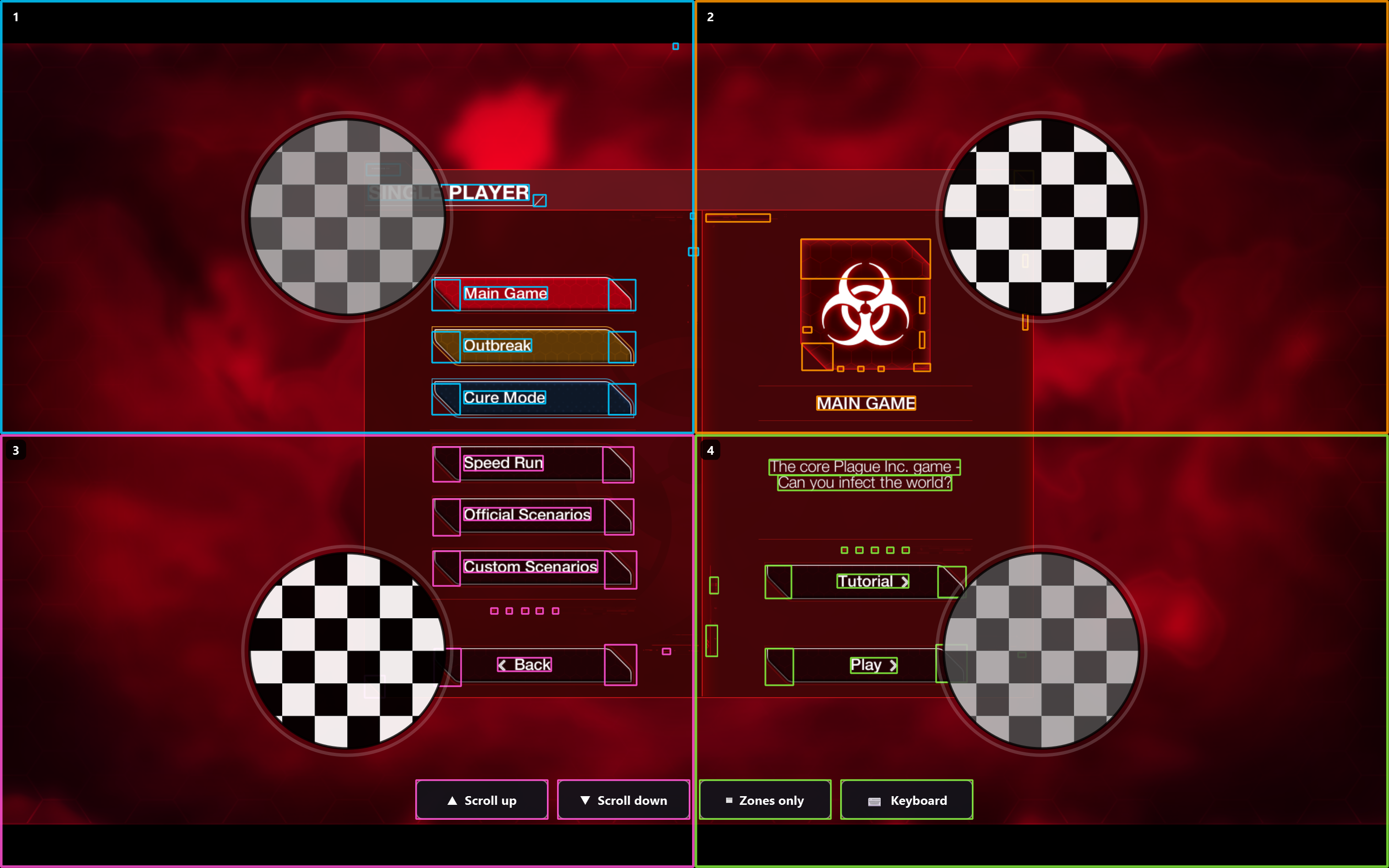
Selection overlay on the video game, "Plague Inc"
-
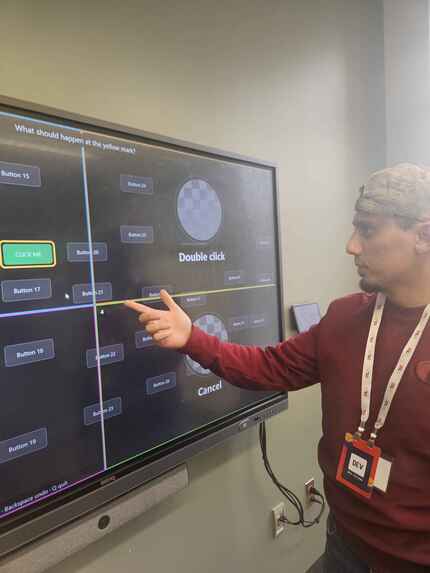
Viewing simulation of program based on SSVEP dataset
-
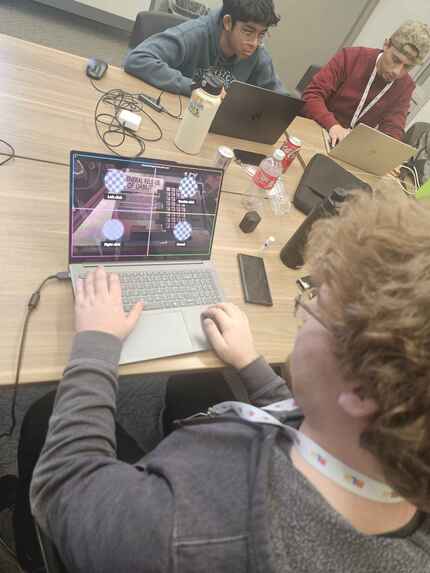
Testing program on the video game, "Buckshot Roulette"
-
Group photo
Inspiration
The challenge was to control a computer with EEG using g.tec's Unicorn headset. Most BCI demos we'd seen do this inside their own app, usually a speller or a simple game with four big targets. We wanted to click things in the apps people already use, like a browser or the taskbar, since that's what someone with ALS or a high spinal cord injury needs a mouse for.
We went with SSVEP because it needs no training. If you look at something flickering at 12 Hz, your visual cortex starts oscillating at 12 Hz, and the electrodes at the back of the head can pick that up. But you can only reliably tell a handful of frequencies apart, so we had to figure out how much of a desktop you can reach with four.
What it does
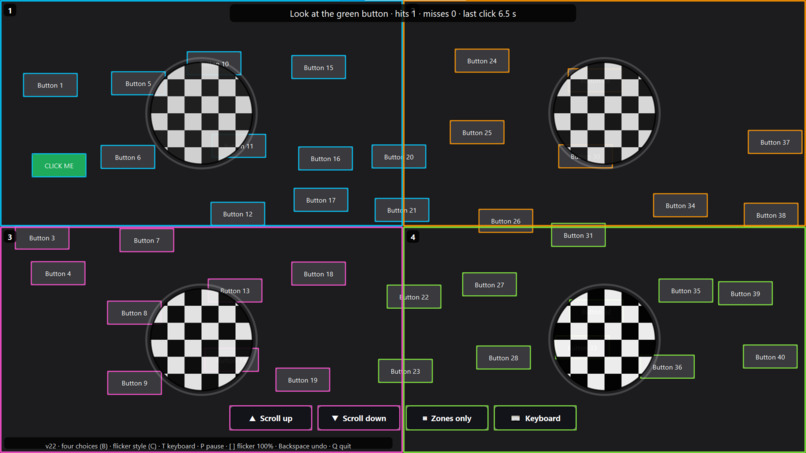
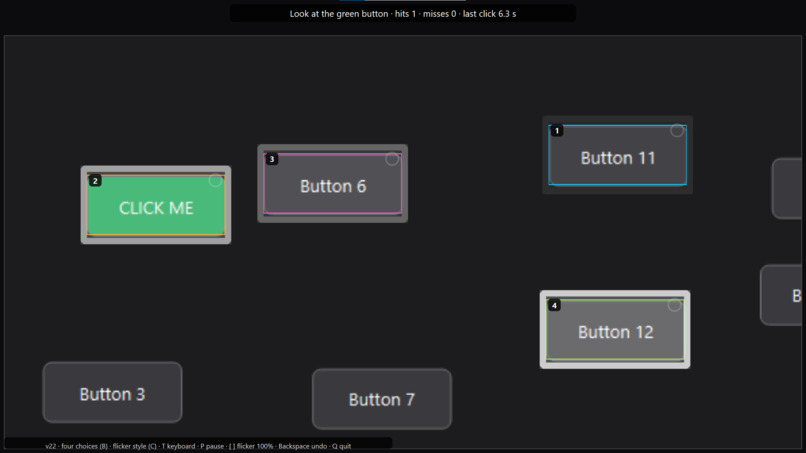
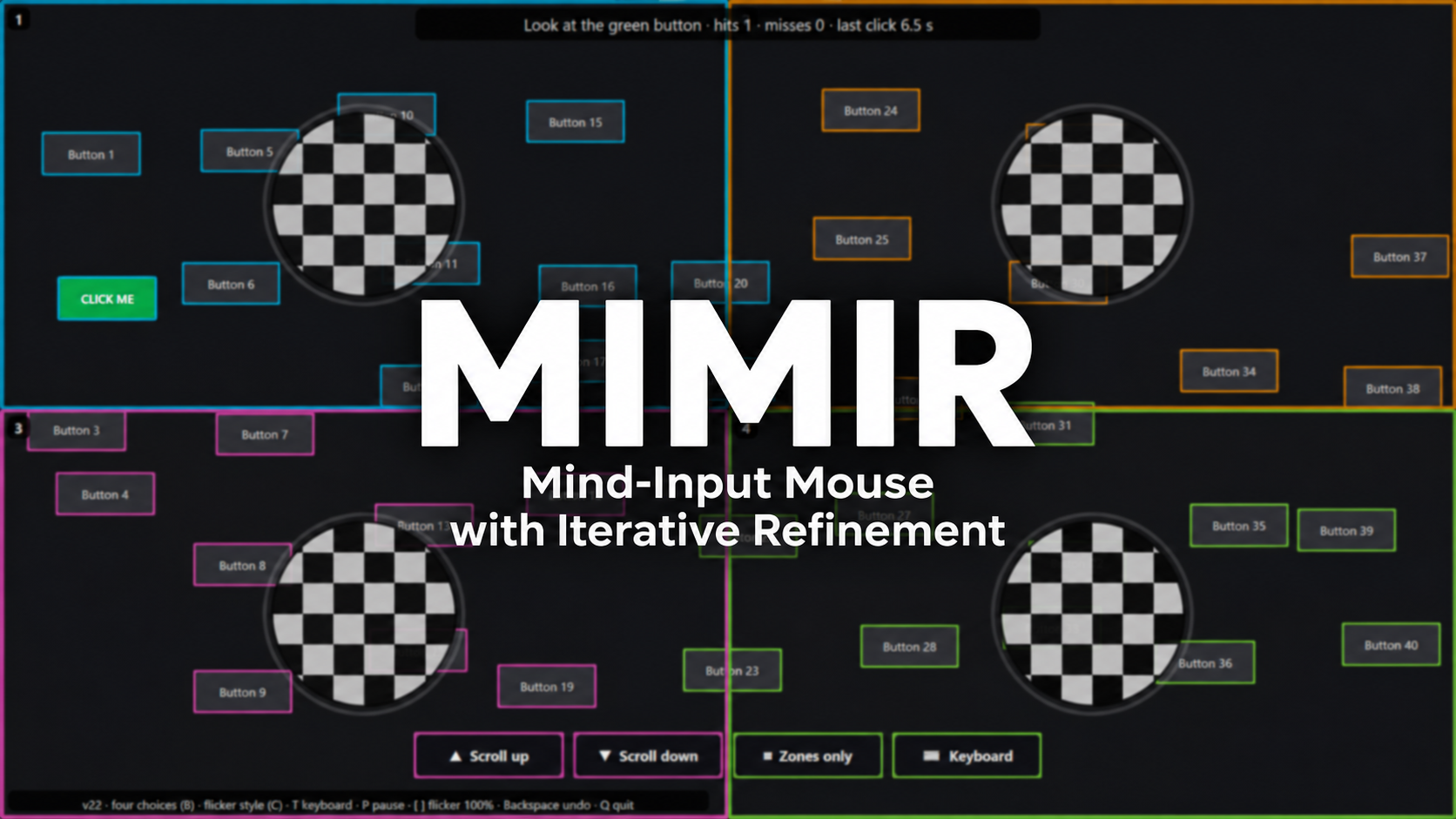
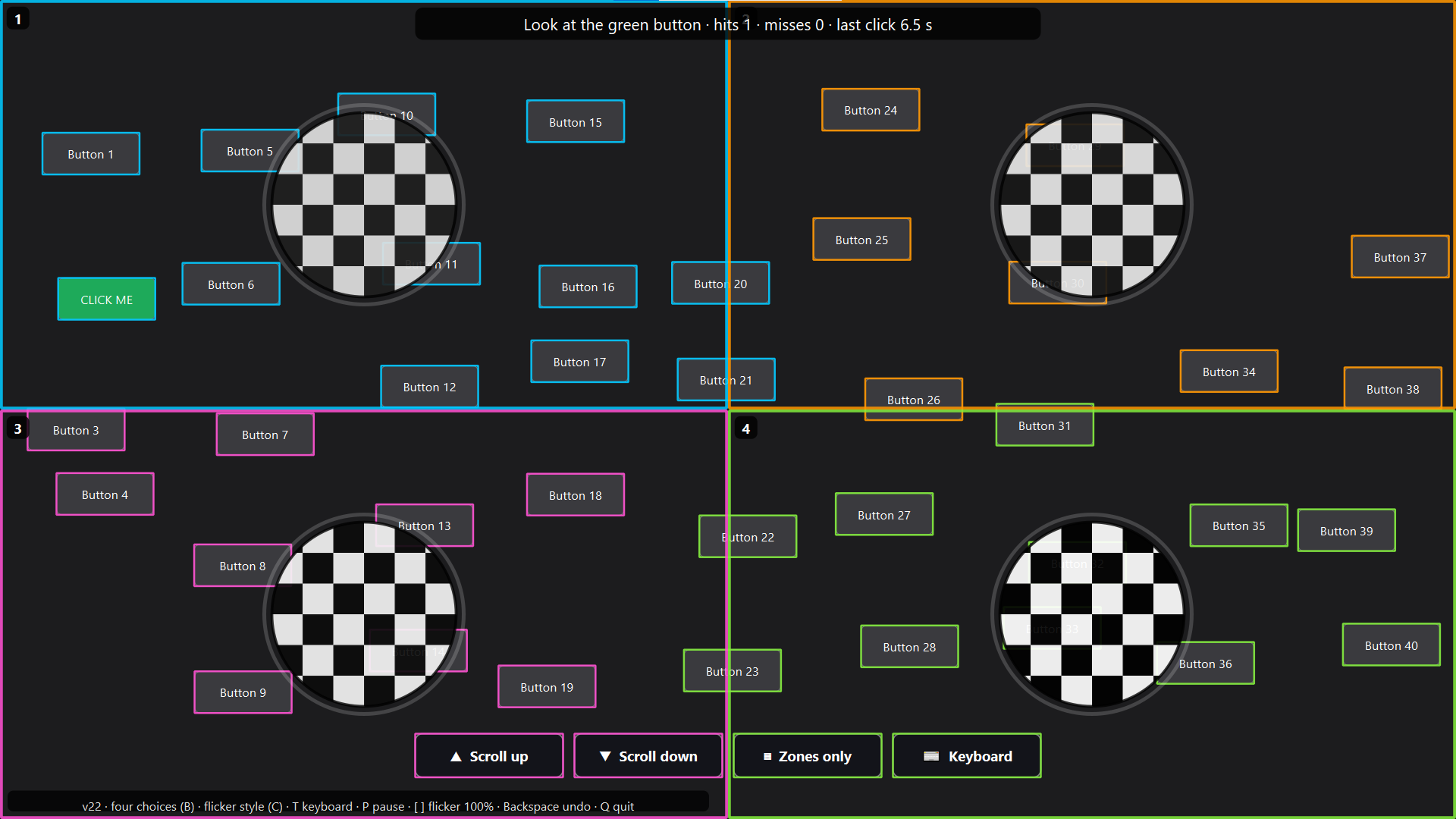
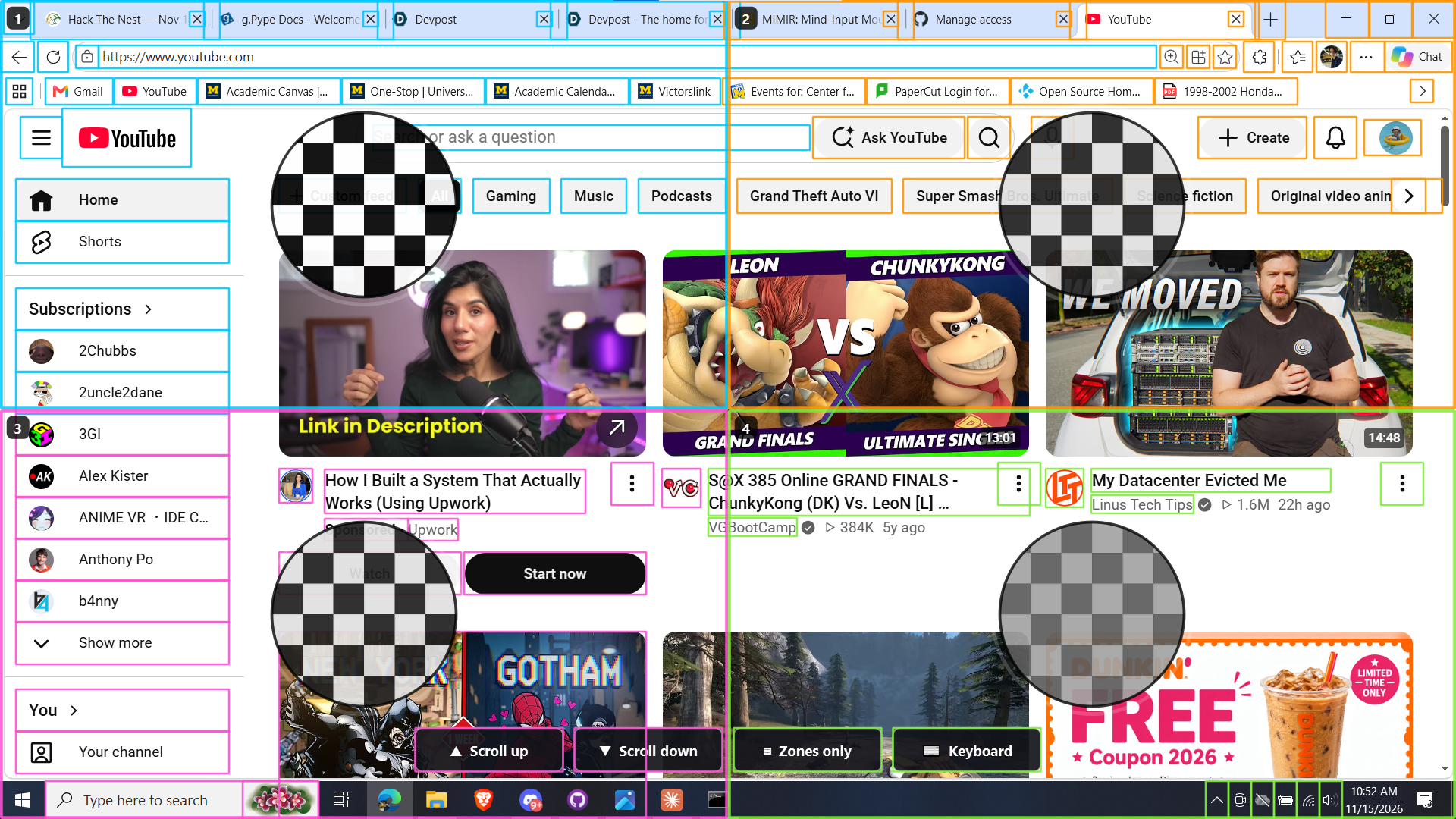
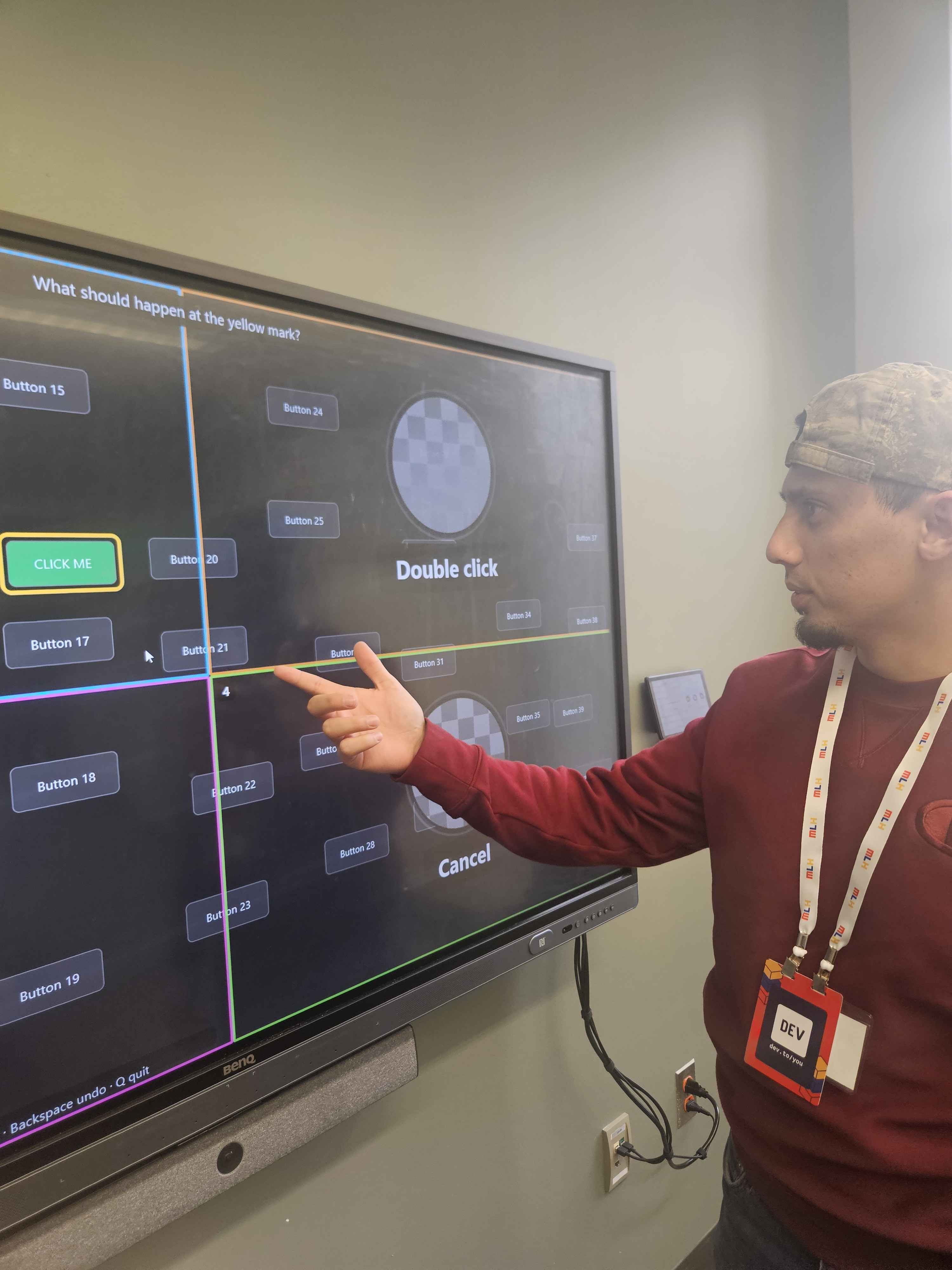
MIMIR puts a see-through layer over the screen and splits it into up to four boxes. Each box has a checkered circle in the middle flickering at its own rate (9, 10, 12 and 15 Hz) and its own color, and everything clickable inside it is outlined in that color, so it's always clear which box a button belongs to. You look at the circle of the box that holds what you want. That box gets split into four again, and so on. Each pick cuts the options by about 4x, so three picks get you to one of roughly 64 buttons.
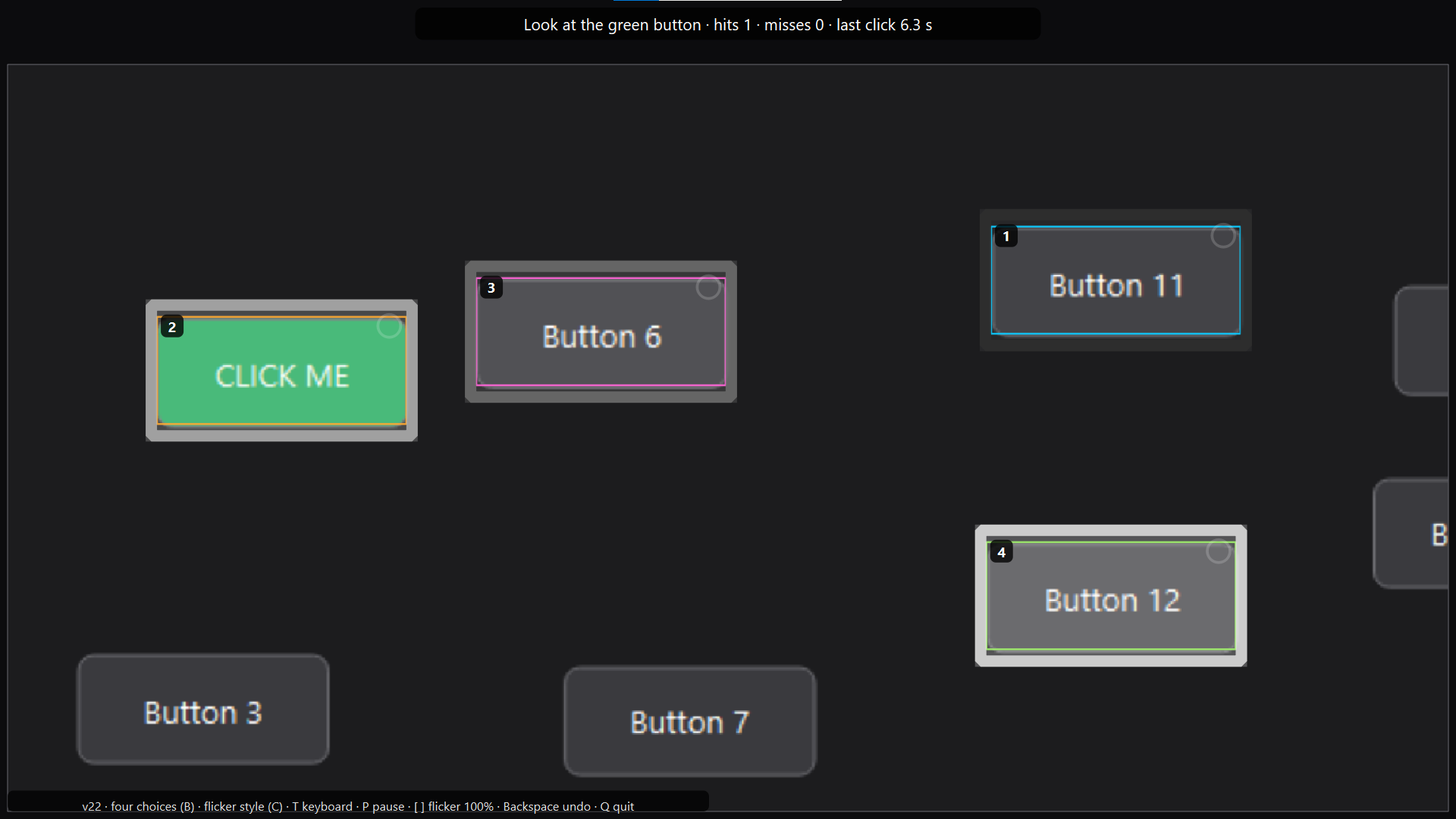
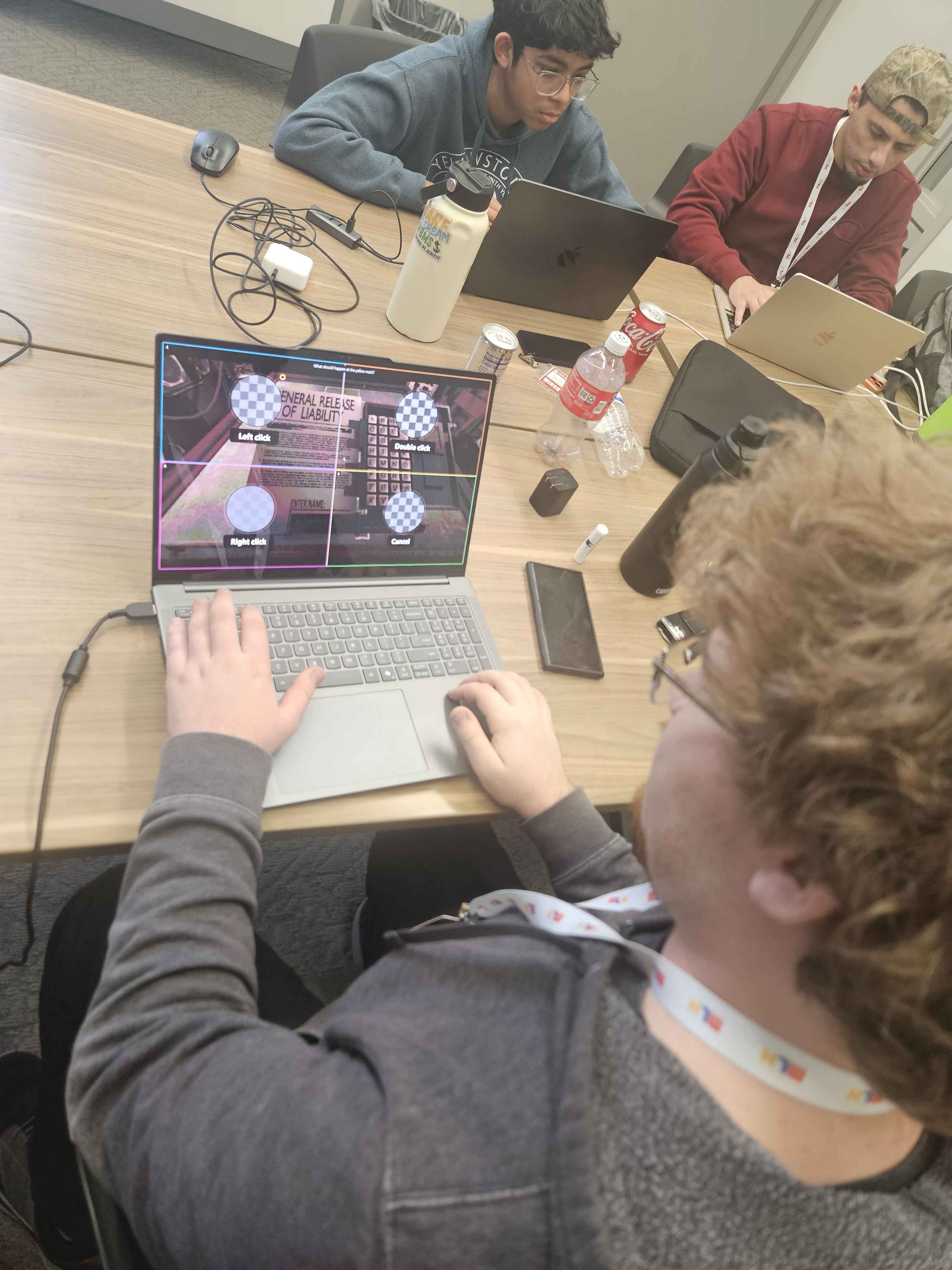
To decide where the boxes go, it finds the real buttons, links and menu items on screen. Its main source is Windows UI Automation, the accessibility API screen readers use. The first step always shows all four quarters of the screen, so you can always move to another window. After that, boxes with nothing clickable in them are dropped. Once 16 or fewer targets are left, the view zooms in on a fresh screenshot. At 4 or fewer, each target gets its own flickering box, and you look at the target itself. Then it asks what kind of click you want: left, double, right, or cancel.
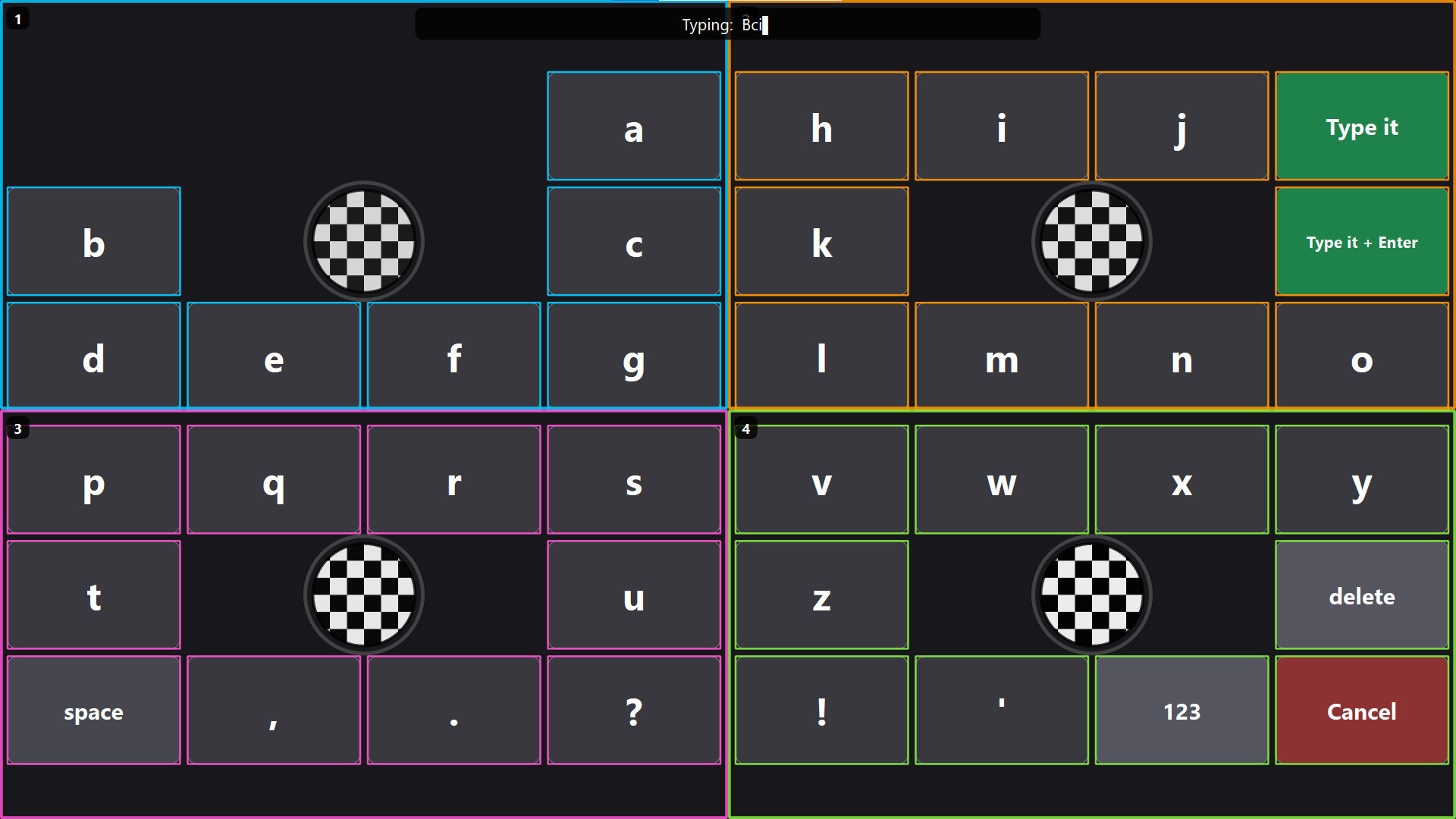
Typing works the same way. Clicking into a text field, such as a search box or the browser's address bar, opens an on-screen keyboard with word suggestions, driven by the same flickering boxes. "Type it + Enter" removes any guess the address bar filled in on its own, so you get what you typed and not a site it suggested.
A toolbar along the bottom of the screen is picked like any other button. It has Scroll up and Scroll down (about a page in the window in front), Keyboard (type anywhere, not only after clicking a text field) and Zones only, which switches to a plain pixel grid.
A short jaw clench undoes the last step. A long one goes back to the start, or pauses if you're already there, so you can watch a video without anything flickering. A clench is muscle noise rather than brain signal, but it should show up loudly on every channel, which makes it a good "back" button. None of the recordings we had include a clench, so this part is still untested.
Some programs, mostly games and custom-drawn apps, don't tell Windows anything about what's inside their window. For those, an icon finder looks at a screenshot of the window and picks out small, high-contrast shapes like icons and buttons. It can also read on-screen words with Windows' built-in text recognition. All of this runs on the PC, and nothing is sent anywhere. If that misses something too, the pixel grid can reach any point on a 1080p screen in about 5 picks. It's one short clench away on the first step, or one pick on the toolbar.
How we built it
Everything is written in Python. The decoder and the overlay only talk to each other through short UDP messages on localhost (SEL 2 4.10, CLENCH_SHORT), which made it easy to split the work between us.
- Signal path: Unicorn Hybrid Black → g.Pype → a custom g.Pype node that runs our decoder and sends commands to the overlay.
- Decoder: canonical correlation analysis (CCA) against sine/cosine references at each flicker frequency and its second harmonic, over a 2 to 4 second window that's re-checked every 0.25 s.
- Overlay: PySide6 for drawing, Windows UI Automation to find buttons, and Windows' own input functions for the real clicks, scrolling and typing.
- Icon finder: a local vision pass over a screenshot of windows that describe little about themselves, plus optional text recognition through Windows' OCR. Two of us had built separate prototypes in parallel. We kept MIMIR's interface and folded in the other prototype's button detection, after testing both on the same apps.
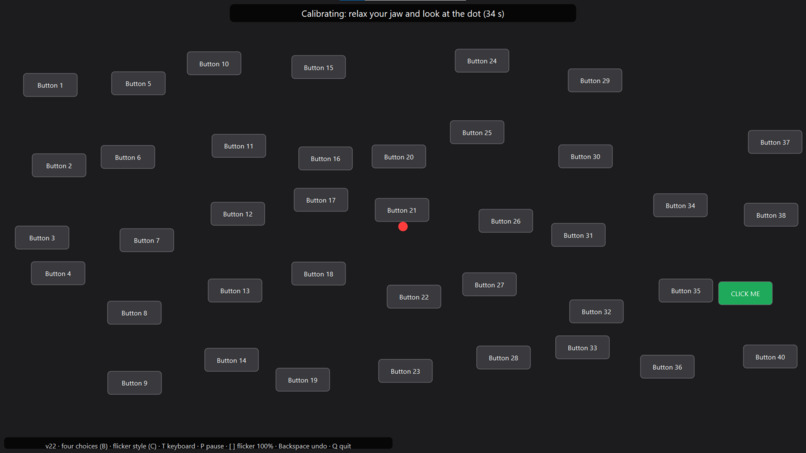
Plain CCA has a known problem: everyone's resting alpha rhythm sits around 9 to 10 Hz, so those two targets tend to "win" when you aren't looking at anything. We added a 40-second calibration at startup where you just look at a dot. That tells us what each frequency's correlation looks like at rest, and every live score becomes a z-score against that baseline, summed over the fundamental and second harmonic:
$$ z_f = \sum_{h=1}^{2} \frac{\rho_{f,h} - \mu_{f,h}}{\sigma_{f,h}} $$
A pick only fires when the top score is at least 4.5 above idle, beats the runner-up by 2, and stays on top for two checks in a row. There's still no per-target training.
Our Unicorn headset was lost in shipping, so we never had hardware to test on. Everyone on the team worked from the seven recorded datasets g.tec provided. We built a replay tool that streams the SSVEP recordings through the same decoder, like a user who always looks at the right box, and developed the whole overlay against it. The live path through g.Pype is written but has never run on a real headset. There are practice screens with fake buttons for the keyboard, the recorded data and the headset, so you can learn the interface before anything real gets clicked.
Challenges we ran into
The alpha bias was the first big problem. On g.tec's dataset with a fixed 3 s window, plain CCA was 85% accurate (73% on the harder of the two subjects). Correcting against the idle baseline brought that up to 95% and 90%.
The Unicorn also has fewer electrodes where it matters. The dataset uses 8 over the back of the head, and the Unicorn only has 3 in comparable spots (PO7, Oz, PO8). When we cut the recordings down to just those three channels, our strong subject still got 40 out of 40, but the weaker one dropped to 22 right, 1 wrong and 17 with no answer. We set the thresholds so a weak signal gives no answer instead of a wrong click, since a wrong click can close the window you were working in.
The dataset was recorded with LED stimuli, and a monitor usually produces a weaker response. Boxes also get smaller the deeper you go, which is why the last steps zoom in instead of flickering tiny regions.
A hard on/off blink at 9 to 15 Hz is unpleasant to stare at, so we switched to a checkered circle in the middle of each box whose squares swap places. The overall brightness never changes. The flicker follows a smooth sine wave, fades in after each pick, and stops during calibration and while paused. This frequency range can still trigger seizures in people with photosensitive epilepsy, so we warn about it before any demo.
Windows also only knows what apps tell it, and plenty of software reports nothing about what's inside its window. That's why we added the icon finder and kept the pixel grid one jaw clench away for anything the detector misses.
Real desktops kept surprising us. Buttons sitting on the line between two boxes were confusing until each box got its own colour. Browsers report search boxes as "combo boxes", so the keyboard didn't open until we checked whether the field accepts text, whatever Windows calls it. Pages that change while you're picking left the zoomed view showing an old screen until we started taking a fresh screenshot at every zoom.
Accomplishments that we're proud of
- On the dataset replay, a full click among about 64 buttons takes around 10 s for the strong subject and 15 s for the weaker one.
- The full loop (recorded EEG → decoder → overlay → click) hit 10 out of 10 targets with no undos.
- The jaw clench detector never fired by mistake on any of the four SSVEP recordings.
- It runs on the real Windows desktop instead of inside its own app: clicking, typing and scrolling, with nothing sent off the PC.
What we learned
Modeling what the brain does at rest helped more than anything else we tried. Before calibration, the decoder kept picking 9 and 10 Hz just because those frequencies were already there.
People differ a lot. One of the two dataset subjects was close to perfect and the other was much harder to read. You have to calibrate per person.
Without a headset, everything we measured comes from recordings. Our SSVEP numbers come from 2 subjects and 80 trials, and we picked the thresholds while looking at that same data, so we expect live accuracy to be somewhat lower.
What's next
- Testing on a real Unicorn headset, which we couldn't do here.
- Testing with more people, especially the people this is meant for.
- Better button detection in games and other custom-drawn apps.
- Confirming typing, right/double click and display scaling on more Windows setups, and covering more than the main monitor.
- Finishing the macOS port: the overlay and its Ctrl+Option shortcuts already run on a Mac, but real clicks, screen capture and the live headset still need testing.


