-
-
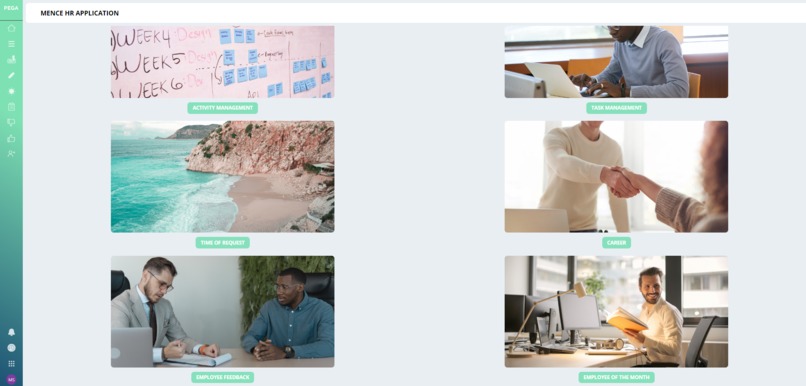
Home page
-
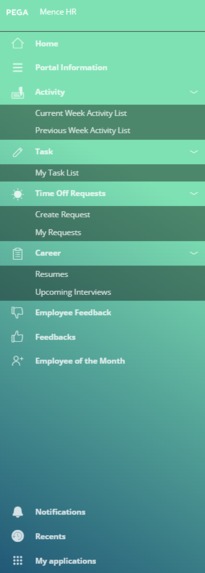
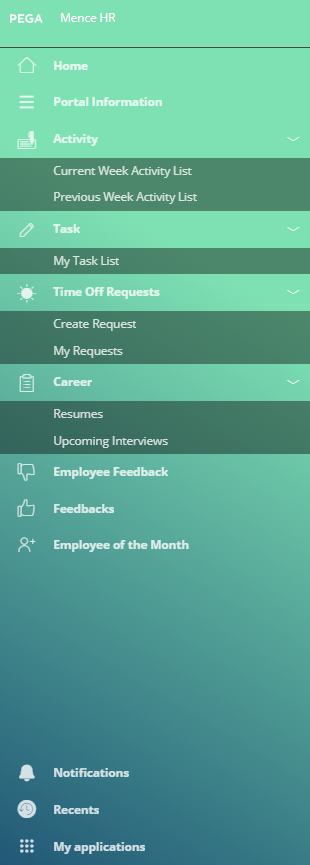
Employee menu
-
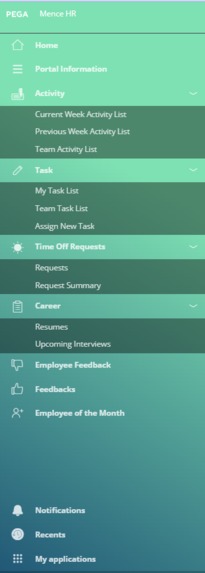
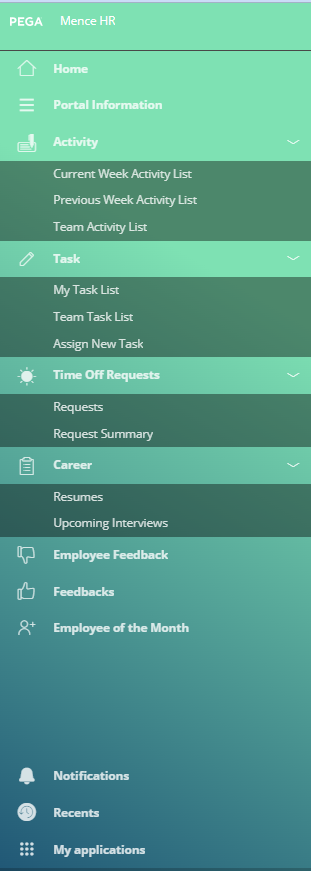
Manager menu
-
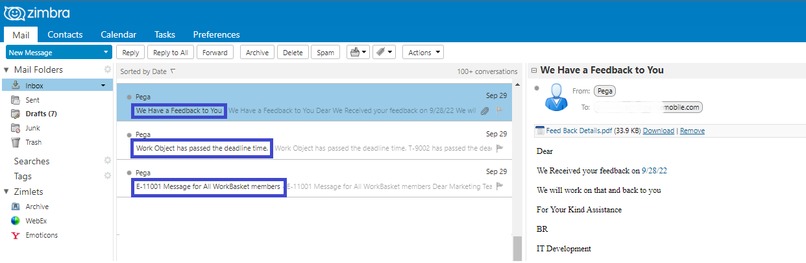
Notification e-mail
-
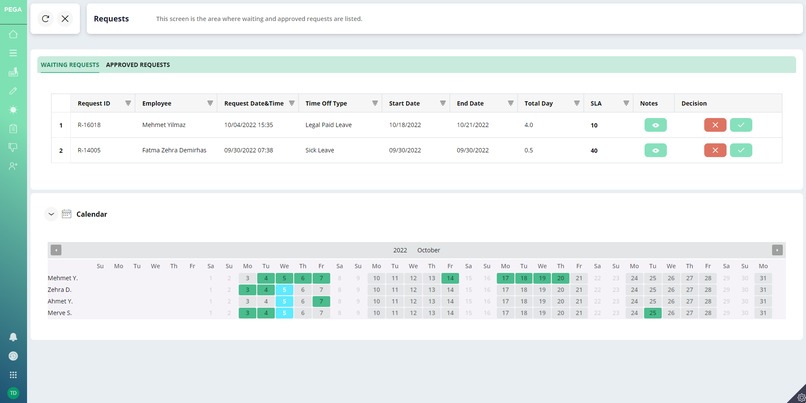
Calendar for Time off Request Part



Inspiration
In our project, we have created a tool that could be available for all teams in an organization. Employees could share their ideas with related teams easily. Performance management also could be manageable for both employees and managers. Task management and vacation request could be followed with the same app so users can see all related information in the same application. In this app, we target to get both employee feedback and employee Performance on the same platform, because we believe that if employees are happy their performance and success will increase with this motivation and increase the performance.
What it does
This application helps to monitor employees and have an option to choose the best performance of the month with Pega tools. With this feature, all activity lists and tasks can be managed in one application. Both managers and employees will be on the same platform. They are adding their activities in weekly activity list format to the system by using the Pega activity management structure. Managers can assign tasks to their teams by using this platform and also follow the status of the tasks. On the other hand in this application candidates could do job applications and their resumes will be evaluated with Pega calculation methods. For time off requests employees are using our own calendar structure they can choose the dates directly with this calendar and it is adding the chosen date period in their case.
How we built it
We have used the Pega case lifecycle method for each application. Mainly we do have 6 applications. They are Activity Management, Task Management, Time of Request, Career, Employee Feedback, and Employee of the month. These applications have their own section in UI and have been built on Pega Cosmos design. We have divided users mainly 2 groups, one is Employee the other one is Manager.
In the Activity Management system, Users are using the Activity case lifecycle and fill the weekly activities for each day. Once they filled the form they can review it and submit it to their manager. After they send it to the manager for approval, the manager receives an approval e-mail as a piece of information. For the manager screen, managers have all activity list page to see the list of the activities for each employee this page has a table and this table has a source of the report definition.
For Task case lifecycle the users with manager role are able to assign a task to their team. These tasks have an SLA rule associated with the due date property. Once manager assigns a task to an employee on his team, employee receives a notification e-mail it has goal date and deadline date. On the front end of the app, there is Curcilar Progress bar that shows the success rate of their task by using the task status if it has been completed on time. This data will be used for Employee of the month as well.
For Career application, We do have 3 cases lifecycle these are Resume, Evaluation and Interview. For Career part of the application, candidates register their resumes from a different portal since they are not an employee. Once a candidate wants to do a job application they click the job application button on the portal and Resume case starts. Resume case has it is own UI design to collect the data of the candidate in Resume section users need to choose the organization that they are willing to apply when user submits the resume a notification e-mail goes to the HR team. Besides that, there is a circular progress bar that shows the ratio of the candidate this ratio gets the data from the user data type after resume case Interview case starts for evaluation of candidate if the rate is higher than 30 resume directly goes to Manager's mailbox to review and schedule an interview. Manager reviews the resume and if manager wants to schedule an interview, goes to related section and picks a date and presses the schedule interview button to invoke the interview case. Once the interview has been scheduled candidate receives an e-mail to get the interview details. The manager can see scheduled interview dates in the Upcoming Interview Section it has table that receives the date from a report definition. Managers can reschedule the dates if it is needed. After the Interview is completed, the result is sent to the candidate by e-mail. An account is automatically created on the system for candidates who pass the interview positively. The approved candidate will now be able to log into MenceHR as an employee. By using the CreateOperator Activity this activity in Evaluation Case.
In our Request case, the employees can manage their time off requests. There are 4 types of time off requests. These are Sick Leave, Vacation, Unpaid Leave, Legal Paid Leave in the part of the application. Once the employee creates the time off request by picking the time period and request type, the related manager receives the request for approval. After the manager approves/rejects the request, the user receives the result notification. The managers are able to see the all request of their employees by using the manager portal. That’s why we are using our own calendar structure on the manager portal. This calendar structure helps the manager to see the approved requests of the employees in a single form. This helps make a decision easier for the approval of the next/waiting requests. By using this calendar structure, users can improve their time management.
In Employee Feedback part all employees can submit their requests to the related organization by using the create section. This section runs front end of Employee Feedback Case and this case helps users to add their requests to related organizations. Once user submits the request a notification e-mail goes to the workgroup. Contact person of this workgroup gets the request, review it, and solves it. After resolution, an e-mail goes to requestor that has the solution details.
Employee of the Month Section gives the details for the employee who has the highest degree for the month by using the results of task completion rate.
Challenges we ran into
Creating the layout by using case lifecycle structure was new for us. Since we used to design our applications in Dev Studio as section base in our previous applications. Adding new features to the application by using case structure was different for us. In our Activity and Task Management applications, setting up the case types for different users and their work group needs to be well organized. For Carrer part evaluation of resumes is done by system with calculation of their education and other detail.
Benefits and Features
Most of the details for an employee could be managed with the same application. Employees can see and manage their data in one place with this employee data. The HR department can make decisions easily and accurately. This will help both management team and HR team. Besides, employees can follow their data in same portal, and evaluation of their performance will be done by the data that they have provided to the system. Accomplishments that we're proud of _We are an amazing team, and we have a passion for success. We have done good teamwork and shared our workload to achieve good results. We believe in our project and we believe that we will be first in this year's hackathon What we learned
[1]We wanted the harness to return to the homepage after the case was completed. For this, we chose "Close the work object" from the "If an assignment is not being performed" section of the flow action setting.
[2] We were using a custom portal before we move the system to Pega User Portal. And we had“pyDisplayHarness” page in the clipboard when we use a custom portal. But when we move to the default Pega User Portal, we saw that we do not have “pyDisplayHarness” page in the clipboard. We checked the clipboard and saw a page that specified for portal using. It is “pyPortal”. So we used "pyPortal" instead of "pyDisplayHarness" and "Data-Portal" class instead of "…..-Work" class.
[3]On the application, we wanted to provide the Manager with a decision-making functionality for the assigned approval request to him without having to open the case. When we examined the Approve and Reject buttons on an approval screen of Pega, we saw a "Set Value" and "FinishAssignment" action containing "pyApprovalResult" on the buttons. We saw that the value of "pyApprovalResult" is set as the 'Approved' or 'Rejected'. To use this functionality in our case lists, we wrote an activity that takes the case's "pzInsKey" and the user's decision (Approved/Rejected) as parameters. This activity basically writes the user's decision to the "pyApprovalResult" property and then calls the ResumeFlow(OOTB) activity to provide the desired functionality. We also learned that UIKit and Cosmos have different flow actions for approval. Cosmos uses "pzApproveInternal". UIKit uses "pyApproveInternal".
[4] When users add a weekly activity list to the system or the manager assigns a task to an employee, we wanted a PDF in the e-mail sent to the relevant person. We decided to create a custom PDF for it. We created a template using a website. We added this template to Pega's EFormFile structure. Then we used this EFormFile structure in Map eForm. Finally, we created activity as Utility in Workflow and used Map eForm in the activity.


Log in or sign up for Devpost to join the conversation.