-
-
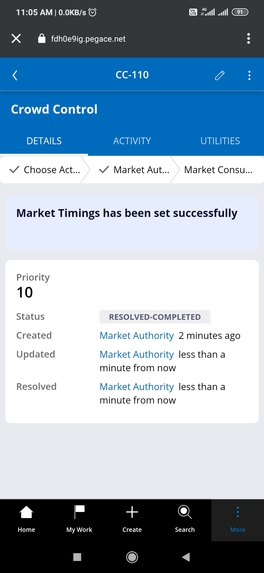
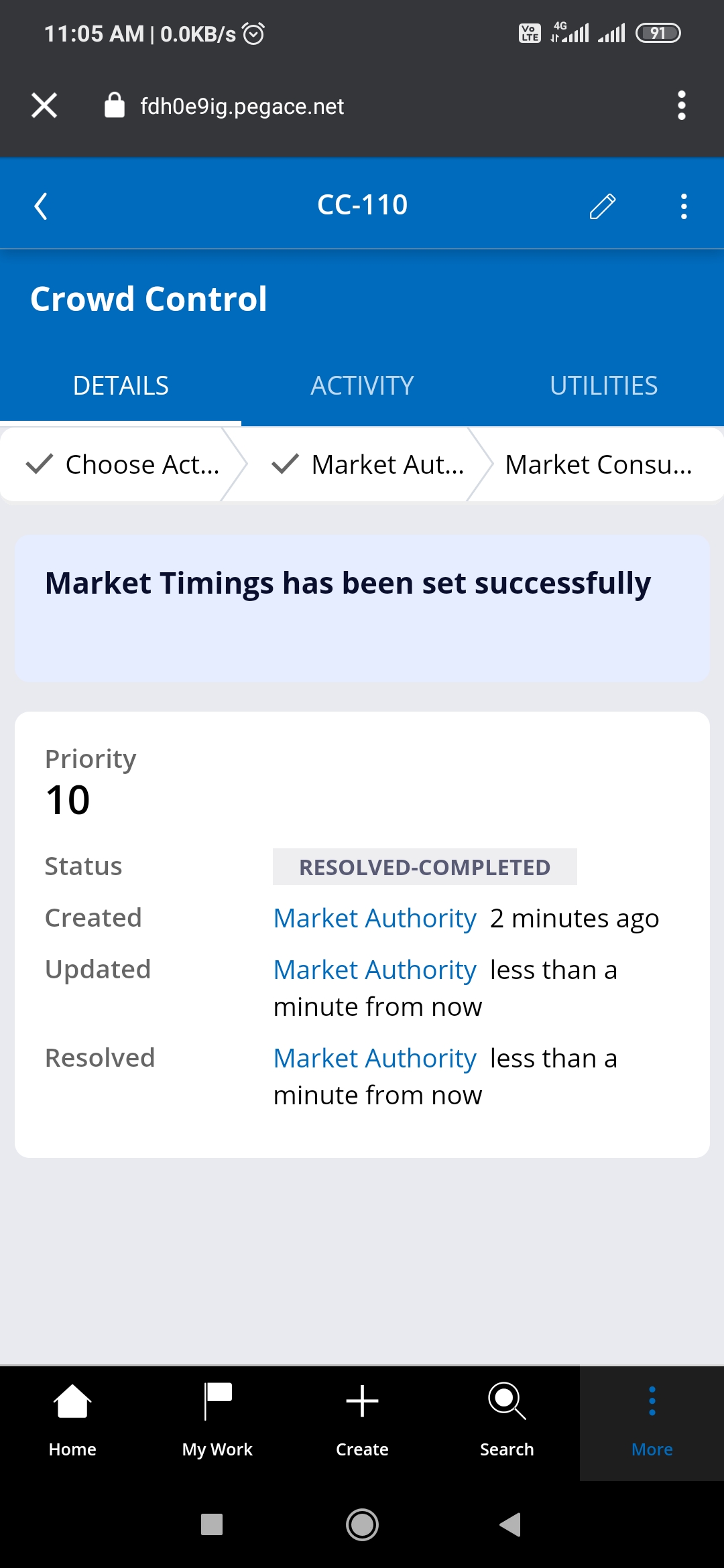
After Market Timing set by Market Authority
-
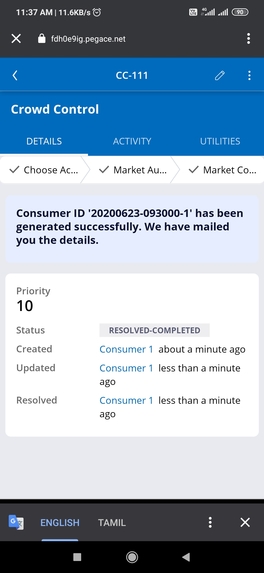
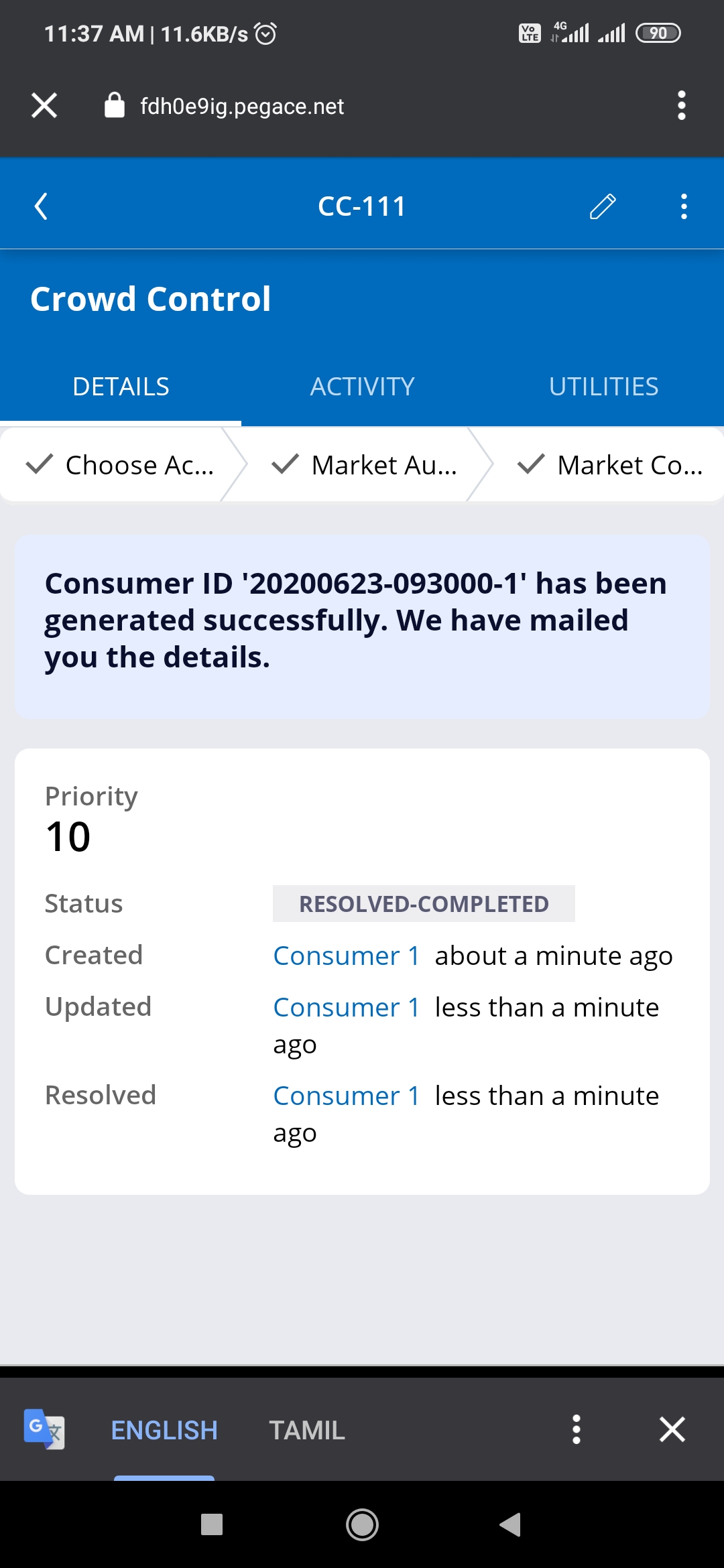
Consumer ID Generation
-
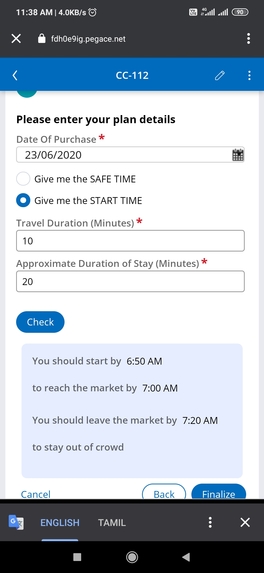
Safe Time suggestion sample 2
-
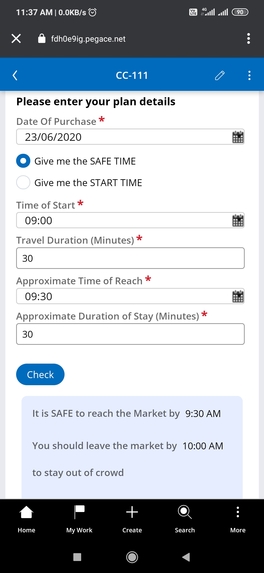
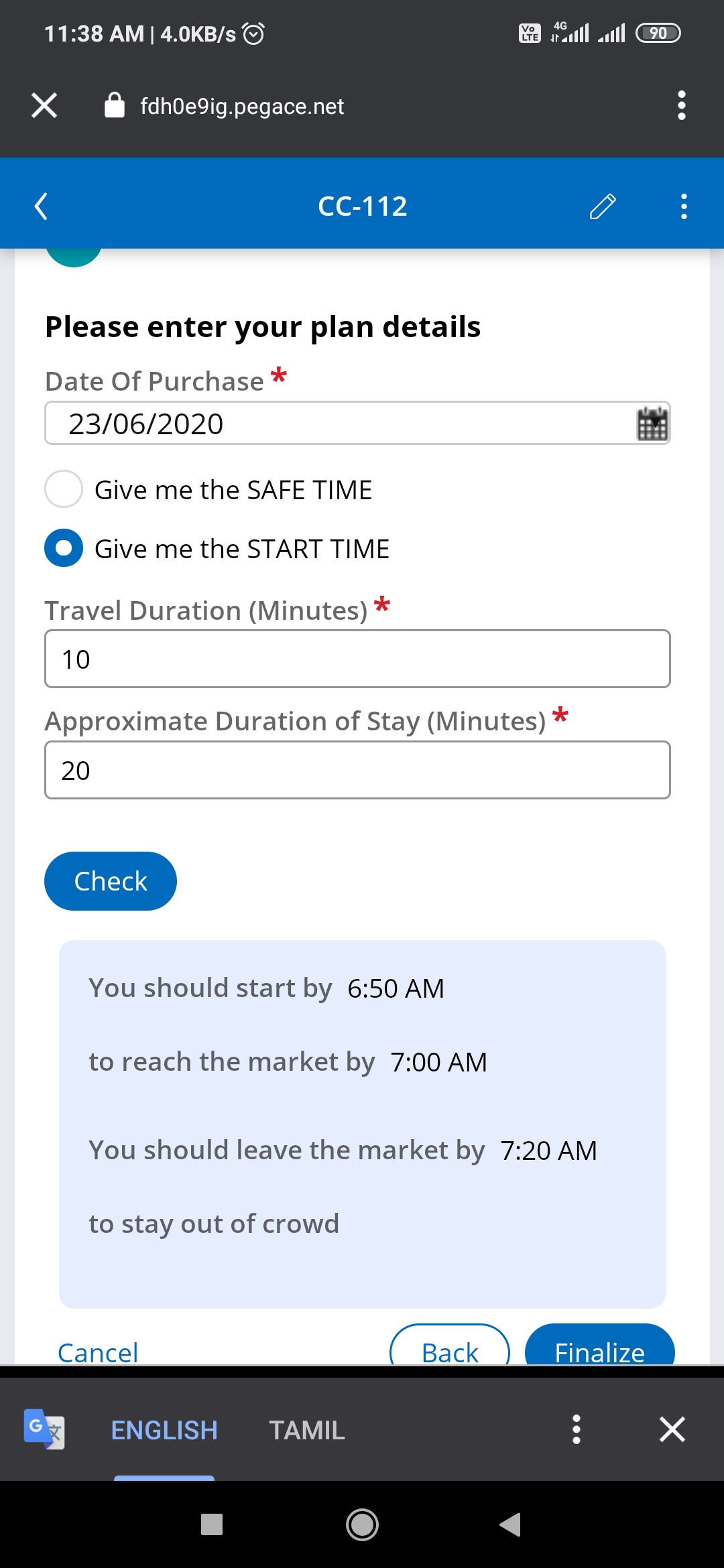
Safe Time suggestion sample 1
-
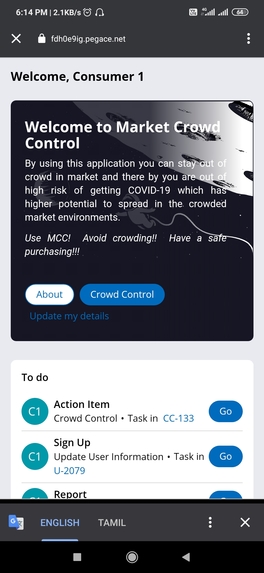
Application Home Page
Inspiration
A state Tamil Nadu in India had the pandemic under control until the breakout happens in a market. After this breakout the pandemic is out of control. Seeing this a question arises why cant people follow the government's rules of not crowding the market? The answer is people doesn't know how many people already present in the market and all visiting the market at the same time.
What if we can make the people know the number of people already present in the market so that he/she may rethink the time to visit the market? That is were my application Market Crowd Control (MCC) comes into the picture.
What it does
In simple points MCC makes sure that when people wants to visit the market he/she knows whether it is the safe time i.e that market is already crowded or not. If crowded, MCC will suggest the upcoming next safe time to reach the market.
This logic is implemented by using two actors.
Market Authority Market Consumers
Market Authority is the one who sets the market timing and maximum number of people that can be in the market at any given point of time and there by controlling the crowd and letting the people know the safe time to reach the market.
Market Consumers are the common people uses this app to check whether the time is right to visit the market or not.
The app also has one start feature of Report Covid-19 Diagnosed. When ever a user uses this option the MCC app fetches the user's last fourteen days market visit records and from there who were the people visited the market at that same time and sends COVID-19 alert asking them to approach nearest COVID-19 Test center.
By doing this we can easily track the COVID-19 spread.
How I built it
I used Pega Case Management and Pega Mobility features and for now showcased it in Pega Mobile Preview Android application
Challenges I ran into
Utilized Cosmos to build this application. Since it is my first time had some challenges. Faced major challenge around customized authentication and auto case trigger
Accomplishments that I'm proud of
Managed to provide a complete mobile application in four weeks time that meets the Goal of Controlling the Crowd and Tracking the COVID-19 spread.
What I learned
Learned a lot of new concepts in pega like Pega Mobility features,Operator provisioning, pyMobileSnapStart and etc
What's next for Market Crowd Control
As of now the app considers one market and its users. Future goal is to utilize the Google Maps to use real time data and extend the application for all markets available near a user's locality. Pull in additional actors such as Market Sellers, Government persons and Medical persons
Detailed explanation of functionality
Downloading the Android app:
- Download and install the Pega Mobile Preview application from below link https://play.google.com/store/apps/details?id=com.pega.mobile.preview
- Launch Pega Mobile Preview application and copy and paste the link below on mobile channel to get access to portal. https://fdh0e9ig.pegace.net/prweb/PRRestService/MobilePreview/v1/configuration/RULE-CHANNEL-MOBILE+30F4DE87-2023-41C8-8E3F-792F1C1655E3+%2320200529T123527.746+GMT
Note: MCC user below two Actors to achieve the goal of maintaining the people number under control and alerting the user if he came in contact with a COVID-19 diagnosed person.
- Market Authority provided by MCC Administrator Username: MarketAuthority@MCC Password: b1ueSKY!
- Market Consumers can be a new or existing user signed up with MCC Test or Existing users: Username: Consumer1; Consumer2; Consumer3 Password: b1ueSKY!
Signing Up with Market Crowd Control (MCC):
- Click on that a log in page with “Login with MCC” button appears.
- Click on that button. Enter your name/Email Id in the user name and a dummy password in the password field and click on login.
- You will see a welcome text and Sign up button.
- Click on the sign up button.
- Enter the details and click on sign up and then click on log out. Login screen appears.
- Now you have successfully signed up with MCC and you will receive an email with username and password.
Using MCC:
- Click on the “Login with MCC” button and enter your user name and the password which you have used in the sign up page.
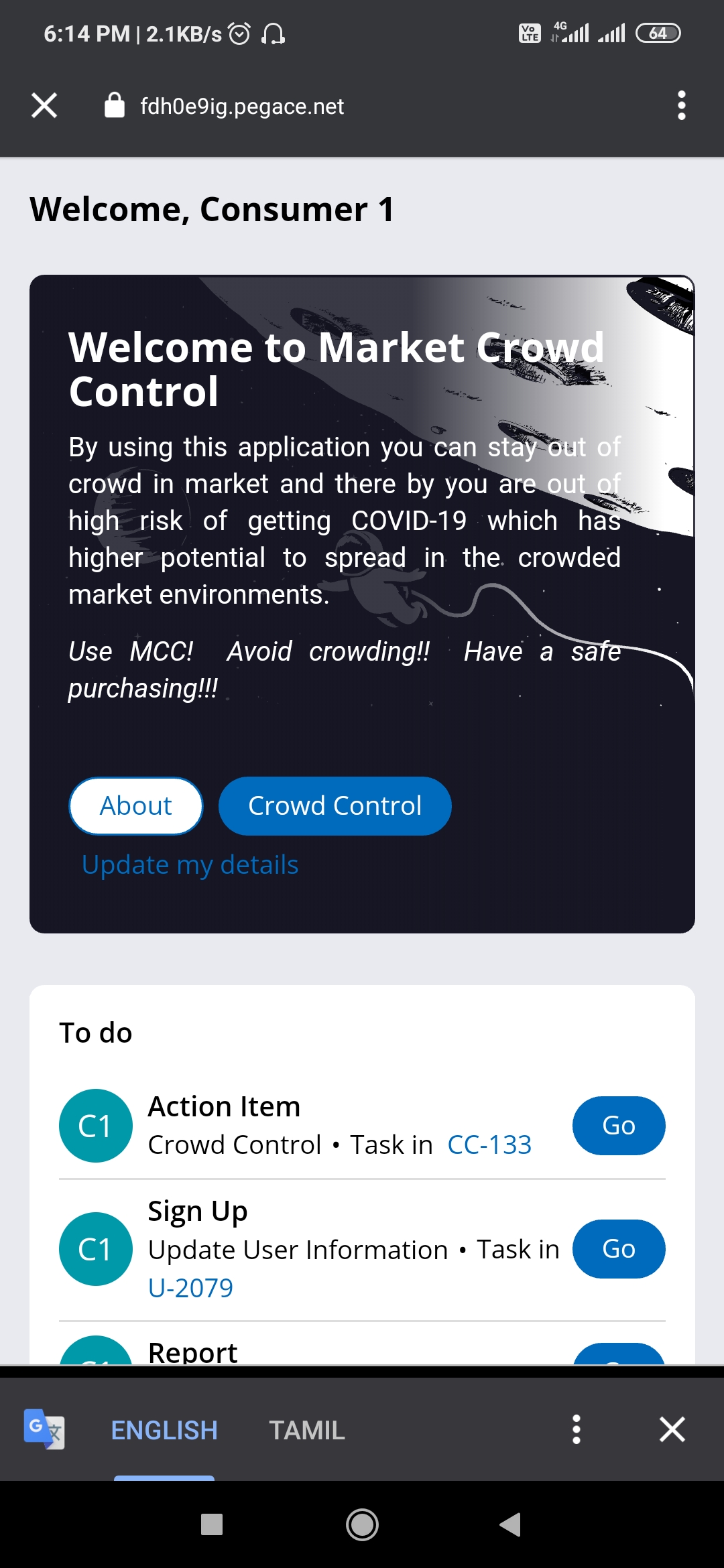
- In the home page you will see the welcome text and the below three buttons • About • Crowd Control • Update my details About:
- User on click of the button “About” a window pops up with the details about Market Crowd Control Crowd Control:
- When user have logged in as Market Authority, on click of the button “Crowd Control” user will see two options to choose an actor/role you are going to perform.
- User on choosing the option “Market Authority” a screen comes up asking the details such as “Effective Date”, “Market Start Time”, “Market End Time”, “Allowed Maximum people” and etc.
- User on entering all required details and click on button “Set Timing” for the entered “Effective Date” the screen refreshes to display the below message “Market Timings has been set successfully”
- MCC adds a record and starts monitoring the number of people such that at any given time people count is less or equal to the “Allowed Maximum people” in the market
- User on choosing the option “Market Consumer” a screen refreshes with below three options a. Plan a new purchase b. Cancel the plan c. Report COVID-19 diagnosed Plan a new purchase:
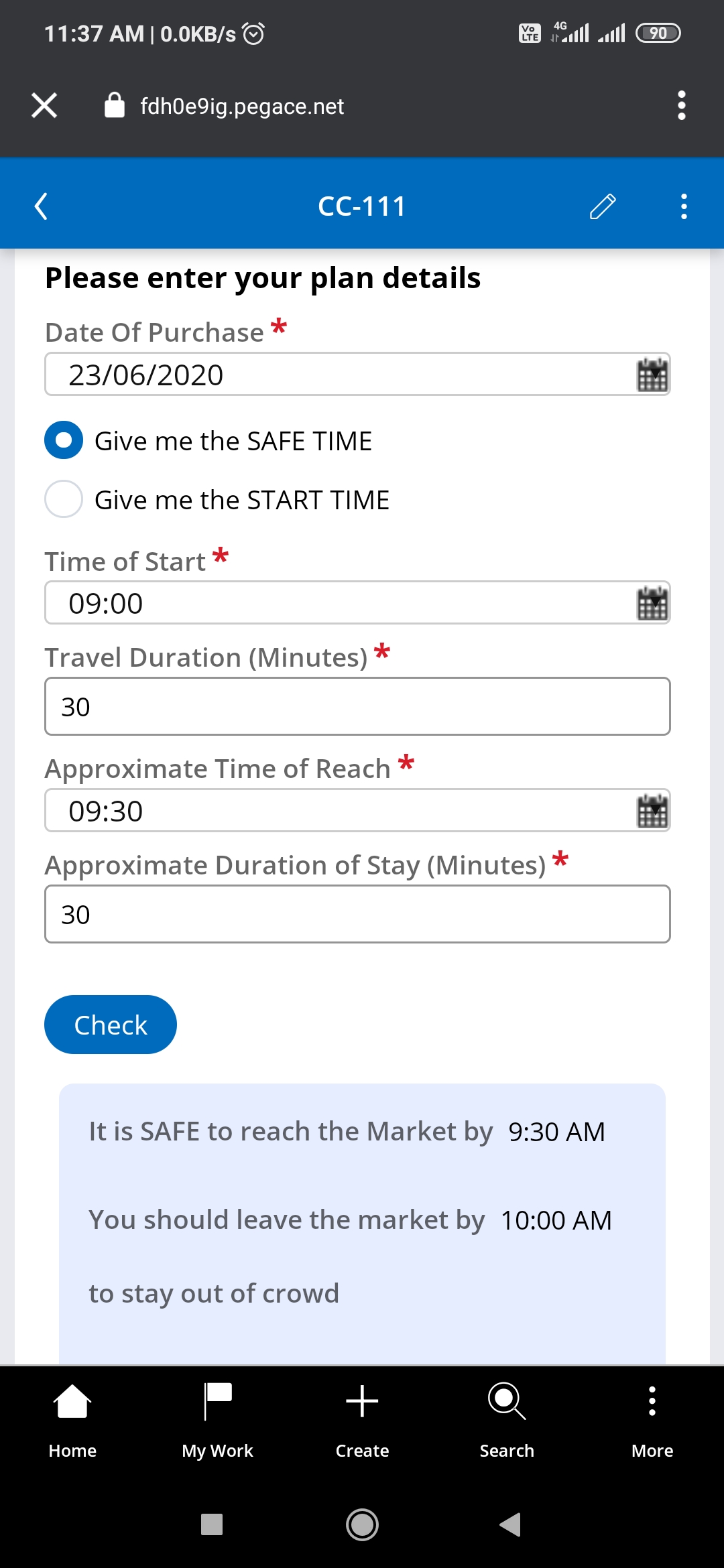
- User on choosing the option “Plan a new purchase” the screen refreshes asking the “Date of Purchase” and with the below two options. • Give me the SAFE TIME • Give me the START TIME When user have a time of start from home he can choose the option “Give me the SAFE Time” and MCC will give the SAFE TIME from that start time. When user don’t have a time of start i.e he wants to go to market at any time he can choose the option “Give me the START Time” and MCC will give the START TIME so that he reaches the market in the safe time.
- User on choosing the option “Give me the SAFE TIME” the screen refreshes and asks for more details.
- User on entering all required details and clicking on button “Check” you will see a message saying the SAFE TIME and related details.
- User on choosing the option “Give me the START TIME” the screen refreshes and asks for more details.
- User on entering all required details and clicking on button “Check” you will see a message saying the START TIME and related details
- Finally, after checking the time and user on click of button “Finalize” a Consumer ID is generated and displayed on the screen and the details will be sent to the user through email. Cancel the plan:
- Why Cancel the plan in MCC is mandatory when the user chooses to cancel the visit to market? Answer: If user doesn’t cancel the plan he may get false alert from MCC when an another user reports using the “Report” option
- User on choosing the option “Cancel the plan” the screen refreshes asking for the “Consumer ID” which got generated for the plan.
- User on entering the “Consumer ID” and click on button “Cancel Plan” the system removes the record and displays the below message “ has been cancelled successfully" Report COVID-19 diagnosed:
- User on choosing the option “Report COVID-19 diagnosed” the screen refreshes asking for the “Diagnosed Date”
- User on entering the date and click on button “Report” the system will fetch the user’s last fourteen days visit to market and the people who were in the market during their visit and will send an email alert with the below message “You were in the market with a COVID-19 diagnosed person in the last fourteen days. Kindly approach the nearest COVID-19 Test Center and take the test.”
User on screen sees the below message “Thanks for reporting this information and helping to fight the spread of COVID-19”
When user have logged in as “Market Consumer” and on click of the button “Crowd Control” the user will straight away see the below three option a. Plan a new purchase b. Cancel the plan c. Report COVID-19 diagnosed
Update my details:
- User on clicking the button “Update my details” the screen refreshes asking the details to update.
- User on entering all the required details and clicking on the button “Update” the information gets updated in the system. Testing Notes: I have added Market Timing from 6/22/2020 to 6/26/2020 I have created test users Consumer1, Consumer2, Consumer3 and checked for safe time and generated Consumer ID for the time 9.30 AM on 6/23/2020 and in this time the maximum number has been reached so when user checks for this time it will show the next upcoming safe time
Built With
- pega
- pegamobilepreview


Log in or sign up for Devpost to join the conversation.