-
-
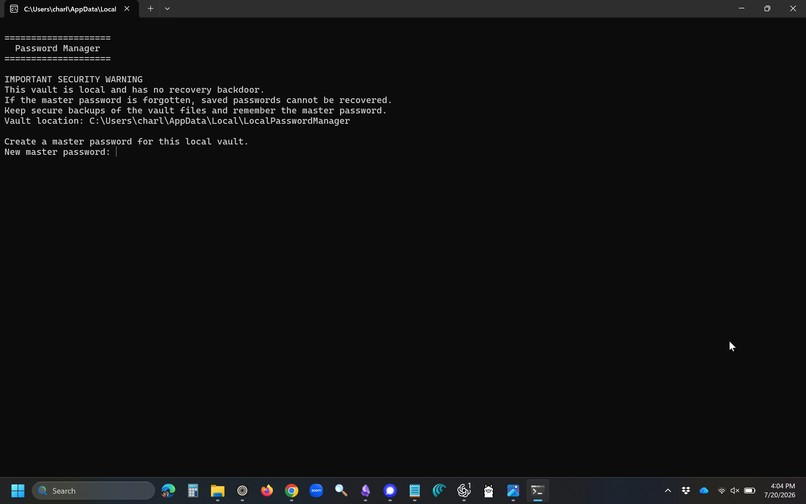
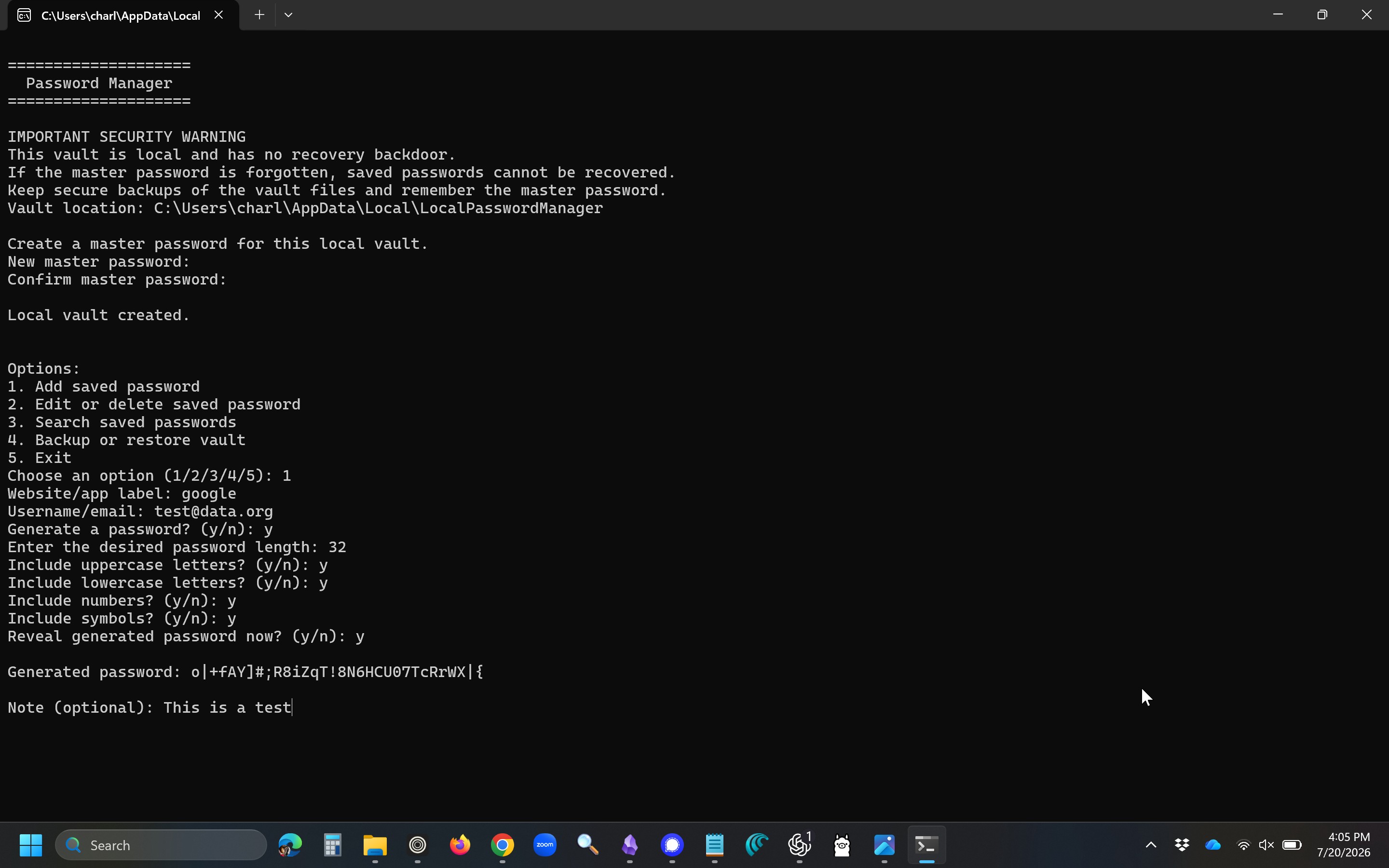
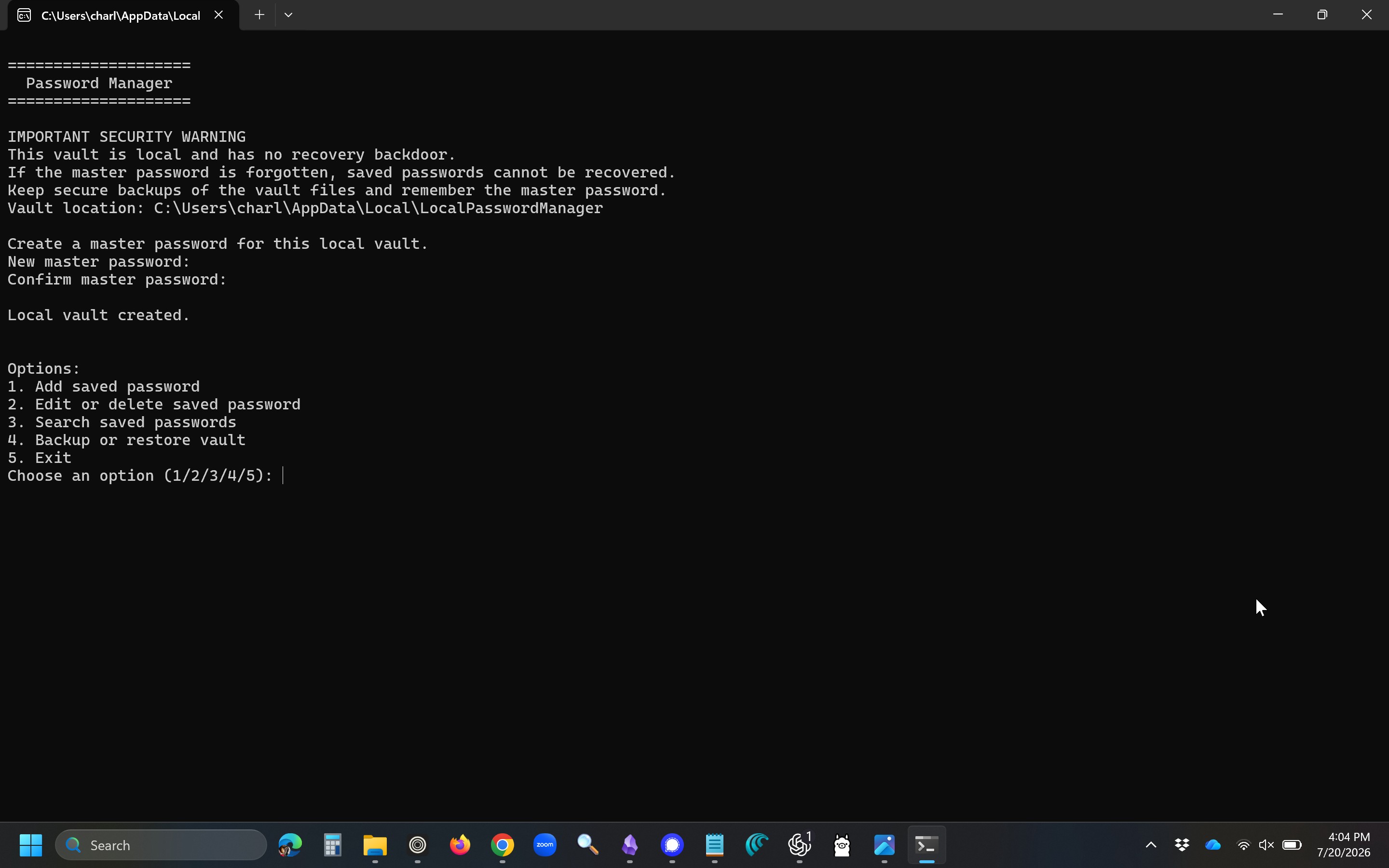
KeepLocal Start Screen
-
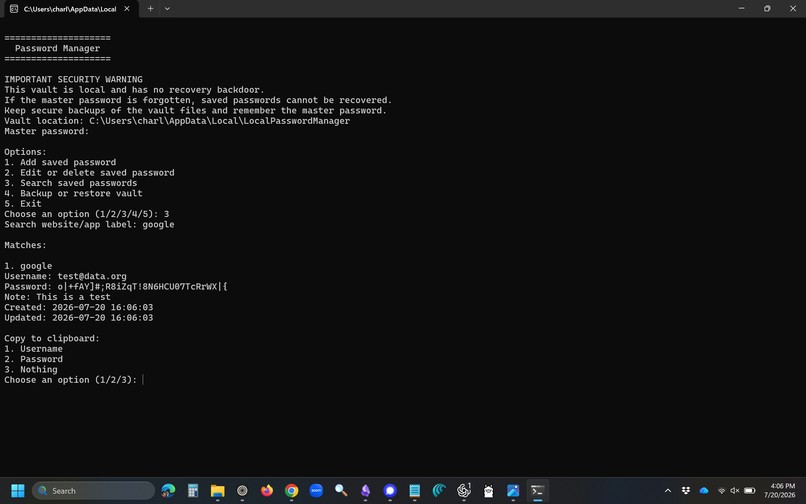
Searching for a password
-
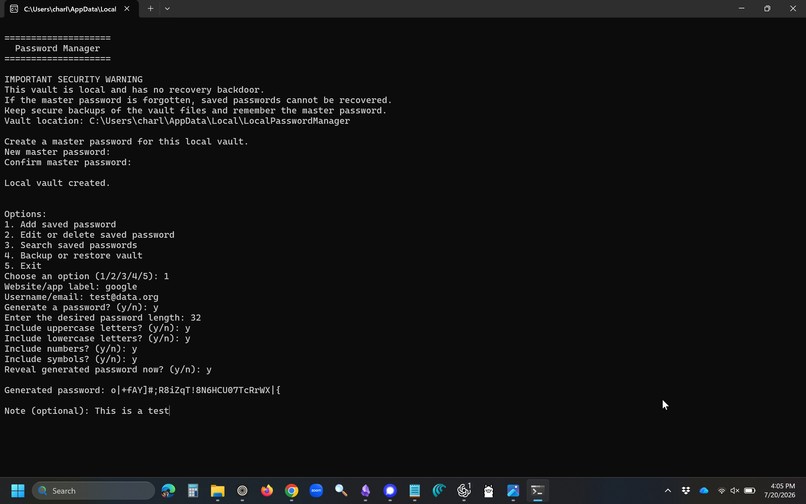
Save a password
-
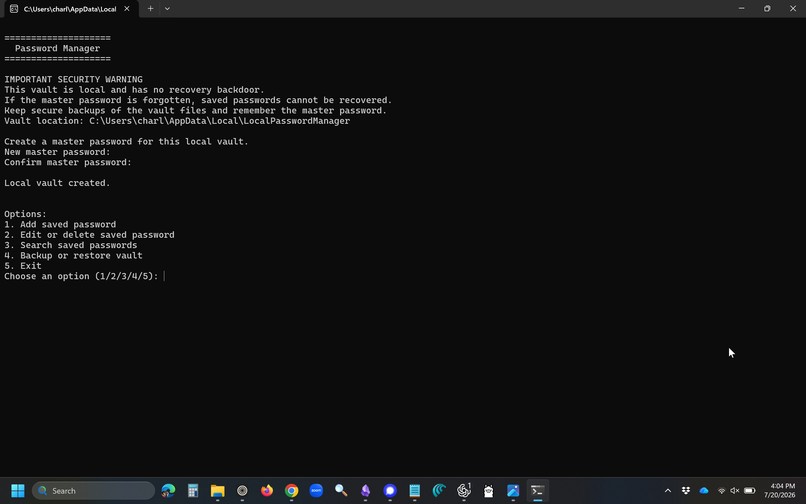
KeepLocal Main Menu
-
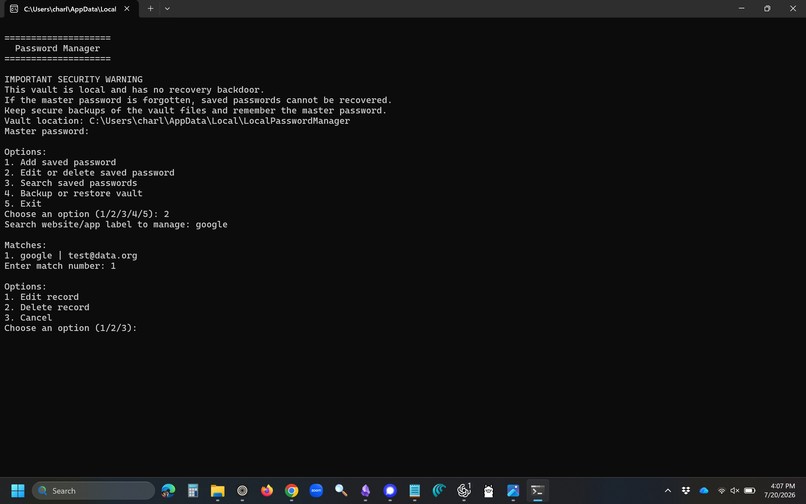
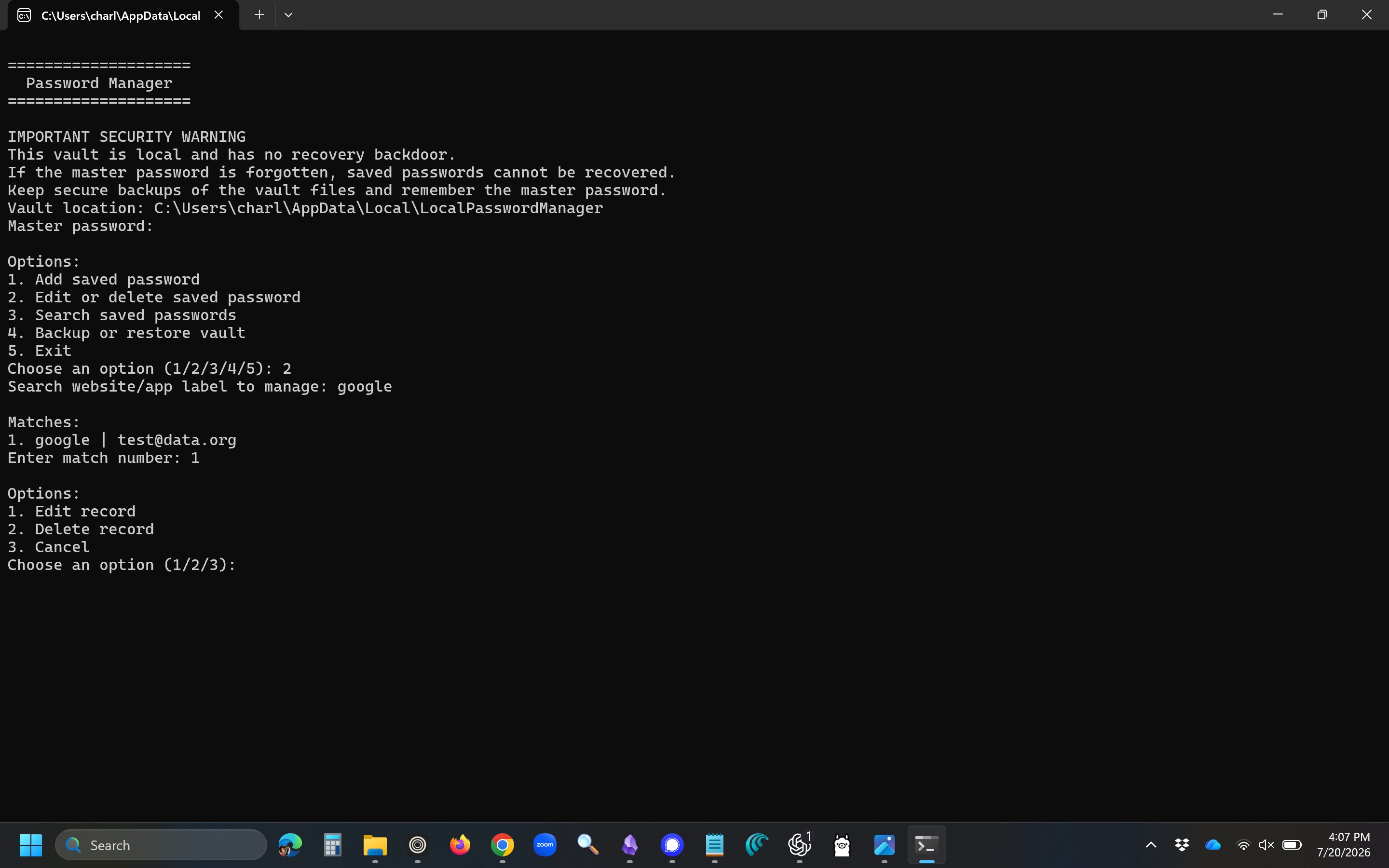
Editting a password
-
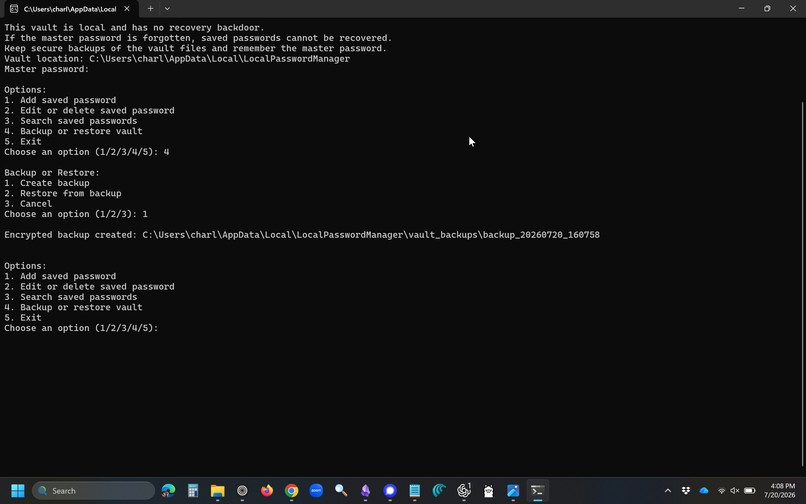
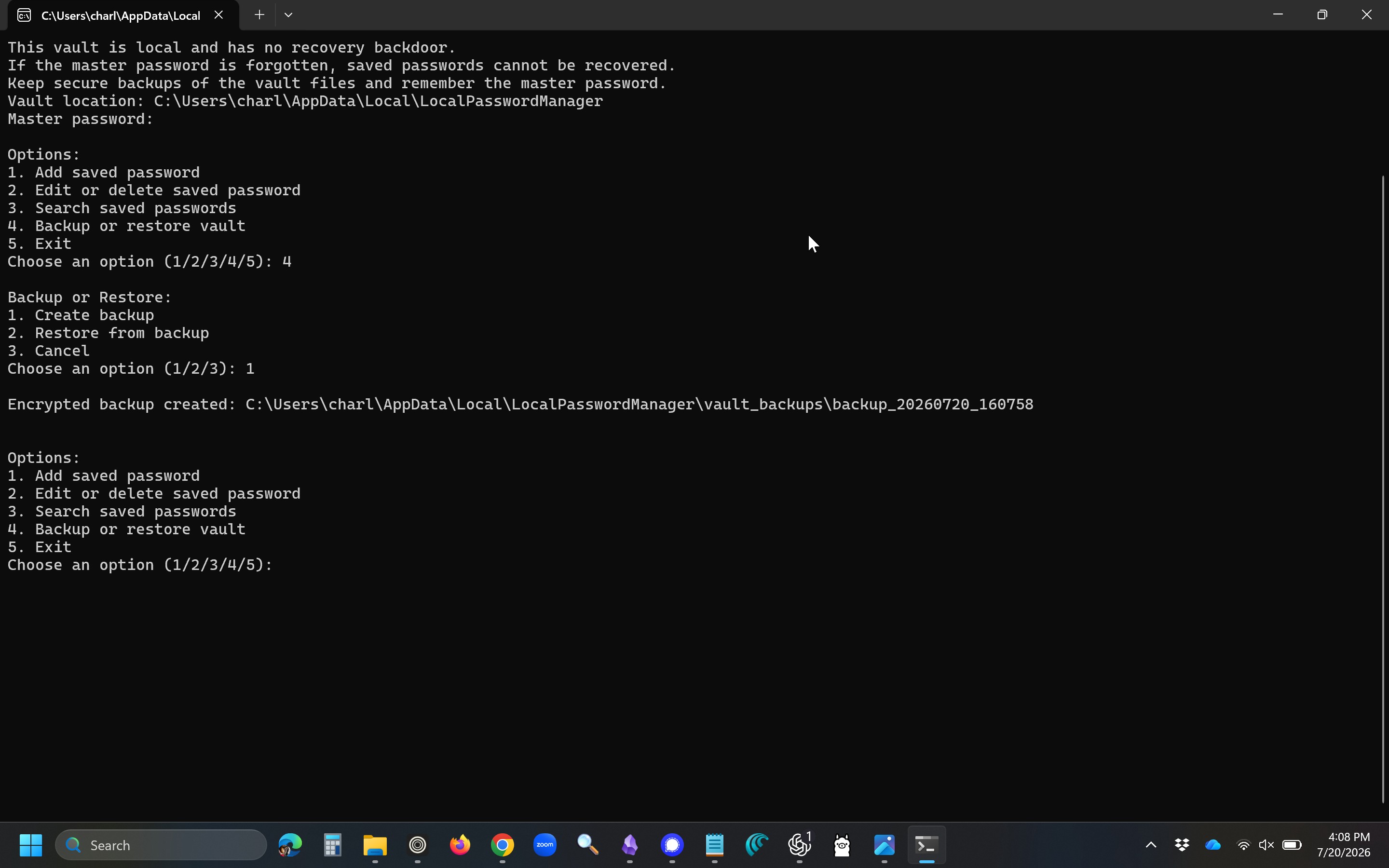
Backing up the vault
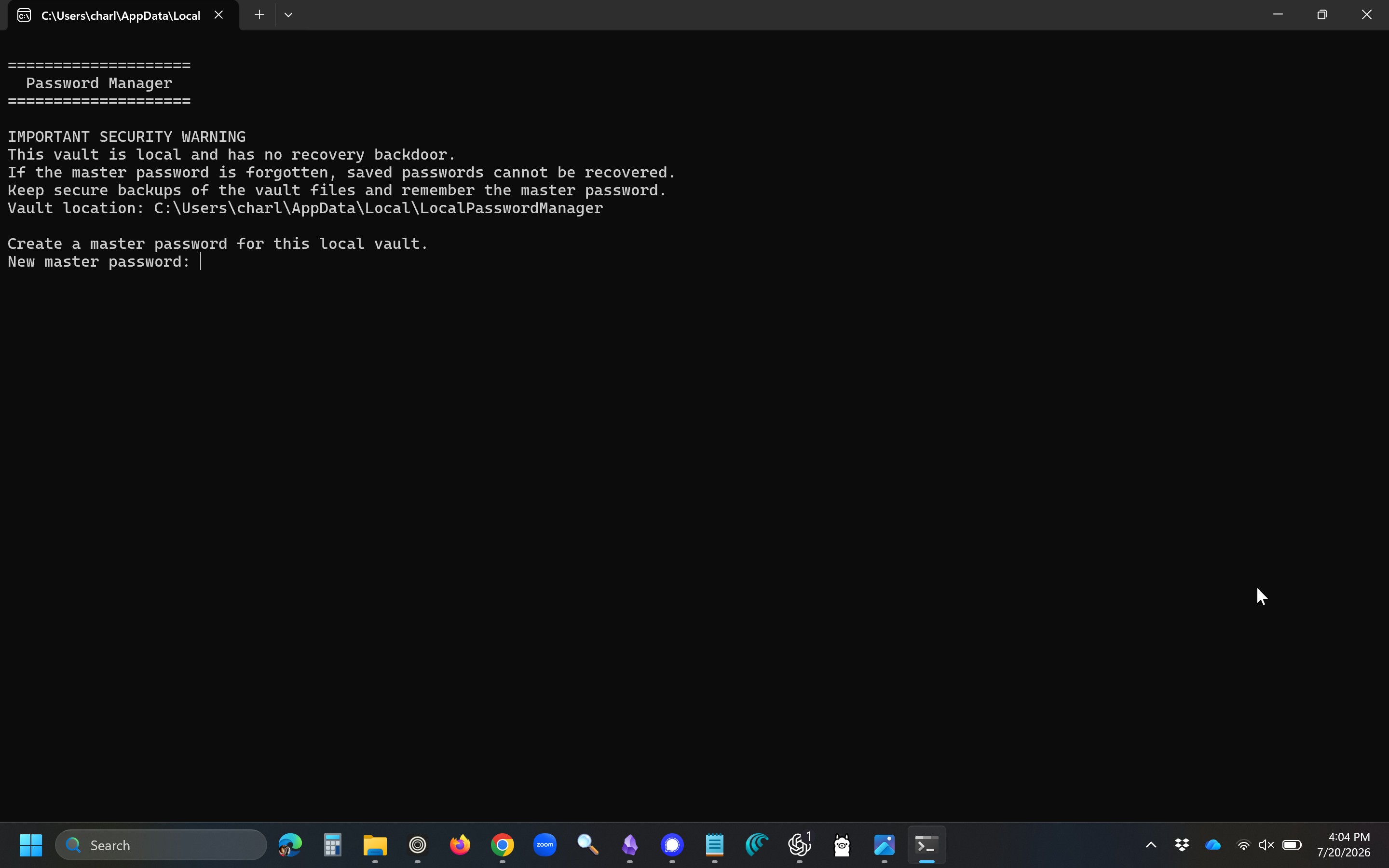
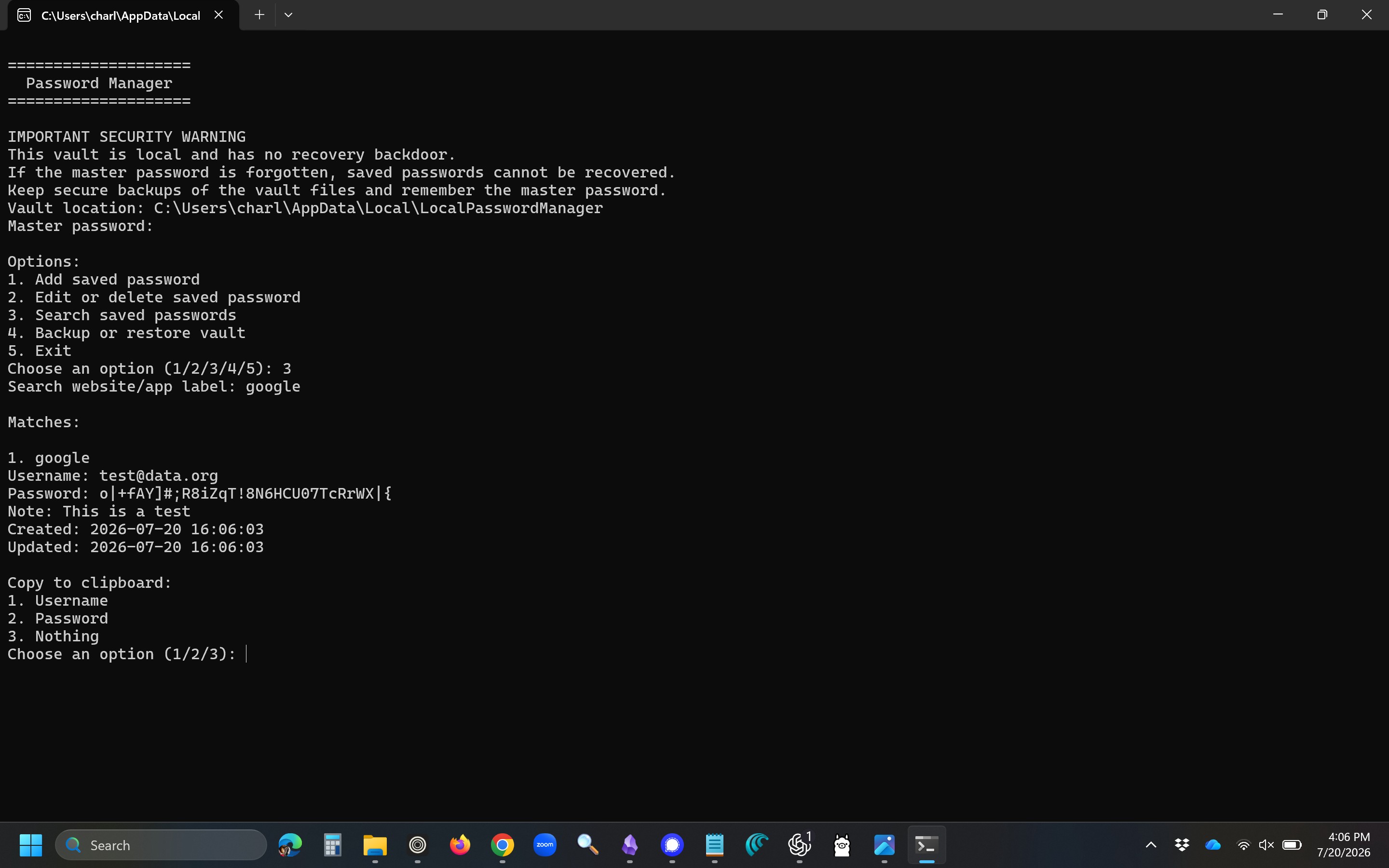
KeepLocal Password Manager
Inspiration
My son doesn't trust online password managers. His actual system before this was an Excel spreadsheet, so honestly, anything was an upgrade. He wanted something that stayed local: no cloud, no account, no company holding onto his logins.
That gave me a clear target: build a simple vault where he owns the data outright, and where there is no backdoor for anyone, including me, to get back in if something goes wrong.
I built KeepLocal with help from Codex and GPT-5.6. Codex acted like a development partner throughout the project: helping me think through the security model, debug Windows-specific behavior, refactor the code, and prepare the project for submission.
What It Does
KeepLocal is a local, encrypted password vault for Windows. You set a master password, save encrypted login records, search them, edit or delete entries, copy usernames or passwords to the clipboard, and make encrypted local backups.
Each record can hold:
- Website or app label
- Username or email
- Password
- Optional note
- Created and updated timestamps
The vault lives locally in the user's AppData folder.
KeepLocal itself does not use AI at runtime. It does not send passwords, vault files, or user data to OpenAI or any cloud service.
How I Built It
I built KeepLocal in Python, using the cryptography package and Fernet encryption. Rather than storing the encryption key on disk, the app derives it from the master password with PBKDF2 and a local salt.
This started out as a plain password generator and grew from there. Once it got serious enough to actually use, I split the code in two:
password_manager_v2.pyruns the command-line interface and prompts.vault_core.pyhandles encryption, vault storage, records, backups, restore, and clipboard support.
Vault files are stored under AppData so the app behaves like a real Windows program instead of dropping files wherever you happen to run the script from.
Codex and GPT-5.6 helped guide that evolution from a single script into a more structured prototype. They helped with architecture decisions, edge cases, README writing, demo planning, and refactoring the app so the vault logic can later be reused by a graphical Windows interface.
Challenges
The master password system took some rethinking. Early on I had the encryption key sitting in a local file, which defeats the whole point. I changed it so the key comes from the master password itself. No backdoor. If you forget the master password, the vault is gone. That's the tradeoff, and it's the right one.
Backups were another sticking point. Restoring one overwrites the current vault, so I added an automatic backup before any restore runs, just to cut down on the chance of someone wiping out their own data by accident.
Clipboard support gave me some Windows-specific grief too. My first approach was flaky, so I switched to Windows' built-in clipboard command and it's been solid since.
Another challenge was making sure the project stayed honest about AI. Codex and GPT-5.6 helped me build the app, but the password manager itself is intentionally local and offline. I wanted the development process to benefit from AI without turning the product into something that depends on cloud AI services.
What I Learned
I got a lot more comfortable with local encryption and key derivation, and with the tradeoffs that come from refusing to build in a recovery option.
I also learned how useful Codex can be as a coding partner when the goal is not just generating code, but thinking through design decisions. It helped me catch bugs, clean up the structure, improve the terminal interface, and prepare the project for a real submission.
And I learned that the small stuff matters even in a command-line tool. Clear messages, decent spacing, backup warnings, predictable file locations, all of it adds up to something that actually feels trustworthy to use.
What's Next
Right now this is a working console prototype. Down the line I'd like to add:
- A full Windows GUI
- Packaging it as a proper Windows executable
- Better password strength guidance
- Cleaner backup and restore screens
- Optional auto-lock after inactivity
- Better import/export tools
The goal is still the same one I started with: a fully local password manager that's easy enough to use every day without ever handing your data to someone else.

Log in or sign up for Devpost to join the conversation.