-
-
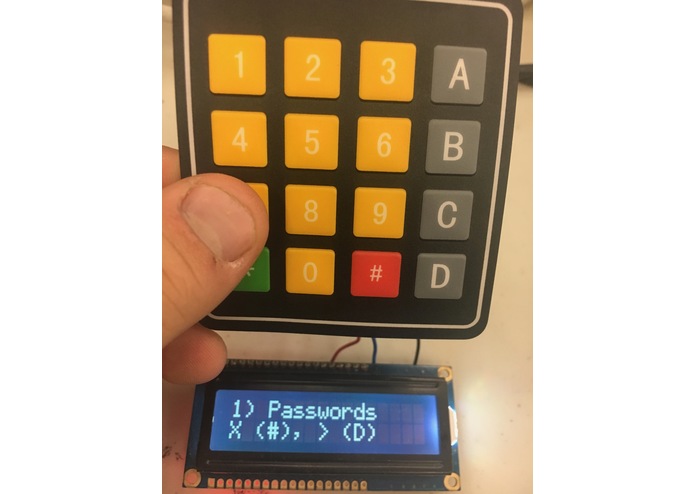
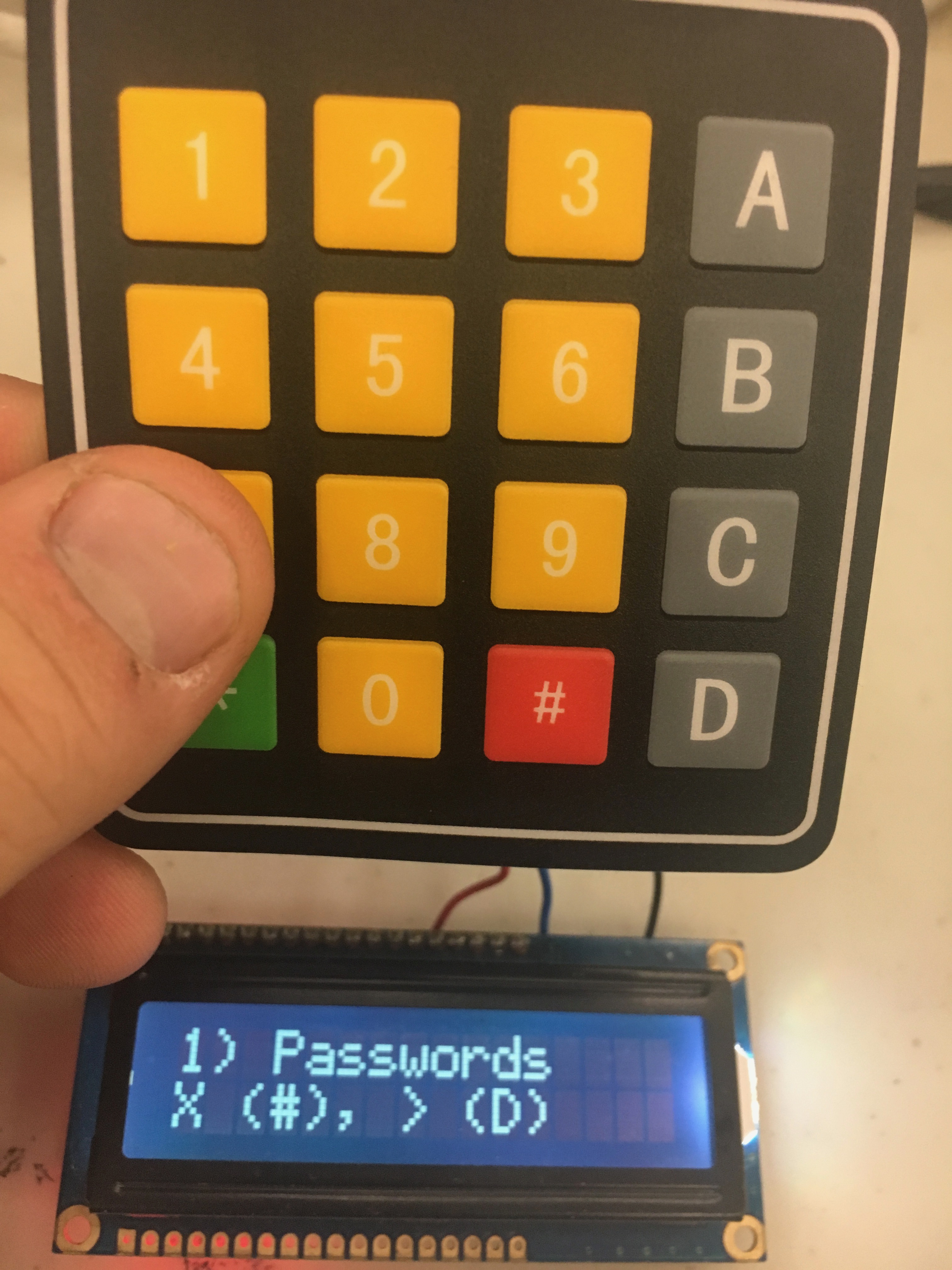
Password menu item
-
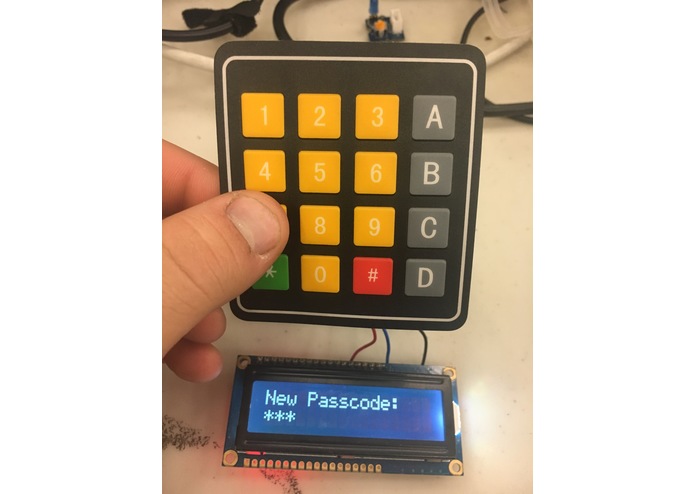
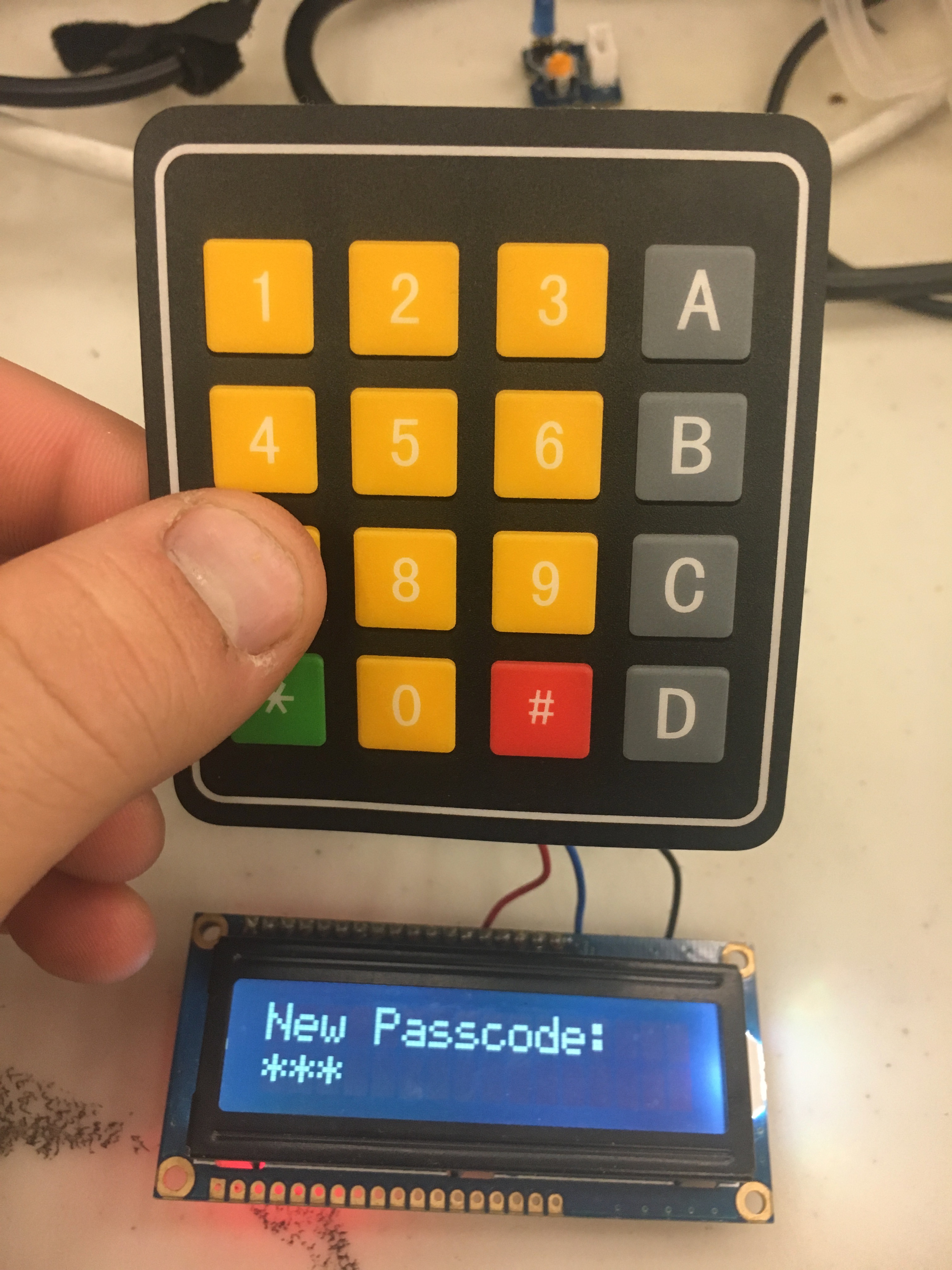
New Passcode screen
-
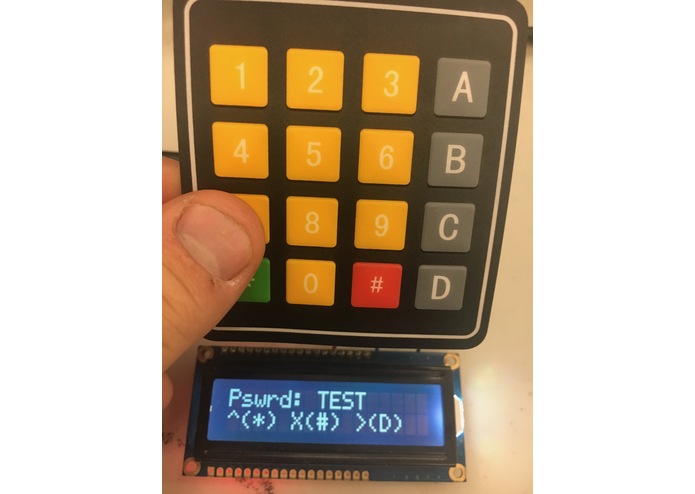
Password selection menu
-
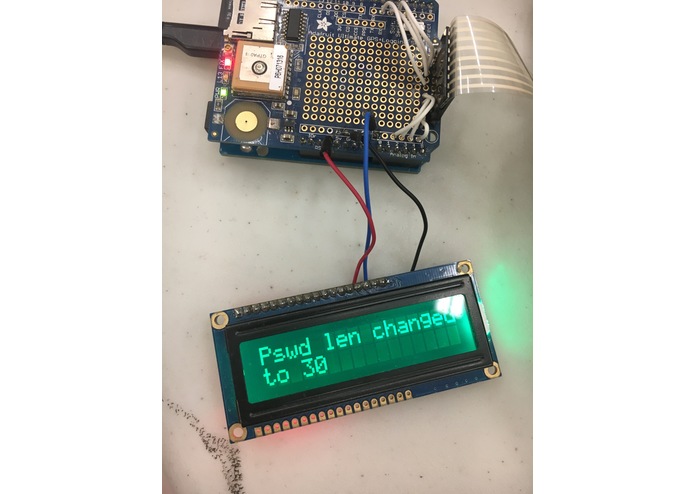
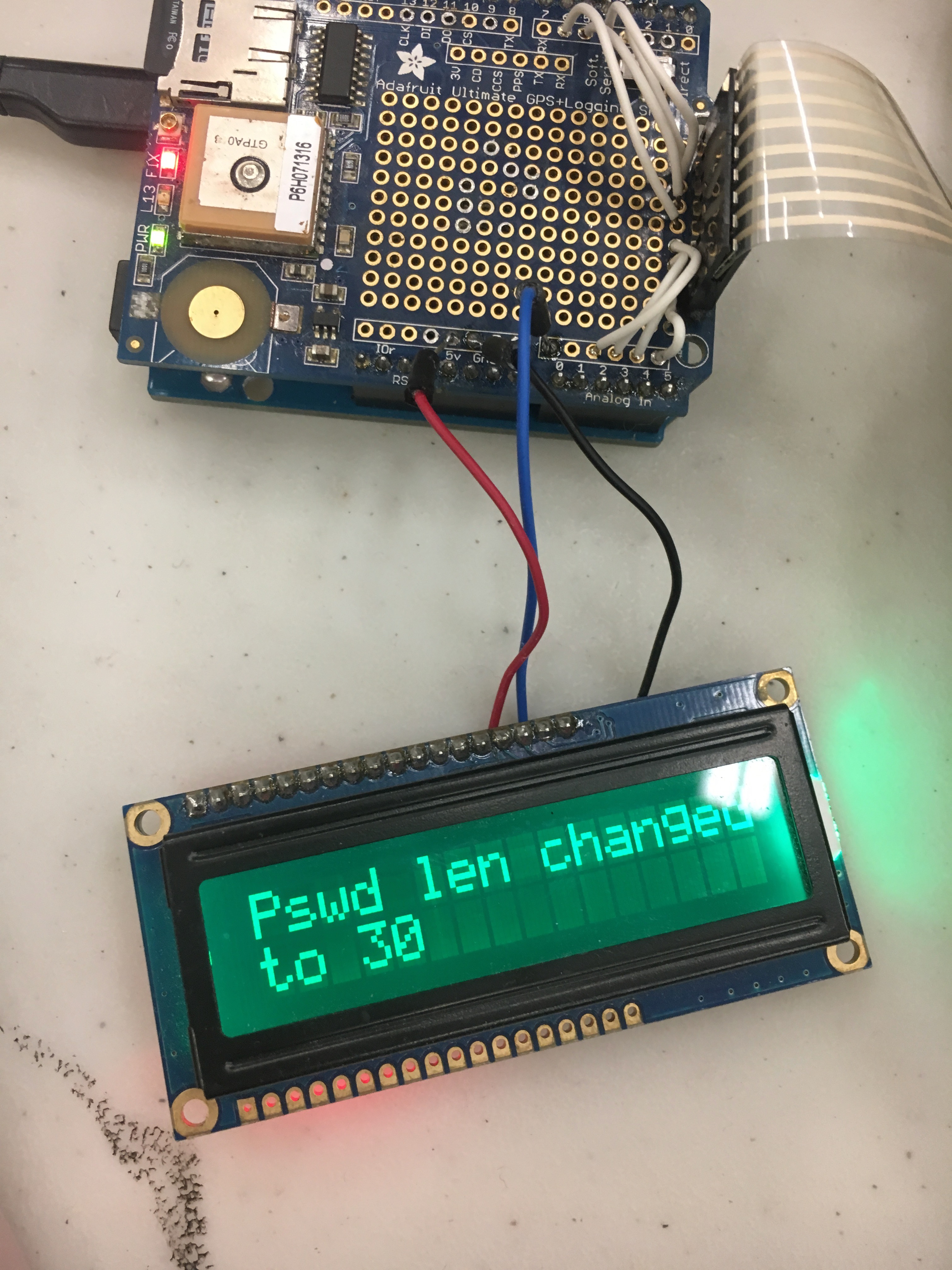
Password length changed successfully
-
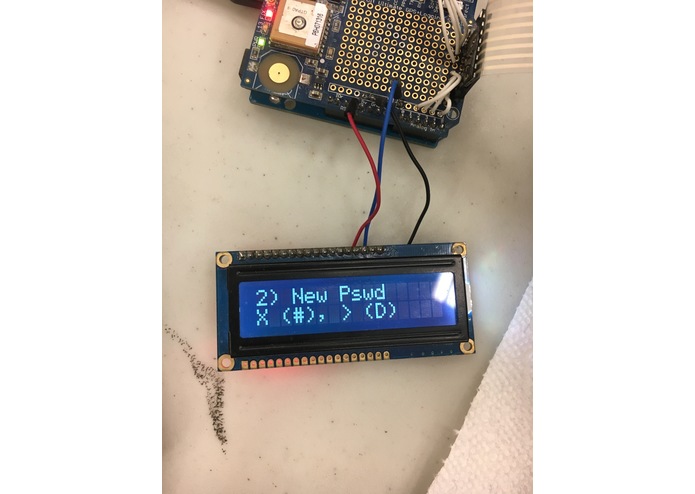
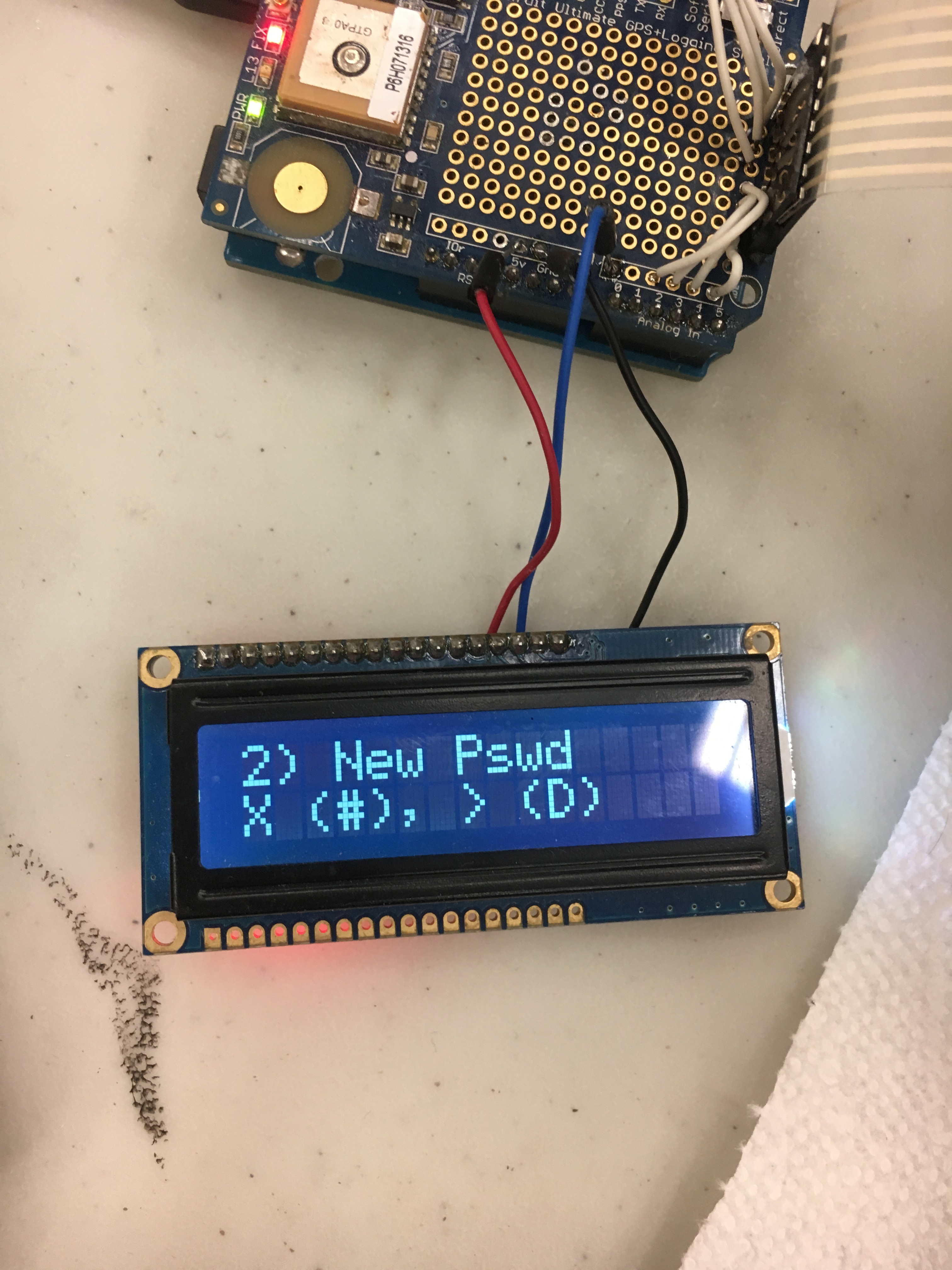
New password menu item
-
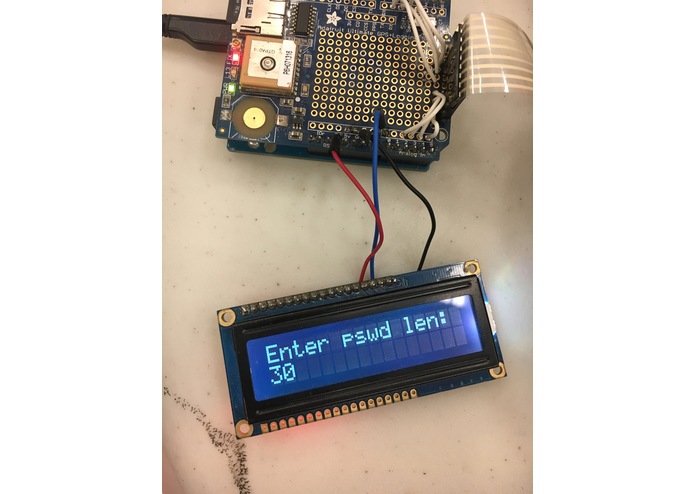
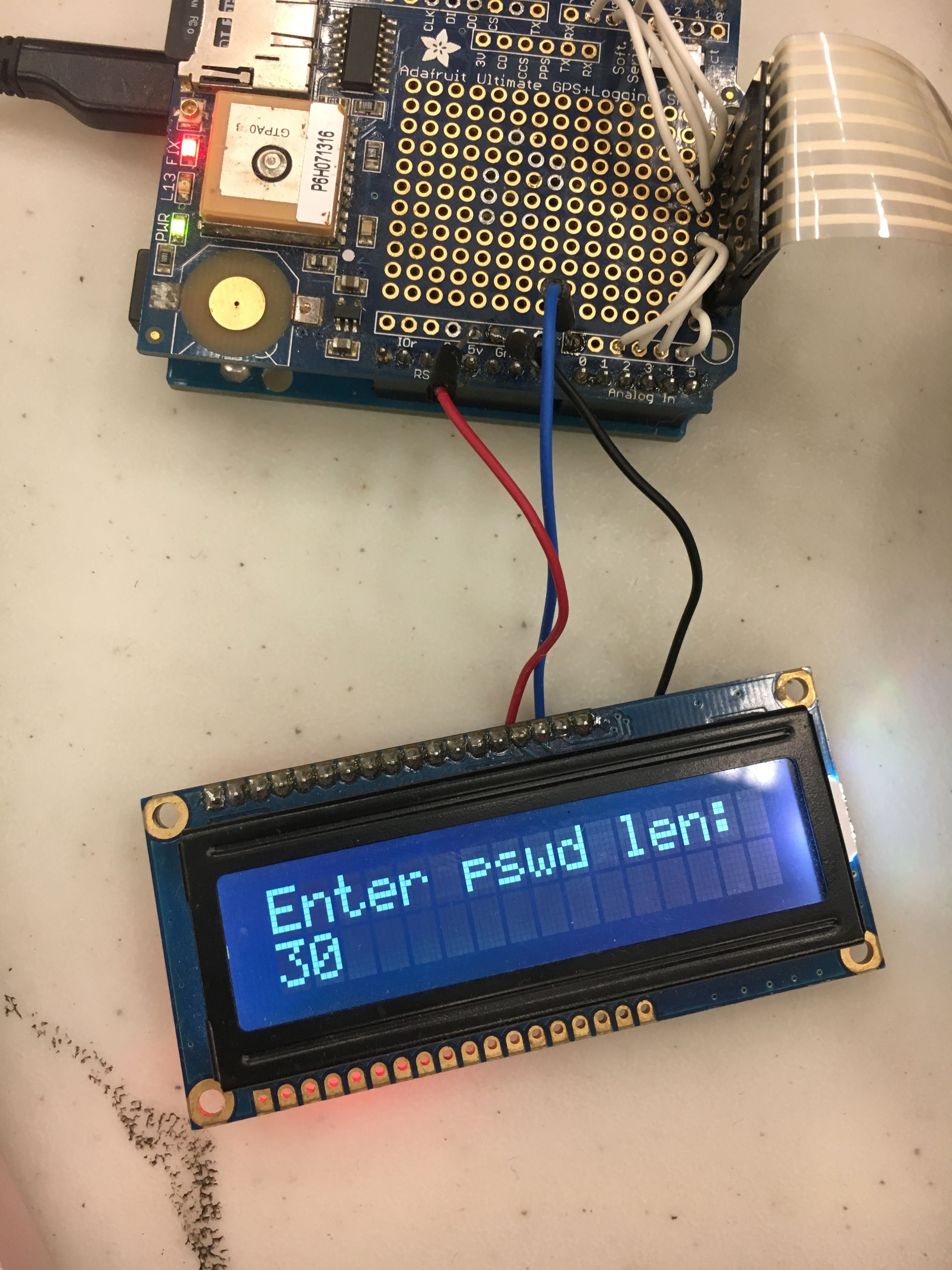
Password length change entry screen
-
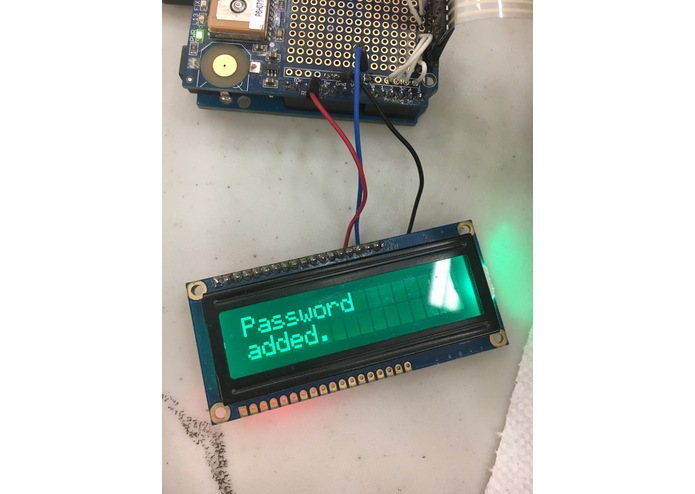
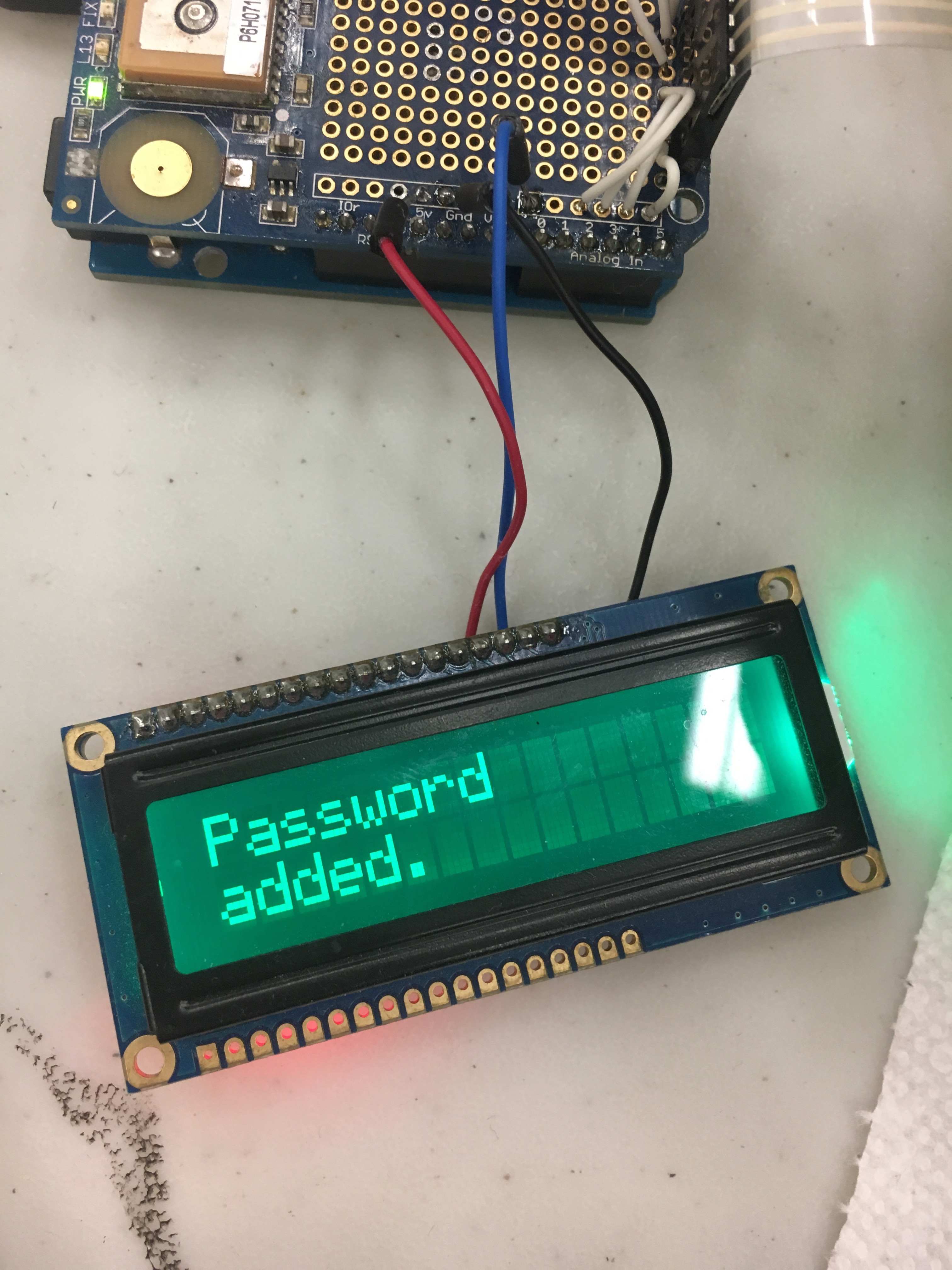
Password successfully added
-
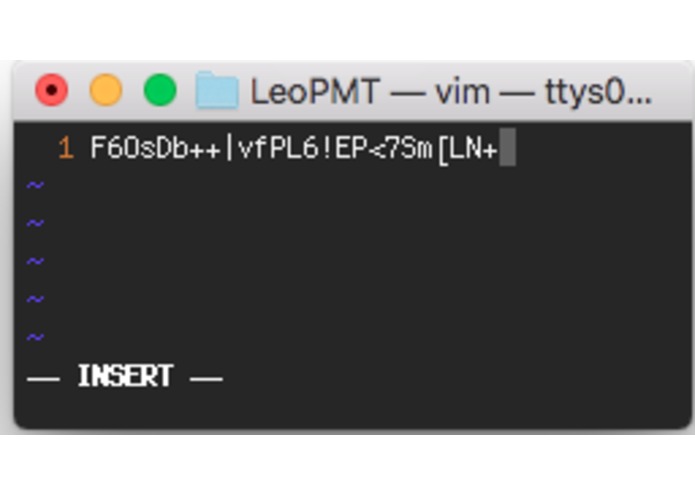
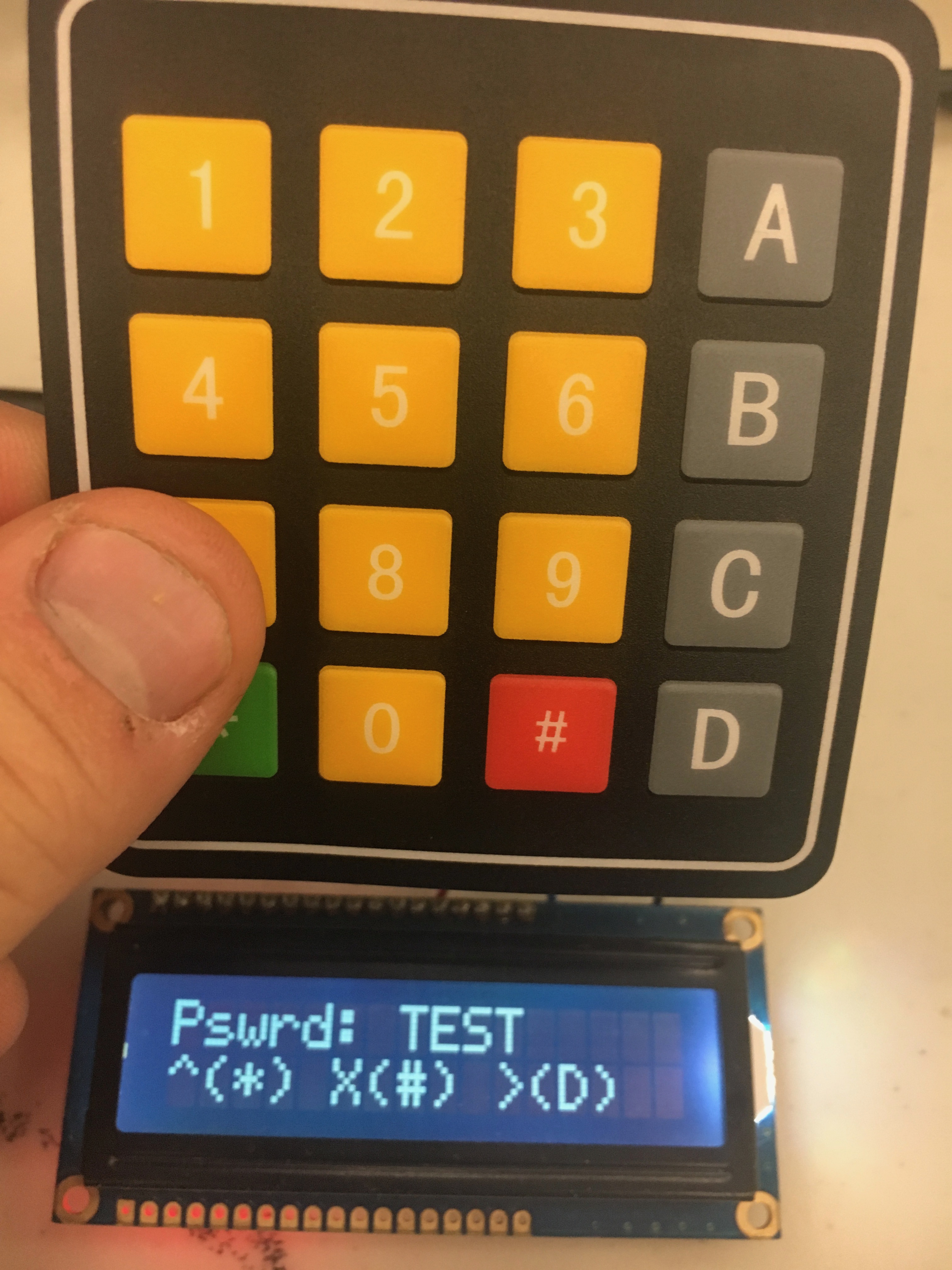
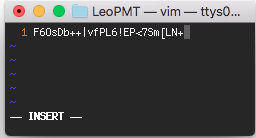
Example password
-
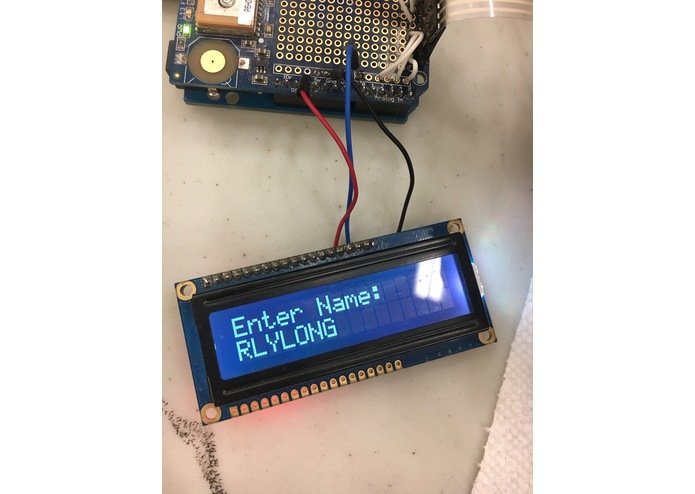
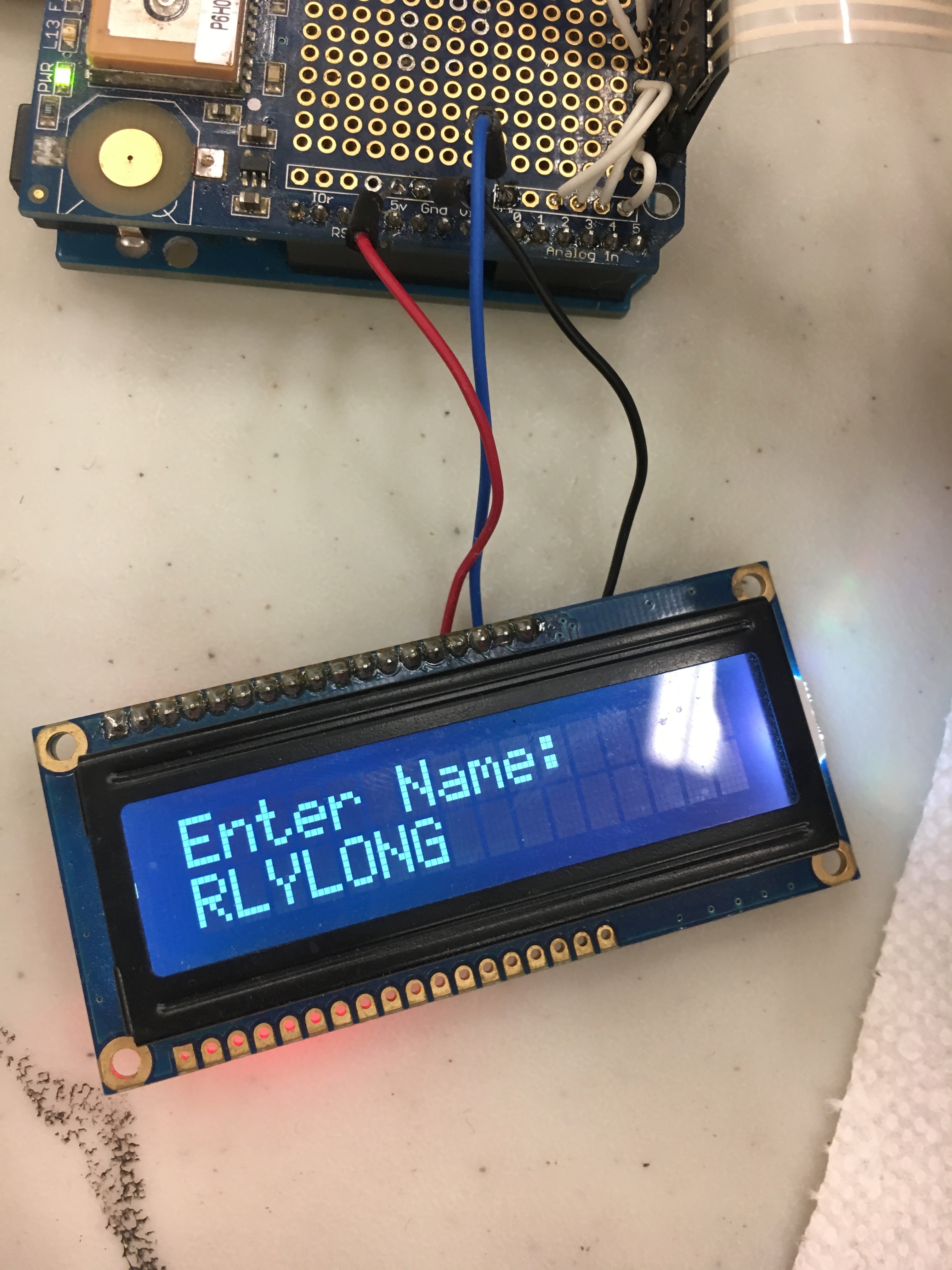
Password name entry screen
LeoPMT - (Arduino) Leonardo Password Manager
What is LeoPMT?
LeoPMT is a device, based on an arduino leonardo (Atmega 32u4), that stores your passwords for later retreival. It emulates a USB HID keyboard, so it can automatically enter passwords for you. It is compatible not only with computers, but also Android and iOS devices with the proper adapter. This device is completely isolated from the internet, so there is no risk of it being remotely compromised.
This was designed and implemented at Hack Western, Nov 17-19 2017
Controls
Since we're stuck with a character LCD, it's a bit difficult to display the actions for each button. Here is a summary:
Main Screen
- Advance Item = D Key
- Select Item = Pound Key
Number/Passcode Entry Screen
- Number Entry = 0-9
- Backspace = D Key
- Confirm = Pound Key
Text Entry Screen / T9 Dialer (Works like texting on a flip phone)
- Number/text entry = 0-9
- Confirm character = Star key
- Confirm string = Pound Key
- Backspace = D Key
Getting Started
- Format the SD card, and insert it in to the SD card slot on the shield. Plug in the USB to your phone or computer, and you'll be ready to go!
First Boot or Clean Wipe
On the first boot after inserting a fresh SD card, you will be asked to enter a passcode. This is the master device passcode. Use the number pad (0-9) to enter an access code, then hit pound for confirmation. LeoPMT will then continue the regular boot sequence.
Regular boot
On subsequent powerups, LeoPMT will ask for the passcode entered on first boot.
Menu Items
1) Passwords
Shows a list of passwords, by using the names provided at password creation. Allows the user to send the password text to a computer.
- Press D to advance through the list of passwords
- Press #/Pound key to send the password keystrokes to the connected computer
- Press */Star to go to the main menu
2) New Pswrd (New Password)
Guides the user through creation of a new password. See the T9 dialer section above for controls for name entry. The text of each password is randomly generated from Uppercase, Lowercase, Symbols, and Numbers.
3) Chg Pswrd (Change Password)
Shows a list of passwords, by using the names provided at password creation. Allows the user to change the password text of an entry.
- Press D to advance through the list of passwords
- Press #/Pound key to change the password text. A confirmation screen will appear.
- Press */Star to go to the main menu
Ensure you enter the old password in a change password form on your computer before you change or delete the password on LeoPMT
4) Del Pswrd (Delete Password)
Shows a list of passwords, by using the names provided at password creation. Allows the user to delete password entries.
- Press D to advance through the list of passwords
- Press #/Pound key to change the password text. A confirmation screen will appear.
- Press */Star to go to the main menu
Ensure you enter the old password in a change password form on your computer, or some sort of contingency plan if necessary, before you delete the password on LeoPMT
5) Chg Passscode
Guides the user through the change of the main device passcode. Use the number pad (0-9) to enter an access code, then hit pound for confirmation.
6) Chg Pswd Len
Allows the user to change the length of the password generated. This value is stored in ROM, so it persists across power cycles and SD cards.
7) Clean Wipe
Deletes all information from the SD Card. This is a destructive operation, so confirmation will be required. After contents have been deleted, you must power cycle LeoPMT.
Video Demonstration
Hardware Required
- ~Arduino 101~ Arduino Leonardo (or equivalent Atmega 32u4 board)
- SD Card shield/breakout board
- FAT32 formatted SD card (SD/SDHC)
- Adafruit RGB character LCD
Libraries Required
You can get the keypad library from the library manager feature in the arduino IDE.
- Adafruit SD library: https://github.com/adafruit/SD
- Keypad library : http://playground.arduino.cc/Code/Keypad


Log in or sign up for Devpost to join the conversation.