-
-
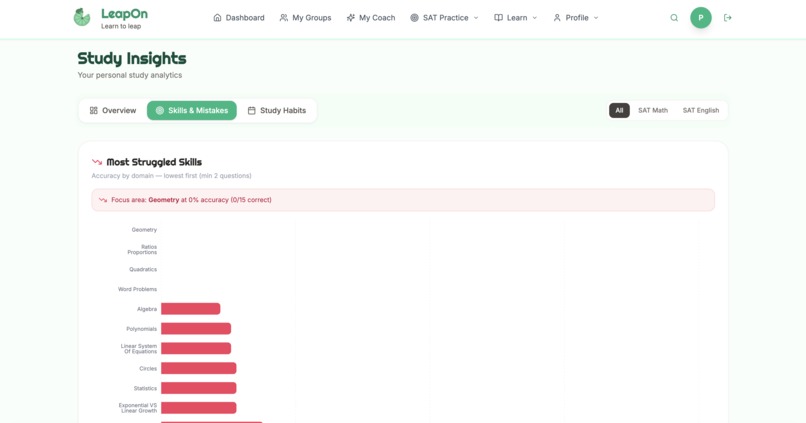
Student Side
-
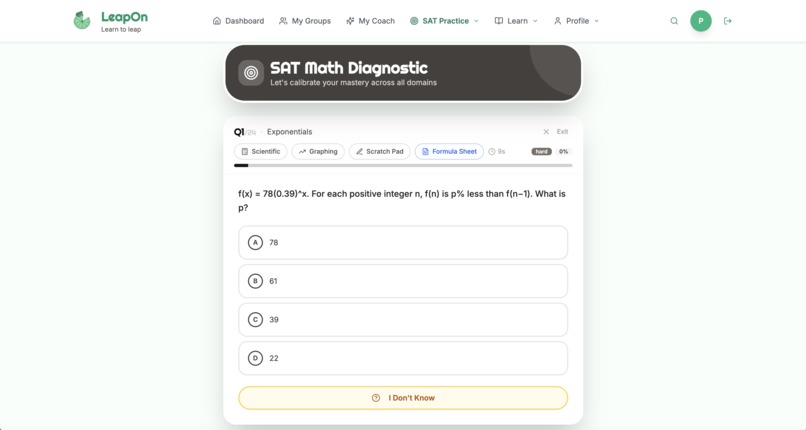
Student Side
-
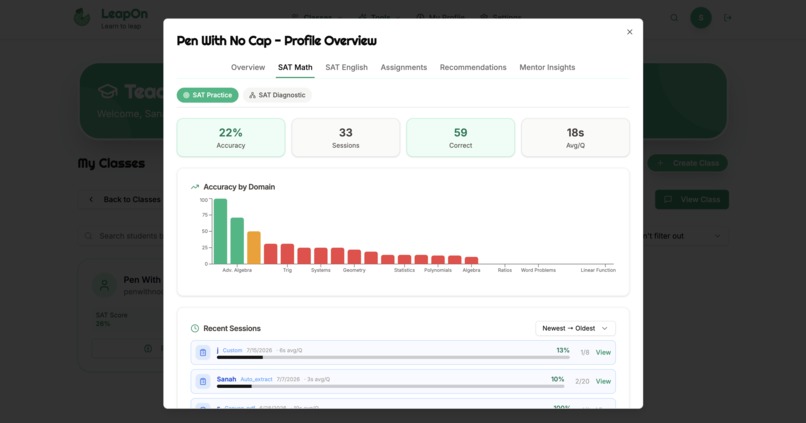
Teacher Side
-
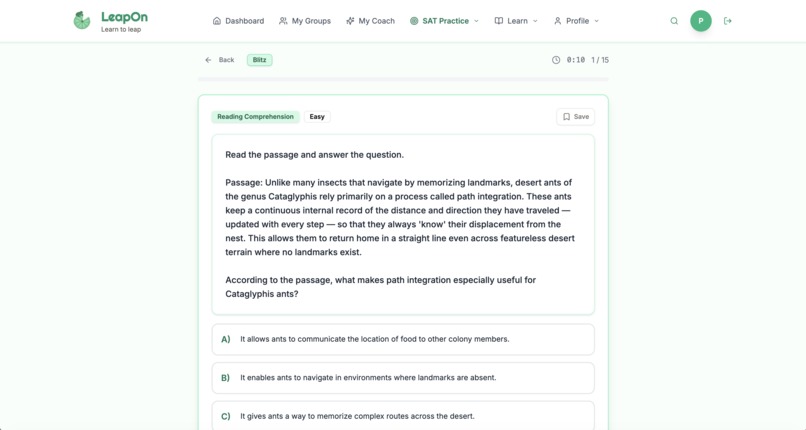
Student Side
-
Parent Side
-
Parent Side
-
Teacher Side
-
Teacher Side
-
Student Side
-
Student Side
LeapOn SAT - Software Development
Inspiration/Problem:
As a senior in high school myself, I was inspired to create LeapOn by the utter lack of progress I witnessed when attending tutoring programs, academies, and other online platforms for the SAT myself, causing me to compare experiences with my classmates, peers, and friends before sitting down to think about the specific issues I encountered within the common system. The stagnation, disengagement, and ultimate disinterest in improving scores, studying specific SAT techniques, and recognizing patterns rather than memorizing shallow tactics stemmed, in my observations, from the following core issues:
- Most tutoring places and centers don't have the technology to meet you where you're at cognitively - Although steps have been made in recent years to have students take diagnostic tests upon registering with academies or preparation centers, most models fail to account for all that is belied by the outward performance on a simple test, including the cognitive load, knowledge gaps, executive functioning (or life skill) deficiencies, learning styles, mindset differences, and communication styles, resulting in unproductive lessons and meeting with tutors where students feel as though their parents are simply paying for them to solve problems with another person on the call.
- Although tutors, teachers, and instructors often have the best intentions, they don't have the resources and training to properly communicate with students and adapt to each specific pupil's needs - In order to completely and wholly immerse a student in a precision learning system, one that adapts to their every move and node on the knowledge graph, extensive performance tracking is needed, not just using accuracy scores derived from percentages, but using feedback forms and textual explanations to better understand how the student felt while solving a given problem, how they were able to solve it, and whether or not they are truly ready to move on to the next concept. The traditional spreadsheet, gradebook, or designated binder isn't equipped to handle the data, let alone its analyses, leaving teachers without methods to cater to their students' full potential.
- The learning stops when the call ends or the doors shut - Barring minimal homework assignments, which are, in my experience, often left uncompleted as other responsibilities, both academically and within one's personal life, pile up, learning and improvement largely stops once the tutoring session has ended.
These issues don't disappear for independent learners and autodidacts, especially when high school schedules of the modern ages are already subject to contortion at the hands of extracurricular activities, part-time jobs, and, in many lower-income and underprivileged communities, familial duties that may include childcare and housework. In speaking with several people who elected to study by their selves, utilizing online resources as well as books recommended to them through channels such as Reddit and Instagram, I was able to identify the following issues that seemed to beleaguer even the highest performers:
- Even when you take a Bluebook practice test or other lengthy exam, you don't know where to start - Although the internet has been incontrovertibly beneficial in terms of enhancing accessibility to resources otherwise left exclusive to certain groups, many students complete a practice test, look at their vague score bands, and then wonder what's to come. Logging on to platforms like Khan Academy, which present the same courses, quizzes, videos, and articles for every user, students are met with blank slates that presume Unit 1 is the starting stone for everyone, often forcing some students to repeat material while neglecting to present remedial materials to those who may need them.
Solution and Features:
LeapOn provides a three-part solution that caters to the needs, profiles, and mindsets of students, teachers, and parents, facilitating progress, communication, and performance tracking through a system that uses AI as a tool to enhance connection rather than hinder it. As for the independent learner, the AI agent integrations within the LeapOn platform adapt specially to the specific cues picked up on in the Learner's Profile diagnostic, which identifies where student's brains are still developing and how this may affect their practice consistencies, time management skills, and goal-setting abilities, allowing users to make plans, ask questions, and receive lessons in constructive ways.
Dynamic knowledge graphs, first set upon completion of Math and English diagnostics and subsequently updated with all practice sessions, lessons, and assignments completed, ensure that students aren't stultified by the paces of traditional SAT Prep curriculums when they're seeking specific concepts, refreshers from previous courses, or practice lessons from different domains.
LeapOn SAT goes beyond a simple API Call, providing the agents with real data and information directly from the user's own profile that makes a difference in all future responses. In addition, all prompts were designed in collaboration with a real educator, ensuring that messages from AI Tutors and Coaches utilize Mentor Mindset frameworks from Dr. David Yeager's 10 to 25: The Science of Motivating Young People while simultaneously cultivating problem solving skills.
Comprehensive List of Features:
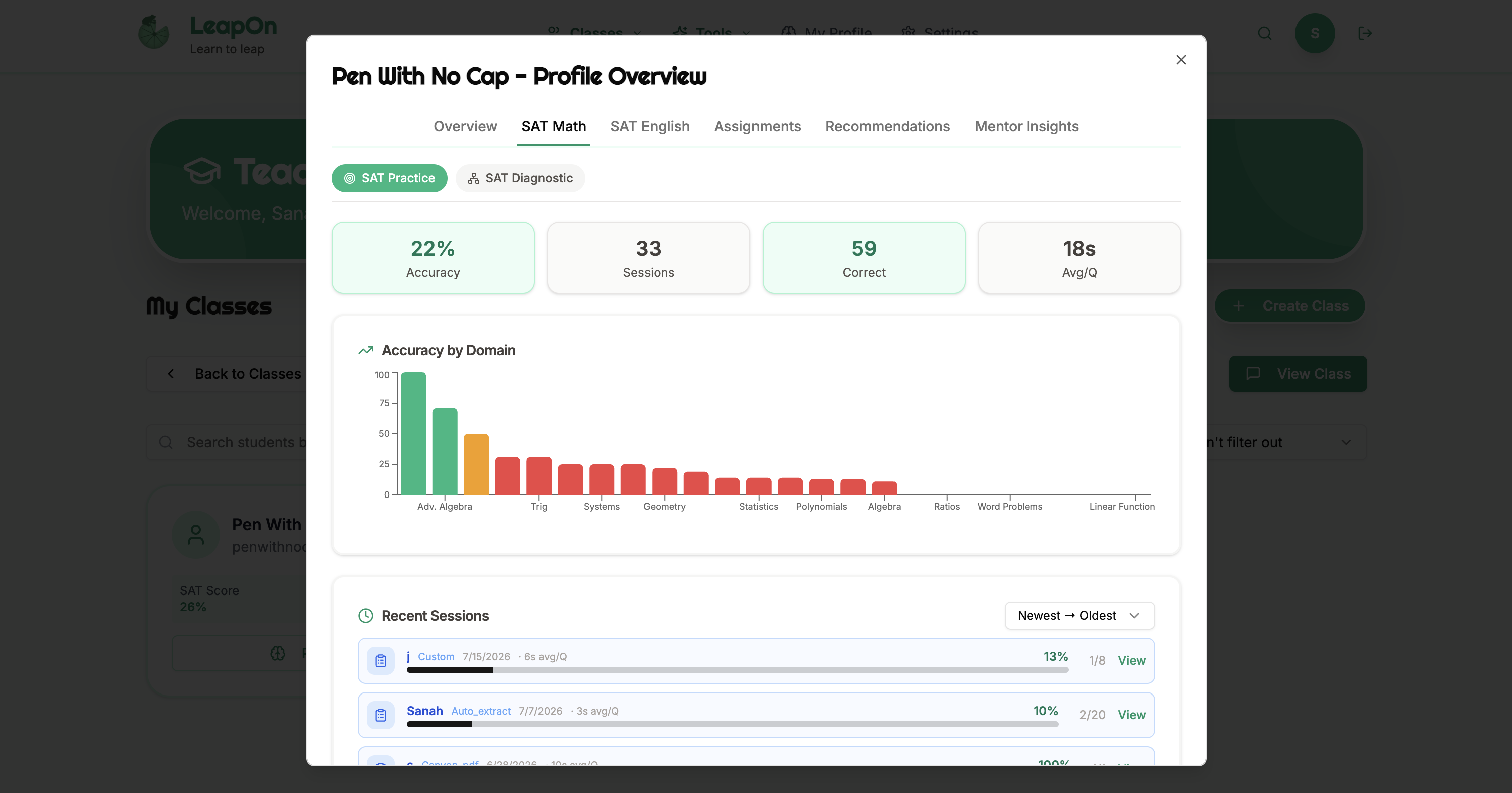
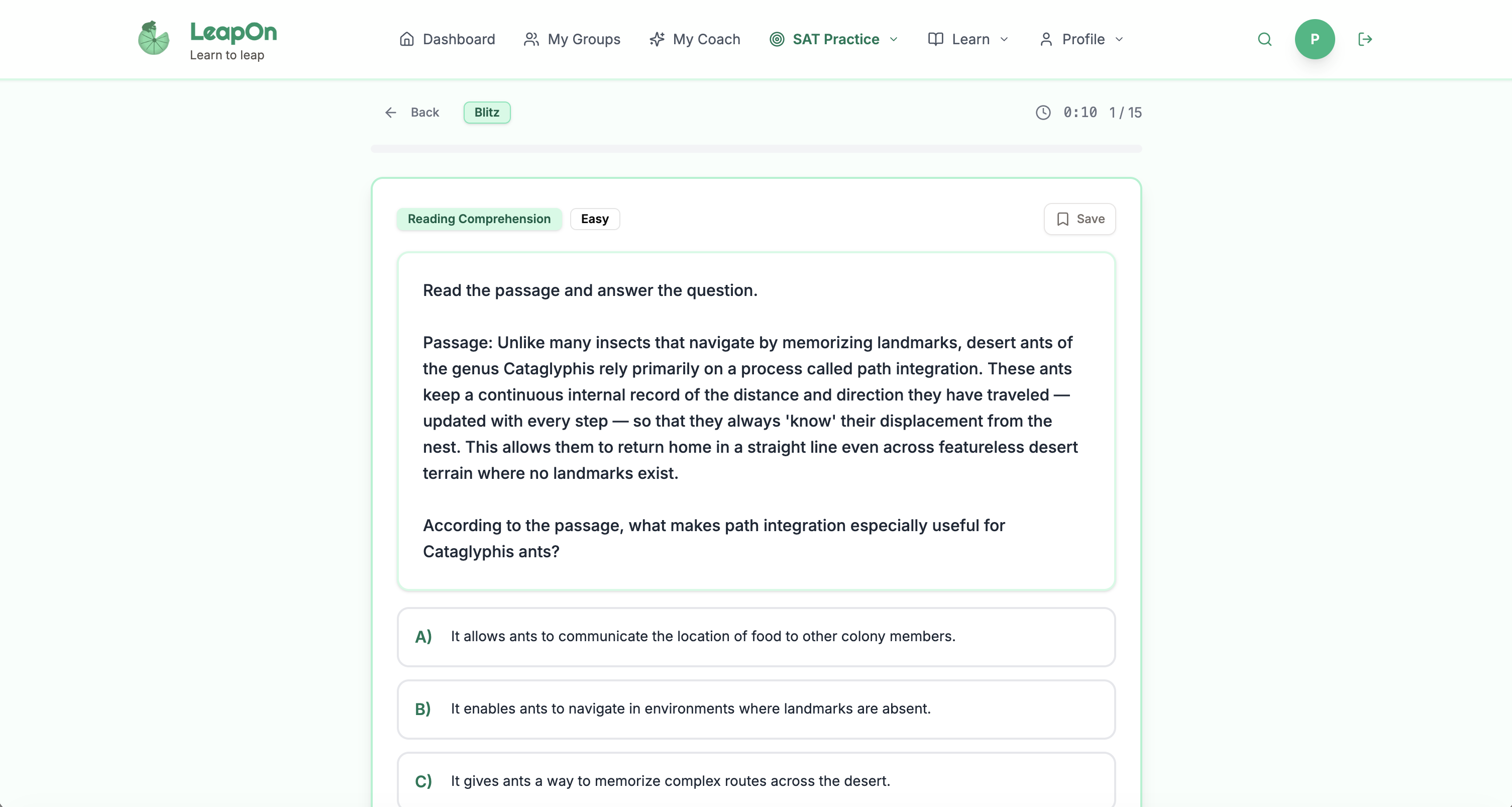
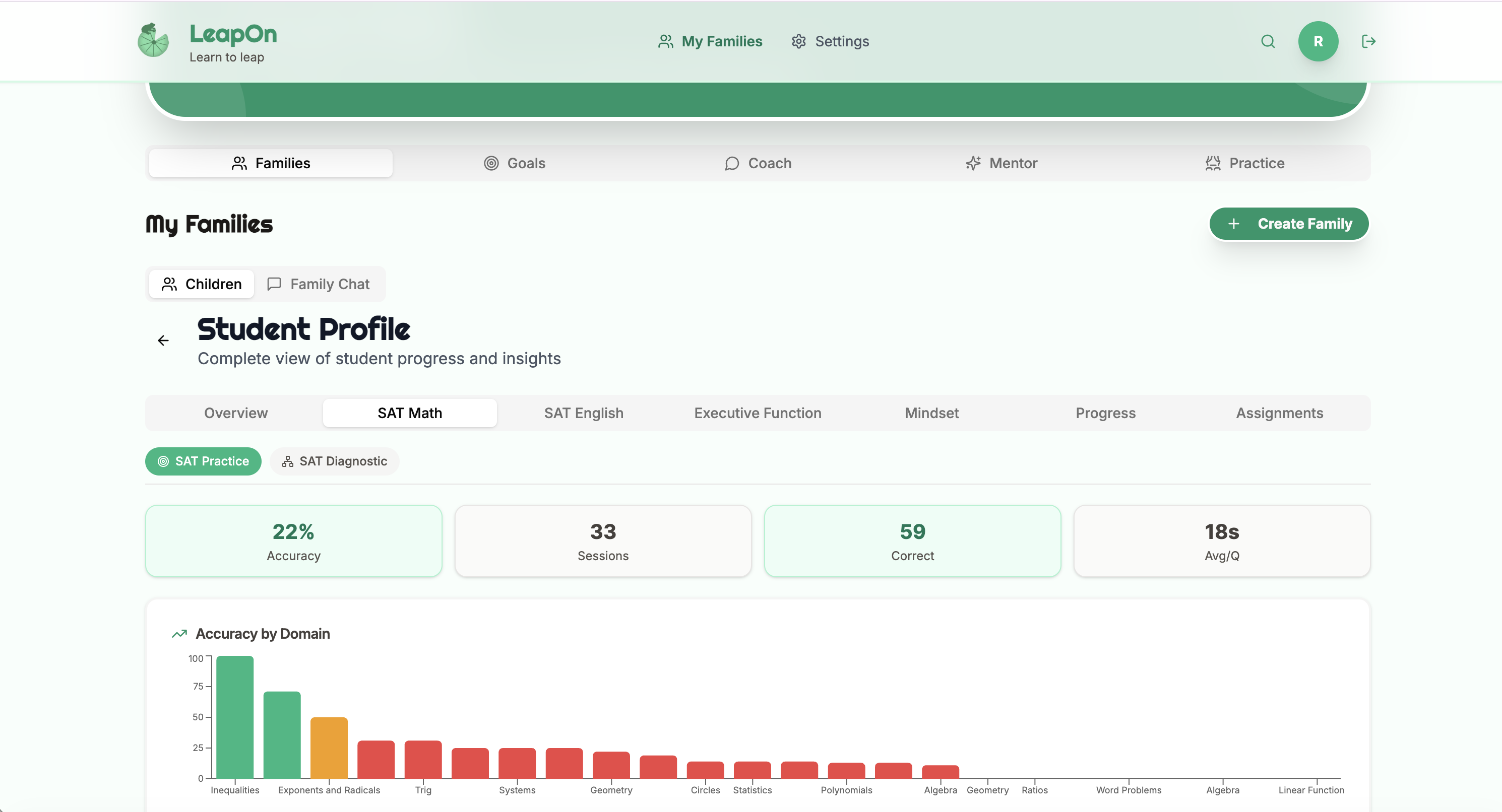
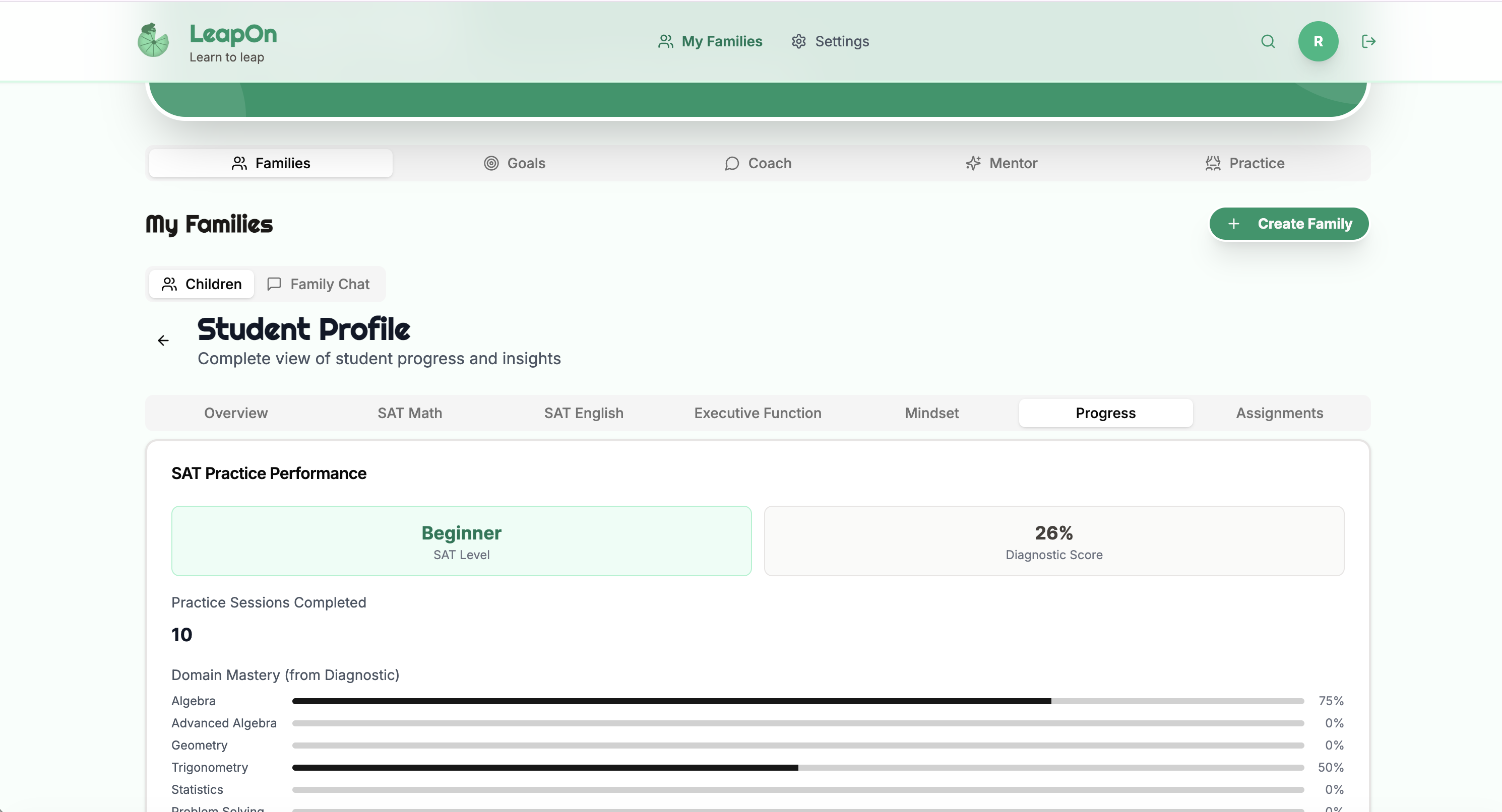
All features can be seen in the image gallery, demonstration video, and live platform (accessible at PHOTOS.md, YouTube, and leaponsat.com respectively)
- Adaptive Diagnostics - Adaptive diagnostics are the first things taken when a user registers with LeapOn SAT, beginning the continuous process of calibration for an accurate knowledge graph and profile.
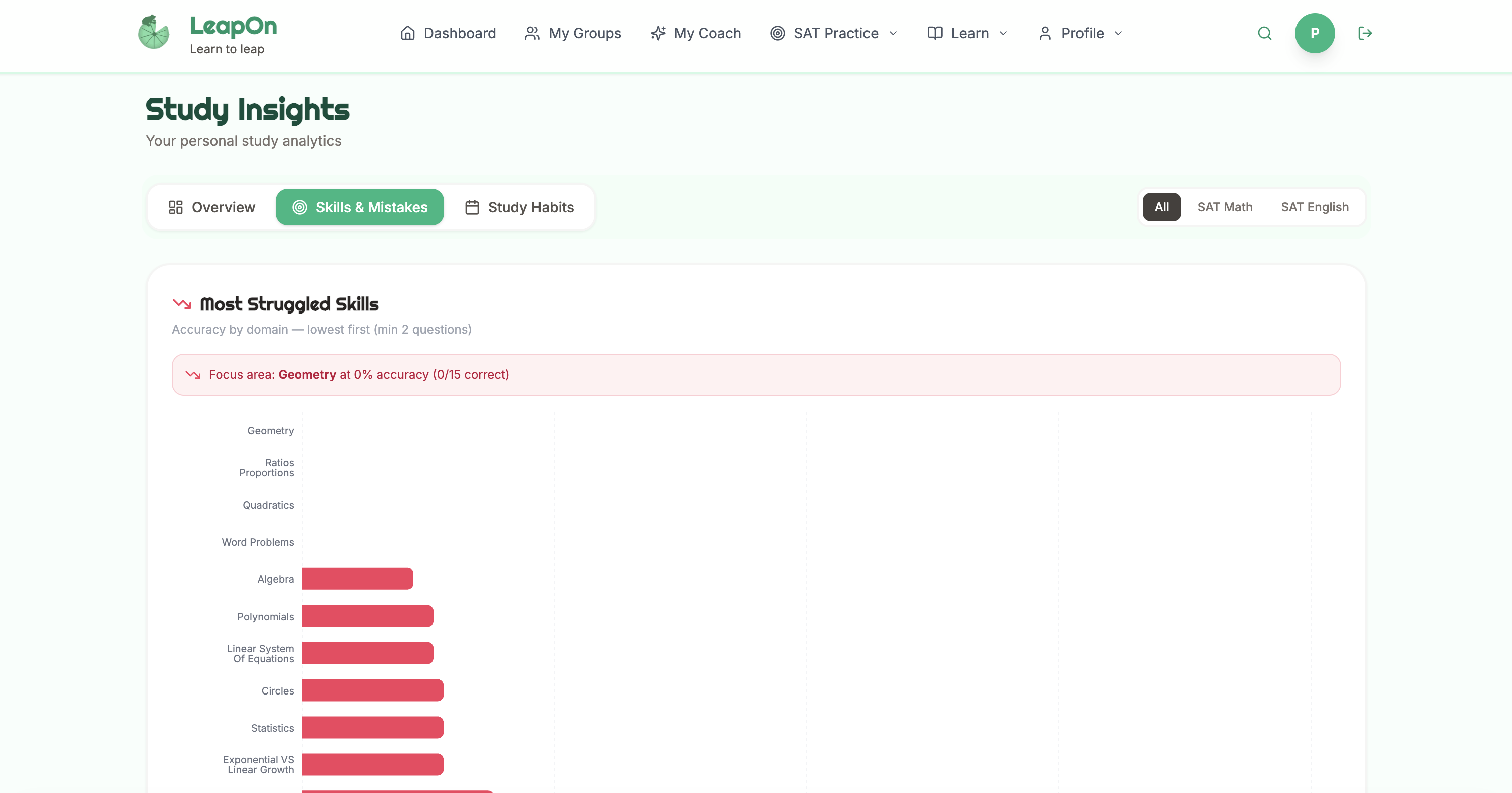
- Knowledge Graphs - The nodes of the knowledge graph represent the interconnected concepts of SAT Math and SAT English, so students don't have to take lessons for the nodes they've already demonstrated mastery in. The way in which a student's knowledge graph is filled, which in and of itself shifts as they practice and answer questions, influences the items recommended to the student by the AI Study Plan.
- Study Plans - When a student enters the platform, whether it's for a focused study session or a quick 5-minute review of less concrete concepts, the struggle of navigation is eliminated by the AI-powered, knowledge graph informed AI Study Plan system that automatically recommends activities of specific complexity levels to users depending on previous performance and necessary remedial actions.
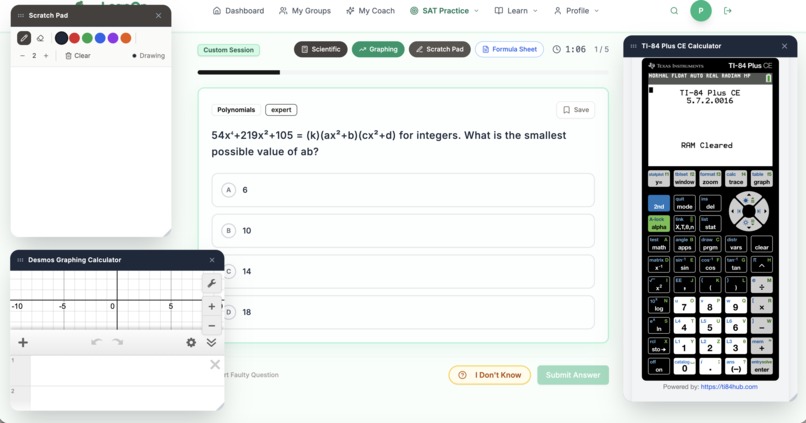
- Deeper Practice - Challenge Mode problem sets, classical literature passages, and explanation-based discussions encourage students to understand where the patterns lie, how they can be identified, and how to organize their creative thoughts in systematic ways for easier articulation. Features such as the "Reverse Mode," which sees a student writing a defense, with their own evidence and reasoning, for an answer already marked as correct, were designed with the Feynman technique in mind to create practical, critical cognitive skills that last long after the SAT.
- AI Tutors - Instructive conversation is never far away on the LeapOn SAT app, for the AI Tutor can be accessed from lessons, practice sessions, mistake reviews, and more as a portable educator who seeks understanding from the student rather than a perfectly correct answer.
- Interactive Lessons - Our AI-powered interactive lessons begin with concept explanations and proceed as the students continue to understand the facets of the concepts themselves, giving users choices between guided examples, next-step prediction, mistake identification, further discussion, practice problems, and more for an engaging experience.
- Deep Mistake Review
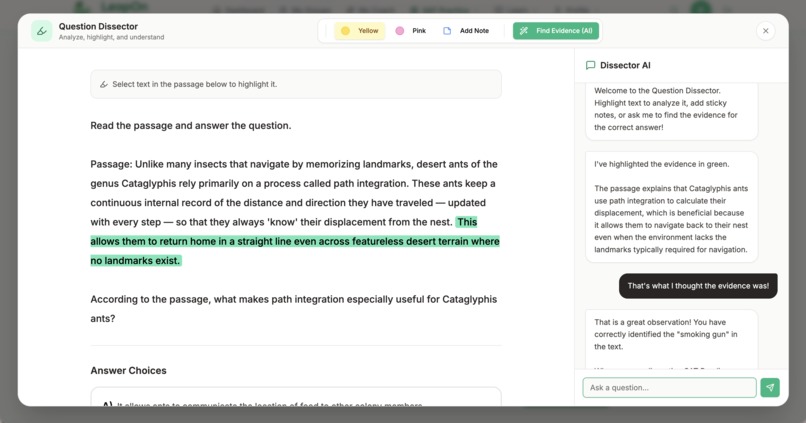
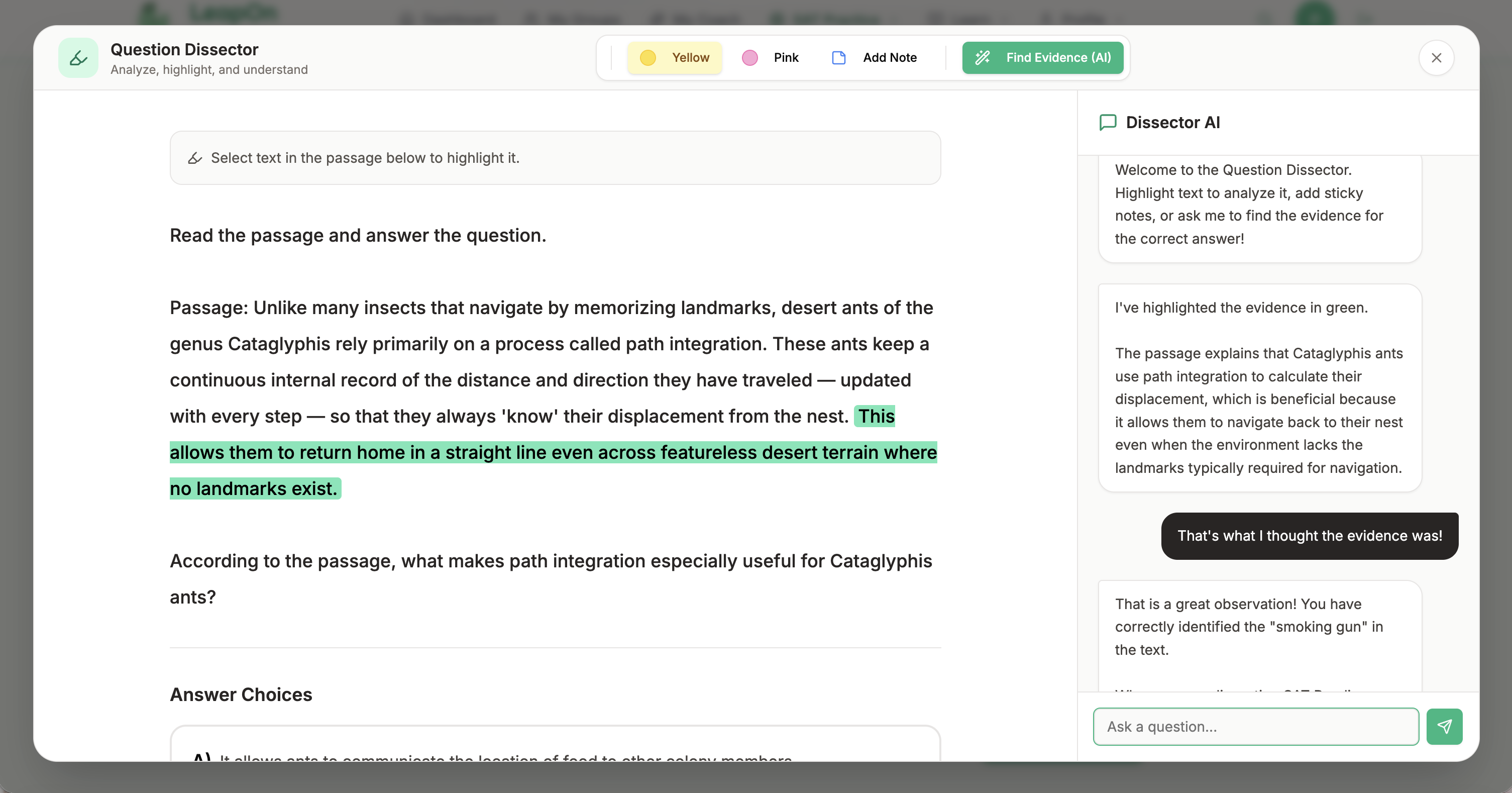
- Question Dissector - For evidence-based analysis and discussion of reading passages, question texts, and other English excerpts.
- Extras - From vocabulary drill games to question generators that use excerpts of students' own pieces of writing, LeapOn SAT is always finding new ways to help students recognize patterns and strategies, creating an environment where everyone can practice, learn, and grow in a way appealing to them.
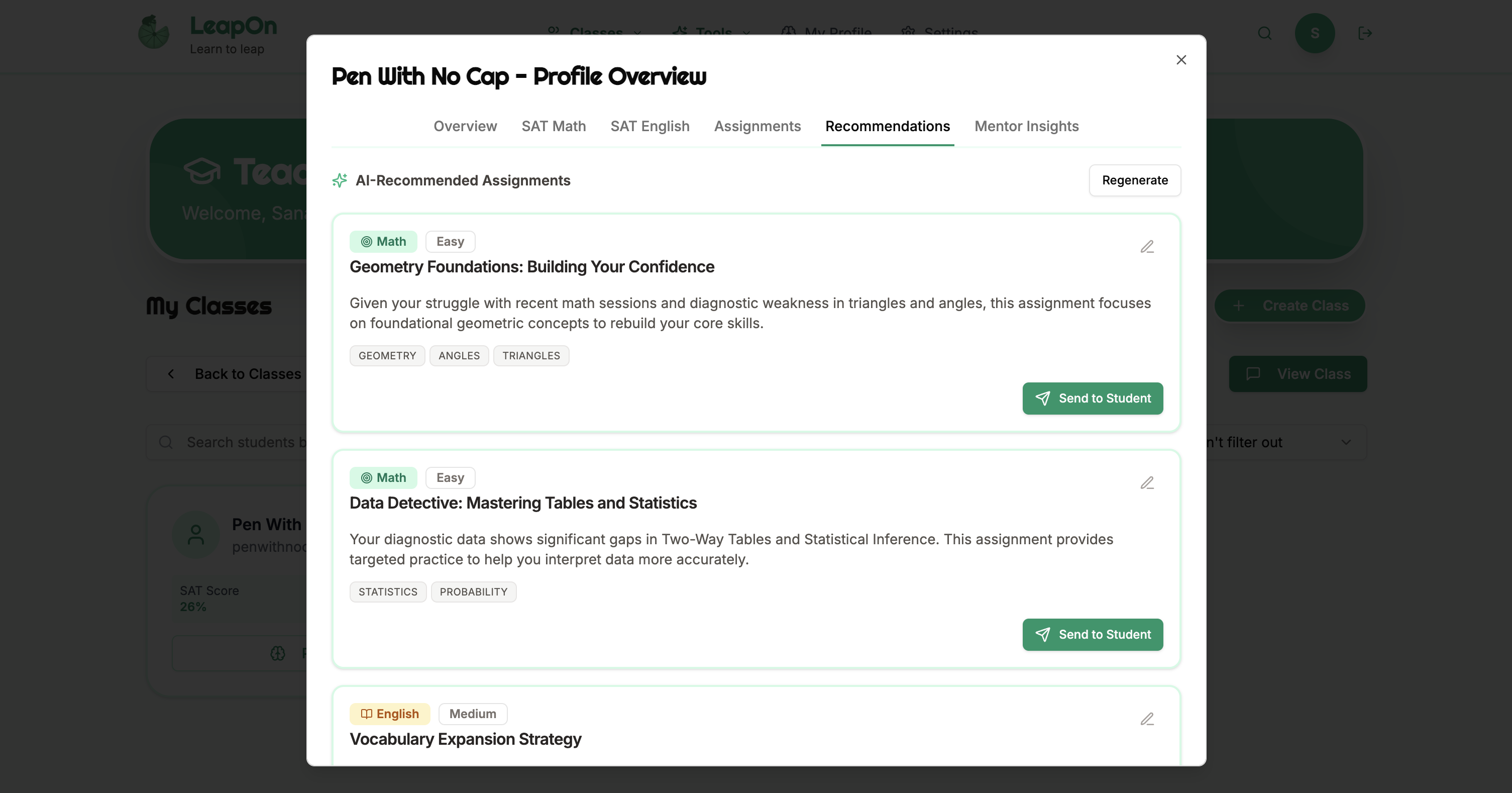
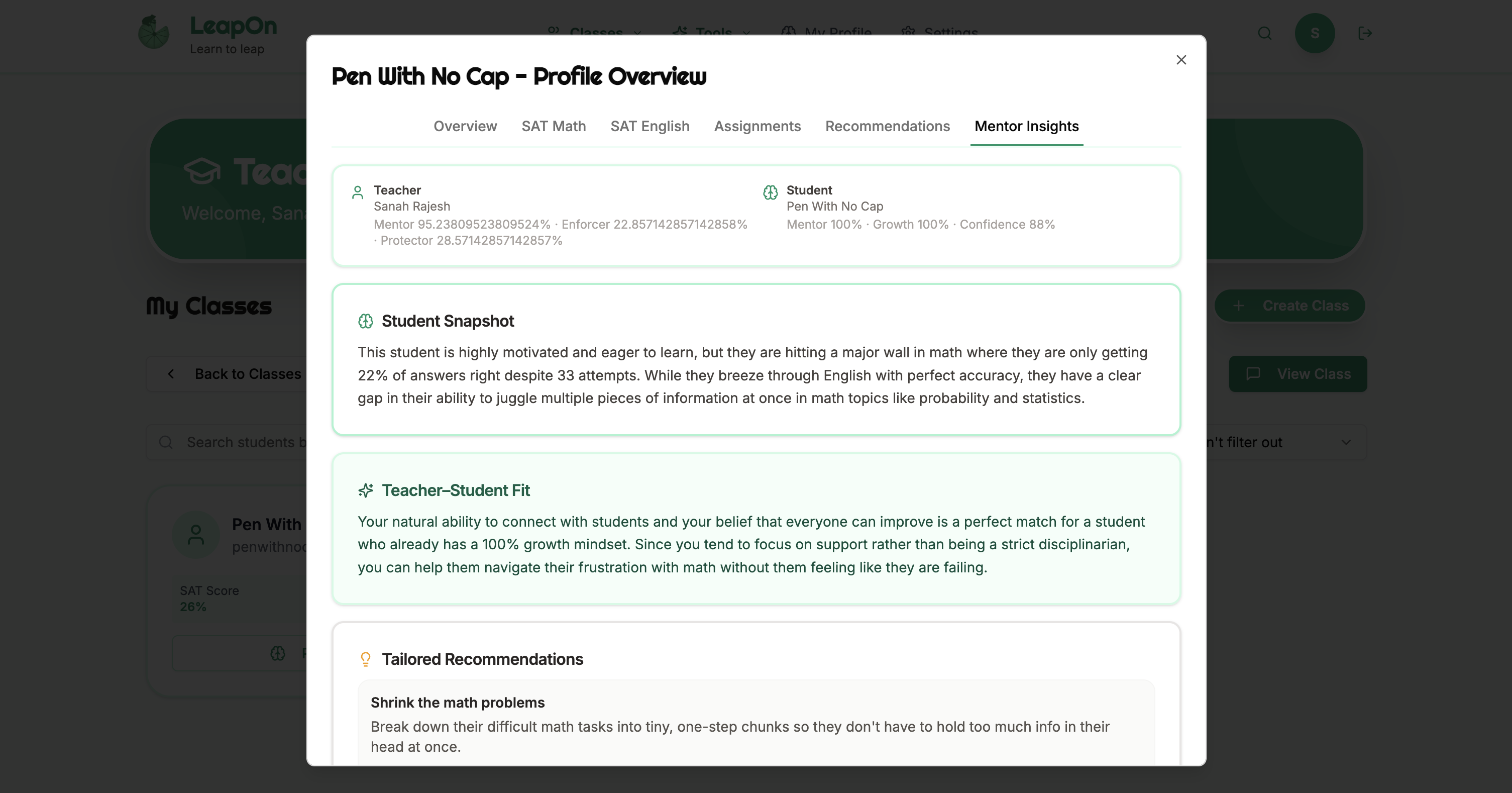
- 3 Portal System - For tutors, the Classes feature is integral for student organization, as it allows a tutor to connect their account to a student's for the purpose of being able to see progress, monitor skill mastery, and assign specific problem sets, lessons, and activities. The student is, in turn, able to communicate directly through the platform with the teacher, eliminating the struggle of scheduling messages buried in email inboxes by providing a dedicated space used for little else. Tutors can also manage classes with multiple pupils through the class messages and the announcements features, both of which are optimized for coordination and dissemination of class slideshows and notes. Parents, on the other hand, are able to set up Families, or groups that connect the student accounts to the parent accounts, allowing them to set goals for their children, monitor performance, and understand where their children lie cognitively.
Where We Differ:
- Average Chatbots vs. LeapOn SAT: Memory and context issues found within most major, mainstream LLMs (including but not limited to ChatGPT, Claude, Gemini, and more) prevent true performance tracking from being executed to its fullest potential, meaning students relying solely upon chatbots found in the regular websites to study and learn may find themselves repeating materials or being served quizzes with difficulties incommensurate with their knowledge levels. In addition, unless prompted in specific, often abstruse ways, LLMs do not tend to utilize teaching and tutoring techniques found effective, such as active prediction, active recall, and mistake explanation, substituting in-depth discussion with surface-level explanations without checking to see whether users truly understand concepts.
- Self-Study Online Platforms (eg. Khan Academy) vs. LeapOn SAT: Where online platforms such as Khan Academy simply deposit information for the course at your feet, expecting you to know where to begin or how to start, LeapOn calibrates itself especially not just for your caliber, but for the making of your mind itself, allowing you to grow from your current skill level consistently. In addition, the integration of AI within LeapOn runs deep, spanning everywhere from constructive, impromptu sessions following mistakes on questions to lessons and recommended study plans, meaning that the environment is wholly adaptable to the student.
- Preparation Academies and Franchises vs. LeapOn SAT: The LeapOn AI Tutor is always available for help whenever a student is struggling on a difficult Math or English problem, so routines don't have to be adjusted to fit specific opening hours, tutor availability slots, or commute struggles. The storage of data for each agent to readily access when needed also means that the AI Tutor is completely focused on the student at hand, surpassing the limits of human memory via performance tracking, readily displayed insights, and internal metrics that aren't traditionally kept or maintained at in-person, brick and mortar preparation institutions. Students who struggle with finances, or who simply may not be willing to spend money on programs with dubious benefits, aren't often welcome at business-oriented prep centers beyond trial lessons, but at LeapOn SAT, they're provided with the whole suite of materials, resources, and features, ready and waiting to be used and shaped. The same goes for students with executive functioning needs, be they attention or time-management related, as those who find themselves restless, unable to focus, or disengaged during sit-down, one hour sessions at preparation centers are able to learn in concentrated, focused spurts using LeapOn's bite-sized lessons and intuitive pacing.
- Private Tutoring vs. LeapOn SAT: The traditional model of private tutoring, while beneficial to the human connection, is limited in that it exists independently of organized performance tracking and online systems, meaning tutors must keep track of all things pertaining to their students by themselves. The burnout created often occludes tutors from fully customizing their programs to individual students' needs, forcing them instead to provide generic resources and practice sets to every student so no student is given services of better quality. Private tutors care and want their students to succeed, but they're not given the mentorship techniques, platforms, or resources to work at the efficiency level required to accelerate student learning and mastery.
- Private Tutoring WITH LeapOn SAT: The Teacher-Parent-Student portal system embedded into LeapOn SAT's core structures is designed to enhance the productivity and efficacy of private tutoring, which is often beneficial for the human connection it fosters and the mentor-relationships built between tutors and their students. We firmly believe that AI Agents cannot and should not supplant these integral connections, with their places instead being in the realm of bolstering human communication and human abilities, allowing us to grow as individuals inside and outside of academics. We are already in frequent, regular collaboration with a math tutor, who, in addition to providing us with several specialized problem sets and workbooks for the SAT Math digital test, helped us mold the platform with what educators needed in mind, and we seek to reach out to more private, independent tutors.
Creation/Development Process:
We used an emerging agentic coding and software development platform known as Base44 to manage the bulk-creation of our files, the integration of APIs and SDKs where necessary, and the handling of data, ensuring that security rules were adequately met while allowing us the flexibility to experiment with new features and pages when needed. That being said, a fair amount of code was handled independently of the agent, as there were certain features, such as the SAT Wordle component, that were initially created as separate tools, made either for fun or for personal use.
Step 1: Basic Feature Outlines
From the beginning of this journey, we knew that we wanted LeapOn SAT to function not simply as another independent preparation platform, but as something that can be used no matter where you are in relation to the SAT Preparation industry that currently involves parents, tutors, schoolteachers, and students with no centralized way to streamline communication or easily share progress. It was this concept that propelled us through the first outline, which was essentially an in-depth report detailing how each branch was to interact with the other branches, which pages were to go where, and which options were to be set as defaults.
Step 2: Base Resource Ingestion
After deciding where we wanted our pages to be placed, what the brand's identity was supposed to be, and how the three portals would interact with each other to mirror and build upon the systems and intricacies of real-life interactions, we proceeded to find books upon books of resources for Math and English problems, some of which were provided to us exclusively by partners. It was here that we used the LLM PDF ingestion process that will be expounded upon in the Challenges and Lessons Learned section to insert large amounts of questions into the database without compromising time, efficiency, quality of tags, organization, or categorization in the process.
Step 3: MVP Deployment
We deployed and tested our MVP, featuring the more inchoate versions of each of the three portals, to the families managed and taught by one specific math tutor, giving us a real, albeit isolated, testing ground to see where exactly the system came apart.
Step 4: Continuous Iterations
The deployment of the MVP allowed us to send the project to a different stratosphere, one of actual practicality, influenced by the needs and desires of real people who didn't have time to dedicate to mastering use of a platform still in beta. This is where more of the manual coding was done, as individual, smaller features and hyper-specific style specializations were first done by hand before being automated into skills to prevent further, more unnecessary labor from being needed.
Challenges and Lessons Learned:
While creating the platform and endowing it with the educational resources needed to provide adaptive questions and tests to students preparing for the mathematical section of the SAT, we found ourselves in need of a quick, relatively accurate way to ingest large amounts of questions into a database without compromising on the explanations, answer choices, or question text. The strategy, at first, seemed relatively obvious: utilize a capable LLM or agent to analyze and scan PDFs, write explanations, and properly format expressions, but the reality quickly proved far more labyrinthine that we had initially assumed.
When trying to ship our MVP, we found ourselves overloading the platform with choices, believing that we were offering the users everything they could have possibly needed to succeed, but when users not connected to the project began to use the site, we began receiving fusillades of questions pertaining to navigation and operation. Although the user interface seemed intuitive to our own eyes, given that we had clearly labelled all of the buttons and pages, students and parents found themselves overwhelmed by the sheer number of options and buttons displayed on one page, creating a cognitive overload that shut the learning experience down before it could begin. After fielding walk-through calls, webinar demonstrations, and creating several short screen-recordings that had to be redone each time a new feature was added, we overhauled the user interface, transforming the initially eclectic practice pages into sleek Math and English hubs with four large buttons each while simultaneously implementing the AI-powered study paths in the dashboard to direct users to the wisest courses of practice and action.
LeapOn Documentation
This document explains how to operate the LeapOn platform. It is written for the person using the platform. Each section begins with the onboarding sequence in the order it occurs, then describes the features available to that user type, and ends with troubleshooting steps.
Getting an Account
LeapOn does not send invitation emails. You create your own account through the standard sign-up screen.
- Open the application URL. If you are not logged in, the home page loads the public landing page. Select the sign-in or sign-up control to open the login screen.
- Register with your email and password, or sign in if you already have an account.
- After you log in, the platform checks whether your account has a role assigned. If it does not, you are redirected to the Onboarding page. You cannot reach the main application until you select a role.
If you see a "User not registered" message, your account exists in the login system but has not been added to this application. Contact the platform administrator to have your account added.
Student Portal
Onboarding Sequence
The steps below occur in order the first time you log in as a student.
- Select your role. On the Onboarding page, three cards are shown. Select "I'm a Student." The platform records the student role on your account.
- Enroll in your classes. The first slide lists two classes that you are enrolled in automatically ("SAT MATH" and "LeapOn Test Teacher"). Select "Enroll and Continue." The platform adds you to these classes. If enrollment fails, you can join classes later from the My Groups page.
- Enter your profile details. The second slide asks for your grade level, target SAT date (or select "I don't have a date yet"), current SAT Math and English scores if you have them, and your goal scores. You can also enable daily study reminders and confirm the email address reminders are sent to. Select "Save and Continue."
- Set reward preferences. The third slide lets you enable or disable rewards (XP, leveling, the Avatar Shop, and the Memory Palace). Select "Save and Continue." You can change this later in Settings.
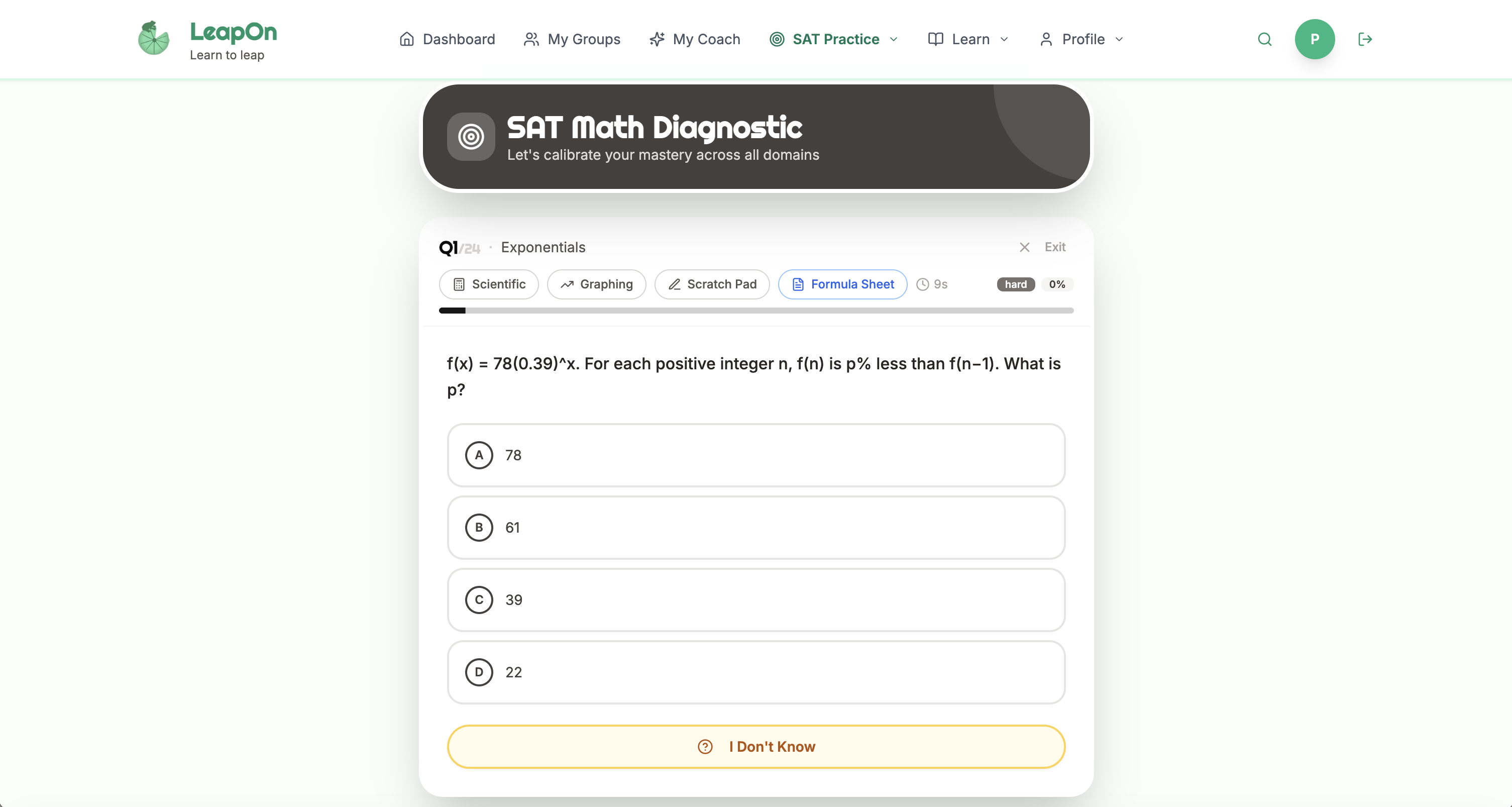
- Start the SAT Math diagnostic. The final slide recommends the diagnostic. Select "Start Diagnostic Now" to go to the SAT Math Diagnostic page. Completing the diagnostic calibrates your recommended practice. If you leave onboarding without completing it, you can start it later from the SAT Practice menu.
After the slideshow, the Dashboard loads.
Features
Dashboard
The Dashboard is your default landing page. It shows your Daily Study Plan, recommended tasks, active assignments, and recent activity in a single feed, with your study streak and daily practice goal shown in a side column. Recommendations prioritize completing diagnostics first, then daily practice needs based on your knowledge graph and performance.
Learner's Profile
The Learner's Profile is a self-assessment, separate from the SAT subject diagnostics. It contains three sections: Executive Functioning, Mindset, and Motivation. Each section takes a few minutes. After all three are complete, the platform saves your results to your profile, identifies your top three strengths and top three growth areas, and shows a results summary. You can retake it from this page at any time. The assessment takes roughly 15 to 20 minutes total.
SAT Math Practice
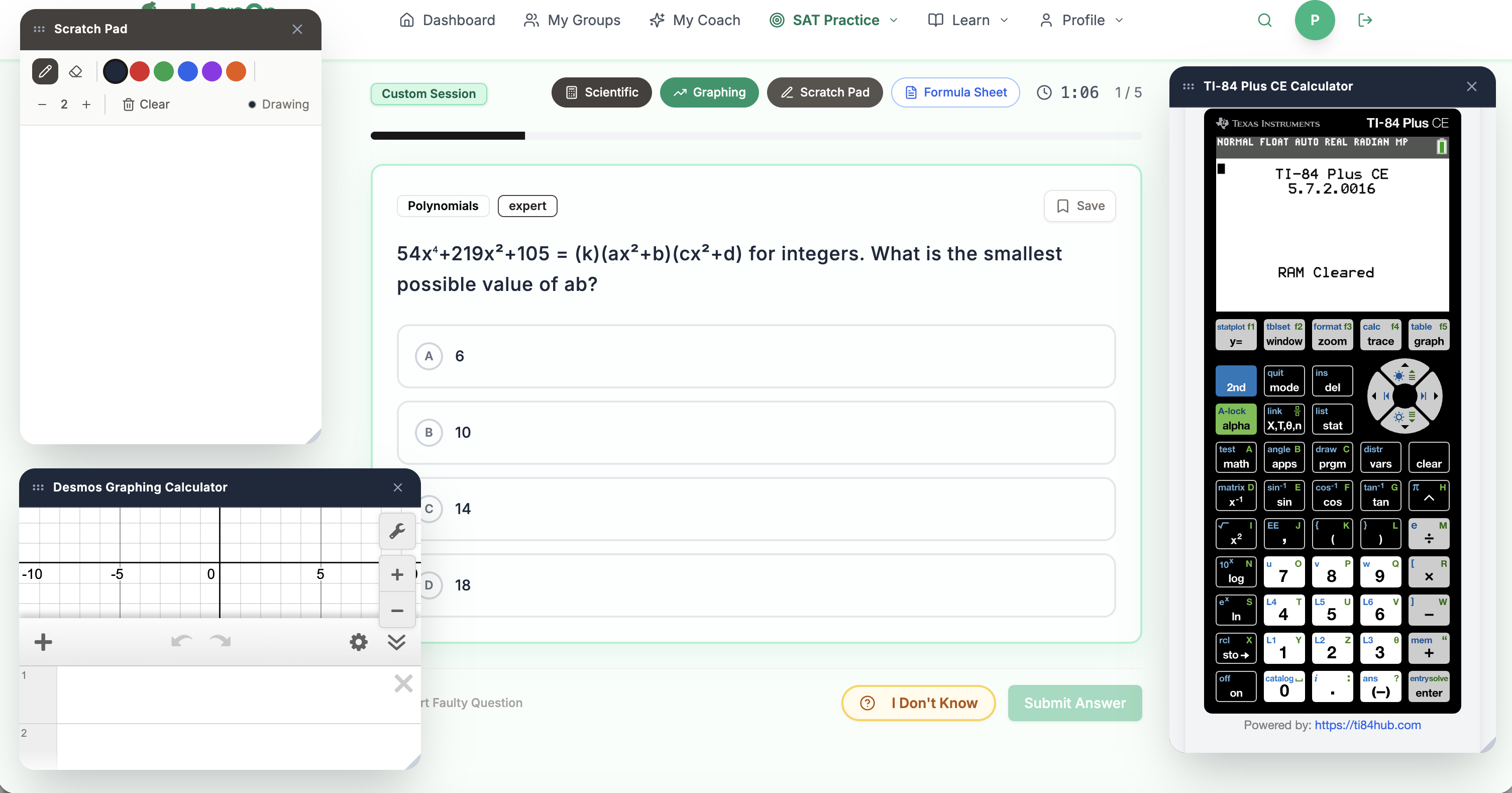
Open SAT Math Practice from the SAT Practice menu to start a configurable practice session. You choose a session type, the math domains to cover, the difficulty, and where the questions come from. Sessions adapt difficulty based on your answers.
SAT Math Diagnostic
The SAT Math Diagnostic establishes your baseline mastery across all math domains. It is the diagnostic referenced during onboarding. You can retake it from the SAT Practice menu to recalibrate your levels.
SAT Math Module Test
The Module Test simulates a full SAT Math module under timed testing conditions.
SAT Math Knowledge Graph
The Math Knowledge Graph is a visual map of SAT math concepts with your current mastery level for each.
SAT English Practice
Open SAT English Practice from the SAT Practice menu. It presents category cards for grammar, vocabulary, and reading practice. Select a category to begin a session.
SAT English Diagnostic
The SAT English Diagnostic establishes your baseline for grammar, vocabulary, and reading comprehension. You can retake it from the SAT Practice menu.
SAT English Practice Test
The Practice Test runs a full SAT English test using two 27-question modules with adaptive difficulty between them. A calculator panel and scratchpad are available. Answer checking is disabled during the test to match real testing conditions. Scoring is calibrated to 10-point increments.
English Knowledge Graph
The English Knowledge Graph is a visual map of SAT English skills with your current mastery level for each.
Deep Review
Deep Review shows questions you have previously missed so you can re-attempt them. You can review by session or by domain, and you can revisit bookmarked questions here.
Independent Study
Independent Study provides lesson content organized by domain and subtopic. Lessons include instruction and practice problems. Completed lessons are recorded on your profile.
LEAP Pathways
LEAP Pathways (Study Habits) lets you select and maintain learning habits and pathways. Active habits feed into your Daily Study Plan and streak tracking.
Study Streak
Study Streak tracks consecutive days of practice. If daily reminders are enabled, you receive an email nudge. Streak freezes are available based on your preferences.
Study Calendar
The Study Calendar shows your study sessions, class events, and scheduled assignments. You can respond to class calendar events from here.
My Coach
My Coach is a conversational assistant that has access to your performance data. Ask it about concepts, request study recommendations, or plan a session.
My Groups
My Groups lists the classes and families you belong to. Select "View Class" or "View Family" to open the group page. Group pages show announcements, assignments, chat, and shared media. Select "Join Another Group" to add a new class or family.
Joining a Class or Family
- Open My Groups and select "Join a Group" or "Join Another Group."
- Choose whether you are joining a class or a family.
- Enter the six-character join code you received from your teacher or parent, or select a class from the list of joinable classes. Codes are not case sensitive because the field uppercases input automatically.
- Select "Join." You are redirected to My Groups, where the new group appears.
Avatar Shop and Memory Palace
If rewards are enabled, the Avatar Shop lets you spend earned coins on avatar customizations. The Memory Palace is a spatial recall tool where you organize notes into rooms and practice recalling them.
Settings
Settings let you change your display name, timezone, grade level, target SAT date, rewards toggle, and email notification toggle. You can replay the quick tour from here. The Danger Zone contains the Delete Account action.
Troubleshooting
- I cannot get past the Onboarding page. You must select a role card to continue. If the page does not advance after selecting "I'm a Student," refresh the page and try again.
- My classes did not enroll during onboarding. Open My Groups and select "Join a Group," then join the class using its join code.
- My Dashboard shows no recommended tasks. Complete the SAT Math Diagnostic and the SAT English Diagnostic. The recommendation engine requires diagnostic results to generate tasks.
- A join code is rejected. Confirm the code with the teacher or parent who gave it to you. The code must be six characters. If the group still does not appear, return to My Groups and try again.
- A practice session loads no questions. The combination of domain and difficulty you selected may have no questions available. Widen the difficulty selection or add more domains.
- My streak did not increase after practicing. Confirm the session was completed, not abandoned. Check your daily practice goal in Settings.
- My free-response math answer is marked wrong. Verify your answer formatting. Free-response answers are sensitive to decimal and fraction notation.
Parent Portal
Onboarding Sequence
- Select your role. On the Onboarding page, select "I'm a Parent." The platform records the parent role and takes you directly to the Parent Portal. There is no slideshow for parents.
- Watch the quick tour. The first time you open the Parent Portal, a quick tour overlays the page. Step through it to learn where each feature is. You can replay it later from Settings.
- Create a family. Open the Families tab and create a family. The platform generates a unique join code for the family.
- Connect your children. Share the join code with each child. The child signs in with their own student account, opens My Groups, selects "Join a Group," chooses "Join a Family," and enters the code. Once a child joins, they appear in your family immediately.
Features
The Parent Portal is organized into five tabs.
Families
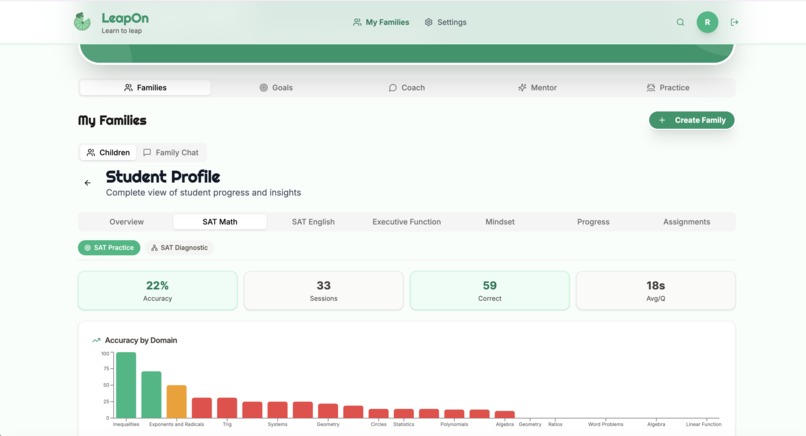
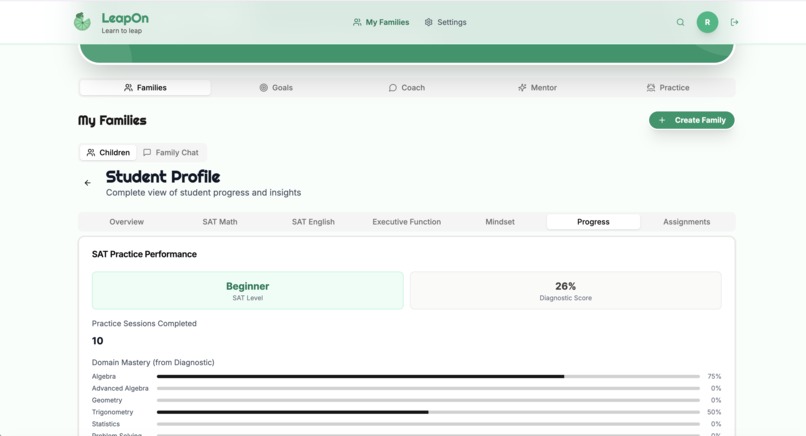
The Families tab lists every family you own. Each family card shows the join code and the number of connected children. From here you can create a new family or delete an existing one. Selecting a family opens the Children List, which shows each child's proficiency, diagnostic accuracy, strengths, and growth areas. Select "View Full Profile" on a child to open the Student Profile View.
The Student Profile View contains tabs for Math, English, Assignments, and Insights. It displays the child's complete history, including practice and diagnostic data generated before the child was connected to your family. The data is retrieved through a backend function that verifies you own the family the child belongs to.
Goals
The Goals tab contains Household Goals and Family Events. Create academic or behavioral goals for the family, and schedule family events such as study sessions or test dates.
Coach
The Coach tab opens the Family Coach, a conversational assistant with access to your family's goals, events, and connected children's performance data. Use it for recommendations on supporting your child's learning.
Mentor
The Mentor tab contains the Parent Mentorship Helper, which provides guidance on supporting a student through SAT preparation, and the Parent Mindset Display, which shows your mindset profile if you have completed the parent mindset assessment.
Practice
The Practice tab presents roleplay scenarios you can use to rehearse conversations with your child about academics, motivation, and planning.
Settings
Settings let you change your display name, timezone, and email notification toggle, replay the quick tour, and delete your account.
Troubleshooting
- My child does not appear in the family. Confirm the child entered the correct join code from their own account on the Join a Group page. The child must join from a student account, not a parent account. If the join succeeded but the child is missing, refresh the Families tab; the list updates in real time when a child joins.
- I cannot open a child's full profile. You must own the family the child belongs to. If the child belongs to a different parent's family, access is denied. Verify the child is listed under the correct family.
- The child's profile shows no history. The child may not have generated any practice or diagnostic data yet. Confirm with the child that they have completed a practice session or diagnostic. New connections with no history display empty states.
- Family creation fails. Confirm the family name field is completed. If the error persists, sign out and sign back in, then try again.
Teacher Portal
Onboarding Sequence
- Select your role. On the Onboarding page, select "I'm an Educator." The platform records the teacher role and takes you directly to the Teacher Portal. There is no slideshow for teachers.
- Watch the quick tour. The first time you open the Teacher Portal, a quick tour overlays the page. Step through it to learn where each feature is. You can replay it later from Settings.
- Create a class. Open the Classes tab and create a class. The platform generates a unique join code for the class.
- Enroll students. Share the join code with your students. Each student signs in with their own account, opens My Groups, selects "Join a Group," chooses "Join a Class," and enters the code. Enrolled students appear on the class roster immediately.
- Complete your teacher profile (optional). Open My Profile from the navigation to complete the Teacher Profile diagnostic. This is a multi-section assessment of teaching background, mindset, and practices. It is optional and not required to use the portal.
Features
The Teacher Portal is organized into sections accessible from the navigation menu. Each section is shown one at a time.
Classes
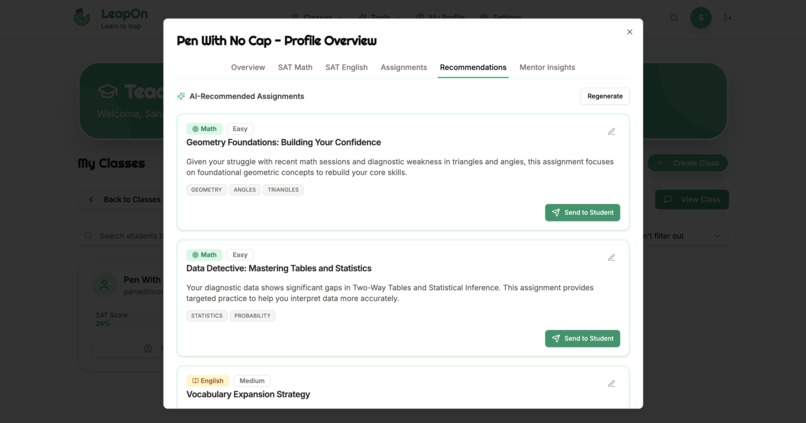
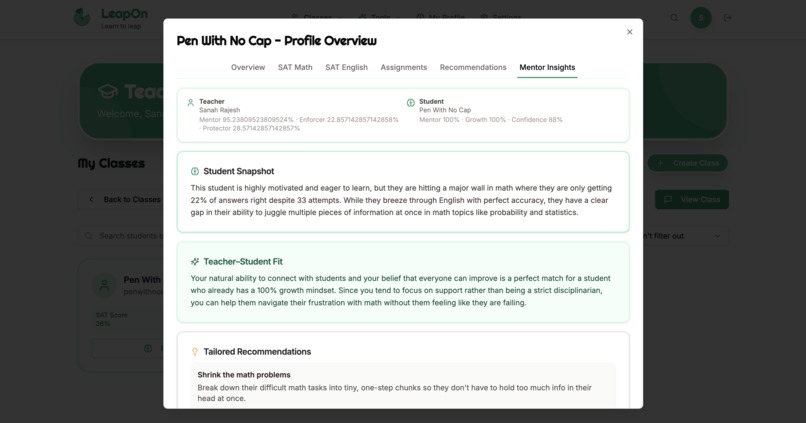
The Classes section lists every class you own. Select a class to open its page, which contains the student roster, announcements, a class chat, a shared media library, and a class calendar. From the roster you can open any student's full performance view, which shows their SAT Math and English practice, diagnostic results, domain mastery, assignment progress, and session history.
Assignments
The Assignments section is where you create and manage assignments for your classes. Available assignment types are SAT practice, English practice, independent study, diagnostic, English diagnostic, supplemental diagnostic, lesson, document markup, auto-extract, and Canyon PDF. For each assignment you select the class, configure the options relevant to the type (domains, difficulty, duration, question source, allowed tools, lesson subject and subtopic, or supplemental level), and set a due date. You can schedule an assignment to post at a future date and time. Student progress is tracked per assignment, and you can view results from the assignment's results view.
Calendar
The Calendar section shows your scheduled assignments and class events across all of your classes.
Custom Rewards
The Custom Rewards section lets you define rewards for a class. Students redeem rewards using coins they earn through the rewards system.
Session Tools
Session Tools contains the Session Summary Manager. Use it to create a weekly summary for a student, including the focus topic, what the student did well, the mistake pattern, a tutor note, and the next step. You can email a summary to a parent. You can also push a session review form to a student, which asks them to rate the session on five measures.
Message Generator
The Message Generator produces draft messages to parents or students. Provide the context, generate the draft, review it, and send it.
Practice Scenarios
Practice Scenarios presents roleplay situations for rehearsing instructional and motivational conversations.
Co-Mentor
Co-Mentor is a conversational assistant with access to your class and student data. Use it for instructional guidance and student analysis. Conversations you remove from the list are hidden, not deleted, and can be restored by an administrator.
My Profile
My Profile contains the Teacher Profile diagnostic and its results, including mindset scores, teaching practice tendencies, strengths, growth areas, and personalized advice.
Settings
Settings let you change your display name and timezone, toggle email notifications, replay the quick tour, and delete your account.
Troubleshooting
- Students cannot join my class. Confirm the join code shown on the class page matches the code you gave students. The student must join from their own student account on the Join a Group page. If a student joined but is not on the roster, refresh the class page; the roster updates in real time.
- An assignment is not visible to students. If you set a future post date, the assignment appears to students only at that date and time. Confirm the assignment status is active and that it is assigned to the correct class.
- Assignment results show no data. Results appear only after at least one student has completed the assignment. Check the assignment's progress view for per-student status.
- A session summary email did not arrive. Confirm the parent email address is correct. Email delivery to addresses that are not registered app users requires a connected custom domain on a paid plan and is subject to delivery limits. If delivery fails, verify the address and resend.
- A Co-Mentor conversation disappeared. Removed conversations are hidden, not deleted. To restore them, ask an administrator to clear the hidden conversation list on your teacher profile.
- I cannot see a student's performance. You must own the class the student is enrolled in. Students belonging to another teacher's class are not accessible to you.
General Troubleshooting
- I cannot sign in. Confirm your email and password. Use the reset control on the login screen if you have forgotten your password.
- "User not registered" appears after sign-in. Your account exists in the login system but has not been added to this application. Contact the administrator to be added.
- A page does not load. Refresh the page. If it continues to fail, sign out and sign back in to refresh your session.
- A list does not update after a change. Refresh the page. Lists use real-time subscriptions that re-establish on load.
- A record I should be able to see is hidden. Access is restricted by ownership. Students see only their own data. Parents see only data for children in families they own. Teachers see only data for classes they own. If you need access outside these boundaries, the administrator must perform the action.
Deleting Your Account
Account deletion is permanent and cannot be undone. Open Settings, scroll to the Danger Zone, and select "Delete Account." Confirm by typing DELETE. The platform deletes your profile, diagnostic results, study habits, practice sessions, and role-specific data (your classes and student associations for teachers, your families and goals for parents, your class and family memberships for students), then signs you out. App owners cannot be deleted; if your account is the app owner, the operation is blocked and you must transfer ownership first.

Log in or sign up for Devpost to join the conversation.