-
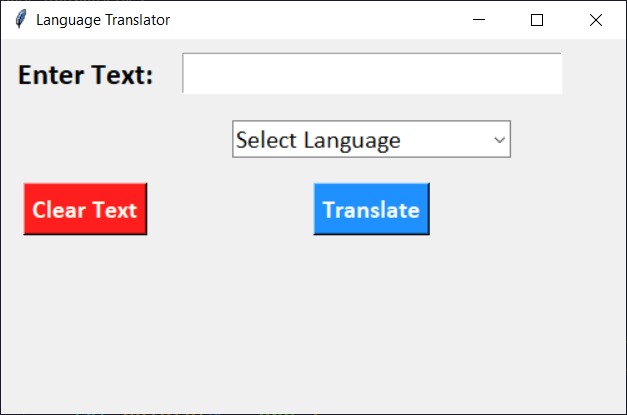
GUI
-
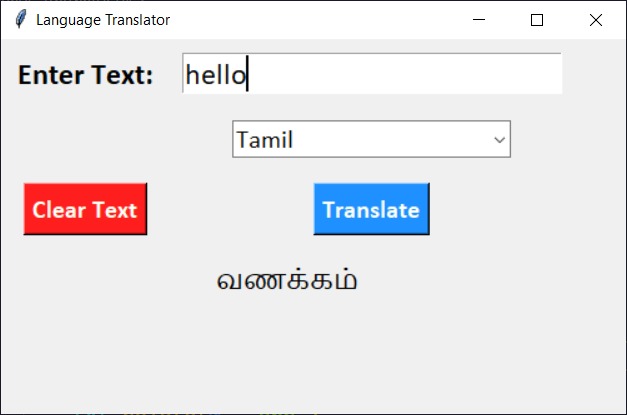
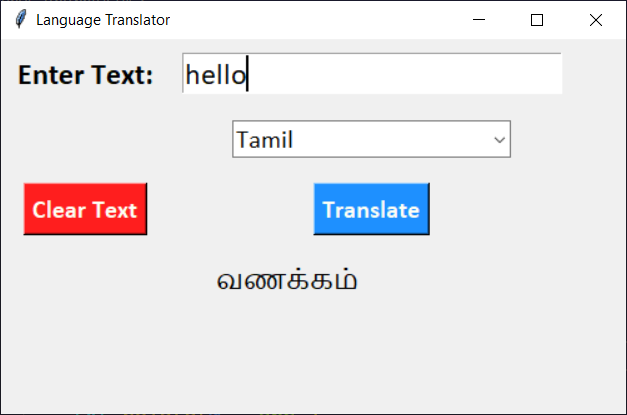
text translation
-
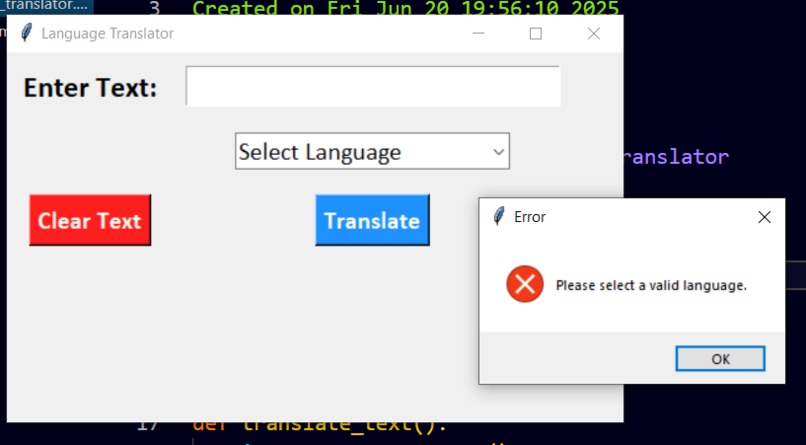
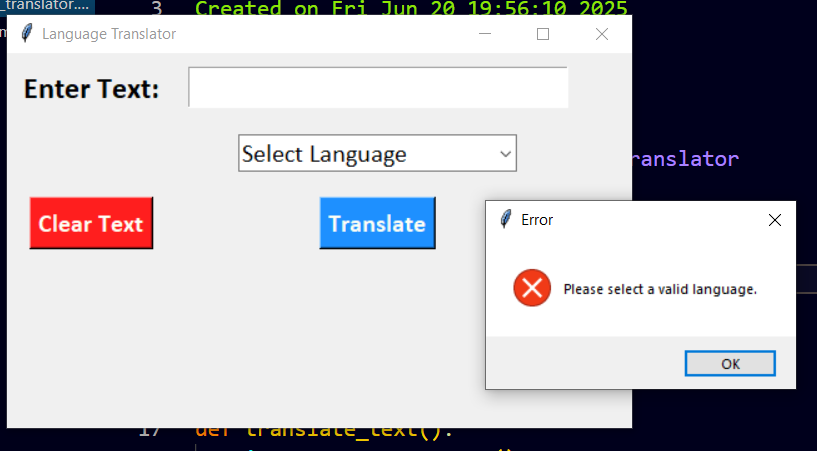
error message
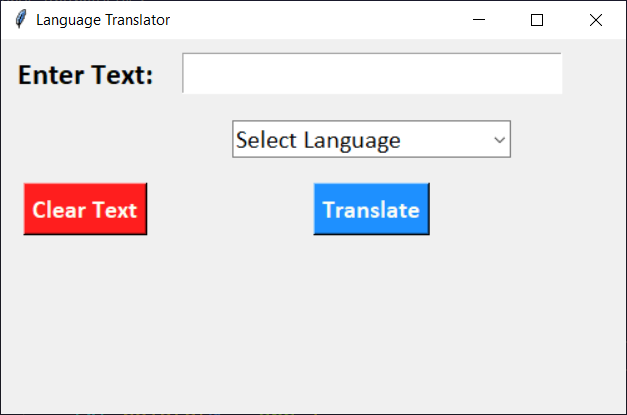
Language Translator
Overview
This project is a simple Language Translator application built using Python's Tkinter library for the graphical user interface (GUI) and the deep_translator library for translation functionality. The application allows users to input text and select a target language for translation.
IDE Used
- Spyder (for executing GUI of the project)
- VS Code (for executing complete functionality of the project)
Features
- Input text field for entering the text to be translated.
- Dropdown menu to select the target language from a predefined list.
- Translate button to initiate the translation process.
- Clear button to reset the input field and result label.
- Displays the translated text in the GUI.
Supported Languages
The application supports the following languages:
- English
- Tamil
- Telugu
- Hindi
- Malayalam
- Kannada
- Bengali
- Japanese
- Arabic
- Spanish
- French
Requirements
To run this application, you need to have Python installed on your machine along with the following libraries:
deep_translatortkinter(comes pre-installed with Python)
You can install the required library using pip:
pip install deep-translator
How to Run
- Clone or download the repository to your local machine.
- Navigate to the project directory.
- Run the application using the following command:
python translator.py
Replace translator.py with the name of the file containing the code if it differs.
Usage
- Enter the text you want to translate in the input field.
- Select the desired target language from the dropdown menu.
- Click the "Translate" button to see the translated text.
- If you want to clear the input and result, click the "Clear Text" button.
Error Handling
If an invalid language is selected or if there is an issue during the translation process, an error message will be displayed.
Sample Output
Built With
- deeptranslator
- python
- tkinter

Log in or sign up for Devpost to join the conversation.