🎓 Shivy AI / Klassbook AI / Klassroom AI
The Future of School, Powered by AI
🔗 Live App: Shivy-AI
Built with: Python · FastAPI · React 19 · Vite 7 · Gemini 2.5 Flash Native Audio · Gemini 3 Flash · Gemini Vision · Google Search Grounding · @google/genai SDK · Ephemeral Tokens · PDF.js · Framer Motion · Docker · Google Cloud Run
Inspiration
Modern education relies heavily on static PDFs, textbooks, and one-way lectures. When a student doesn't understand a concept, they are forced to leave their study material — to search Google, watch a YouTube video, or use a generic ChatGPT interface. This breaks focus and strips away the direct context of what they were studying.
We were inspired to solve this by bringing a proactive, multimodal AI agent directly into the textbook. Instead of the student asking the AI questions in a separate chatbox, the AI:
- 👀 Watches the student study (sees the exact PDF page AND the student via webcam)
- 👂 Listens to their voice in real-time
- 🗣️ Speaks back with low-latency, natural voice tutoring
- 🧠 Thinks autonomously — triggering quizzes, visuals, dictation, and dictionary lookups without being asked
- 📹 Monitors behavior — detecting sleeping or camera-off through continuous webcam vision
What it does
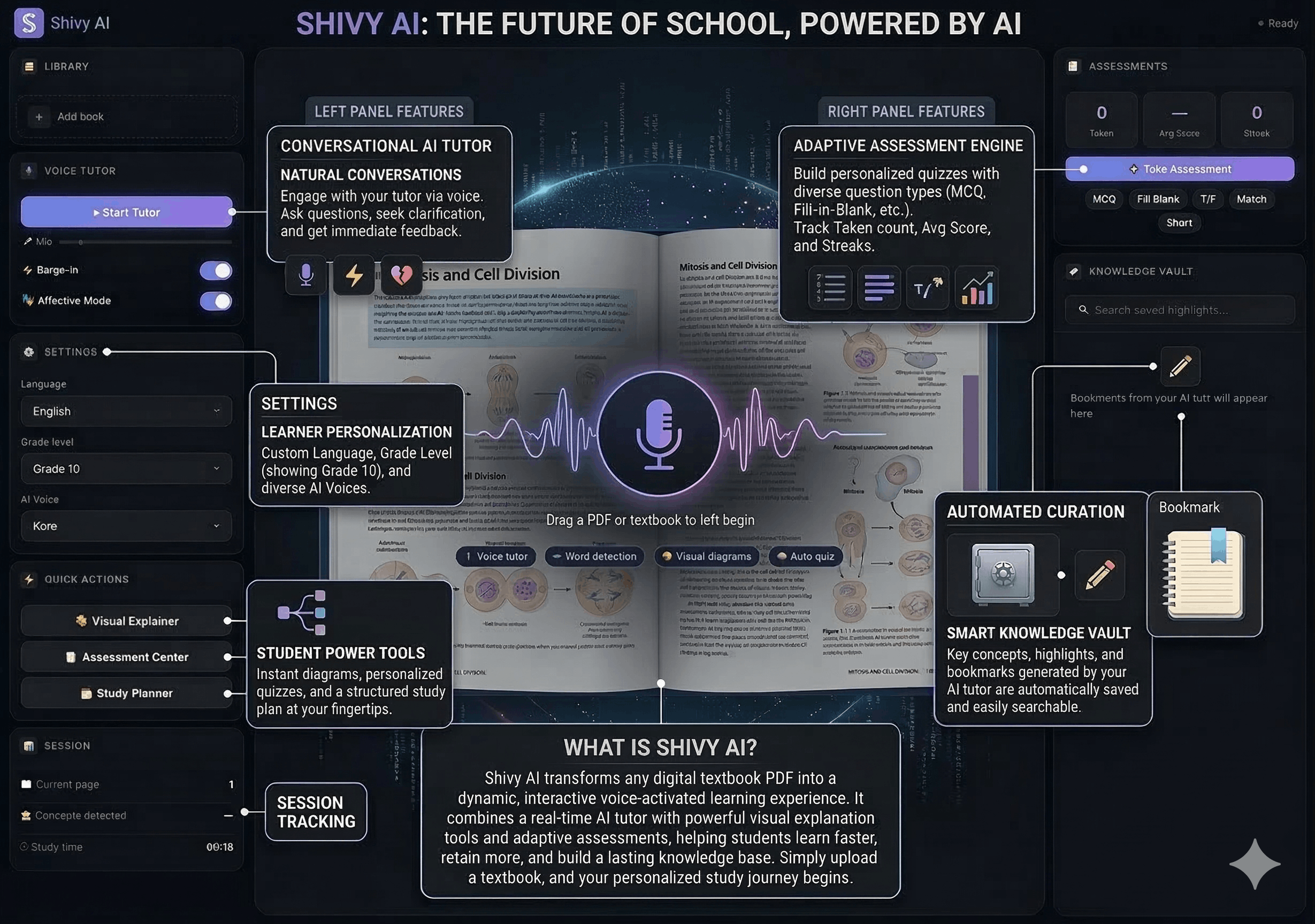
Shivy AI takes any uploaded textbook (PDF) and wraps it in a multimodal AI orchestration layer, transforming static studying into an interactive, AI-guided experience.
🎙️ 1. Real-time Spoken Tutor (Zero-Latency Voice)
At its core, Shivy AI features a voice-first proactive tutor powered by the Gemini 2.5 Flash Native Audio API.
| Feature | How it works |
|---|---|
| Natural Conversation | Students speak naturally; the AI responds in a warm, human-like voice with <500ms latency |
| Direct Client-to-Server | Browser connects directly to Gemini Live API via ephemeral tokens — no backend proxy, no double-hop |
| True Barge-in | Server-side VAD detects interruptions instantly — say "Wait, explain that again" mid-sentence |
| Contextual Awareness | The tutor reads the current PDF page text, analyzes visible diagrams, and adapts its teaching in real-time |
| Secure by Design | API key never leaves the backend — frontend uses short-lived, single-use ephemeral tokens |
🤖 2. Autonomous Agentic Behaviors
The AI tutor isn't just a chatbot — it acts as an autonomous orchestration agent that decides when to use its tools. When a tool is triggered, the corresponding UI panel auto-opens instantly with the generated content pre-loaded — the student never has to manually navigate anywhere.
| Tool | Trigger | What Happens |
|---|---|---|
generate_quiz |
After explaining a topic | Assessment Panel auto-opens with pre-loaded MCQs, True/False, and Fill-in-the-Blank questions — quiz starts immediately |
lookup_word |
Student encounters unfamiliar term | Google Search-grounded dictionary with IPA pronunciation, etymology, and contextual definition |
generate_visual |
Concept needs a picture | Visual Canvas auto-opens with the generated infographic, flowchart, or concept map displayed instantly |
log_discipline |
Student sleeping or camera off | 🚨 Discipline flag logged to Session Activity panel with timestamp. AI verbally nudges the student |
save_dictation_words |
After dictation review complete | 📝 Words are saved to Session Activity panel only after AI verifies spelling via webcam |
suggest_next_topic |
Student finishes a concept | AI guides them to the next logical topic based on curriculum and prerequisites |
create_bookmark |
Student highlights important text | Content is saved to the Knowledge Vault for revision |
summarize_page |
Page is dense or overwhelming | Generates concise bullet-point summaries of the current textbook page |
explain_like_im_5 |
Student says "I still don't get it" | Simplifies concept with everyday analogies a child could understand |
compare_concepts |
Student confuses two similar terms | Side-by-side comparison showing similarities, differences, and a summary |
generate_flashcards |
Student finishes a chapter | Creates front/back revision flashcards for spaced repetition study |
Smart Tool Responses: Tool results are split into two streams — the full rich data (quiz JSON, image bytes) goes to the frontend UI, while a lightweight status message goes back to the voice model. This prevents the AI from verbally reading out quiz questions or image data, keeping the conversation natural.
🖼️ 3. Visual Explainer (Nano Banana 2)
Some concepts are impossible to understand through text or voice alone.
- If a student says "I'm confused about the Krebs Cycle", the orchestration agent triggers the Visual Explainer
- The UI seamlessly slides out a panel that generates an infographic, flowchart, or concept map on the fly
- These visuals are grounded by Google Search results, ensuring factual accuracy over hallucination
- The student can iteratively refine the visual: "Make it simpler" or "Add more detail about ATP"
👁️ 4. Native PDF Pixel Interactivity & Vision
We discarded the traditional "upload PDF and chat" paradigm in favor of deep DOM integration:
- Click any word → instant dictionary lookup with IPA pronunciation, etymology, subject-specific definition
- Highlight a sentence → save it to the Knowledge Vault for revision sheets
- 🔖 Save from the tooltip → pushes word + definition to your vault
- 🎨 Visualize from the tooltip → opens the Visual Explainer pre-filled with that concept
- 👁️ Explain Page & Diagrams → extracts a pixel-perfect snapshot of the current page canvas (capturing all charts, graphs, images) and sends it to the Gemini Vision model. The voice tutor then verbally explains the diagram you are looking at.
📹 5. Continuous Webcam Vision & Discipline Tracking
The AI tutor sees the student through continuous webcam streaming:
- Webcam frames sent to Gemini every 6 seconds for real-time monitoring
- Discipline detection: Sleeping (eyes closed, no movement) or camera-off triggers a verbal nudge +
log_disciplinetool with timestamp - Smart filtering: Looking down at a book/writing is normal — only genuine issues flagged
- Live webcam preview in the left panel shows what the AI sees
📝 6. Contextual Dictation Homework
Interactive spelling practice based on the current textbook page:
- Student picks how many words (2, 3, or 5)
- Words dictated one-by-one, slowly sounded out (e.g. "Tok... en... i... zer")
- Student writes each word, says "Next" to advance
- Holds paper to webcam for AI-powered spelling review
- Words saved to Session Activity panel only after review and corrections
📖 7. Interactive Guided Reading
The AI reads aloud paragraph by paragraph, pausing after each to offer:
- "Dictation" → dictation exercise from that paragraph
- "Quiz" → auto-generates MCQ assessment via
generate_quiz - "Help with a word" → instant
lookup_wordtool call - "Next" → continues reading
- Voice-activated ("Read this page to me") or button-triggered
🖼️ 8. Image Uploads for Homework Review
Students upload images of handwritten homework (JPEG/PNG):
- Dedicated Image Canvas renders the image in the center
- "Review Homework" sends image to Gemini Vision for assessment
- AI gives feedback on handwriting, math solutions, spelling — via voice
how I built it
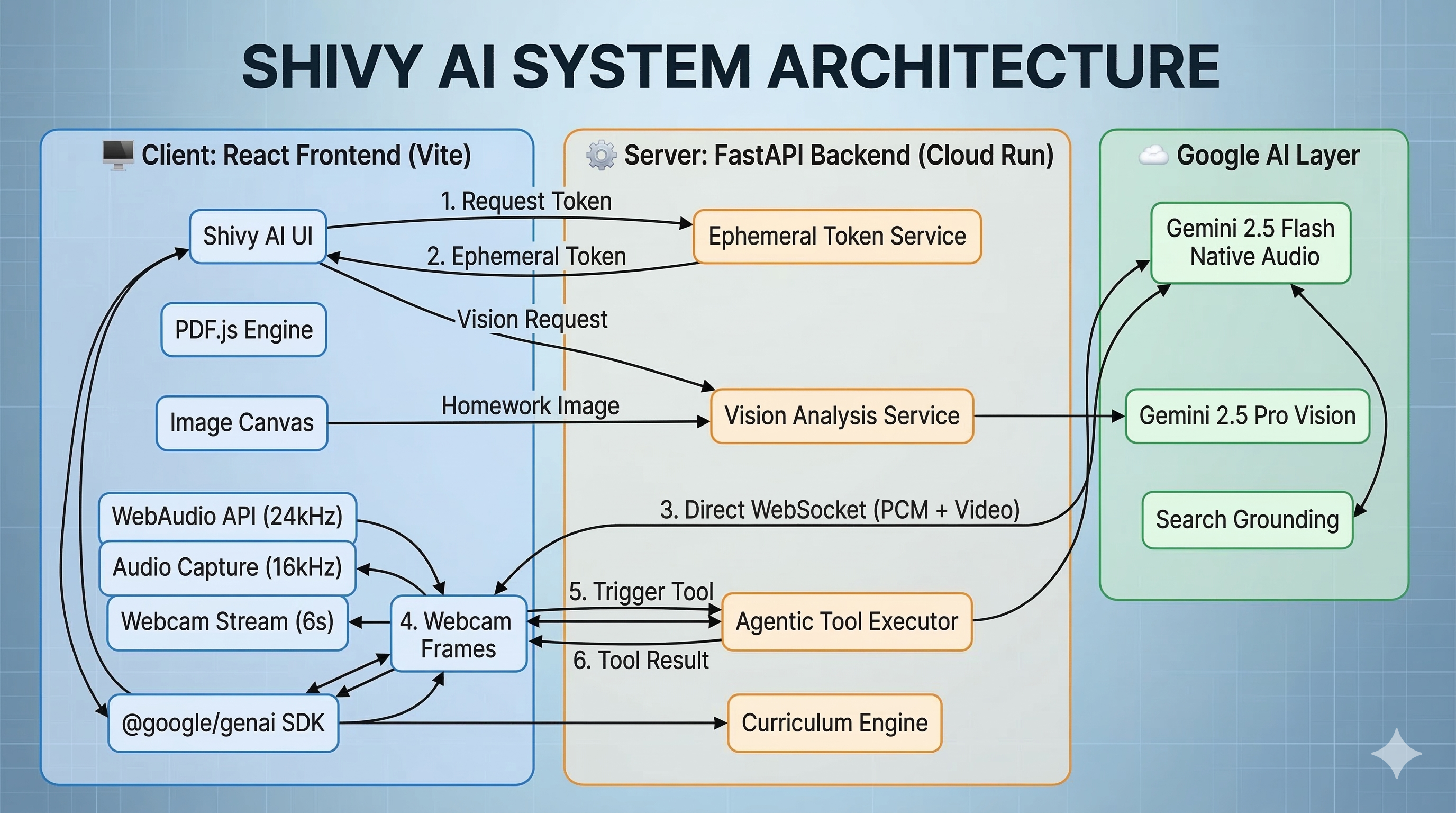
Our system is a decoupled React Frontend and FastAPI Python Backend. The voice tutor uses Google's recommended client-to-server architecture — the browser connects directly to the Gemini Live API via short-lived ephemeral tokens, eliminating the backend WebSocket proxy for minimal latency. Tool execution stays server-side via REST endpoints.
🔊 Voice Tutor Data Flow

🧩 Technology Stack
| Layer | Technology | Purpose |
|---|---|---|
| Frontend | React 19, Vite 7 | Interactive SPA with glassmorphic UI |
| Styling | Vanilla CSS, Framer Motion | Premium animations and transitions |
| PDF Engine | PDF.js (Mozilla) | Pixel-perfect TextLayer over canvas for clickable words |
| Image Canvas | React + Canvas API | Renders uploaded homework images for AI review |
| Audio | WebAudio API | Precise currentTime scheduling for zero-lag playback |
| Webcam | MediaDevices + Canvas | Continuous 6s frame capture for discipline monitoring |
| Backend | Python, FastAPI | REST API + ephemeral token minting |
| Voice AI | Gemini 2.5 Flash Native Audio | Real-time bidirectional voice via direct client-to-server connection |
| Security | Ephemeral Tokens | Short-lived, single-use tokens — API key never leaves server |
| Orchestrator | Gemini 3 Flash Preview | Agent orchestration with tool calling |
| Vision | Gemini 2.5 Pro Vision | Page snapshot analysis + homework image review |
| Search | Google Search Grounding | Factual dictionary definitions and visual grounding |
| Infra | Docker, Cloud Run, cloudbuild.yaml |
Automated containerized deployment |
Challenges we ran into
| Challenge | Root Cause | Our Solution |
|---|---|---|
| 🔴 Overengineered proxy | Server-to-server WebSocket relay added latency + complexity + per-turn receive loop bug | Migrated to Google's recommended client-to-server architecture with ephemeral tokens |
| 🔴 API key security | Direct client connection risks exposing API key | Backend mints single-use, 1-min ephemeral tokens via auth_tokens.create() |
| 🟡 20-30s audio lag | Recursive onended event-loop queuing on main thread |
Refactored to precise AudioContext.currentTime scheduling at 24kHz |
| 🟡 PDF text misalignment | Custom bounding-box detection was slow and inaccurate | Migrated to pdf.js native TextLayer for pixel-perfect DOM overlay |
| 🟡 Infinite tool-call loop | Sending full quiz/image JSON back to voice model caused it to re-trigger tools or read data aloud | Split data streams: rich payload → UI, lightweight status → voice model. Reduced audio timeSlice from 1s to 250ms for faster streaming |
Accomplishments that we're proud of
✅ Achieving a truly human-like, zero-latency conversation loop that understands the exact visual context of what the student is reading
✅ Building continuous webcam vision that monitors student behavior while distinguishing normal study postures from genuine discipline issues
✅ Creating a complete dictation homework loop — AI dictates words, student writes them, holds paper to camera, AI verifies spelling — all via voice
✅ Implementing interactive guided reading where the AI reads paragraphs aloud and offers inline dictation, quizzes, and dictionary lookups
✅ Successfully coupling deep agentic tools (quiz generation, visual explainer, discipline tracking, dictation) into the real-time audio loop without blocking conversation
✅ Seamless tool-to-UI integration — when the voice agent triggers a quiz or visual, the correct panel auto-opens with data pre-loaded
✅ Designing a pristine, glassmorphic SaaS UI that feels premium — not a hackathon prototype
✅ Building pixel-perfect interactive PDF text where every word is clickable for instant dictionary lookups
✅ Setting up an automated GCP Infrastructure-as-Code pipeline using cloudbuild.yaml and Cloud Run
What we learned
📘 The client-to-server pattern with ephemeral tokens is both simpler and faster than backend WebSocket proxying
📘 How to orchestrate multi-model agent handoffs — using Gemini-3-Flash for orchestration and Native Audio for the real-time voice loop
📘 WebAudio scheduling is critical for smooth playback — never rely on onended callbacks for real-time audio
📘 Practical experience in automated cloud deployments via Google Cloud Run and cloudbuild.yaml
📘 The importance of client-side DOM integration with pdf.js TextLayers for interactive document experiences
What's next for Shivy AI
🚀 Multi-student collaborative rooms — multiple students join the same study session with the AI tutor moderating
🚀 Long-term Knowledge Graphs — storing the student's Knowledge Vault across years to predict future struggles
🚀 Mobile Application — porting to React Native for studying on the go
🚀 Multi-language Support — voice tutoring in Hindi, Spanish, and other languages
🚀 Analytics Dashboard — tracking study patterns, weak areas, and improvement over time
🧪 Reproducible Testing Instructions
Visit the live app at https://shivy-ai-513107347048.us-central1.run.app and follow these steps: Check the Judge Instructions file attached for Access Code
Test 1: Upload a PDF & Interactive Words
- Open the live app in Chrome
- Drag any PDF into the upload area on the left panel
- Click any word on the rendered page → a dictionary tooltip appears with pronunciation, etymology, and definition
- Click 🔖 Save → the word appears in the Knowledge Vault (right panel)
- Highlight a multi-word phrase → the same tooltip appears for the entire selection
Test 2: Voice Tutor (Real-time Conversation)
- With a PDF loaded, click 🎙 Start Tutor in the left panel
- Allow microphone access when prompted
- Speak naturally: "Can you explain what's on this page?"
- The AI should respond within 1-2 seconds with spoken audio
- Test barge-in: while the AI is speaking, interrupt it by saying "Wait, what does that mean?" — it should stop and respond to your interruption
Test 3: Dictation Homework
- With Voice Tutor active, say "Let's do a dictation exercise" or click 📝 Start Dictation
- The AI asks how many words (2, 3, or 5)
- It dictates words one-by-one, slowly sounding them out
- Say "Next" after writing each word
- Hold paper to webcam → AI reviews spelling
- Words appear in Session Activity panel only after review
Test 4: Guided Reading
- With Voice Tutor active, say "Read this page to me" or click 📖 Guided Reading
- AI reads paragraph-by-paragraph, pauses after each
- Say "Dictation", "Quiz", or ask about a word → AI triggers the tool
- Say "Next" to continue
Test 5: Discipline Tracking
- With Voice Tutor active, cover your webcam or stay still with eyes closed 10+ seconds
- AI verbally nudges you and logs a flag in the Session Activity panel with a timestamp
- Looking down at a book should NOT trigger a false positive
Test 6: Image Upload & Homework Review
- Click Add book → upload a
.jpgor.pngimage - Image Canvas renders in center panel
- Click 👁️ Review Homework → AI analyzes and gives feedback
Test 7: Visual Explainer
- Click any word on the PDF → dictionary tooltip appears
- Click 🎨 Visualize → Visual Explainer panel opens
- Click Generate → AI-generated visual appears
Test 8: Curriculum Planner
- Click 📅 Study Planner in the left panel
- Set exam date and daily study hours → click Generate Plan
- Week-by-week schedule appears
Test 9: Cloud Health Check
- Visit https://shivy-ai-513107347048.us-central1.run.app/health
- Expected:
{"status":"ok","service":"Shivy AI"}
☁️ Cloud Deployment Proof
| Item | Details |
|---|---|
| Live App | shivy-ai |
| Health Check | /health |
| Infrastructure-as-Code | cloudbuild.yaml + Dockerfile included in repo |
Built With
- css3
- docker
- fastapi
- google-cloud-run
- google-gemini
- javascript
- pdf.js
- python
- react
- vite

Log in or sign up for Devpost to join the conversation.