-
-
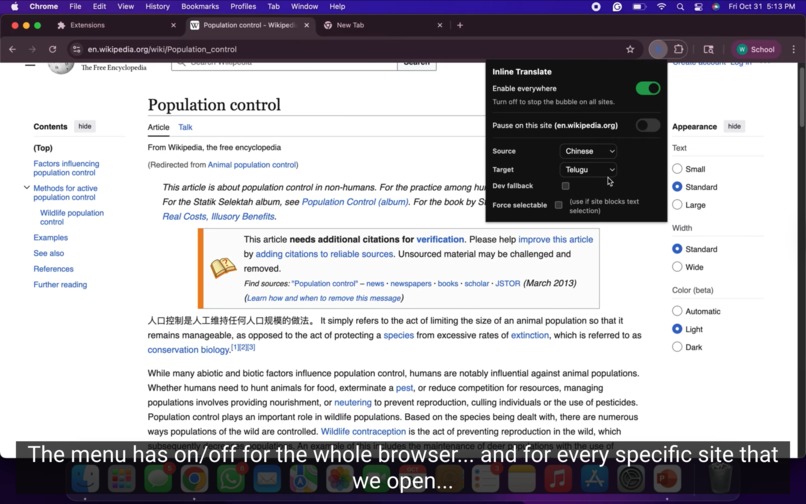
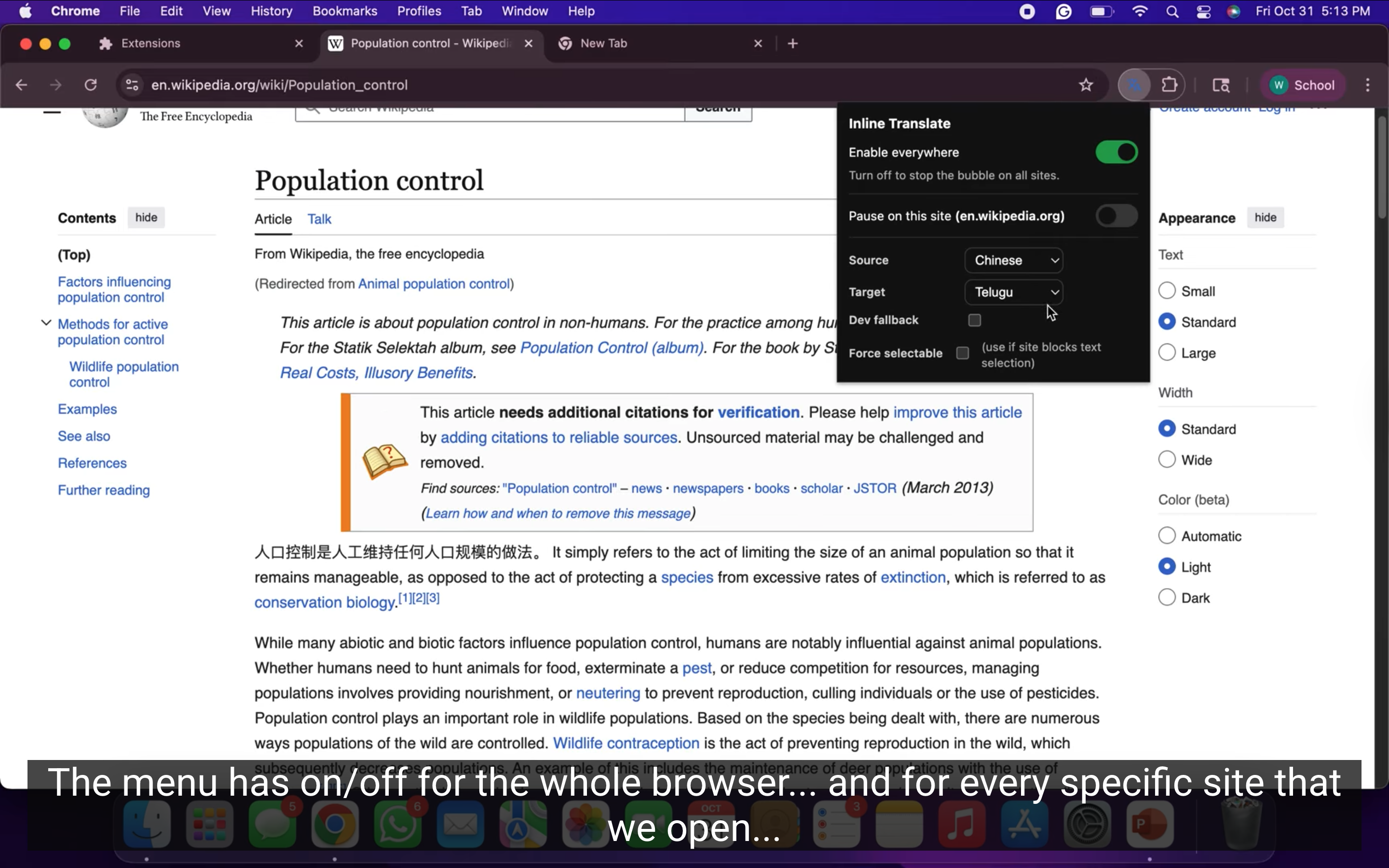
Global enable everywhere, pause on this site, and site level source/target. Useful when reading different sites in different languages.
-
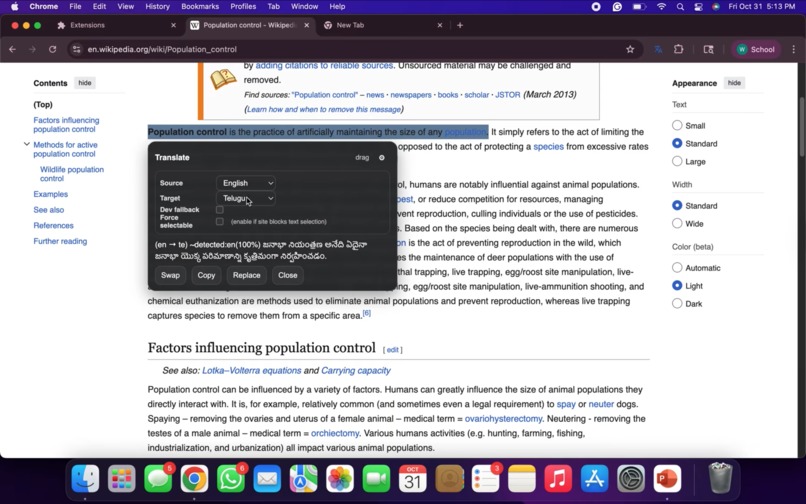
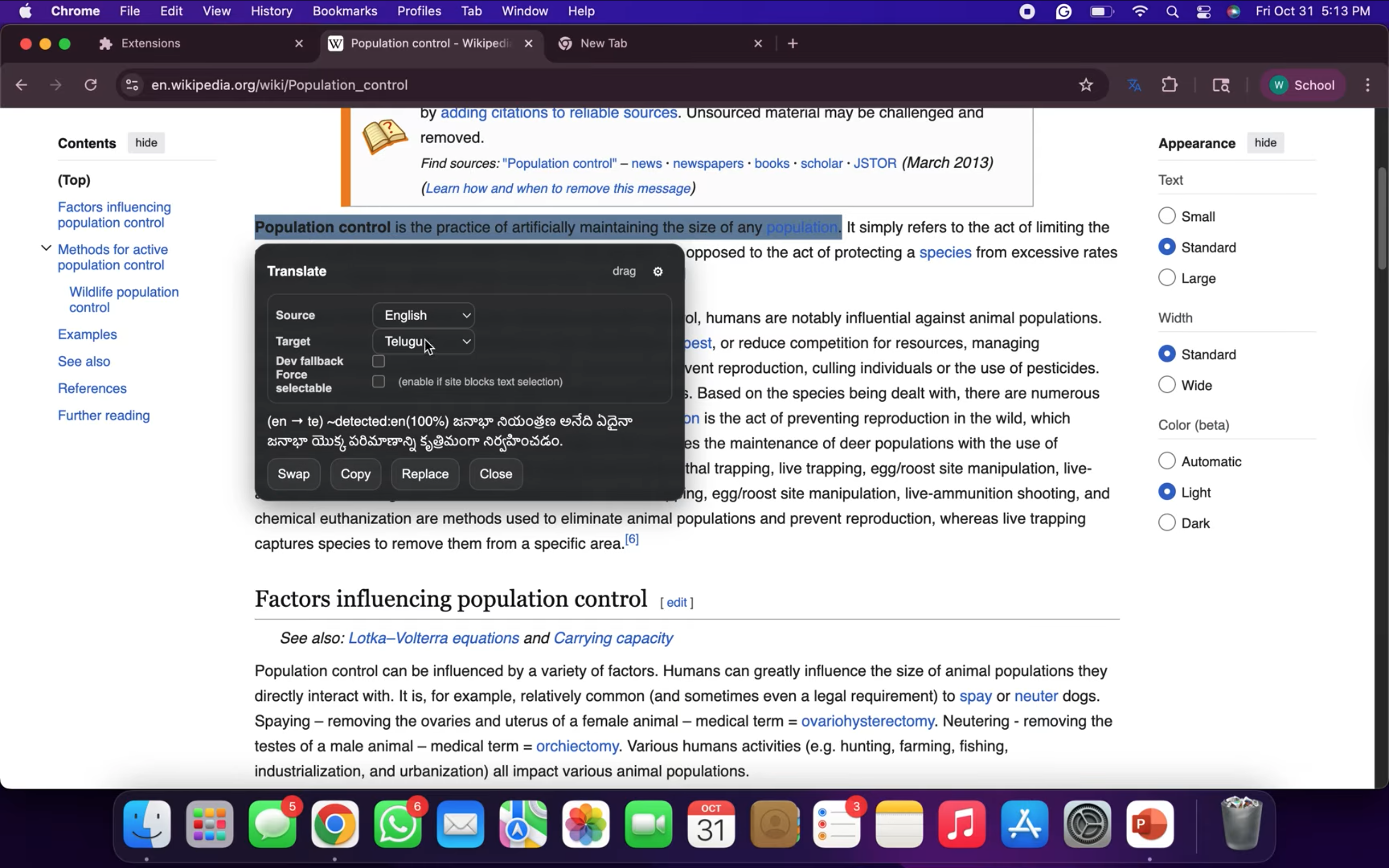
User changes source/target, turns on dev fallback, and enables force selectable for pages that block text selection. No new tab is opened.
-
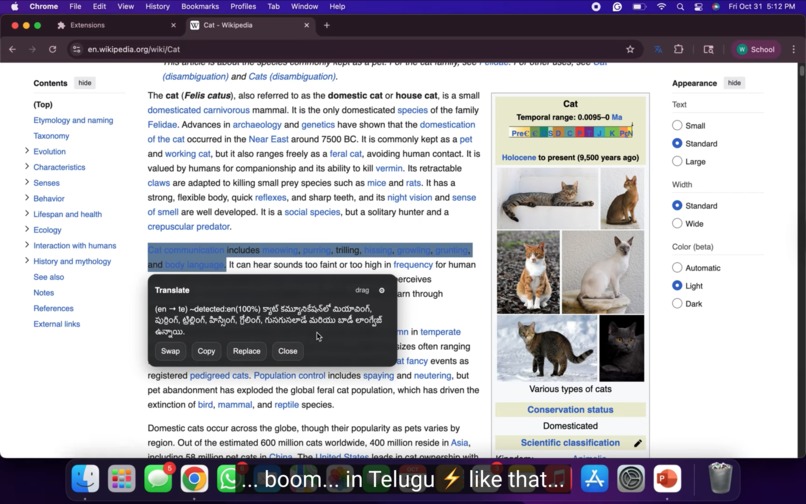
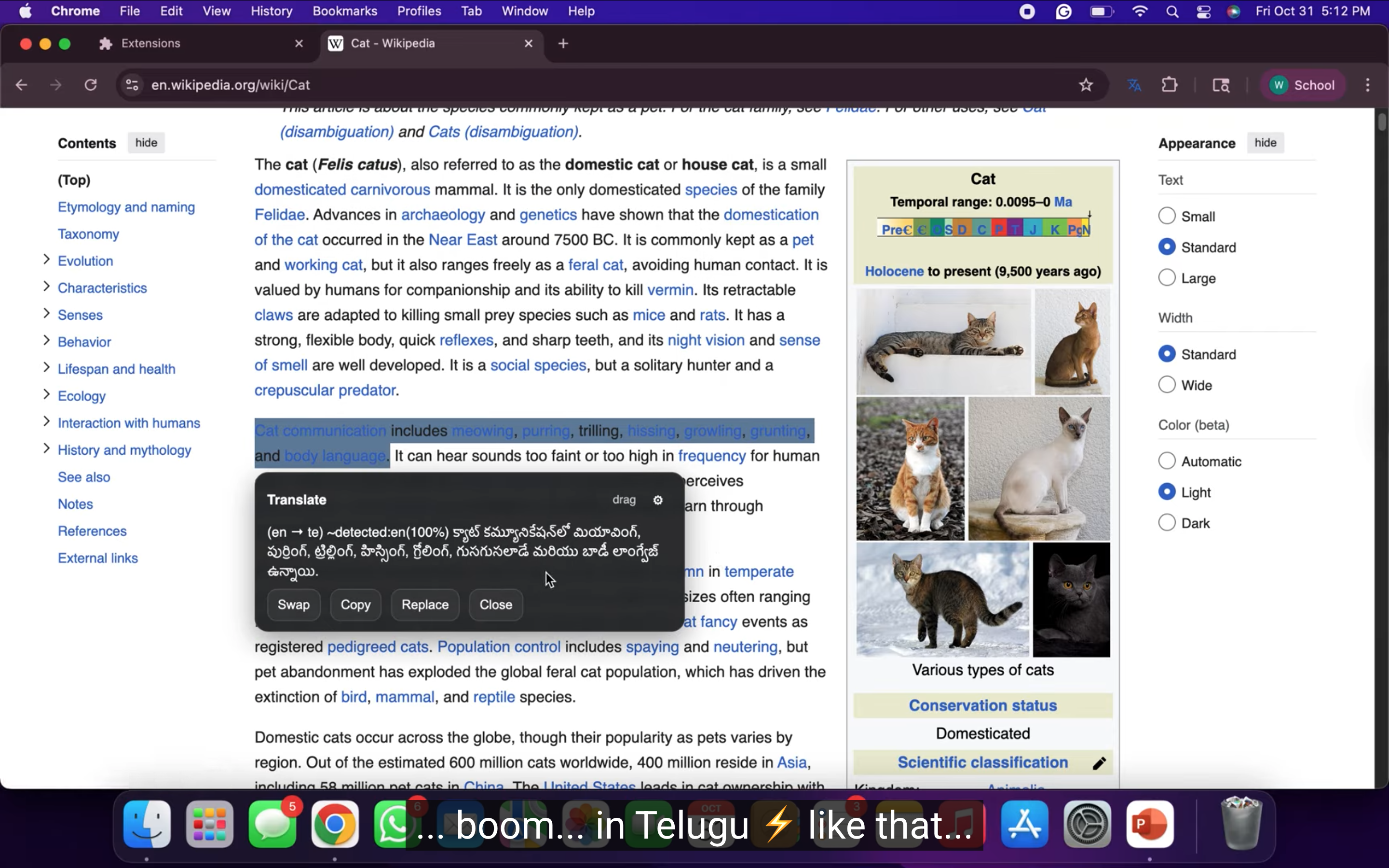
Selected English text is translated to Telugu on the page. Bubble shows detected language and quick actions (Swap, Copy, Replace, Close).
Inspiration
I used to read articles, docs, and Wikipedia in English, but English was not always the easiest language for me. To understand a paragraph, I used to copy it, open Google Translate, paste it, pick a target language, and only then read it. That broke my focus every single time.
Later, I saw Chinese friends in the U.S. who are good at English but still read LeetCode in Chinese. I asked why. They said it is faster for the brain. That made me think. The problem is not the content. The problem is the friction between the page and the person.
Then I attended Google's WebAI Summit and learned that Chrome has a built-in AI stack that can run translation on the device. That was the missing piece. If translation can happen inside Chrome, right on the page, there is no reason to switch tabs. So I built it.
What it does
- You select text on any site.
- After a short idle delay, a small bubble appears near your selection.
- The bubble shows source, target, and detection, for example,
~detected: en (100%). - You can Swap, Copy, Replace, or Close.
- You can open settings inside the bubble and change source and target right there.
- It remembers the target per site.
- It can try to force selection on pages that block user selection.
- There is also an extension pop-up that can be enabled everywhere or paused on this site.
This is not only for English. It works with the language pairs that Chrome on device Translator exposes, so it helps anyone who wants to read in their own language.
How it uses Chrome's built-in AI
Primary path:
- Try the Chrome on-device
TranslatorAPI. - If the source is Auto, call the on-device language detector.
- Show the translation in place.
- If the model is not installed, Chrome can download it once.
- After that, it can run offline on supported machines.
Fallback path:
- Some machines (like my own main Mac) do not expose the Translator API yet.
- In that case, the bubble shows a clear message, and I can enable a local dev fallback so that the judges can still test the UX.
- There are no cloud calls in the main path.
How I built it
- Manifest V3 extension.
- Content script that listens for selection changes.
- Debounce so it does not fire for every mousemove.
- Inline bubble built with HTML + CSS and injected into the page.
- Translator and language detector wrapped in a small helper file
translator.js. - Chrome storage is used to remember settings per site.
- Popup page for quick global controls.
Challenges
- My main Mac did not have the on-device Translator available, so I had to build a dev fallback.
- Some sites do not allow text selection. I added a Force selectable toggle to fix that.
- At first, the bubble disappeared when I opened settings. I fixed it by locking the bubble until the settings panel was closed.
- Early versions translated while I was still dragging the mouse. That made it slow. I fixed it by adding an idle timer.
- I also had to make Replace safe so that it still works if the page reflows after selection.
What I learned
- How to check for Chrome's built-in AI availability and how to handle the downloadable state.
- How to make a UI feel light even when it is injected into other people’s pages.
- How important it is to give users a global switch and a per-site pause.
What is next
- Smarter bubble placement that prefers white space.
- Small history panel in the pop-up.
- Optional phrase highlighting for language practice.
- Let other extensions request an inline translation bubble.
Built With
- chrome-built-in-ai-translator-api
- chrome-extensions-(manifest-v3)
- chrome-language-detector
- chrome-storage
- css
- html
- javascript


Log in or sign up for Devpost to join the conversation.