Inspiration
While working on another Near project, I realized that I spent a lot of time reading the documentation and examples to find the correct command and command arguments to perform tasks such as deploying a contract and managing Near accounts. So for this hackathon, I decided to create a tool that would simplify the development process.
What it does
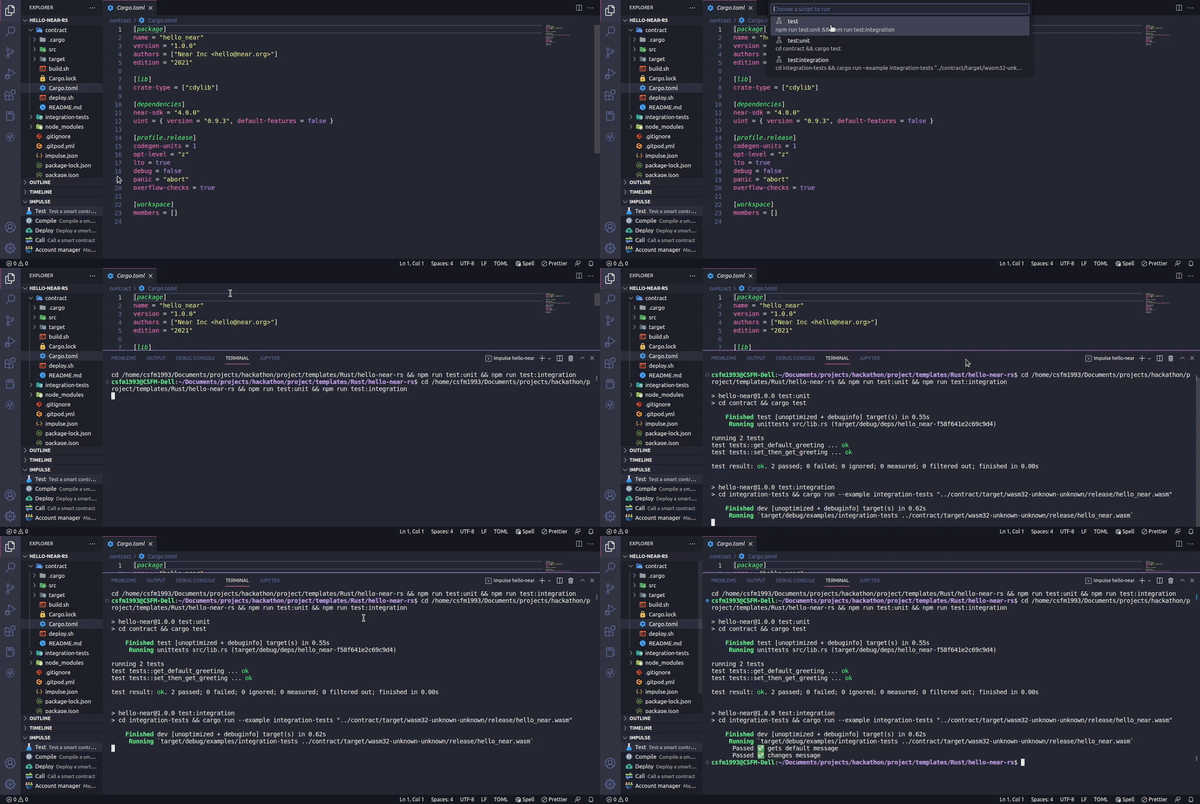
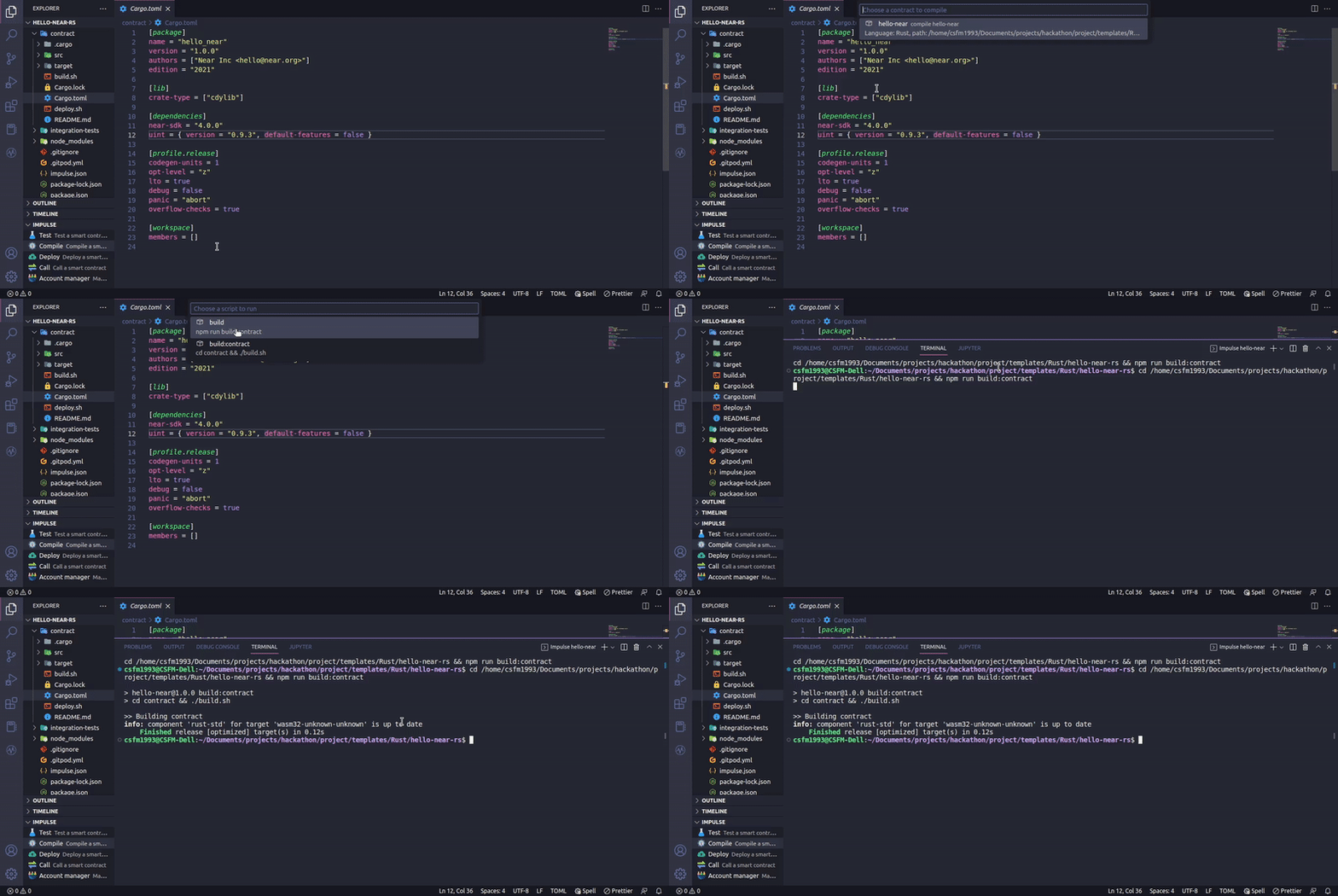
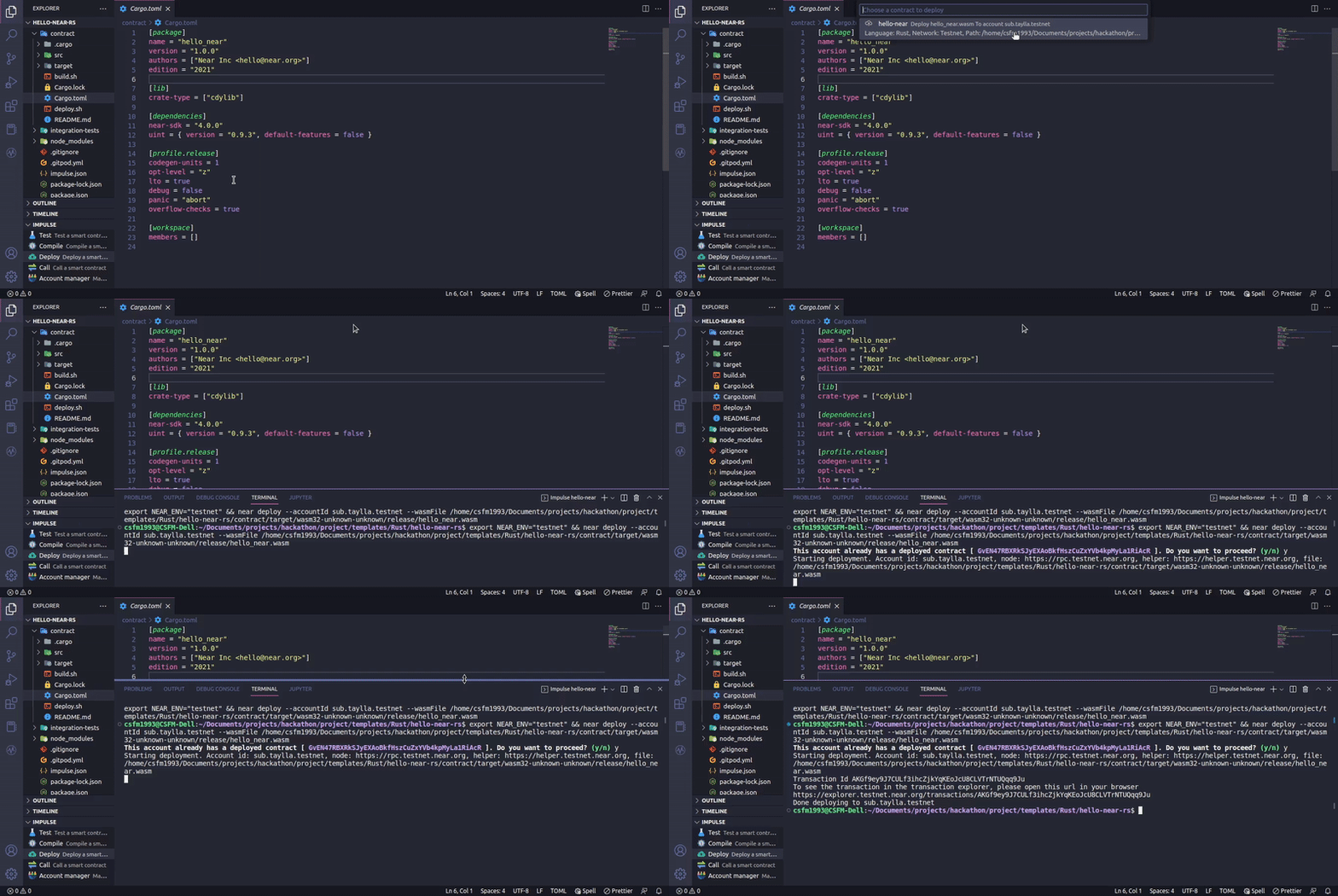
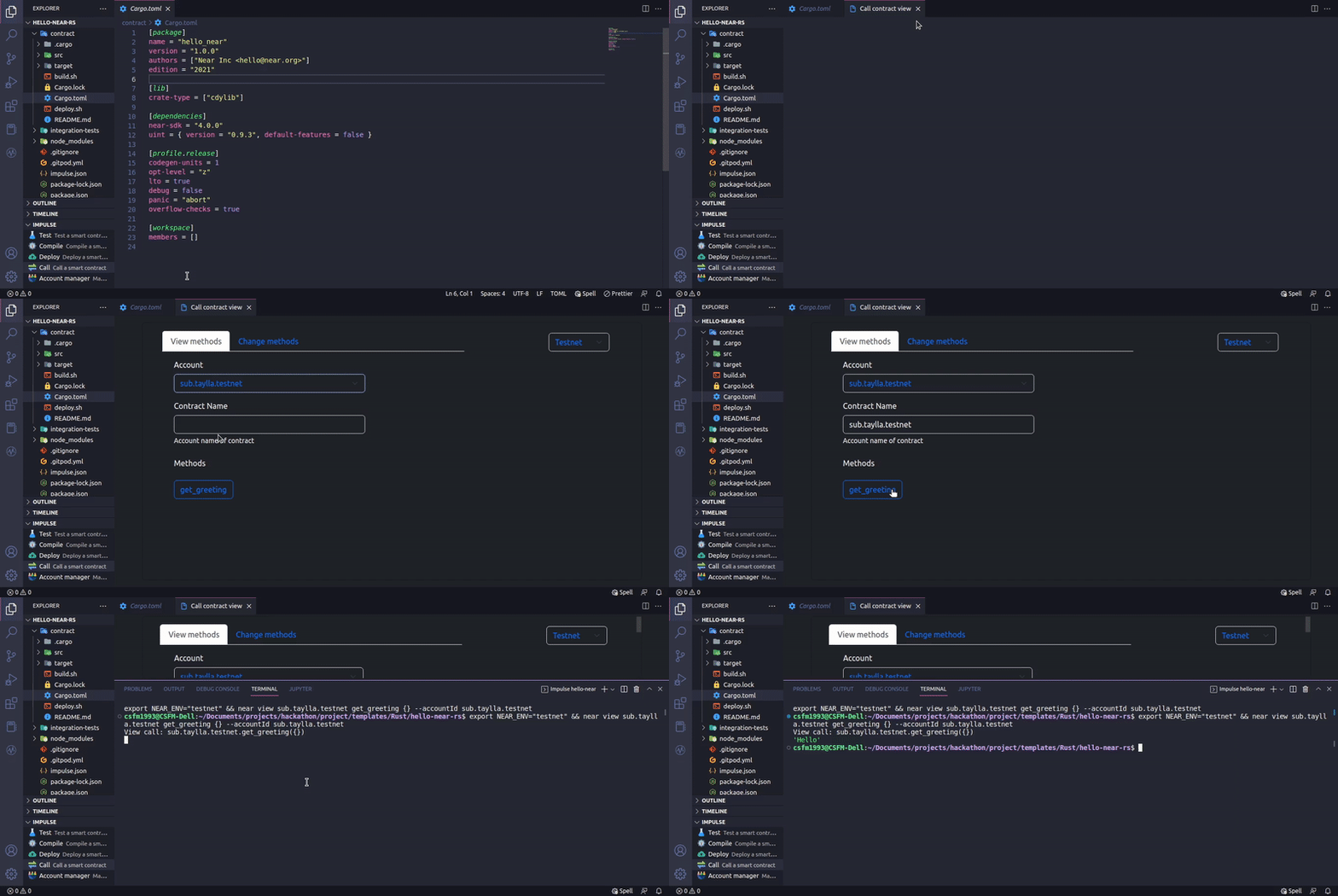
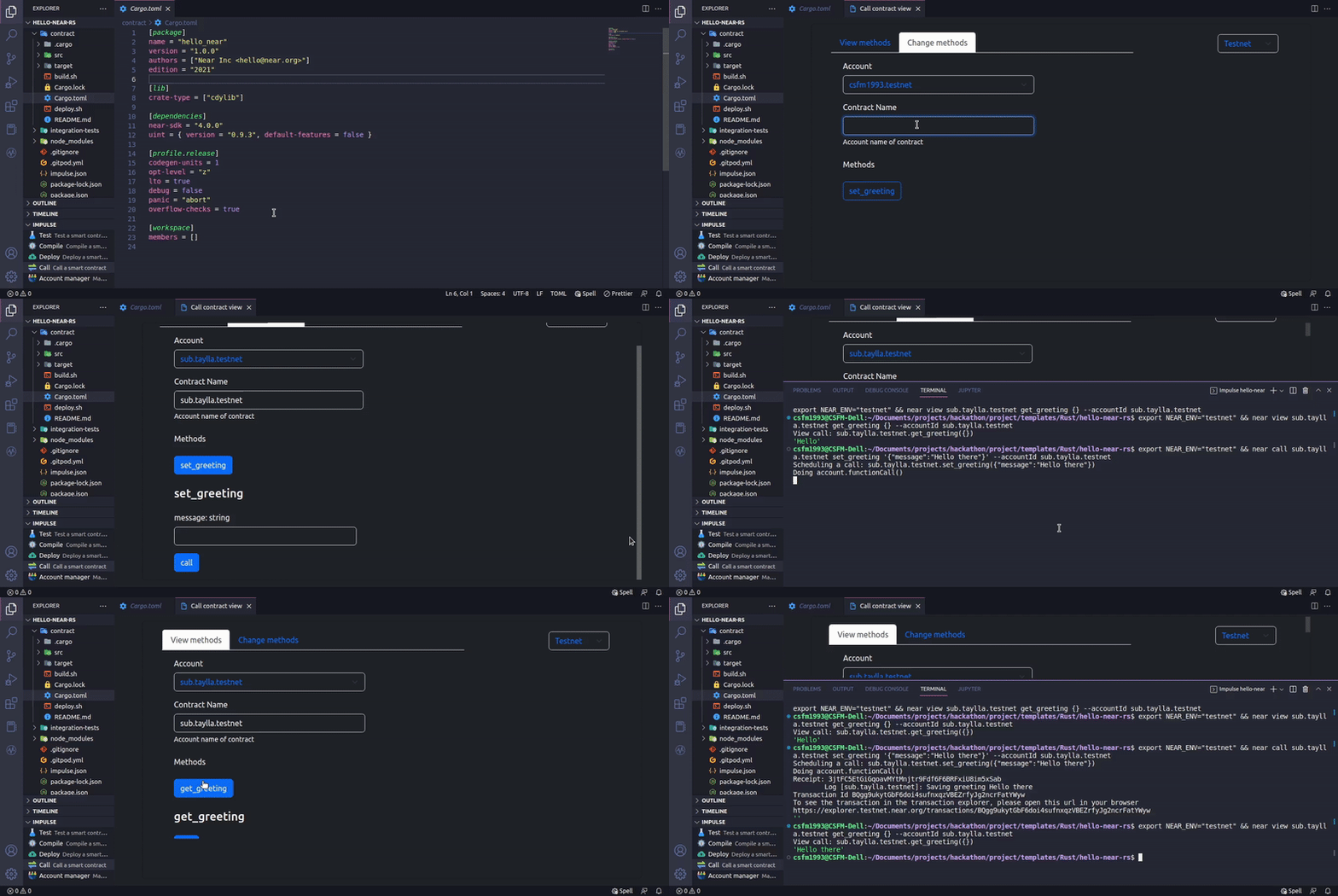
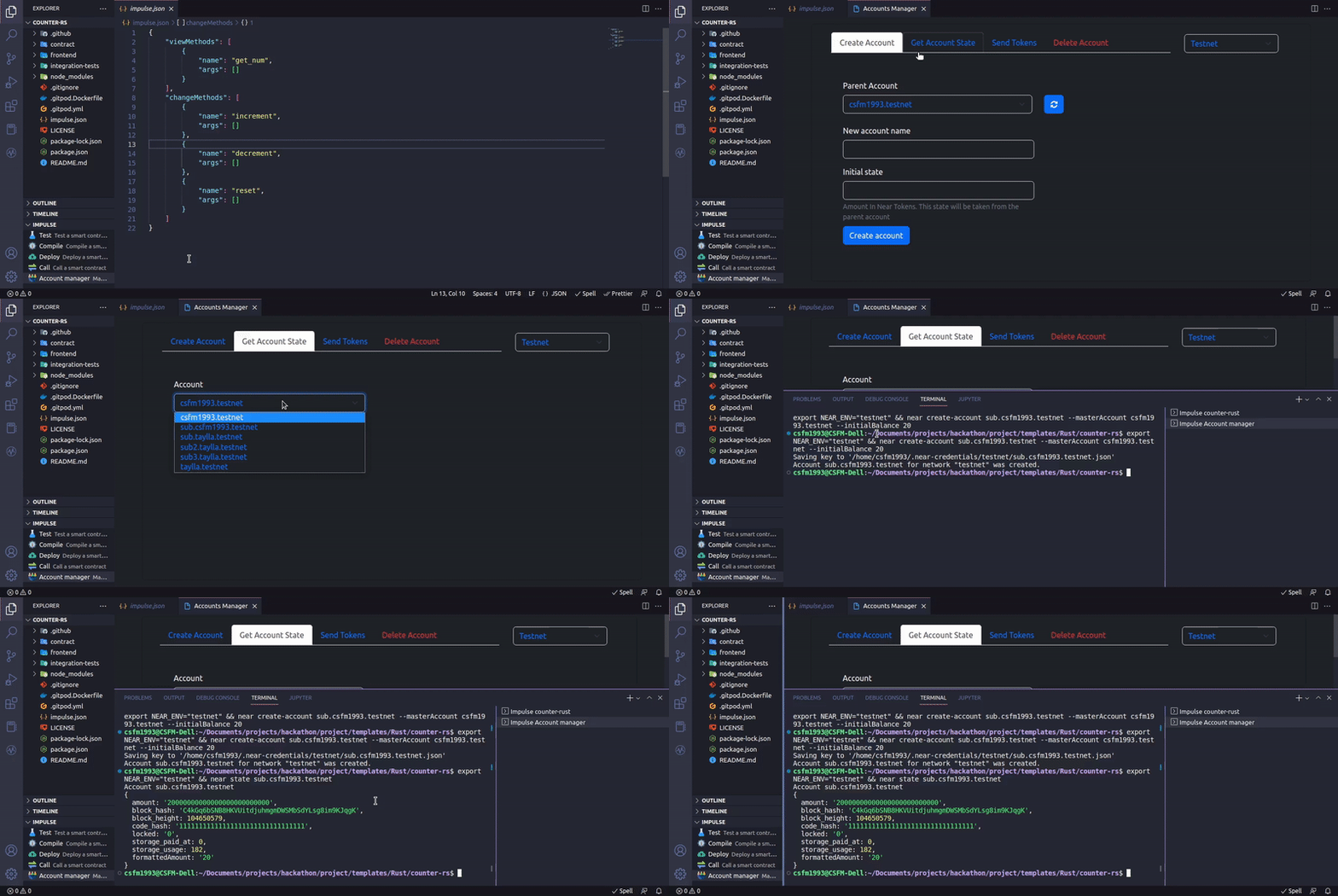
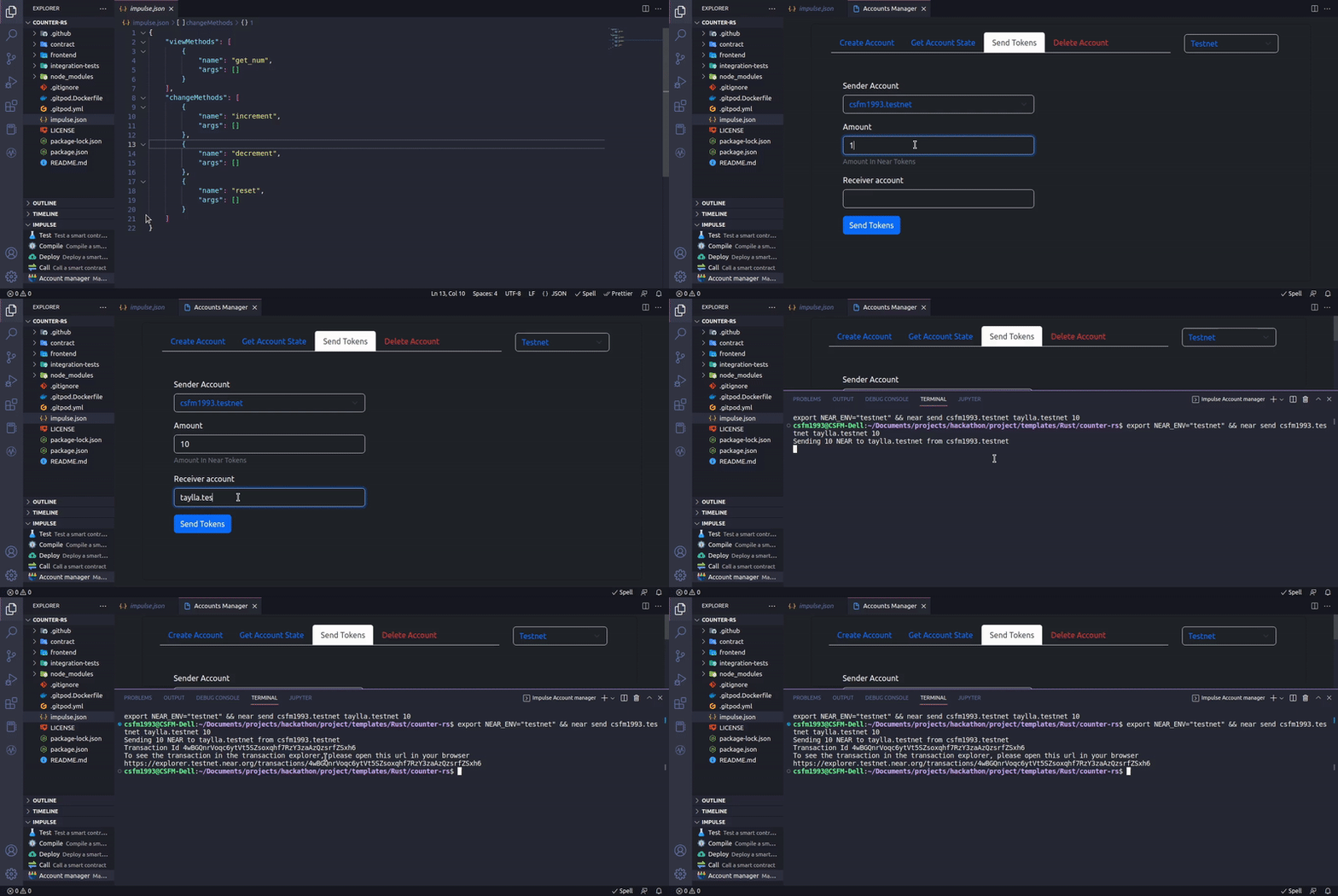
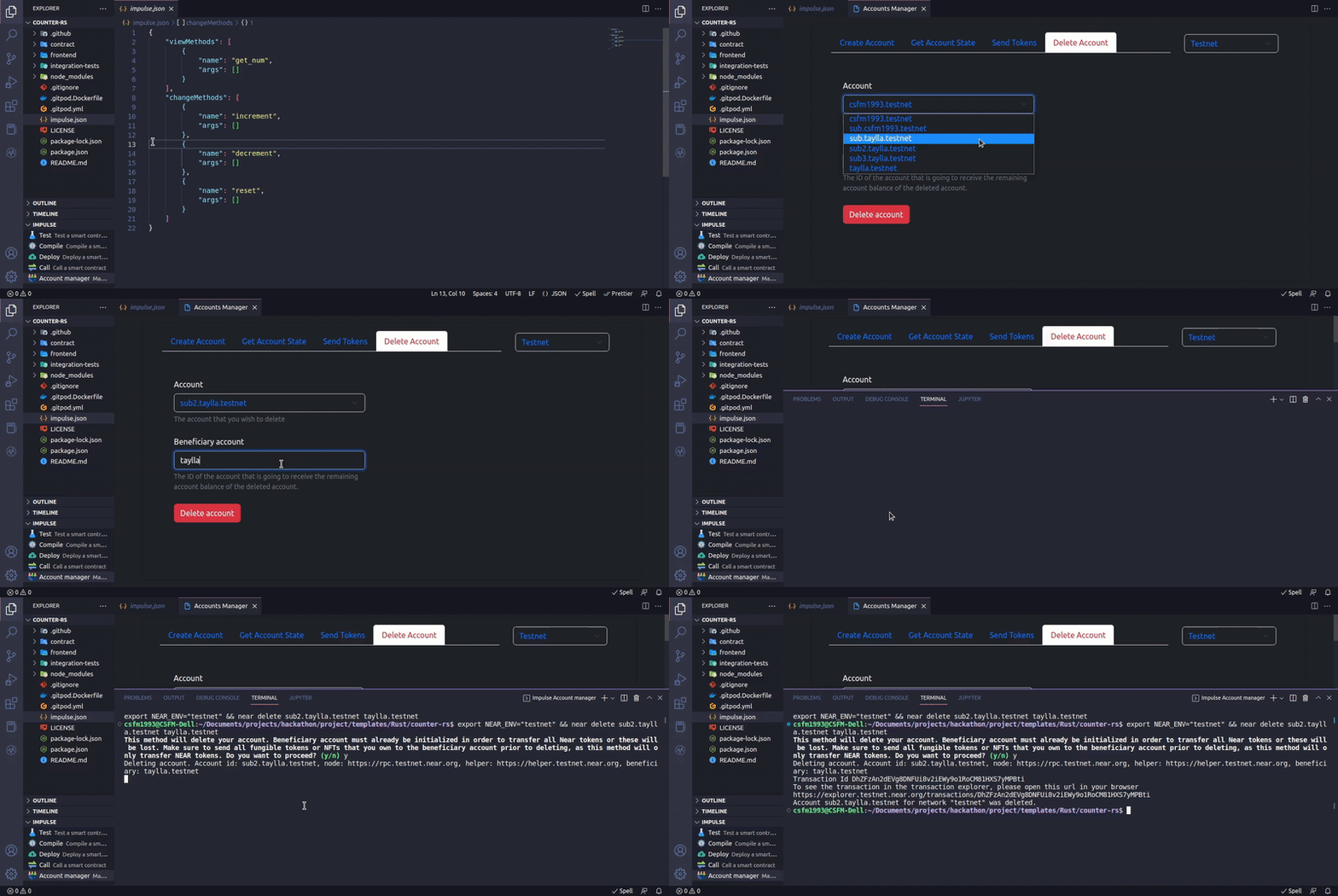
Impulse is a VS Code extension with a friendly graphical user interface that boosts Near protocol developers' productivity by allowing them to perform the following tasks:
- Test, compile, deploy and call a contract;
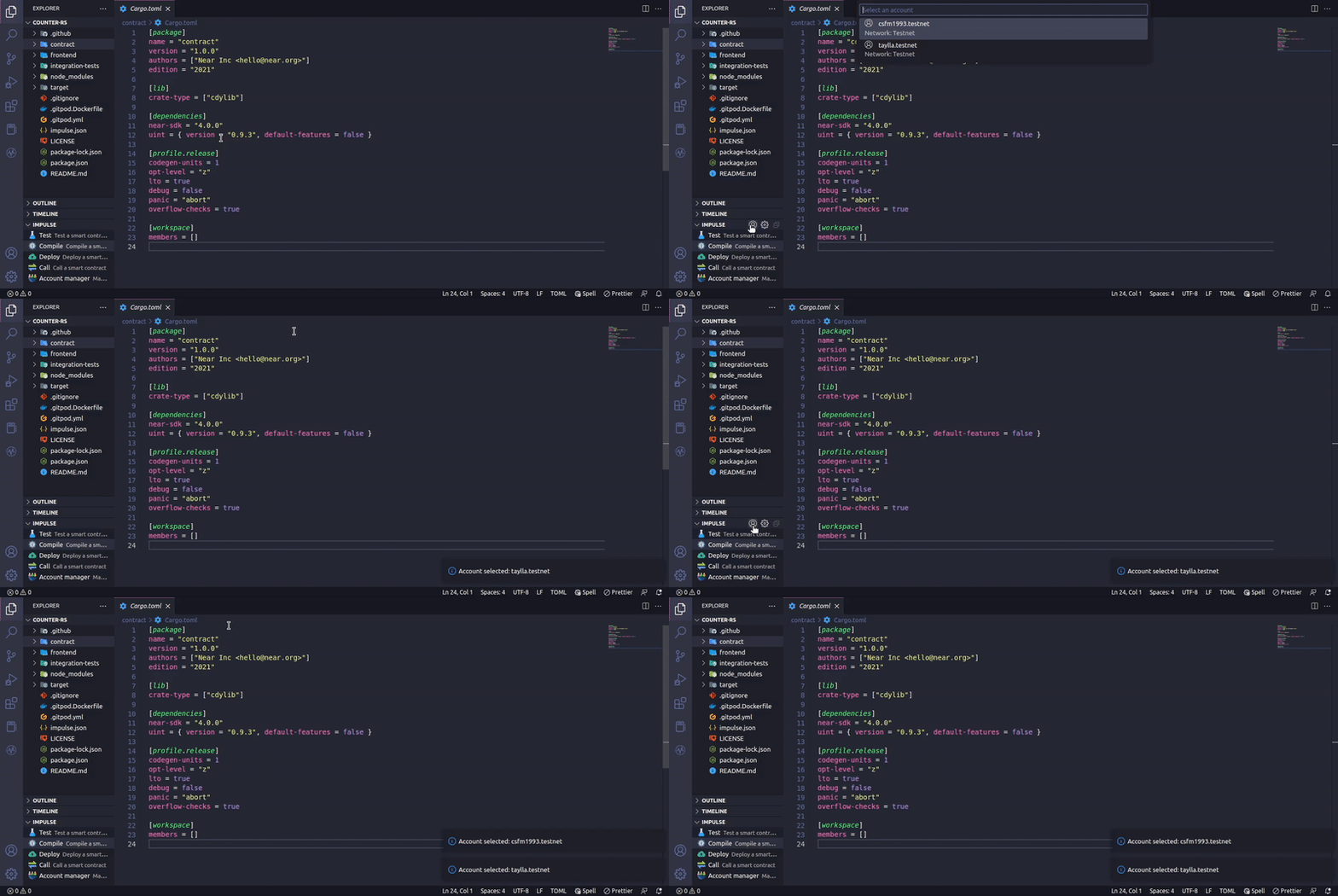
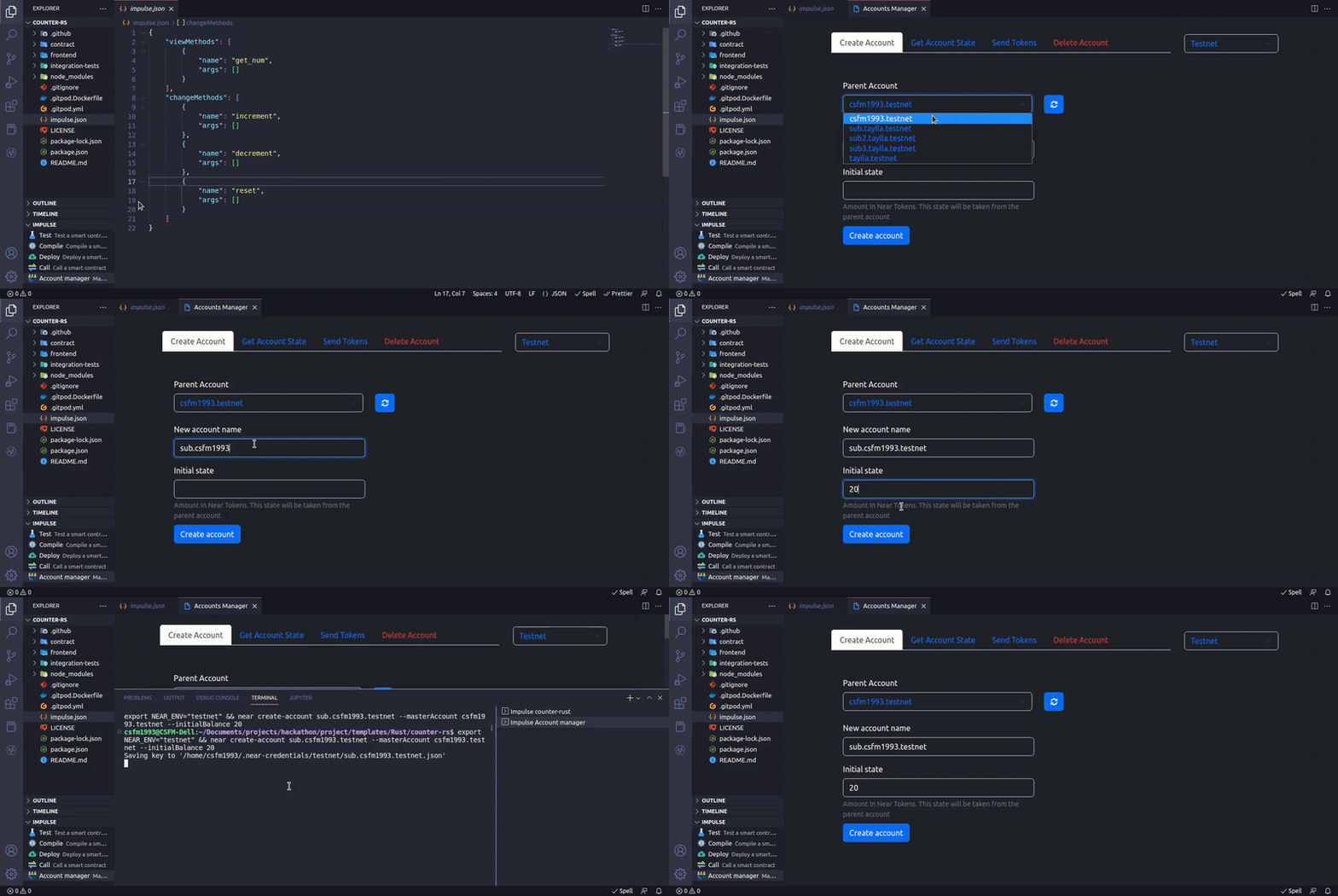
- Create and Manage Near accounts;
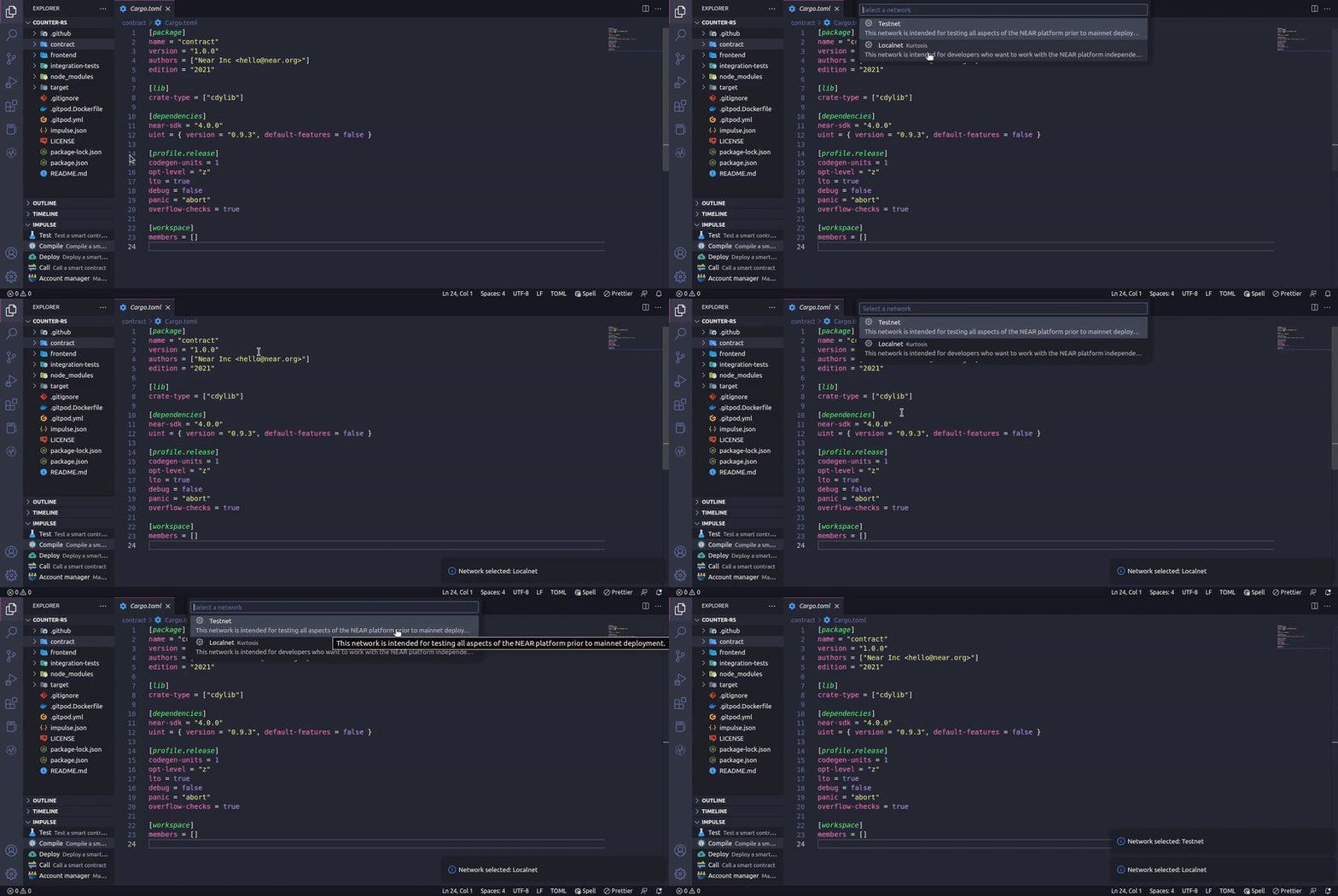
- Switch Near Networks ;
Impulse expects that your Near project has the following directory structure:

Impulse will only work properly if you have a contract directory, a package.json file, and an impulse.json file in your project's root directory. Most Near example projects follow this structure.
The impulse.json file is where you declare your contracts' view and change methods. For more information on how to format this file please read this document
Impulse allows you to select between the Near Testnet and a Near Localnet created using the Kurtosis module. The Testnet and the Localnet settings can be modified in the settings editor.

How to run
There are two ways you can run this extension:
- Installing the extension published in the marketplace
- Cloning the repository and running the extension in development mode.
Installing the extension published in the marketplace
Open VS Code, click on "Extensions" and search for an extension named impulse published by Carlos Mucuho. Click on install and you are all set.
Or
Open VS Code, launch VS Code Quick Open (Ctrl+P), paste the following command, and press enter :
ext install CarlosMucuho.impulse-csfm1993
Cloning the repository and running the extension in development mode
Clone this repository:
git clone https://github.com/CSFM93/impulse.git
Navigate into the directory:
cd impulse
Install the dependencies:
npm install
Open the directory using VS Code:
code .
Once VS code opens the directory click on "Run and debug" to run the extension in development mode.
How we built it
I built the extension by reading the VS Code API documentation and the Near documentation. The programming language used was Typescript.
Challenges we ran into
When I first started coding the extension I was using Javascript because I am not proficient in Typescript, but soon I realized that it wasn't the best choice. The VS Code API expects you to pass specific object Types to do a lot of things, and recreating every object using Javascript would just take too long. So I confronted my fear of Typescript and started the project from scratch using it.
Accomplishments that we're proud of
I am proud that I was able to create my first VS Code extension using a programming language that I am not proficient in.
What we learned
During this hackathon I learned the following things:
- How to create a VS Code extension;
- How to edit a video using Kdenlive;
What's next for Impulse
Right now Impulse allows you to run some basic Near CLI commands, in the future, I plan to support more commands.
Built With
- nearcli
- typescript
- vscodeapi


Log in or sign up for Devpost to join the conversation.