-
-
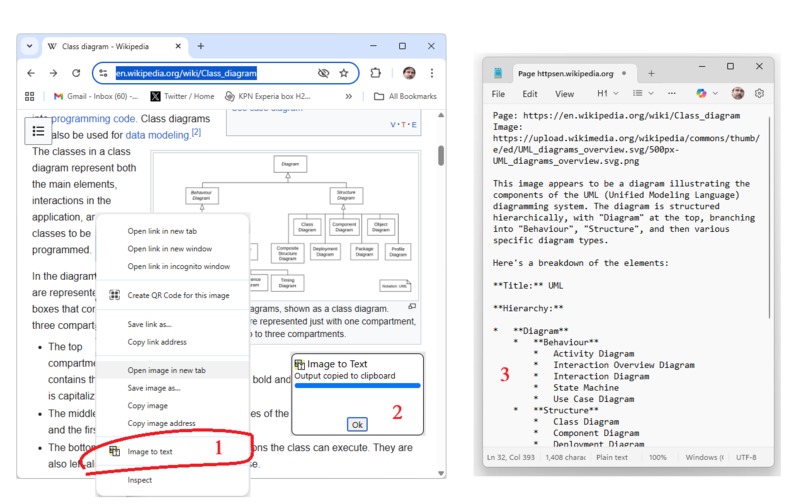
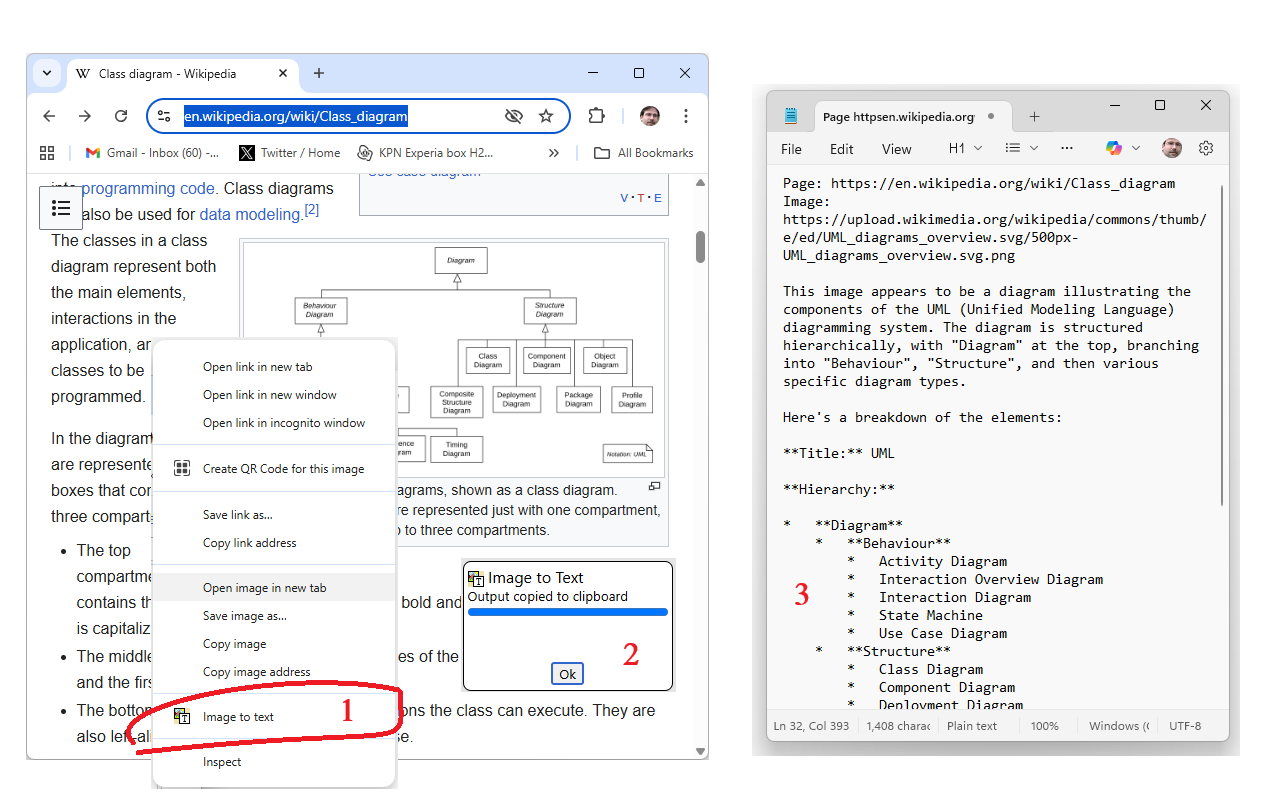
The Image-to-text contextmenu in action: 1) right-click on webpage image. 2) dialog tells you text is in the clipboard. 3) Extracted text
-
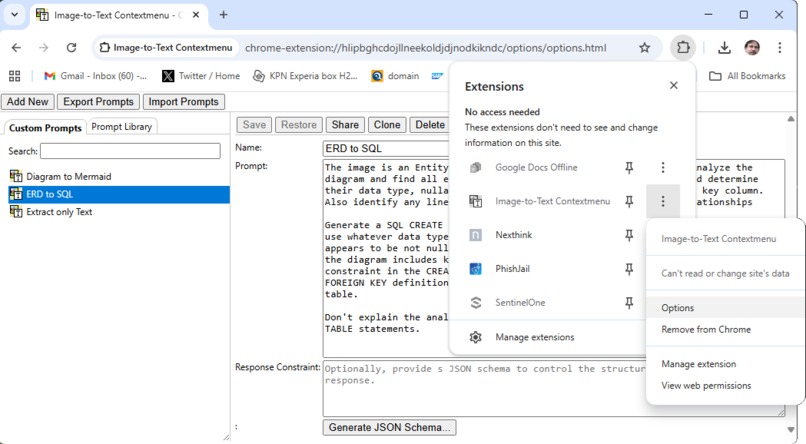
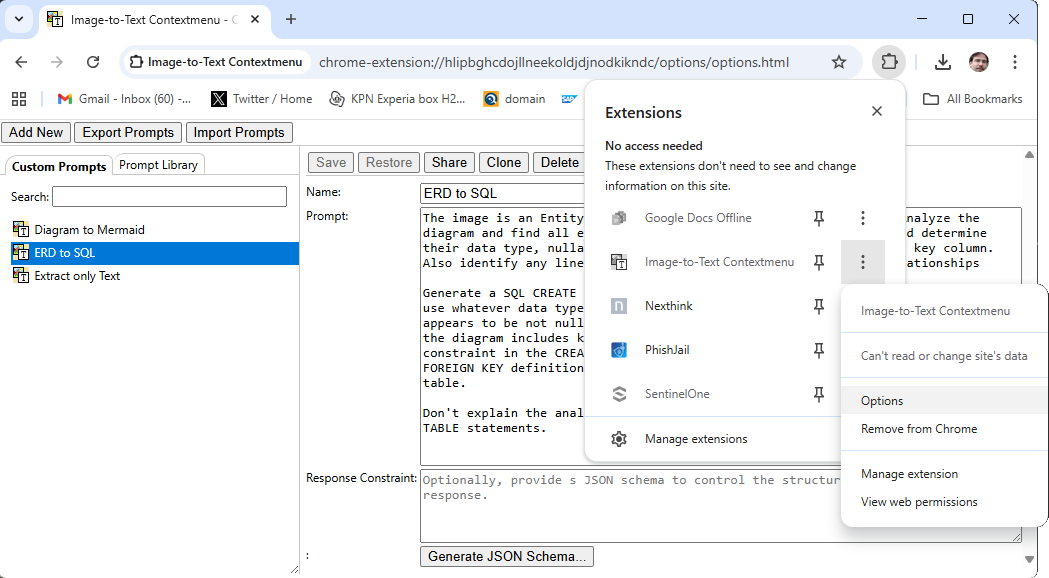
The options page lets you create and maintain custom prompts for specialized image analysis tasks.
-
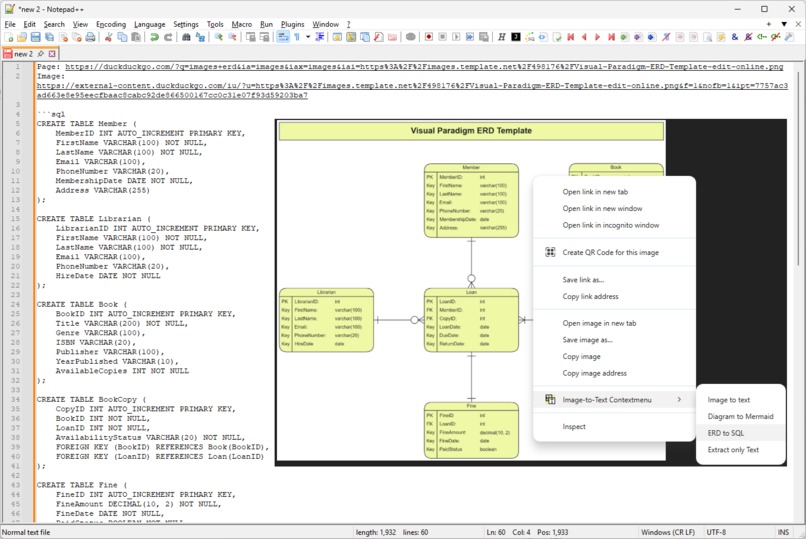
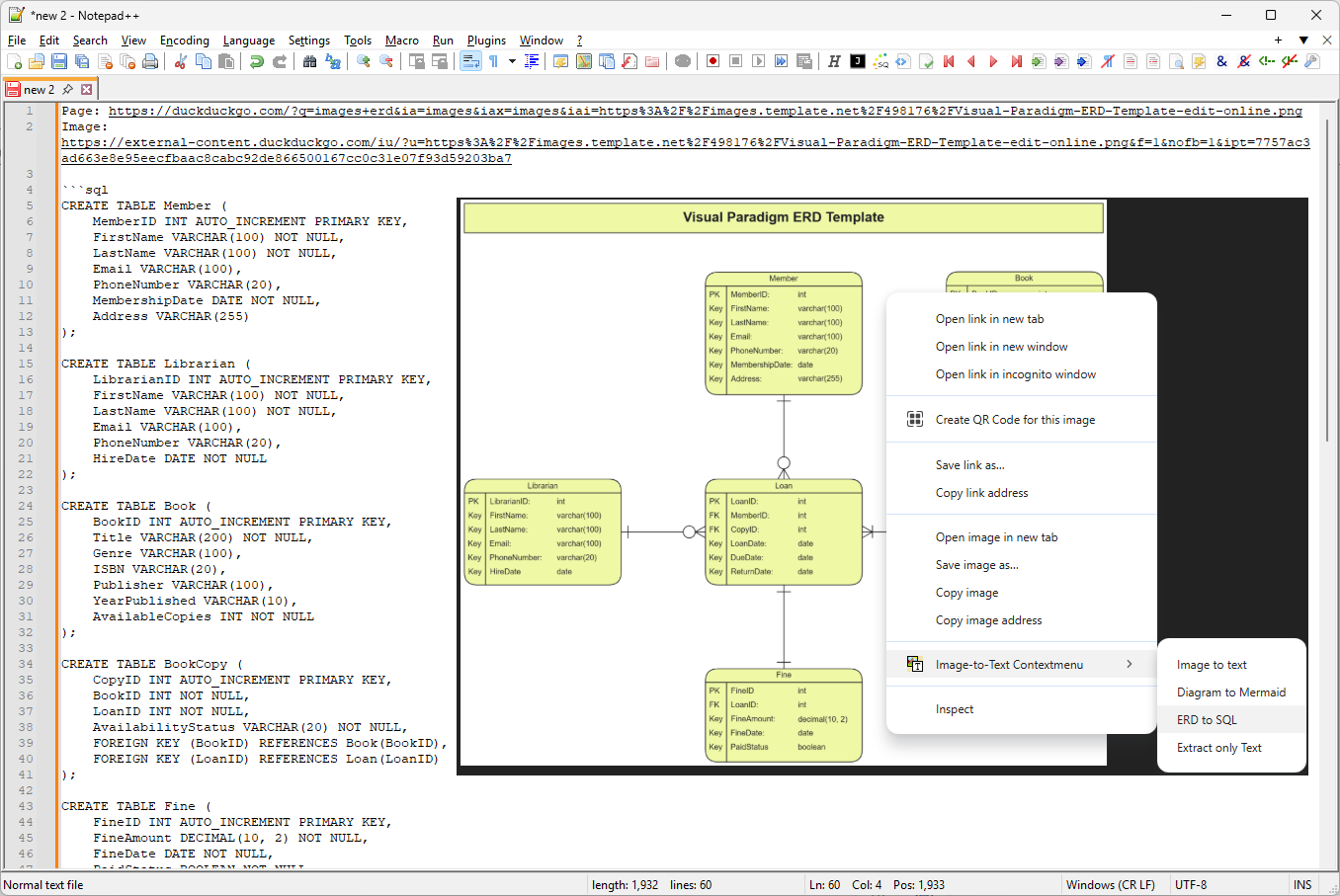
A custom prompt in action. This one is designed to analyse ER-diagrams and generate SQL to create the data model implied by the diagram.
Inspiration
I work as developer and often see user issue reports where they screenshot an error message. The text in the error message is important to me because it contains error messages and codes I can use to grep my codebase with, or which I can use to google for more info.
I used to read the screenshots and then type the contents out myself. I always felt this should be easier.
What it does
This plugin installs a context menu item that is available for image content. When activating the menu item, the image content is obtained and submitted as input to the prompt API (a chrome built-in AI feature). A system prompt is given to the model, instructing it to create a textual description of the image. If there is text visible in the image, it should be extracted and used in the description, clearly characterizing its role or type. For example, if the image is a screenshot of an article or a photo of a book page, it will simply extract the text content; if the image is a diagram it will create a structured list of the elements, their labels, and the relationships between them; if the image is a graph or chart it will extract series and data points; and if the image is just a photo or artwork, it will provide a description of the depicted scene.
In addition to the generic image to text functionality, users can enter custom prompts in the extension's options page. This allows one to tailor the behavior and support specific use cases. For example, one can create a custom prompt to create SQL code from ERDs or data model diagrams, or to turn flowcharts into mermaid code.
The options page also lets users access an online prompt library, from where they can add custom prompts to their own collection.
How we built it
The plugin is manually coded. It took a few iterations to figure out which types of chrome plugin paradigms (offscreen, background service, content script) are best suited for different tasks and to find ways to communicate across these contexts.
Challenges we ran into
- overcoming CORS and same origin policy issues. Grabbing the images turned out to be a little more complicated then I thought. It feels as if a chrome extension content script should already be able to access the binary data of the images. You can by rendering the image to a canvas, but then you may find you're still not able to read it because the canvas is tainted due to same origin policy issues. This bit was puzzling and frustrating because when the images are served with the right CORS headers, it already works in this setup. Until you find a site the doesn't. To overcome that, the plugin needs hosts permissions and the chrome extension background service needs to acquire the image.
- background service lifecycle. Initially I thought the actual image analysis by the multi-modal model should happen in the service worker. But then it turned out this doesn't really work because the global setup (I create a model once with the right parameters, and then clone that for each image request) gets lost when the browser chooses to shutdown the background service.
- the right way to pass binary data between background service and content script. I naively assumed BLOBs could be passed through by messaging. They can, but just not in a very convenient way. I ended up converting them to base64 encoded data, which I currently think is also the right way to do it.
- prompt engineering. It took a while to create a prompt that treats different kinds of images differently and appropriately. This is not done by far yet, but this was certainly a challenge.
- finding out how to feed images to the model. SVG images for example will just not be processed, you have to render them to a canvas and extract the binary image data
Accomplishments that we're proud of
I'm not proud very easily. But the extension solves my original problem: I don't have to type over error messages and codes and so on anymore, so it's useful to me. And, I learned a few practical things about writing chrome plugins and the new built-in AI features. I'm happy about that, but not proud.
What we learned
- how to build a chrome plugin
- how to use chrome plugin features to overcome CORS and same domain policy issues
- how to render svg images so they can be used as image input for the prompt api
- how to work with built-in AI features like the prompt api and the multi-modal model.
What's next for Image-to-Text Contextmenu (Chrome Browser Extension)
- The extraction of structured images like diagrams and charts and graphs definitely needs improvement. I'm currently experimenting with dividing the image analysis in several steps, where the first step would just be a general categorization, and use that information to create a more specific, tailored prompt for the second step, which would do the actual analysis and extraction.
- Currently the context menu item shows up only for the "image" ContextType. Unfortunately, that does not include things like Canvas or SVG content, which functionally are images from the user's point of view.
- Sometimes, the page uses CSS background images instead of image elements. That is something too that I would like to detect and handle properly.
- Ideally the plugin should also deal with video content, and at the bare minimum describe the current frame of the video. It would be interesting to actually summarize the whole video by extracting all its frames, analyzing them, and then based on the text output detect changes of scenes and finally using that information to summarize. But that is probably best left to a separate plugin
Built With
- blob-api
- canvas-api
- css
- html
- javascript
- json
- languagemodel-api


Log in or sign up for Devpost to join the conversation.