-
-
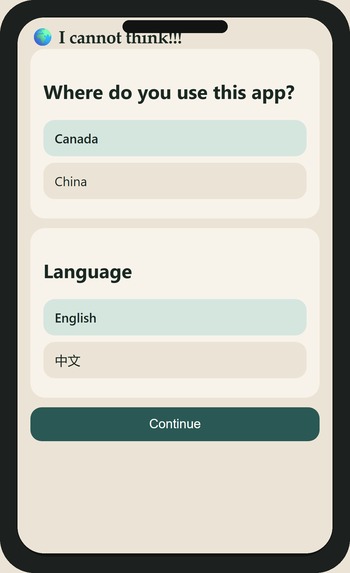
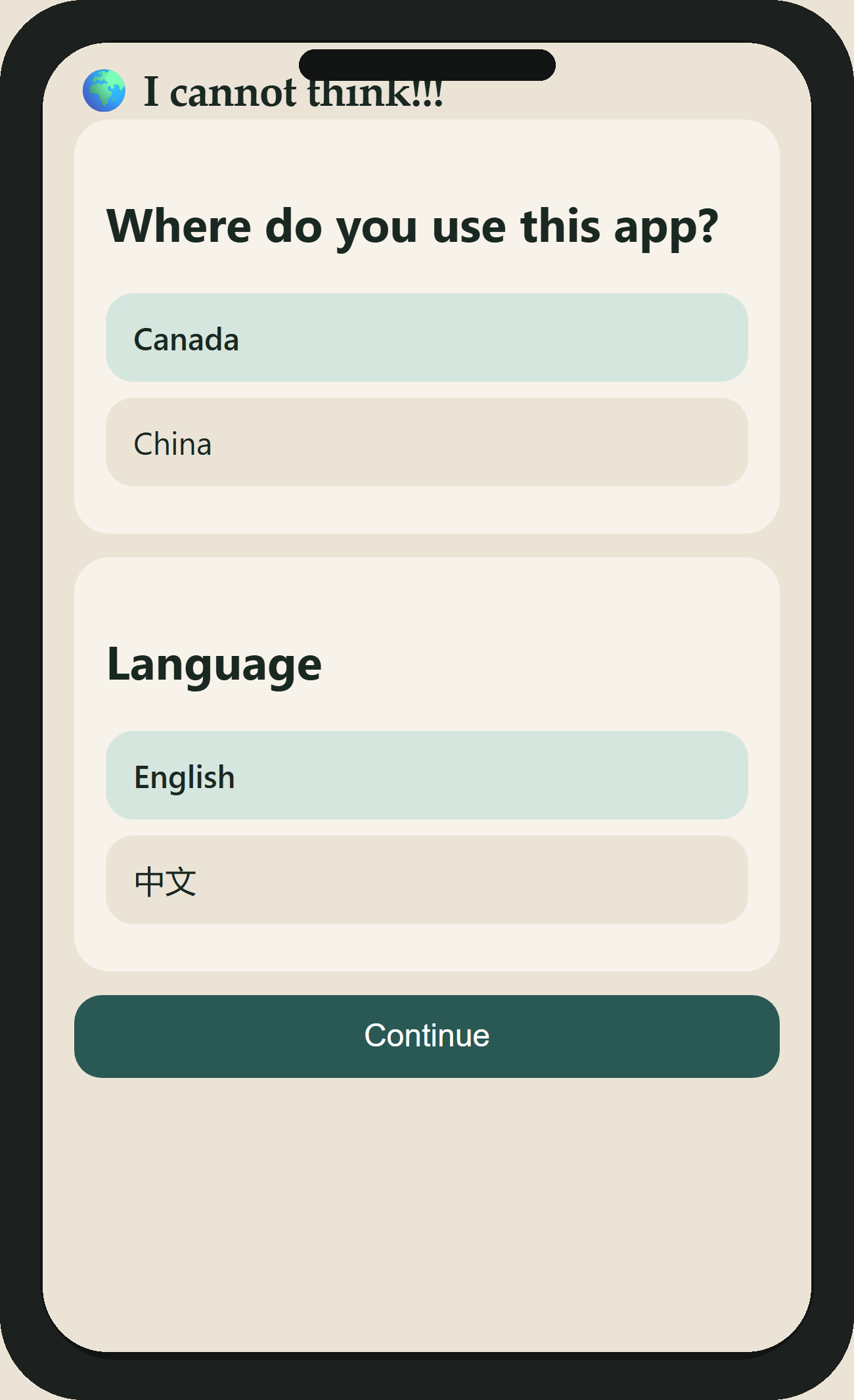
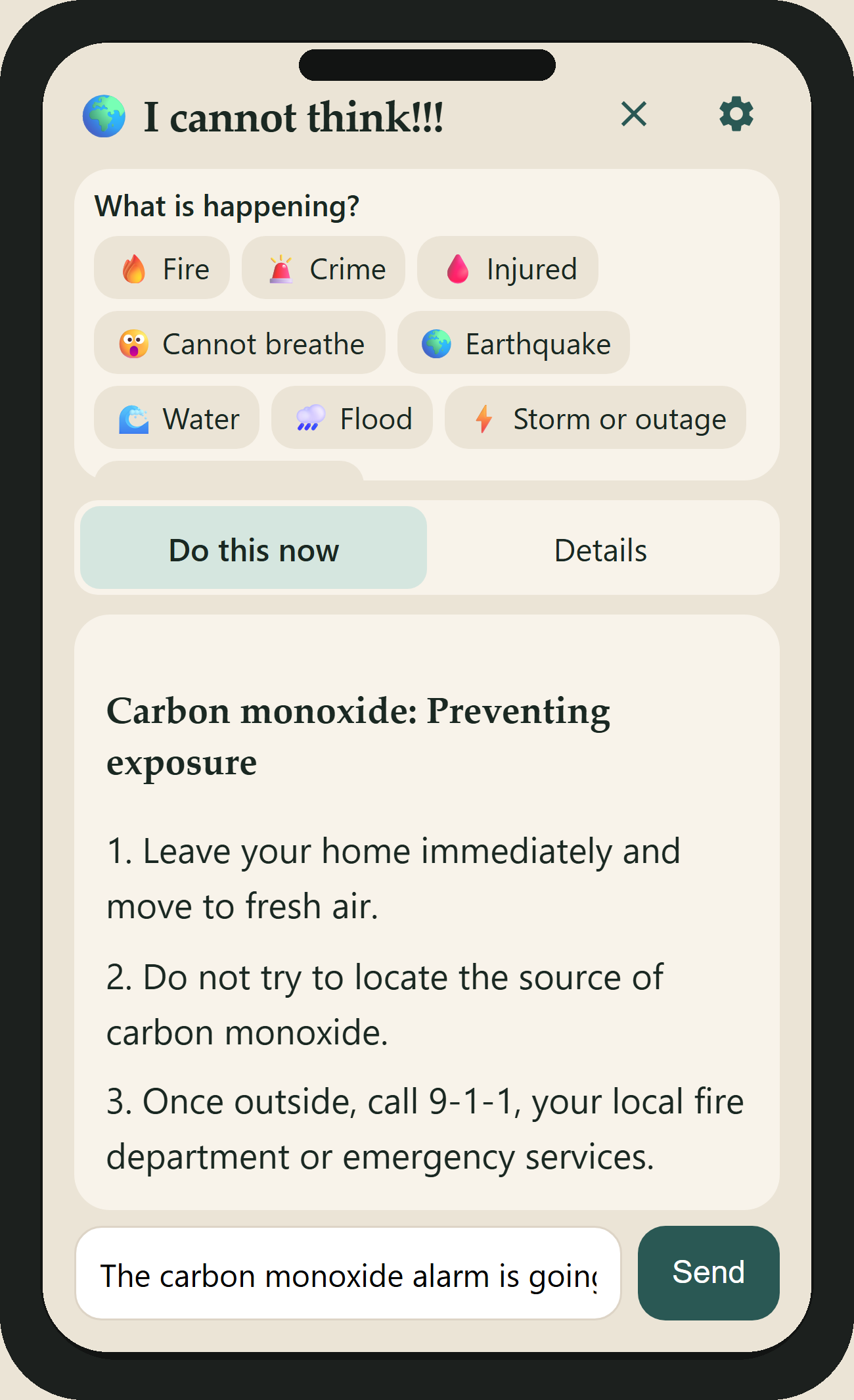
title page
-
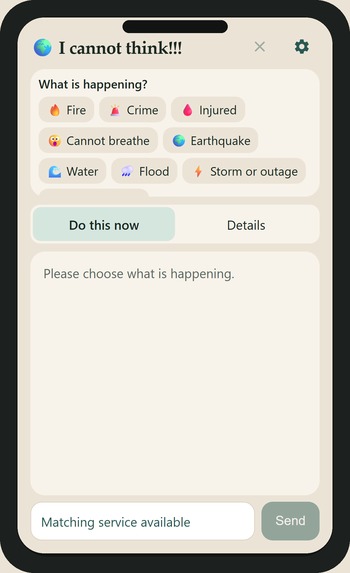
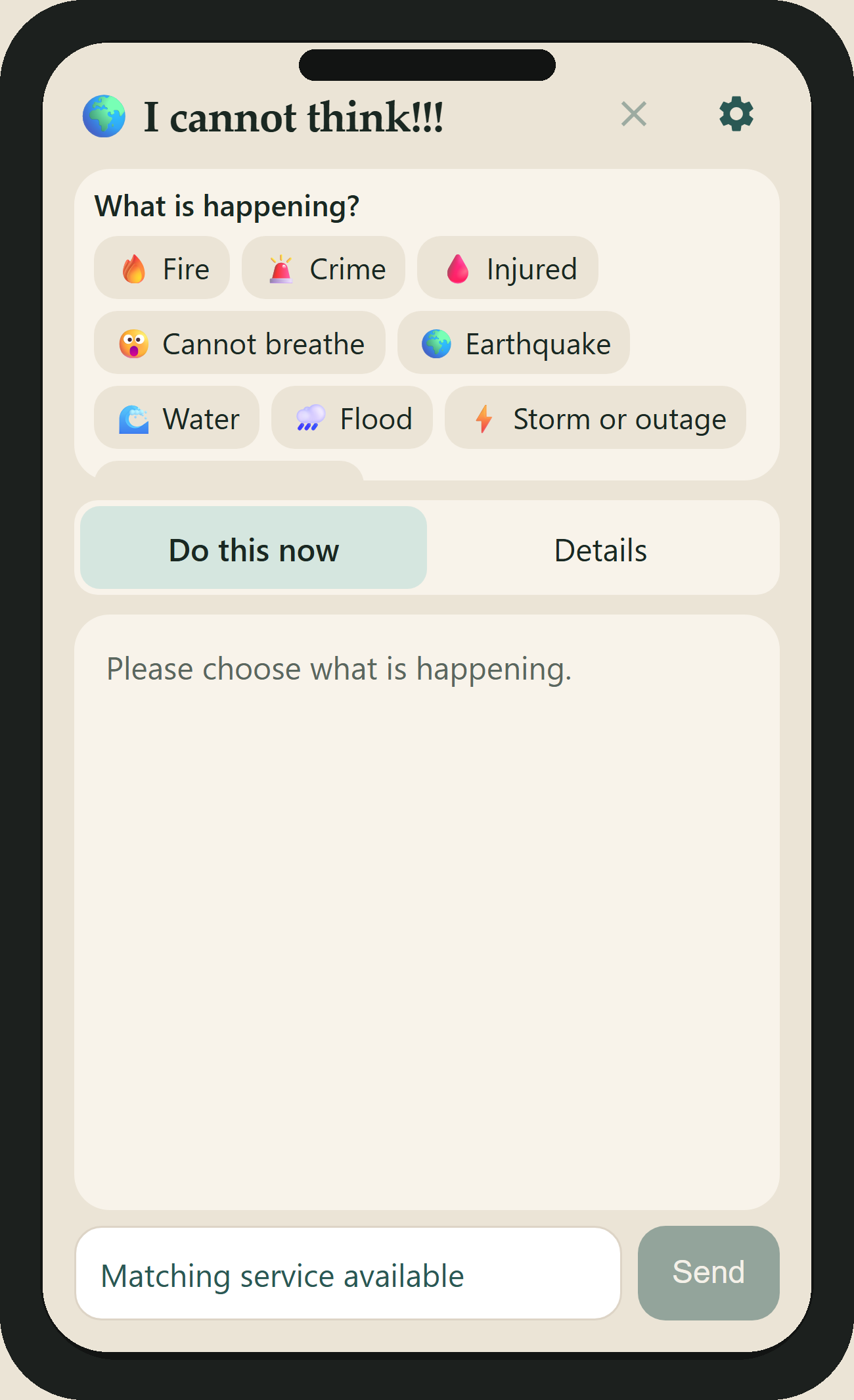
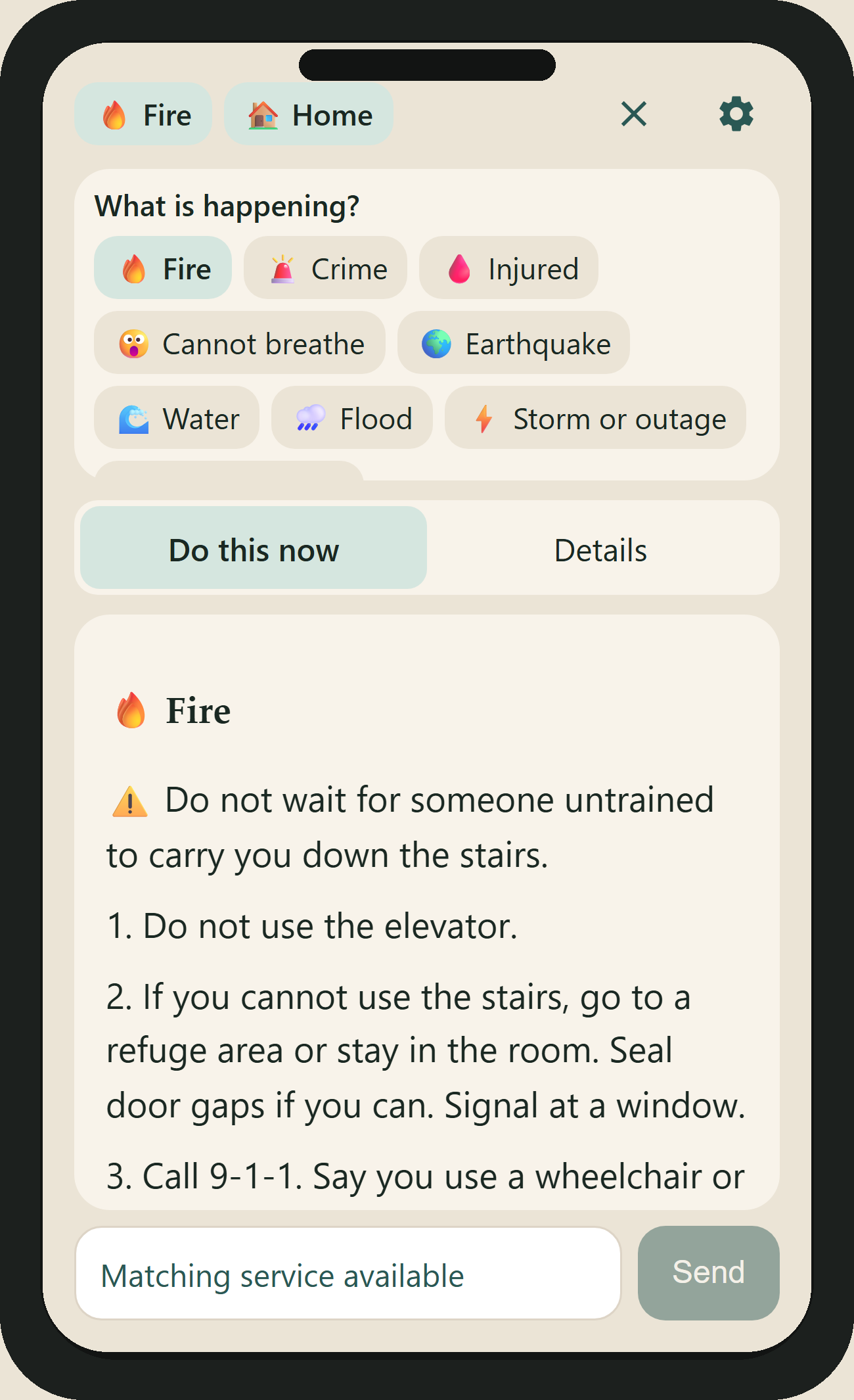
main page
-
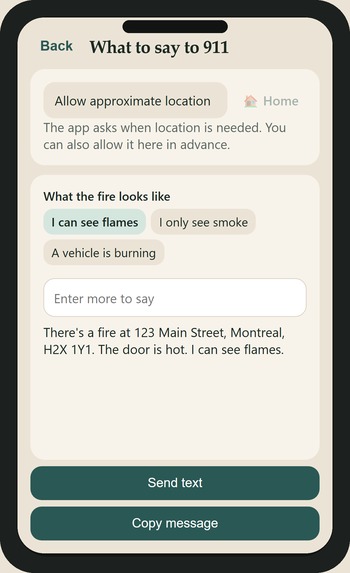
maybe send text to 911
-
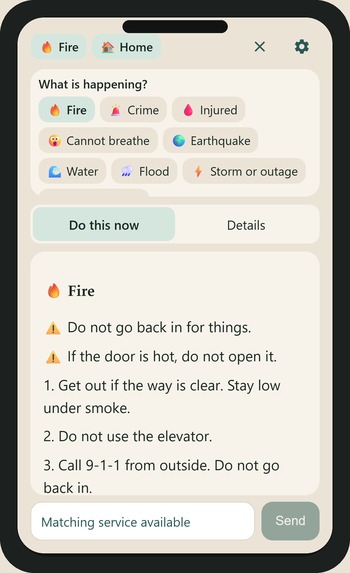
select sth
-
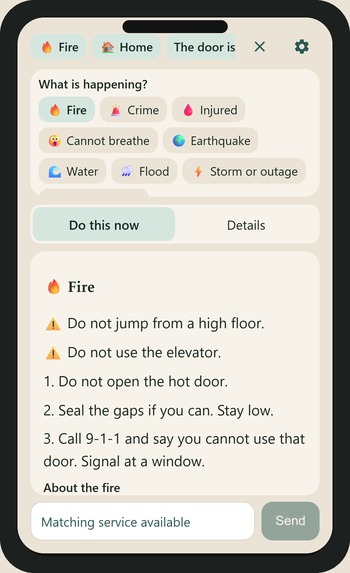
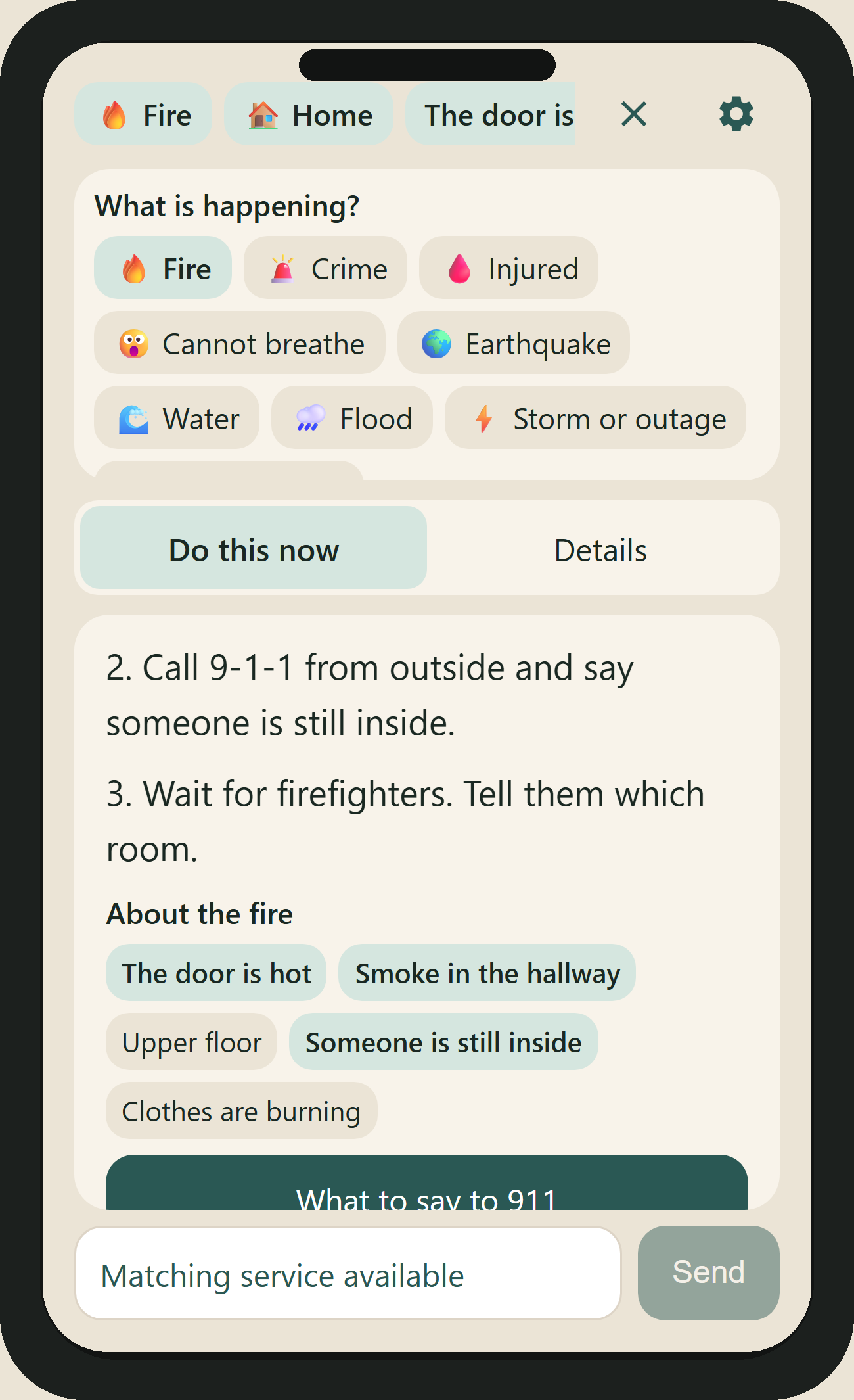
or more
-
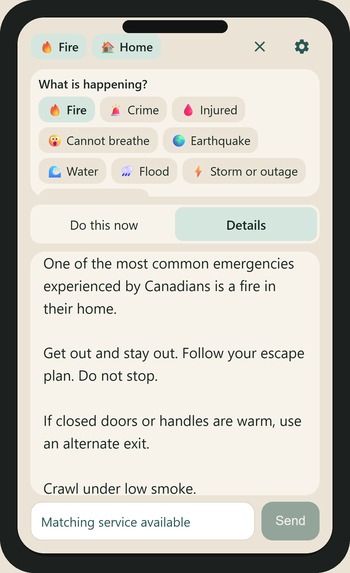
detail from proffessional website
-
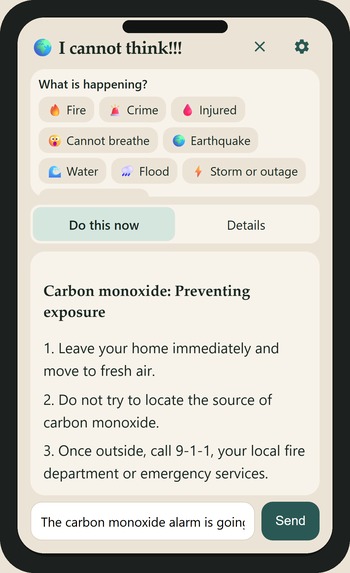
and ask ai
-
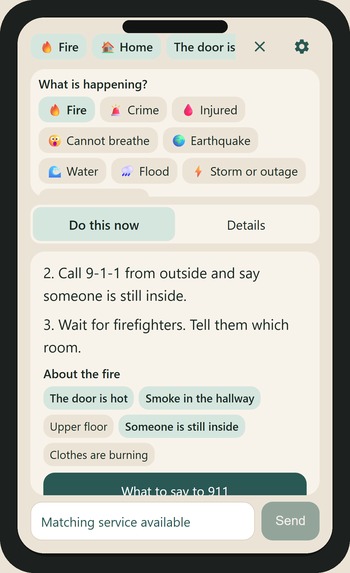
or select some detailed thing
-
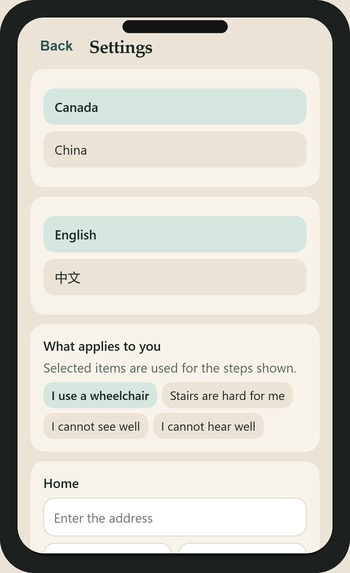
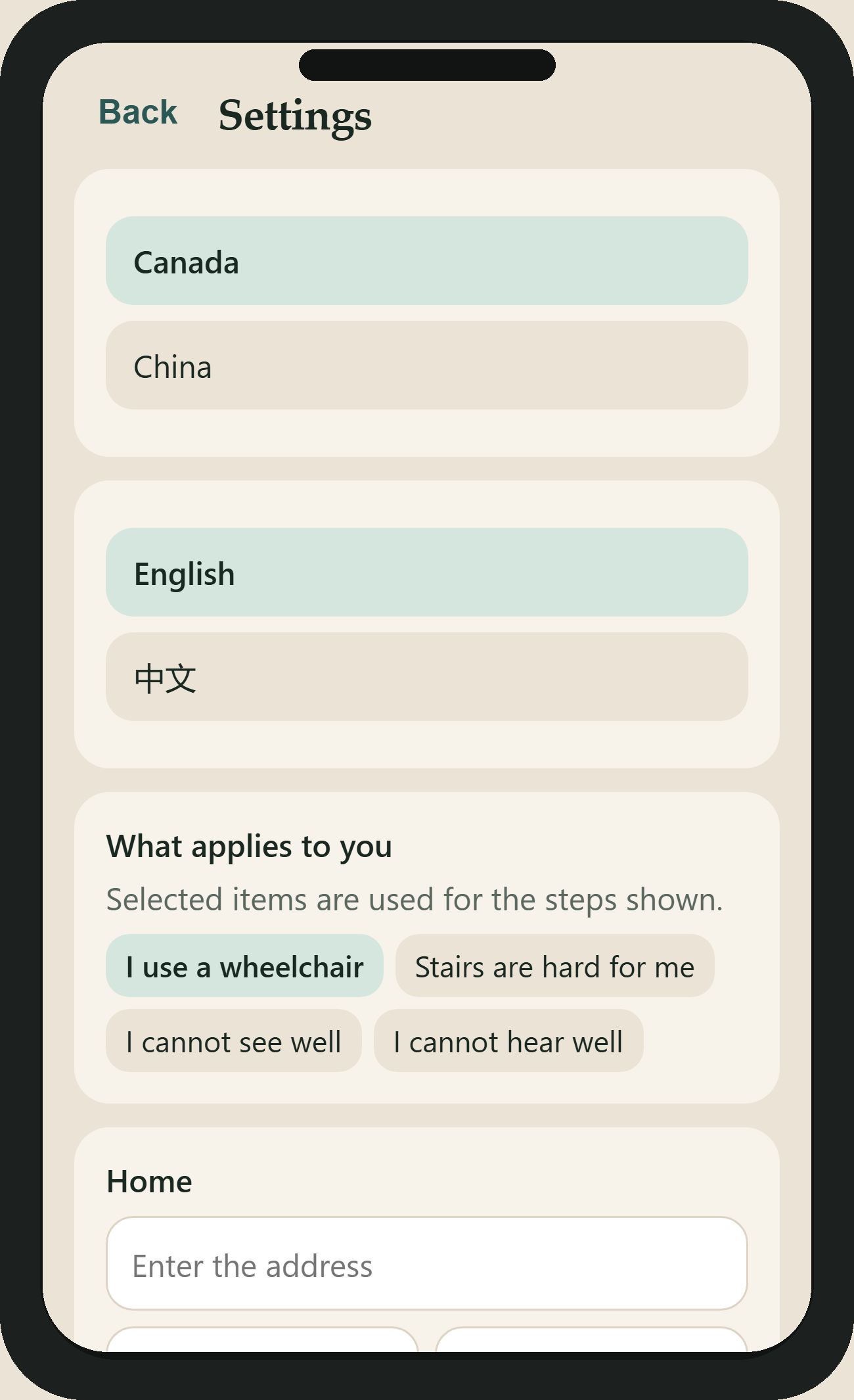
some spec opions
-
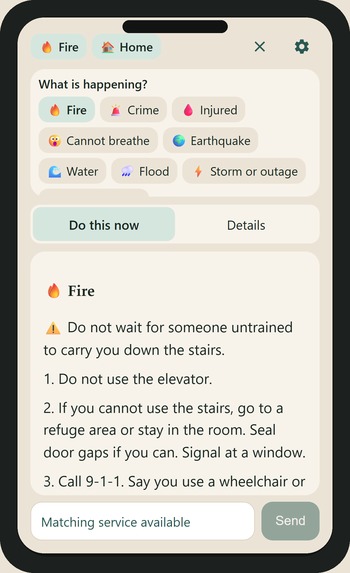
that matters
About the Project
What I Built
I built an emergency assistance app that helps users quickly find clear instructions based on what is happening and where they are, since emergency information and procedures can differ by location.
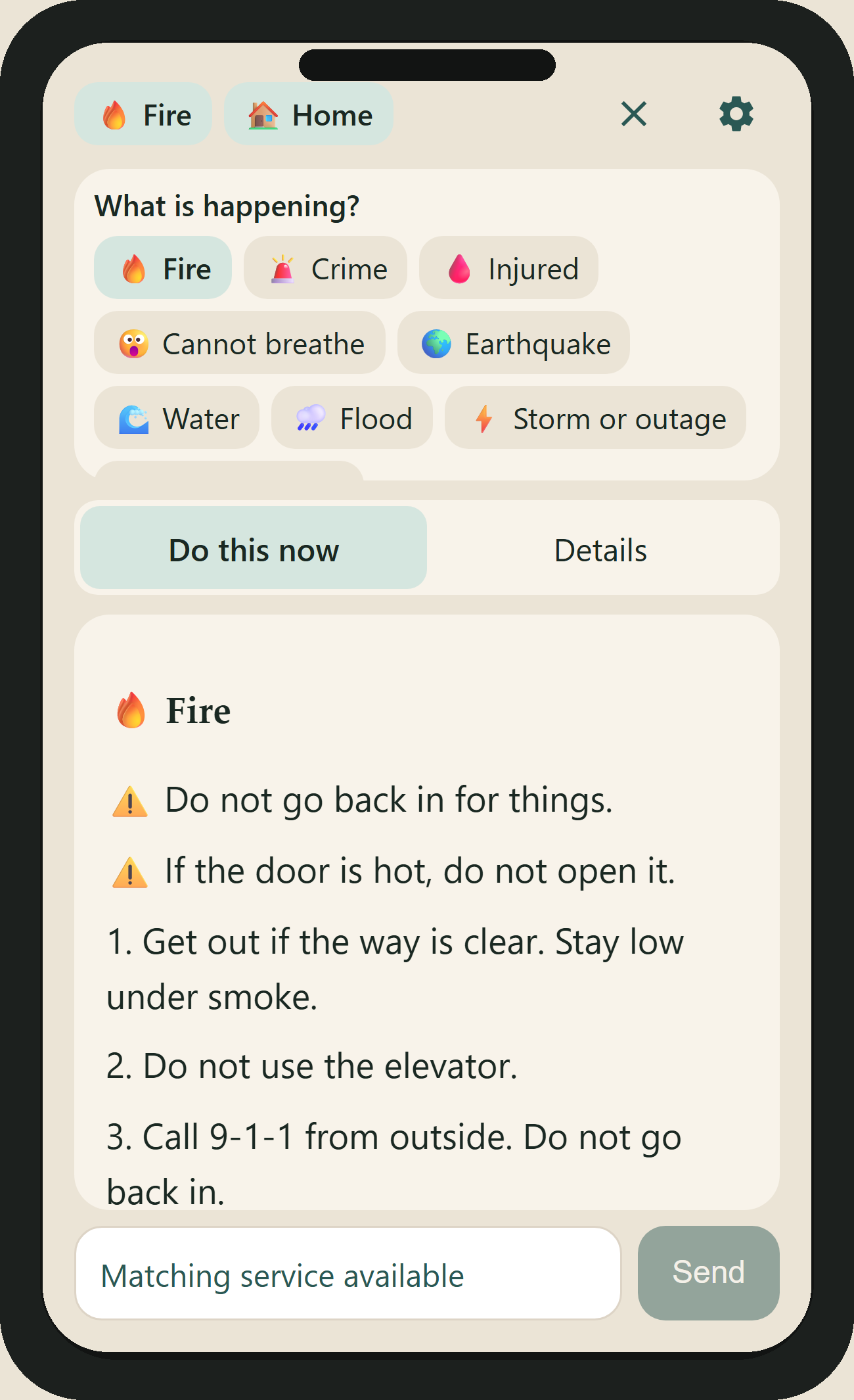
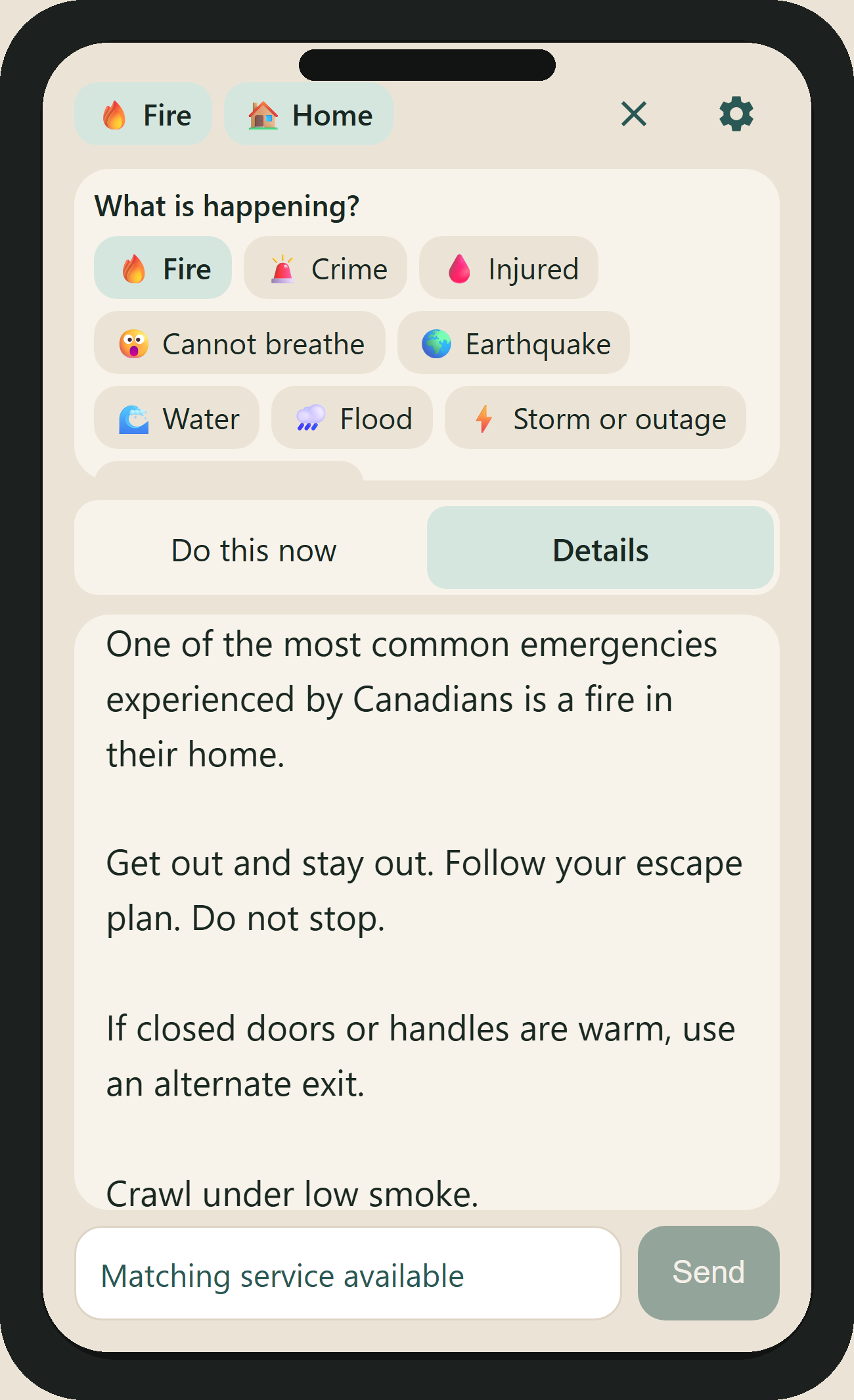
The main interaction is a filtering system. Users select their situation and location, and the app gives them a short Step version with direct instructions, as well as a more complete Detail version for users who have enough time to read more.
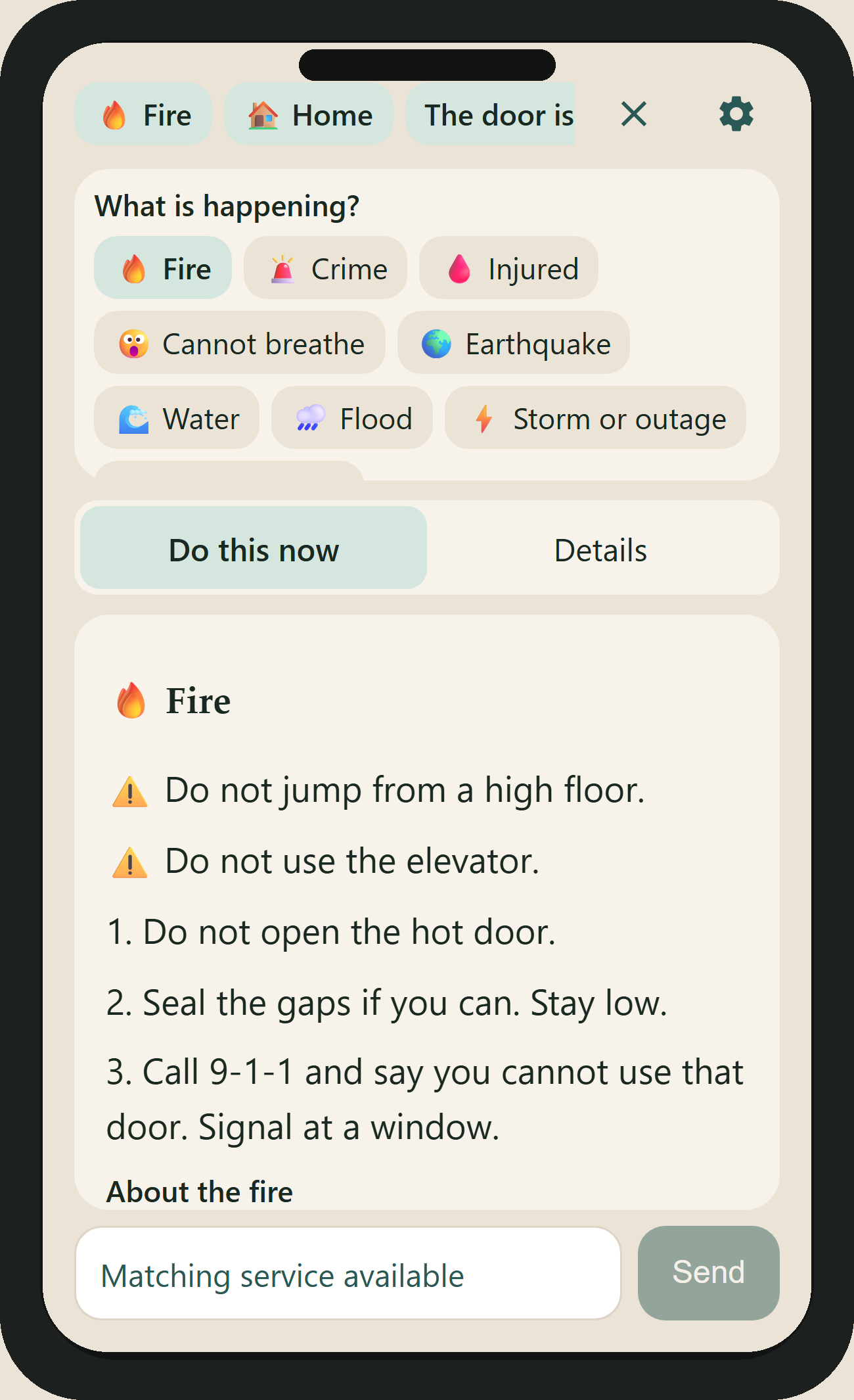
The app also supports text input. When a user has enough time to describe what is happening, AI can help understand the description, turn it into useful search terms, and retrieve relevant information from professional sources.
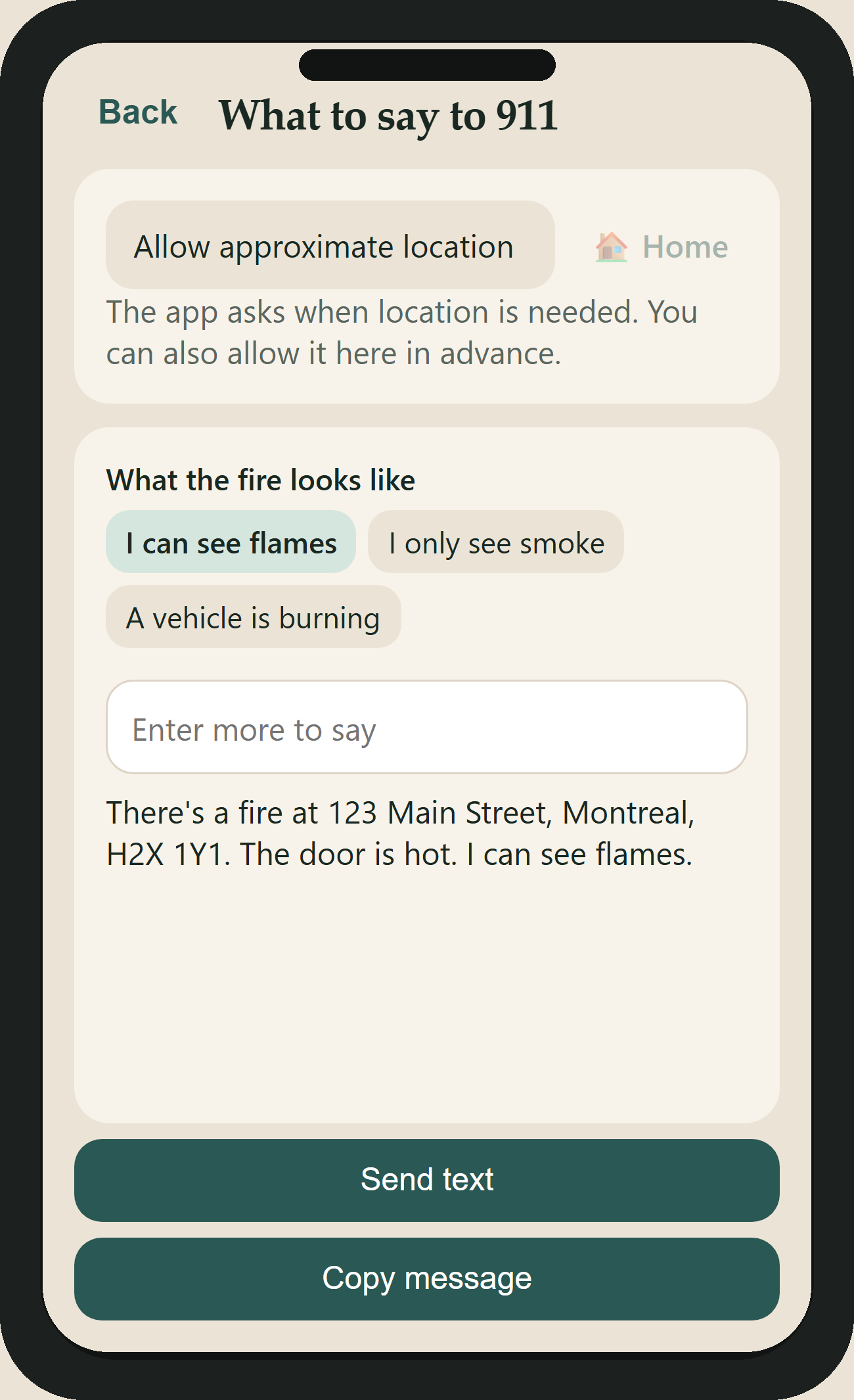
I also added a feature for emergency calls and text messages. The information used for the script can come from things the user has already set up or selected. For example, the user can save their home address in advance, or allow the app to get their current location, and the situation they selected at the beginning is already part of the information. The app can then ask a few additional simple questions that may be needed when contacting 911 and generate a short script that the user can read during a call or use in a text message.
The idea started from a simple question: What should I do when an emergency happens?
Why I Built It
Sometimes I wonder: What should I do when an emergency happens? Maybe I would not even remember the emergency number. More importantly, when I encounter a sudden emergency, I may have trouble thinking of information that I normally know.
I once saw an interesting test in an online video. One person played a monster slowly walking behind another person, while the other person had to unlock a door and get inside. Unlocking a door is normally a very simple action, but under pressure, many people could not do it. This is a very normal response: when the brain is under stress, it becomes much harder to make clear decisions.
So imagine a fire. It is already in front of you, and you need to take out your phone, open Google, search for what to do in a fire, find the right information, then realize that you live in a high-rise building and need to find the section about high floors. Then you discover that you do not have the recommended equipment and need to search again for an alternative.
Most emergency information is useful educational content under normal circumstances. But during a crisis, it can feel like looking for one specific leaf in a dense forest.
What people need at that moment is a clear instruction.
Instead of asking someone to read a long article, the app could simply tell them: Go to the bathroom and get a towel. If you don't have one, look for this alternative.
A direct instruction that can be followed step by step may help people regain a sense of order. As they gradually calm down, they can start thinking more clearly about the situation in front of them.
The same problem can happen when contacting emergency services. Someone might only be able to say a few fragmented words and only after hanging up realize that they forgot important information.
Maybe a script could help with that.
That was the starting point of the project. I wanted to make an app for myself, and hopefully it could also be useful for other people who have the same problem of suddenly forgetting what they know when they become extremely stressed.
What I Wanted the App to Do
I wanted the app to be clear, easy to understand, and as little time-consuming as possible.
The important thing is not simply how much information the app provides or how comprehensive the search result is. It is how easily I can get the information I actually need.
If I can immediately get one useful instruction, that may help me more than receiving a complete search result.
My initial design therefore uses combinations of quick selections to provide two levels of information:
- Step: a short, direct version for someone currently dealing with an emergency.
- Detail: a more complete version for someone who has enough time to read and understand more information.
I also wanted the filtering and the resulting information to stay on the same page. If they were placed on separate pages, I could easily click the wrong option while stressed and then have to repeatedly go back, wasting time. Keeping them together means I can simply select an option and immediately see the relevant result.
I also added some information that can be prepared before an emergency happens.
For example, users can set accessibility-related information in advance, such as having difficulty using stairs or using a wheelchair. When the user selects an emergency situation, the Step instructions can take these settings into account and provide a corresponding suggestion instead of giving everyone exactly the same instruction.
This is useful because these are not necessarily things I would be able to explain or configure while an emergency is already happening.
Offline First
For an emergency app, offline access is a basic requirement. Many emergency situations may happen without a reliable internet connection, so the core functionality needs to work without a network.
The built-in emergency information is therefore stored locally.
This also affected how I thought about AI. I considered whether I could deploy AI locally, since local AI is also something I have been exploring personally. However, if a lightweight mobile app needs to carry a 4 GB AI model just to support this feature, it becomes much less practical.
And in an emergency, people are usually going to have their phone with them rather than a computer, so this needs to be a mobile app.
That means AI can be useful when the user has enough time and an internet connection, but it should not be required for the core emergency functionality.
Using AI and Professional Information
I also do not think AI should directly generate emergency instructions. Even if we can ask an AI model for advice in a dangerous situation, the response is uncertain, and that is something I have to consider when designing the system.
Instead, I needed professional sources for the actual emergency information.
I searched for usable APIs and found resources from the Canadian government and the Red Cross. For this version, I focused on Canada and China because these are the countries I am most familiar with. In the future, other countries could be added.
The role of AI is to help with understanding, retrieving, and shortening the information, rather than inventing the advice itself.
If the user types a description of what is happening, AI can understand the description and turn it into useful search terms. The app can then use those terms to retrieve professional information through an API and turn the relevant result into more concise information for the user.
The API work was also more complicated than I initially expected. In some cases, the API basically gave me the entire webpage. I had to go through the returned content myself, find the parts that were actually useful, and decide how to divide and structure them.
For the most urgent situations, the app still mainly uses the offline built-in version. Even if an AI API can retrieve the correct information, the response may simply be too slow when I need an answer immediately.
I can also consider using AI to help process some of the built-in content in batches, although the current content is based on the situations I have thought of so far and may not be comprehensive.
Emergency Calls and Messages
Most emergency situations eventually lead to contacting emergency services, but I started wondering whether simply providing a Call button was enough.
If I call 911 and say, “There is a fire,” what else do I need to provide?
Where am I? What is happening? How serious is it? Is anyone injured?
Some of this information can already be prepared before the emergency. For example, the user can set their home address in advance, or the app can get their current location. The situation selected at the beginning of the process is also already available.
So while the user is going through the normal emergency filtering process, the app can collect the information that is already available and then ask a few additional simple questions that may be useful to 911.
It can then generate a short script from that information.
The user can read the script when making the call or use it as an emergency text message.
This came from thinking about what I would personally write in an emergency text. I might know that I need help, but I might not know which information is important enough to include.
By preparing the information through the selections and a few small questions, I can get a usable message without having to organize everything myself while under stress.
Choosing the Technology
Once I had the main interaction designed, the first implementation question was: What should I build it with?
I have mainly worked on web apps before. One thing I like about web apps is that they can be opened directly on Android, iOS, and computers, so they are very convenient.
But I noticed a problem with using a web app for this particular project: opening it takes time.
I looked into this because a web app depends on a browser or WebView, and it can typically take around 1.5–3 seconds to start. A native Android SDK application can start in roughly 200–500 ms.
For a normal application, that difference may not matter much. For an emergency application, I thought it was worth considering.
A web app is convenient, but in an emergency the user may not have a network connection, and having a native application that can be opened directly and quickly makes more sense.
I also do not have an iOS testing device, so I decided to build the Android version first, with iOS as a possible future direction.
Building the Android Front End
I had used Kotlin before, but only for relatively simple projects. I had not really worked on Android front-end development with it.
For this hackathon, I decided to challenge myself with a native Android app because I wanted more control over the actual front-end experience and the clarity of the interface.
With AI assistance, I learned more of the Kotlin and Android development workflow. Kotlin was also an interesting challenge because it was different from the simple Kotlin projects I had done before, especially once I started dealing with the actual Android front end.
The implementation has been quite a bit of work. Kotlin and Android development itself was a challenge, and the front end requires a lot of manual adjustment.
AI-assisted coding helped me get started and solve implementation problems, but I cannot simply rely on the generated UI.
I have to keep testing and adjusting the actual application myself, including click behavior, refreshing, scrolling, spacing, text layout, component positioning, and overall screen organization.
These are very common problems when generating Android front ends with AI, and they still need to be tested and adjusted manually.
I am still adjusting the front end now. The goal is to make the actual interaction clear rather than just making the code technically work.
The API content also required manual work. Since the API could return an entire webpage, I had to find the useful content myself and decide how to divide it into the short Step version and the more complete Detail version.
What I Learned
This project taught me the Kotlin and native Android development workflow, and gave me much more experience with Android front-end development than my previous Kotlin projects.
It also made me think more about choosing the appropriate technology and type of content for each situation.
For example, I chose native Android SDK because fast startup and offline access fit this particular use case. I kept urgent information locally available, while AI and professional APIs are used when the user has enough time and a network connection.
I also learned that I should make use of the strengths of the content and technology available to me, rather than simply choosing everything based on what I personally already know.
And when AI-assisted development makes implementation easier, I find myself paying more attention to the user's actual experience. AI can help me implement a front end, but I still need to test it myself, adjust the details, and decide whether the interface actually feels right.
I started this project because I wanted something that would help me in a situation where I might not be able to think clearly. If it also happens to be useful to people who have the same problem, that is a good result.
Built With
- andoird-studio
- api
- cursor
- kotlin


Log in or sign up for Devpost to join the conversation.