-
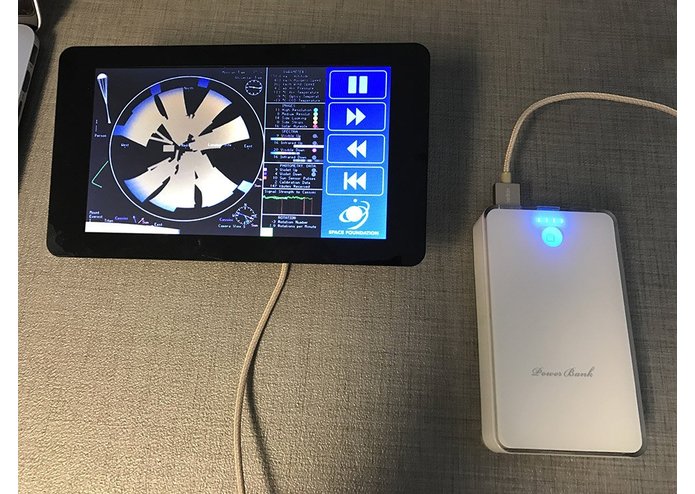
Huygens Probe kiosk running on Raspberry Pi (battery test)
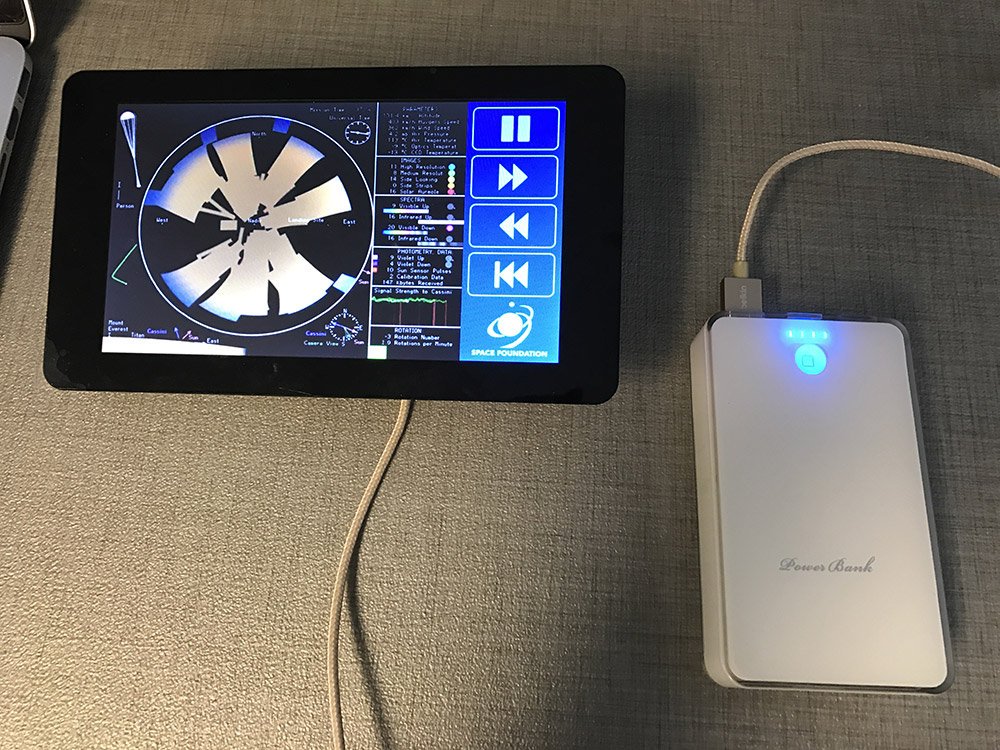
Raspberry Pi: Huygens Probe Titan Landing Video Kiosk

Developed for the Space Foundation Discovery Center, this touch screen kiosk features a full-screen video presentation of the Huygens Probe Titan landing on January 14, 2005.

The video was provided courtesy of Erich Karkoschka, University of Arizona, the DISR Team, NASA and ESA, converted for use in this kiosk project. Copyright 2016 University of Arizona. The video files have been included in this repository for your convenience, but are not included as part of the license of this project.
Designed for use with a Raspberry Pi and a touchscreen, the interface allows for playback, pause, skipping and rewinding of the video. Following the setup instructions below, the Pi will auto-launch the kiosk web page full-screen in Chromium once booted. No internet connection is required for this offline display once setup.
NOTE: This readme file is still a wok-in-progress. Post an issue if there are questions!
Ingredients
- Raspberry Pi 2B or 3 (tested with a 3B)
- Raspberry Pi Touch Display
- 10 speed micro sd card
- Power supply
Raspberry Pi Hardware Setup
See Raspberry Pi Touch Display instructions. Here's a video tutorial.
Install Raspbian with PIXEL
Install Raspbian Jessie with PIXEL (or the latest Raspbian) to Micro SD Card (installed via a Mac in this example). See additional installation guidelines here.
Download Raspbian .zip at https://www.raspberrypi.org/downloads/ and unzip.
Insert the disk that will be used the Pi (via USB or disk port [update with proper names]) In terminal:
diskutil list
/dev/disk0
   #:                       TYPE NAME                    SIZE       IDENTIFIER
   0:      GUID_partition_scheme                        *500.3 GB   disk0
   1:                        EFI EFI                     209.7 MB   disk0s1
   2:                  Apple_HFS Macintosh HD            249.0 GB   disk0s2
   3:                 Apple_Boot Recovery HD             650.0 MB   disk0s3
   4:       Microsoft Basic Data
Then insert disk to format and compare:
diskutil list
/dev/disk0
   #:                       TYPE NAME                    SIZE       IDENTIFIER
   0:      GUID_partition_scheme                        *500.3 GB   disk0
   1:                        EFI EFI                     209.7 MB   disk0s1
   2:                  Apple_HFS Macintosh HD            249.0 GB   disk0s2
   3:                 Apple_Boot Recovery HD             650.0 MB   disk0s3
   4:       Microsoft Basic Data                         130.1 GB   disk0s4
/dev/disk2
   #:                       TYPE NAME                    SIZE       IDENTIFIER
   0:     FDisk_partition_scheme                        *15.6 GB    disk2
   1:             Windows_FAT_32 boot                    58.7 MB    disk2s1
   2:                      Linux                         7.8 GB     disk2s2
disk2 is the inserted disk in this case.
Unmount that disk (change “2” to inserted disk!):
diskutil unmountDisk /dev/disk2
Burn image to disk (change “2” to inserted disk, and update .img name/location):
sudo dd bs=4m if=~/Downloads/2017-01-11-raspbian-jessie.img of=/dev/disk2
Wait a very long time. Go make some coffee. Eat a snack (or even dinner). Go for a walk. Start watching a fascinating documentary. Don’t interrupt the process. ;)
Tip: If you want to see what it’s doing, enter control+t in the terminal. It will give a quick line like “load: 2.73 cmd: dd 3344 uninterruptible 0.00u 5.27s”, then follow up after a short while with something like this:
115+0 records in
114+0 records out
478150656 bytes transferred in 10703.183951 secs (44674 bytes/sec)
Just let it run.
When finished, eject the disk from Mac (it will get mounted as “boot”), and insert it into the Pi. Plug in a USB keyboard, USB mouse, then turn on the Pi by plugging in its power cord. The Pi should boot, working with the Pi touchscreen right away.
Configure Raspbian
Configure the Pi with raspi-config
Open the Terminal, then:
sudo raspi-config
Expand the filesystem to fill the micro-sd card, so that it can fit the Huygens landing video. Choose "1 Expand Filesystem", then "" when finished.
It's important to change the password for security purposes. Choose "2 Change User Password", then "", then follow the prompts.
Move to the advanced options screen. Choose "7 Advanced Options".
Change the hostname to something other than raspberrypi if connecting to the network (your IT team will thank you). Choose "A2 Hostname", then enter a new name that describes this Pi e.g. "huygens-probe-kiosk".
Force audio to use the headphone jack as the Huygens probe landing video has great sound. Choose "A9 Audio", then "1 Force 3.5mm ('headphone') jack". Select "".
Go back to the main screen and select "", then choose "" to reboot.
Transfer Kiosk Files To the Pi (needs tested)
Ensure the Pi is plugged into an internet-connected ethernet cable.
Install Git to clone this repository to the Pi:
sudo apt-get install git-all
Clone the repository:
cd ~/
git clone https://github.com/owntheweb/huygens-pi-kiosk.git
Auto-Launch Huygens Kiosk Once Booted
Make the kiosk hassle free by auto-launching Chromium full-screen in kiosk mode after the Pi has booted.
In the Pi terminal, open the autostart options file for edits:
sudo nano /home/pi/.config/lxsession/LXDE-pi/autostart
Delete or comment out all lines shown, then add:
#@xscreensaver -no-splash #remove the starting "#" if you wish this kiosk to start a screensaver if not interacted with for a while
@xset s off
@xset -dpms
@xset s noblank
@chromium-browser --incognito --kiosk file:///home/pi/huygens-pi-kiosk/index.html
Type Ctrl+X to close and hit return to save.
Reboot to see the results:
sudo shutdown -h now
Recovery Plan
After confirming all works well, make a backup of the Pi image for faster recovery if the disk becomes corrupt (a common eventuality, especially without a safe shutdown).
Remove the disk from the Pi and insert to a computer (Mac in this case).
Find the inserted disk (see top instructions for details in identifying):
diskutil list
Unmount the disk (disk2 in this example):
diskutil unmountDisk /dev/disk2
Save a local image of the disk:
sudo dd if=/dev/rdisk2 of=~/Desktop/huygensProbeKiosk.dmg bs=4m
Enter your desktop login password if prompted for it.
Wait for a while. Go for a walk. When finished, save the .img file where it can be found again months later.
After all is complete, eject the "boot" drive in Mac OS, take out the SD card,
Recover or Replicate Kiosk Image
Insert a disk to the Mac. Then, look under NAME and SIZE to verify correct volume.
diskutil list
Unmount the correct volume (make sure to edit the following to match):
diskutil unmountDisk /dev/disk2
Format the SD card as FAT16 (again, remember to edit the following 'disk2' to prevent a bad day).
sudo newfs_msdos -F 16 /dev/disk2
Restore/clone/transfer the image to the SD card.
sudo dd bs=4m if=~/Desktop/huygensProbeKiosk.dmg of=/dev/rdisk2
OPTIONAL: Enable USB Audio
The Space Foundation's version of this kiosk uses a small USB speaker from Adafruit, allowing it to be powered by the Pi. To enable audio output via USB, follow Adafruit's instructions here.
OPTIONAL: Install Safe Shutdown Switch
The Space Foundation's version of this kiosk uses a shutdown switch with rocker. Follow install instructions here.
Special Thanks
Special thanks goes to the Space Foundation and the Space Foundation Education team. Required hardware was provided for the development of this kiosk, along with a new team volunteer benefit that allows Space Foundation team members to allot monthly volunteer time towards a non-profit of choice (in this case same non-profit, education department).

Log in or sign up for Devpost to join the conversation.