-
-

Servo Motor Pinout
-

Servo Motor Working
-

Interfacing Arduino with Servo Motors
-

Servo Motor Hardware Overview



Description
Servo motors are indispensable in the world of robotics, automation, and hobby electronics, due to their ability to provide precise control over angular movement. Unlike traditional DC motors that rotate continuously, servo motors are designed to move to a specific angle and hold that position with accuracy and stability. This unique feature makes them important in applications ranging from robotic arms and camera gimbals to remote-controlled aircraft and intricate model systems.
In this comprehensive guide, we'll delve into the essentials of interfacing a servo motor with an Arduino Uno. We'll explore the fundamental principles behind servo motor operation, and provide step-by-step instructions for setting up and controlling a servo motor using Arduino. Additionally, we'll include practical code examples to demonstrate how you can program your Arduino to rotate the servo through every angle. Let's get started!
Overview of Servo Motor
Servo motors are widely used in robotics, automation, and control systems for their precision in motion and position control. They are small, efficient, and relatively simple to interface with microcontrollers, making them popular among hobbyists and engineers alike. Unlike regular DC motors, which rotate continuously, servo motors rotate to a specific angle and hold that position until instructed otherwise. This makes them ideal for applications where precise angular positioning is required, such as in robotic arms, automation, and model airplanes.
Servo Motor Working
The working principle of a servo motor revolves around closed-loop control, which involves feedback systems to regulate the motor's position. Here’s a simplified breakdown of its working:
Control Signal: The position of the servo motor is determined by a Pulse Width Modulated (PWM) signal, typically provided by a microcontroller like the Arduino. This signal consists of a series of pulses, with the width of each pulse determining the angle to which the servo should rotate.
DC Motor and Gearbox: Inside the servo motor, there is a small DC motor connected to a gear train. The gears reduce the speed and increase the torque, allowing for precise control over the angular position.
Feedback Mechanism: A potentiometer (variable resistor) is connected to the output shaft of the servo. This potentiometer provides a feedback voltage that varies with the shaft’s position.
Control Circuit: The control circuit compares the feedback voltage from the potentiometer with the input control signal (PWM). If there is a difference, it adjusts the motor's direction and speed to reduce this error, thus positioning the shaft correctly.
PWM Control Signal
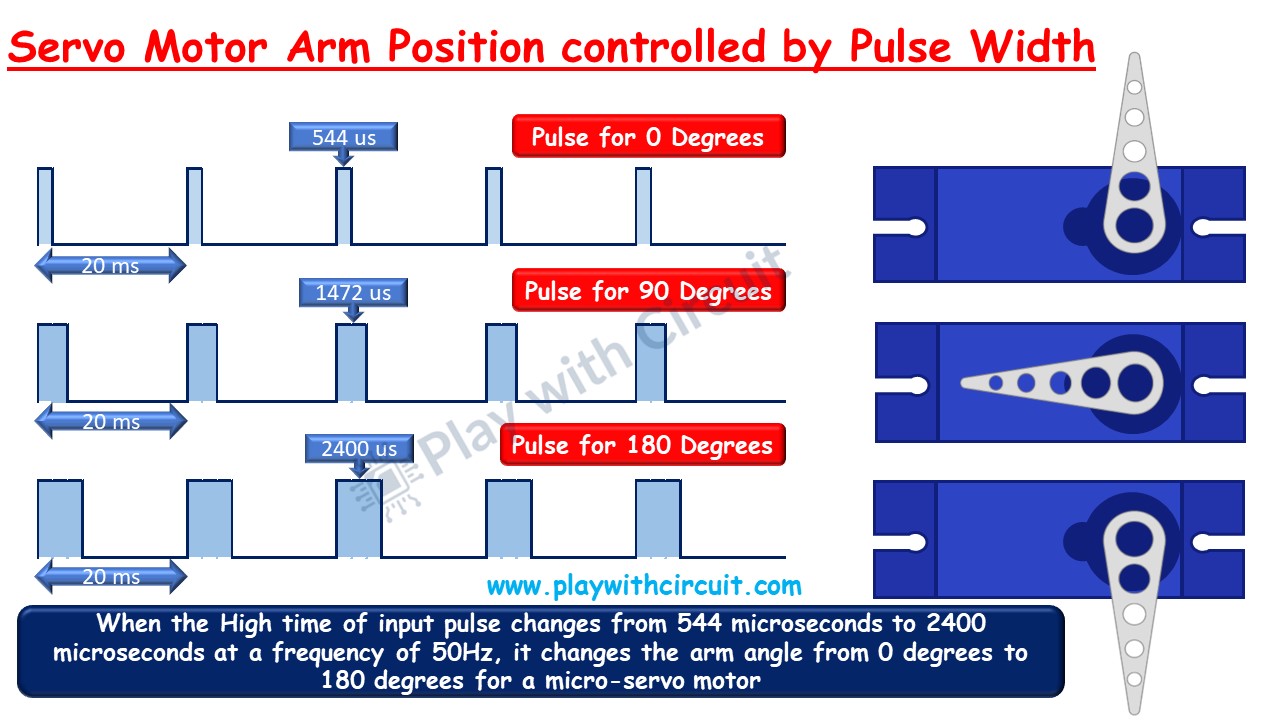
The PWM control signal typically has a frequency of 50Hz (20ms period). The position of the servo motor’s shaft is determined by the width of the pulse:
1ms Pulse Width: Positions the servo at 0 degrees. 1.5ms Pulse Width: Positions the servo at 90 degrees (neutral position). 2ms Pulse Width: Positions the servo at 180 degrees.
Intermediate pulse widths will position the servo at intermediate angles.
Servo Motor Pinout
A standard servo motor has three wires:
Power (VCC): Usually red, this wire connects to the positive supply voltage, typically 5V.
Ground (GND): Usually black or brown, this wire connects to the ground of the circuit.
Signal: Usually yellow, orange, or white, this wire carries the PWM signal from the microcontroller to control the servo position.
Interfacing Arduino with Servo Motors
Interfacing a servo motor with an Arduino Uno is straightforward thanks to the built-in Servo library, which simplifies the process of generating the necessary PWM signal.
Circuit Diagram
Connect the VCC wire of the servo to the 5V pin on the Arduino. Connect the GND wire of the servo to a GND pin on the Arduino. Connect the Signal wire of the servo to one of the PWM-capable digital pins on the Arduino pin 9. Codes To control the servo motor, we’ll use the Arduino Servo library, which abstracts the complexities of generating the PWM signal.

Log in or sign up for Devpost to join the conversation.