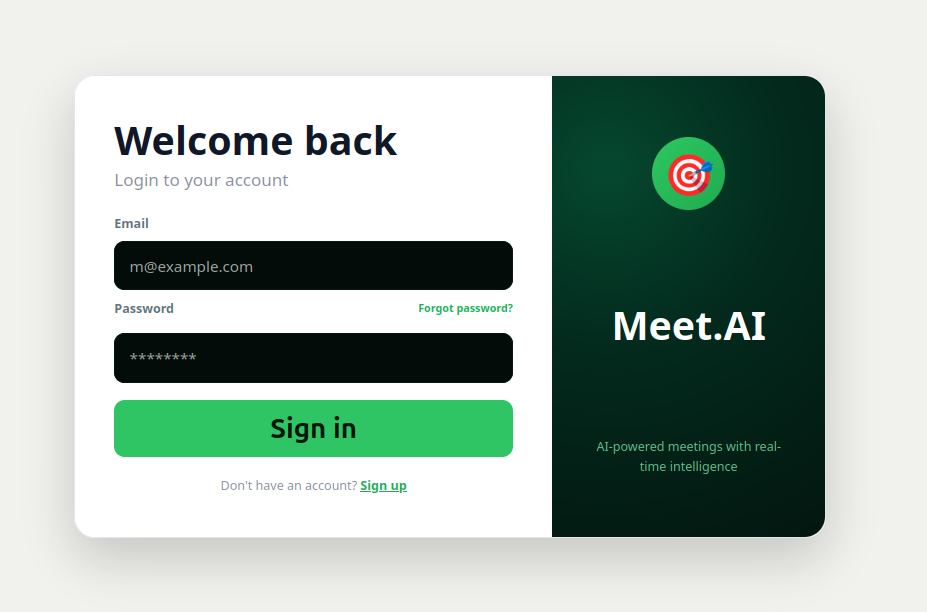
Meet AI
AI-powered meeting platform built with Python (FastAPI) and Jitsi, with optional OpenAI intelligence, Supabase-backed email verification auth, transcripts, summaries, semantic search, and Razorpay billing scaffolding.
What is implemented
- FastAPI backend with modular routers
- Supabase Auth-backed email/password verification with local user sync
- JWT/web cookie fallback auth when Supabase Auth is not configured
- Sidebar logout (
/logout) that clears auth cookies - Agent creation (behavior, personality, interview script)
- Meeting creation and Jitsi room embedding
- AI interviewer presence in meeting page
- Voice interview mode:
- AI asks question by voice
- user answers by mic
- primary mode uses browser speech recognition
- fallback mode records mic chunks and transcribes on server (
/transcripts/transcribe) - continuous listening with pause-based turn detection
- interruption support so the assistant can stop speaking when the user starts speaking again
- AI responds by voice
- Live transcript auto-save during interview
- Post-meeting summary generation with in-app background tasks
- Rolling in-meeting summary refresh (
/meetings/{id}/summary/refresh) - Embedding-based transcript search
- Live meeting Q&A from transcript memory (
/meetings/{id}/qa) - In-meeting transcript filter/search bar (toolbar search)
- Memory page shows transcript-line counts per meeting and warns when selected meeting has no transcript data
- Memory Q&A fallback can answer from recent transcript text when embedding rows are unavailable
- Razorpay webhook scaffolding and plan model
- LangGraph-Powered Agents: Interview flow is managed by a stateful graph for better follow-ups and script tracking.
- LangSmith Tracing: Built-in observability for all AI interactions (Chat, Summaries, RAG).
- React frontend scaffold (
frontend/) for API-driven flow
Tech stack
- Backend: FastAPI, SQLAlchemy, Jinja templates
- Frontend: React (Vite) + meeting web page template
- DB: SQLite (default local) or PostgreSQL
- Video: Jitsi (
meet.jit.si) - AI & Agents:
- LangChain & LangGraph (agentic workflows)
- LangSmith (observability and tracing)
- OpenAI SDK (chat/embeddings/audio) with support for OpenAI-compatible providers
Environment setup
Copy env and edit values:
cp .env.example .env
Important keys:
OPENAI_API_KEY: set this to use OpenAI for live interview intelligenceOPENAI_BASE_URL(optional): point the OpenAI SDK at an OpenAI-compatible provider (OpenRouter, Groq, Together, local, etc.)OPENAI_DEFAULT_HEADERS_JSON(optional): JSON object string of headers forwarded to the OpenAI SDK (useful for OpenRouter attribution)OPENAI_CHAT_MAX_TOKENS(optional): caps chat reply length (default260)OPENAI_TRANSCRIPTION_MODEL(optional): audio transcription model (defaultwhisper-1)DATABASE_URL: default local is SQLite (sqlite:///./ai_meeting_v2.db)AUTO_CREATE_TABLES=true: easiest local modeFRONTEND_ORIGIN=http://localhost:5173: frontend/main-site URL used after email confirmationAPP_BASE_URL: backend/base app URL used for local/dev/prod routing and fallback redirectsSUPABASE_URL+SUPABASE_ANON_KEY: enable Supabase Auth for signup/login/email verificationGOOGLE_CLIENT_ID+GOOGLE_CLIENT_SECRET: enable Google OAuth loginGITHUB_CLIENT_ID+GITHUB_CLIENT_SECRET: enable GitHub OAuth loginLANGCHAIN_TRACING_V2: set totrueto enable LangSmith tracingLANGCHAIN_API_KEY: your LangSmith API keyLANGCHAIN_PROJECT: LangSmith project name (defaultmeet-ai)PASSWORD_RESET_EXPIRE_MINUTES(optional): local-auth password reset link lifetime, default60
Auth mode
Recommended:
- Set
SUPABASE_URL - Set
SUPABASE_ANON_KEY - In Supabase Auth settings, set
Site URLto your app URL - Add your app URL to Supabase redirect URLs
When Supabase Auth is configured:
- sign up and login use Supabase Auth
- verification emails are sent by Supabase
- password reset emails are sent by Supabase and redirect back to
/reset-password - after email confirmation, users are redirected to
FRONTEND_ORIGINfirst, orAPP_BASE_URLifFRONTEND_ORIGINis empty - the app still syncs a local
usersrow for meetings, agents, billing, and ownership
When Supabase Auth is not configured:
- the app falls back to the older local auth flow
- forgot/reset password works through the app's own SMTP-based email flow
- email verification is not handled by Supabase, so production signup verification is not recommended in that mode
OpenAI Mode (recommended)
Set in .env:
OPENAI_API_KEY=sk-...- Optional (OpenAI-compatible providers):
OPENAI_BASE_URL=https://openrouter.ai/api/v1OPENAI_DEFAULT_HEADERS_JSON={"HTTP-Referer":"http://localhost:8001","X-Title":"Meet AI"}
When set, these features run on OpenAI:
- interview Q&A responses
- summaries
- embeddings-based search
- whisper transcription endpoint (
/meetings/{id}/transcripts/transcribe)
Note: If you use a third-party OpenAI-compatible provider, chat/summaries usually work. Embeddings and audio transcription depend on the provider.
Mic + transcription notes
- The meeting page now prefers browser speech recognition first when supported.
- If browser speech recognition is unavailable or fails, the app falls back to server transcription via MediaRecorder →
/meetings/{id}/transcripts/transcribewhenOPENAI_API_KEYis set. - For best results, use Chrome or Edge and allow microphone permissions.
- The meeting page keeps listening continuously, waits for a pause before sending your utterance, and can interrupt AI speech when you start speaking again.
- If you use an OpenAI-compatible provider, audio transcription may be unsupported even if chat works.
Optional fallback mode
If OPENAI_API_KEY is empty, the app still runs with local fallback logic for interview/summaries/search.
Razorpay Billing (Mandatory for subscription flow)
Set in .env:
RAZORPAY_KEY_ID=rzp_...RAZORPAY_KEY_SECRET=...RAZORPAY_WEBHOOK_SECRET=...- Important: Your Razorpay Webhook URL in the Razorpay dashboard must be set to
https://your-app.onrender.com/billing/webhook.
Local run (recommended first)
source venv/bin/activate
pip install -r requirements.txt
python -m uvicorn app.main:app --reload --host 127.0.0.1 --port 8001
Open:
http://localhost:8001/healthhttp://localhost:8001/login
Important: set APP_BASE_URL=http://localhost:8001 in .env when running on port 8001, and add http://localhost:8001/login to Supabase Auth redirect URLs if you are testing email verification locally.
Email verification redirect:
- After verification, users are redirected to
FRONTEND_ORIGIN(orAPP_BASE_URL) with/?verified=1. - If you are not running a separate frontend locally, set
FRONTEND_ORIGIN=http://localhost:8001so verification returns to the same site.
Optional React frontend
cd frontend
cp .env.example .env
npm install
npm run dev
Open: http://localhost:5173
Optional migration flow (Alembic)
PYTHONPATH=. alembic upgrade head
Email verification fields were added in migration 20260309_01, so run migrations if you already have an existing local DB. The local users table is still used even with Supabase Auth, because the app stores ownership and plan data there.
Password reset fields were added in migration 20260423_01.
Troubleshooting migrations
If you previously started the app with AUTO_CREATE_TABLES=true on the same database and later enabled Alembic migrations, you may see errors like DuplicateTable: relation "users" already exists.
Fix options:
- Reset DB (simplest): delete the DB / create a fresh database, then redeploy.
- Keep existing DB: run
PYTHONPATH=. alembic stamp headonce (creates/updatesalembic_versionwithout runningCREATE TABLE), then redeploy.
Render Free note:
- Render Free does not support web shell access. The default start command uses
scripts/render_start.sh, which auto-stampsheadfor the commonDuplicateTablecase and continues boot.
Free deploy mode (single service)
This repo is configured for a free single-service deployment (no managed Redis/Postgres/worker required) using render.yaml.
Render deploy options
- Recommended (Blueprint / Python service): use
render.yaml. No Docker setup is required. - Docker service: Render will build using
Dockerfile. If you created a Docker service earlier, keepDockerfilein the repo or switch the service to the Blueprint/Python flow.
Quick steps
- Push this repo to GitHub.
- In Render, create a new Blueprint and select this repo.
- Render will create:
meetai-web(FastAPI web service)
- Set required env vars in Render dashboard:
APP_BASE_URL= your Render web URLFRONTEND_ORIGIN= same Render web URLSUPABASE_URL= your Supabase project URLSUPABASE_ANON_KEY= your Supabase anon keyOPENAI_API_KEYRAZORPAY_KEY_IDRAZORPAY_KEY_SECRETRAZORPAY_WEBHOOK_SECRET- Optional: OAuth keys (Google/GitHub)
- Deploy.
Supabase setup for Render:
- In Supabase Auth settings, set
Site URLto your Render app URL. - Add both
https://your-app.onrender.comANDhttps://your-app.onrender.com/reset-passwordto Redirect URLs. - Database Configuration:
- Use the Supabase Connection Pooler (Port
6543) for Render deployments. - Set
DATABASE_URLin Render to:postgresql://postgres.YOUR_PROJECT_ID:YOUR_PASSWORD@aws-0-YOUR_REGION.pooler.supabase.com:6543/postgres?sslmode=require - Important: If your password contains special characters like
@, you must URL-encode them (e.g.,@becomes%40). - Important: Do not use double quotes
"around environment variable values in the Render dashboard.
- Use the Supabase Connection Pooler (Port
- No SMTP, Redis, or Celery setup is required for the current default deployment path.
Start command used
- Web:
PYTHONPATH=. gunicorn -k uvicorn.workers.UvicornWorker -w 2 -b 0.0.0.0:$PORT app.main:app
You can reuse this from Procfile on other PaaS platforms as well.
How to test interview quickly
- Sign up and login at
/login - Use
Forgot password?on/loginif you want to test the recovery flow - Create agent with an
interview_script - Start meeting from dashboard
- Click
Start Interview - Click
Enable Camera & Mic - Click
Start Micand speak - Watch mic state text (
Listening...,Listening: ..., orProcessing...) - Pause briefly and wait for the AI reply
- AI asks/replies by voice
- Use top toolbar search in meeting page to filter transcript lines
- Use sidebar
Logoutto sign out - Check transcript list (auto-saves both sides)
- Click
Refreshunder Rolling Summary - Ask a question in
Ask Meeting Memory
Inviting guests
Each meeting page has Copy Invite Link, which shares a /join/{invite_token} URL.
Notes:
- On local dev (
127.0.0.1), invite links only work for someone who can reach your machine. - On Render (HTTPS), the invite link is public and can be opened by anyone with the URL.
Verify OpenAI is active
- Set
OPENAI_API_KEYin.env - Restart backend
- Start interview and ask a follow-up
- If responses feel dynamic/contextual, OpenAI mode is active
Performance notes
- Chat over WebSocket sends only the most recent context (last ~16 messages) to keep responses fast.
- Transcript embeddings are computed in a background task so saving a transcript line stays fast.
Current limitation
- The AI icon/tile in Jitsi is simulated via in-page/hidden client behavior.
- A fully independent media-stream bot participant in Jitsi requires self-hosted Jitsi bot infrastructure.
- Free single-service mode uses SQLite filesystem storage; data persistence may reset depending on host platform policy.
Built With
- agent
- ai
- backend
- database
- fastapi
- frontend
- gunicorn
- jitsi
- langchain
- langgraph
- langsmith
- openai
- openai-compatible
- production
- razorpay
- react
- sqlalchemy
- supabase
- uvicorn
- vite

Log in or sign up for Devpost to join the conversation.