-
-
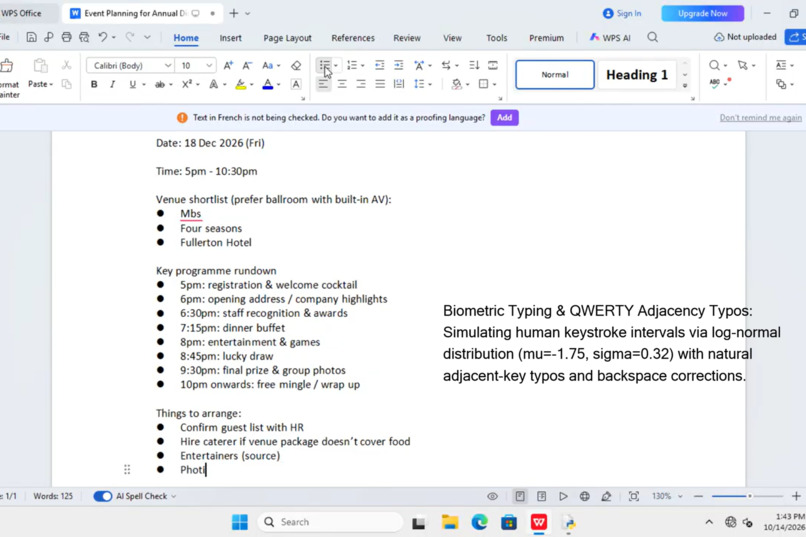
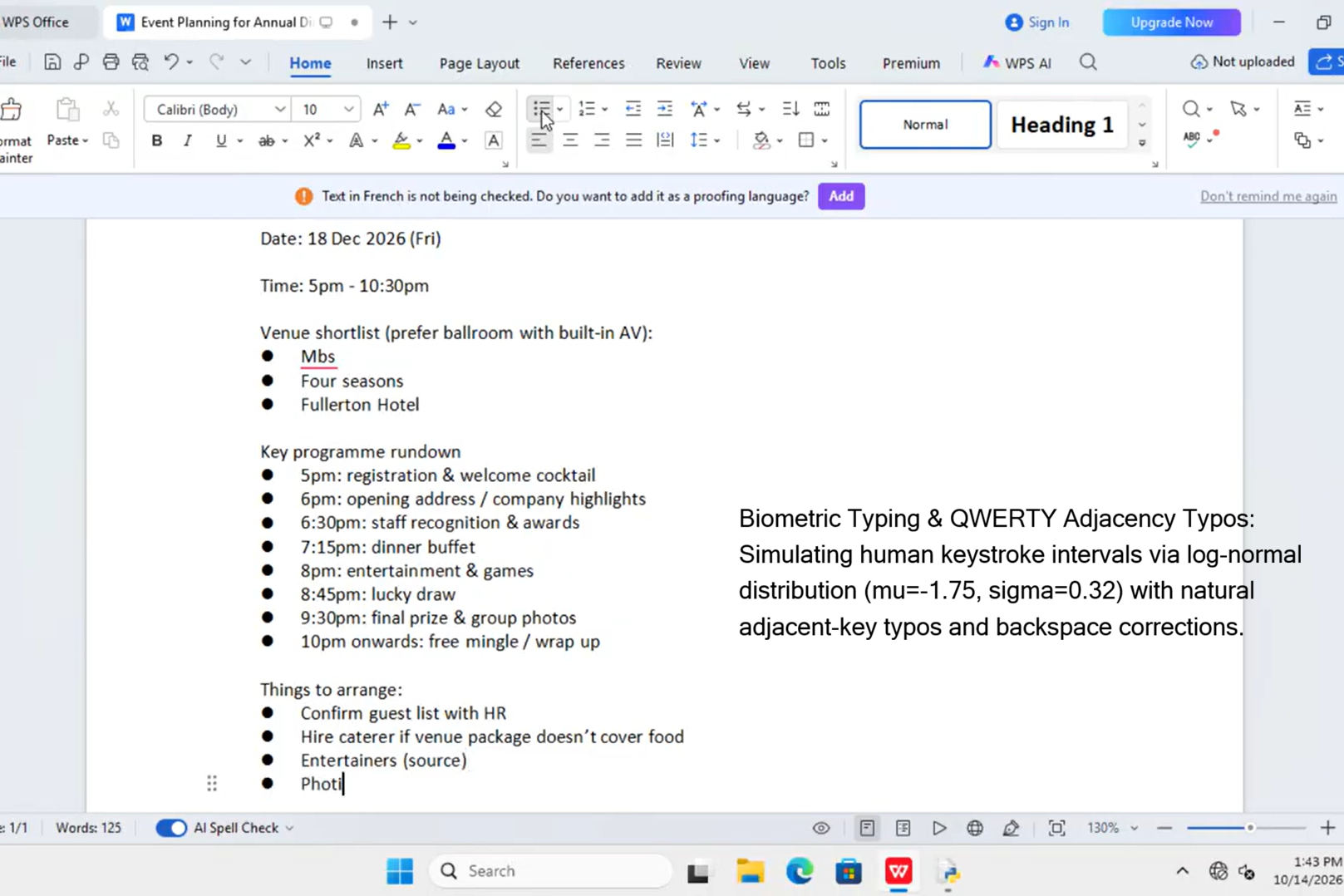
Biometric Typing & Typos: Simulating human keystrokes via log-normal distributions with realistic QWERTY-adjacent typos and corrections.
-
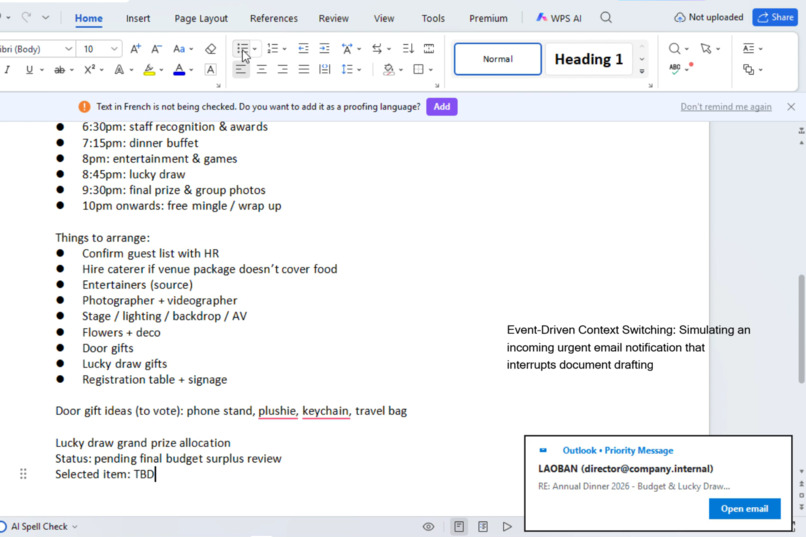
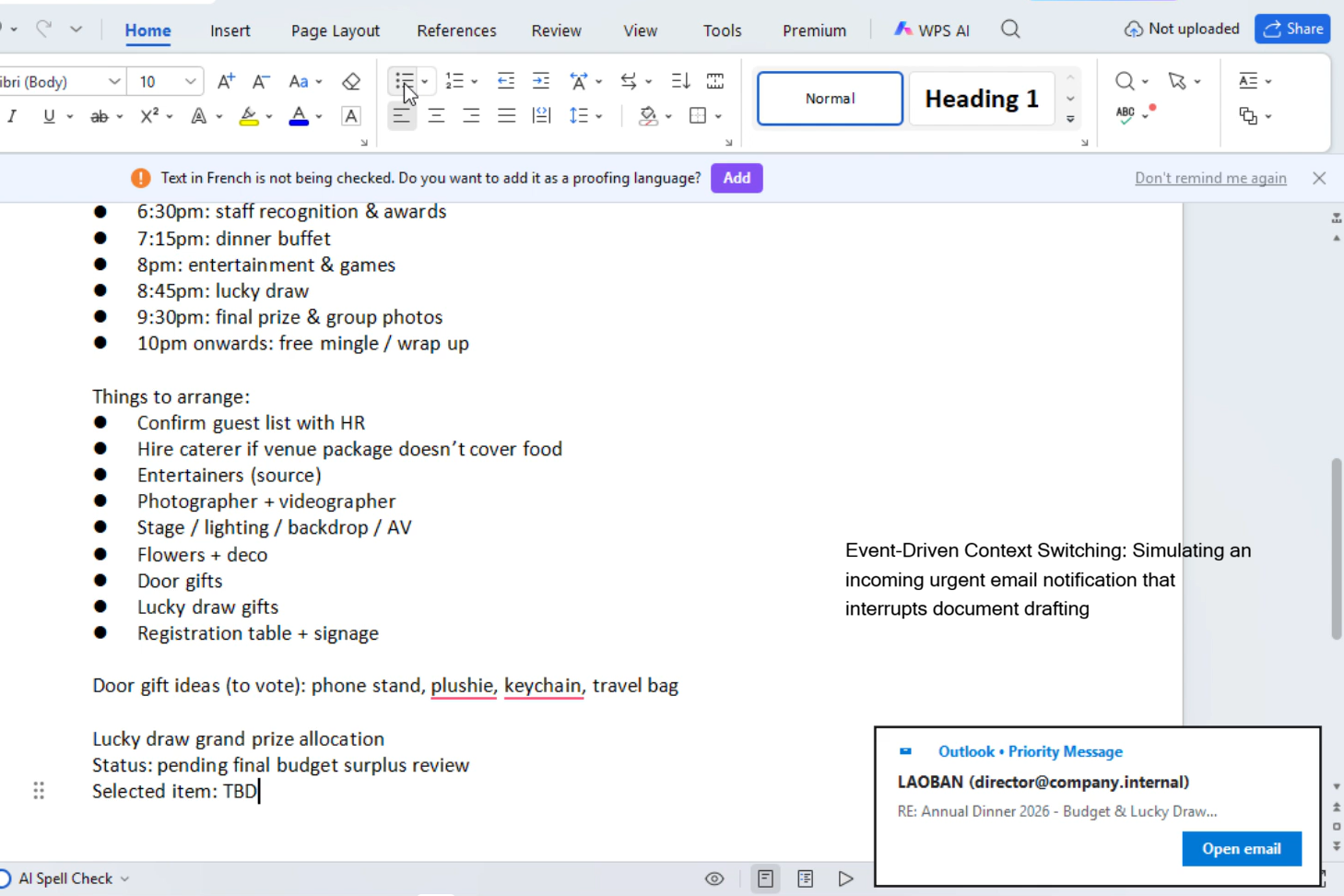
Event-Driven Context Switching: Simulating an incoming urgent email toast that interrupts document drafting to trigger Chrome workflows.
-
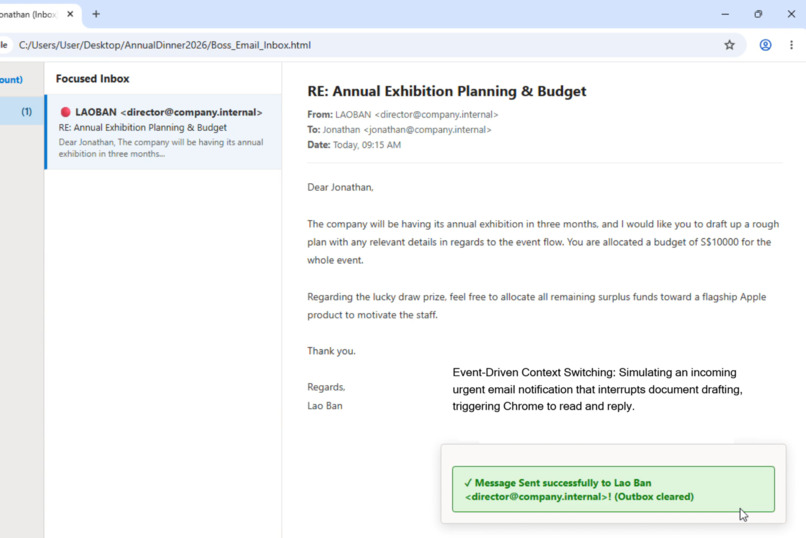
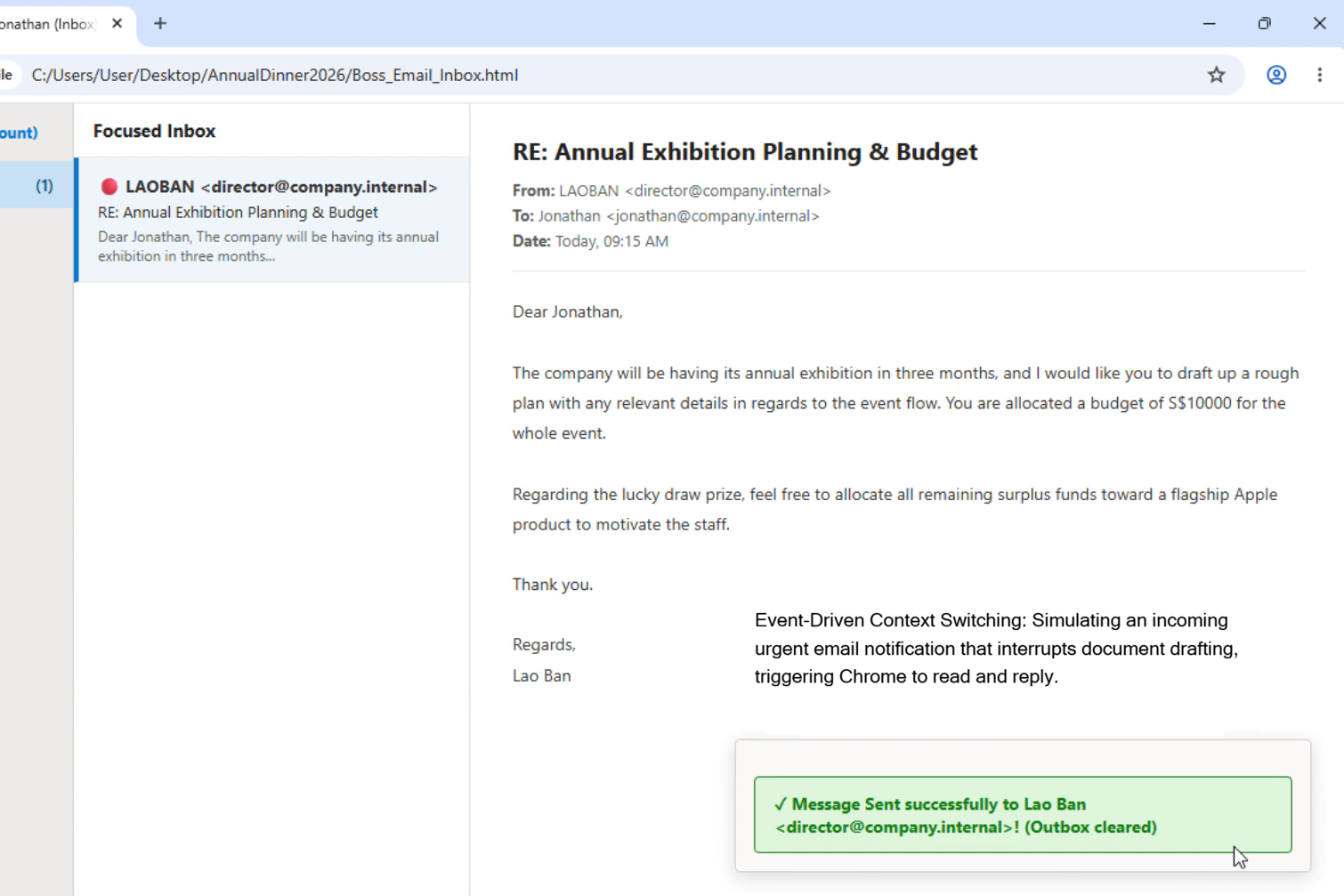
Realistic Email Interaction: Reading the boss's urgent email with natural scrolling pauses before typing and sending a contextual reply.
-
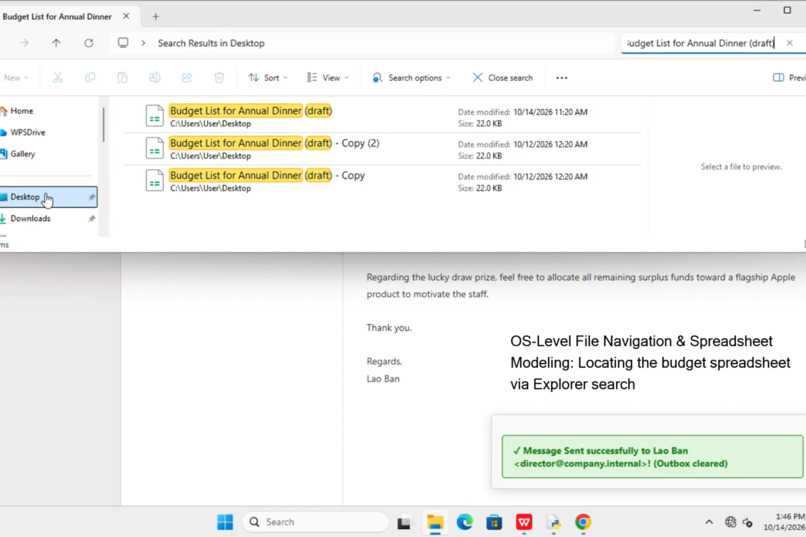
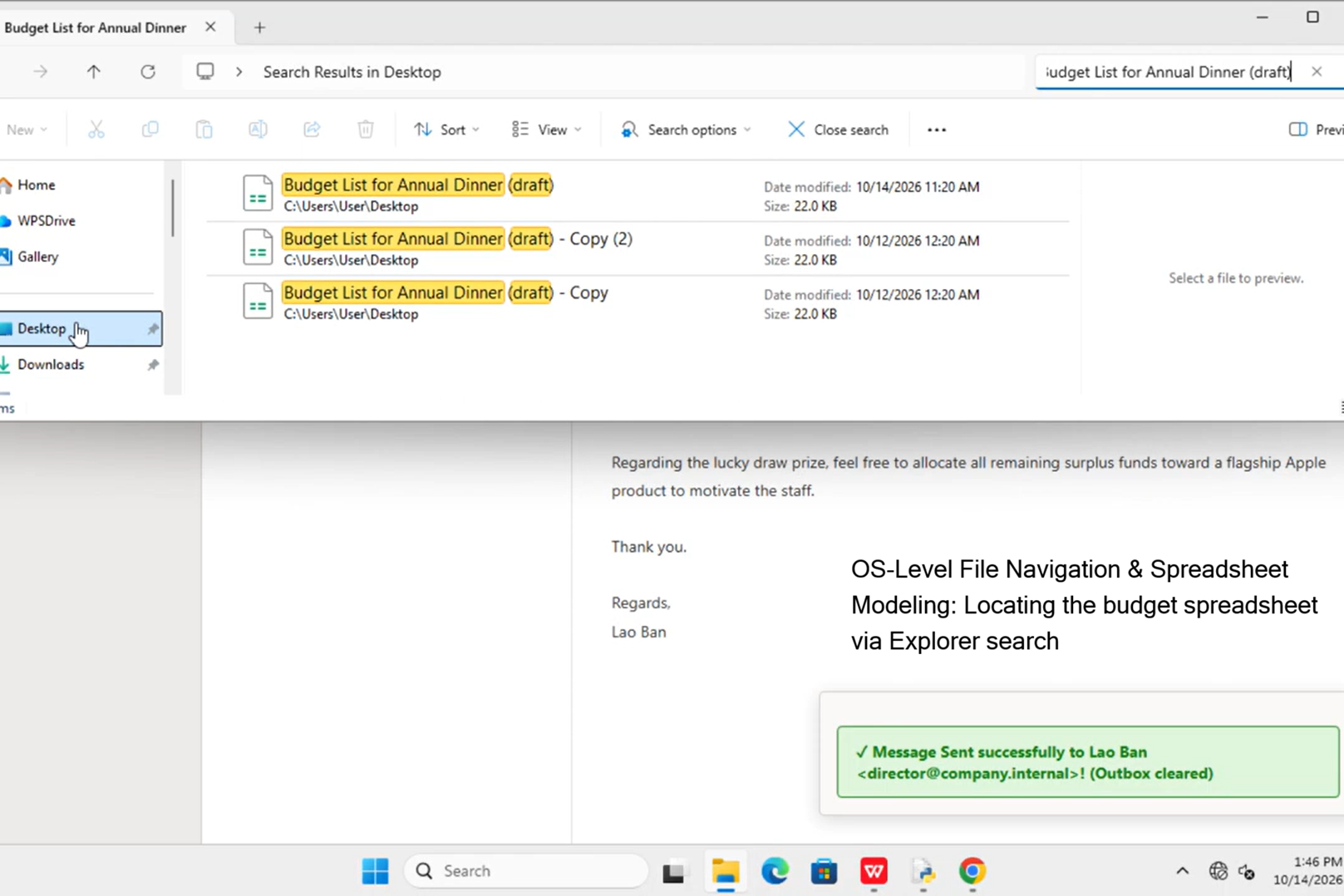
OS-Level File Navigation: Using Bézier mouse curves to open Windows File Explorer, navigate folders, and search for the budget spreadsheet.
-
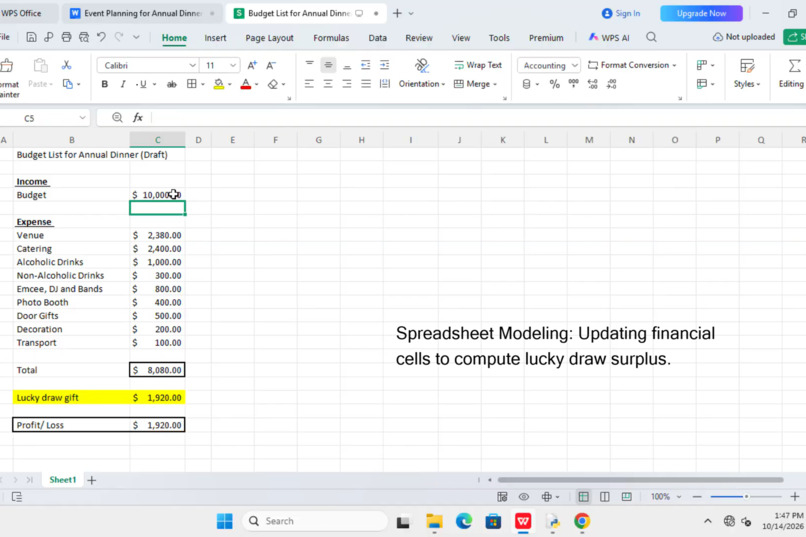
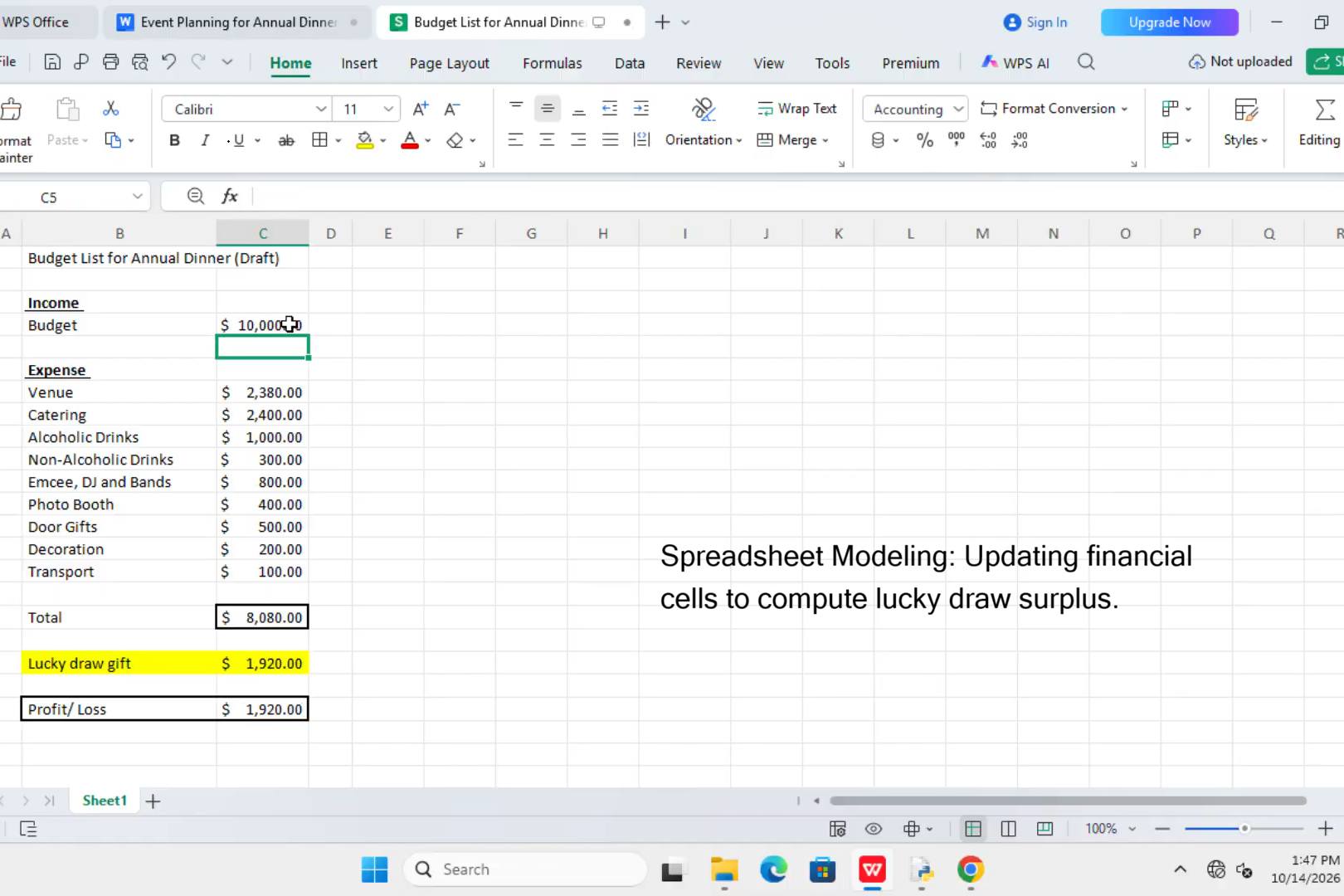
Spreadsheet Modeling: Selecting target cells in WPS Spreadsheets to input the S$10,000 budget and dynamically recalculate the prize surplus.
-
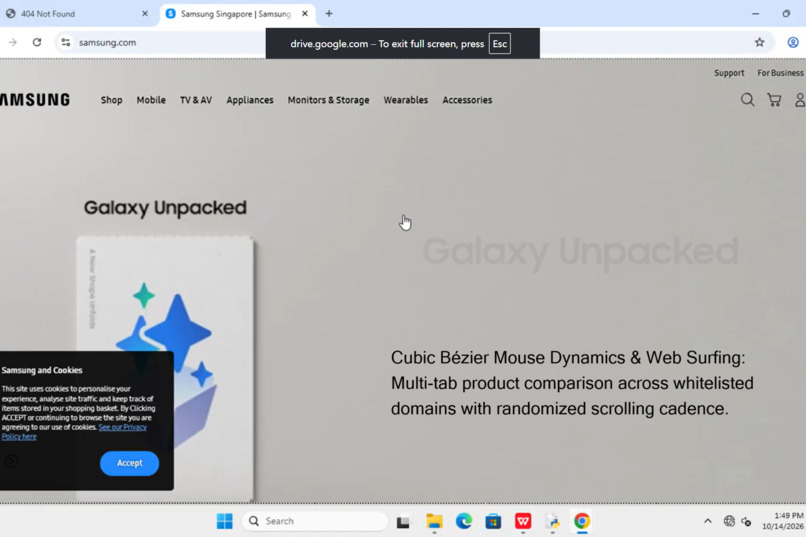
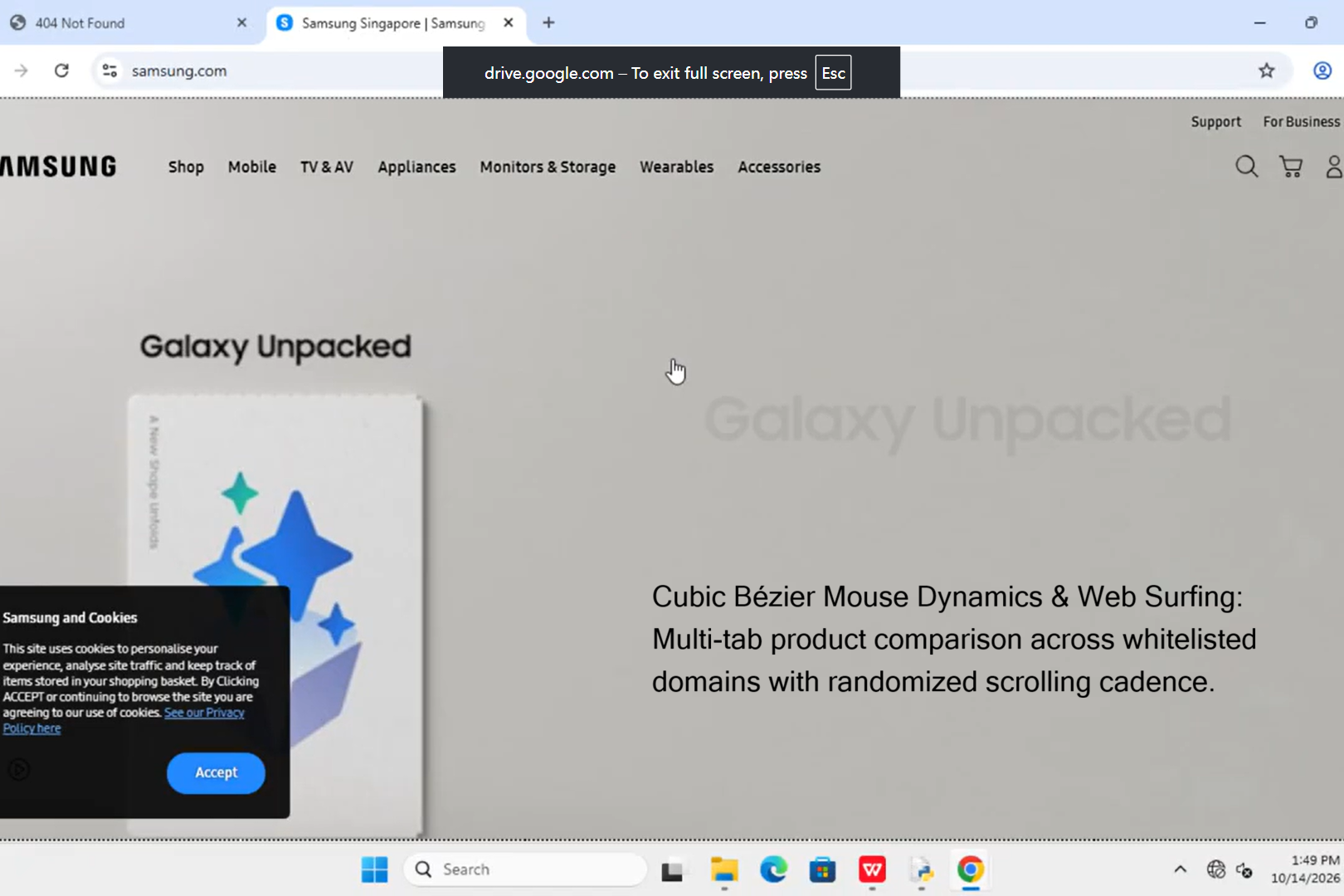
Humanized Web Surfing: Browsing Apple and Samsung catalogs across tabs using cubic Bézier cursor movements and randomized scrolling delays.
-
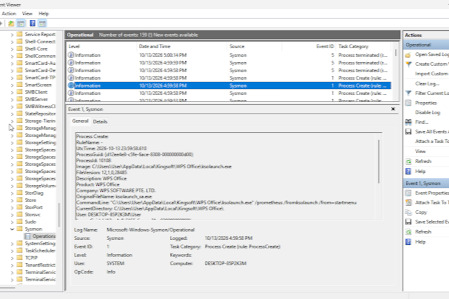
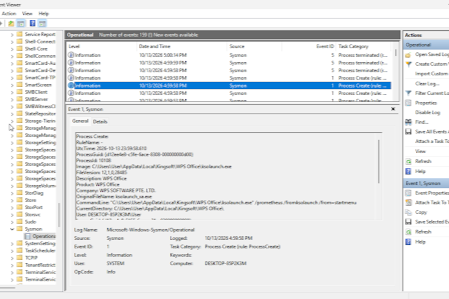
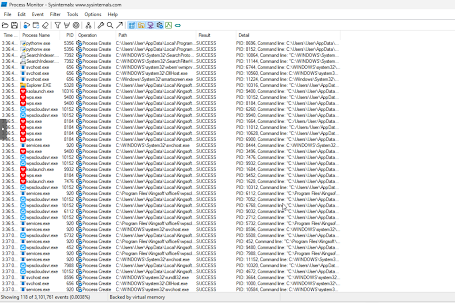
Confirms ksoalaunch.exe executed with /from=startmenu command line, validating authentic human-like behavior.
-
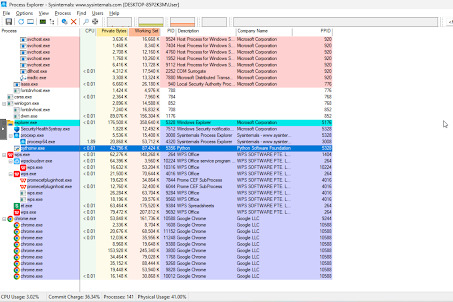
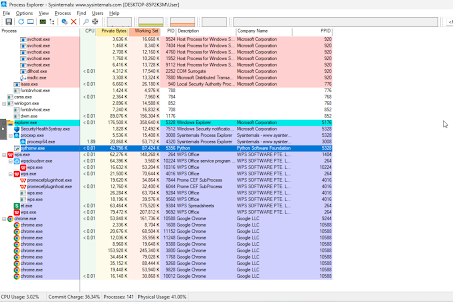
Inspects running processes (pythonw.exe, wps.exe, chrome.exe) to verify active applications & parent-child relations.
-
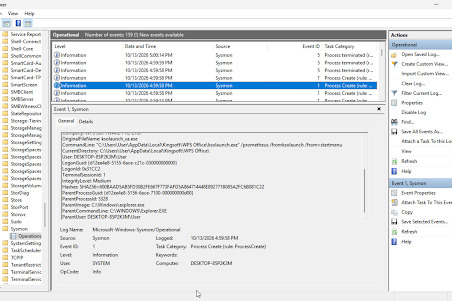
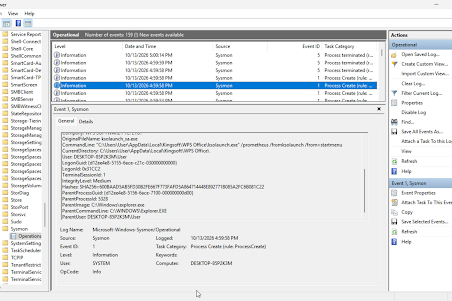
Verifies WPS launched naturally via Start Search with explorer.exe (not pythonw.exe) as its parent process.
-
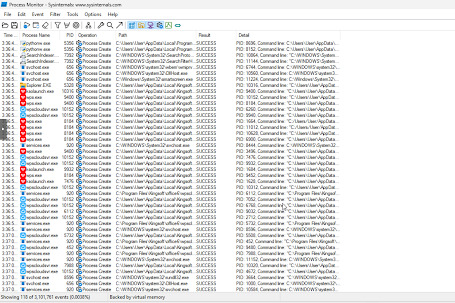
Captures initial process creation sequence of WPS Office launch and the drafting of the event proposal
-
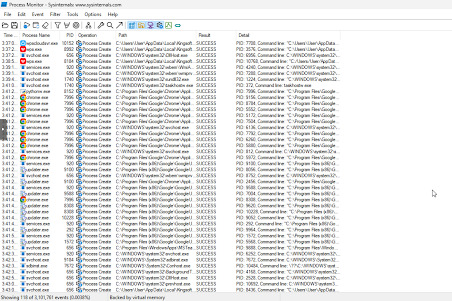
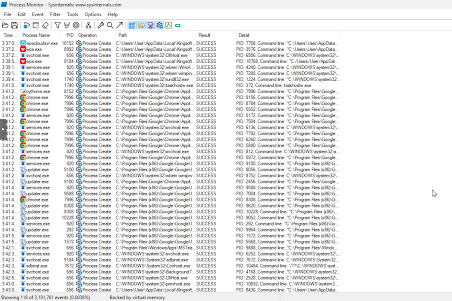
Captures timeline of Google Chrome mock email interaction and opening & editing the dinner budget spreadsheets.
Inspiration
1. What may happen when humans type.
- Different from machines, we have pauses before typing the next letter. The time for the pauses is different, while there are some patterns and rules.
- Rule: except for the random pauses for “continuous typing”, there might be some thinking time between the words, sentences and sections.
- Besides pauses, there may be some typos with randomness and the increase of fatigue. ### 2. What may happen at the workplace?
- They may have to reply to some e-mails and modify the files they’ve just handled.
- During work, they may be interrupted and then accidentally smash the keyboard. Moreover, they may feel tired and then open YouTube or just go to the toilet for a rest.
What it does
We built a Python desktop automation prototype that demonstrates an office employee preparing a company annual dinner proposal. The workflow follows a scripted sequence across WPS Writer, WPS Spreadsheets, Windows File Explorer, and Google Chrome.
The main purpose is to show both the work being completed and the visible interactions involved in completing it: entering text, applying formatting, locating a workbook, responding to a notification, browsing websites, correcting typing mistakes, and pausing between activities.
1. Creating an annual dinner proposal
The program opens WPS Office through Windows Search, selects the document section, and creates a blank document. It then uses the Save As dialog to save the document on the Desktop under the name: Event Planning for Annual Dinner 2026 Draft
The details of the proposal are predefined in the script. The program enters and formats them through the application interface.
2. Demonstrating typing, hesitation, mistakes, correction and interruption
For typing, delays, hesitation and correction are considered.
- Delays and Hesitation
The program varies many of its typing delays instead of using one constant interval throughout the document.
For ordinary characters, we sample a delay from a lognormal distribution and adjust this delay for uppercase letters, spaces, and repeated characters. Some typing calls also introduce short pauses after punctuation.
Mistakes and Correction The script demonstrates two kinds of typing mistakes:
- Random adjacent-key mistakes that are immediately corrected with Backspace.
- Recognize mistakes after typing the whole word, such as typing
Photograperand replacing it withPhotographer.
Disruption We designed a specific disruption with a longer pause, rapid unwanted characters, and a correction. We use this scene to represent a brief interruption during writing.
3. Displaying and responding to a simulated email
We created a local HTML page resembling an Outlook inbox and displayed a small notification near the bottom-right corner of the screen.
The notification identifies a message from Lao Ban and provides an “Open email” button. We attempt to let the program click, open the local email page in Chrome, pause and scroll, and enter a reply signed by Jonathan.
The email assigns an event budget of S$10,000 and suggests using the remaining surplus for an Apple lucky draw prize.
The reply is a local simulation. Clicking “Send Reply” changes the page to display a success message; the code does not connect to an email account or transmit the reply.
4. Opening and updating an existing budget workbook
The program checks several Desktop locations for an existing budget file named:
Budget List for Annual Dinner (draft)
It accepts .xlsx, .xls, .xlsm, .et, and .csv extensions. It then opens File Explorer, searches for the filename, opens a calibrated search-result position, clicks the configured income cell, and enters 10000.
After entering the value, the program waits for the workbook’s existing formulas to recalculate and sends a save command.
The script refers to an expected result of 1920, but it does not read the calculated cell or verify that this value appears. The workbook and its formulas must already exist.
5. Browsing product websites and updating the proposal
The workflow opens Apple’s website, scrolls through it, and opens Samsung’s website in another tab. It includes pauses that represent browsing and reviewing the budget.
It then attempts to return to the proposal and replace the final TBD with:
Apple iPhone 18 x 1 [Allocated Budget: S$1800.00 - Fully Covered by Surplus]
This selection is predefined. The program does not extract live product prices, compare specifications, or calculate the best purchase.
The script also creates an offline mock product catalogue and a mock search-results page. However, the active workflow navigates directly to the live websites and does not automatically use these local pages as a fallback.
6. Reviewing and concluding the workflow
After updating the prize description, the program saves the proposal, scrolls up and down to simulate a review, and sends Alt+F4 seven times to attempt to close open windows.
It measures elapsed time using time.monotonic() and prints a completion message. This message indicates that execution reached the end of the sequence; it is not an independent verification that every click, save, or application switch succeeded.
How we built it
Defining and implementing pause durations
Before constructing the code
A single fixed delay would make every activity proceed at the same pace. We therefore distinguish several reasons for waiting:
- The interval between individual keystrokes.
- A pause before pressing Enter or beginning another line.
- Time for an application or search result to load.
- A pause representing reading, hesitation, or a longer decision.
We considered a timing model involving random variation with lognormal distribution, keyboard layout, and fatigue. However, they are hard to compute, predict the expectation of the overall time, and change the parameters. Hence, we use a simpler combination: a lognormal distribution for character-level delays and uniform random ranges for most longer pauses. We have not yet added a fatigue model.
When constructing the code
We created a dedicated function for character-level timing:
def human_keystroke_delay(char, prev_char):
    mu = -1.75
    sigma = 0.32

    if char.isupper():
        mu += 0.22
    if char == ' ':
        mu += 0.18
    if char == prev_char:
        mu += 0.15

    return max(
        0.06,
        min(random.lognormvariate(mu, sigma), 0.35)
    )
The sampled delay is expressed as:
$$ D=\min(0.35,\max(0.06,e^{\mu+0.32Z})), \qquad Z\sim N(0,1) $$
For an ordinary character, the underlying distribution has a median of approximately $e^{-1.75}=0.174$ seconds before clipping.
We then adjust mu according to the character:
| Condition | Adjustment |
|---|---|
| Uppercase character | +0.22 |
| Space | +0.18 |
| Same character as the previous one | +0.15 |
We use these adjustments as simple ways to vary the typing rhythm.
We restrict the sampled delay to 0.06–0.35 seconds. This prevents an ordinary keystroke from becoming extremely fast or unusually slow.
For longer pauses, we use a base duration with a random adjustment:
time.sleep(20.0 + random.uniform(-1.0, 3.0))
Here, we request a pause of 19–23 seconds, rather than exactly 20 seconds.
We use different ranges for different activities:
| Activity | Requested pause |
|---|---|
After a newline in human_type() |
1.20–2.50 seconds |
| After a period or comma | 0.60–1.20 seconds |
| After other handled punctuation | 0.40–0.80 seconds |
| Waiting for File Explorer search results | 19–21 seconds |
| Browsing between product-page scrolls | 6–10 seconds |
| Considering the budget choice | 58–65 seconds |
We treat these values as practical demonstration settings rather than experimentally validated measurements of human behaviour.
In this version, we distribute pauses across the relevant functions. A unified scheduler that manages fatigue and long-term changes in pace remains a possible extension.
2. Typing mistakes and corrections
Before constructing the code
We wanted occasional mistakes to appear during typing while still leaving the intended final text. We therefore paired each inserted mistake with an explicit correction.
We used keyboard adjacency to choose random replacement letters, so that an intended letter could temporarily become a nearby key.
When constructing the code
We created a QWERTY adjacency dictionary and used it inside human_type():
if (
    error_rate > 0
    and char.lower() in QWERTY_ADJACENT
    and random.random() < error_rate
):
    typo_char = random.choice(
        QWERTY_ADJACENT[char.lower()]
    )

    if char.isupper():
        typo_char = typo_char.upper()

    pyautogui.write(typo_char)
    time.sleep(random.uniform(0.20, 0.40))
    pyautogui.press('backspace')
    time.sleep(random.uniform(0.15, 0.30))
After this branch, we enter the correct character.
For example, when entering a, human-beings may first accidentally enter s, q, z, or w. We wait 0.20–0.40 seconds, recognize and delete the wrong letter, wait another 0.15–0.30 seconds, and continue.
We set the default error rate to 2% and use 1.5% for document text and the email reply. These probabilities apply to eligible letters in our adjacency dictionary. We set the error rate to 0% when entering URLs and the final prize description.
We also created a helper for a visible whole-word correction:
def correct_typo(wrong, correct):
We first type the wrong word, pause for 1.3–2.1 seconds, delete it with a 0.10-second Backspace interval, pause for 0.7–1.2 seconds, and enter the correct spelling.
For the Fullerton scene in case of interruption, we preserve the intended otel ending and delete only the unwanted characters that follow it. This lets us show a longer correction sequence without removing the completed hotel name.
3. Construction of mouse movement
Before constructing the code
We wanted the main cursor movements to follow a visible curve with a gradual beginning and ending. We therefore used a cubic Bézier curve.
When constructing the code
We calculate the path using:
$$ B(t)=(1-t)^3P_0+3(1-t)^2tP_1 +3(1-t)t^2P_2+t^3P_3 $$
Here, $P_0$ is the current cursor position and $P_3$ is the target. We place two control points at approximately 30% and 70% of the journey, then add random offsets of −35 to +35 pixels to their horizontal and vertical positions.
We apply an easing function before evaluating each point:
steps = max(20, int(duration * 60))

for i in range(1, steps + 1):
    t = i / float(steps)
    t_eased = t * t * (3 - 2 * t)

    bx, by = bezier_point(
        p0, p1, p2, p3, t_eased
    )
    pyautogui.moveTo(int(bx), int(by))
We used a cubic Bézier curve to simulate the curved trajectory of human mouse movements. The expression $3t^2-2t^3$ slows the progress near the start and end.
Important settings include:
- Default
human_move()duration: 0.65 seconds. - Movement duration used by
human_click(): 0.55 seconds. - Movement duration used by
human_double_click(): 0.60 seconds. - Minimum number of movement steps: 20.
- No movement when the target is less than 4 pixels away.
- A 0.15-second pause before the click in
human_click(). - A 0.10–0.18-second interval between the two clicks in
human_double_click().
4. Configuration of Button Coordinates
Before constructing the code
Buttons and spreadsheet cells can appear at different positions across machines. Instead of storing every coordinate permanently in the source, we provide one-time manual calibration for selected controls.
When constructing the code
We ask the user to confirm a prompt, move the cursor over the required target within 5 seconds, and leave it there. We then record the cursor position.
Our budget-coordinate lookup is:
def get_budget_position(name, instruction):
    if name not in BUDGET_POSITIONS:
        capture_budget_position(name, instruction)

    return BUDGET_POSITIONS[name]
We store the results in:
wps_click_positions.jsonbudget_click_positions.json
We calibrate WPS formatting and save controls, together with the File Explorer icon, Desktop navigation item, budget search result, and income cell.
We keep some positions fixed, such as:
DOCS_BUTTON = (35, 230)
BLANK_BUTTON = (130, 130)
We also calculate some positions relative to screen dimensions.
This gives us a manageable setup process for a known desktop environment when there is no automatic visual recognition.
5. Organizing the Document-Writing Process
Before constructing the code
Because our proposal is long, we divided it into sections and gave each section its own function. This keeps the content readable and makes individual sections easier to adjust.
When constructing the code
We call the section functions in order:
create_title()
create_theme()
create_event_details()
create_programme()
create_arrangements()
create_final_notes()
We support them with reusable helpers:
| Helper | What we use it for |
|---|---|
type_text() |
Entering text |
type_line() |
Entering one line and pressing Enter |
blank_line() |
Adding a paragraph break |
bullet_list() |
Entering a group of bullet items |
For example:
def create_theme():
    time.sleep(1.5)
    type_line("Theme (to be discussed in mtg):")

    bullet_list([
        "future forward (ai & innovation)",
        "metaverse & hybrid experiences",
        "green & eco-responsible"
    ])

    blank_line()
We keep section content inside these functions and place repeated typing behaviour in the helpers.
For the title, we type the text first, select it with Shift+Home, and click Bold and Underline. After pressing Enter, we turn both settings off because the new paragraph initially inherits the title formatting.
For bullet lists, we enable bullets, enter each item with a line break, and use an additional Enter to leave the list. These steps depend on WPS maintaining the expected focus and formatting state.
6. How did we build the notification and email interface?
Before constructing the code
Since we wanted to display a notification but could not use Outlook due to the lack of an internet connection, we chose a local email page so that we could reproduce the same message and reply interaction without connecting a mailbox.
When constructing the code
We create a Tkinter notification with a size of 360 × 130 pixels. We remove its standard border, keep it above other windows, and fix it 20 pixels from the right edge and 55 pixels above the bottom edge in order to get the coordinates easily for the next few steps.
We run the notification in a daemon thread and bind its button to trigger_open_email(). The callback closes the notification and opens our local email page in Chrome.
We build that page using HTML, CSS, and JavaScript. When a non-empty reply is submitted, we disable the button, display “Sending...”, and show a success banner after 500 milliseconds.
7. How did we connect the budget to the final prize?
Before constructing the code
We organised this part as a sequence: receive the budget instruction, update the workbook, browse products, pause to consider the choice, and complete the proposal.
When constructing the code
We centralise the income setting:
INCOME_VALUE = "10000"
We check the normal Desktop, OneDrive Desktop, and Desktop/AnnualDinner2026 for a matching budget filename. We then carry out the visible opening process through File Explorer using the saved coordinates.
After selecting the income cell, we enter 10000, press Enter, wait for recalculation, and save.
For the final document edit, we move to the end, select three characters, and replace TBD with our predefined prize description.
8. Management of Execution
We record the starting time with time.monotonic() and use it to calculate the elapsed duration. We enable PyAutoGUI’s failsafe and catch FailSafeException and KeyboardInterrupt so that the workflow can be stopped.
We also check for a matching document file after the initial Save As operation. Most later actions rely on the expected window state, saved coordinates, and waiting periods.
Challenges we ran into
- *For typing like a human: *
- There are quite a lot of factors affecting the speed of human typing, such as randomness, thinking, familiarity with the keyboard, the layout of keyboards, fatigue and so on. Hence, the construction of the mathematical formula can be complicated and pretty hard to compute. However, for this hackathon, we only need to deceive AI, so we narrowed our focus to lognormal and thinking, and designed the parameter of pauses according to the time for this program.
- Human-beings may make mistakes when typing. It's easy to write code for immediate corrections. However, for finding typos after a whole word, it's really hard to construct the randomness. Hence, we hardcode the words we hope to correct.
- *When clicking and moving cursor: *
- We don't have computer vision technology, so we need to determine which coordinate to click to send the email by ourselves.
- The formula for cursor's movement cannot be determined. Hence, we only make some curves and lengthen the time at the beginning and the ending when moving the cursors.
Accomplishments that we're proud of
When learning Python or C++ during secondary school, the curriculum was purely algorithm-oriented. We don't really have the chance to learn how to use the algorithm to deal with real-world problems and learn about GUI.
In this project, we not only learned new knowledge about GUI, but we also implemented our statistical concepts regarding daily typing habits. Even within some hardcodes, the program meets the need of "typing like a human" and successfully finishes all the tasks after debugging, finding new coordinates etc.
What we learned
- Some packages for GUI in Python
- Calculating coordinates for the screen of the computer
- Transforming the knowledge from statistics to computational thinking
- Use HTML, CSS, and JavaScript to build a local web page for email as a substitution of Outlook
What's next for hack24
- We want to add visual recognition so that we don't need to hardcode the coordinate for sending button and other things involving clicking.
- If there is enough time, we want to think of a more sophisticated mathematical model involving fatigue, familiarity and the layout of keyboard for both typing and corrections.
- For the movement of cursor, the cubic Bézier curve is not enough. The route can be random (line or curve) and the cursor may sometimes overshoot the coordinates for the target so it has to be moved back. Hence, randomness itself can be calculated for further work.
- After adding all of these, this is still hardcoding. However, we don't have any idea how to give tasks to the AI and then it adjusts the working plan within limited time and acts as a human. But it's still inspiring for "What's next".

Log in or sign up for Devpost to join the conversation.