-
-
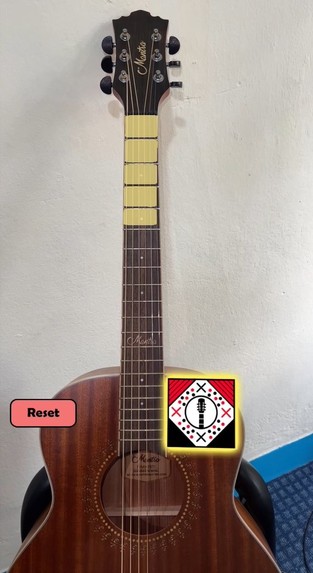
Fret Detection
-
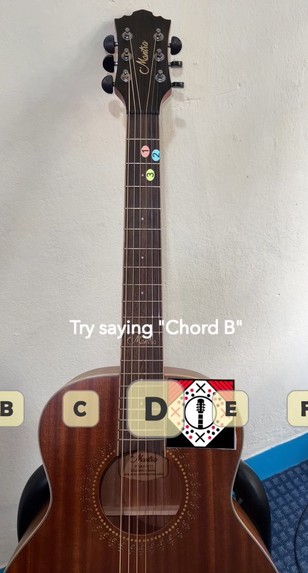
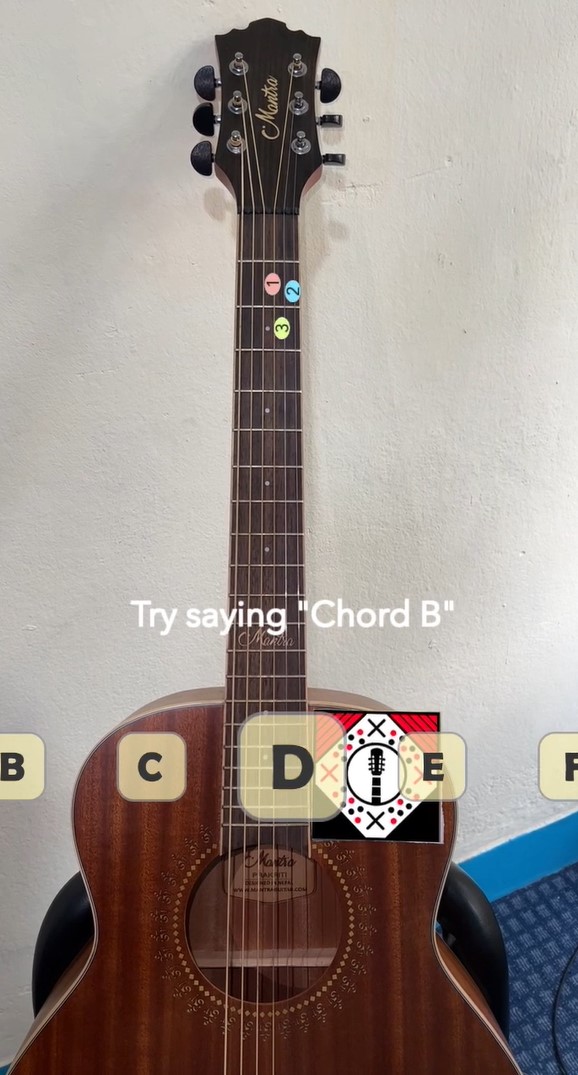
D Chord
-
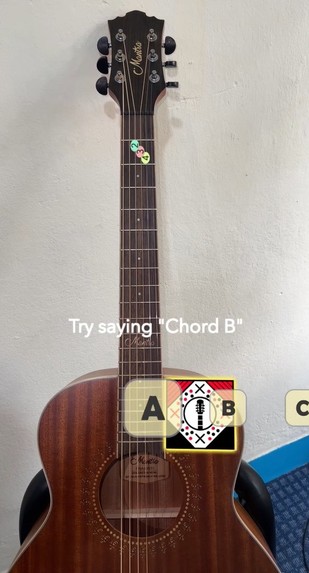
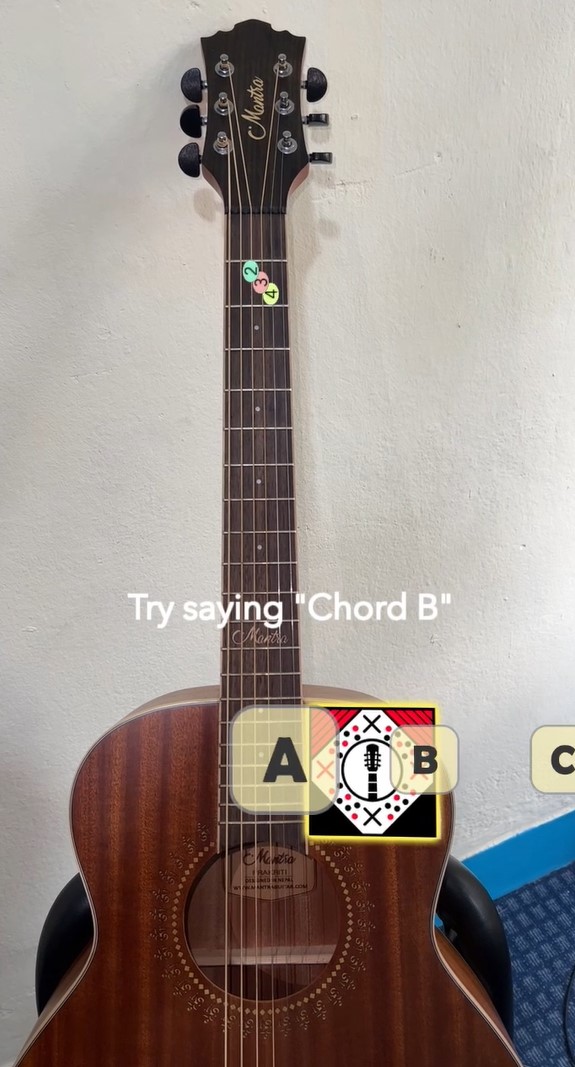
A Chord
Inspiration
As we were jamming music with our friends, we came up with the idea to create an augmented reality-based guitar tutorial lens for beginners, to make learning chords more interactive, fun, and engaging. Using AR technology allows for a more intuitive and user-friendly approach to learning chord placement on a guitar. Besides, as we are aware, using new technology, such as augmented reality, has been found to enhance engagement and interest among new learners.
What it does
It allows users to visualize the finger positioning for chords in a more innate way.
How we built it
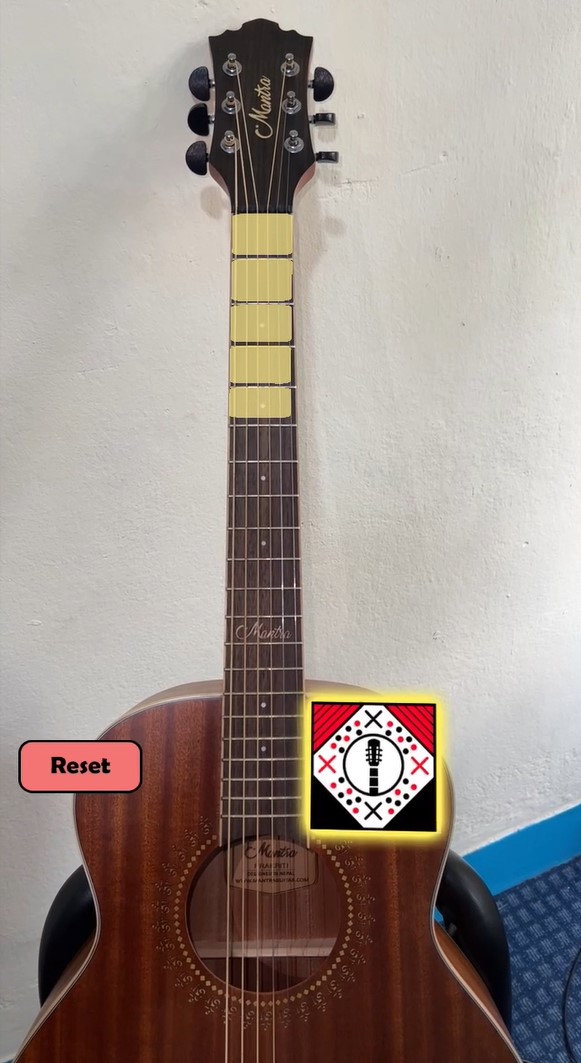
We used image marker tracking to track the guitar's body and neck. By utilizing the marker's orientation and position, we asked the user to set the positions for the nut and the first fret, giving us the width of the first fret. Using this measurement, we were able to calculate and track all other frets of the guitar. Additionally, we used the height of the fret to determine the positions of the strings on each fret. This allowed us to map the finger positions for various chords. To make it easy for users to learn different chords, we added a carousel feature to select chords A through G. Furthermore, we also incorporated VoiceML functionality, allowing users to change chords by simply saying the chord’s name as "Show Chord X".
Challenges we ran into
- One of the key challenges we faced in developing our guitar tutor AR application was properly detecting all frets and string positions for guitars of different sizes. Ideally, we would have utilized machine learning for guitar fret and orientation tracking, but due to limitations in our expertise, we had to come up with an alternative, simple yet efficient approach. We focused on finding an efficient way for the user to define the fret positions.
- Using the front and back cameras for tracking could lead to inaccuracies due to mirroring.
Accomplishments that we're proud of
- We found a way to track the fret positions without relying on machine learning, by using a combination of image marker tracking and mathematical calculations.
- To address the issue of camera mirroring, we designed the image marker to be symmetric along one axis, which helped to ensure accurate tracking.
What we learned
During the development of the lens, we gained a better understanding of the guitar's body and neck proportions. Understanding the physical characteristics of the instrument helped us design the lens in a way that was more accurate and realistic for users. We learned that creating an educational lens requires deep subject matter knowledge and the ability to present it in an engaging and easy-to-understand manner. This helped ensure that the lens is not only functional but also effective in teaching guitar chords. We also explored the capabilities of image markers in Lens Studio, which allowed us to create a more efficient and user-friendly experience for detecting the guitar's position and orientation.
What's next for Guitar Tutor
- Utilize machine learning to track the guitar frets without the need of image markers
- Add more chords to the existing library
- Add functionality to show chords for specific songs/music with strumming patterns
- Develop similar educational lenses for different instruments like piano, drums, etc.
- Enhance the user's experience and take advantage of the latest technologies available like Snap’s Next Gen Spectacles
How to Use
- Download the image marker from here and print in A4 size.
- Cut and place the image marker on the guitar's body in the designated location
- Once the marker is detected, a red line will appear above it on the screen
- Use the control buttons on the screen to move the line to the guitar's 0th and 1st frets
- Press the "Mark" button to set the line's positions
- The rest of the guitar's frets will be automatically calculated
- The AR lens will display finger positions for different chords on the guitar, with reference to the marker and detected frets, to assist in learning how to play guitar chords
- Select different chords using a carousel shown on the screen or try saying the chord’s name as "Show Chord X"
Built With
- javascript
- lensstudio
- snapar
- snapchat


Log in or sign up for Devpost to join the conversation.