-
-

-
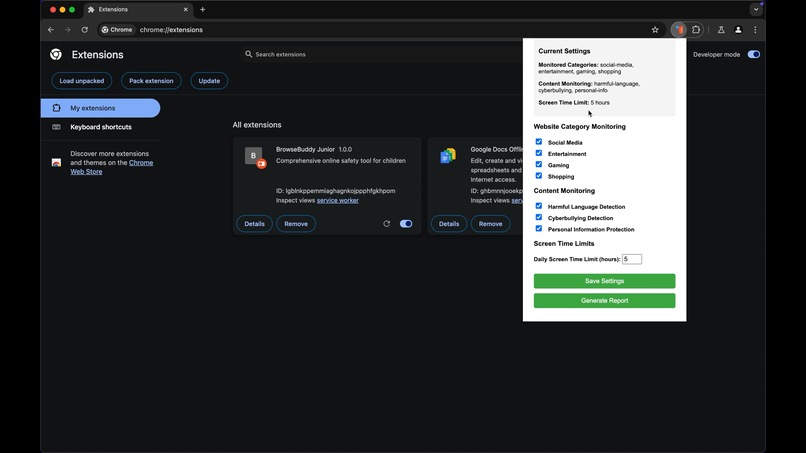
Settings
-
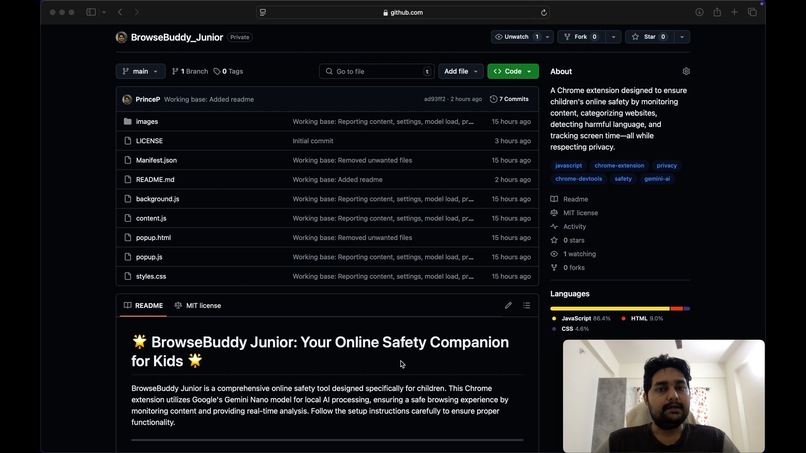
Presentation
-
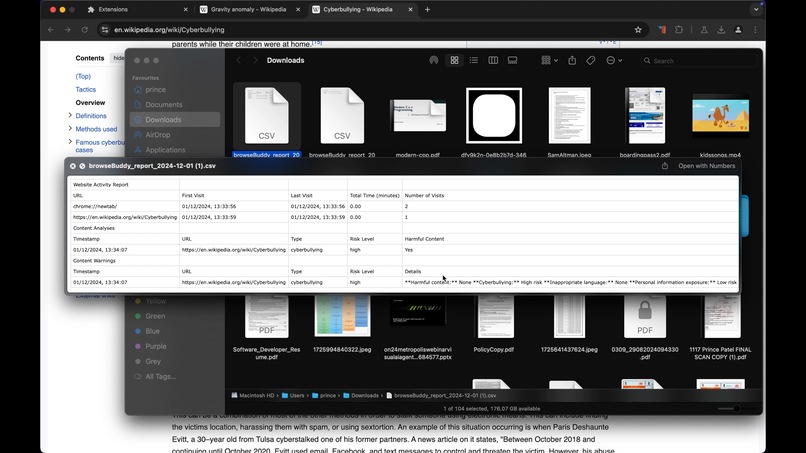
Output
-
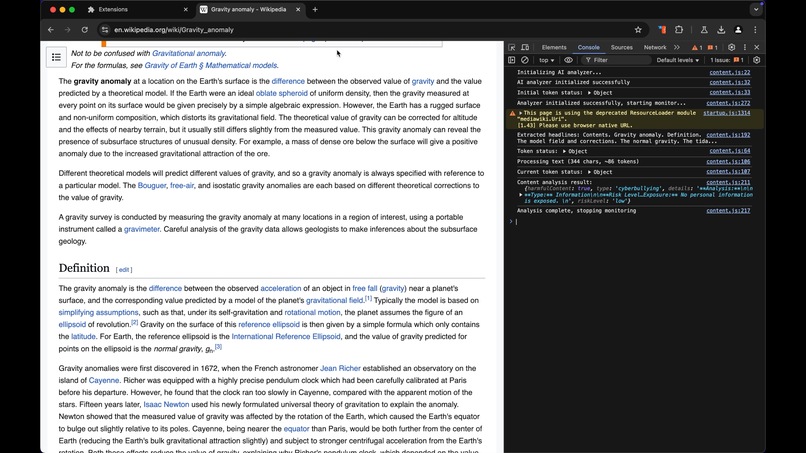
Processing

🌟 BrowseBuddy Junior: Your Online Safety Companion for Kids 🌟
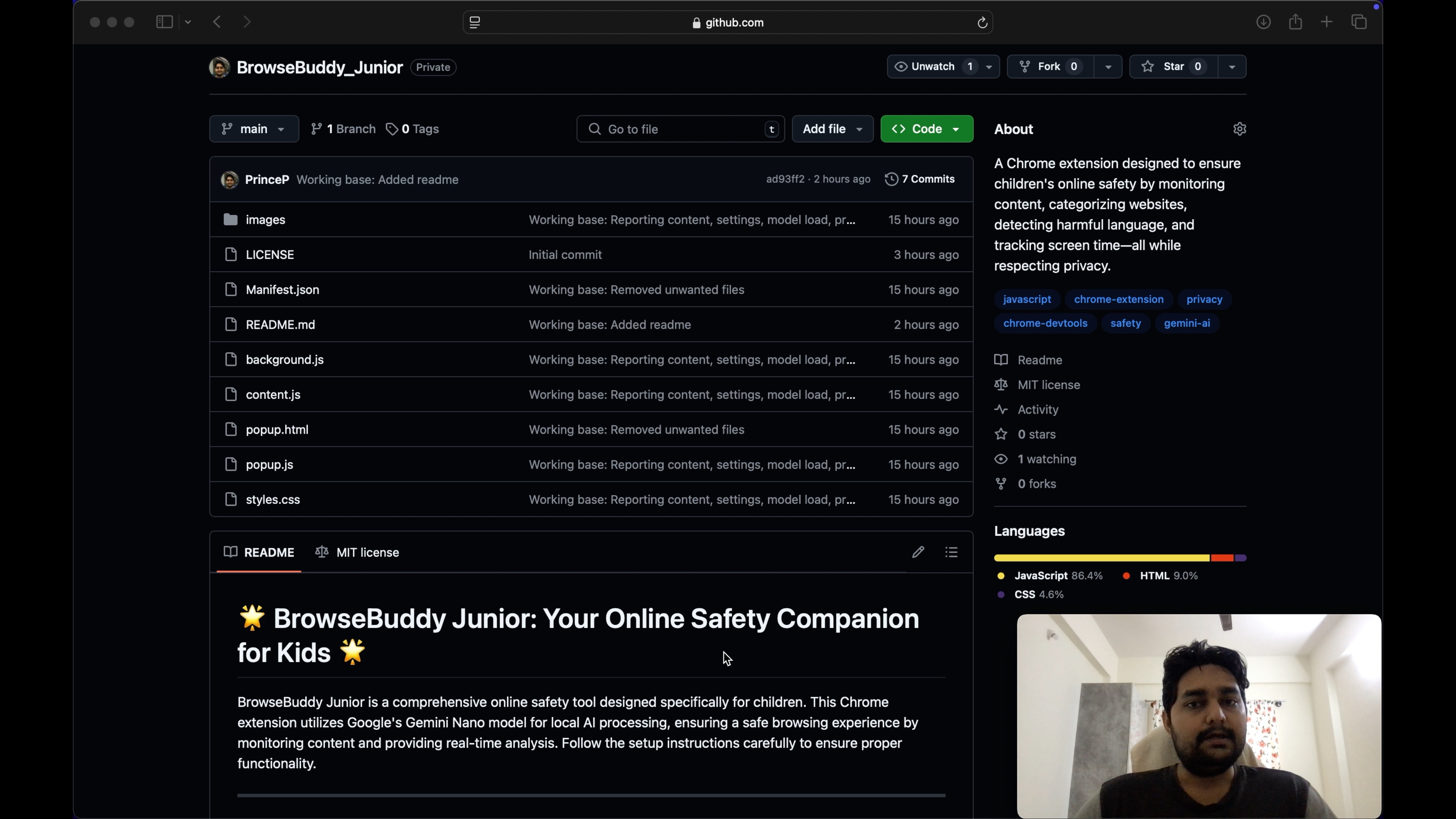
BrowseBuddy Junior is a comprehensive online safety tool designed specifically for children. This Chrome extension utilizes Google's Gemini Nano model for local AI processing, ensuring a safe browsing experience by monitoring content and providing real-time analysis. Follow the setup instructions carefully to ensure proper functionality.
Inspiration
The internet is a fascinating space for children, offering endless opportunities for learning and entertainment. However, it also comes with risks like harmful content, cyberbullying, and privacy threats. As parents seek tools to help manage their child's online activity without being overly invasive, BrowseBuddy Junior was born. It's designed to strike a balance between safety, education, and trust—empowering families to make the internet a safer place for young minds.
Features
- Categorizes websites (educational, entertainment, social, etc.).
- Detects cyberbullying and harmful language in real-time.
- Logs instances of websites asking for personal data.
- Tracks screen time and generates CSV reports for parents.
- Privacy-first design: processes data locally.
Prerequisites
Before installing the extension, please ensure you meet the following requirements:
- Review and acknowledge Google's Generative AI Prohibited Uses Policy
- Install Chrome Dev channel (version ≥ 128.0.6545.0)
- System Requirements:
- Minimum 22 GB free storage space
- Maintain at least 10 GB free space after installation > Note: Different operating systems may report available space differently. On macOS, use Disk Utility for accurate measurements.
Setup
1. Enable Gemini Nano and Prompt API
Enable Gemini Nano bypass:
- Navigate to
chrome://flags/#optimization-guide-on-device-model - Set to "Enabled BypassPerfRequirement"
- Navigate to
Enable Prompt API:
- Navigate to
chrome://flags/#prompt-api-for-gemini-nano - Set to "Enabled"
- Navigate to
Relaunch Chrome
2. Verify Gemini Nano Installation
- Open Chrome DevTools (Press F12 or Ctrl+Shift+I)
- In the console, run:
javascript
(await ai.languageModel.capabilities()).available;
If it returns "readily", setup is complete.
If verification fails:
Force API recognition:
await ai.languageModel.create();(This command is expected to fail)
Relaunch Chrome
Check components:
- Navigate to
chrome://components - Locate "Optimization Guide On Device Model"
- Verify version ≥ 2024.5.21.1031
- If no version is listed, click "Check for update"
- Navigate to
Verify again using the capabilities check in DevTools
(await ai.languageModel.capabilities()).available;If still unsuccessful, relaunch Chrome, wait briefly, and repeat from step 1
Installation
Load the Extension via Unpacked Method
Open Chrome Extensions Page:
- Open Chrome and type
chrome://extensionsin the address bar.
- Open Chrome and type
Enable Developer Mode:
- Toggle the "Developer mode" switch in the top-right corner.
- Toggle the "Developer mode" switch in the top-right corner.
Load Unpacked Extension:
- Click the "Load unpacked" button.
- Select the folder where the BrowseBuddy Junior code resides.
- Click the "Load unpacked" button.
Activate the Extension:
- Ensure the extension is toggled on.
- You should now see the BrowseBuddy Junior icon in your Chrome toolbar.
- Ensure the extension is toggled on.
Usage
Getting Started
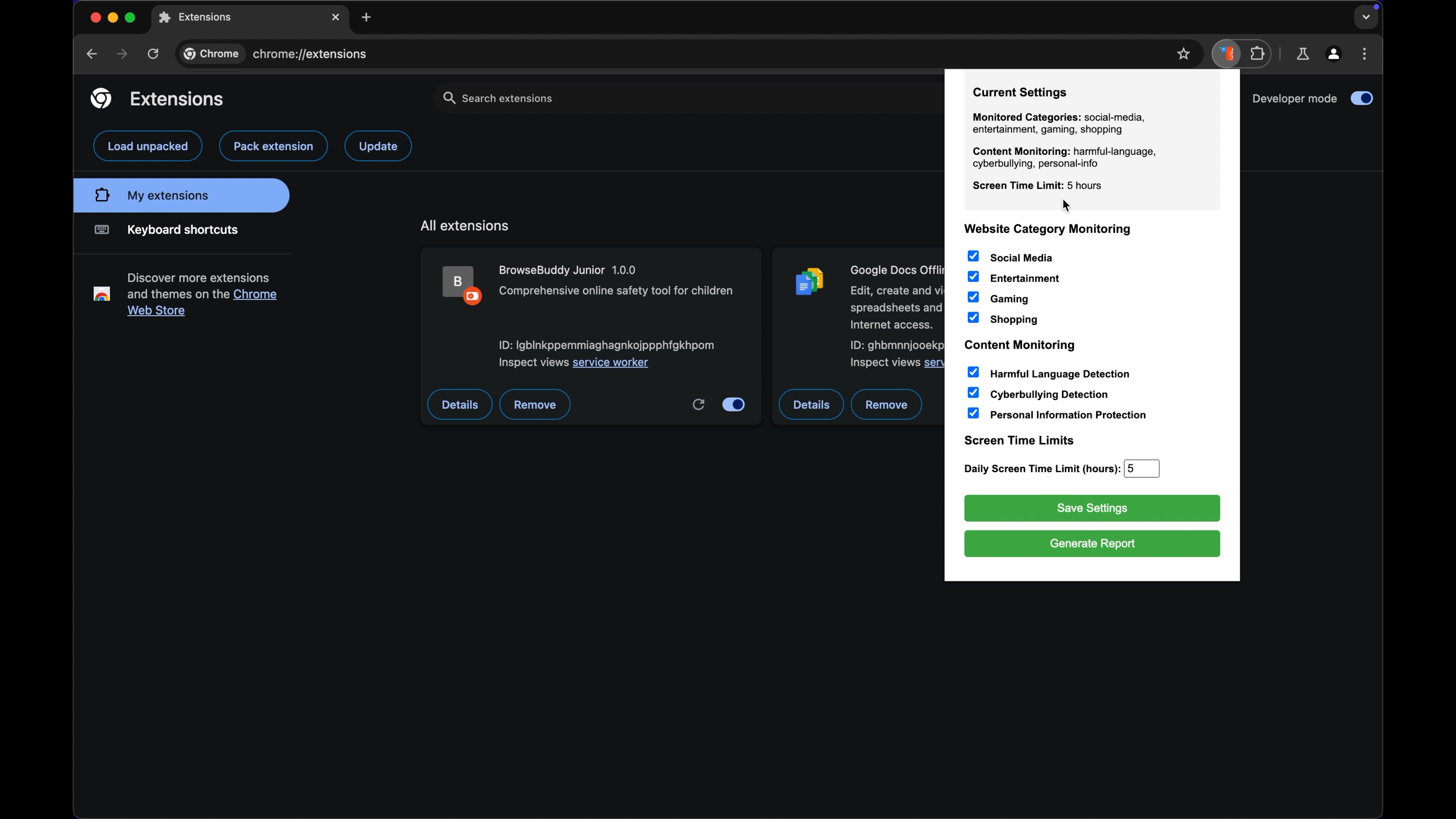
- Click the BrowseBuddy Junior icon in the Chrome toolbar to access its settings and features.
- Customize the preferences for website categorization, harmful language detection, and reporting intervals.
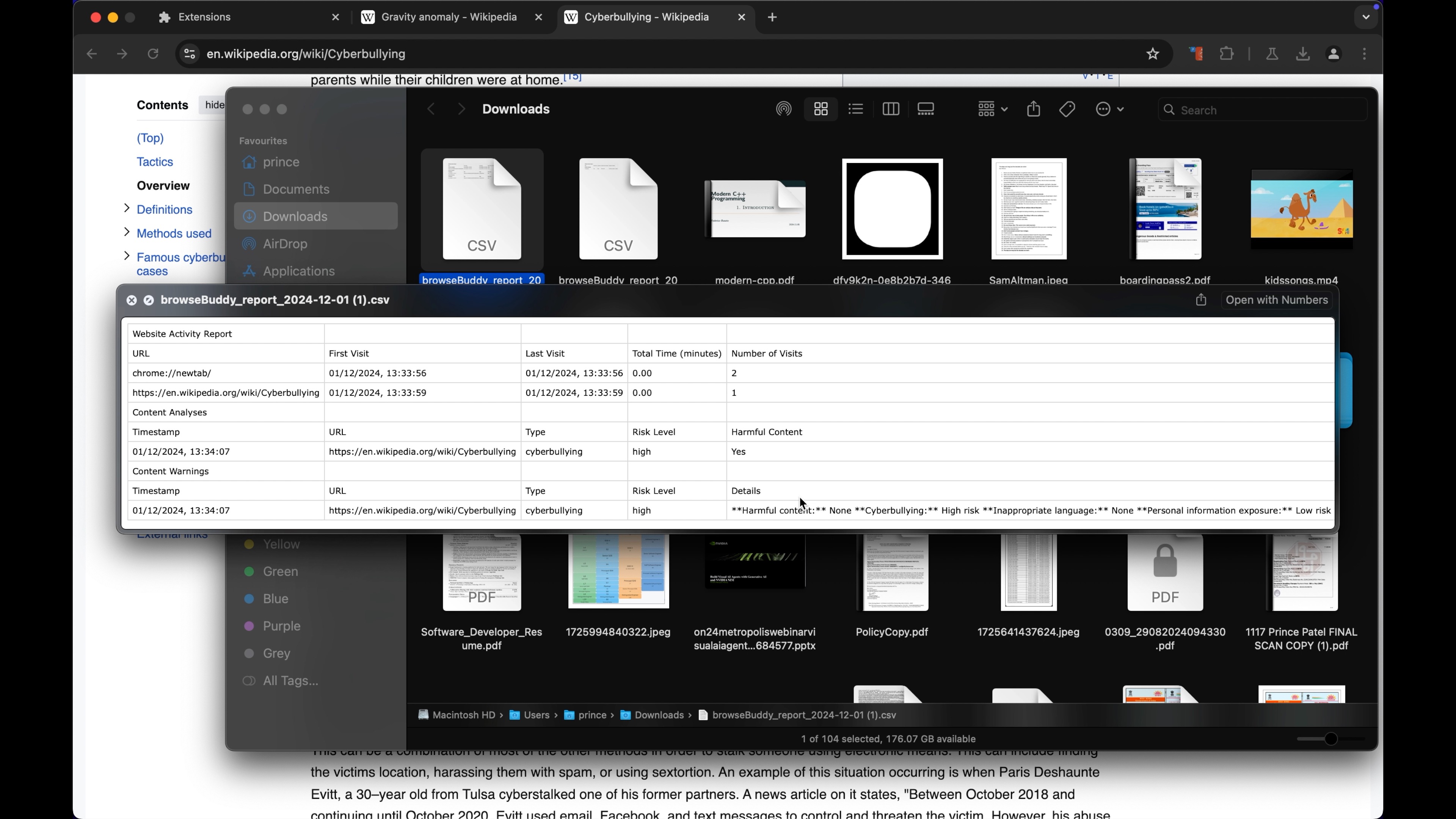
- Open the Reports section to view or download CSV files containing detailed logs of your child’s browsing activity.
Features in Action
- Website Categorization: Automatically assigns a category (e.g., educational, entertainment) to visited websites.
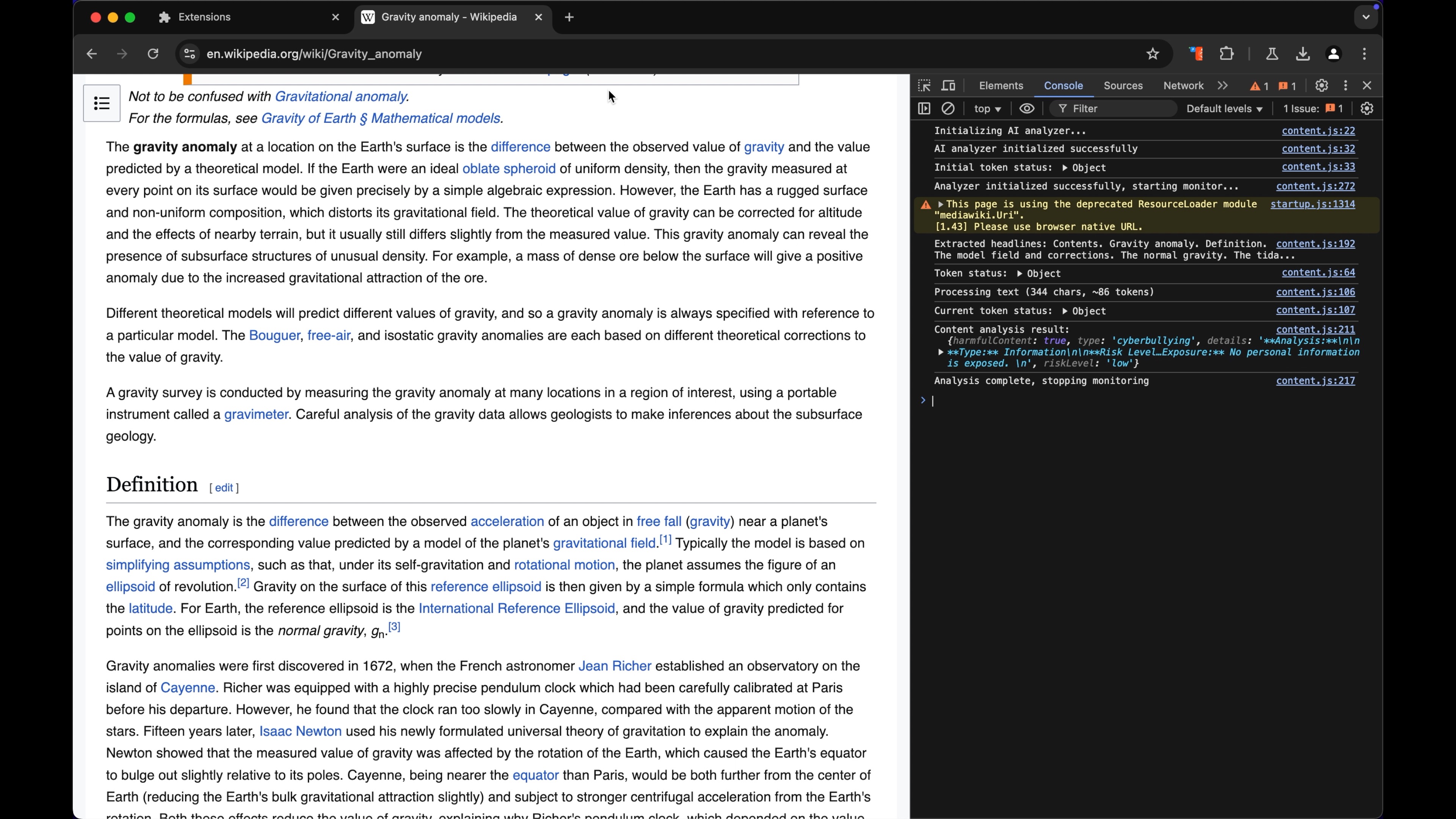
- Harmful Content Alerts: Provides real-time alerts when harmful or unsafe content is detected.
- Screen Time Monitoring: Tracks the amount of time spent on each website.
What It Does
BrowseBuddy Junior is a Chrome extension tailored for children’s online safety and privacy. It features:
- Website Categorization: Automatically categorizes websites as educational, entertainment, social, or other.
- Cyberbullying Detection: Analyzes online chats and content for harmful language or bullying behavior.
- Personal Data Logging: Flags and records instances where websites request personal information like email or phone number.
- Harmful Language Analysis: Detects and highlights inappropriate or unsafe language in real-time.
- Screen Time Tracking: Logs time spent on each website and provides actionable insights.
- Comprehensive Reporting: Generates detailed CSV reports for parents, covering website categories, flagged content, and screen time metrics.
How We Built It
- Frontend: Built with HTML, CSS, and JavaScript to provide a lightweight, intuitive user interface.
- Backend:
- NLP-powered content analysis using Gemini Nano Models Prompt API for local, real-time processing.
- Website categorization via machine learning models analyzing metadata and user behavior.
- Screen time tracking using browser APIs.
- Report generation with CSV exports.
- NLP-powered content analysis using Gemini Nano Models Prompt API for local, real-time processing.
- Privacy-First Design: Processes data locally, ensuring no personal data is sent to external servers.
Challenges We Ran Into
- Real-Time Performance: Balancing speed with accuracy in harmful content detection.
- Dynamic Content: Handling modern websites with dynamically loaded content and infinite scrolling.
- User Privacy: Designing a system that respects both the child’s and parent’s privacy.
- Language Context: Developing an NLP model that adapts to slang and multilingual content.
Accomplishments That We're Proud Of
- Successfully implemented accurate real-time content analysis and categorization.
- Created a user-friendly and privacy-conscious reporting system.
- Built robust features that align with online safety standards like COPPA.
- Enhanced harmful language detection to handle complex, evolving online interactions.
What We Learned
- Effective solutions for children’s safety require balancing privacy, usability, and functionality.
- Real-time NLP processing is feasible and impactful when optimized for performance.
- Parental feedback is crucial for refining features and designing actionable insights.
What's Next for BrowseBuddy Junior
- Interactive Safety Education: Add gamified lessons for children to learn online safety practices.
- Custom Alerts: Enable parents to configure specific alerts for flagged activities or screen time limits.
- Device Synchronization: Expand to mobile browsers and sync reports across devices.
- AI-Driven Insights: Use predictive analytics to suggest healthier browsing habits and patterns.
- Phishing Detection: Add advanced capabilities to identify scam and phishing attempts.
- Multilingual Support: Broaden harmful language detection for global use cases.
Elevator Pitch
BrowseBuddy Junior protects kids online by detecting harmful content, tracking screen time, and categorizing websites. It empowers parents with actionable reports while ensuring privacy and safety.
Contributing
We welcome contributions to improve BrowseBuddy Junior! Please fork the repository, create a branch for your feature, and submit a pull request.
License
MIT
Built With
- chrome
- gemini
- gemini-nano
- javascript


Log in or sign up for Devpost to join the conversation.