-
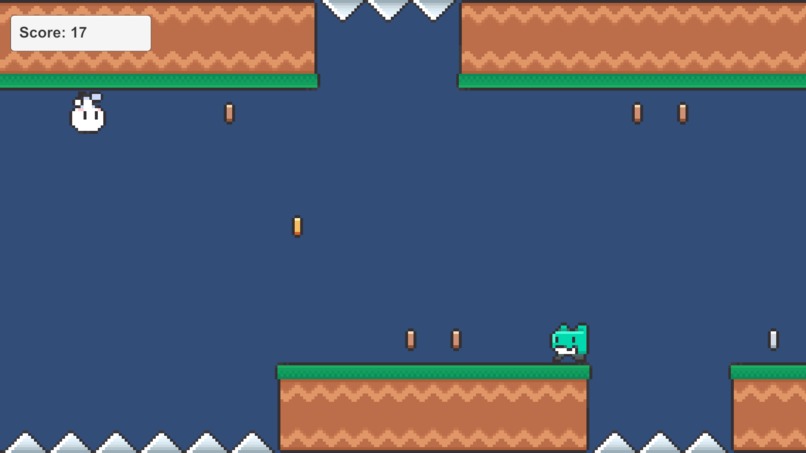
Demo

Task
Completing the GHW Games challenge - Create a 2D Platformer, Create a One Button Game, Create a Cross-Platform Game
What it does
A user can play Gravity Glide, a game about switching gravity to evade obstacles, on their pc or smartphone.
Supported Devices
- Windows
- Android
How we built it
I've built it on Unity as a 2D URP project.
Firstly, in the Game scene, design the level.
- Place the player character
- Place the tiles on tilemaps for Ground up, Ground down, Traps up, and Traps down. Up are simply positioned on top and flipped downwards.
- Create prefabs of all three types of coins - Gold, Silver, Bronze - and place them.
- Place the finish flag, and a invisible wall a few step ahead of it.
Assign a dynamic rigid body 2D to player.
Assign the following colliders:
- Box Collider 2D to player
- Tilemap Collider 2D to tilemaps
- Circle Collider 2D to coins
- Box Collider 2D to the invisible wall
Create a script PlayerMovement.cs. Grab the player rigidbody and give it a constant velocity in x-axis of 5, and make it move in x-axis automatically. For gravity switching, setup touch input for android and spacebar for windows. Keep changing rigidbody gravity scale between 1 and -1 with every switch performed.
using UnityEngine;
using UnityEngine.UI;

public class PlayerMovement : MonoBehaviour
{
    [SerializeField] float speed = 5f;
    Rigidbody2D rb;
    float gravityScale = 1f;

    void Start()
    {
        rb = GetComponent<Rigidbody2D>();
        rb.velocity = new Vector2(speed, rb.velocity.y);
    }

    void Update()
    {
        #if UNITY_IPHONE || UNITY_ANDROID
            if (Input.touchCount > 0 && Input.GetTouch(0).phase == TouchPhase.Began)
            {
                SwitchGravity();
            }
        #elif UNITY_STANDALONE_WIN || UNITY_EDITOR_WIN
            if (Input.GetKeyDown(KeyCode.Space))
            {
                SwitchGravity();
            }
        #endif
    }

    void FixedUpdate() {
        rb.velocity = new Vector2(speed, rb.velocity.y);
    }

    void SwitchGravity()
    {
        gravityScale *= -1;
        rb.gravityScale = gravityScale;
    }
}
Create animations for the player to flip up and down, and to run. Run will be performed continously. Flipping up and down will depend on two animator variables gravity, and switch, where gravity is an Integer which will contain values 1 and -1, and switch is a trigger.
Every time player switches gravity, trigger the switch animator variable, and set gravity animator variable to current gravity.
using UnityEngine;
using UnityEngine.UI;

public class PlayerMovement : MonoBehaviour
{
    // Rest of the code
    Animator animator;

    void Start()
    {
        // Rest of the code
        animator = GetComponent<Animator>();
    }

    void Update()
    {
        #if UNITY_IPHONE || UNITY_ANDROID
            if (Input.touchCount > 0 && Input.GetTouch(0).phase == TouchPhase.Began)
            {
                animator.SetTrigger("switch");
                SwitchGravity();
            }
        #elif UNITY_STANDALONE_WIN || UNITY_EDITOR_WIN
            if (Input.GetKeyDown(KeyCode.Space))
            {
                animator.SetTrigger("switch");
                SwitchGravity();
            }
        #endif
    }

    void SwitchGravity()
    {
        // Rest of the code
        animator.SetInteger("gravity", (int)gravityScale);
    }
}
Create a canvas StatusScreen, and within it create a text Status, and a few buttons Restart, Menu, Quit, and deactivate the canvas.
Allot tags to traps as Traps and finish flag as Finish. If a player collides with a trap, activate canvas and show Status as Game Over and destroy player character. If player passes through finish flag, activate canvas and show Status as You Win.
using UnityEngine;
using UnityEngine.UI;

public class PlayerMovement : MonoBehaviour
{
    // Rest of the code
    [SerializeField] GameObject statusScreen;
    [SerializeField] Text statusText;

    void OnCollisionEnter2D(Collision2D collision)
    {
        if (collision.gameObject.CompareTag("Traps"))
        {
            speed = 0f;
            Destroy(gameObject);
            statusText.text = "Game Over!";
            statusScreen.SetActive(true);
        }
    }

    private void OnTriggerExit2D(Collider2D collision)
    {
        if (collision.CompareTag("Finish"))
        {
            speed = 0f;
            statusText.text = "You Win!";
            statusScreen.SetActive(true);
        }
    }
}
Now make the camera move with player but only in x-axis.
using UnityEngine;
using UnityEngine.UI;

public class PlayerMovement : MonoBehaviour
{
    // Rest of the code
    [SerializeField] Transform cameraPivot;

    void FixedUpdate() {
        rb.velocity = new Vector2(speed, rb.velocity.y);
        if (cameraPivot != null)
        {
            Vector3 newPos = cameraPivot.position;
            newPos.x = transform.position.x + 7;
            cameraPivot.position = newPos;
        }
    }

    // Rest of the code
}
We'll be using same scene on start screen but with a few changes, such as:
- Player character will not move forward.
- Player cannot switch gravity - but it will be done automatically every 3 seconds.
- No collisions should be detected/triggered
- There will be a few buttons - will be discussed below.
There should be a boolean startScreen to mark start scene so that we can block certain functions of the script. If the startScreen is not true, keep the player moving forward, take user input for gravity switch, detect collisions/triggers. But if startScreen is true, then Invoke a AutoSwitch function which does the gravity switch as well as character flip without any user input every 3 seconds.
using UnityEngine;
using UnityEngine.UI;

public class PlayerMovement : MonoBehaviour
{
    // Rest of the code
    [SerializeField] bool startScreen;

    void Start()
    {
        // Rest of the code
        if(!startScreen)
        {
            rb.velocity = new Vector2(speed, rb.velocity.y);
        }
        else
        {
            Invoke("AutoSwitch", 2f);
        }
    }

    void Update()
    {
        if (!startScreen)
        {
            #if UNITY_IPHONE || UNITY_ANDROID
                // Rest of the code
            #elif UNITY_STANDALONE_WIN || UNITY_EDITOR_WIN
                // Rest of the code
            #endif
        }
    }

    void FixedUpdate() {
        if(!startScreen)
        {
            rb.velocity = new Vector2(speed, rb.velocity.y);
            if (cameraPivot != null)
            {
                // Rest of the code
            }
        }
    }

    void AutoSwitch()
    {
        animator.SetTrigger("switch");
        SwitchGravity();
        Invoke("AutoSwitch", 3f);
    }

    void OnCollisionEnter2D(Collision2D collision)
    {
        if(!startScreen)
        {
            if (collision.gameObject.CompareTag("Traps"))
            {
                // Rest of the code
            }
        }
    }

    private void OnTriggerExit2D(Collider2D collision)
    {
        if(!startScreen)
        {
            if (collision.CompareTag("Finish"))
            {
                // Rest of the code
            }
        }
    }
}
The PlayerMovement.cs script is now done.
For each coin create two animations, one to endlessly rotate the coin, and one for collecting coin.
Create a CoinController.cs, assign it to the coins, and just initialize a animator, and detect if collision is triggered by the player. If player triggers the collision, perform the collect animation, locate the ScoreManager.cs script, increase the score by certain points (depening on coin), and then destroy the coin.
using UnityEngine;

public class CoinController : MonoBehaviour
{
    [SerializeField] int points;
    Animator animator;
    void Start()
    {
        animator = GetComponent<Animator>();
    }

    private void OnTriggerEnter2D(Collider2D collision)
    {
        if (collision.CompareTag("Player"))
        {
            animator.SetTrigger("collect");
            ScoreManager scoreManager = FindObjectOfType<ScoreManager>();
            if (scoreManager != null)
            {
                scoreManager.AddScore(points);
            }
            Destroy(gameObject);
        }
    }
}
Create a ScoreManager.cs, assign it to any empty game object or the canvas. Here, just grab the score text, create a function to increase score, and another to display the updated score.
using UnityEngine;
using UnityEngine.UI;

public class ScoreManager : MonoBehaviour
{
    [SerializeField] Text scoreText;
    int score = 0;

    private void Start()
    {
        UpdateScoreUI();
    }

    public void AddScore(int points)
    {
        score += points;
        UpdateScoreUI();
    }

    private void UpdateScoreUI()
    {
        scoreText.text = "Score: " + score.ToString();
    }
}
Create a GameManager.cs script to assign functions to the buttons created above - Restart, Meniu, Quit - and some more to be created below. For restart, just reload the Game scene (index: 2). For menu, load the Menu scene (index: 0). For exit, quit the application.
using UnityEngine;
using UnityEngine.UI;
using UnityEngine.SceneManagement;

public class GameManager : MonoBehaviour
{
    public void Restart()
    {
        SceneManager.LoadScene(2);
    }

    public void Menu()
    {
        SceneManager.LoadScene(0);
    }

    public void Quit()
    {
        Application.Quit();
    }
}
Now that the Game scene is ready, create a Menu scene by cloning the Game scene deleting extra out of the screen items from it, and adding buttons such as Start, Controls, and Exit.
In Player script mark the boolean startScreen as true.
Create a empty object or image (semi-transparent) startScreen (DO NOT CONFUSE WITH BOOLEAN IN PLAYERMOVEMENT) in canvas, with its chilren as the above said buttons. Create another empty object or image (semi-transparent) controlsScreen with its object as ControlsText, and a Back button, and keep this object deactivated.
For start, load the Game Type scene (index: 1). For controls, deactivate startScreen and activate controlsScreen, and display controlsText depending on device. For exit, use the previously created function. For back, deactivate controlsScreen and activate startScreen.
using UnityEngine;
using UnityEngine.UI;
using UnityEngine.SceneManagement;

public class GameManager : MonoBehaviour
{
    [SerializeField] GameObject controlsScreen;
    [SerializeField] GameObject startScreen;
    [SerializeField] Text controlsText;

    public void Play()
    {
        SceneManager.LoadScene(1);
    }

    public void ShowControls()
    {
        #if UNITY_IPHONE || UNITY_ANDROID
            controlsText.text = "Switch Gravity - Tap/Touch\n\nRun Forward - Automatic";
        #elif UNITY_STANDALONE_WIN || UNITY_EDITOR_WIN
            controlsText.text = "Switch Gravity - Spacebar\n\nRun Forward - Automatic";
        #endif

        startScreen.SetActive(false);
        controlsScreen.SetActive(true);
    }

    public void HideControls()
    {
        startScreen.SetActive(true);
        controlsScreen.SetActive(false);
    }

    // Rest of the code
}
The Menu scene is also done now.
Let's create a GameType scene by cloning the Menu scene, and deleting controlsScreen object. Here there'll be two buttons such as Demo to start the demo game, and Back to go back to Menu. For demo, load the Game scene (index: 2). For back, use the previously created menu function.
using UnityEngine;
using UnityEngine.UI;
using UnityEngine.SceneManagement;

public class GameManager : MonoBehaviour
{
    // Rest of the code
    public void PlayDemo()
    {
        SceneManager.LoadScene(2);
    }

    // Rest of the code
}
DO NOT FORGET TO ASSIGN THE GameManager.cs SCRIPT TO AN EMPTY OBJECT OR THE CANVAS IN EACH SCENE. AND DO NOT FORGET TO ASSIGN THE FUNCTIONS CREATED TO EACH BUTTON, AS NEEDED
Full Code:
// PlayerMovement.cs
using UnityEngine;
using UnityEngine.UI;

public class PlayerMovement : MonoBehaviour
{
    [SerializeField] float speed = 5f;
    [SerializeField] Transform cameraPivot;
    [SerializeField] bool startScreen;
    [SerializeField] GameObject statusScreen;
    [SerializeField] Text statusText;
    Rigidbody2D rb;
    Animator animator;
    float gravityScale = 1f;

    void Start()
    {
        rb = GetComponent<Rigidbody2D>();
        animator = GetComponent<Animator>();
        if(!startScreen)
        {
            rb.velocity = new Vector2(speed, rb.velocity.y);
        }
        else
        {
            Invoke("AutoSwitch", 2f);
        }
    }

    void Update()
    {
        if (!startScreen)
        {
            #if UNITY_IPHONE || UNITY_ANDROID
                if (Input.touchCount > 0 && Input.GetTouch(0).phase == TouchPhase.Began)
                {
                    animator.SetTrigger("switch");
                    SwitchGravity();
                }
            #elif UNITY_STANDALONE_WIN || UNITY_EDITOR_WIN
                if (Input.GetKeyDown(KeyCode.Space))
                {
                    animator.SetTrigger("switch");
                    SwitchGravity();
                }
            #endif
        }
    }

    void FixedUpdate() {
        if(!startScreen)
        {
            rb.velocity = new Vector2(speed, rb.velocity.y);

            if (cameraPivot != null)
            {
                Vector3 newPos = cameraPivot.position;
                newPos.x = transform.position.x + 7;
                cameraPivot.position = newPos;
            }
        }
    }

    void AutoSwitch()
    {
        animator.SetTrigger("switch");
        SwitchGravity();
        Invoke("AutoSwitch", 3f);
    }

    void SwitchGravity()
    {
        gravityScale *= -1;
        animator.SetInteger("gravity", (int)gravityScale);
        rb.gravityScale = gravityScale;
    }

    void OnCollisionEnter2D(Collision2D collision)
    {
        if(!startScreen)
        {
            if (collision.gameObject.CompareTag("Traps"))
            {
                speed = 0f;
                Destroy(gameObject);
                statusText.text = "Game Over!";
                statusScreen.SetActive(true);
            }
        }
    }

    private void OnTriggerExit2D(Collider2D collision)
    {
        if(!startScreen)
        {
            if (collision.CompareTag("Finish"))
            {
                speed = 0f;
                statusText.text = "You Win!";
                statusScreen.SetActive(true);
            }
        }
    }
}
// CoinController.cs
using UnityEngine;

public class CoinController : MonoBehaviour
{
    [SerializeField] int points;
    Animator animator;
    void Start()
    {
        animator = GetComponent<Animator>();
    }

    private void OnTriggerEnter2D(Collider2D collision)
    {
        if (collision.CompareTag("Player"))
        {
            animator.SetTrigger("collect");
            ScoreManager scoreManager = FindObjectOfType<ScoreManager>();
            if (scoreManager != null)
            {
                scoreManager.AddScore(points);
            }
            Destroy(gameObject);
        }
    }
}
// GameManager.cs
using UnityEngine;
using UnityEngine.UI;
using UnityEngine.SceneManagement;

public class GameManager : MonoBehaviour
{
    [SerializeField] GameObject controlsScreen;
    [SerializeField] GameObject startScreen;
    [SerializeField] Text controlsText;

    public void Play()
    {
        SceneManager.LoadScene(1);
    }

    public void PlayDemo()
    {
        SceneManager.LoadScene(2);
    }

    public void Restart()
    {
        SceneManager.LoadScene(2);
    }

    public void Menu()
    {
        SceneManager.LoadScene(0);
    }

    public void ShowControls()
    {
        #if UNITY_IPHONE || UNITY_ANDROID
            controlsText.text = "Switch Gravity - Tap/Touch\n\nRun Forward - Automatic";
        #elif UNITY_STANDALONE_WIN || UNITY_EDITOR_WIN
            controlsText.text = "Switch Gravity - Spacebar\n\nRun Forward - Automatic";
        #endif

        startScreen.SetActive(false);
        controlsScreen.SetActive(true);
    }

    public void HideControls()
    {
        startScreen.SetActive(true);
        controlsScreen.SetActive(false);
    }

    public void Quit()
    {
        Application.Quit();
    }
}
//ScoreManager.cs
using UnityEngine;
using UnityEngine.UI;

public class ScoreManager : MonoBehaviour
{
    [SerializeField] Text scoreText;
    int score = 0;

    private void Start()
    {
        UpdateScoreUI();
    }

    public void AddScore(int points)
    {
        score += points;
        UpdateScoreUI();
    }

    private void UpdateScoreUI()
    {
        scoreText.text = "Score: " + score.ToString();
    }
}
along with the other files such as assets, animations, etc.
Challenges we ran into
A bit of animation when player character is upside down :)
Accomplishments that we're proud of
Making a small platformer within a few hours (I'm a newbie) :)

Log in or sign up for Devpost to join the conversation.