-
-
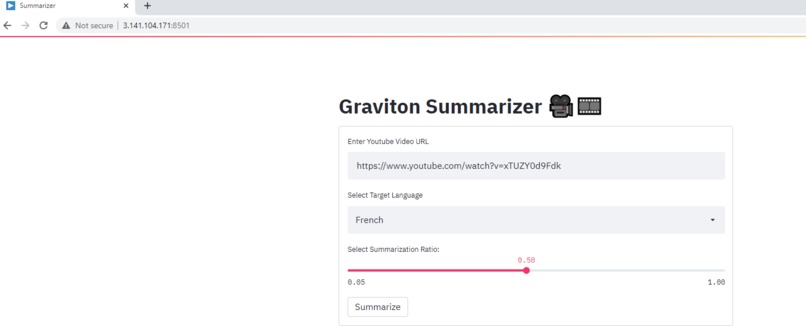
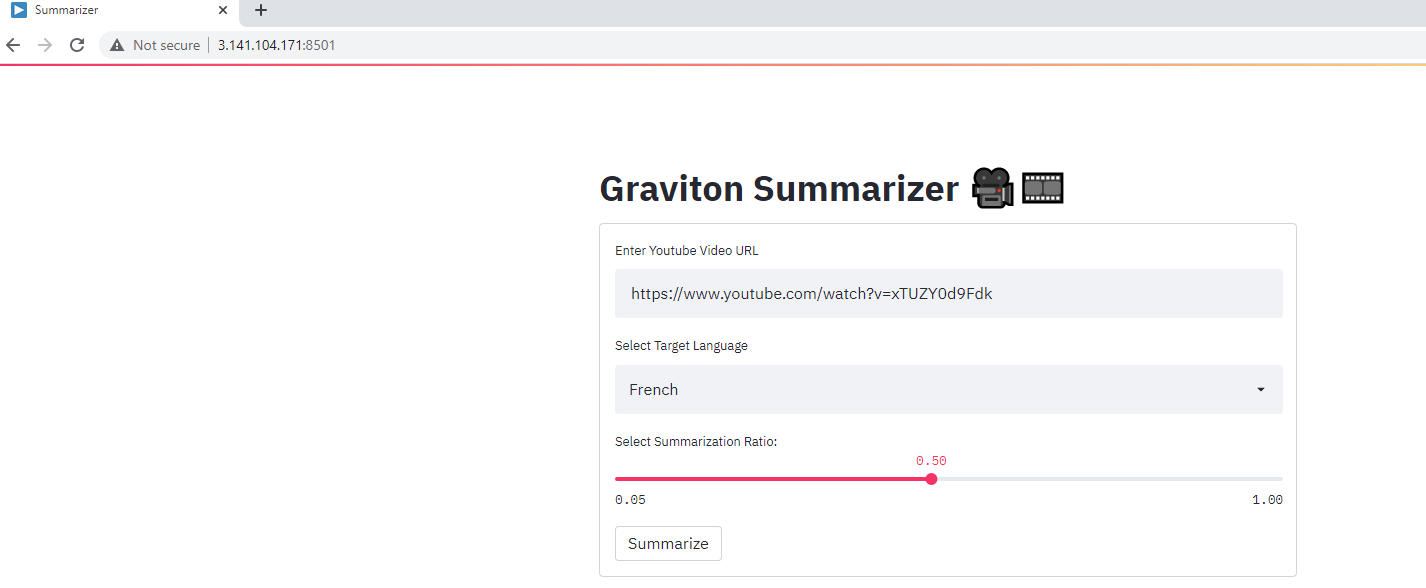
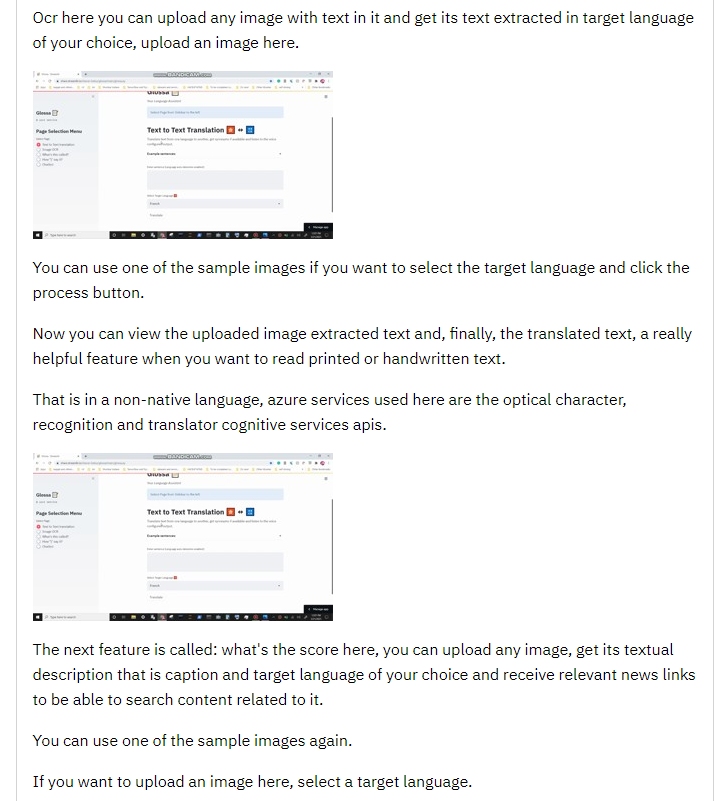
Home page
-
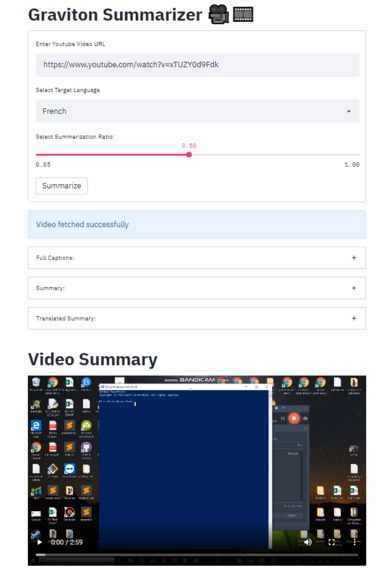
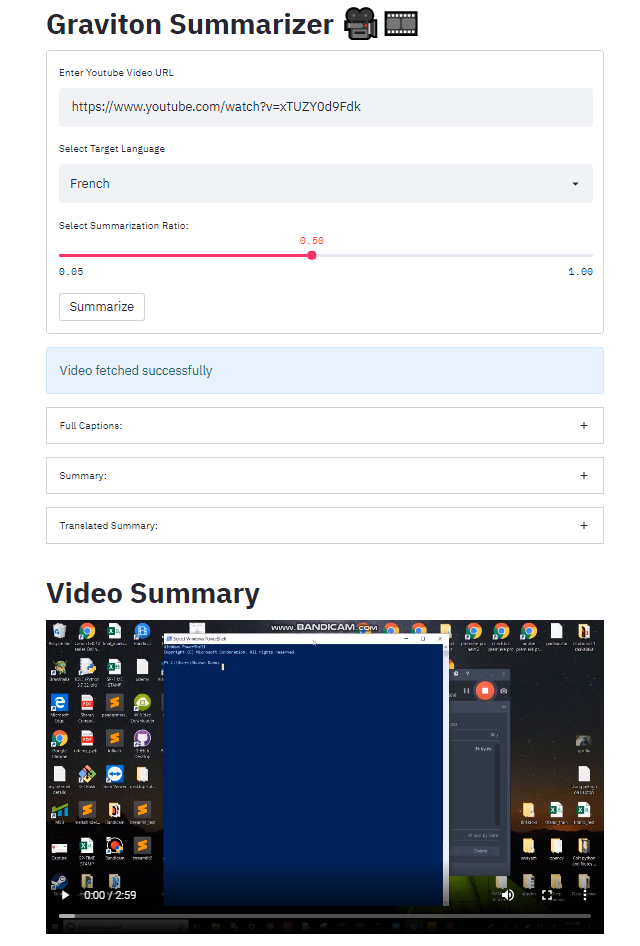
Summarizer
-
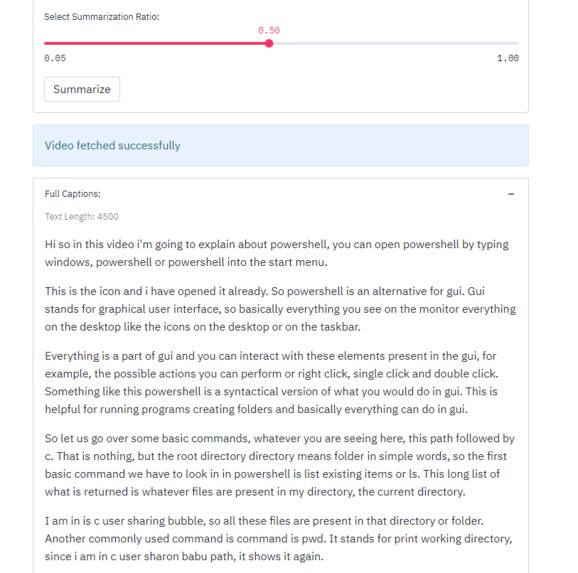
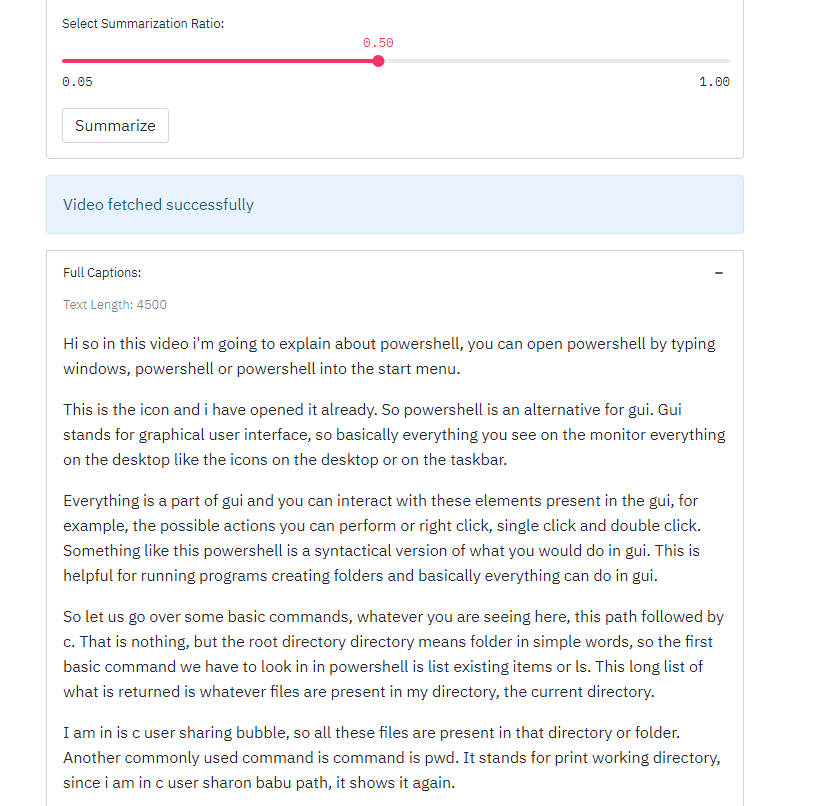
Text Captions generated
-
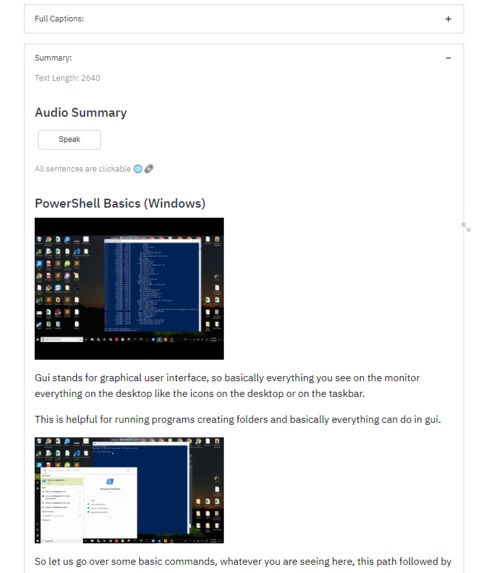
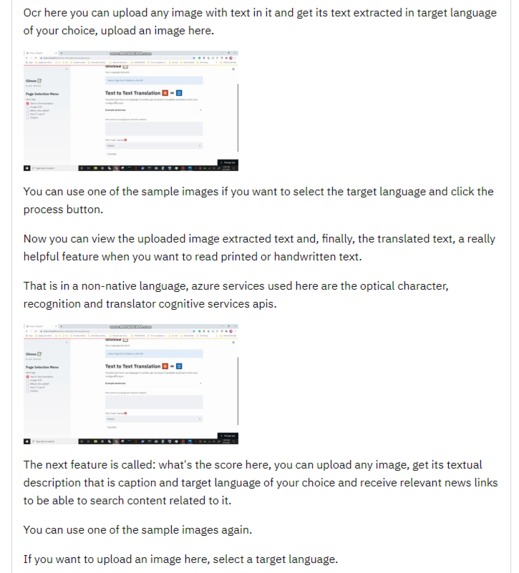
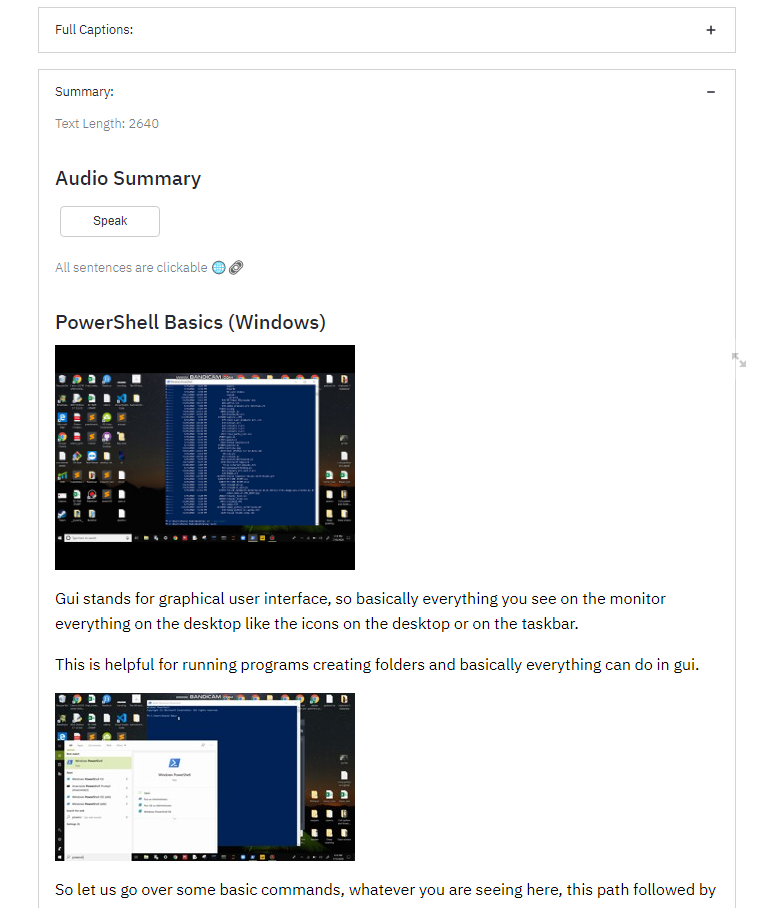
Summarized text with relevant images
-
-
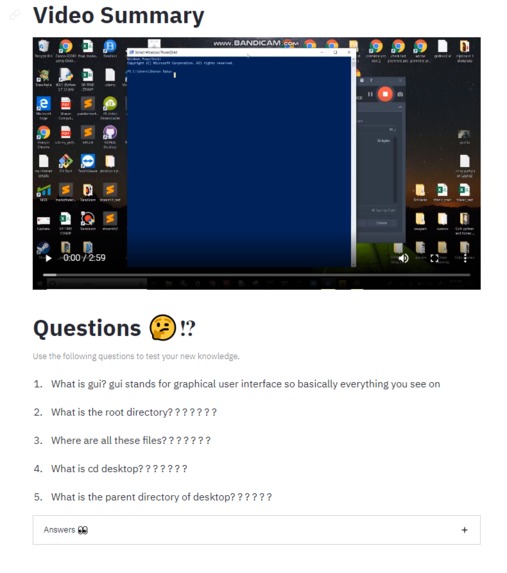
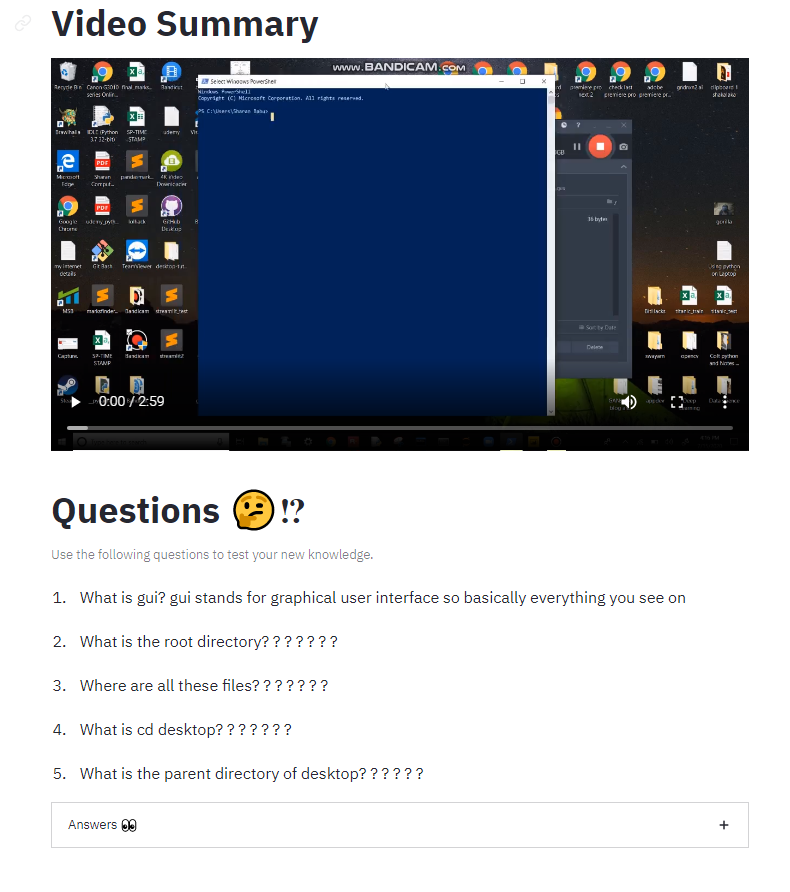
Video Summary
-
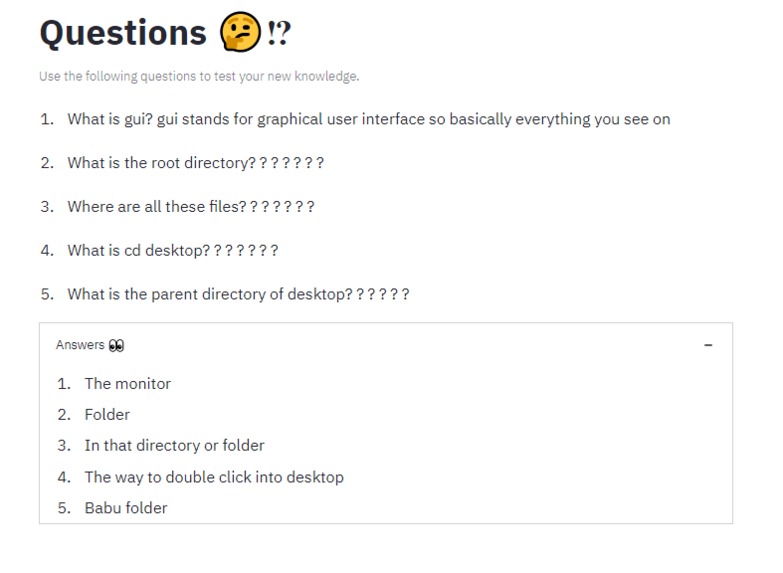
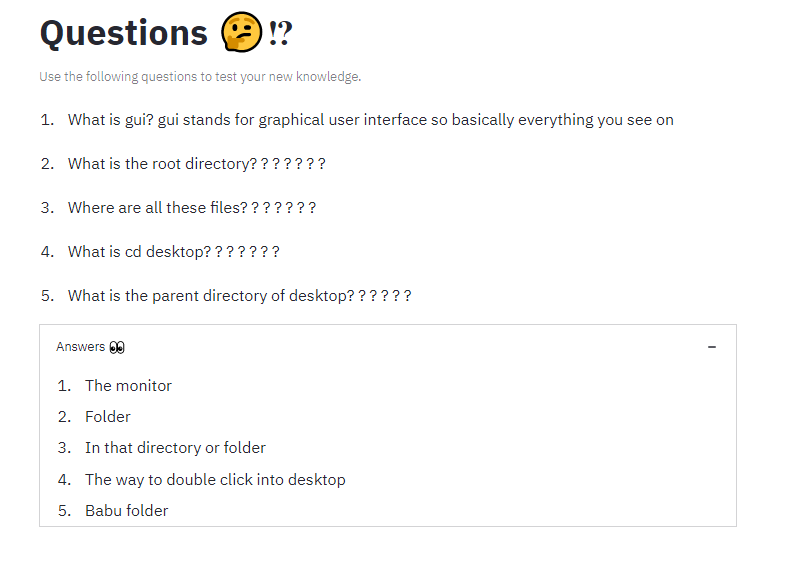
QnA??
-
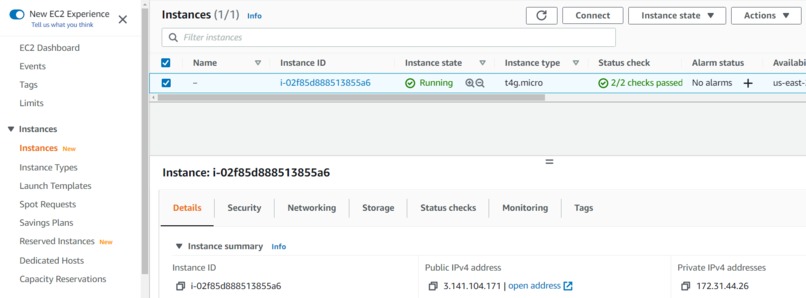
Graviton EC2 Dashboard

Inspiration
To help those who want to save time effectively by consuming videos with only the essential content.
What it does
An easy to use Web Application built on Graviton2 based EC2 Instance that lets you easily summarize Youtube videos and consume the same in form of short texts with images and a short video 🎞️. You can watch the Youtube video describing its functionalities here 🎥.
How to Use the Application
1) Visit the URL: http://3.141.104.171:8501/
2) Enter the URL of a YouTube video that has English subtitles.
3) Select Target Language and preferred Summarization ratio.
4) Click the summarize button.
How we built it
Graviton Summarizer is a responsive web application built using Python and Streamlit. pytube was used to download youtube videos, youtube-transcript-api to get captions of the video, gensim to summarize text , moviepy to edit the final summary video and huggingface APIs to generate questions and answers.
You can have a look at the code here 💻.
Performance Comparison
The run time of the application was compared between localhost and Graviton t4g instance. A noticeable speed boost of ~2 minutes was seen when the web app was deployed on the Graviton Instance. Graviton's compute and Internet speed made the difference.
Accomplishments that we're proud of
Happy to have built an application that has the potential to help a lot of students or just anyone who wants to save time by effectively consuming videos.
What we learned
Several NLP techniques for various activities like Text Summarization, Question Generation and Answer Generation. Use of Python libraries to edit videos programmatically. Deploying web applications on AWS.
Step by Step Deployment
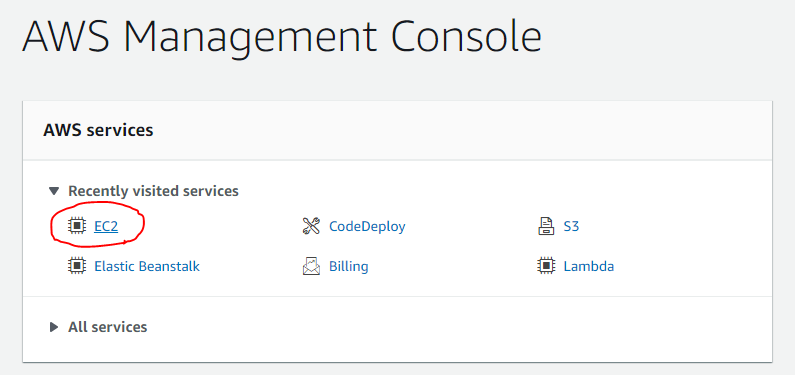
1. Go to your AWS Management Console and select the EC2 Service.
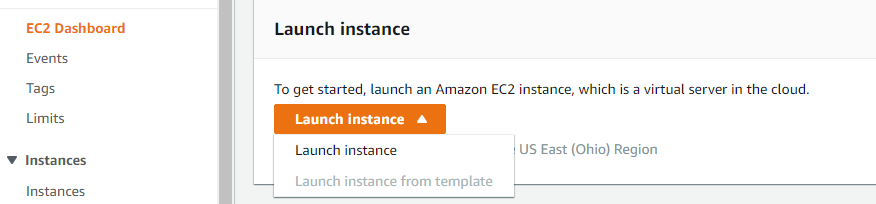
2. Now, from your EC2 Dashboard, click the Launch Instance button.
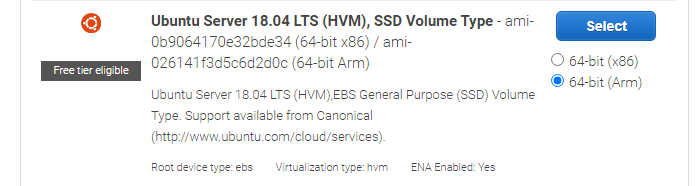
3. Choose an Amazon Machine Image (AMI). For a Graviton2 enabled EC2 instance, select an AMI with 64-bit (Arm). I have chosen Ubuntu Server 18.04 LTS (HVM), SSD Volume Type, 64-bit Arm.
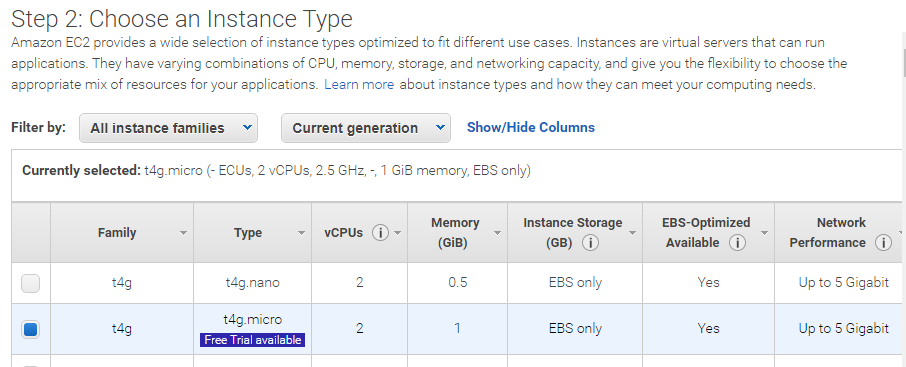
4. Choose an instance type. I have selected the t4g micro instance.
5. Click 'Next: Configure Instance Details'

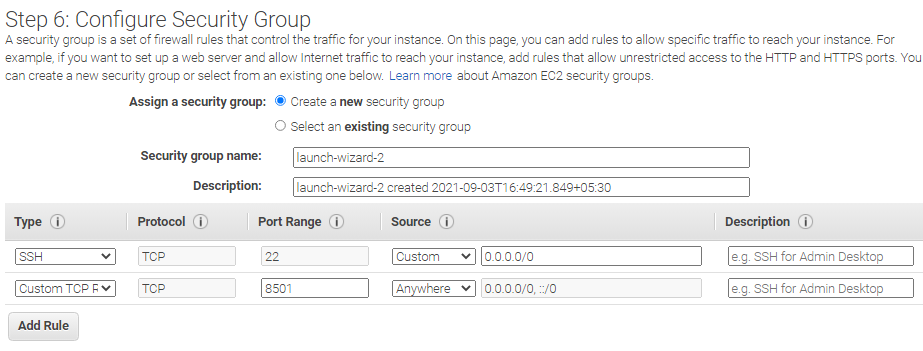
and all the following 'Next: ...' buttons until you reach the step called 'Configure Security Group'. Now, we have to add a Custom TCP Rule for our project. Click the 'Add Rule' button and select the options for the rule as shown in the image below.
6. Click Review and Launch.

7. Now, click the Launch button. In the pop-up window that appears, create a new key pair and download it. This is not to be shared publicly and will be used in later steps.
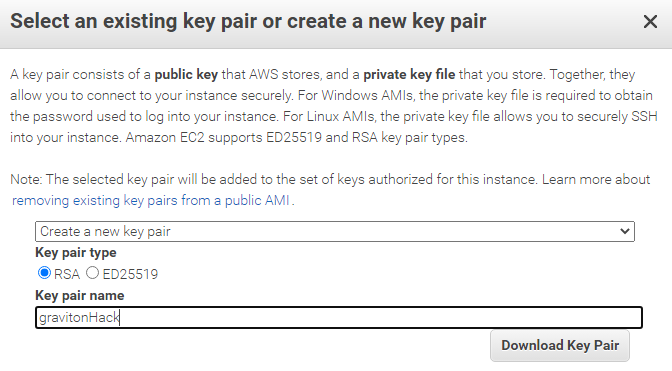
Click Launch Instances.
8. Your Graviton2 based instance is now up and running. you can connect to this instance from your local machine using the following command:
ssh -i <"key_pair_name">ubuntu@<Your Public DNS Address (IPv4)>
9. Execute the following commands:
git clone <Repo_HTTPS_URL>
sudo apt update
sudo apt install ffmpeg
sudo apt-get install python3-pip
pip3 install Cython
pip3 install --upgrade pip setuptools

sudo apt-get install tmux
cd YtSummarizer
pip3 install -r requirements.txt

tmux new -s StreamSession
streamlit run graviton_summarizer.py
Now, press Ctrl + B and then D to keep the website running even if you leave the terminal.
10. Our web application is now ready. You can visit the instances' IPv4 Public IP Address to access it.

What's next for Graviton Summarizer
Extend summarization support to multiple media streams.
Built With
- gensim
- moviepy
- python
- pytube
- streamlit
- youtube-transcript-api



Log in or sign up for Devpost to join the conversation.