-
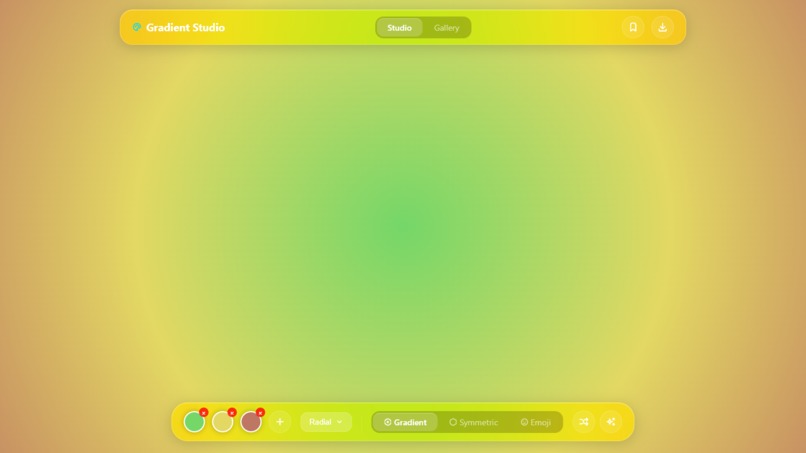
gradient
-
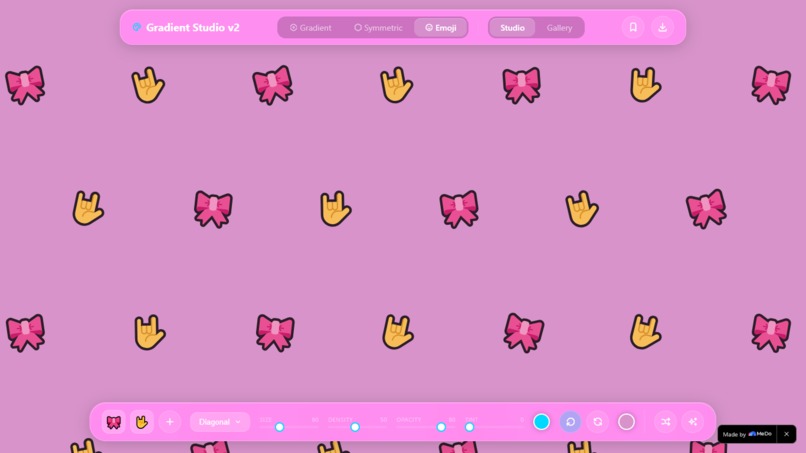
emoji
-
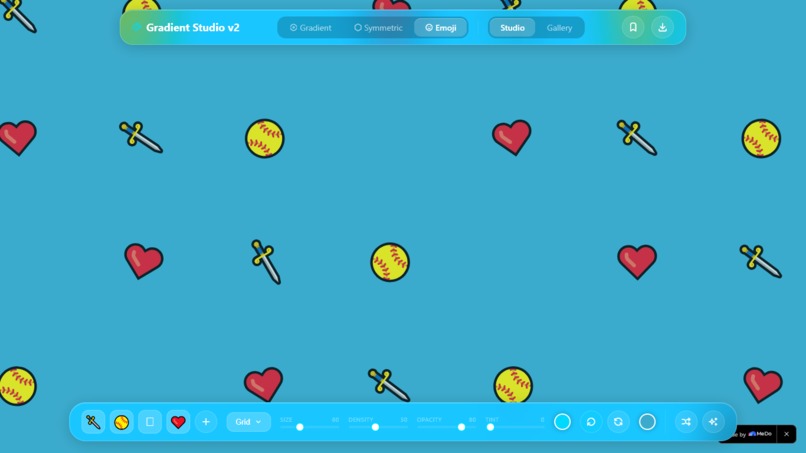
emoji
-
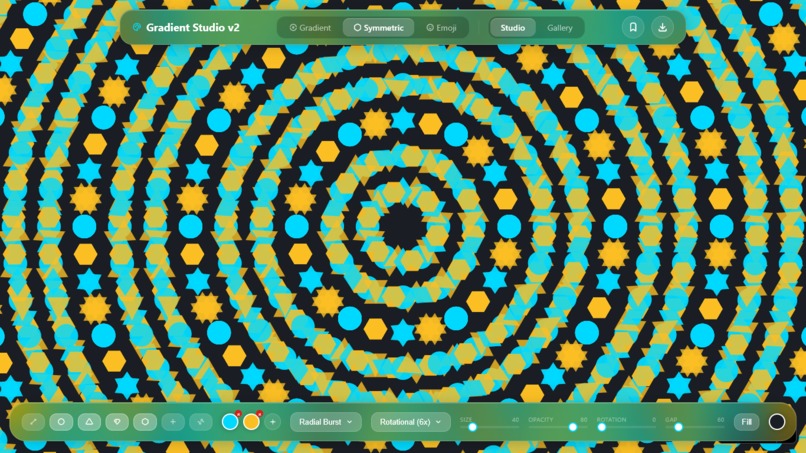
symmetric
-
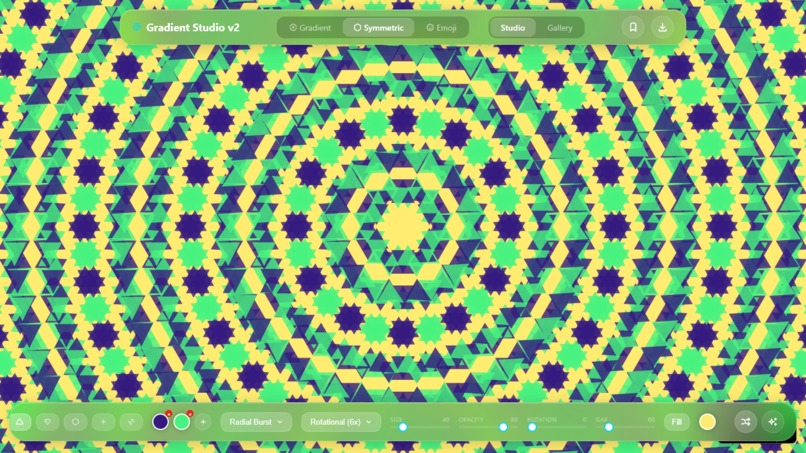
symmetric randomized
Inspiration
It started with a frustrating 25 minutes spent scrolling through stock background sites for a landing page I was building. Nothing felt right. Everything was either too corporate, too busy, or locked behind a paywall. I opened Figma, made a simple gradient, exported it, and thought — why isn't there just a dedicated tool for this?
That question became Gradient Studio.
I wanted something that felt like a creative toy but worked like a professional tool. Something you could open mid-project, design something beautiful in under a minute, and export it without friction. No account. No subscription. No learning curve.
What It Does
Gradient Studio is a browser-based background image creator with three distinct creative modes:
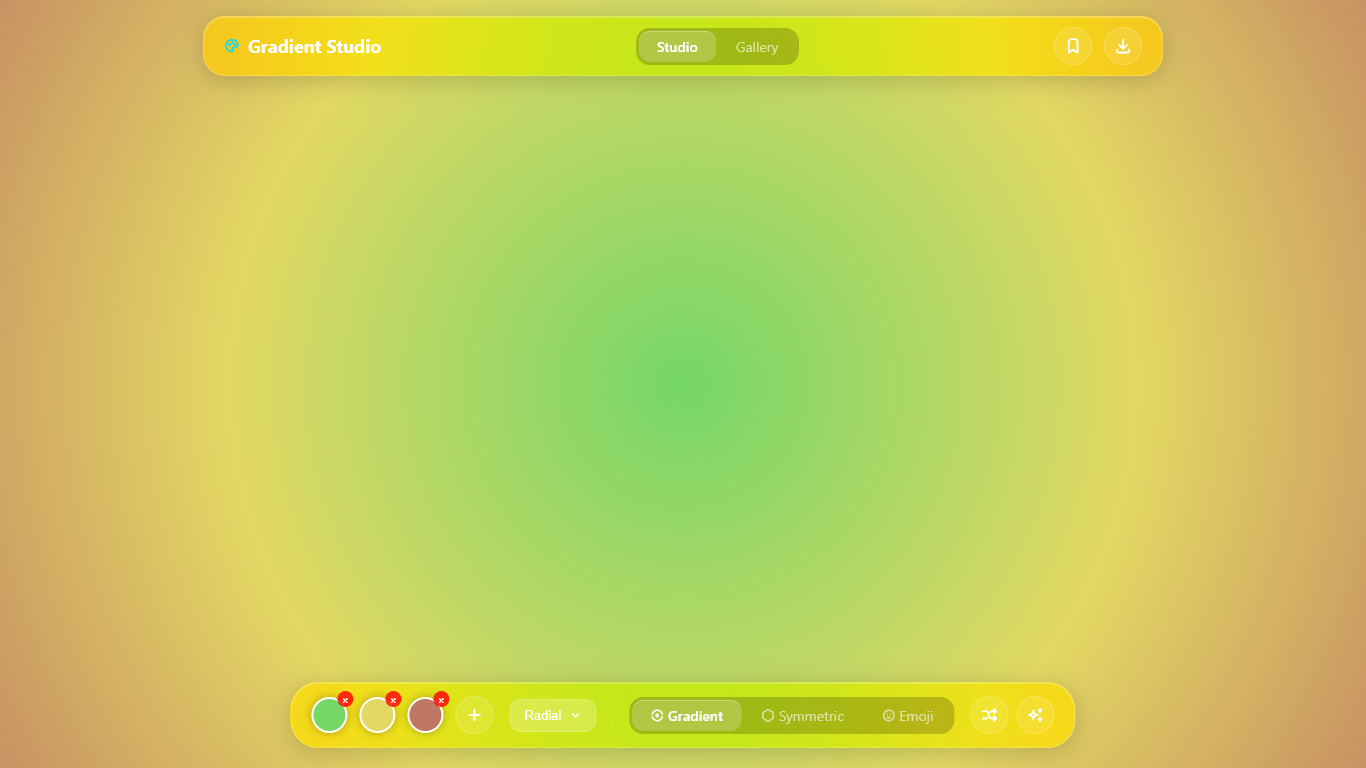
🌈 Gradient Mode Mix up to 5 color stops and generate Linear, Radial, or Conic gradients. A live angle slider updates the canvas in real time. Hit the randomize button for instant inspiration, or use the AI color suggestion feature — powered by MeDo — to get beautiful, curated palette ideas on demand.
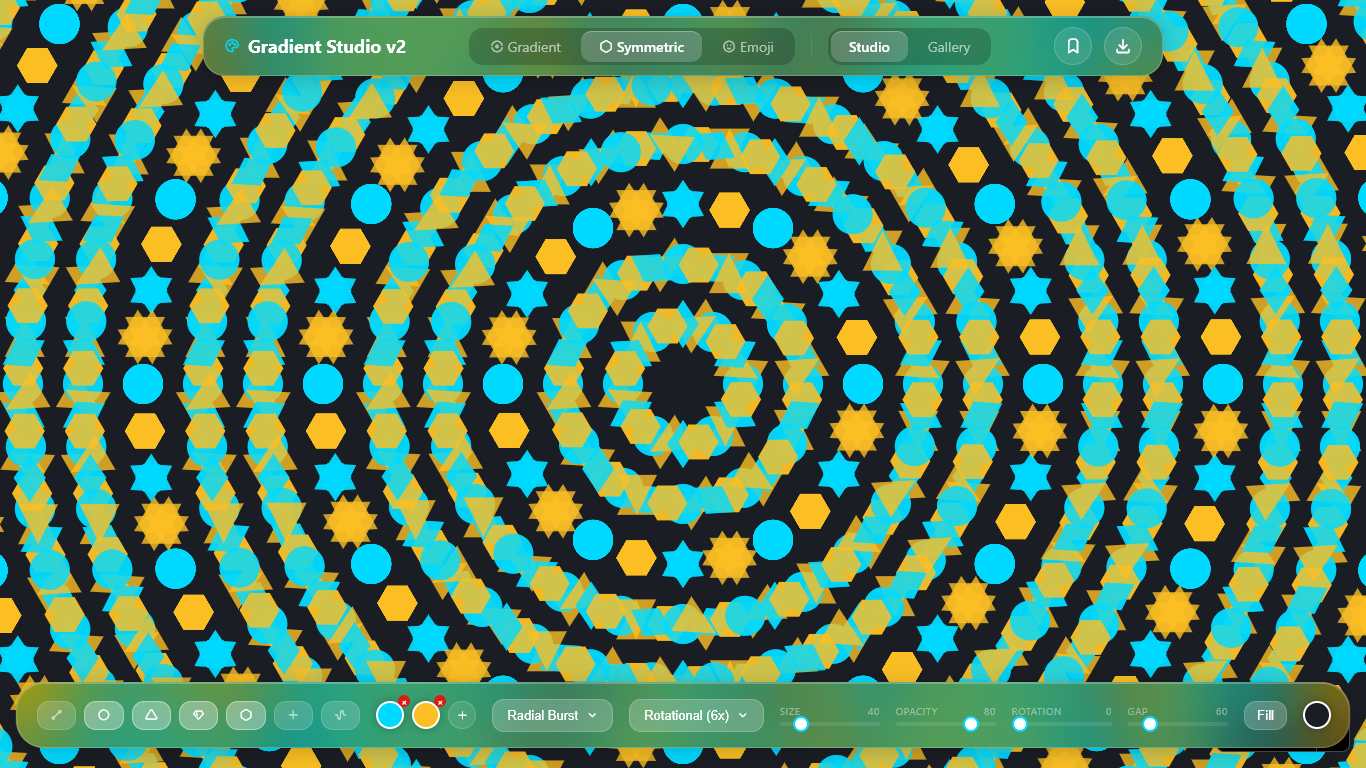
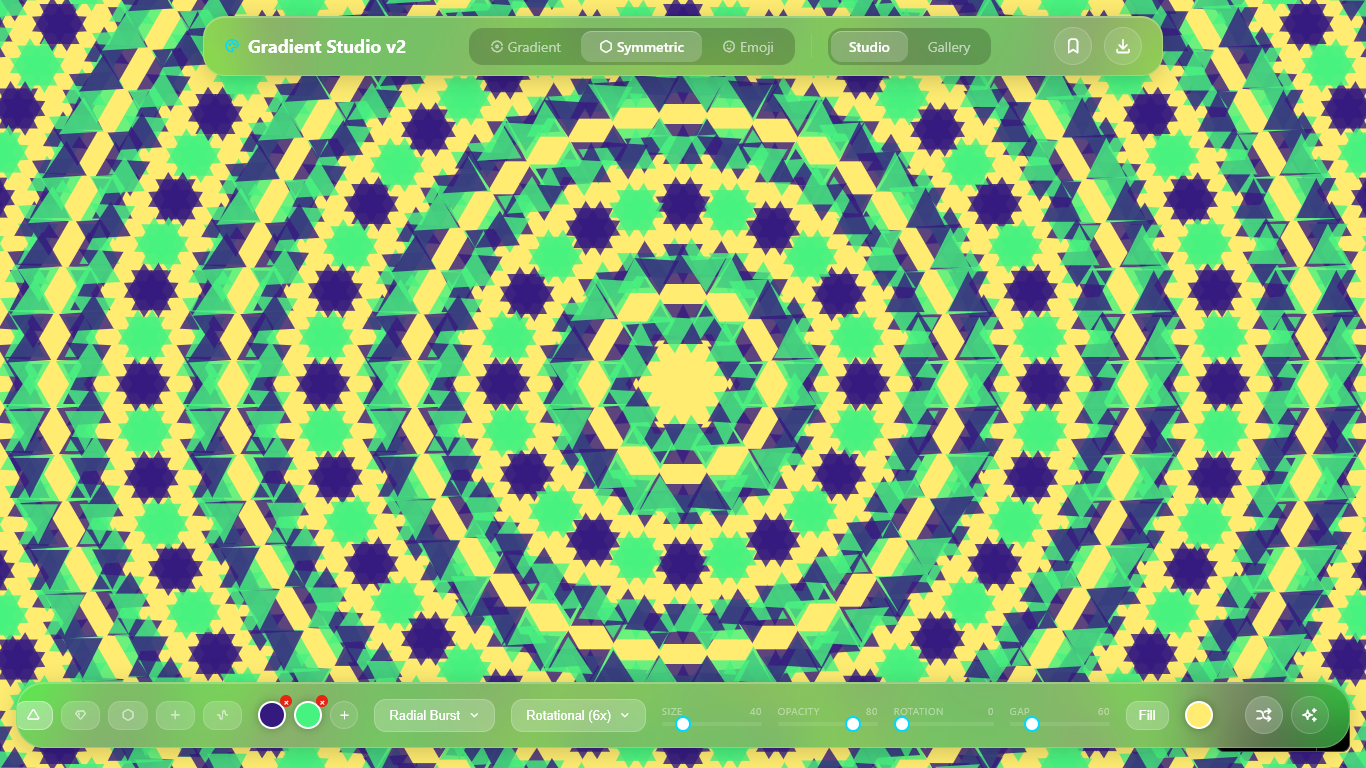
⬡ Symmetric Mode This is the heart of the app. Choose from shapes like circles, hexagons, triangles, diamonds, or waves, then layer on a symmetry type — Mirror X, Mirror Y, Mirror Both, Rotational 4×, Rotational 6×, or Radial Burst. Adjust size, density, stroke, opacity, and color. What comes out looks like something that took hours in Illustrator. It takes 30 seconds.
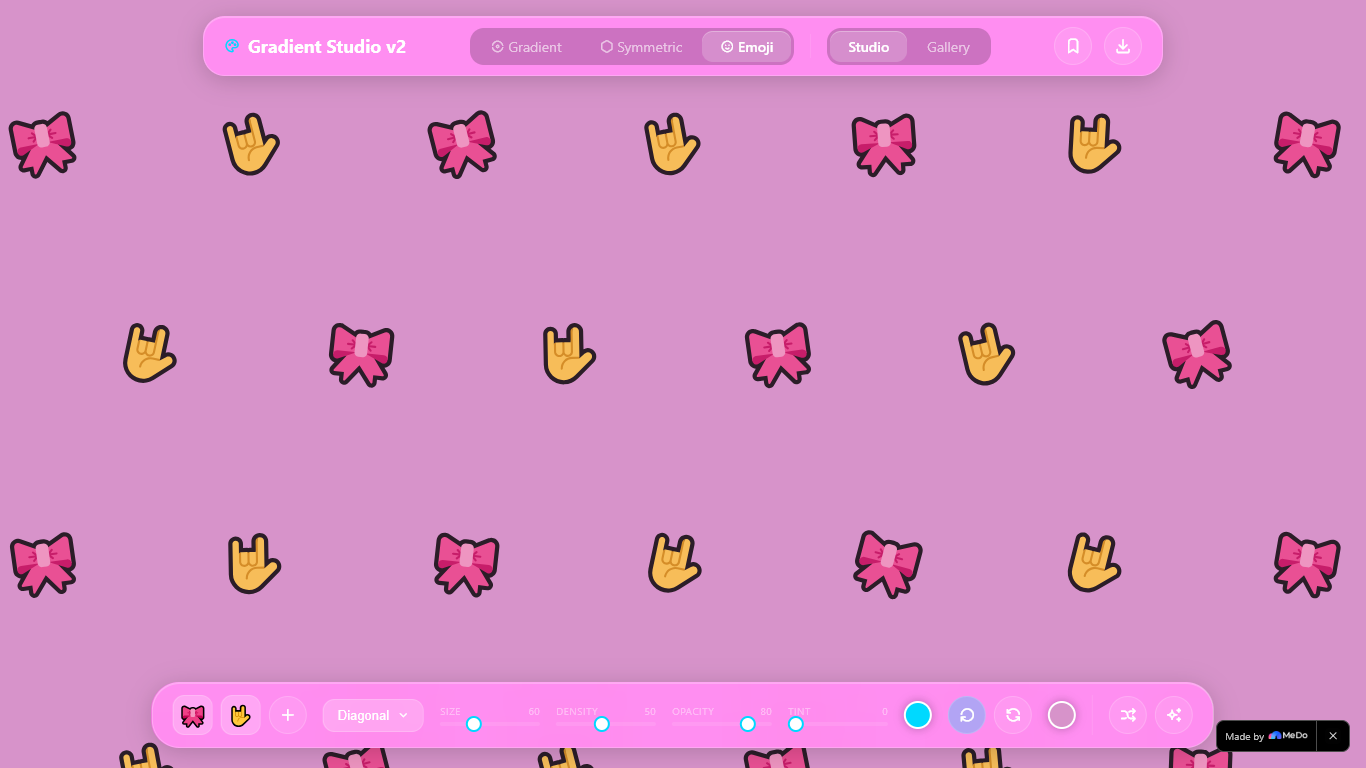
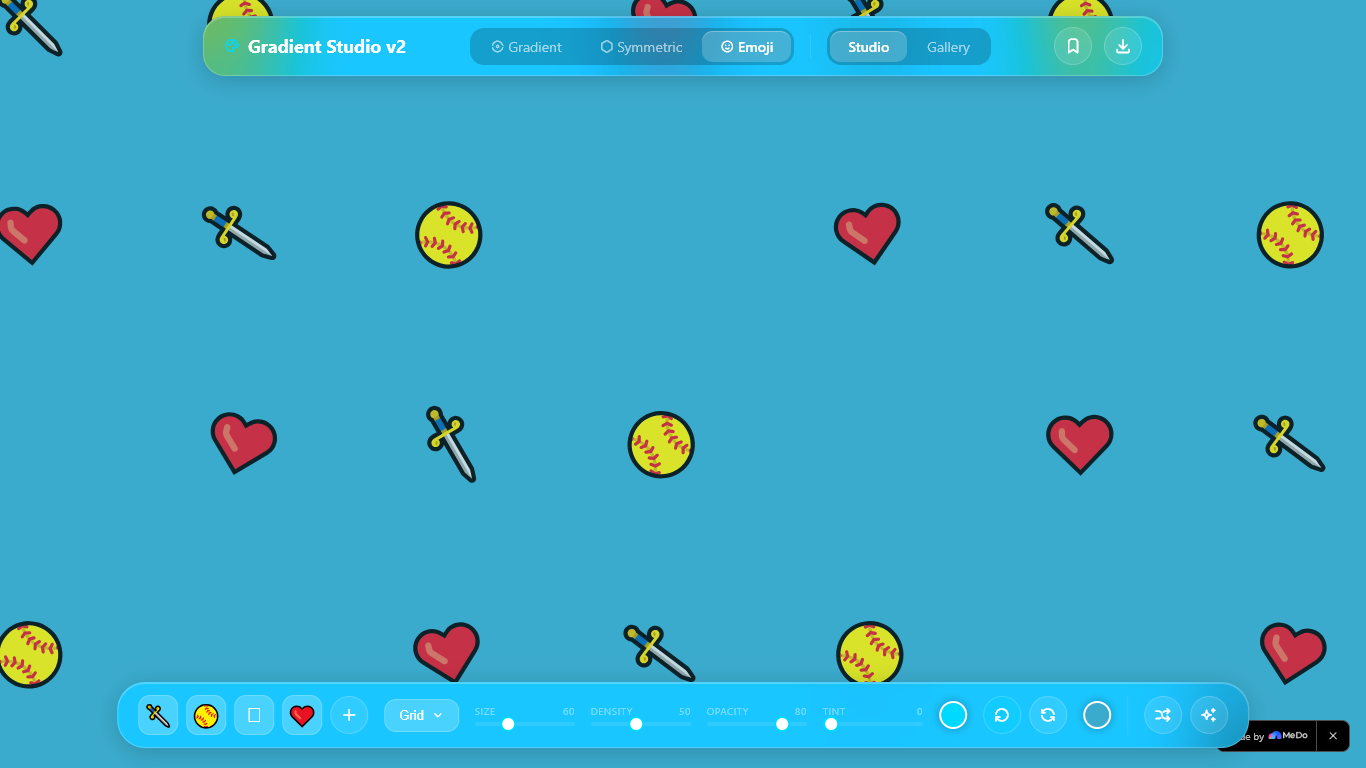
😀 Emoji Mode Pick up to 6 emojis, choose a Grid, Diagonal, or Scatter layout, set the size and density, and tile your entire screen into a wallpaper. Surprisingly addictive.
All three modes share the same core features: export as JPG or SVG, copy the CSS gradient to clipboard, and save creations to a local Gallery to revisit later.
How I Built It
The entire app is a single HTML file — no framework, no build step, no dependencies except an icon font loaded from CDN. Everything runs in the browser using the Canvas 2D API.
The UI is built around an iOS-style frosted glass aesthetic. Both the top navigation bar and the bottom control panel use backdrop-filter: blur(40px) with inner highlight borders to achieve the glass look. They auto-hide after 6 seconds of inactivity and reappear on any mouse movement — keeping the background always front and center.
The canvas rendering system uses requestAnimationFrame with debouncing so every slider drag, color pick, and dropdown change updates the preview live without jank.
The Symmetric mode engine was the most technically demanding part. Each shape type has its own draw function. Symmetry is applied by wrapping each draw call in ctx.save() / ctx.translate() / ctx.rotate() / ctx.restore() loops. For Rotational 6×, six mirrored copies of each shape are drawn per tile position. Getting this to render correctly across a full canvas — while respecting color cycling, density, and size — required careful math and a lot of iteration.
The Gallery stores up to 20 creations in localStorage. Each saved item includes a 200×112 JPEG thumbnail generated from the canvas and the full config JSON, so any creation can be loaded back into the studio exactly as it was.
SVG export was a deliberate design choice. For Gradient mode, the SVG uses proper <linearGradient> and <radialGradient> definitions — the result is a scalable, resolution-independent file. For Symmetric mode, every shape is serialized as <polygon>, <circle>, or <path> elements with correct transform attributes. These SVGs can be dropped directly into a website as a background-image or opened in any vector editor.
How I Used MeDo
MeDo was involved at every stage of this project, not just as a code generator but as a genuine thinking partner.
Feature: AI Color Suggestions The sparkle button in Gradient mode calls MeDo with a structured prompt requesting 3 beautiful gradient color combinations. MeDo returns the palette as structured data which the app parses and applies to the canvas instantly. It's one of those features that feels small but makes the creative experience genuinely delightful — especially when you're stuck.
Architecture conversations I used MeDo's multi-turn chat to think through the overall structure before writing a single line of code. Describing what I wanted — a fullscreen canvas app with three mode panels, auto-hiding UI, and a gallery — and getting back a clean, well-structured HTML/CSS/JS scaffold saved hours.
Symmetric math The rotational symmetry system was where MeDo impressed me most. I described the transform logic I needed in plain language — "draw the same shape 6 times around a center point, rotating by 60 degrees each time, but also tile this across the whole canvas" — and MeDo produced working canvas code on the first attempt. It also caught an edge case I hadn't considered: when the rotation origin needed to shift per tile, not stay fixed at the canvas center.
UI components
I replaced every native <select> element with custom glassy dropdown components. Describing what I wanted visually — dark tinted, frosted, white text, smooth open/close animation — and getting back complete, working component code was exactly the kind of tedious UI work that MeDo handles exceptionally well.
Challenges
The symmetric tiling math was genuinely hard. Rotational symmetry around a single center point is straightforward. Rotational symmetry tiled across an entire canvas, where each tile has its own center of rotation, required a double loop with per-tile transform resets. It took several iterations to get it right.
SVG export for complex shapes was trickier than expected. The canvas draw calls don't automatically translate to SVG — each shape type needed its own serialization logic. Waves, in particular, use Bezier curves on canvas (ctx.bezierCurveTo) which had to be converted to SVG <path> C commands manually.
The auto-hide UI needed careful handling on mobile. Touch events behave differently from mouse events — a tap that opens a color picker shouldn't reset the hide timer the same way a mouse movement does. Getting this to feel natural across both desktop and mobile took more edge-case handling than expected.
What I Learned
Building everything in a single HTML file is a constraint that forces good decisions. No abstractions to hide behind. Every piece of state is explicit. Every interaction is traceable. It made the codebase surprisingly easy to reason about, and I'll carry that discipline into future projects.
I also learned that describing UI in plain language to MeDo and getting working component code back is genuinely faster than building from scratch — especially for things like custom dropdowns and modal overlays where the implementation is tedious but the requirements are clear.
And finally: the best creative tools get out of your way. The auto-hiding UI wasn't just a nice-to-have. It changed how the app feels to use. When the controls disappear and it's just you and the background filling the screen, something clicks. That's the experience I wanted to build, and I'm glad I prioritized it.
What's Next
- Animated gradient backgrounds (CSS animation export)
- Mesh gradient mode (multi-point color blending)
- Shareable links that encode the full config in the URL
- A curated preset library with community submissions
Built With
- medo

Log in or sign up for Devpost to join the conversation.