-
-
Go Logo
-
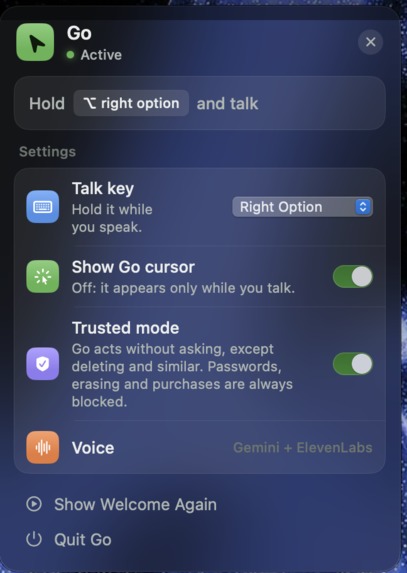
Go Menu Bar
-
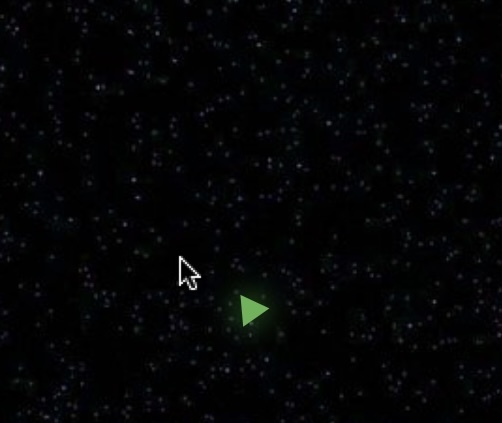
Go Cursor tracking Mouse
-
-
Inspiration
AI is great at giving answers, but we kept running into the same problem: when we needed help using unfamiliar software, the experience was still awkward.
You take a screenshot, open a chatbot, ask what to do, switch back to the app, forget a step, then go back to the chatbot. Or you let an AI agent do the whole task for you and finish without really learning anything.
We wanted something in between.
Go is built around a simple idea: if you are trying to learn how to do something on your computer, the help should happen where the task is happening.
Instead of giving you a long list of instructions, Go shows you one step at a time directly on your screen. That could mean figuring out a tool you have never used at work, opening Photoshop for the first time, helping a parent find a setting buried somewhere on their computer, or just navigating an interface that feels more complicated than it should.
The goal is not just to get to the answer. It is to help you learn by doing.
What it does
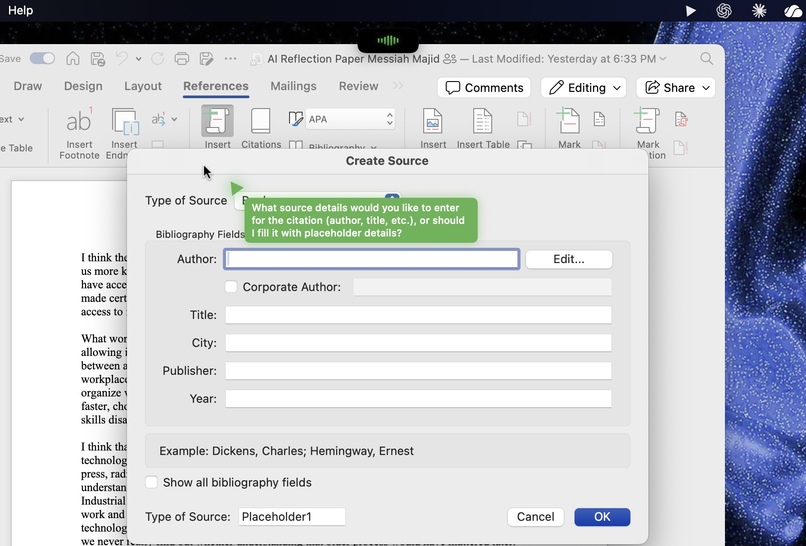
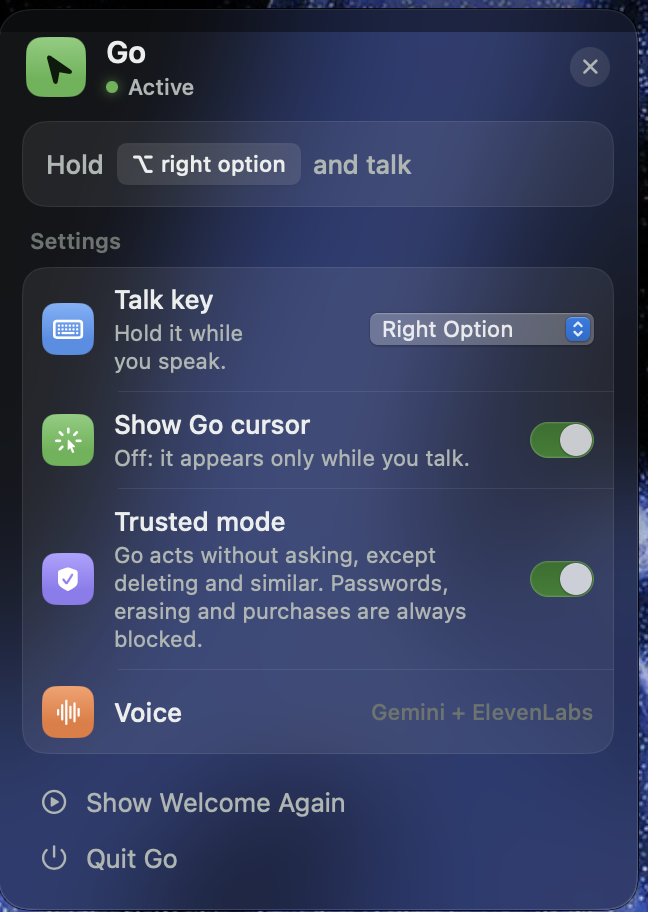
Go lives quietly in the macOS menu bar. Hold a key, ask for what you need, and it looks at the screen you are already using.
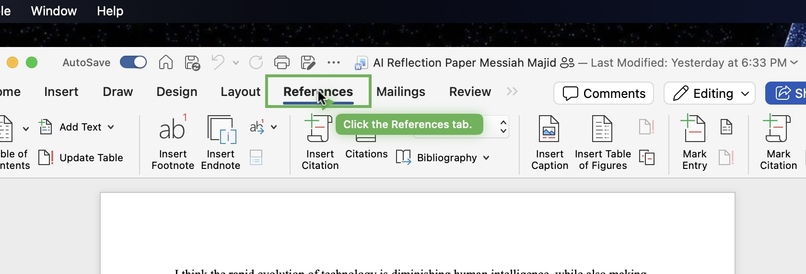
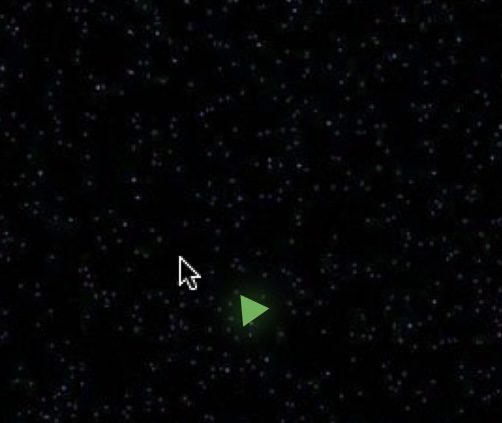
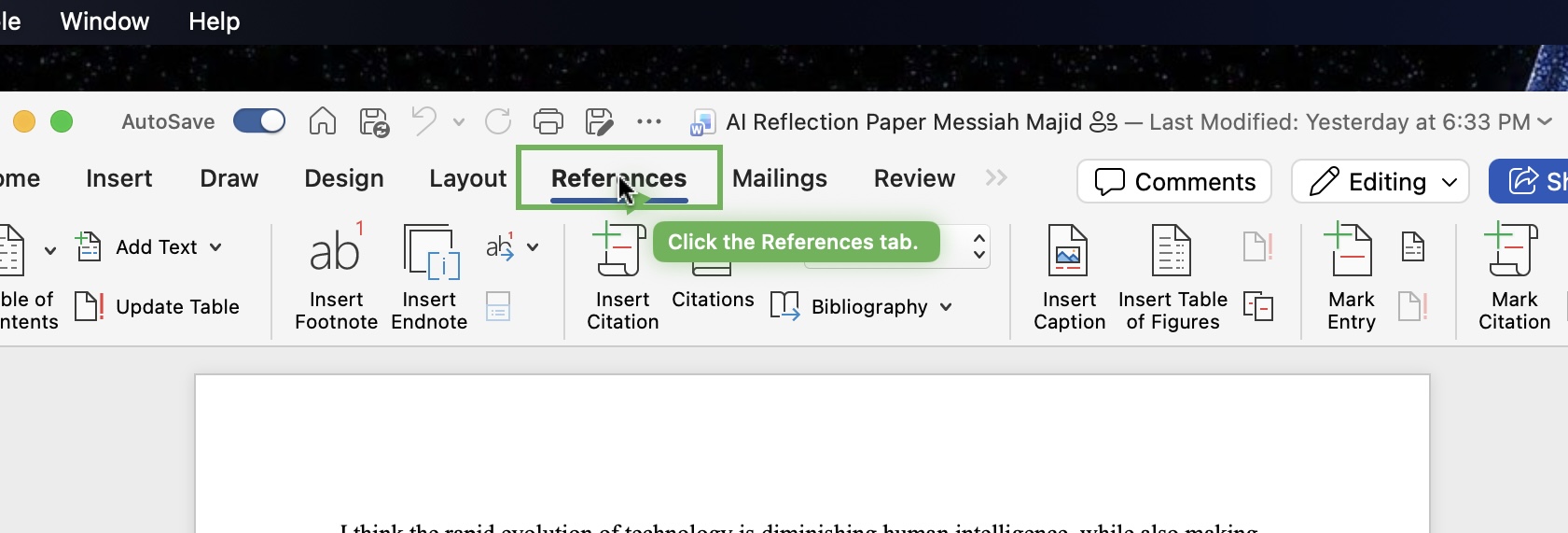
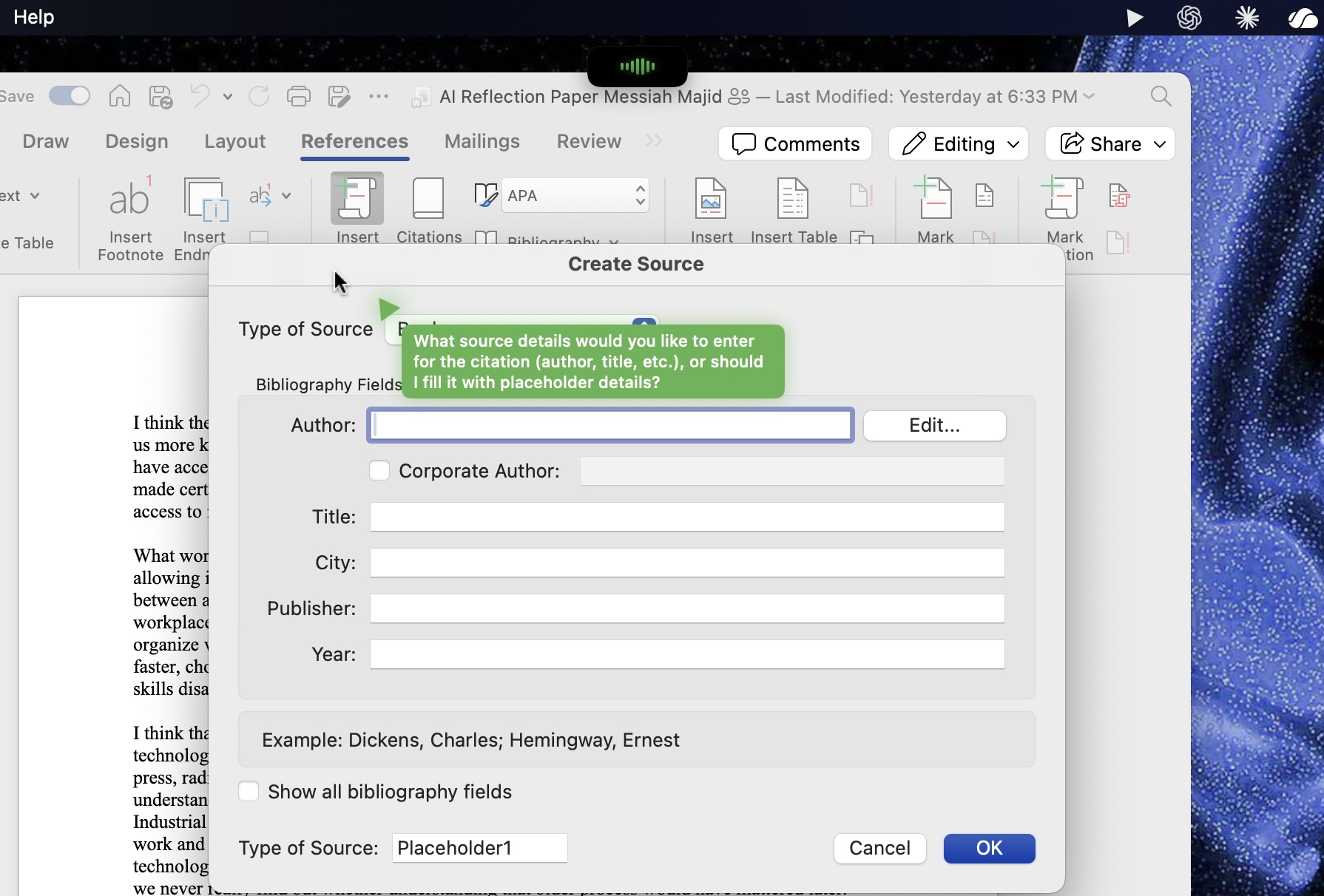
If you ask something like "How do I make a pivot table?", Go enters a guided mode. A cursor moves to the next control you need, highlights it, explains the step, and waits for you to act before continuing.
If you say "Turn on Do Not Disturb," Go can handle the task itself.
And if there is something you do often, Go can save it as a routine. You can later ask it to run the routine automatically or walk you through it again.
We wanted those modes to feel like parts of the same product: show me, do it with me, or do it for me.
Go is also push-to-talk rather than always listening, and everything it says aloud also appears as text beside the cursor.
How we built it
We built Go as a native macOS app using Swift and SwiftUI.
Instead of hard-coding instructions for specific apps, Go tries to understand whatever is currently on the screen. It first uses the macOS Accessibility APIs to identify buttons, menus, text fields, and other interface elements. When an element cannot be understood that way, Go can use the screen itself as visual context.
Gemini decides the next action based on the current state of the screen. Importantly, Go plans one step at a time. After every action, it checks the interface again before deciding what should happen next.
That mattered to us because software changes constantly. A rigid sequence of instructions can fail as soon as a window moves, a menu changes, or something unexpected appears. We wanted Go to react to what is actually happening instead.
Gemini Live handles the voice interaction, ElevenLabs provides speech output, and a small Cloudflare Worker keeps our API credentials outside the app.
We also built a safety layer around actions. Go avoids password fields, asks before destructive actions, refuses certain irreversible actions, and verifies that an action actually worked before considering the step complete.
Challenges we faced
The hardest part was making Go work generally instead of building a polished demo around one app.
Computer interfaces are messy. Some buttons have clear accessibility labels. Some are icon-only. Some change names depending on their state. Some apps expose useful accessibility information, while others expose very little.
We spent a lot of time dealing with cases where Go knew conceptually what needed to happen but had trouble grounding that instruction to the exact thing on the screen.
We also had to think carefully about the difference between guidance and automation. "Show me how to do this" should behave differently from "Do this for me." Getting those interactions to feel natural without adding extra menus or settings became an important part of the project.
Another challenge was knowing when a step had actually finished. Clicking in roughly the right place is not enough. Go has to observe that the interface changed before moving forward, otherwise one small mistake can throw off the rest of the task.
And because this was built during a hackathon, we had to constantly choose between adding more features and making the core interaction reliable.
What we learned
The biggest thing we learned is that building isn't only about making the model smarter.
A lot of the work is grounding: understanding the screen, finding the correct control, knowing whether an action succeeded, recovering when something unexpected happens, and deciding when the user should stay in control.
We also came away thinking differently about AI and learning.
There is a large space between "tell me how" and "do it for me." A student learning new software, someone trying to finish an unfamiliar task at work, and a parent who is less comfortable with technology may look very different, but they can run into the same problem: they know what they want to do, but not how to get there.
We think AI can be more useful when it helps people build confidence instead of making them dependent on the tool.
That is the space we wanted Go to explore.
What's next
There is still a lot we would improve.
We want Go to handle more complex multi-step workflows, support more languages, make saved routines more flexible, and eventually allow routines to be shared between people.
But the direction we are most excited about is simple: making computers feel less intimidating without hiding how they work.
*See it. Do it. Learn it. *
Built With
- cloudflare-workers
- elevenlabs-api
- gemini-api-(including-gemini-live)
- macos
- macos-accessibility-api
- swift
- swiftui
- typescript


Log in or sign up for Devpost to join the conversation.