Inspiration
Hands are busy, eyes must stay focused, but information is digital. During presentations, hospital work, and hands-on tasks, stopping to touch a mouse or keyboard breaks focus and flow, and may be dangerous or unfeasible. Touch interfaces require stopping work. Voice fails in noisy environments. Controllers are impractical when hands are full. Traditional mice require repetitive, forceful movements that can lead to repetitive strain injuries such as mouse tendinitis, and they exclude people with motor disabilities.
We realized that humans already know how to interact naturally, such as pointing, pinching, and using gestures, so why force humans to adapt to machines? Instead, Pineapple Vision Pro adapts machines to people.
What it does
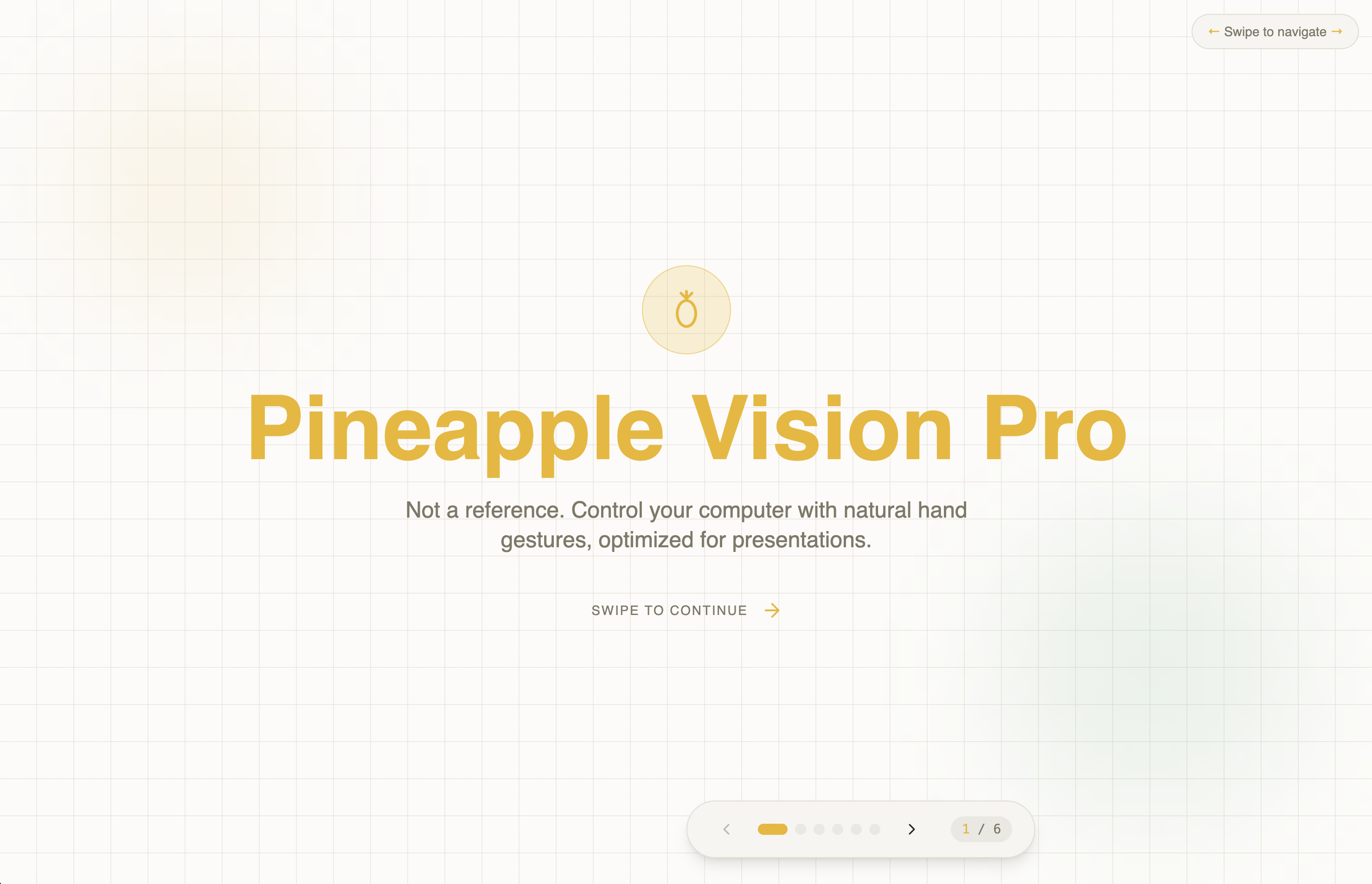
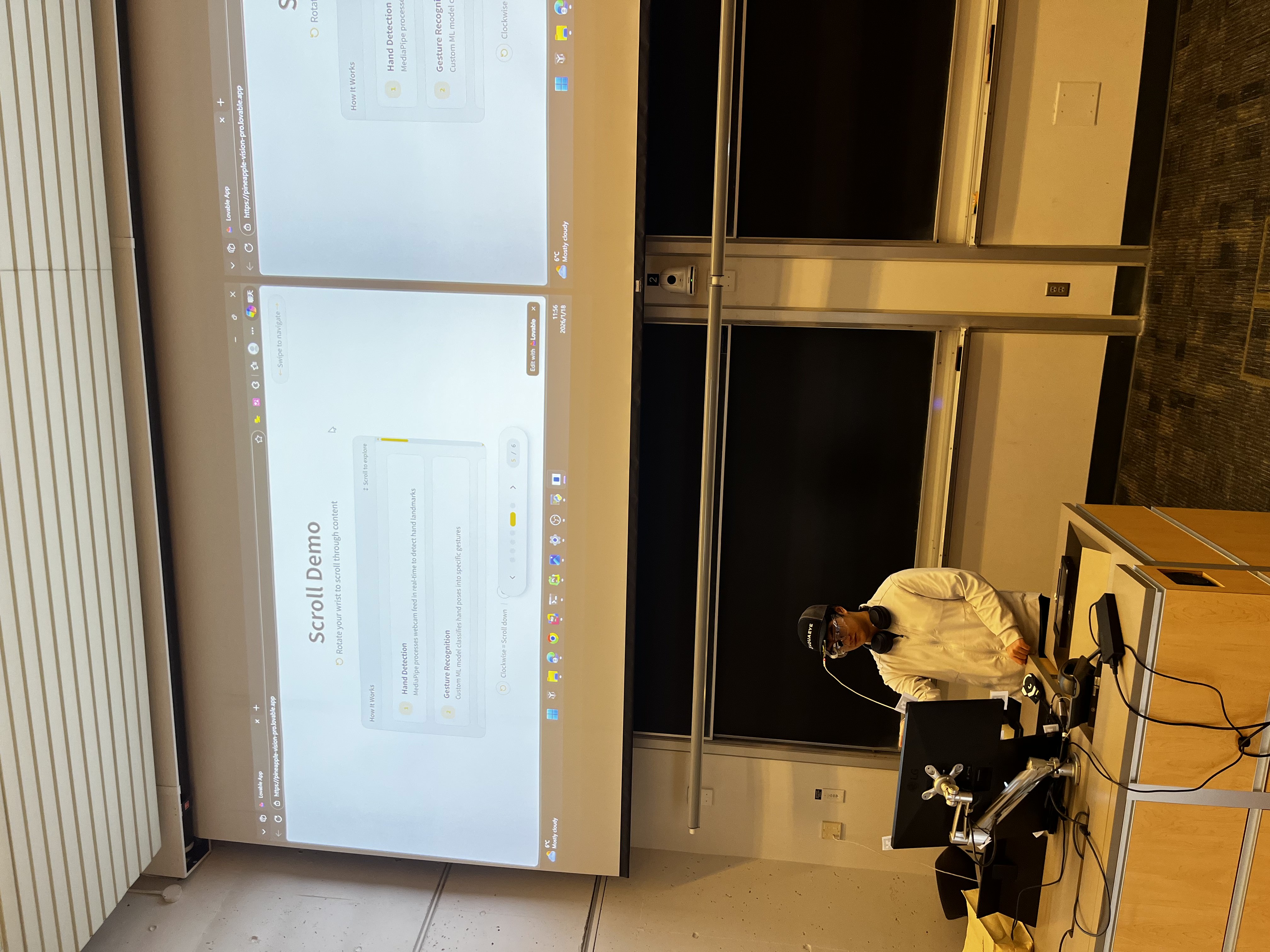
Pineapple Vision Pro turns any camera into a gesture control interface using natural mid-air hand movements without touching, voice, or physical controllers needed.
Useful across many environments, such as presentations where it eliminates awkward pauses, and sterile settings like hospitals where minimizing contamination is critical.
Pineapple Vision Pro supports continuous, natural gestures that tolerate tremor and limited dexterity. It reduces effort, force, and repetition, allowing users with prosthetic hands or hand tremors to interact comfortably using mid-air gestures. Our system relies on natural, continuous gestures designed for low-effort control, making it effective for users experiencing limited dexterity, tremor, or fatigue.
Features:
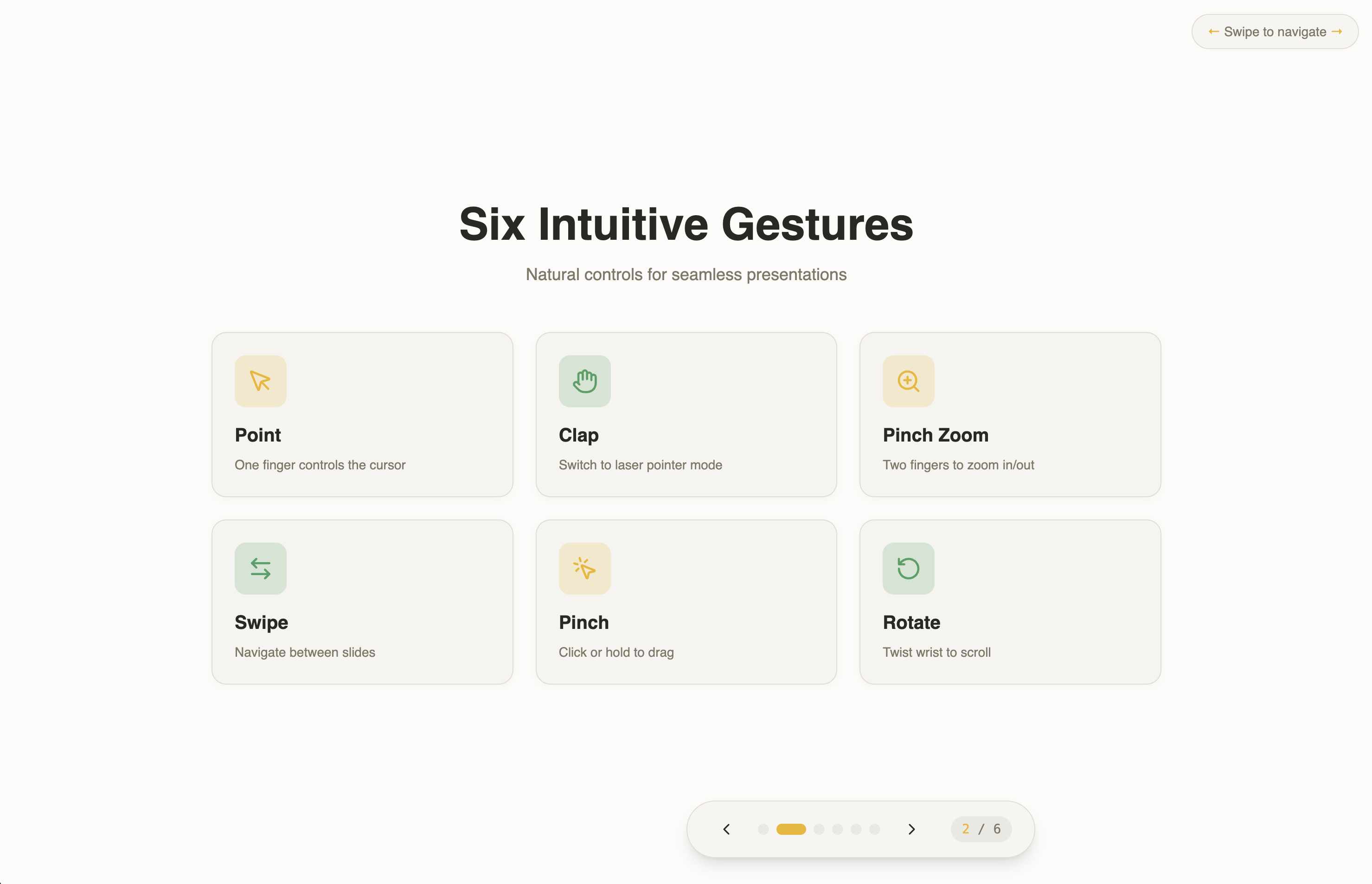
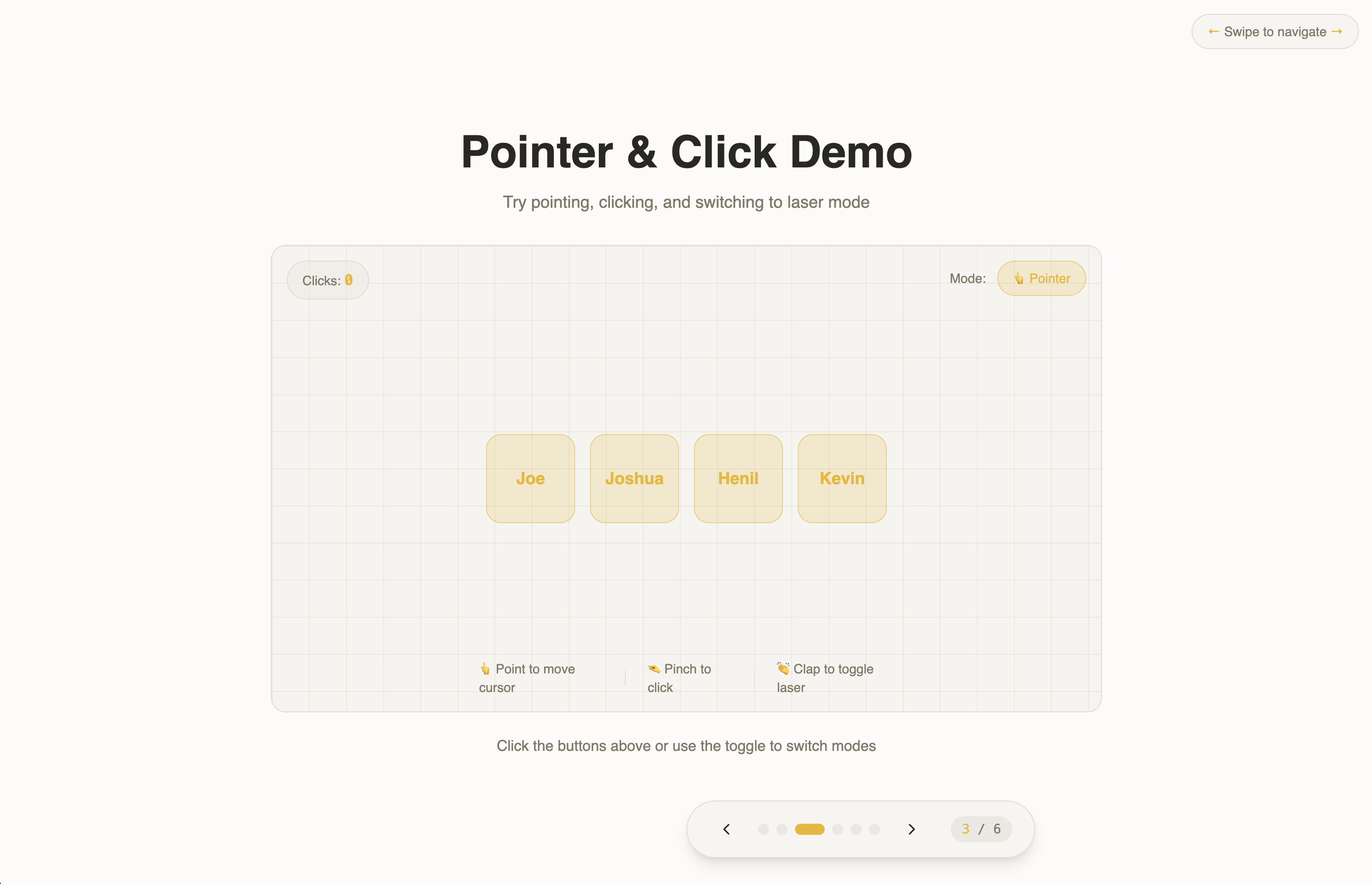
Point – Move the cursor
Pinch – Click
Two-finger swipe – Swipes left/right
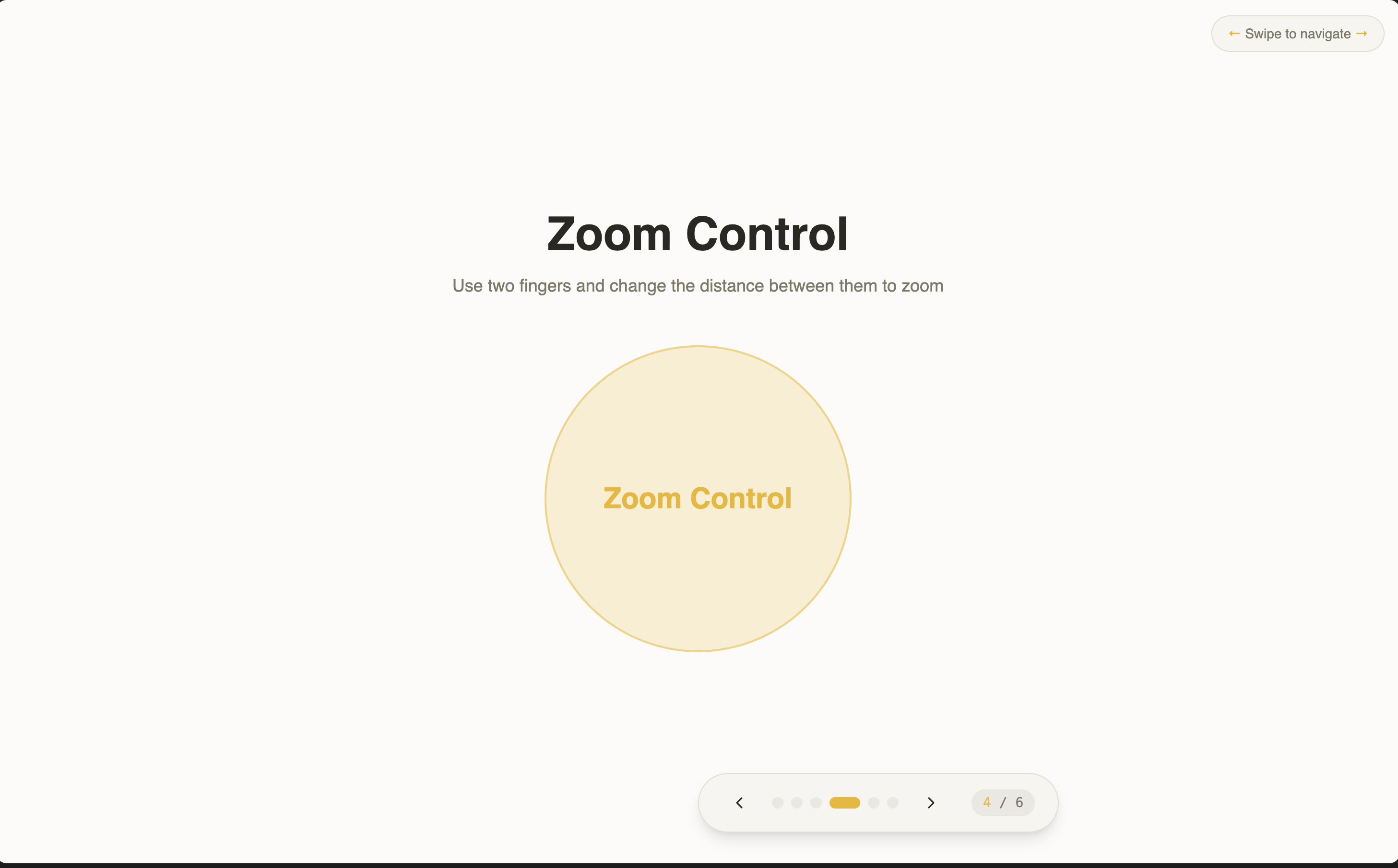
Two-hand finger stretch – Zoom in/out
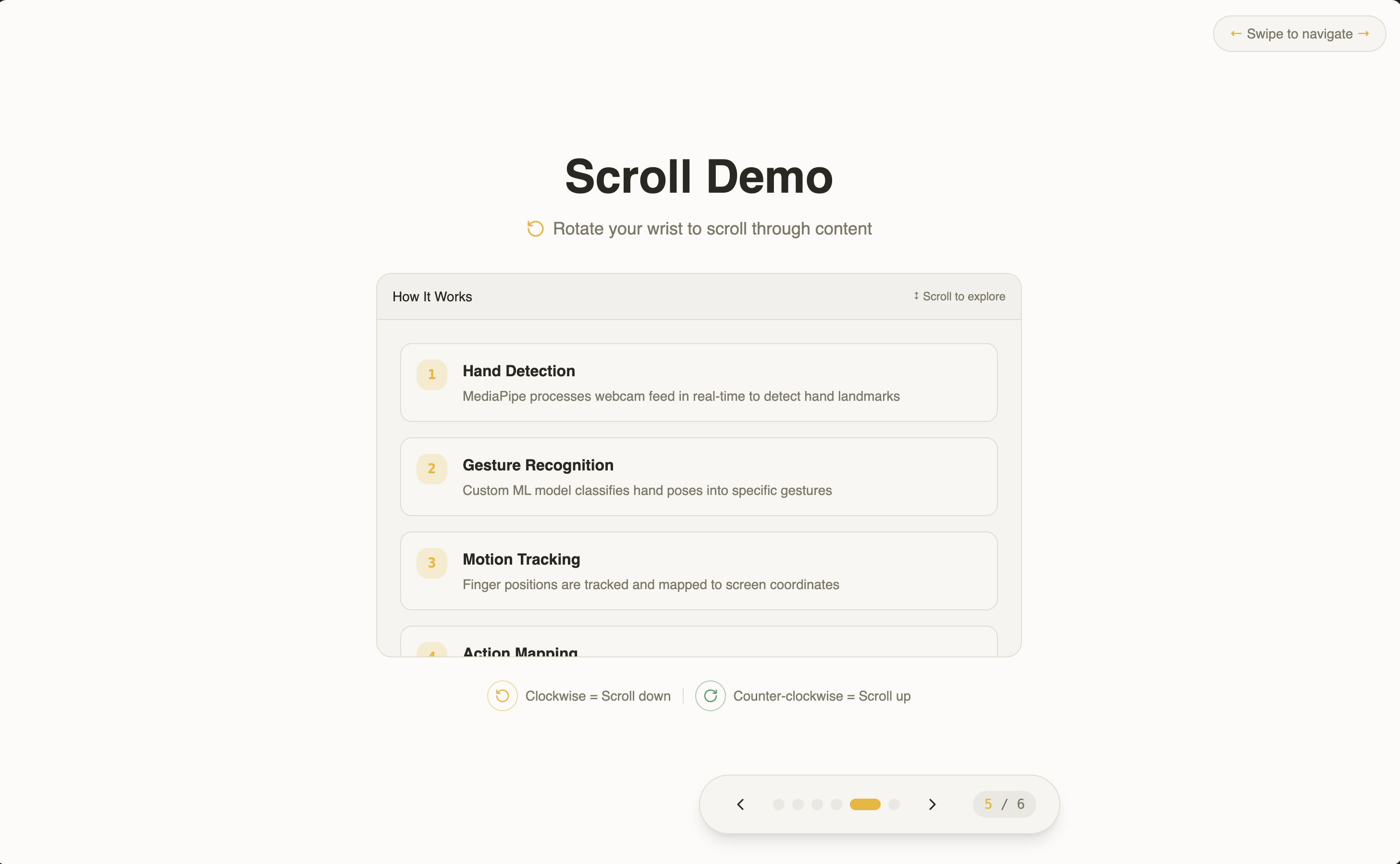
Rotate wrist – Scroll up/down
Clap – Turn on/off laser pointer
How we built it
Step 1: Hand Tracking - MediaPipe processes each frame and gives us 3D landmark points per hand (fingertips, knuckles, wrist, etc.).
Step 2: Gesture Recognition - analyzing the landmark positions to detect gestures:
- Finger counting
- Distance measurement
- Hand velocity
- Angle calculation
- Two-hand tracking
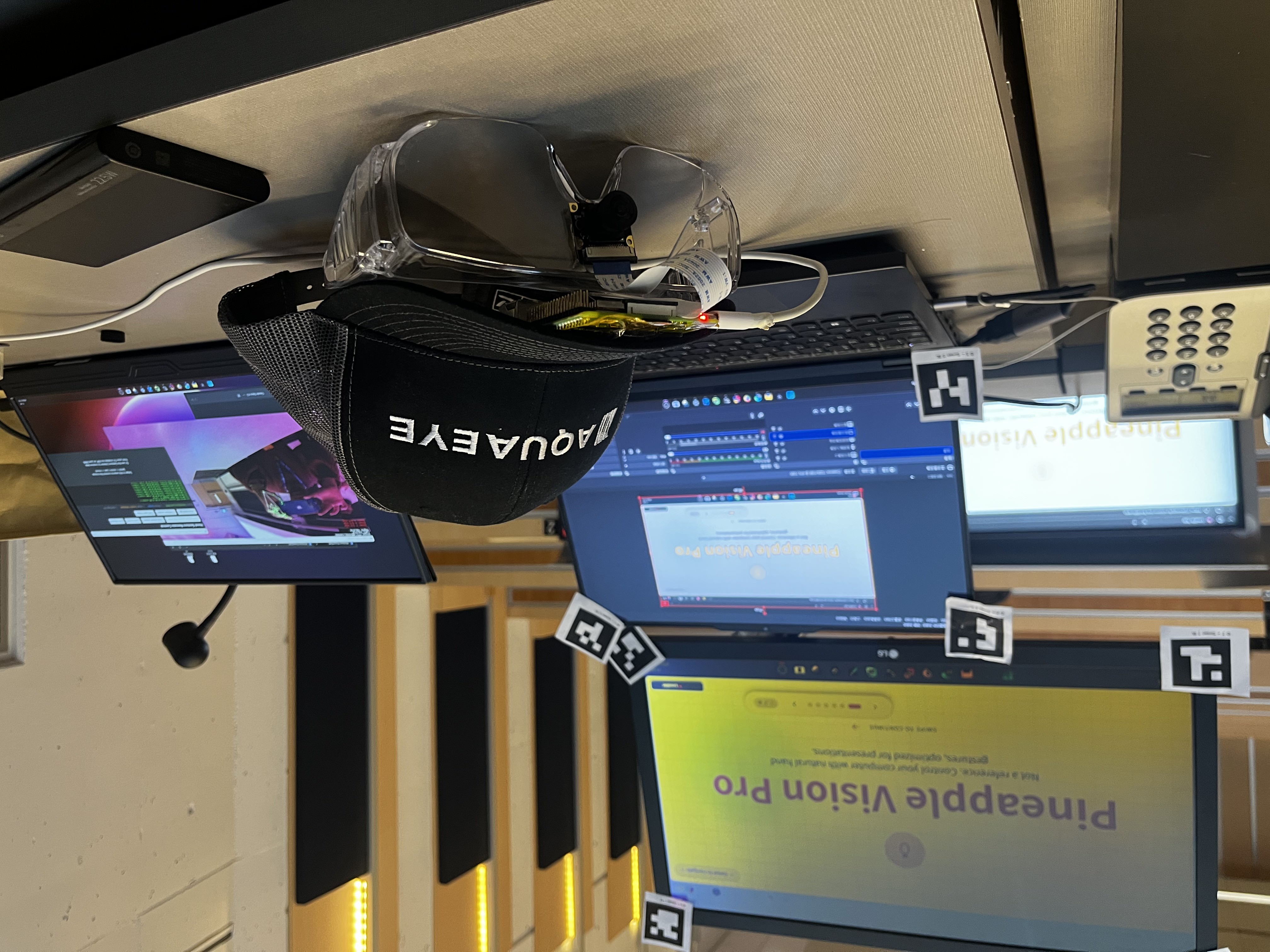
Step 3: AprilTag Screen Calibration We use 4 AprilTag markers placed at screen corners (IDs 0, 1, 2, 3). The system:
- Detects all 4 tags in the camera view
- Computes a homography matrix that transforms the camera's trapezoid view into perfect screen rectangle coordinates
- Maps any hand position in camera space to exact pixel coordinates on screen
- For multi-monitor setups, we calibrate each screen independently and detect which display you're pointing at based on cursor trajectory.
Step 4: System Control - PyAutoGUI executes the actions:
- Move cursor to calculated screen position
- Send click/drag commands
- Trigger scroll and swipe events
- Switch between monitors
Challenges we ran into
Initially, we used a fist gesture to rotate the model, inspired by 3D CAD interactions. However, this approach struggled with finger occlusion; However, hidden fingers caused unstable detection and geometric inconsistencies. To address this, we switched to a thumbs-up gesture, which provides a clear and reliable reference point for orientation.
Accomplishments that we're proud of
Works on any camera AprilTag calibration Gesture control system Accessibility and convenience first design
What we learned
OpenCV hand tracking Using AprilTags Using TCP protocols to transfer data for network connections Using Raspberry Pi for hardware connection.


Log in or sign up for Devpost to join the conversation.