Inspiration
The inspiration behind GeoStories came from the joy of looking back at places I’ve visited and the memories tied to them. I wanted to create an app that would let people relive their journeys in a visually stunning and interactive way, combining advanced technology with the nostalgia of travel. For those who love exploring the world, whether nearby or far away, this project felt like the perfect way to make every trip unforgettable.
What it does
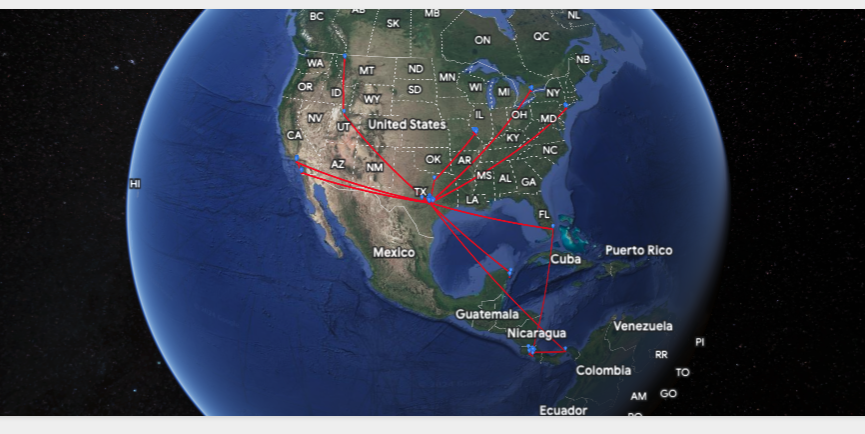
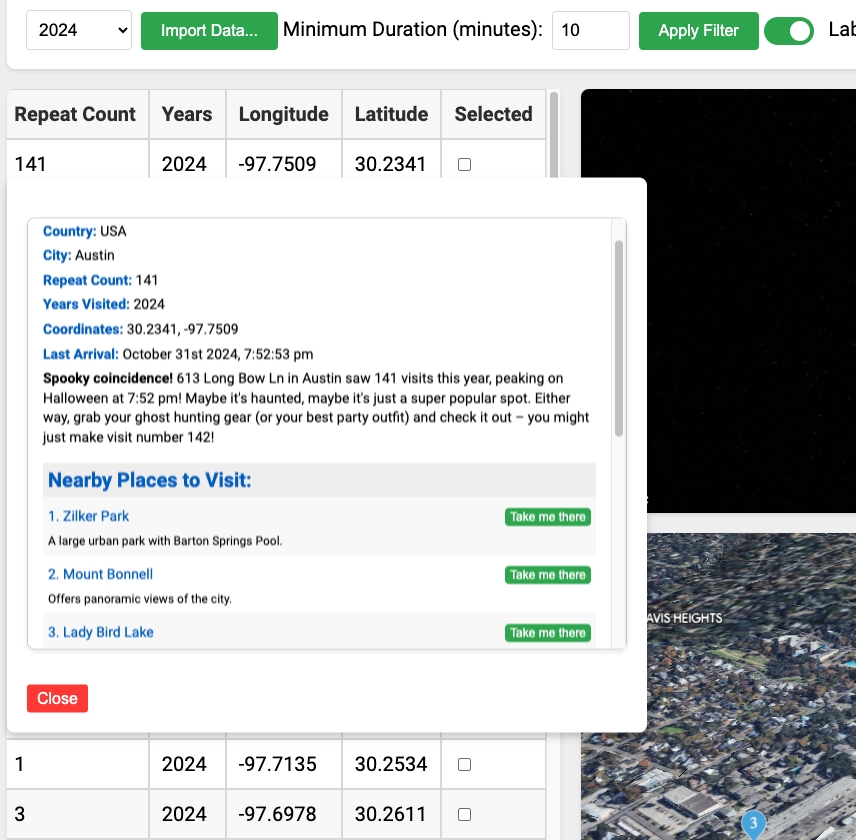
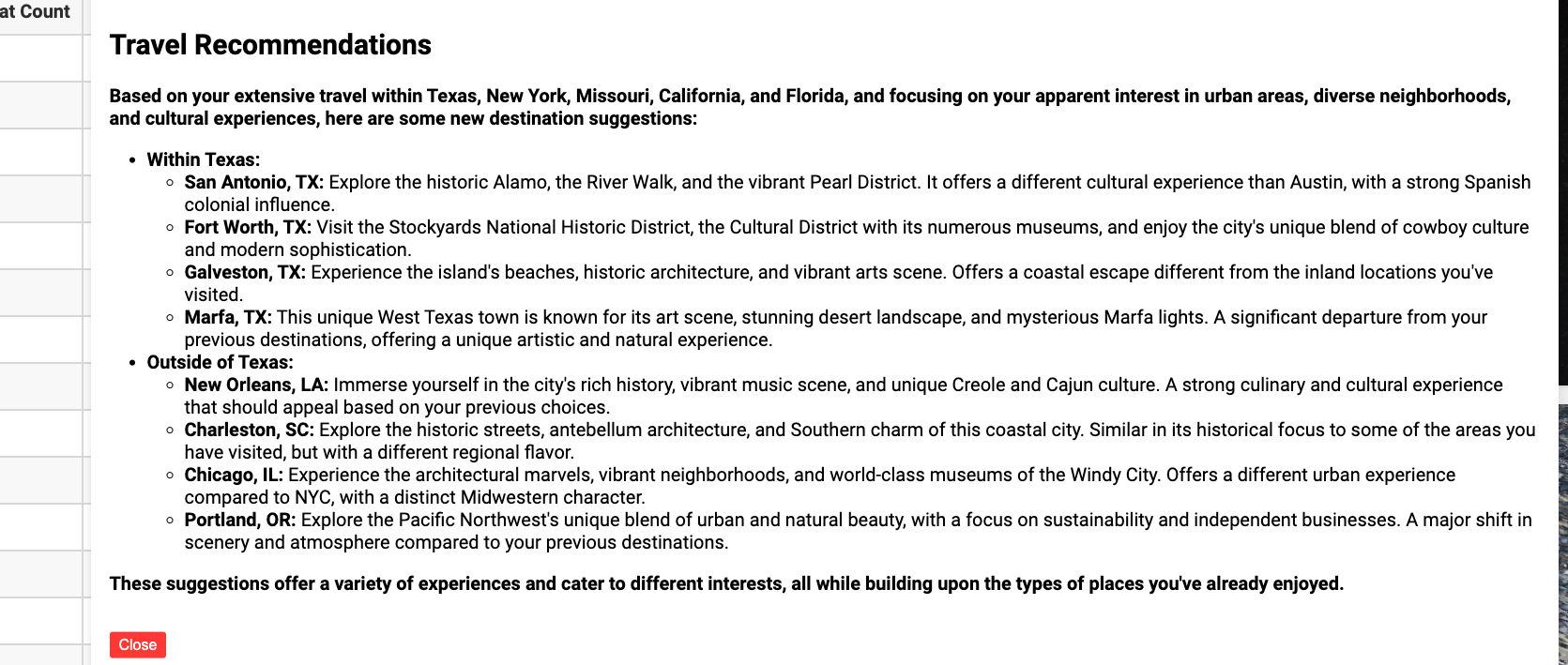
GeoStories takes your location history and brings it to life on a Google Photorealistic 3D Map. It connects all the places you’ve been with vibrant Polylines that form a global journey map. You can click on any location from a detailed list to "fly" directly to it, where the camera gives you a breathtaking view of the area. Each location is marked with details like how many times you’ve been there, a brief description, and even a friendly recommendation based on your travel history. It’s an app for anyone who enjoys revisiting memories and seeing their travel story unfold in a fun, dynamic way.
How I built it
Building GeoStories was a challenging yet rewarding experience. I had to learn Google Maps JavaScript APIs from scratch, especially their Photorealistic 3D Maps feature. I explored tools like Polylines to connect locations, Markers to highlight specific spots, and features like the flying camera and spinning map effect to create a seamless, cinematic experience. To make it more personal, I leveraged the Gemini-1.5-Flash AI model to provide recommendations based on users’ map histories and travel patterns. Every detail was designed to make the app feel intuitive, engaging, and exciting.
Challenges I ran into
One of the biggest challenges was diving into the Google Maps JavaScript APIs. I had no prior experience with these tools, let alone with advanced features like Photorealistic 3D Maps. Learning to implement Polylines, Markers, and smooth camera transitions required a lot of research and experimentation. Debugging the app to ensure everything worked seamlessly—like the fly-to-location feature—was another hurdle, but it was worth it to see the final result.
Accomplishments that I’m proud of
I’m proud that I was able to bring GeoStories to life, despite starting from scratch with unfamiliar technology. Successfully implementing advanced features like Polylines, the spinning map, and AI-powered recommendations felt like a huge achievement. Seeing the app work as intended—flying across the map and showing stunning views of past trips—was incredibly rewarding. Knowing it can bring joy and nostalgia to others makes me even prouder.
What I learned
This project taught me so much about using the Google Maps JavaScript API and its potential for creating unique and interactive user experiences. I also learned a lot about integrating AI models to enhance functionality and user engagement. Beyond the technical skills, I gained confidence in tackling unfamiliar technologies and solving complex problems step by step.
What’s next for GeoStories
There’s so much more I’d like to add to GeoStories! I plan to improve the AI recommendations by making them even more tailored to the user’s interests and habits. I’d love to include features for users to upload photos of their trips, add personalized notes, or share their GeoStories with friends.
GeoStories is more than an app—it’s a way to relive adventures, celebrate your travels, and connect with the world in a whole new way!
To test GeoStories, follow these steps:
1. Download Your Google Location History:
- Visit Google Takeout.
- Deselect all products except Location History.
- Choose your preferred file format (JSON is mandatory for this app).
- Click Create Export and download the file once it's ready.
2. Upload Location History to GeoStories:
- Go to https://eimispacheco.github.io/GeoStories/geoStories.html. Note: in the pop up that says "Using the alpha channel of the Google Maps JavaScript API. For development purposes only." just click on Dismiss
- When loading this will ask you for your location, click on allowed button.
- Select a Year to see the places you have been to that year or "All years" to bring all the places for all the years.
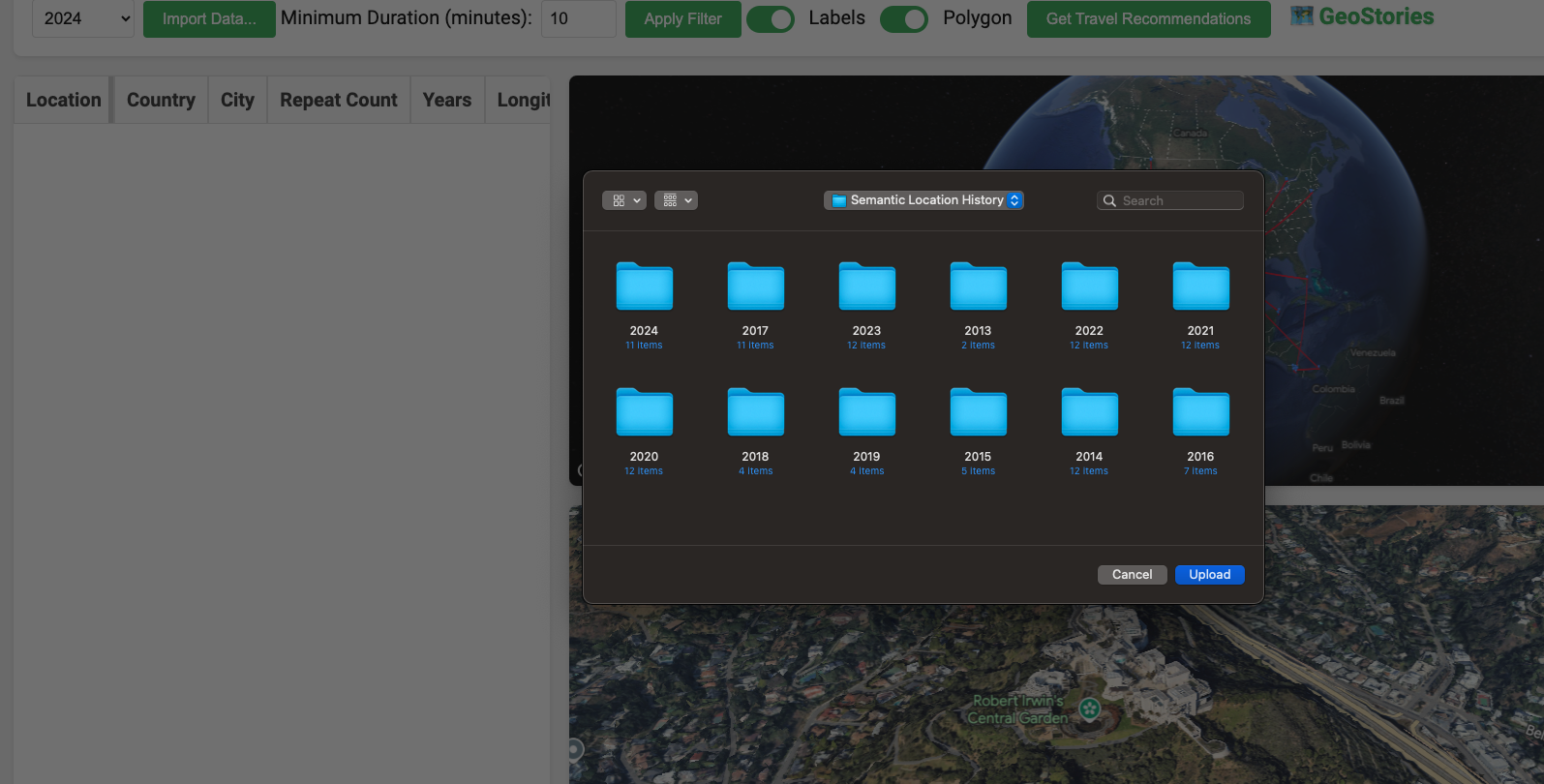
- Click Import Data Button and select the downloaded "Semantic Location History" folder and click on Upload button.
3. Explore Your Travel History:
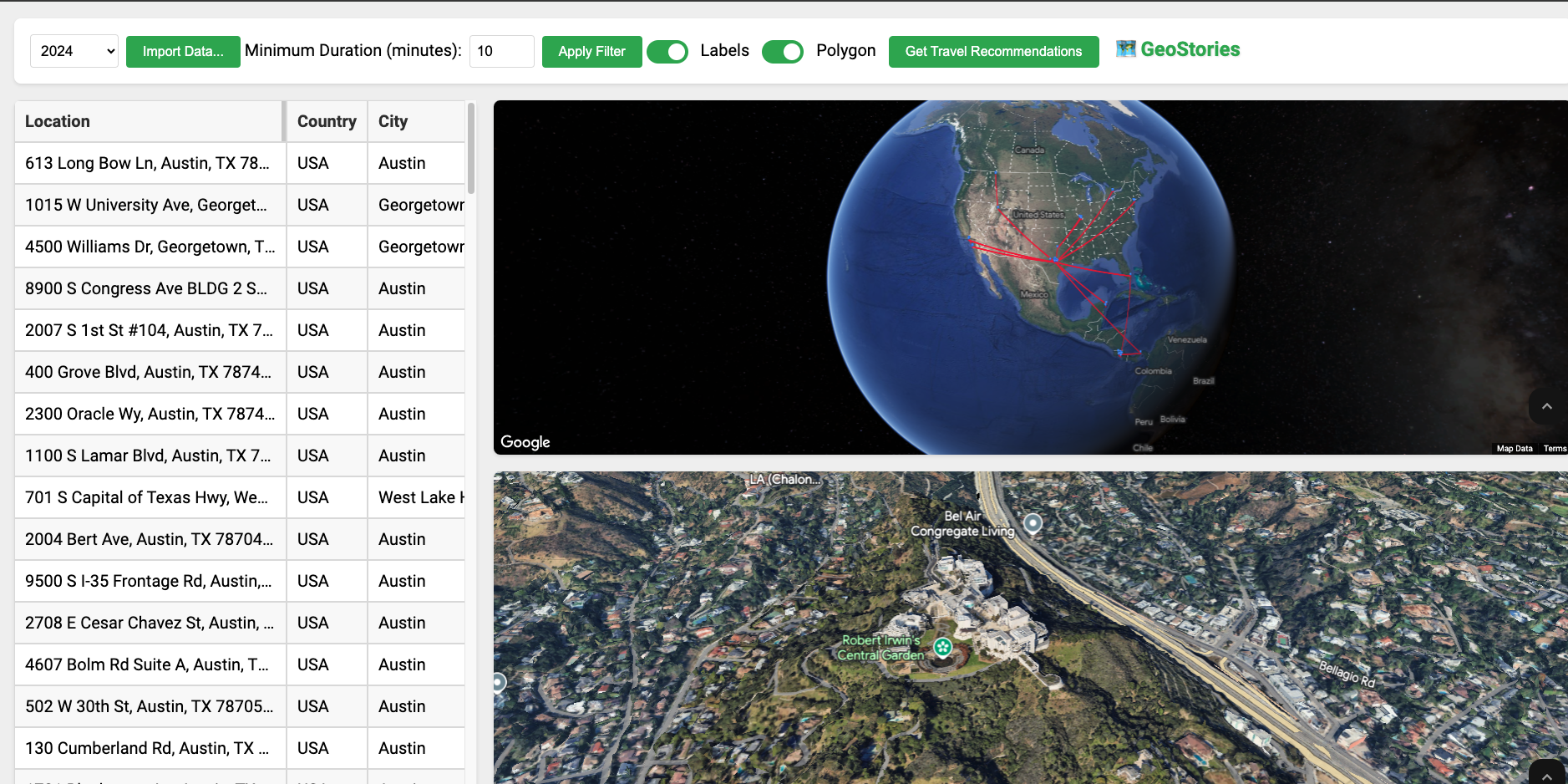
- Once uploaded, your travel history will be displayed on the 3D map.
- Optionally, you can filter out places based on the minutes you were in that place and click on Apply Filter button. The minimun is 10 minutes and you can not go lower than this.
- Use the interactive features to explore your journeys, view details, and receive personalized recommendations.
- Click on a row in the table to navigate to the place and see more information about where you have been. You will fly there.
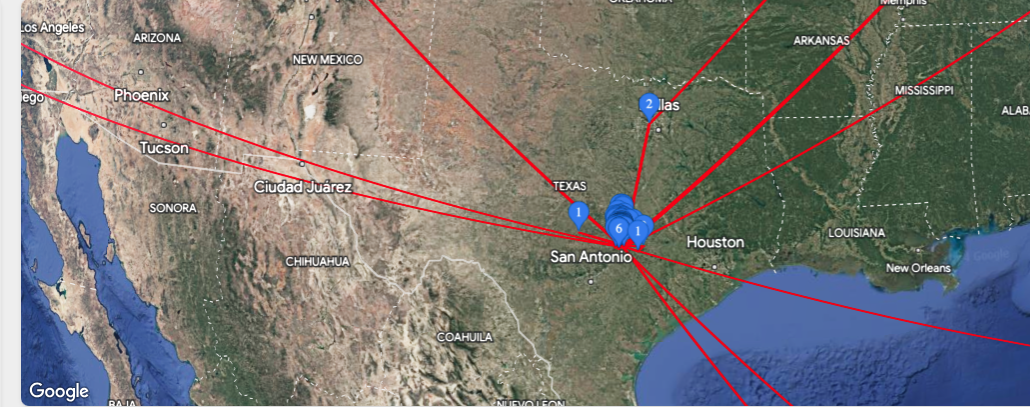
- The markers indicate the number of times you have visited that location.

Log in or sign up for Devpost to join the conversation.