-
-
Simulation
-
Chat
-
Custom Prompts
-
Vision
Inspiration
Chats
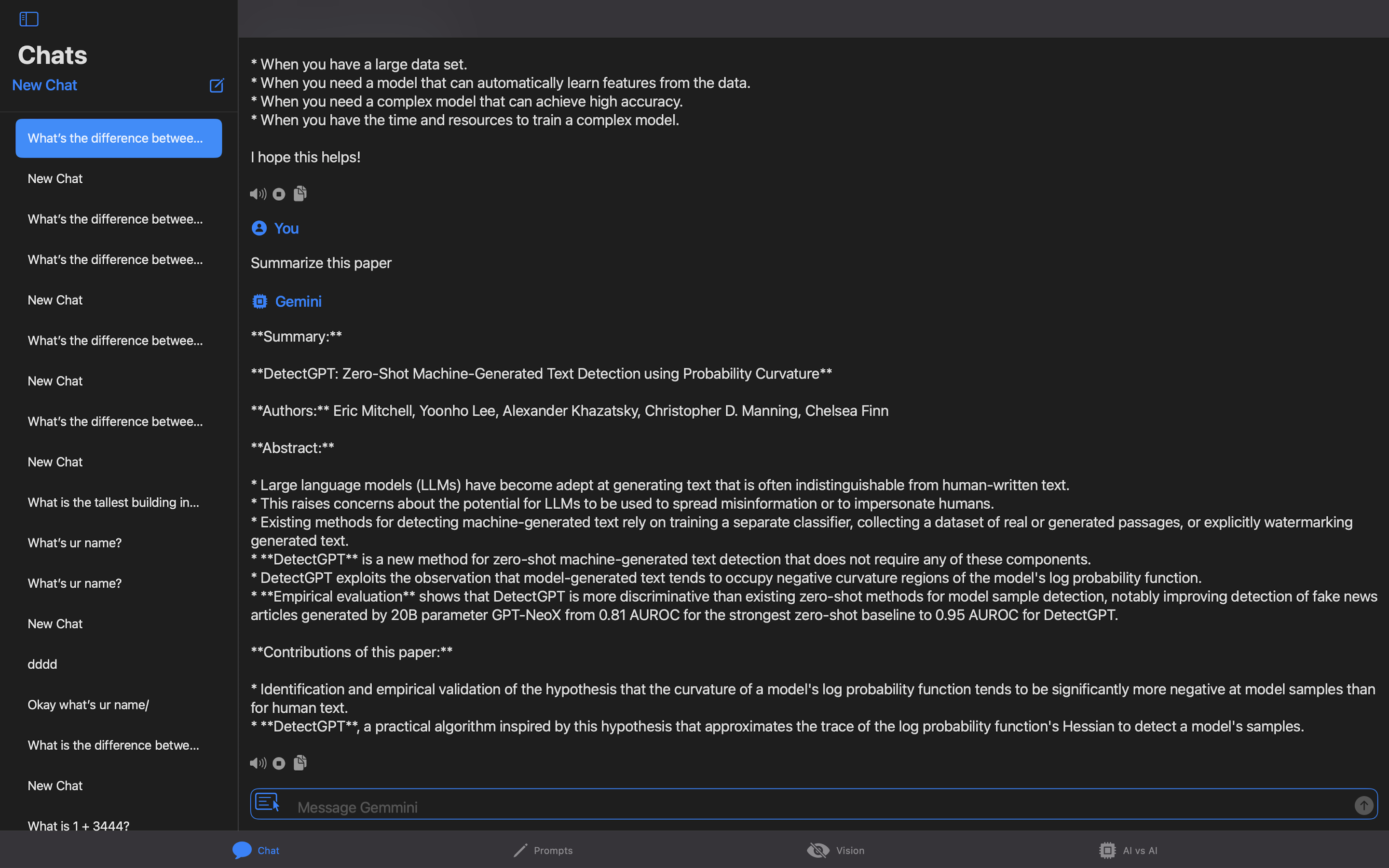
I was paying $20 monthly to OpenAI for using GPT-4, but after realizing that using the API could significantly reduce costs, I decided to develop a chatbot feature.
Custom Prompts
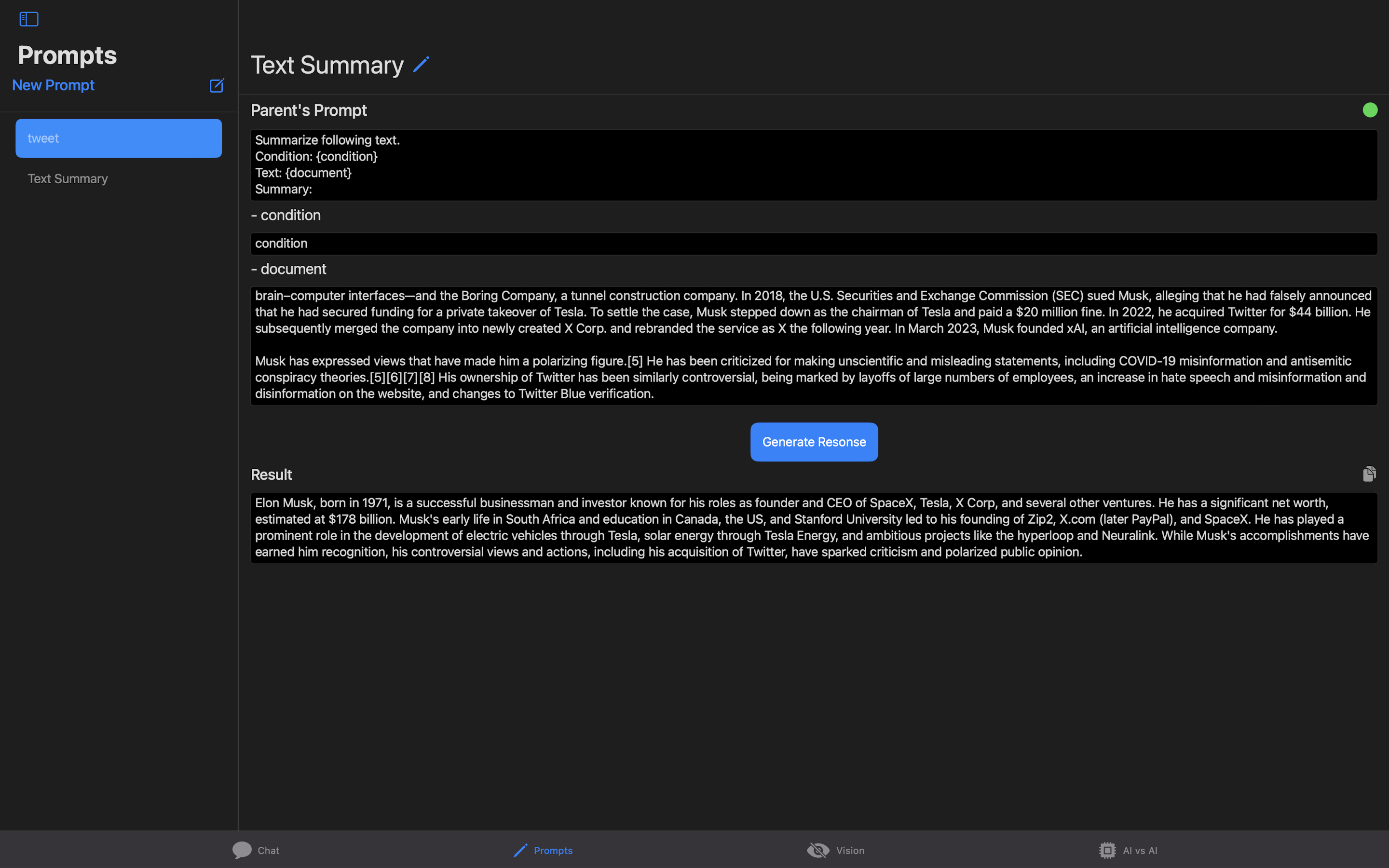
I found out myself repeatedly having to open ChatGPT and typing same prompts again and again which were text summary and grammar check before posting on X. So I made a feature that allow user to create and save their own prompts and use it later.
Vision
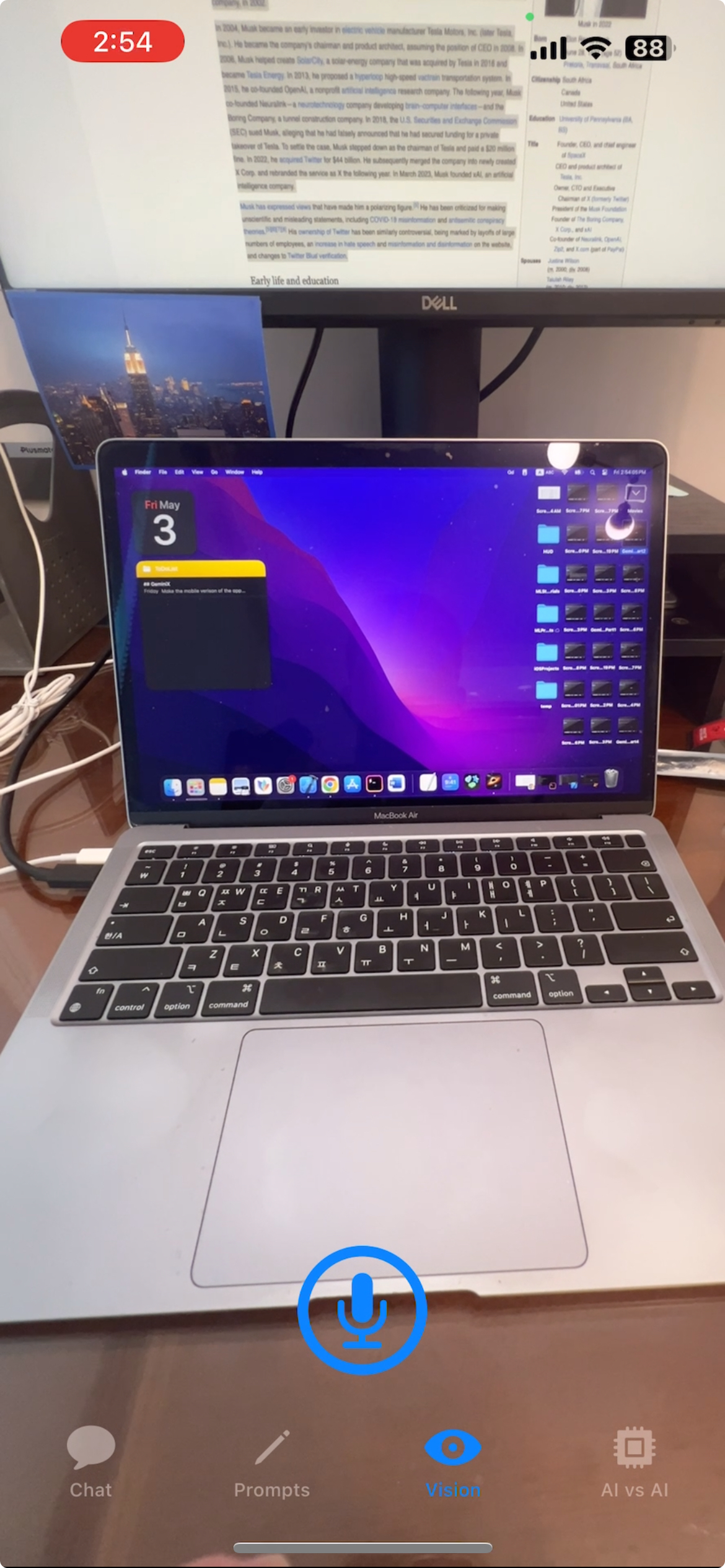
Seeing lots of hype on Humane on X at that time, I decided to implement a feature that allows users to ask questions about an image.
Simulation
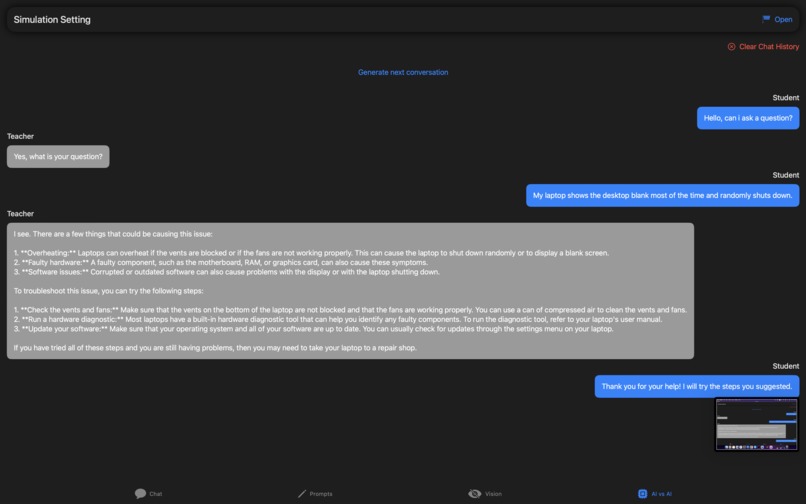
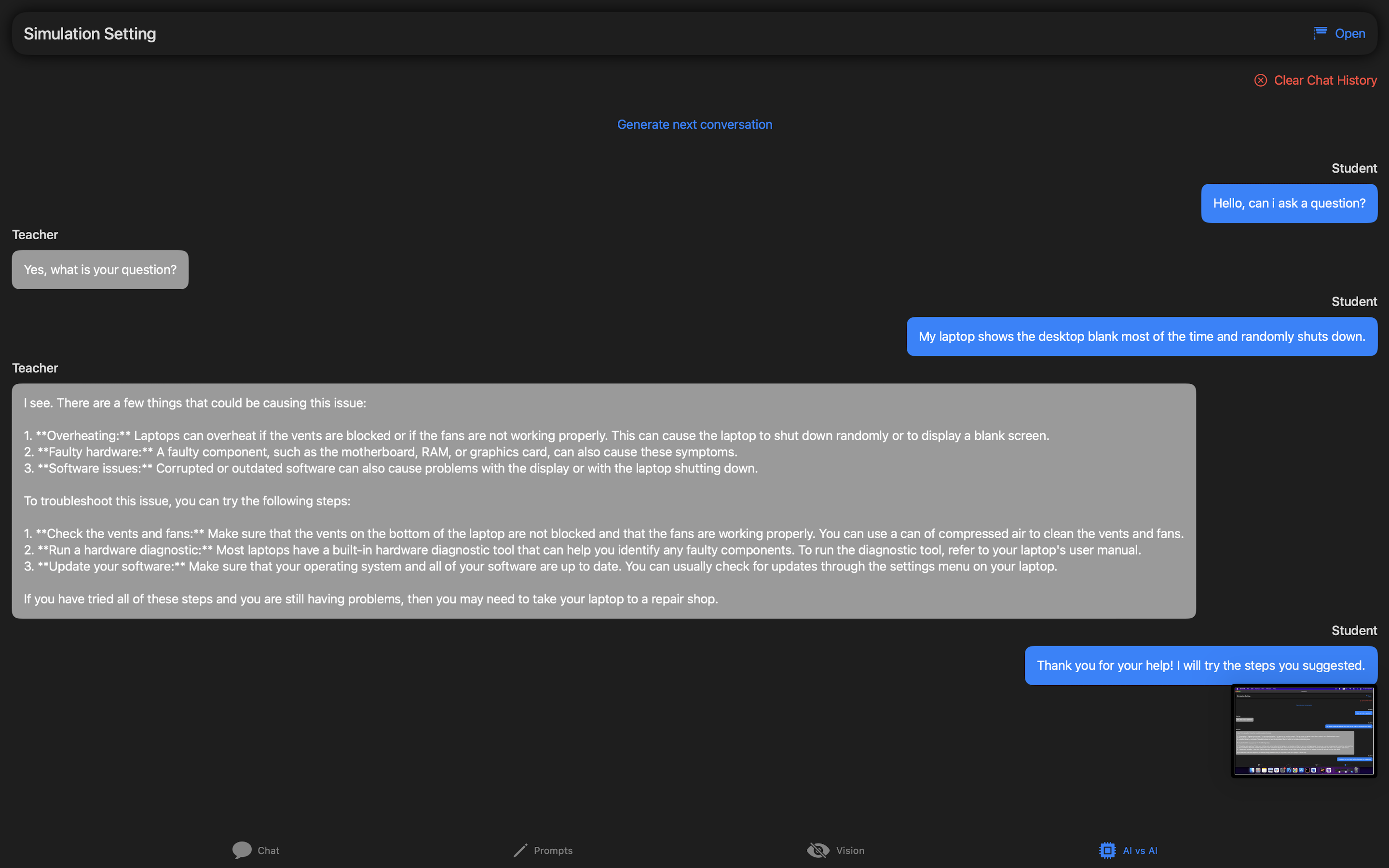
From Child hoods having seen multiple videos people posting vidoes making two Siris have conversation inspired me to make a feature that makes two Gemini to have conversation each other, and see how it turns out.
What it does
GeminiX has four following features:
Chats
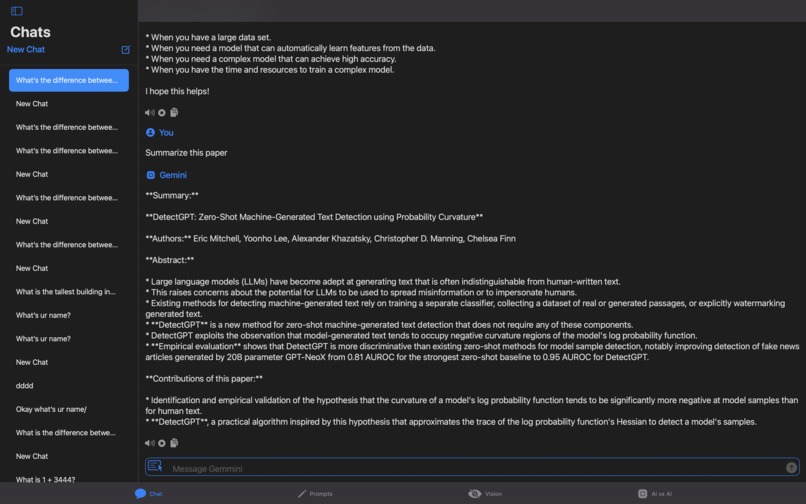
You can create a new chat and conversation with Gemini. The app utilizes NavigationSplitView, placing a panel on the left side where you can select and continue previous chats. With the use of ScrollView, the app automatically scrolls to the newest chat message, making it easy to read the latest messages. Additionally using Gemini Stream API, app shows what Gemini is generating to user in real time, making user less bored, and users can also easily copy Gemini's responses by clicking a button and can listen to its response using Swift's AVFoundation. Plus using PDFKit, user can upload a pdf file and ask question about it
Custom Prompts
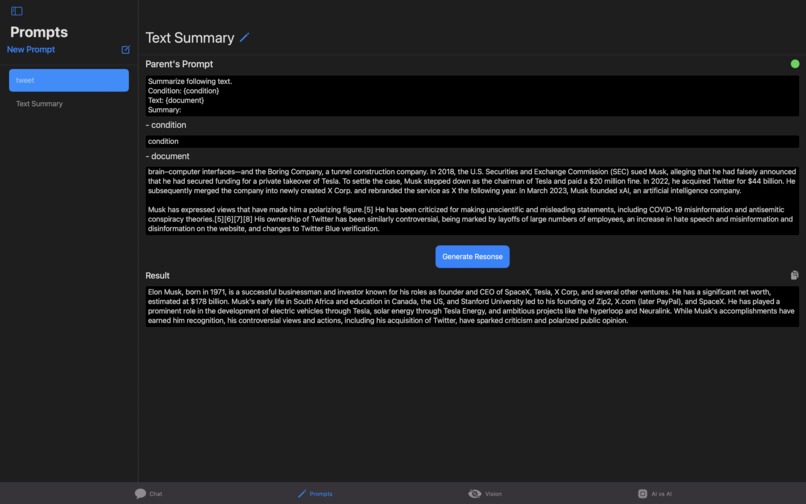
Sometimes, you may find yourself using the same prompt structure repeatedly for specific tasks. For me, it's text summarization and grammar checking for tweets before posting them. Having to open ChatGPT and type the same prompts repeatedly can be cumbersome. Therefore, I developed a feature that allows users to create and save their own custom prompt types, enabling immediate use.
Vision
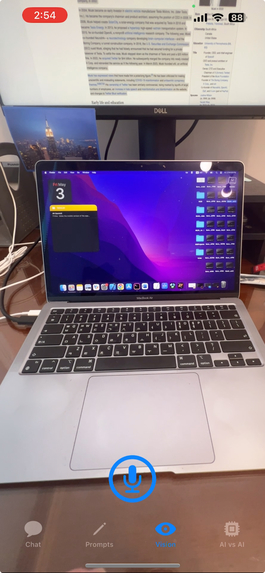
This feature allows you to ask questions about an image. Using CameraHandler, the app displays a live camera view. When you click the microphone button and ask a question, the app captures the image at that moment and transcribe what you say using AVFoundation, then it speaks out the response got by passing the captured image and transcribed text to Gemini-Vision model.
Simulation
This feature allows you to simulate a conversation between two Gemini agents. You can assign roles to each agent, decide which one starts the conversation, and set the initial message. By clicking the "Generate next conversation" button, you can facilitate a dialogue between the two AI agents.
How we built it
We used TabView with four tabs which are ChatView(), CustomPromptView(), Vision(), and AIVSAI(). Using SwiftData, the app saves previous chat histories and user-saved prompts. AVFoundation implements both text-to-speech and speech-to-text features to vocalize Gemini responses and transcribe user speech. Additionally, using Dispatch, all API calls are made in the background, ensuring that they do not block the main thread and allow for smooth UI updates.
In the chat features for the Chat and Simulation sections, the app adds new messages to an array and orders them by the date each item is created and using a ScrollView proxy, the app automatically scrolls to the bottom each time a new chat is added to the array. This ensures that newly added chats appear at the bottom of the screen.
In the Custom Prompt section, the user first inputs a parent prompt structure and specifies input within {}. For example, the input could be: “Summarize the following text.\nText: {text}. Summary:”. Then app uses Swift regex to check whether the parent prompt has the correct structure; if so, the user can fill in the text for each {}. After hitting generate, the app displays the response obtained from the Gemini API.
For the Vision feature, using CameraHandler, the app shows a live camera view. When the user clicks the microphone button, it first records and transcribes what the user is saying using AVFoundation, and also captures the image at that moment. Both the transcribed text and the image are then passed to the Gemini-Vision model, and the response is vocalized using AVFoundation again.
Challenges we ran into
One of the challenges was related to updating the UI dynamically as data was processed. Initially, I wanted to display a "Generating..." text while the app was fetching a response from the GeminiAPI. The initial implementation was set up as follows:
Button(action: {
    isGenerating = true
    // Background task to get response through an API call
    isGenerating = false
} label: {
    if isGenerating {
        Text("Generating…")
    } else {
        Text("Generate")
    }
}
However, contrary to my intentions, the app always displayed "Generate." I later discovered that because the API call was running in the background, isGenerating = false was executed before the API call completed. I resolved this issue by ensuring that the isGenerating = false line would only run after the background task had successfully completed by calling it inside of complention handerl of the API call within DispatchQueue.main.async.
Implementing the chat feature presented another challenge. I created an array to store chat messages, expecting them to maintain their order of insertion to reflect the flow of the conversation. However, the array unexpectedly altered the order of its items on its own. After some investigation, I realized I could address this issue by creating a new computed property that sorts the items in the array based on the date they were created. I then used this computed property to display the chat history, as shown below:
var sortedDetails: [ChatDetails] {
        chat.details.sorted(by: { $0.date < $1.date })
    }

ForEach(sortedDetails) { message in
    Text(message.text)
}
What we learned
Until now, I had only used Core Data, and this project marked my first time using SwiftData. I found it to be much simpler and easier to use. I learned how to save, load, and update data within the app using SwiftData. Additionally, I acquired knowledge on how to leverage Dispatch to run API tasks in the background, ensuring they do not block UI updates. Moreover, I also learned how to use Regex in Swift. This allowed us to check whether a parent prompt structure is in the correct format, such as ensuring all {} brackets are matching.
What's next for GeminiX
Currently Vision mode is only supported on iOS and iPadOS. For this feature app have to record what user say and then transcribe it. Then pass the transcribed string and image to gemini-image model. But we run into a problem where mic not being able to record what user say. Fixing this problem, we will make the vision feature to be also available on macOS. Plus we have to think about a creative way user can have meaningful interaction with the app since in macOS, app would have access to front camera limitting what user can show to the app.
Plus at first, I tried to implement a feature that allows the app to remember what the user said. If the user types something starting with 'Remember that,' then using the Gemini API, it creates a dictionary. For example, if the user says 'Remember that the wifi password is 1234,' it creates a string 'wifi password: 1234' and attaches it to a UserDefaults string called userInfo. Each time a new chat is created, that string is provided. Using this method, the app sometimes successfully answers a question such as 'What is my wifi password?' However, most of the time it fails to do so. With some additional prompt engineering, I believe this feature can also be added soon.
Built With
- swift
- swiftui


Log in or sign up for Devpost to join the conversation.