Inspiration
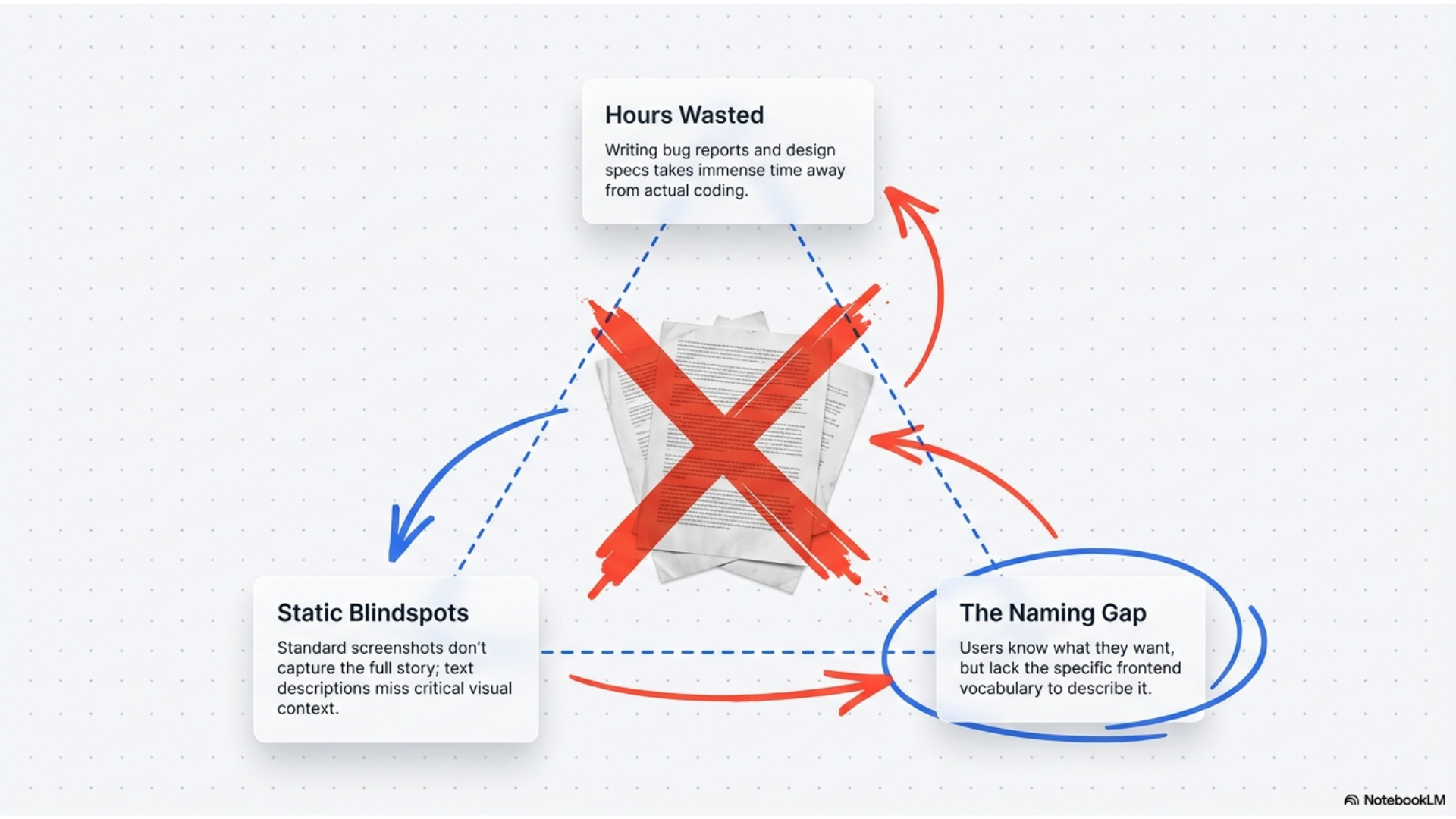
Every developer has been there. You see a bug on your screen or find a website with the perfect design, and you need to explain it to someone or document it for later. Screenshots don't capture the full story. Writing it out takes forever and misses the visual details. We built this because communicating what you see shouldn't be harder than just showing it and talking about it.
What it does
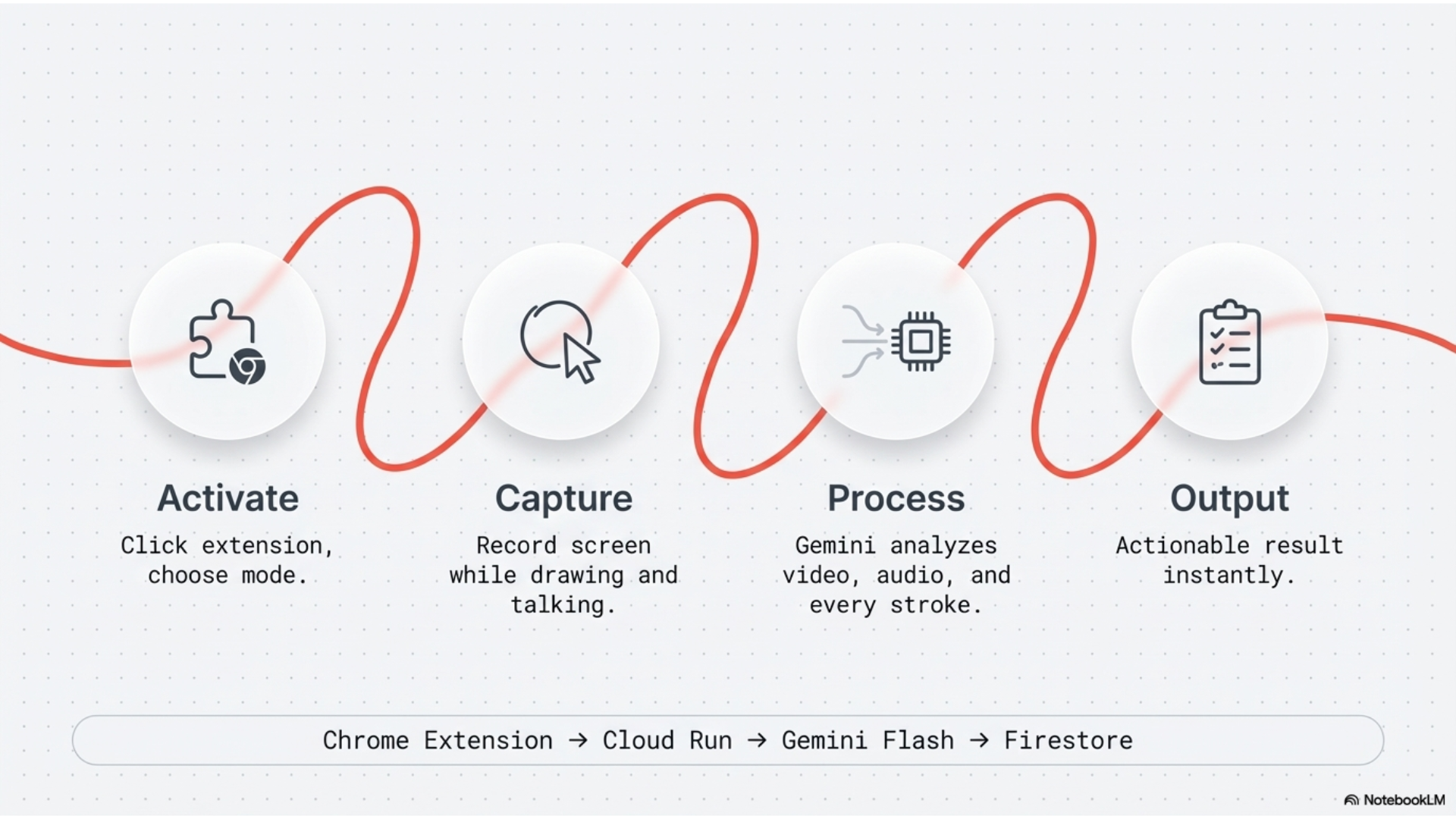
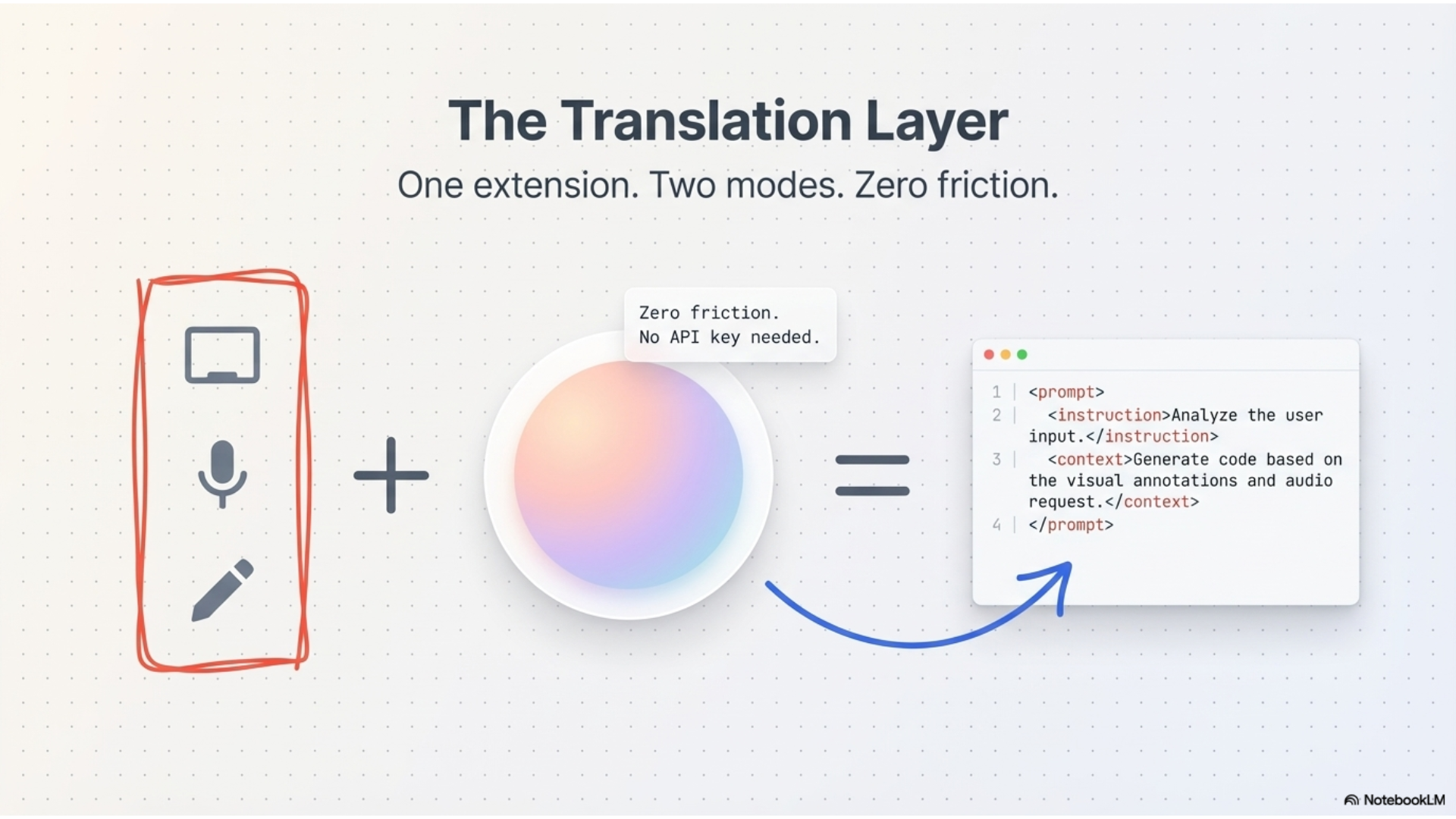
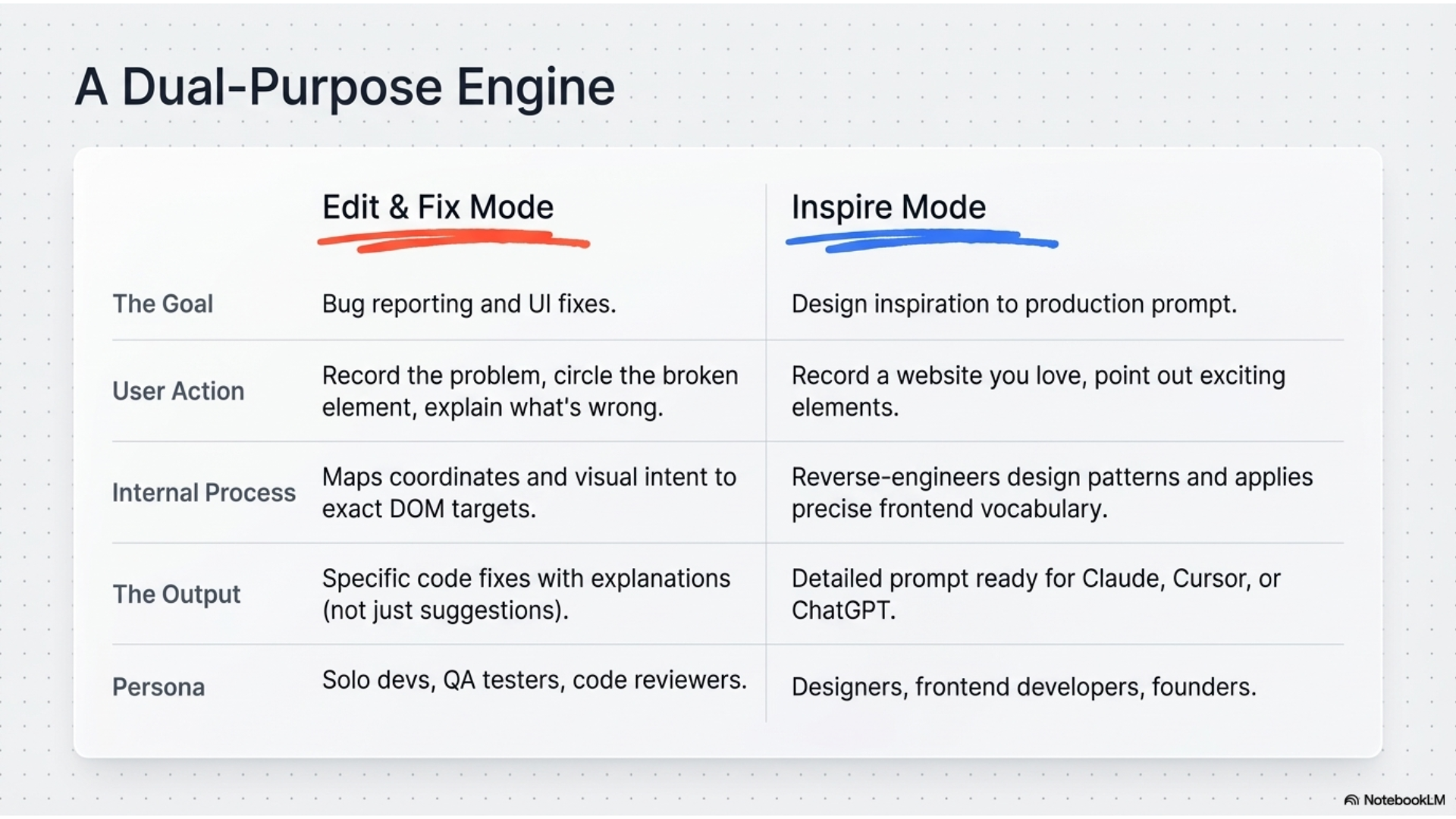
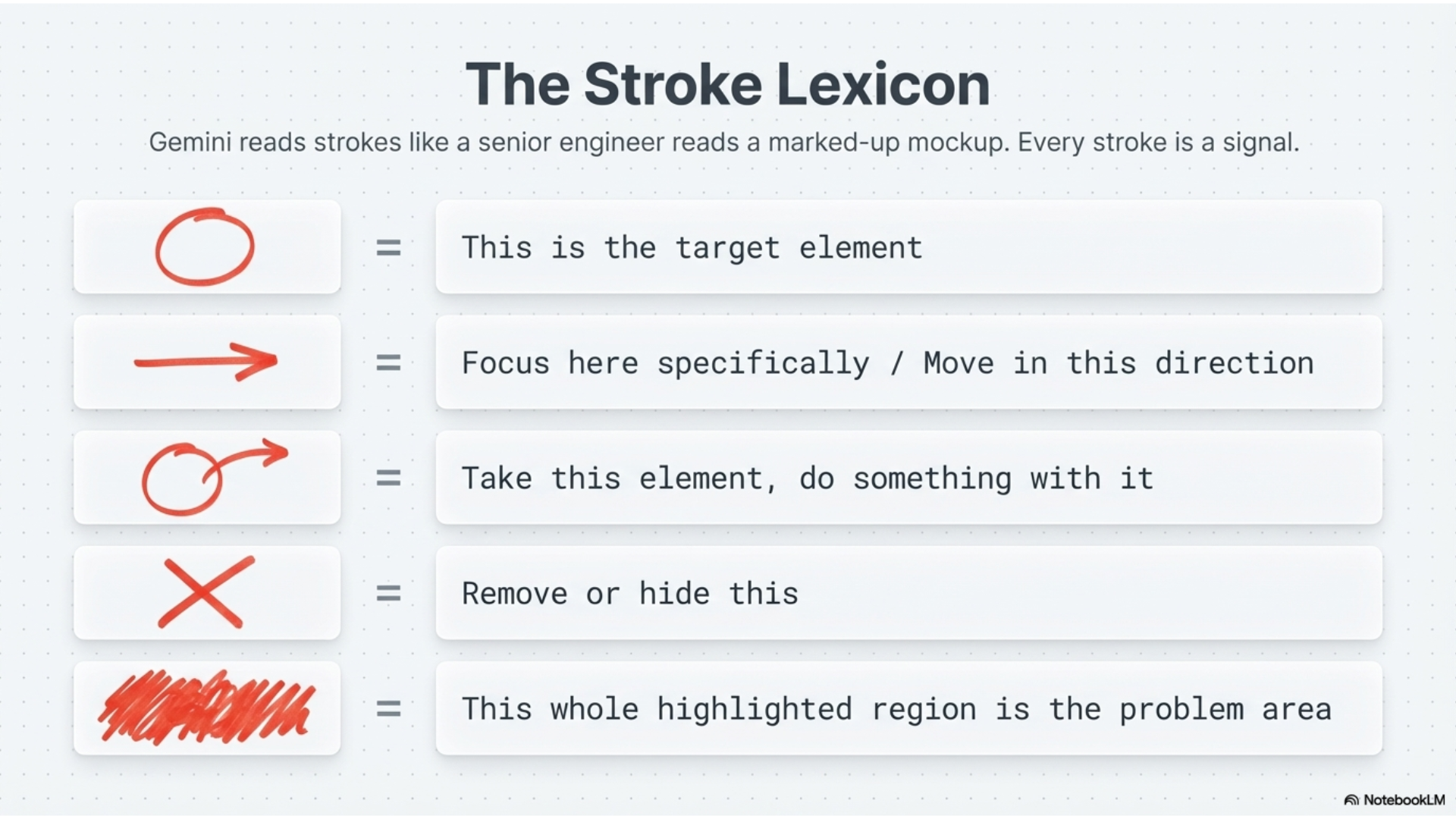
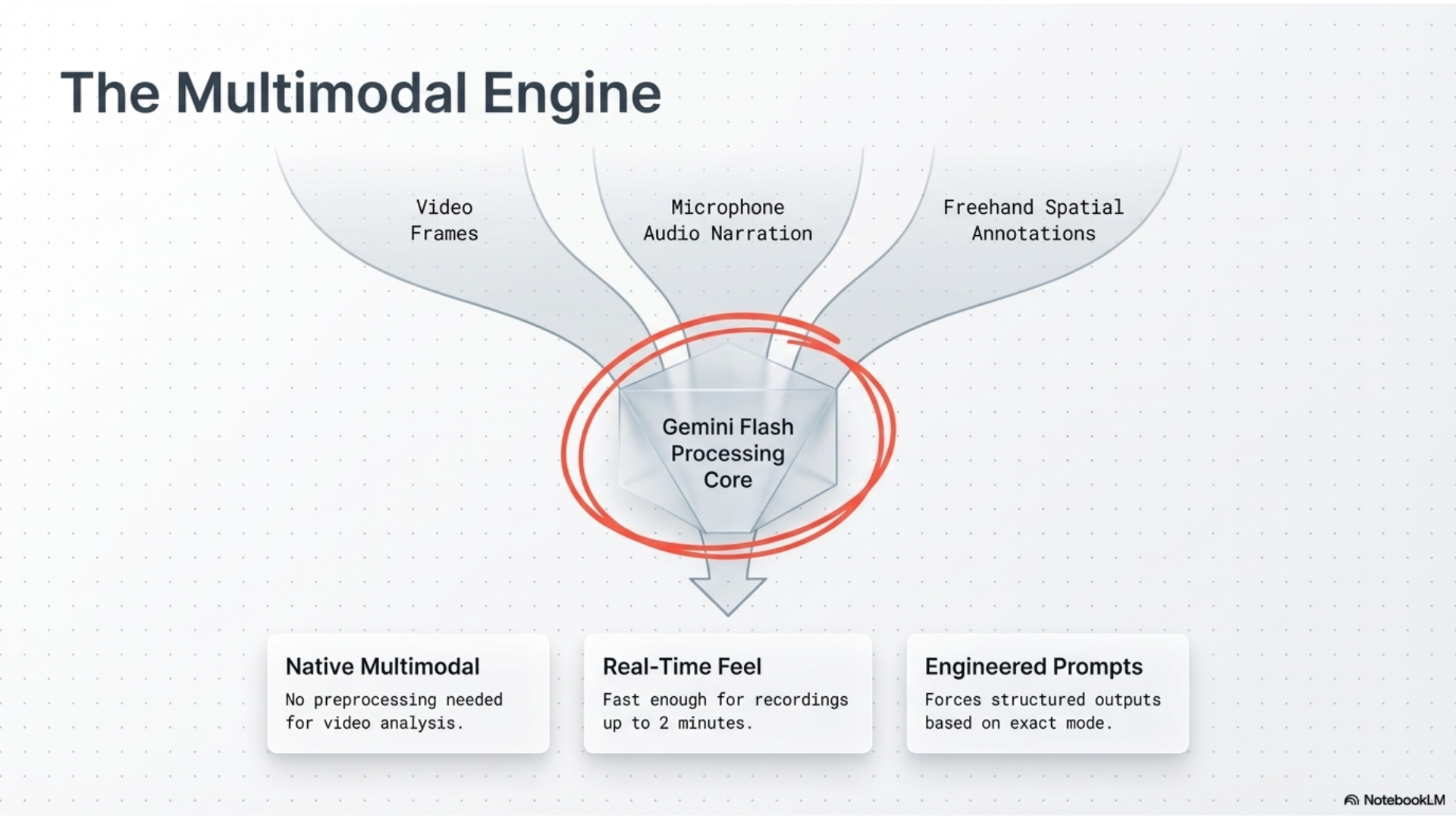
Gemini Screen Scribe records your screen while you draw annotations and narrate what you're thinking. Then it sends everything to Gemini's multimodal AI to generate actual developer instructions or code.
We built two modes for different workflows:
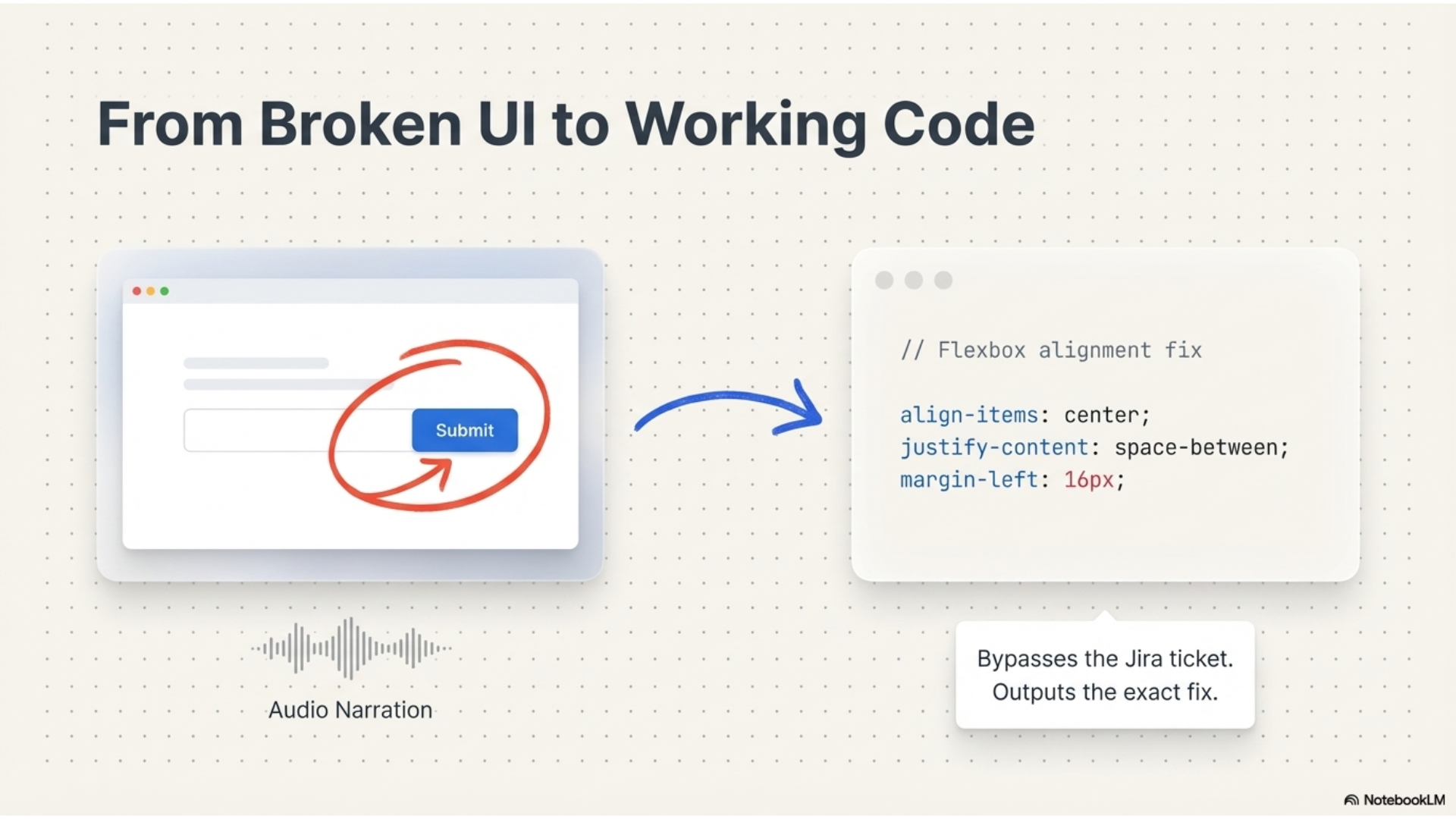
Edit & Fix mode is for when you spot bugs or want to change existing UI. You record the problem, draw on the screen to highlight it, explain what's wrong, and Gemini gives you specific code fixes with explanations.
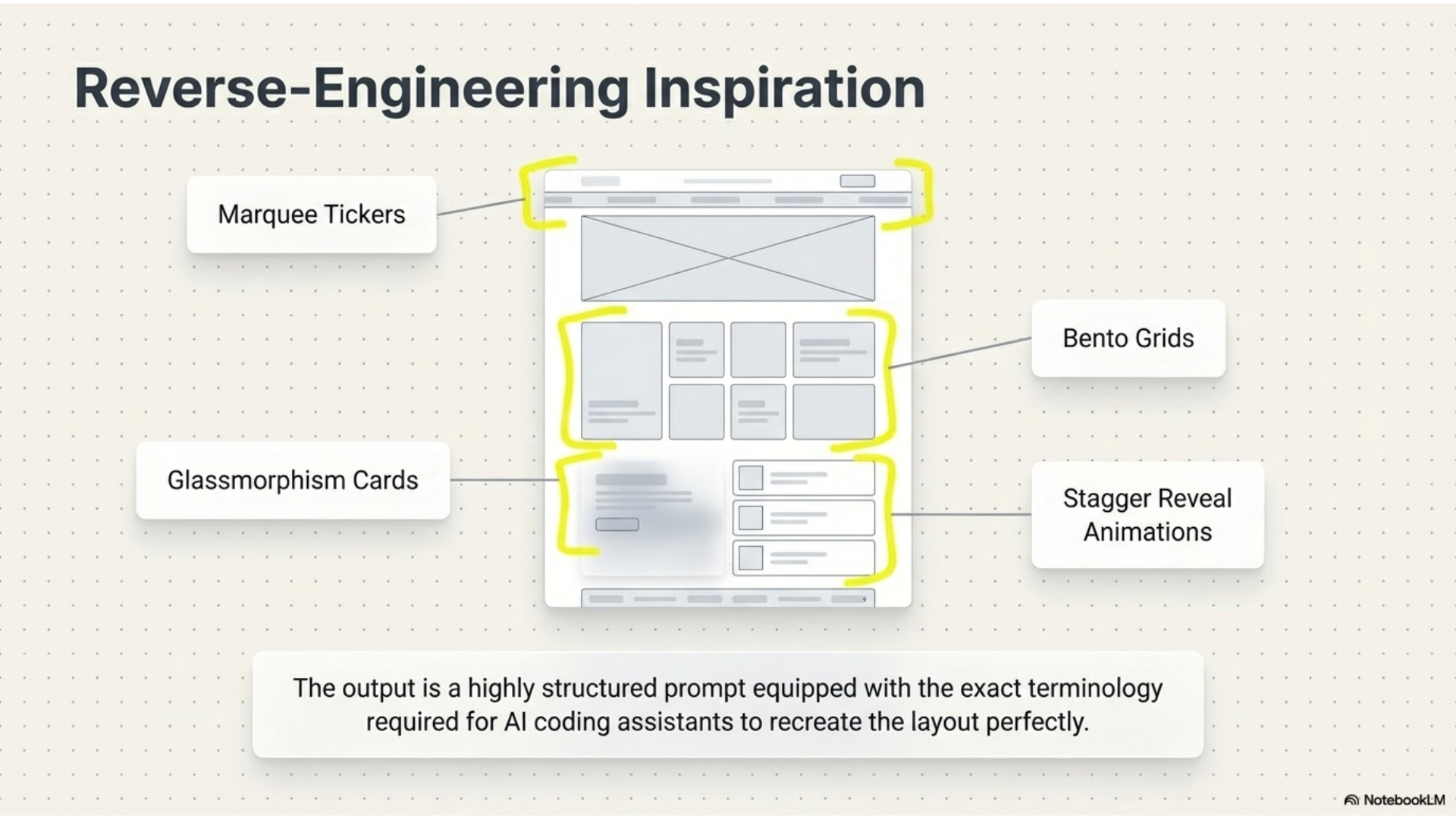
Inspire mode is for when you see a design you want to recreate. Record the website, point out what you like, and Gemini breaks down the layout, color palette, typography, and gives you React and Tailwind code to build it yourself.
How we built it
The tech stack is React and TypeScript with TailwindCSS for the interface. We used Vite with the CRXJS plugin because it gives us hot module replacement while developing Chrome extensions, which is a huge time saver.
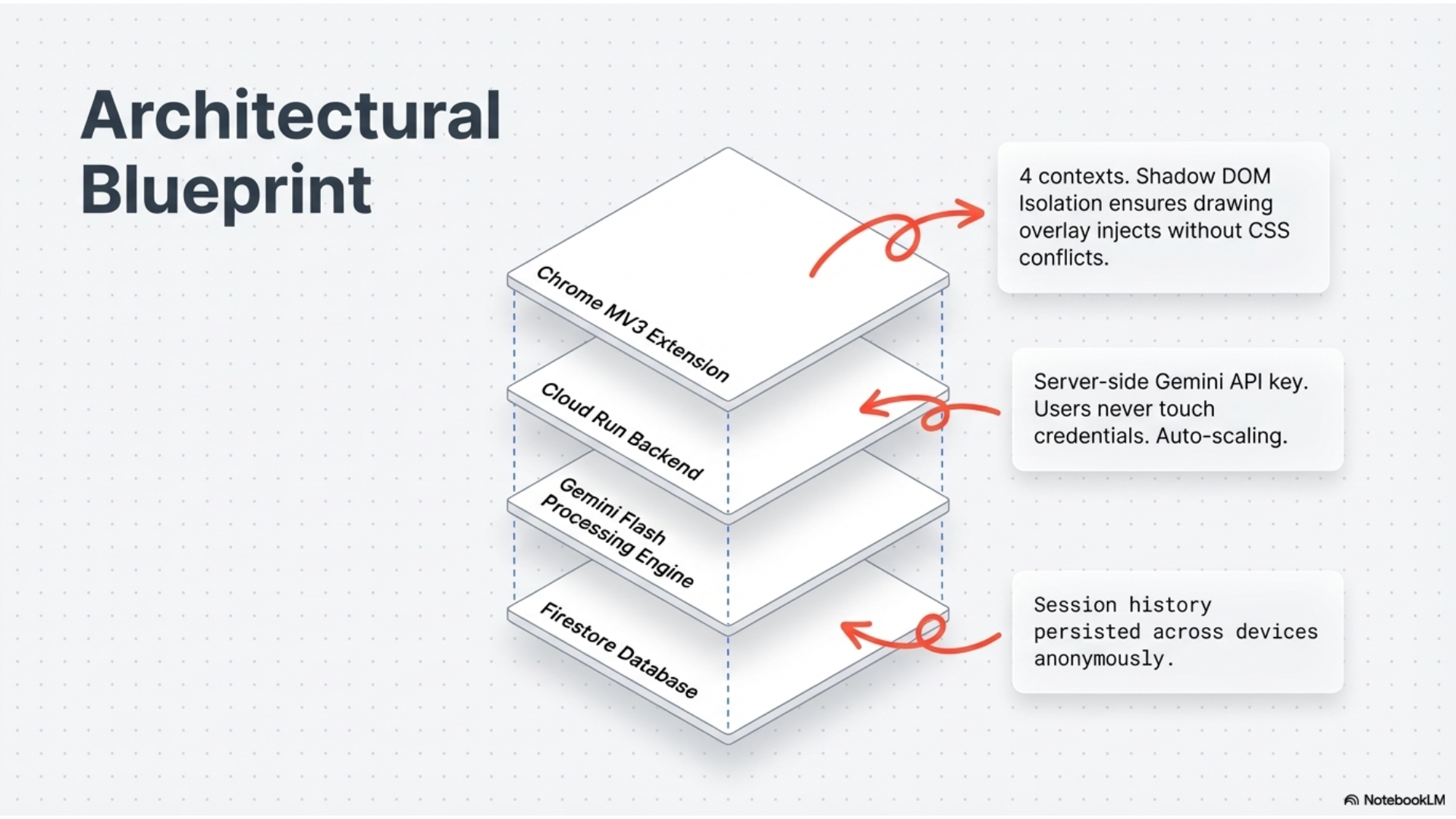
The architecture had to work around Chrome's Manifest V3 restrictions. Service workers can't access media APIs directly, so we built an offscreen document that handles the actual screen and microphone capture. The popup manages settings and shows results. A content script injects a Shadow DOM overlay on every page for the drawing layer. The background service worker coordinates everything and sends the final video to Gemini.
For the drawing experience, we used the perfect-freehand library to get smooth, natural-looking strokes. The Shadow DOM keeps our styles completely isolated so the overlay never breaks the host page's CSS.
The video gets encoded as base64 and sent to Gemini Flash through the @google/genai SDK. We wrote different system prompts for each mode so Gemini knows whether to focus on debugging or design analysis.
Challenges we ran into
Manifest V3 was the biggest headache. Service workers can't use getUserMedia or getDisplayMedia, which meant we had to spin up an offscreen document just to capture the screen. Getting all the contexts to talk to each other properly took a lot of debugging.
The Shadow DOM isolation was tricky. We needed the drawing overlay to work on any website without breaking their styles or having their styles break ours. It took some experimentation to get the z-index and pointer events right so clicks pass through when you're not drawing but capture when you are.
Video size became a problem fast. High quality recordings get huge, and we're sending them to an API. We had to cap recordings at 2 minutes and limit resolution to 1920x1080. Even then, the base64 encoding can spike memory usage if you're not careful about cleanup.
Combining the screen audio and microphone audio into one stream was finicky. The MediaRecorder API is powerful but you have to manage track lifecycles carefully or you get weird artifacts.
Accomplishments that we're proud of
The whole thing just works. You click start, draw on your screen, talk through what you're thinking, and get back actual useful code. That end-to-end experience took a lot of pieces coming together.
The drawing feels really good. It's smooth and natural, not laggy or janky like a lot of browser-based drawing tools. And it works on every website we've tested without breaking anything.
The two-mode system is elegant. Same recording flow, but Gemini's analysis completely changes based on whether you're debugging or designing. The prompts we wrote for each mode make a huge difference in output quality.
We also built in a history feature that saves your past prompts. It's a small thing but it makes the tool way more practical for real workflows.
What we learned
Manifest V3 is a completely different beast from V2. The service worker model forces you to think about architecture differently. We learned a ton about offscreen documents and when you actually need them versus when you can get away with content scripts.
Multimodal AI is incredibly powerful when you give it the right context. Video analysis with Gemini is way better than we expected. The key is writing good system prompts that tell it exactly what to look for.
Shadow DOM is underrated for building browser extensions. Once you understand how to set it up, you get true style isolation without any of the iframe baggage.
Managing state across four different contexts (popup, background, content, offscreen) taught us a lot about message passing and storage APIs. You have to be really deliberate about what lives where.
What's next for Gemini Screen Scribe
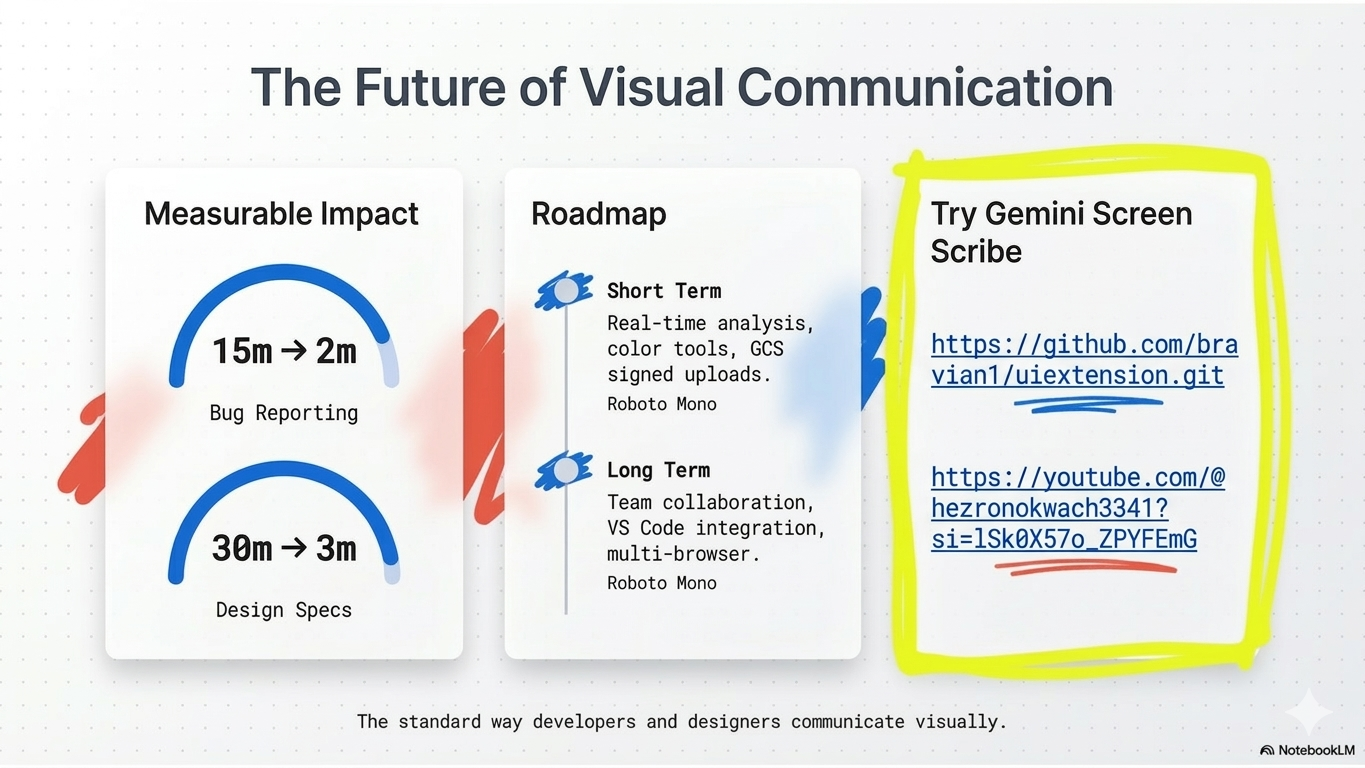
Real-time analysis would be huge. Instead of waiting until the end, you could get live suggestions as you're recording. That requires streaming the video to Gemini which is technically possible but needs more work.
We want to add collaborative features so teams can share recordings and prompts. Right now everything is local to your browser.
Custom modes would let power users write their own system prompts for specific workflows. Maybe you want a mode for accessibility audits or performance optimization.
Direct code export to VS Code or GitHub would close the loop. Generate the prompt, make your changes, commit them, all without leaving the flow.
Better drawing tools are on the list. Color picker, shapes, text annotations, the works. Right now it's just freehand purple strokes.
We're also thinking about video editing. Let you trim the recording or cut out sections before sending it to Gemini to save on API costs.
Long term, we want this on Firefox and Edge too. The core tech is all web standards so it's mostly about handling the different extension APIs.


Log in or sign up for Devpost to join the conversation.