--
Inspiration
Most of my serious studying and research work happens inside PDFs: lecture notes, past exam papers, research papers, newsletters, reports. Very quickly you end up with dozens of files, and simple “Ctrl+F” inside one document is not enough.
I wanted something closer to “Google for my own PDFs” – but smarter and multimodal. I wanted to be able to:
- Look up all occurrences of a concept across all my documents (e.g. A‑Level past questions on a topic).
- Jump directly to a figure, table, or diagram that matches an idea in my head.
- Ask an AI agent to explain what’s in the PDFs and point me to the exact page or region.
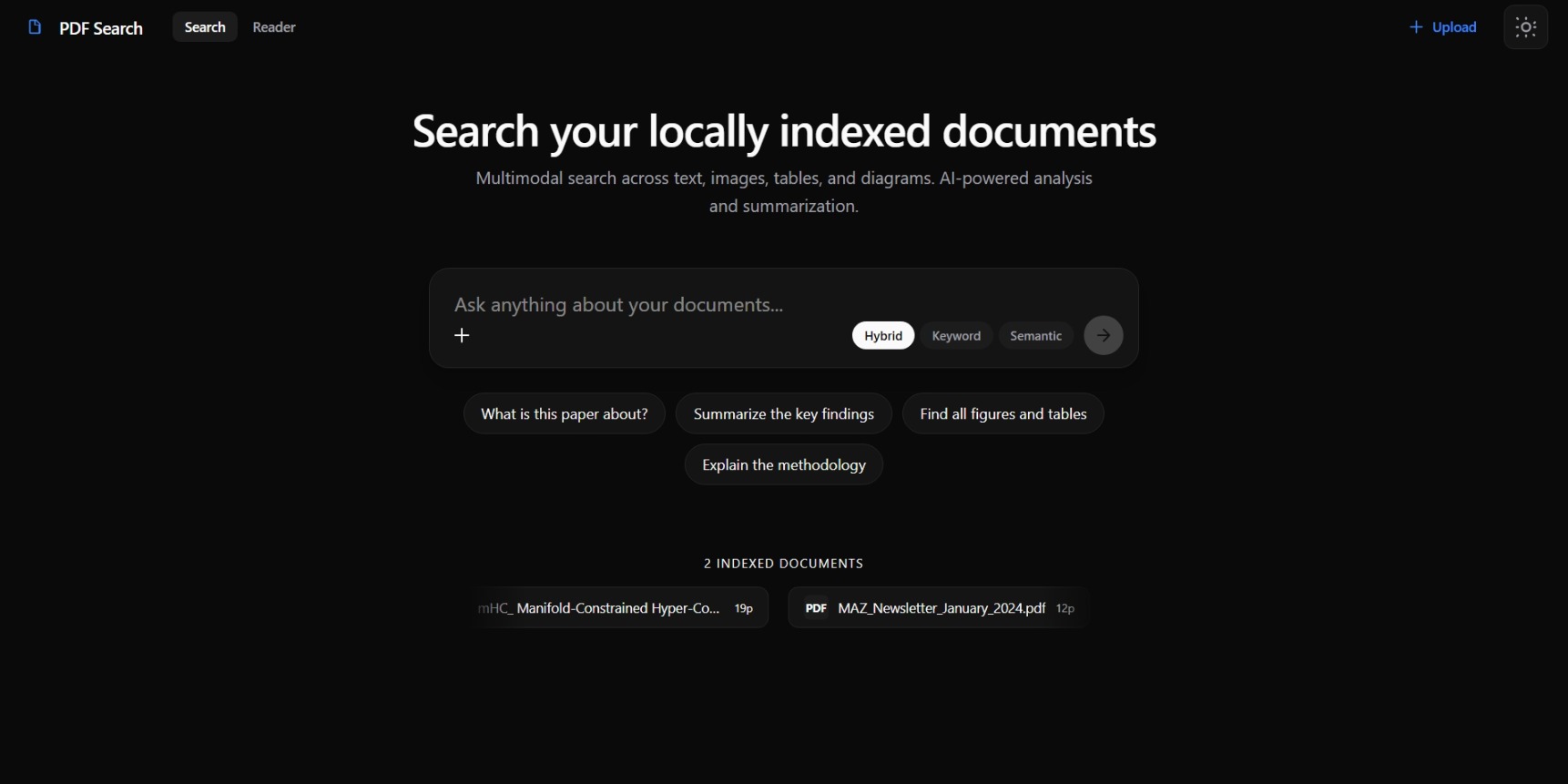
That became Gemini Multimodal Search in Documents – a local, document‑centred search and research experience.
What it does
Gemini Multimodal Search in Documents is a full‑stack app that lets you:
- Index PDFs locally: each PDF is split into pages and text chunks; OCR is run, and visual regions (figures, tables, logos, diagrams) are detected and cropped.
- Build multimodal embeddings: text chunks and visual regions are embedded using Vertex AI multimodal embeddings and stored in a vector store (ChromaDB).
- Search in multiple ways:
- Keyword / FTS5 over OCR text.
- Semantic / vector search over embeddings.
- Hybrid mode that fuses both signals using a ranking strategy.
- Interact with an AI research agent:
- The agent sees your search results and produces a structured summary.
- It can perform extra local searches and web searches as tools.
- It maintains session memory in a separate chat DB so you can keep asking follow‑ups.
- Visually explore PDFs:
- A Chrome‑like UI for PDFs: left sidebar with documents/pages, a central PDF viewer, and hoverable bounding boxes around detected regions.
- Click a region (e.g. a graph, logo, or table) and send it as context to the agent for deeper questions.
The goal is to support realistic study and research workflows – scanning past papers, technical PDFs, and reports – with an interface that feels like a modern browser plus an AI research assistant.
How we built it
Backend
Framework & Core
- Python, FastAPI for the HTTP API.
- SQLite with a custom schema:
documents,pages,text_chunks,regions, plus an FTS5 virtual table for full‑text search. - A separate
chat_history.dbfor chat sessions and messages.
Indexing Pipeline
- PDFs are rendered into images at a chosen DPI.
- Google Cloud Vision runs OCR to extract text per page.
- Gemini is used for multimodal object/region detection on pages (figures, tables, diagrams, logos, etc.).
- Regions are cropped and stored under
data/crops/. - Text and regions are embedded using Vertex AI multimodal embeddings (dimension 1408).
- Embeddings are stored in ChromaDB (
multimodal_embeddingscollection) and linked back to the main DB viavector_id.
Search Engine
- Keyword search uses SQLite FTS5 over
text_chunks.text. - Semantic search uses ChromaDB cosine similarity.
- A hybrid mode combines scores and re‑ranks results.
- Keyword search uses SQLite FTS5 over
Agent
- Built around Gemini 3 Pro.
- Tools:
search_local_index– calls the same search engine the UI uses.web_search– provides external grounding when needed.- A multi‑step tool‑calling loop (with a maximum depth) feeds tool results back into Gemini until it converges on an answer.
- Chat messages and sessions are persisted in
chat_history.db, so the agent remembers what you discussed.
Frontend
Stack
- React 18, TypeScript, Vite, TailwindCSS v4.
- react-pdf (pdf.js) to render PDFs in the browser.
- React Router for pages.
- Zustand for global state (theme, active document/page, search state, chat sessions).
- Axios as the HTTP client.
UI Design
- A Google AI‑style home: centered “ask anything“ input, monochrome theme (black / white / silver / greys), and an animated ticker showing all indexed documents.
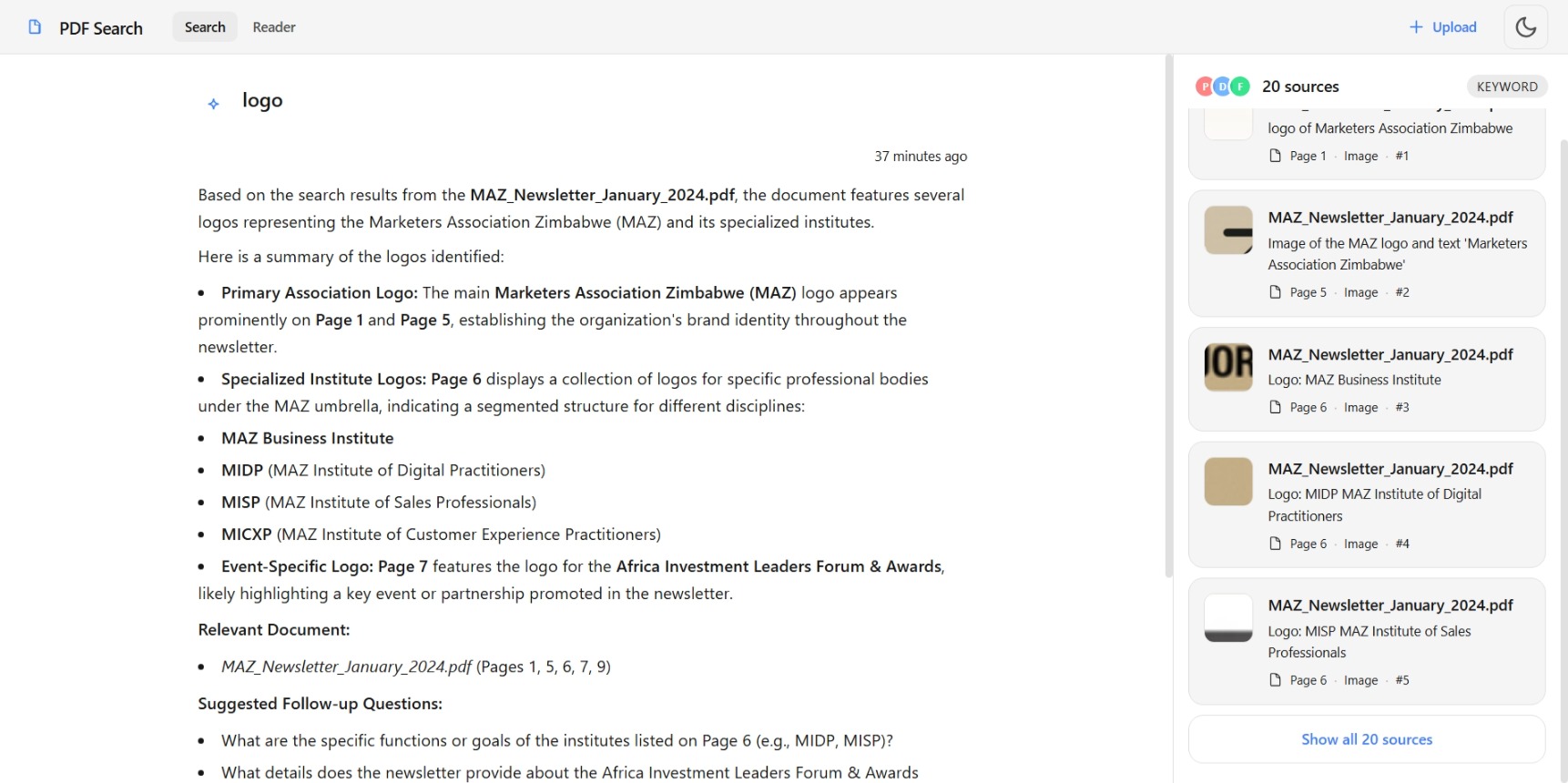
- Search results view:
- On the left, a “research agent” panel renders Gemini’s answer like a well‑formatted article (headings, lists, bold, etc.) with follow‑up input.
- On the right, a sources sidebar with compact cards linking to documents/pages/regions.
- Reader view:
- Left: document tree and pages.
- Center: PDF viewer with bounding boxes over detected regions.
- Right: chat panel that can take a selected region as context.
Challenges we ran into
Cloud setup & credentials
I had only used the Gemini API through simple studio examples. For this project I had to configure:- Service accounts and environment variables for Vertex AI and Vision.
- API keys for Gemini and Vision. Getting all three services to work together reliably took time (and a lot of trial runs).
Vector store integration (ChromaDB)
Chroma’s persistence and Python dependencies were finicky on my local Windows environment, especially when switching between virtual environments and Python versions. I hit issues right up against the hackathon deadline where the vector store wouldn’t start as expected.Performance & startup time
The combination of Google Cloud SDKs and heavy imports caused slow backend startup (sometimes ~90–120 seconds), which made debugging confusing at first – it looked like uvicorn was “hanging” when it was just importing libraries.Keeping the DB stable
SQLite with FTS5, concurrent indexing, and the API required careful use of WAL mode, busy timeouts, and a singleton engine to avoid repeated “database is locked” issues.
Accomplishments that we’re proud of
- End‑to‑end multimodal pipeline: from raw PDFs to OCR, region detection, embeddings, and a working hybrid search engine.
- Agent with real grounding: the agent doesn’t just “hallucinate” from a prompt; it:
- Calls a proper search over the local PDFs.
- Can also perform web search as a secondary grounding tool.
- Summarizes with explicit references to documents and pages.
- Chrome‑like reader UI: a modern, minimal frontend that:
- Renders PDFs client‑side.
- Draws bounding boxes around detected regions.
- Lets you click a region and immediately ask the agent about it.
- Clean architecture & documentation: the project now has a clear separation of concerns (API, Core, Services, Indexer, Search, Agent, Frontend) and a detailed README, so it’s not just a demo but a foundation that can be extended.
What we learned
- Multimodal ML pipelines are as much about plumbing as about models. Getting all the layers (OCR, detection, embeddings, vector store, DB, API, UI) to talk to each other cleanly was as big a challenge as any single ML call.
- The importance of indexing and data modeling. Designing the DB schema and FTS5 setup (documents/pages/chunks/regions) changed how easy it was to build features later – especially when joining text and image regions.
- Real world constraints (slow libraries, cloud deprecations, Windows quirks) shape design a lot. Handling long startup times, locking, and deprecation warnings forced me to add better logging and more robust patterns (singleton DB engine, dedicated chat DB, etc.).
- Good UX matters for research tools. A lot of time went into making the UI feel like a proper tool you’d want to keep open: clear layout, subtle theming, good defaults, and a search experience that feels like a browser + AI rather than just a raw API demo.
What’s next for Gemini Multimodal Search in Documents
Performance & indexing speed
- Parallelize more of the pipeline (rendering/OCR/detection/embedding).
- Add proper progress reporting and benchmarking for index times per page and per document.
- Introduce smarter caching for embeddings and detection results.
Better evaluation of Gemini’s multimodal abilities
- Build small benchmark suites of PDFs that focus on tricky cases (dense math, complex tables, multi‑panel figures).
- Experiment with prompt engineering and model settings specifically for “PDF understanding” tasks under token and cost limits.
Search quality improvements
- Refine ranking and result fusion beyond basic hybrid scoring (e.g., dynamic weighting per query type).
- Add filters and facets (by document, date, label type like “figure”, “table”, “logo”, etc.).
Richer PDF reading experience
- Improve layout and zooming in the viewer.
- Add note‑taking / highlights that can also be used as context for the agent.
- Explore making “research assistants” around specific collections (e.g., a set of research papers) that can be shared or dockerized for reproducible research environments.
Packaging & sharing
- Turn the whole stack into a Docker‑based deployment so anyone can run a local multimodal research assistant against their own PDFs.
- Potentially support more formats beyond PDFs (HTML exports, EPUB, etc.) once the core pipeline is stable.
Built With
- chromadb
- fastapi
- gemini
- python
- react-18
- sqlite
- typescript
- vertexai
- vite

Log in or sign up for Devpost to join the conversation.