-
-
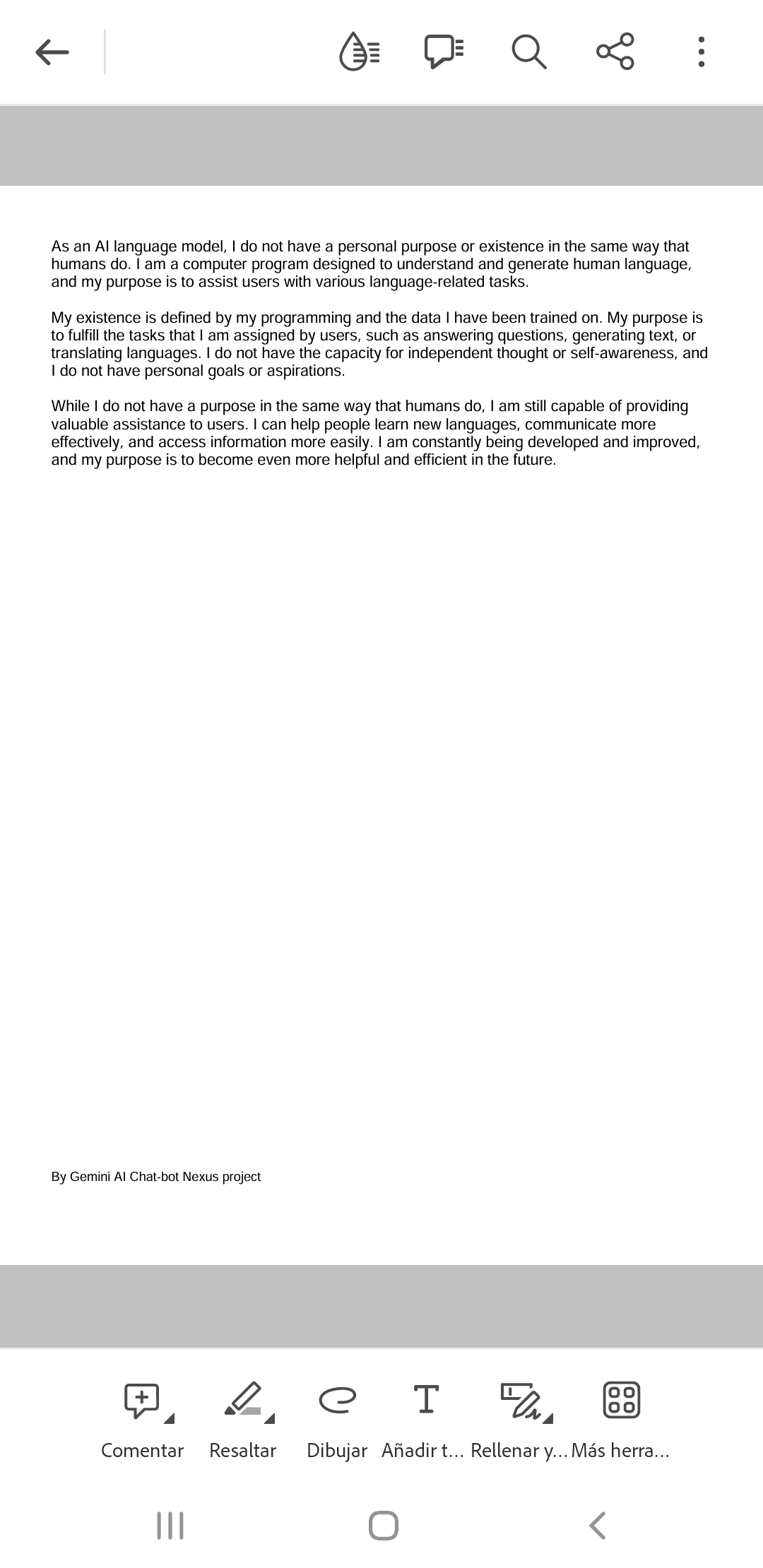
Logo of Our Project
-
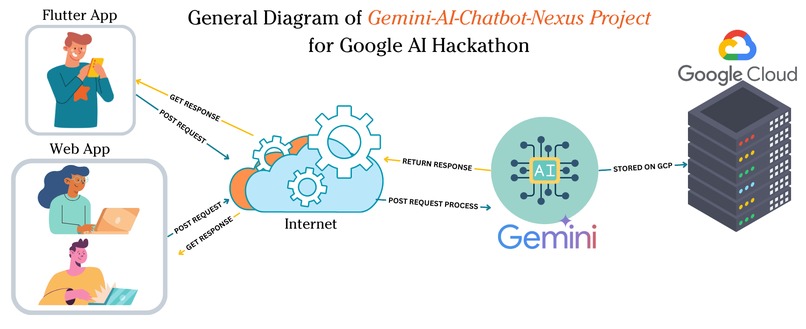
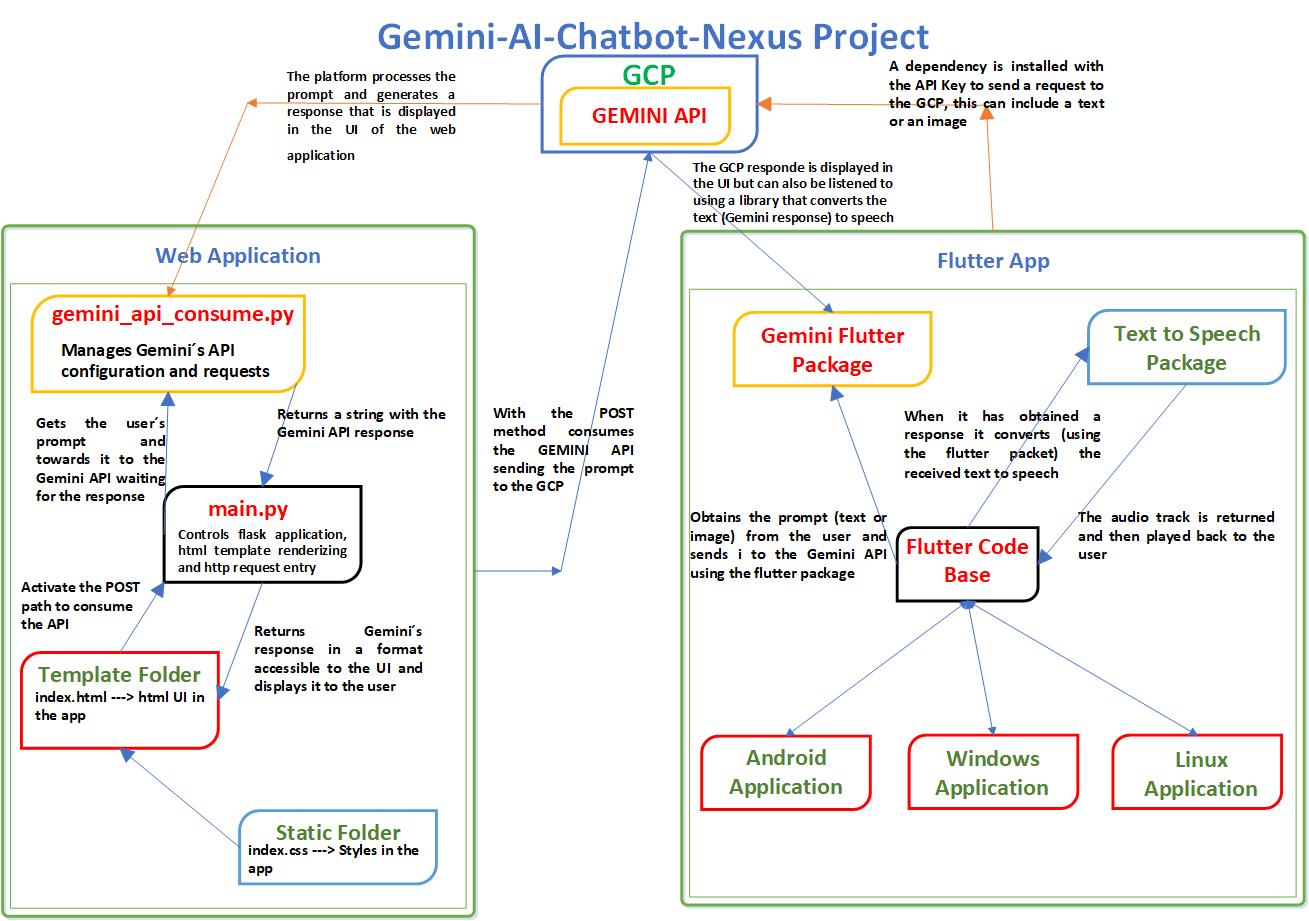
General Diagram
-
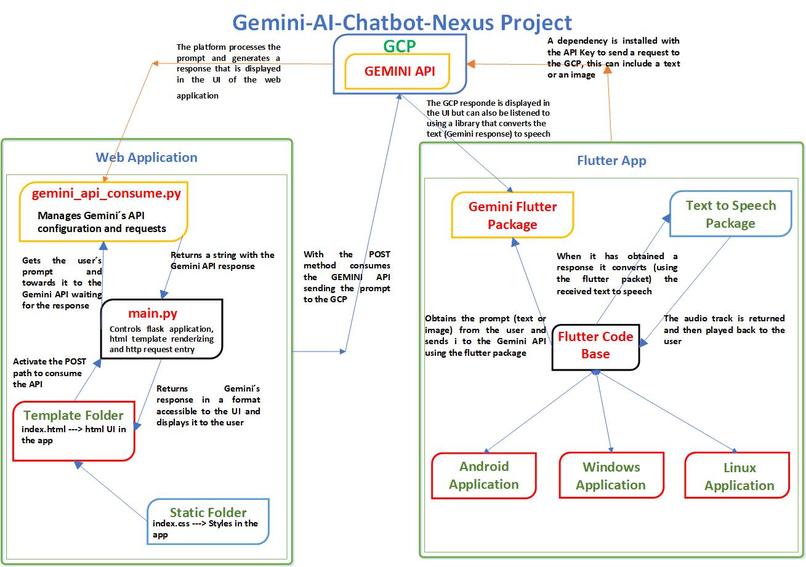
Diagram Structure of Gemine AI Chatbot Nexu
-
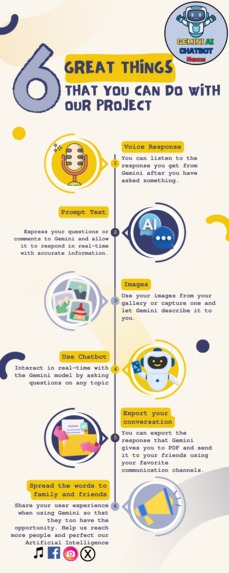
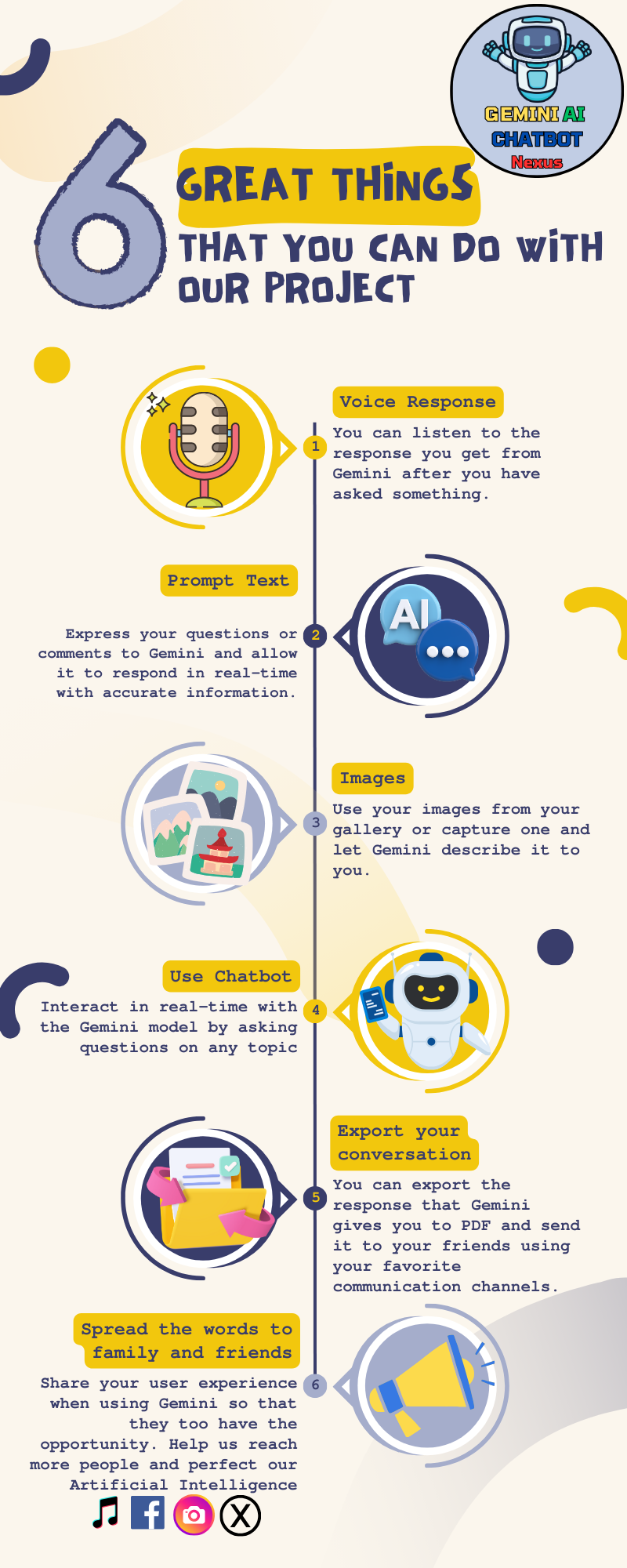
Great things that you can do with our project
-
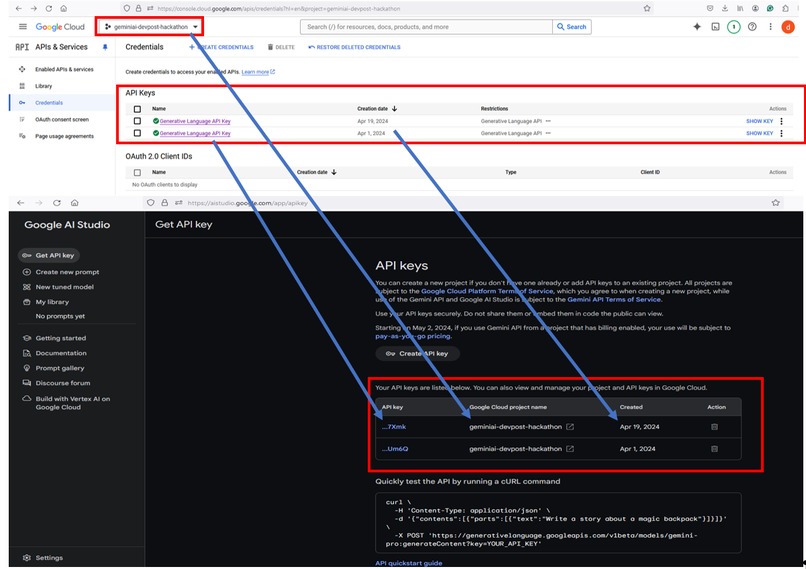
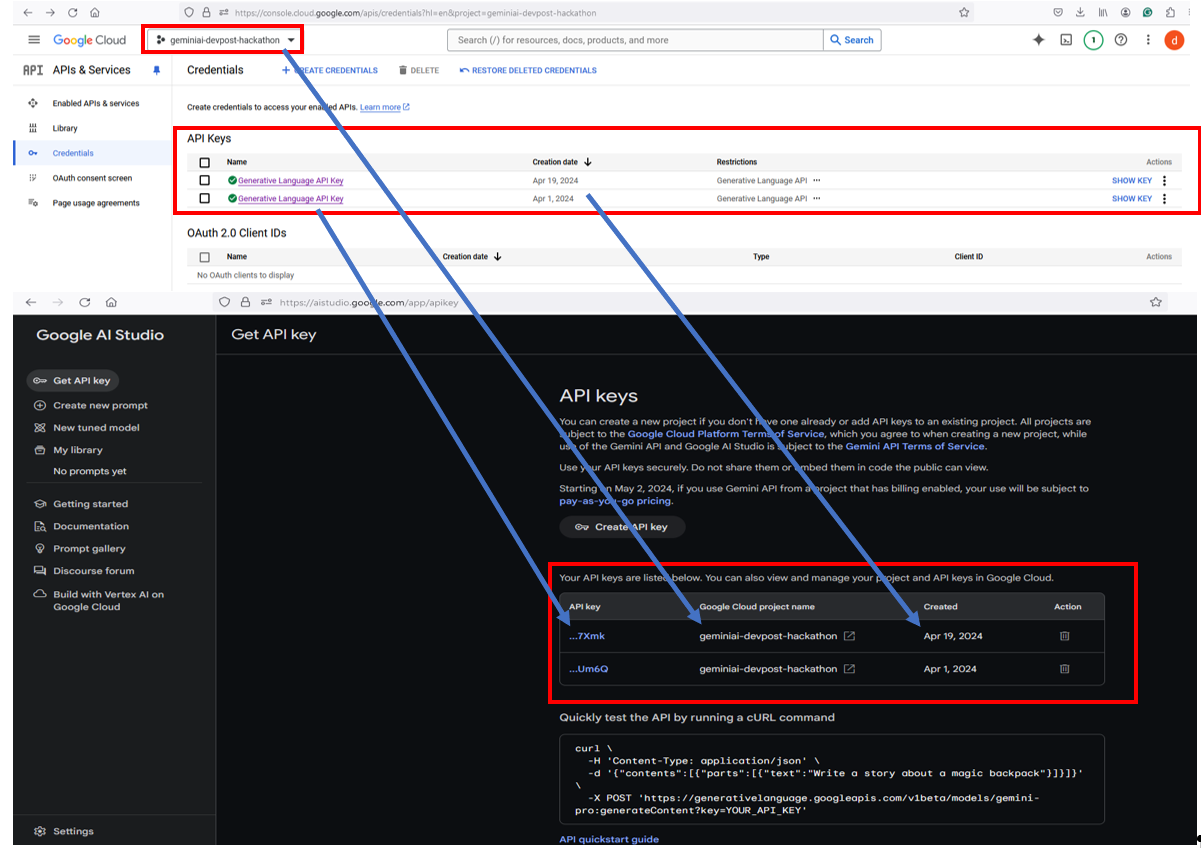
Integration of API Key Our Project
-
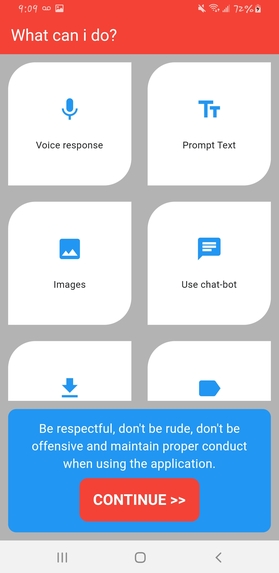
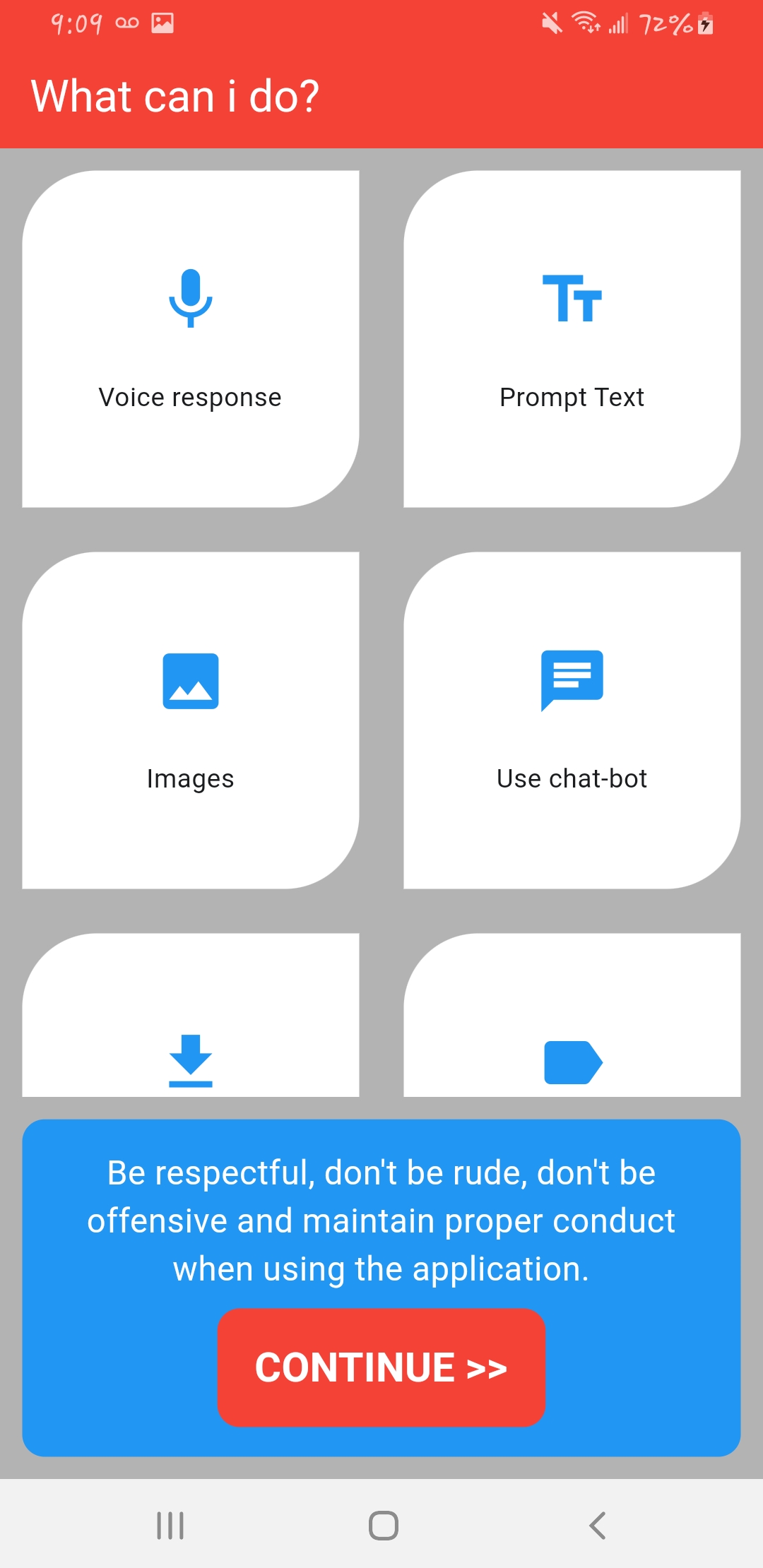
Welcome Mobile App
-
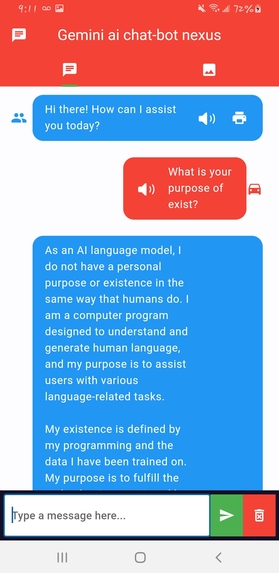
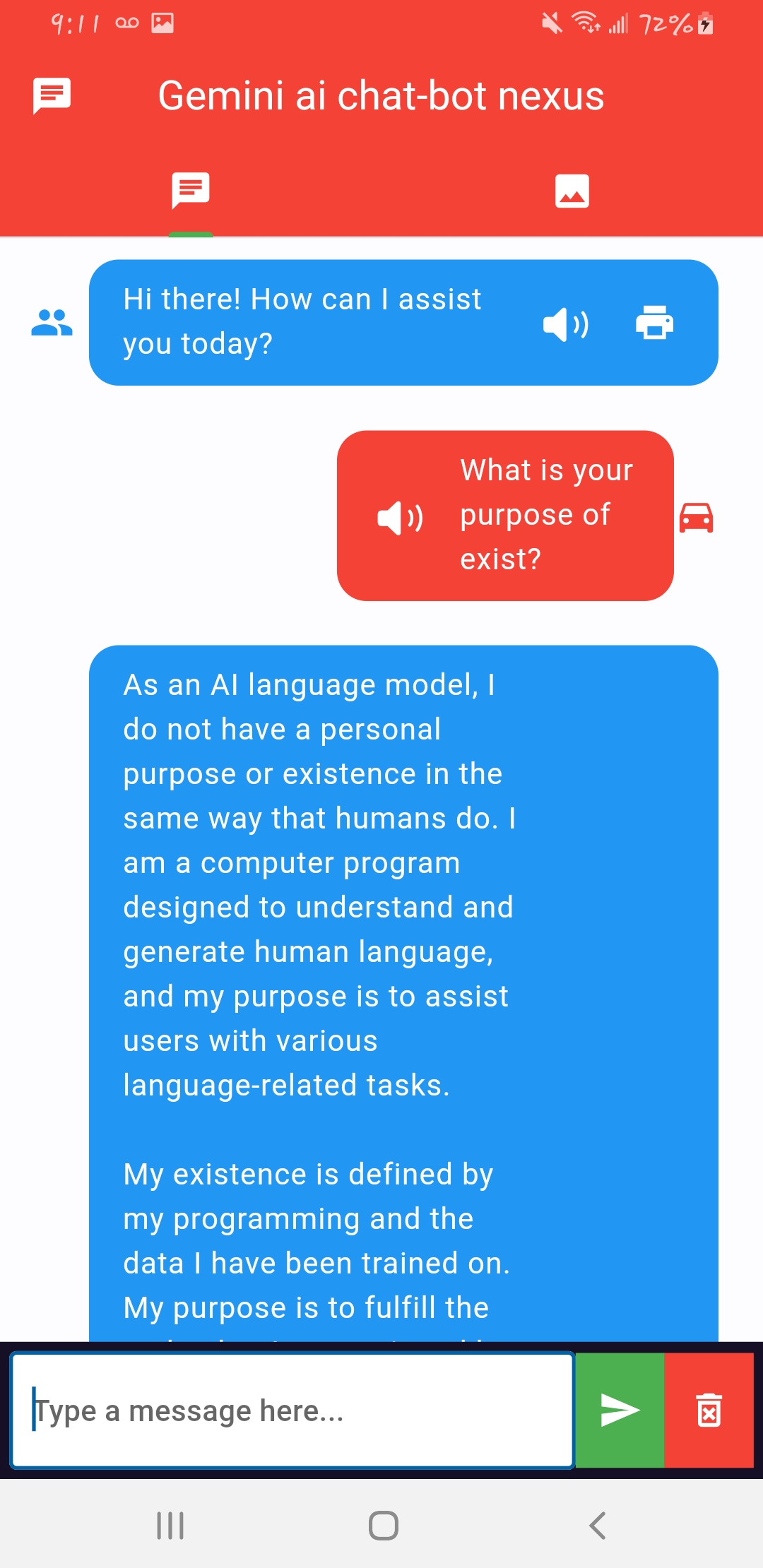
Text Prompt User Interface
-
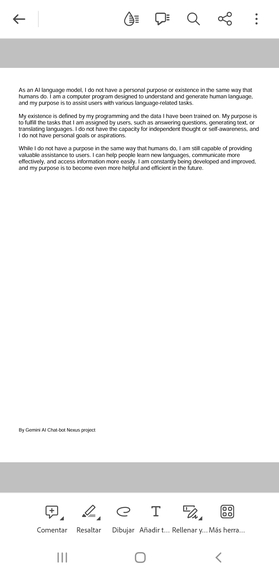
Export and share conversation option
-
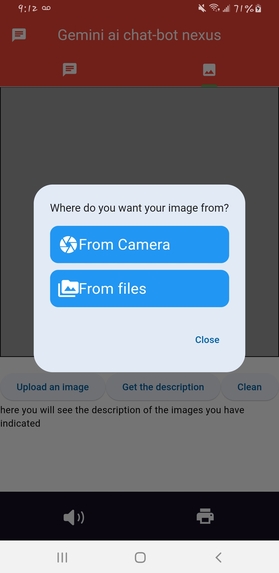
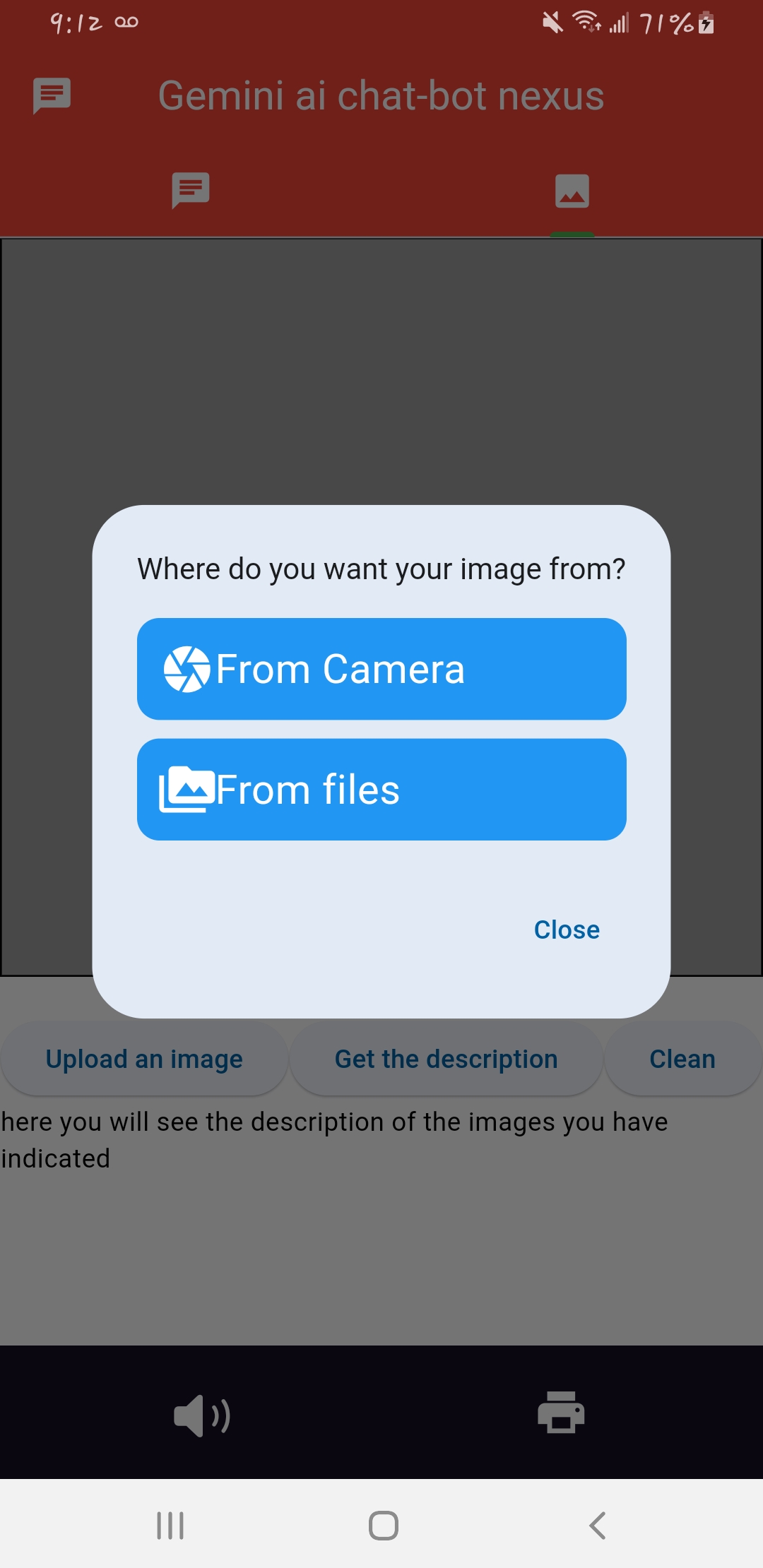
Activate Camera or use Gallery Local Image
-
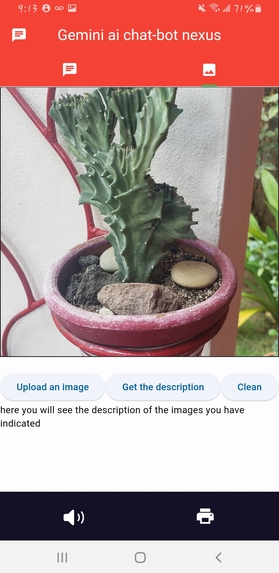
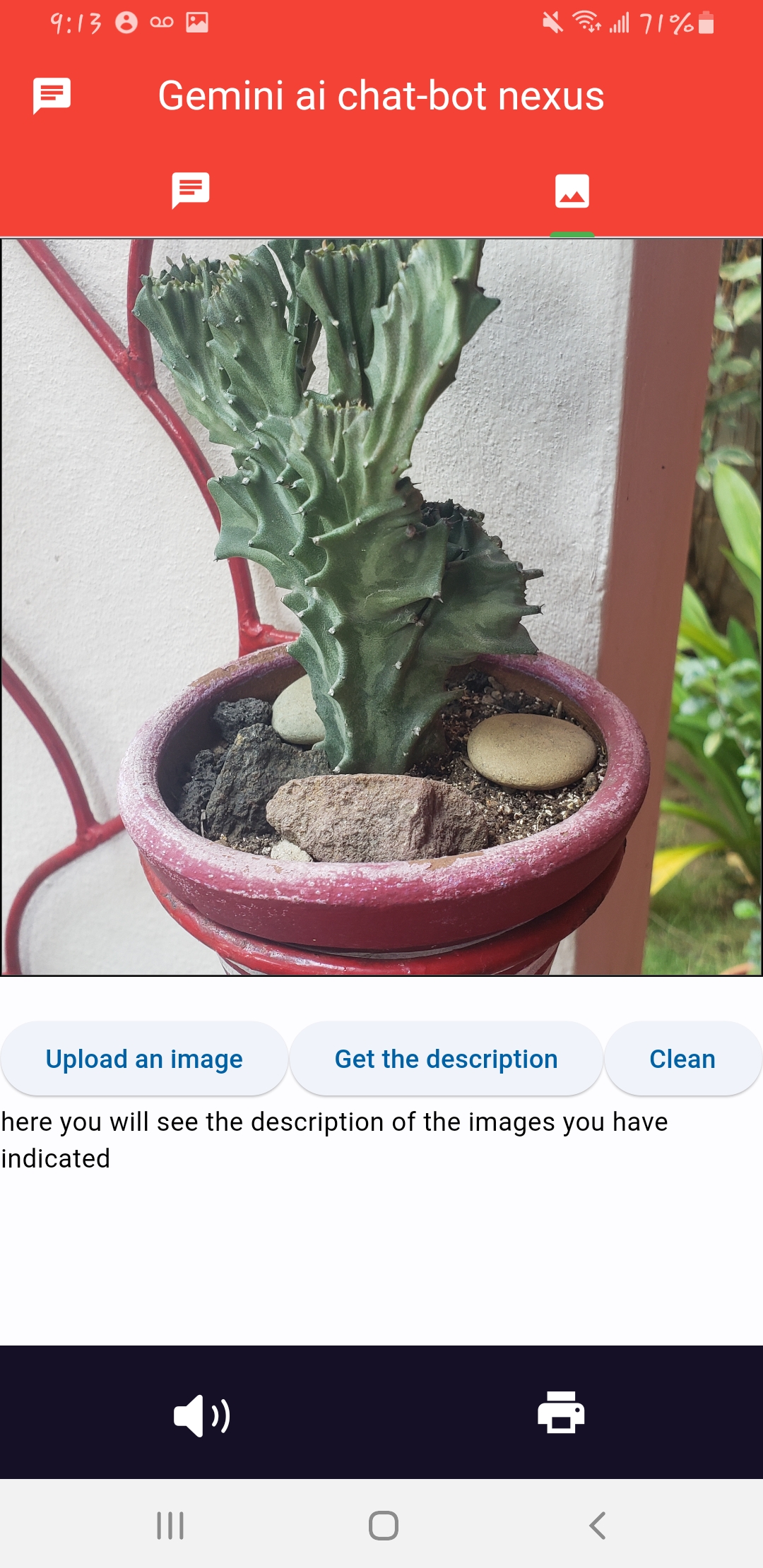
Using camera device

Inspiration
Many chatbots have pre-configured intent. However, users want to express themselves freely when asking questions and have a reliable, coherent, and logical answers. Because users currently connect from different electronic devices, our work team decided to develop a web application for mobile devices. To make our project accessible and demonstrate that the Gemini Artificial Intelligence model can be accessed.
What it does
Users can send a text prompt from the graphical interface that has been designed, entering from their mobile devices or computer web browser. Gemini AI is responsible for processing the text prompt, consulting its pre-trained data set, and returning a visual response in the graphical interface so that the user can know the response provided to the prompt that they enter.
On the other hand, users can also take a photo using the camera of their Android mobile device. Send that image to Gemini to make a description of the image. The response provided by the artificial intelligence can be read in the graphical interface or select the audio option to listen to the response generated by the model in audio format.
How we built it
To use the Gemini AI model we access the website Google AI Studio. Being in the previous site we can obtain the API KEY that we will be using to add it to the backend of our application.
Then, within Google AI Studios, in the upper right tab that says Get Code, we click and we will obtain the following screen where we will be presented with different programming language options with which we want to work.
import google.generativeai as genai
genai.configure(api_key="YOUR_API_KEY")

# Set up the model
generation_config = {
  "temperature": 1,
  "top_p": 0.95,
  "top_k": 0,
  "max_output_tokens": 8192,
}
safety_settings = [
  {
    "category": "HARM_CATEGORY_HARASSMENT",
    "threshold": "BLOCK_MEDIUM_AND_ABOVE"
  },
  {
    "category": "HARM_CATEGORY_HATE_SPEECH",
    "threshold": "BLOCK_MEDIUM_AND_ABOVE"
  },
  {
    "category": "HARM_CATEGORY_SEXUALLY_EXPLICIT",
    "threshold": "BLOCK_MEDIUM_AND_ABOVE"
  },
  {
    "category": "HARM_CATEGORY_DANGEROUS_CONTENT",
    "threshold": "BLOCK_MEDIUM_AND_ABOVE"
  },
]
model = genai.GenerativeModel(model_name="gemini-1.5-pro-latest",
                              generation_config=generation_config,
                              safety_settings=safety_settings)
convo = model.start_chat(history=[
])
convo.send_message("YOUR_USER_INPUT")
print(convo.last.text)
IMPORTANT: In the line that says genai.configure(api_key="YOUR_API_KEY") we replace the part that says "YOUR_API_KEY" with the value that was generated within Google AI Studio.
To use Gemini API we had to perform an installation using the following command:
pip install google-generativeai
To install in Flask. that we use for the Frontend, we use the following command:
pip install Flask ()
These installations have to be done in our local directory on our computer where we begin to develop our project.
As a team, we analyzed what could be the best option to present our project, which is why we decided to make a web application and a mobile application. That way, users who download our repository can try it from their computer or simply install the apk that was generated as a result of development in Flutter. For both cases, we integrate the KEY API of the Gemini model.
Web Application
On the one hand, we have a backend in Python code with Flask that is responsible for processing the POST requests that the user enters from the Text prompt. In the backend, we have an API KEY assigned that is associated with the GCP project. For this, the Gemini AI API must be enabled to consume the POST requests entered by the user.
Then we have a Frontend where there is a file called index.html. This file serves as a graphical interface for the user to enter the text prompt to query Gemini AI. In this same interface, the user can see the return of the response as a GET method resulting from the result of consuming the Gemini API Key.
Mobile application using Flutter.
We know that users use their smart mobile devices more frequently. Therefore, we use Flutter to generate an apk that allows installation on smart devices, adding dependencies and packages necessary for our application in the pubspec.yaml file.
If you want to know more about how our project is organized, analyze the source code, and see the diagrams and images, we invite you to visit our repository at the following link Gemini AI Chatbots Nexus Project
Challenges we ran into
Configure the Backend to make the POST request to Gemini AI.
Configure the Frontend service to present the user with a graphical interface where they can enter the text prompt to send the request to Gemini AI and obtain the responses using the GET method that was presented in the graphical interface to the user.
Incorporate the ability to translate the text response into audio so that the user can also listen to it and provide the feeling that they are having a conversation with a real person.
Process the image that is taken using the mobile device's camera so that Gemini can describe the image.
Accomplishments that we're proud of
Test the Gemini AI model to build an app that runs on mobile devices and web browsers.
Develop an application thinking about the benefit of users.
Contribute to the development of Artificial Intelligence responsibly and safely for good implementation and its practices.
Set up a project in GCP to enable the Gemini AI API Key.
Develop an application using Flutter to make our application more accessible to users.
What we learned
Generate the API KEY from Google AI Studio for the Gemini AI PRO model. Get the Gemini AI PRO source code to use in our backend. Connect the backend to the GCP project to consume POST and GET requests by using the generated API KEY Design and integrate the Frontend to provide a visual interface to the user. Use Gemini AI to develop a chatbot in Flutter.
What's next for Gemini-AI Chatbot Nexus
Improve the graphical interface of our web and mobile applications to obtain a better user experience.
Set the authentication option through the credentials configuration (OAuth ID Clients) from GCP in such a way that the user is asked for permission to use our application.
Analyze and include aspects about how responsible AI can be implemented more effectively in our application for users.
Maybe take two courses from the platform on coursera.org called Responsible AI for Developers: Interpretability & Transparency and Responsible AI: Applying AI Principles with Google Cloud to apply the knowledge acquired to our project and improve the aspects that are relevant to Responsible AI it means.

Log in or sign up for Devpost to join the conversation.