-
-
Gemi AI Project Both Website and Chrome Extension separately
-
Gemi AI Assistant : Web Project
-
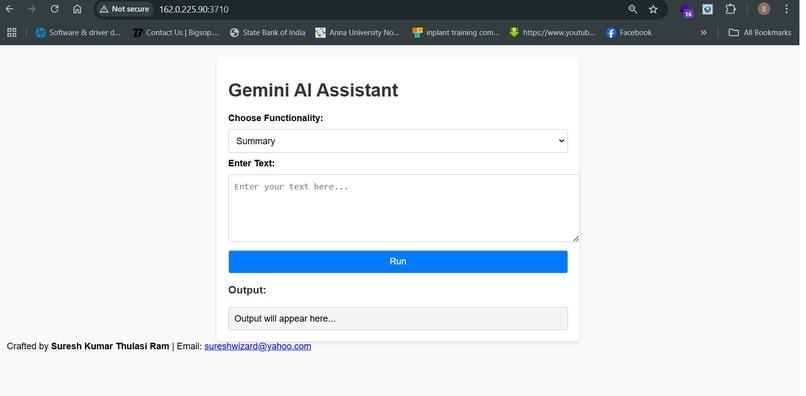
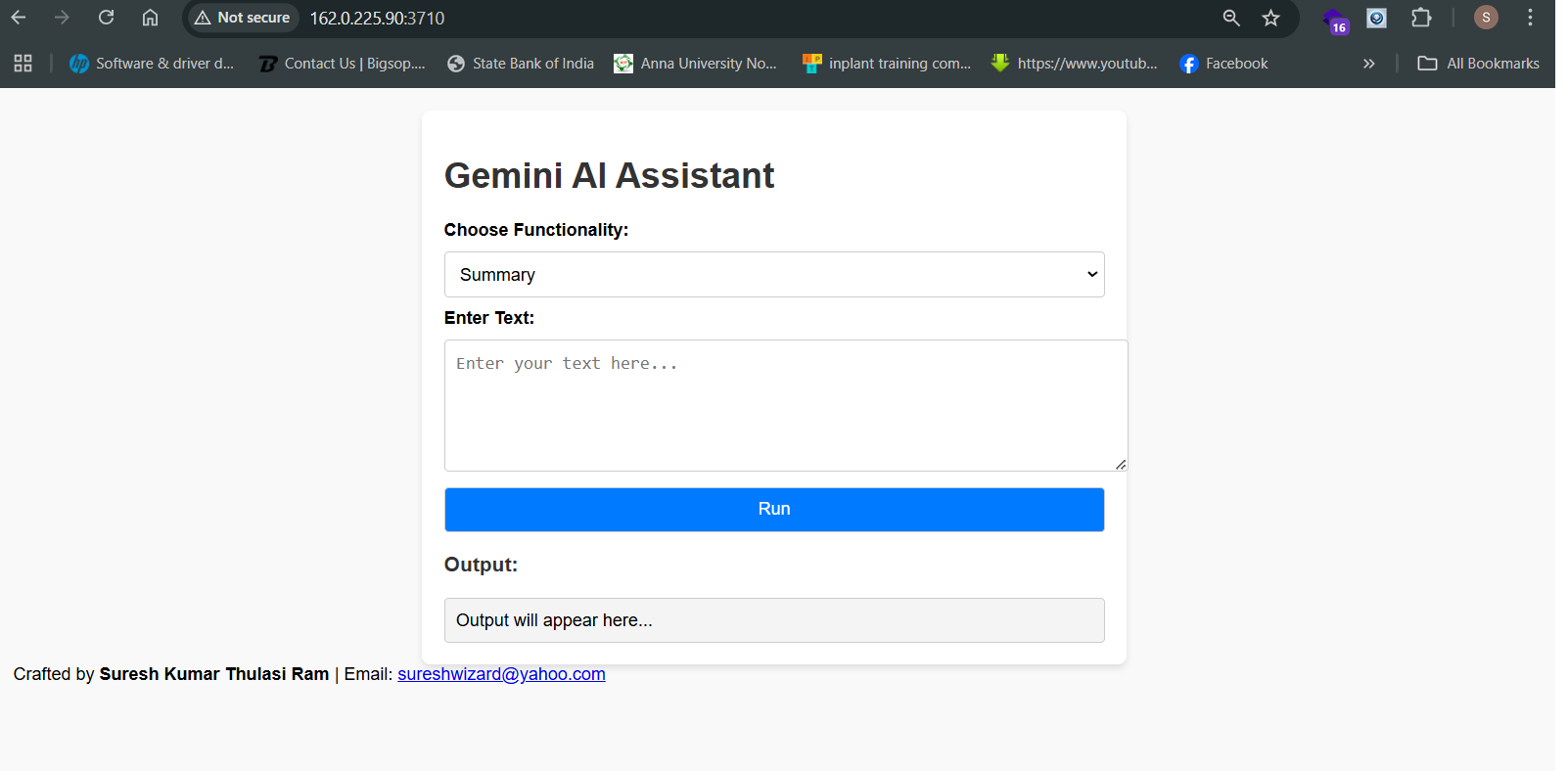
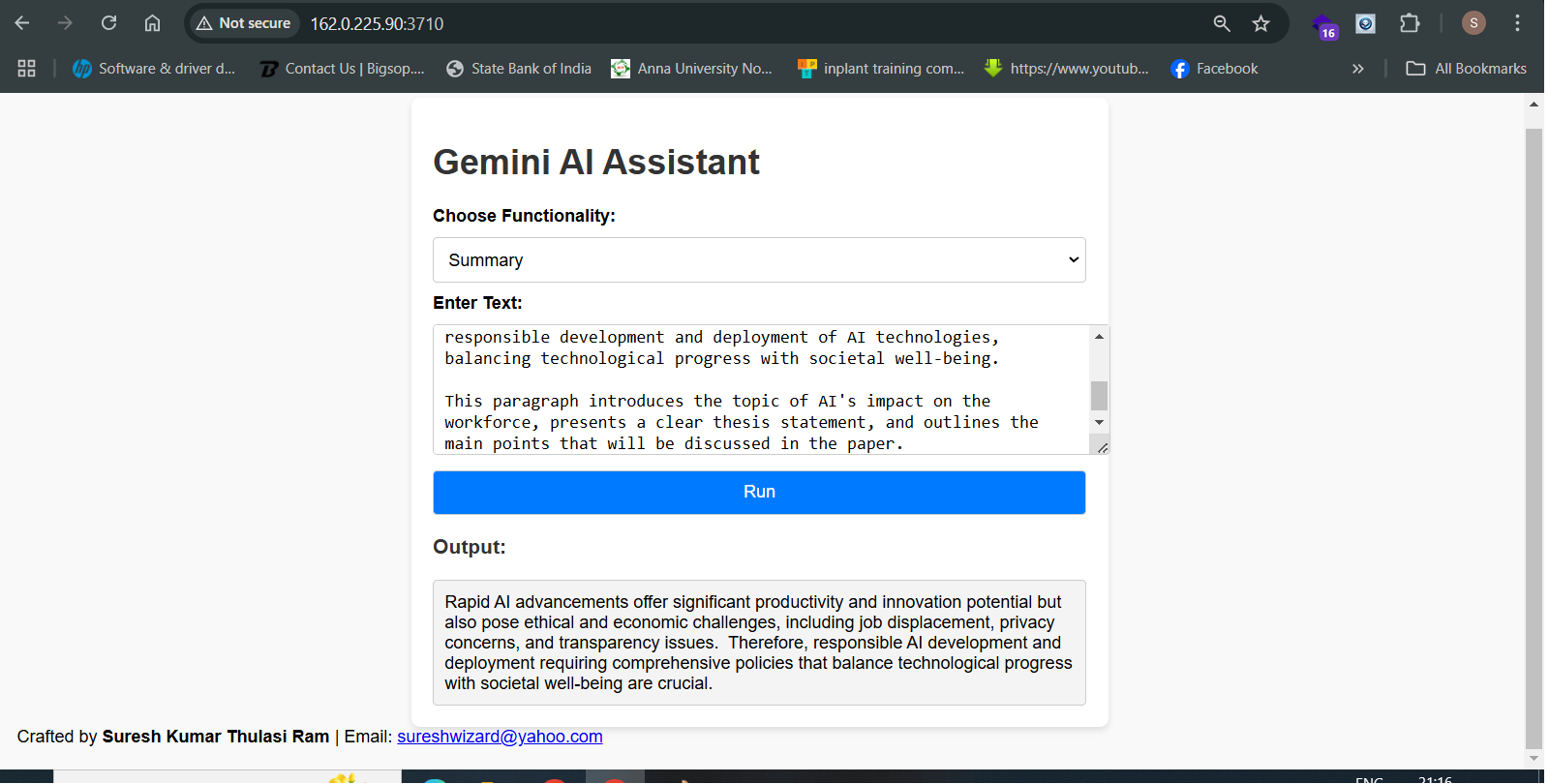
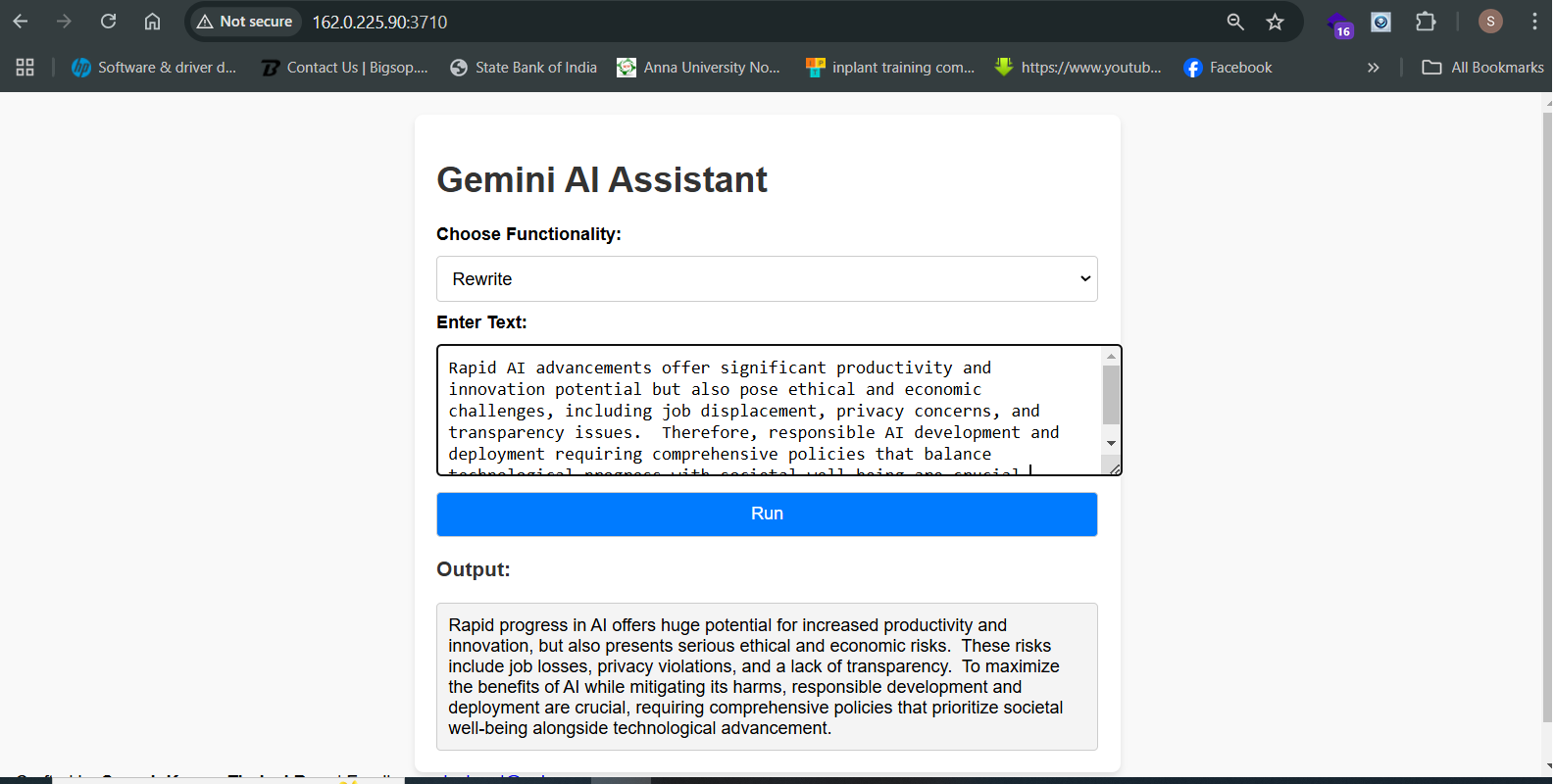
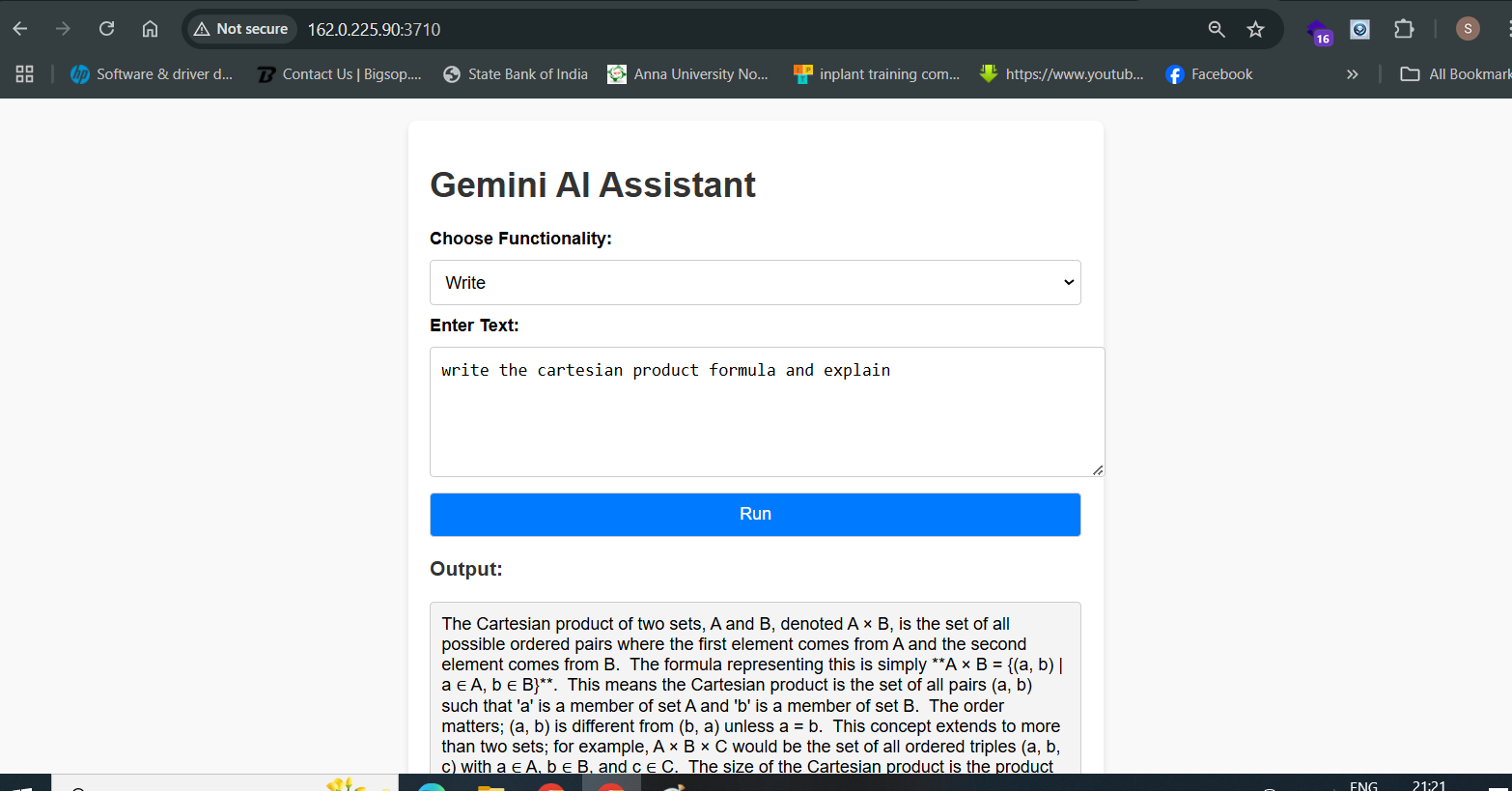
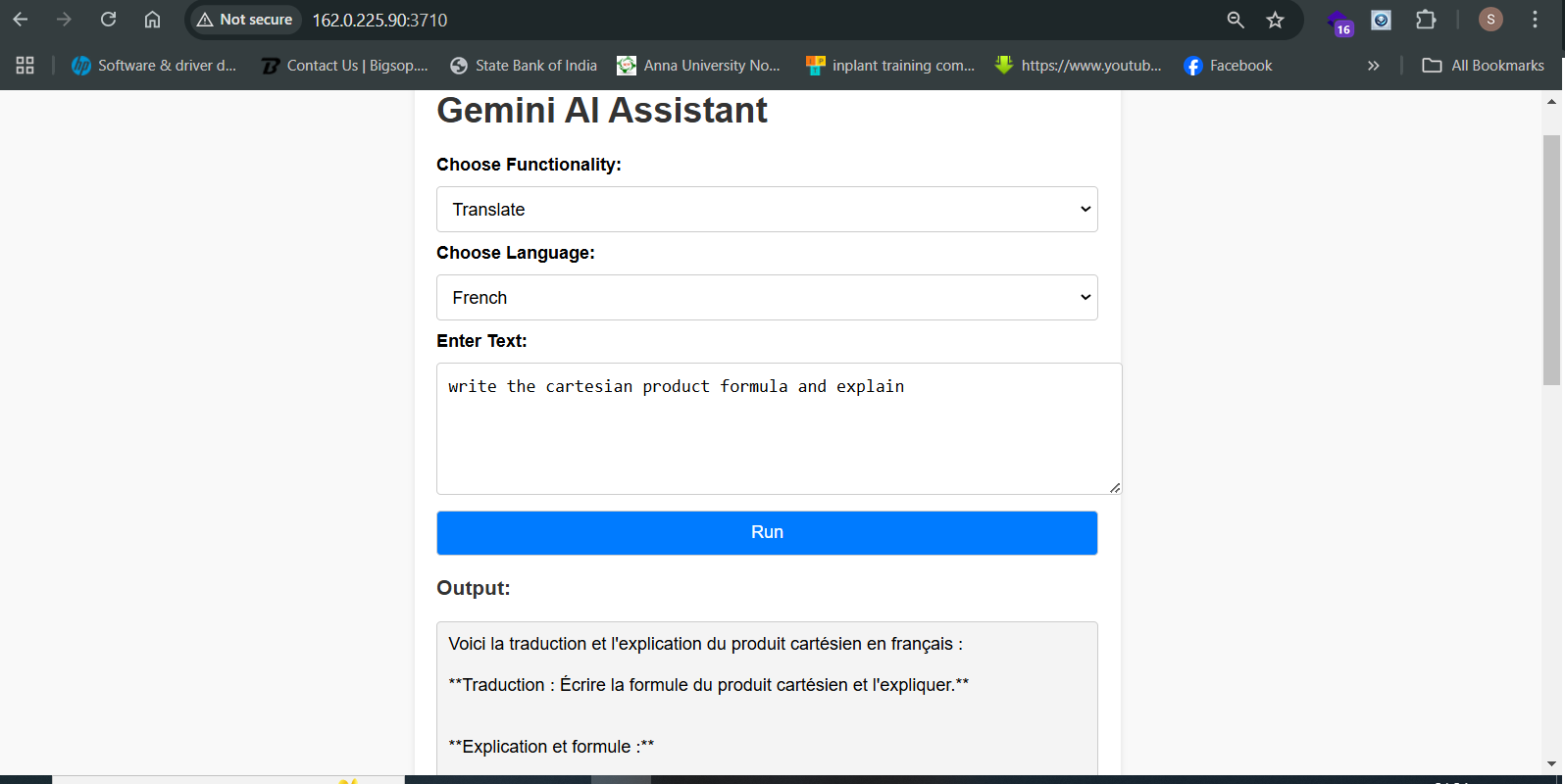
UI - Web Project
-
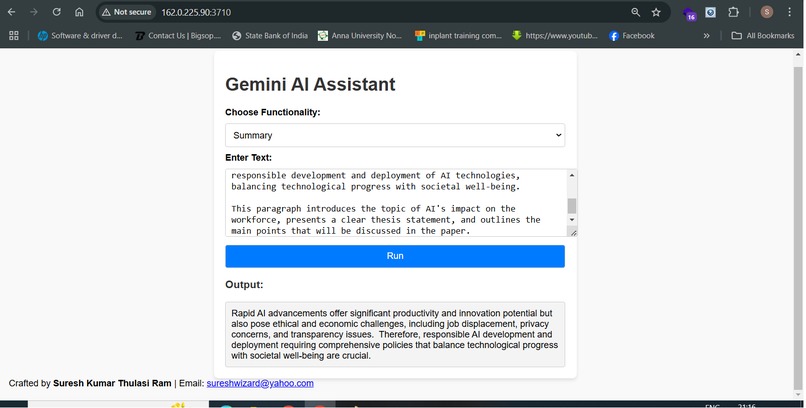
Text summary of contents using Gemni AI
-
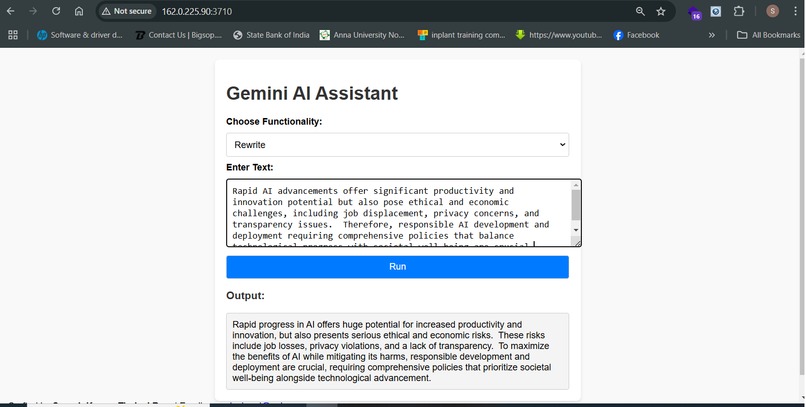
Rephrasing of contents using Gemni AI
-
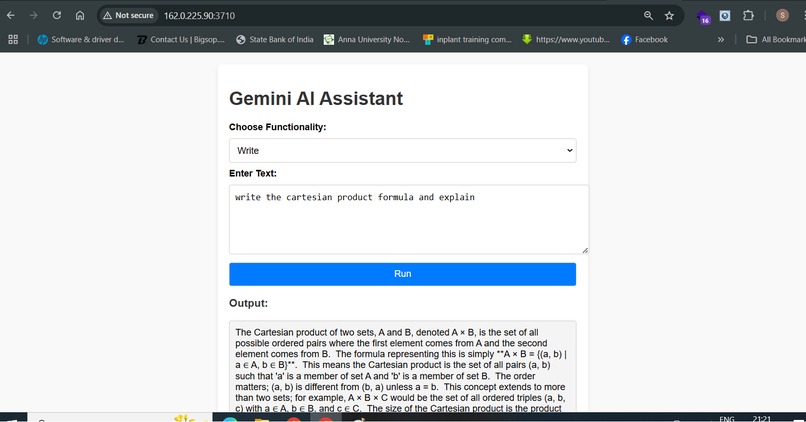
Creating new content on specified topics
-
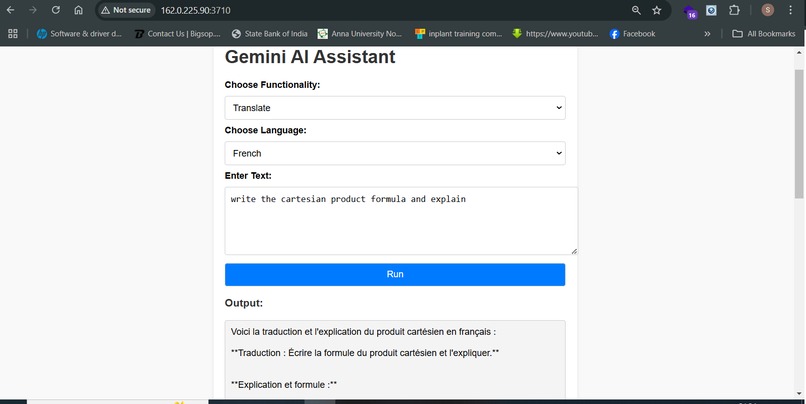
Translate contents to French German Spanish Italy German Japanese languages
-
Gemi AI Assistant as a Google Chrome Extension
-
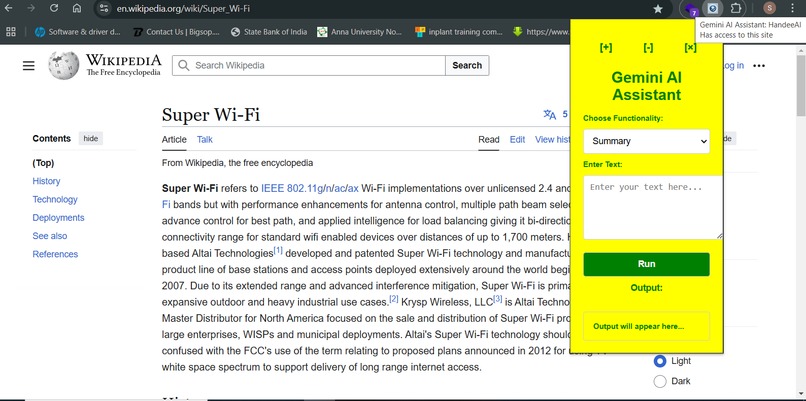
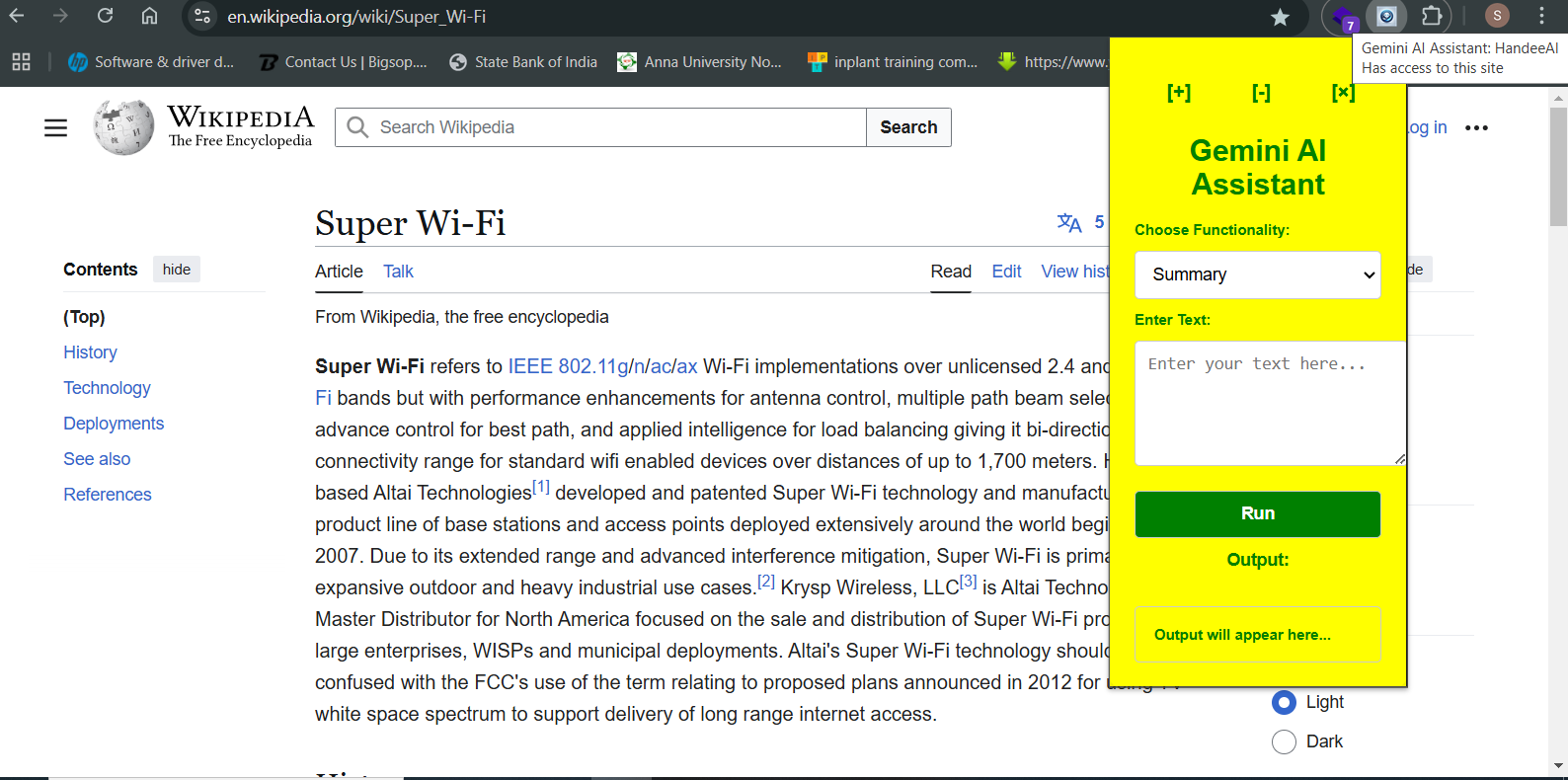
Google Chrome Extension UI
-
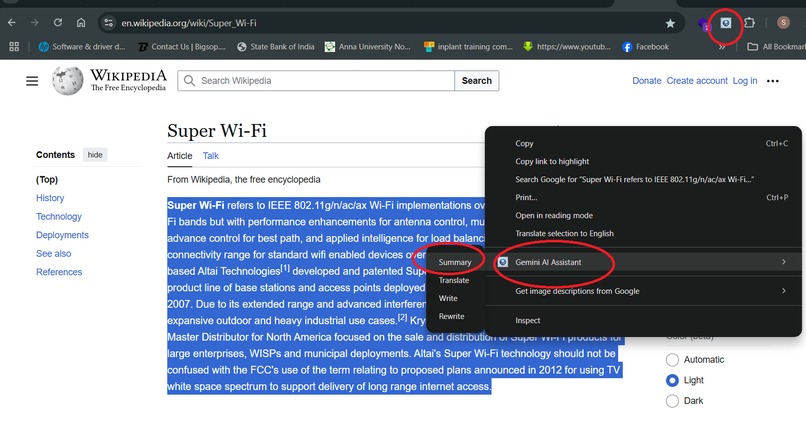
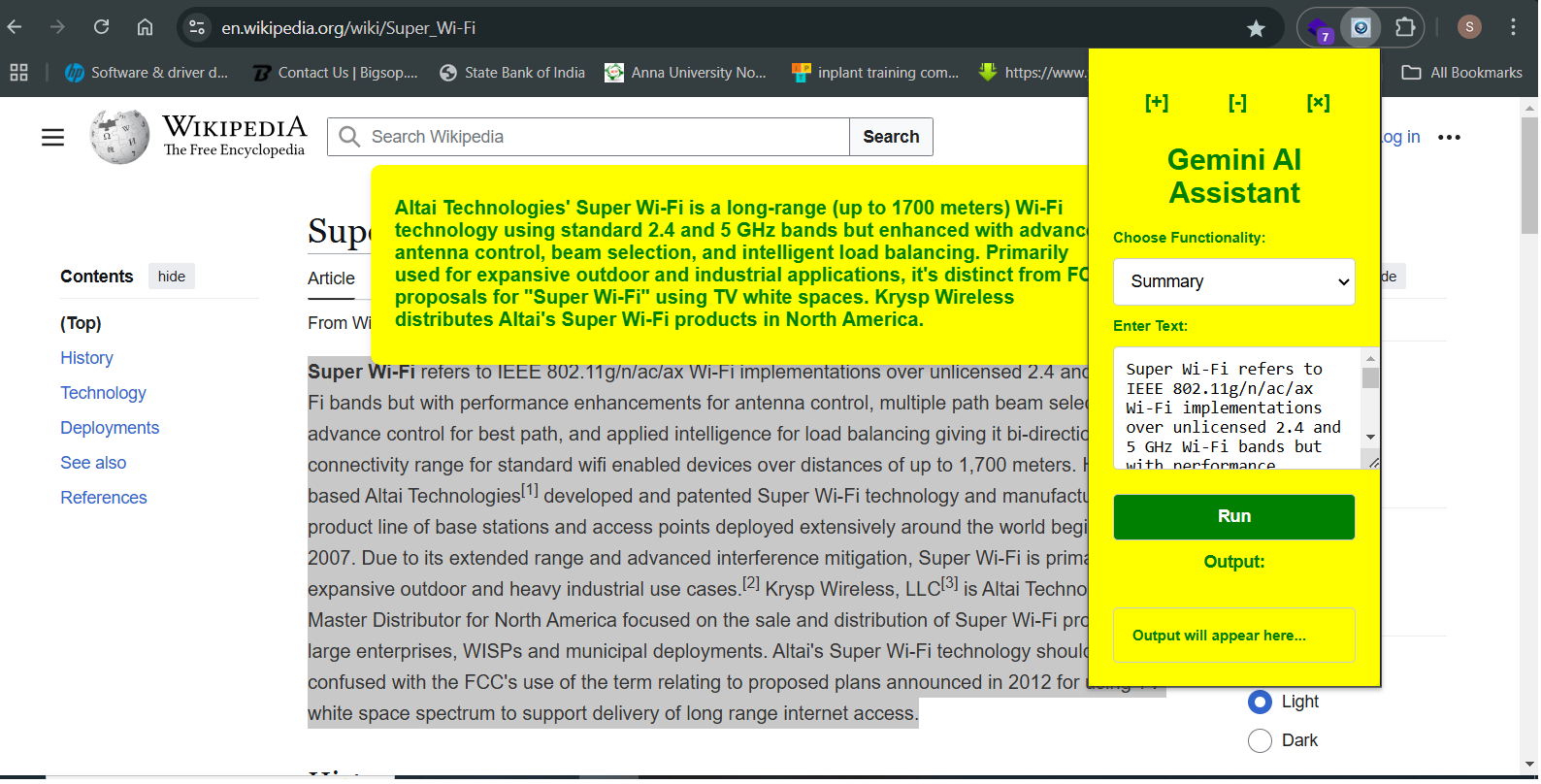
Summary content using Chrome Extension of the project
-
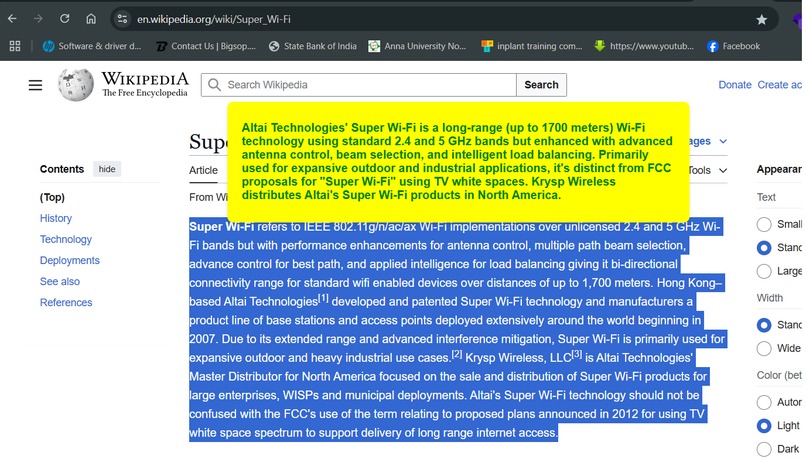
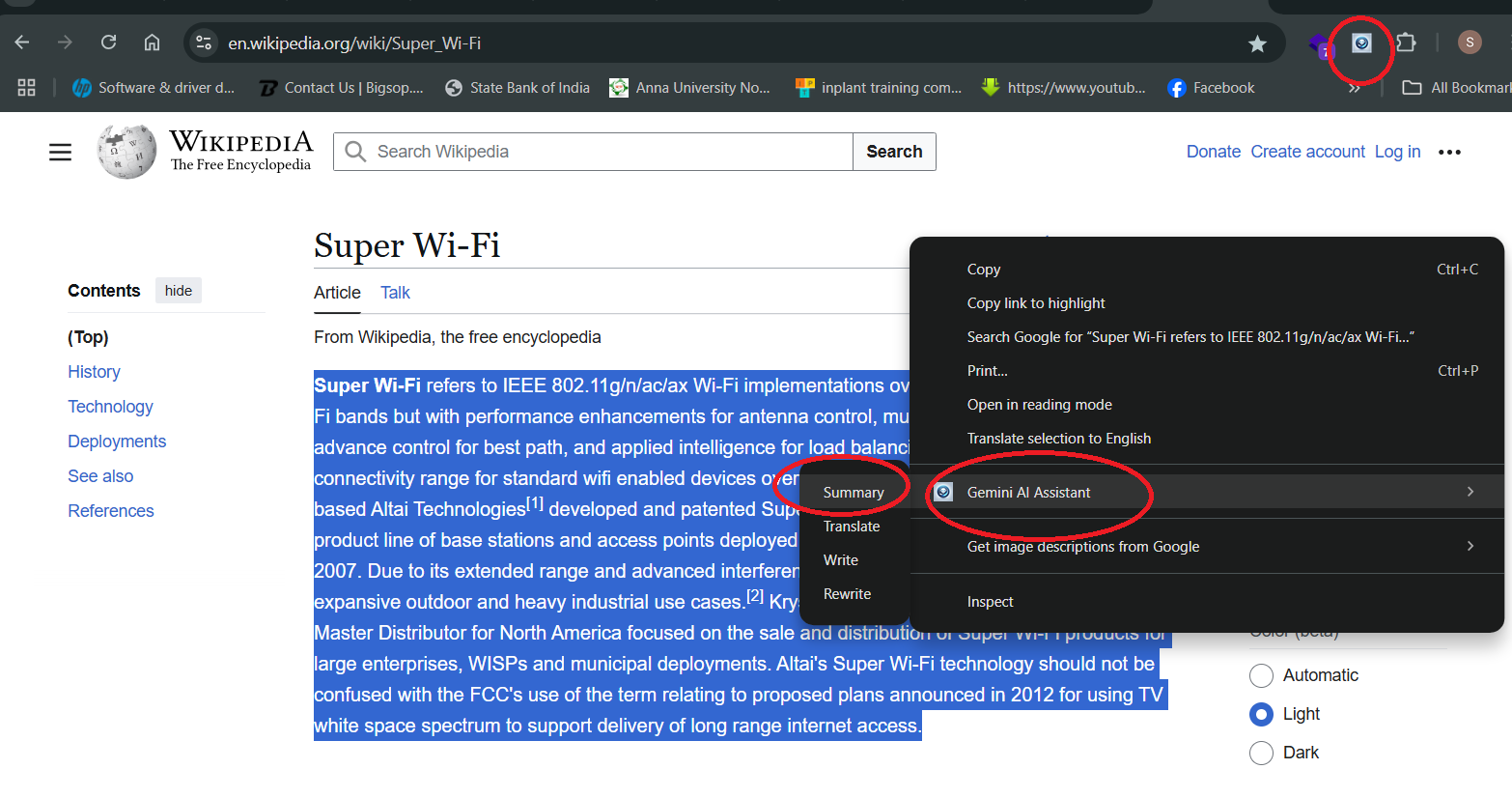
Summarized content instant highlighting the content
-
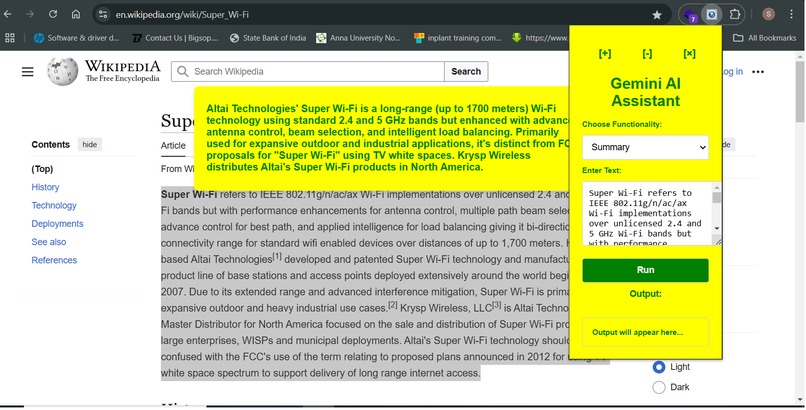
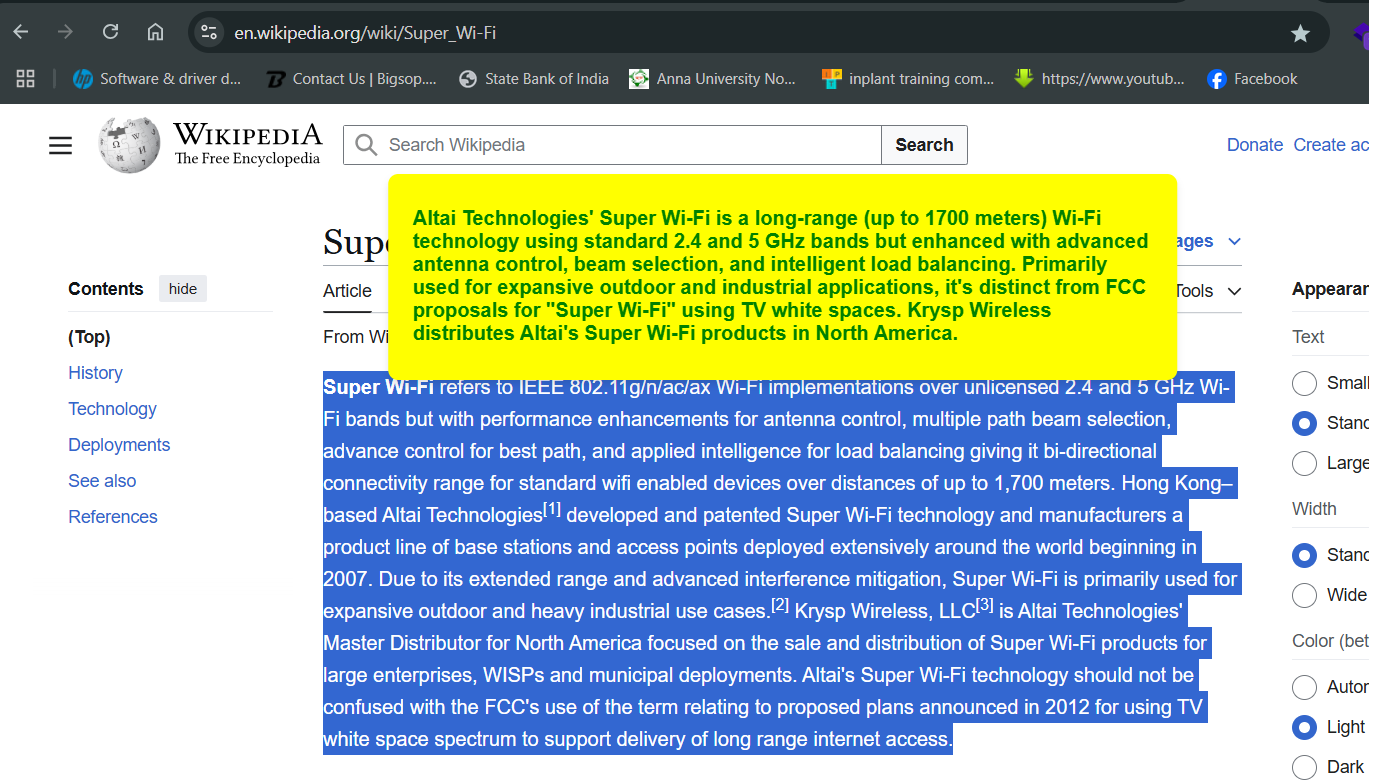
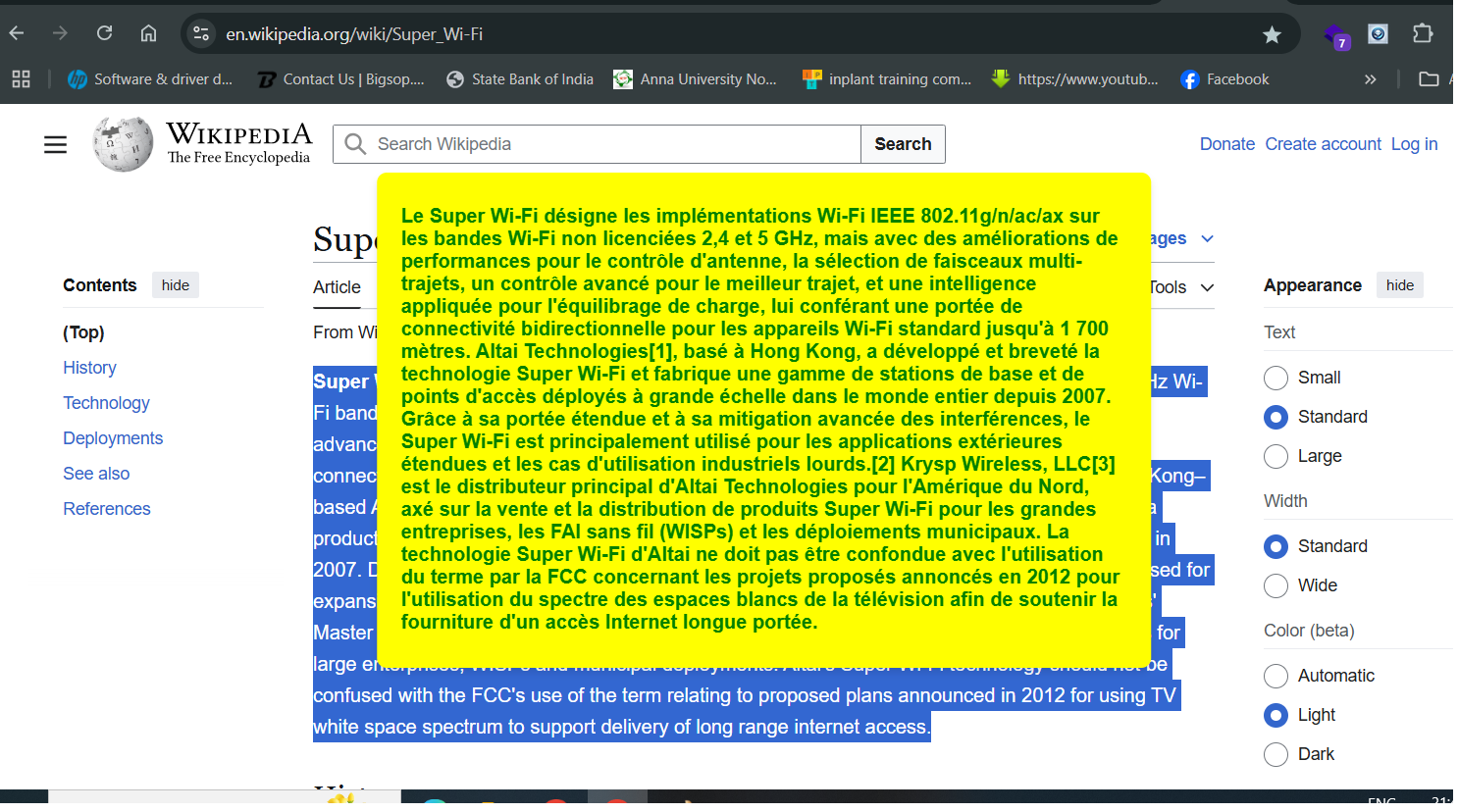
After highlighted the content summarized in a popup and UI shows the original content
-
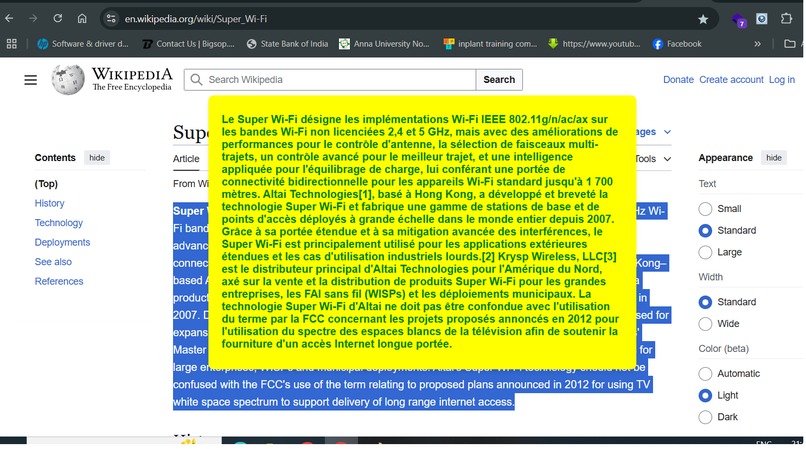
Translate desired language instantly when highlighting the content in a webpage
"Disclaimer: "Gemini AI Assistant" or "Gemi AI Assistant" is a project developed solely for this hackathon and the name is used here for the purpose of education only. It is an independent creation and is not affiliated with, endorsed by, or in any way associated with Google LLC or its Gemini AI product. The project utilizes the Google Gemini API. All trademarks and registered trademarks, including Gemini, are the property of their respective owners. This project is for demonstration and educational purposes only."
Gemi AI Assistant is a versatile tool available BOTH as a web application and a Chrome extension. It enables users to highlight content on any webpage to perform tasks such as summarizing information, translating text into various languages, rewriting summarized documents, or generating content on diverse topics. This functionality enhances productivity by providing quick, AI-powered assistance directly within the user's browsing experience. GEMINI.GOOGLE
Inspiration
The development of Gemi AI Assistant was driven by the need to enhance user productivity and accessibility. By integrating advanced AI capabilities directly into web browsers, the goal was to provide users with seamless tools to interact with and process online content more efficiently.
What it does
Gemi AI Assistant allows users to highlight text on any webpage and perform various actions, including:
Summarization: Condensing lengthy content into concise summaries. Translation: Translating text into multiple languages. Rewriting: Paraphrasing or rephrasing selected text. Content Generation/write: Creating new content on specified topics. These features aim to streamline information processing and enhance the browsing experience.
How we built it
The assistant was developed using advanced natural language processing (NLP) techniques and machine learning algorithms. By leveraging large language models, the tool can understand context, generate human-like text, and perform accurate translations. Integration as a Chrome extension ensures accessibility and ease of use across various websites.
Challenges we ran into
During development, several challenges were encountered:
Contextual Understanding: Ensuring the AI accurately interprets diverse web content. User Privacy: Maintaining user data confidentiality during text processing. Performance Optimization: Balancing advanced functionalities with responsive performance to provide real-time assistance without lag. Accomplishments that we're proud of
Key achievements include:
Seamless Integration: Successfully embedding the assistant into web browsers for intuitive access. Multilingual Support: Enabling accurate translations across numerous languages. User-Centric Design: Creating an interface that is both powerful and user-friendly, enhancing the overall user experience. What we learned
The development process provided insights into:
User Needs: Understanding the importance of tools that enhance information accessibility and productivity. AI Limitations: Recognizing areas where AI may struggle, such as nuanced context interpretation, and the importance of continuous improvement. Feedback Integration: The value of user feedback in refining features and functionalities to better meet user expectations.
What's next for Gemi AI Assistant
Future plans involve:
Feature Expansion: Introducing capabilities like voice commands and deeper integration with other applications. Enhanced Personalization: Allowing users to customize the assistant's behavior to better suit individual preferences. Continuous Learning: Implementing adaptive learning algorithms to improve performance based on user interactions and feedback. These developments aim to further empower users in their digital interactions, making information processing more intuitive and efficient.
How to load the Project in your PC or laptop Chrome Extension Project:
create a directory ur desired name "chromeextension" Git clone https://github.com/sureshora/chromeextproject.git
Open Chrome Extensions Page: Open Google Chrome. In the address bar, type chrome://extensions/ and press Enter. Enable Developer Mode:
On the Extensions page, locate the "Developer mode" toggle in the top-right corner. Click the toggle to enable Developer mode. Load the Unpacked Extension:
Click the "Load unpacked" button that appears after enabling Developer mode. In the dialog that opens, navigate to the folder where you clone the project from git. Select the folder and click "Select Folder" (Windows) or "Open" (Mac). Confirm Installation:
The Gemi AI extension should now appear in your list of installed extensions. Ensure it's enabled by checking that the toggle switch next to it is turned on.
User Guide for Gemi AI Assistant Chrome Extension
- Pin the Extension for Quick Access:
Click on the puzzle piece icon (Extensions) located in Chrome's top navigation bar. In the dropdown list, find "Gemini AI Assistant". Click the pin icon next to it. This action will add the Gemini AI Assistant icon to your Chrome toolbar for easy access.
- Using the Gemni AI Assistant:
Navigate to Your Desired Website:
Open the website containing the content you wish to interact with. Highlight the Content:
Use your mouse to select the specific text on the webpage that you want to process. Activate the Extension:
Click on the Gemi AI Assistant icon in the Chrome toolbar. Process the Highlighted Content:
Upon activation, the extension will display the highlighted text within its interface. Choose from the available options:
Summary: Condense the selected text into a brief overview. Translate: Convert the text into your preferred language. Write: Generate new content based on the selected text. Rewrite: Paraphrase the highlighted content for clarity or variation. Select Desired Language (for Translation):
If you choose the "Translate" option, a dropdown menu will appear. Select the target language into which you want the text translated. Review the Output:
The processed text will be displayed within the extension's interface. You can copy the output to your clipboard or insert it directly into your current document or application. Additional Tips:
Ensure Compatibility: The Gemi AI Assistant is designed to work seamlessly with most websites. However, some sites with dynamic content may present challenges. Stay Updated: Regularly check for updates to the extension to access new features and improvements. Provide Feedback: If you encounter issues or have suggestions, consider reaching out to the developers through the extension's support page. By following these steps, you can effectively utilize the Gemini AI Assistant Chrome Extension to enhance your web browsing experience.
How to load the Web Project in your PC or laptop Gemi AI Assistant Web Project:
- create a directory ur desired name "webproject"
Git clone https://github.com/sureshora/webproject.git
go to command prompt in windows pc
and cd webproject directory and type the following
you must have python to be loaded in computer previously and following the commands now
D:\geminiaiassist>cd webproject
D:\geminiaiassist\webproject>python -m venv venv
D:\geminiaiassist\webproject>venv\scripts\activate
(venv) D:\geminiaiassist\webproject>pip install -r requirements.txt
(venv) D:\geminiaiassist\webproject>python app.py
- Serving Flask app 'app'
- Debug mode: on WARNING: This is a development server. Do not use it in a production deployment. Use a production WSGI server instead.
- Running on all addresses (0.0.0.0)
- Running on http://127.0.0.1:3710
- Running on http://192.168.0.106:3710 Press CTRL+C to quit
- Restarting with stat
- Debugger is active!
- Debugger PIN: 116-679-378 Now the web project is ready using the above two urls. Watch my You tube how to use it.
Git Hub Repo
- Gemi AI Assistant : Web Project use https://github.com/sureshora/webproject.git
- Gemi Ai Assistant : Chrome Extension AI Project use https://github.com/sureshora/chromeextproject.git
Remember to add Gemini API Key in two places
- Web Project : In the root directory ".env" open and API_KEY=apikeypastehere
- Google Chrome Extension Project: edit the "background.js" file and replace the API key. // Set API key on extension install "chrome.runtime.onInstalled.addListener(async () => { const { API_KEY } = await chrome.storage.local.get('API_KEY'); if (!API_KEY) { setApiKey("REPLACEAPIKEY"); // Replace with your actual API key }


Log in or sign up for Devpost to join the conversation.