-
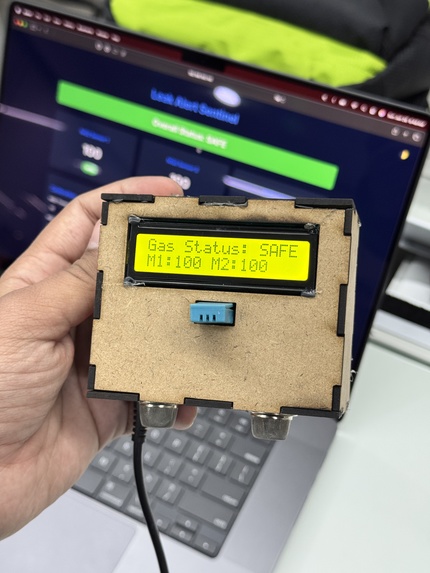
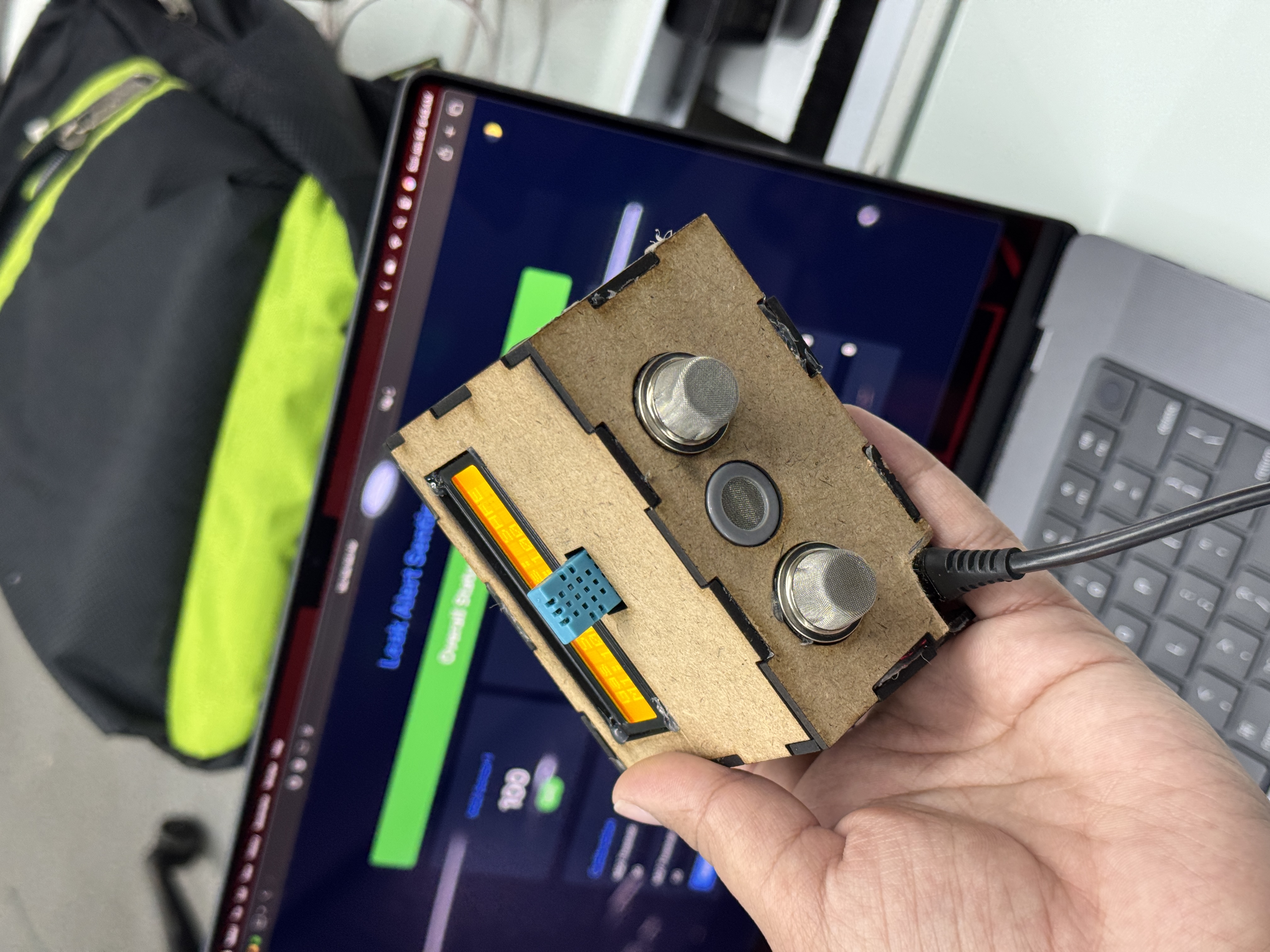
made with Raspberry Pi
-
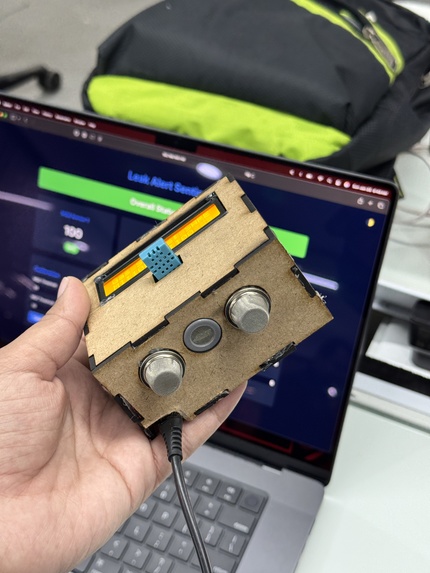
MQ2 and MQ7 sensors for Gas detection
-
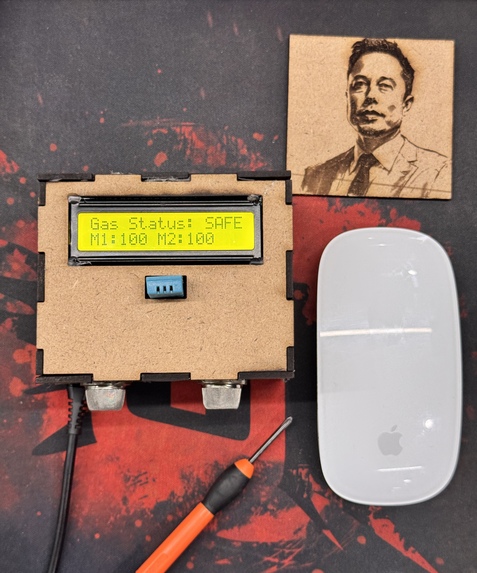
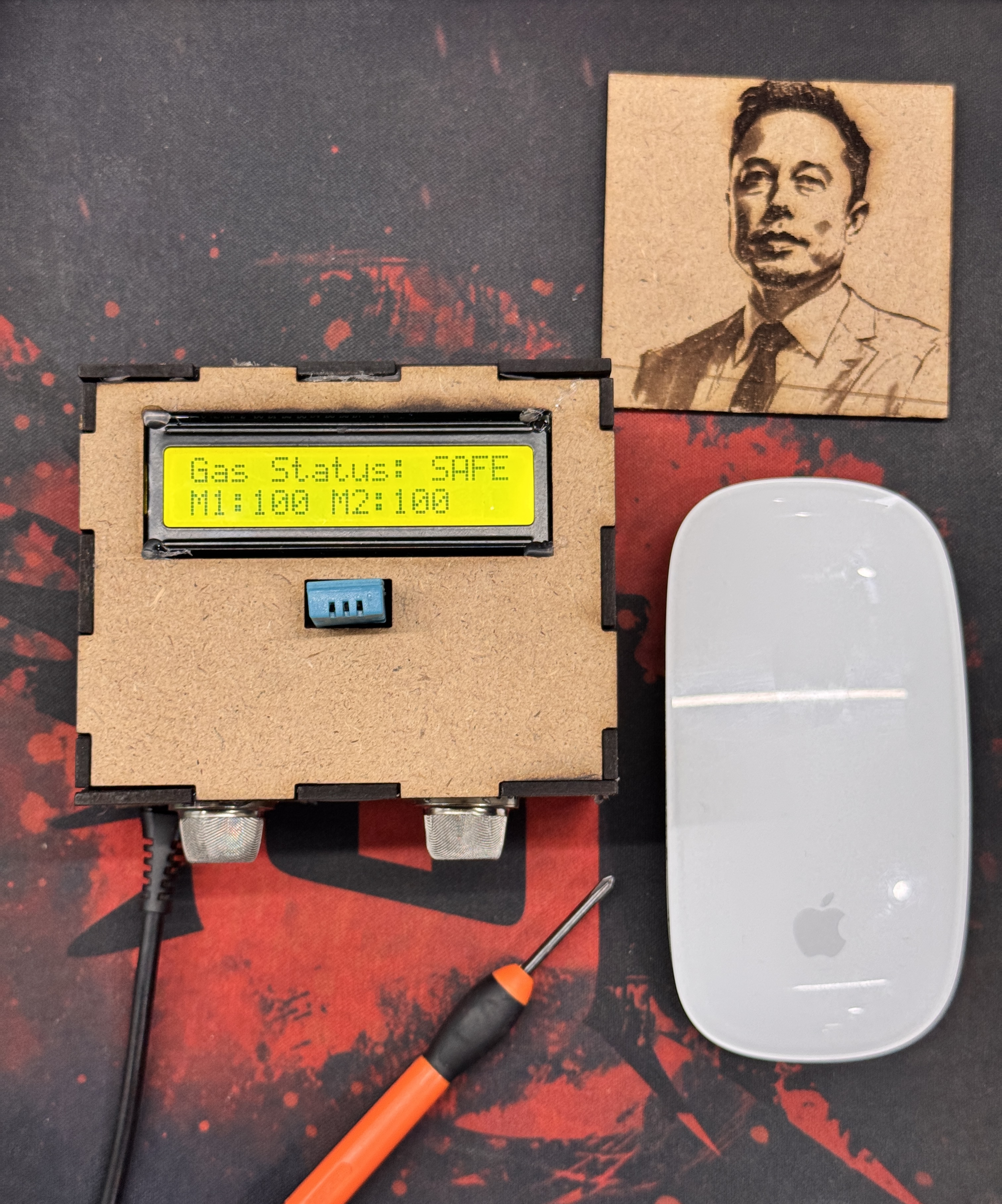
small form factor <3
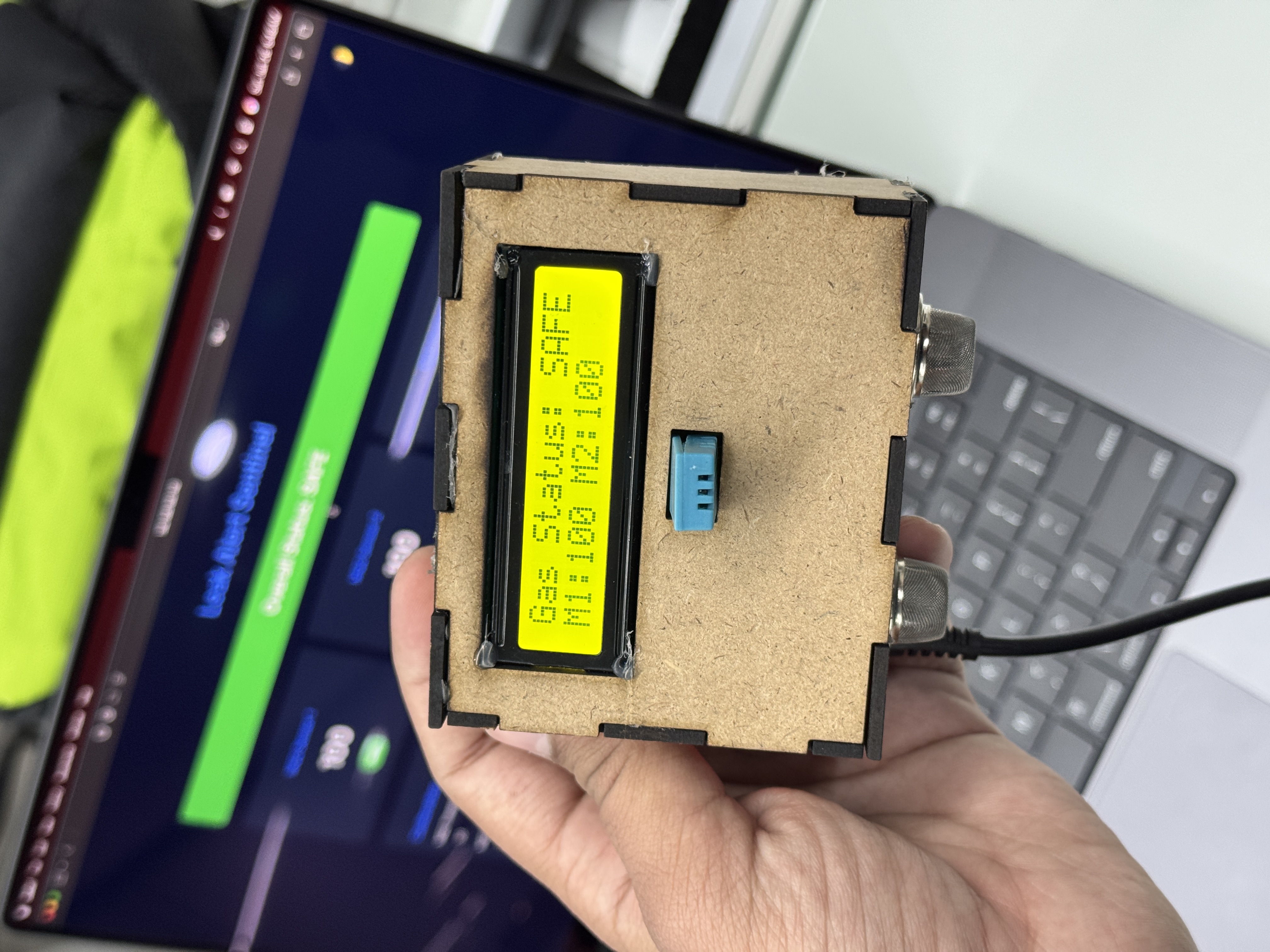
🚨 Gas Leakage Detection & Alert System using Raspberry Pi
📌 Overview
This project is a Gas Leakage Detection and Alert System using Raspberry Pi, MQ2 & MQ7 sensors, 16x2 I2C LCD, and a buzzer. It detects dangerous gas leaks and provides real-time alerts via:
- LCD Display showing safety status and sensor values
- Buzzer Alarm when gas concentration exceeds safe levels
- Telegram Alerts when gas leakage is detected
- Web Dashboard to monitor real-time sensor readings
🎯 Features
✅ Real-time gas leakage detection (2x MQ2 & MQ7 sensors for redundancy)
✅ LCD Display (16x2 I2C) for live status updates
✅ Buzzer alerts when gas concentration is unsafe
✅ Telegram notifications for remote alerts
✅ Web Dashboard to monitor sensor values & update thresholds
🛠️ Hardware Components
| Component | Quantity | Description |
|---|---|---|
| Raspberry Pi | 1 | Main controller (tested on Raspberry Pi 3/4) |
| MQ2 Gas Sensor | 2 | Detects LPG, CO, smoke, etc. (redundancy) |
| MQ7 Gas Sensor | 1 | Detects Carbon Monoxide (CO) |
| 16x2 I2C LCD | 1 | Displays gas status & readings |
| Buzzer | 1 | Sounds alarm for gas leaks |
| Jumper Wires | -- | For connections |
| Breadboard | 1 | For easy wiring (optional) |
| Power Supply | 1 | 5V adapter for Raspberry Pi |
🖥️ Software Requirements
- Raspberry Pi OS (32-bit) / Raspbian
- Python 3
- Flask (for web dashboard)
- RPLCD (for I2C LCD)
- RPi.GPIO (for GPIO handling)
- Requests (for Telegram API)
To install dependencies, run:
sudo apt update && sudo apt upgrade -y
pip3 install flask RPi.GPIO RPLCD requests
🚀 Setup & Installation
1️⃣ Hardware Setup
- Connect MQ2 & MQ7 sensors to GPIO pins
- Connect 16x2 I2C LCD to Raspberry Pi (SDA, SCL)
- Connect Buzzer to GPIO pin
2️⃣ Enable I2C on Raspberry Pi
sudo raspi-config
Navigate to Interfacing Options → I2C → Enable.
3️⃣ Find I2C Address of LCD
Run:
i2cdetect -y 1
The LCD’s address should appear (e.g., 0x27). Update the code if needed.
4️⃣ Setup Telegram Bot
- Open Telegram and search for "BotFather".
- Create a bot using
/newbotand get your BOT_TOKEN. - Get your CHAT_ID from @userinfobot.
- Update
BOT_TOKENandCHAT_IDinapp.py.
5️⃣ Run the Application
Clone this repository:
git clone https://github.com/BENi-Aditya/Gas_Leak_Detection.git
cd Gas_Leak_Detection
Run the script:
python3 app.py
Access the Web Dashboard at:
👉 http://<RaspberryPi-IP>:5000
📊 Web Dashboard
The web dashboard provides:
- Live sensor readings
- Gas safety status
- Threshold calibration (adjust MQ2 & MQ7 sensitivity)
🛠️ Troubleshooting
1. LCD Display Shows Gibberish
- Ensure correct I2C address (
0x27or0x3F) - Run
i2cdetect -y 1to confirm the address - Use
lcd.ljust(16)to pad text properly
2. No Telegram Alerts?
- Double-check BOT_TOKEN and CHAT_ID
- Run:
bash
curl -s https://api.telegram.org/bot<BOT_TOKEN>/getUpdates
Ensure your bot is active in the chat
3. Buzzer Doesn’t Work?
- Check if the GPIO pin is correctly assigned (
BUZZER_PINinapp.py) - Ensure the sensor values are updating properly
🤝 Contributing
Got ideas to improve this project? Feel free to fork, modify, and create pull requests!
🌟 Acknowledgments
Special thanks to Open Source Contributors and the Raspberry Pi Community for continuous support!
📞 Contact
📧 Email: [email protected]
🐦 GitHub: BENi-Aditya
📷 Instagram: @aditya.beni_

Log in or sign up for Devpost to join the conversation.