-
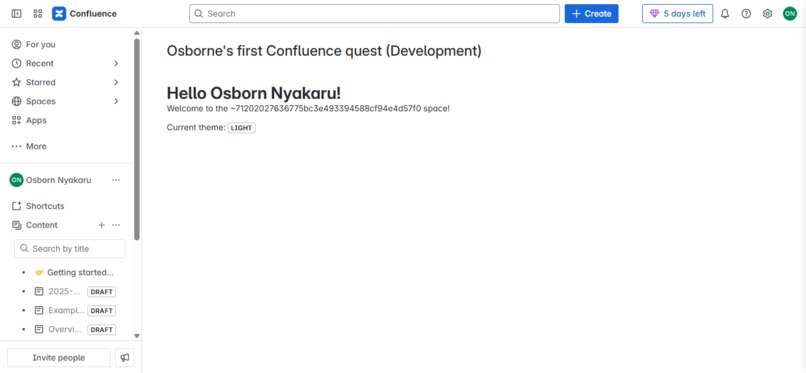
Confluence app rendered in the product UI
-
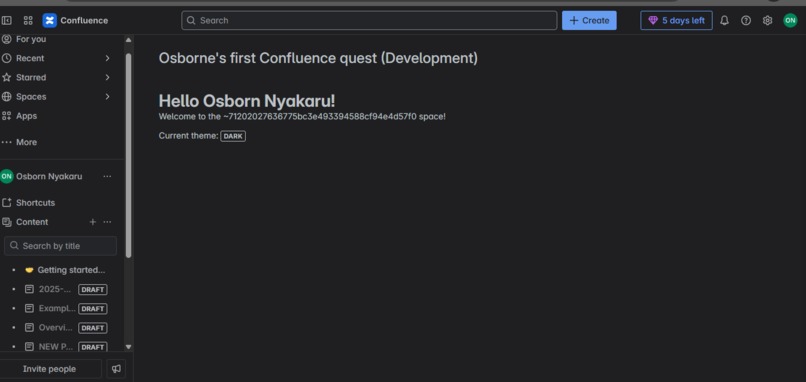
Confluence app rendered in the product UI
Inspiration
I was inspired by the idea of creating seamless, native-feeling extensions within Atlassian products using Forge. Atlassian's Forge platform, especially its UI Kit and intuitive CLI, offered an exciting opportunity to learn how to build powerful tools that integrate directly into Confluence. The "Hello World" Confluence tutorial acted as my launchpad into the world of app development within the Atlassian ecosystem.
What it does
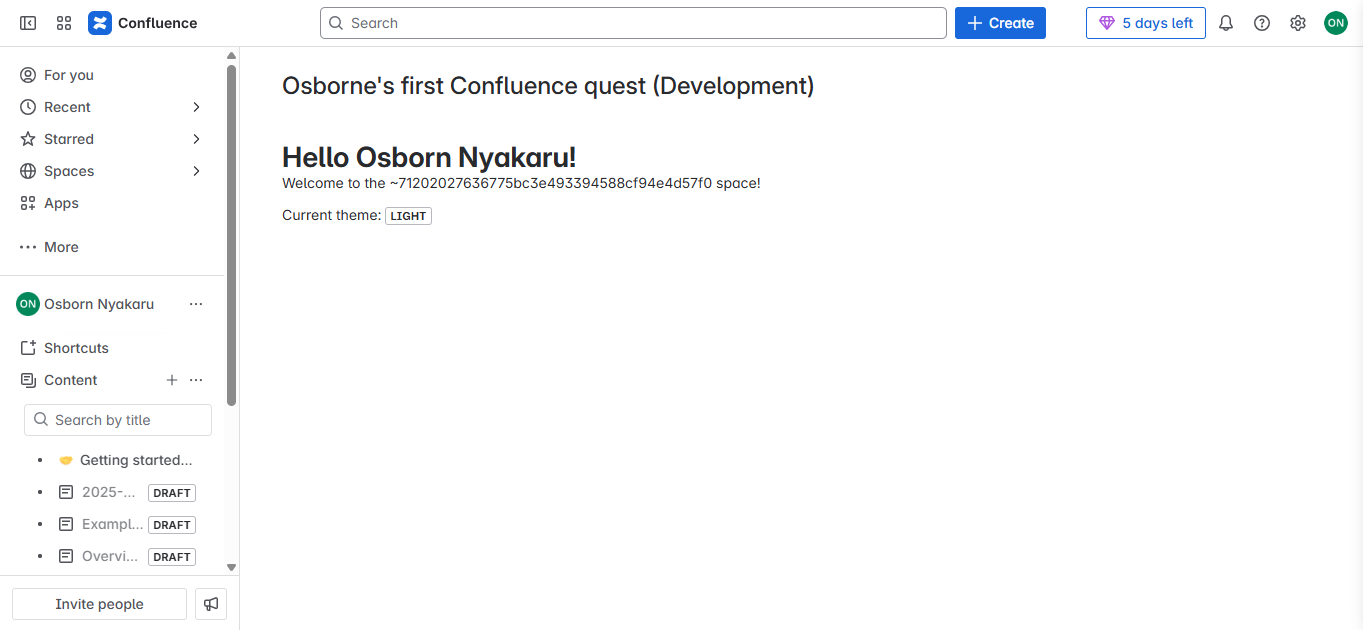
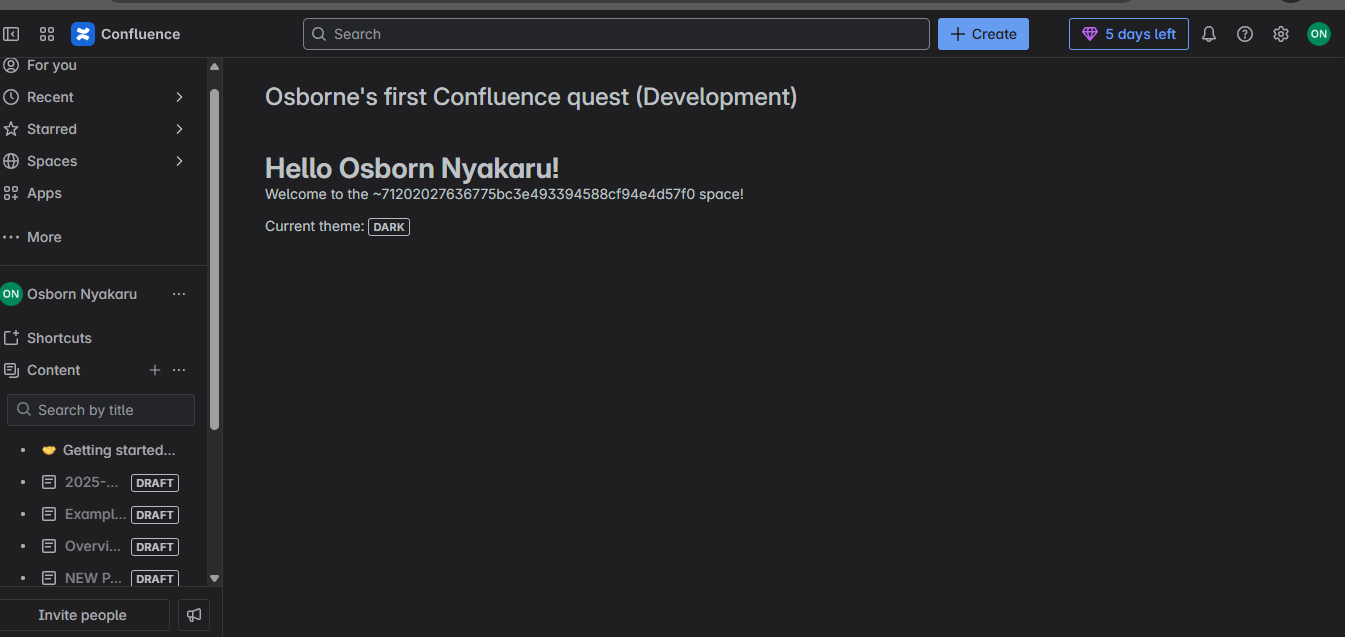
Confluence Quest is a simple Forge app that renders a message directly within a Confluence space page. Initially, it displays a "Hello World!" message and dynamically updates based on backend logic using Forge's resolver functionality. The app demonstrates key concepts like module configuration, context-based rendering, and UI Kit components such as Text, Heading, and Lozenge.
How I built it
I built the app by following the Forge tutorial for creating a Confluence space page app. The process included:
- Setting up the Forge CLI and initializing the app using
forge create. - Selecting the UI Kit framework and the confluence-space-page template.
- Editing the
manifest.ymlfile to define modules and permissions. - Implementing the frontend in
src/frontend/index.jsxusing React and Forge UI Kit components. - Writing a backend resolver function in
src/resolvers/index.js. - Linking the frontend and backend using
invokefrom@forge/bridge. - Deploying and installing the app using
forge deployandforge install.
I also modified the frontend to replace <Text> with <Heading> to enhance UI clarity and better represent Confluence's native design patterns.
Challenges I ran into
- Understanding the connection between the frontend and backend via Forge Bridge’s
invokemethod took some trial and error. - Minor syntax and permissions errors during deployment required careful debugging and reading of the CLI error messages.
- Navigating the
manifest.ymlfile structure and ensuring correct YAML formatting was critical but slightly unintuitive at first. - Setting up the development environment and linking it to the Atlassian developer site took time, especially with site permissions and API access.
Accomplishments that I'm proud of
- Successfully deploying a functional Confluence app that appears within the space navigation panel.
- Integrating backend logic with the frontend using resolver functions.
- Using advanced UI Kit components and customizing the layout to better reflect user data and native Confluence styling.
- Gaining hands-on experience with Forge’s lifecycle—from development and deployment to installation and updates.
What I learned
- How to use Atlassian Forge CLI to scaffold, build, and deploy Confluence apps.
- The structure of Forge apps and the purpose of each file (e.g.,
manifest.yml,index.jsx,resolvers/index.js). - How to use Forge Bridge’s
invokemethod to fetch data from the backend. - The role of Forge UI Kit in ensuring design consistency with Atlassian products.
- How to troubleshoot and resolve permission and compilation issues using Forge CLI.
What's next for Confluence Quest
- Personalize the app to display the current user’s name by fetching it from the Confluence API.
- Add more dynamic components like forms or interactive elements using additional UI Kit elements.
- Explore automatic deployment workflows and CI/CD integration using Forge CLI.
- Extend the app’s functionality to interact with Confluence data, such as pages or comments.
- Eventually publish Confluence Quest to the Atlassian Marketplace as a lightweight starter template for new Forge developers.
Built With
- confluence
- forge
- forgecli
- javascript
- node.js
- productrestapi
- react


Log in or sign up for Devpost to join the conversation.