-
-
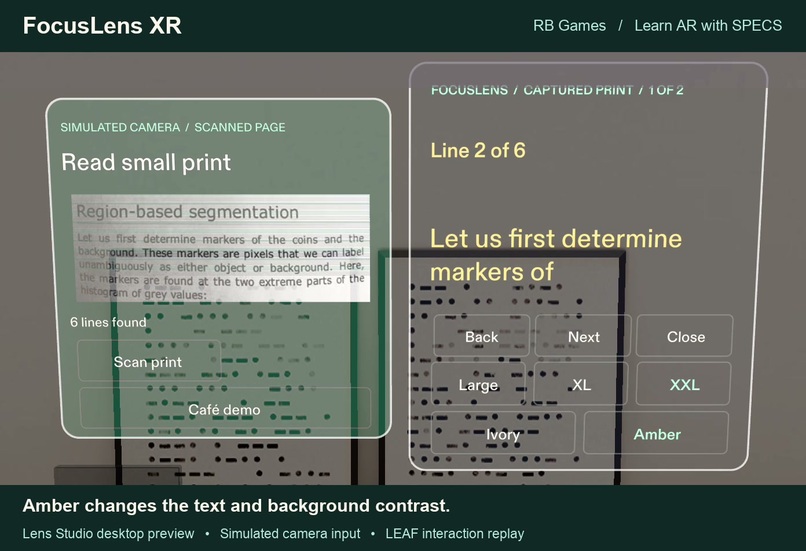
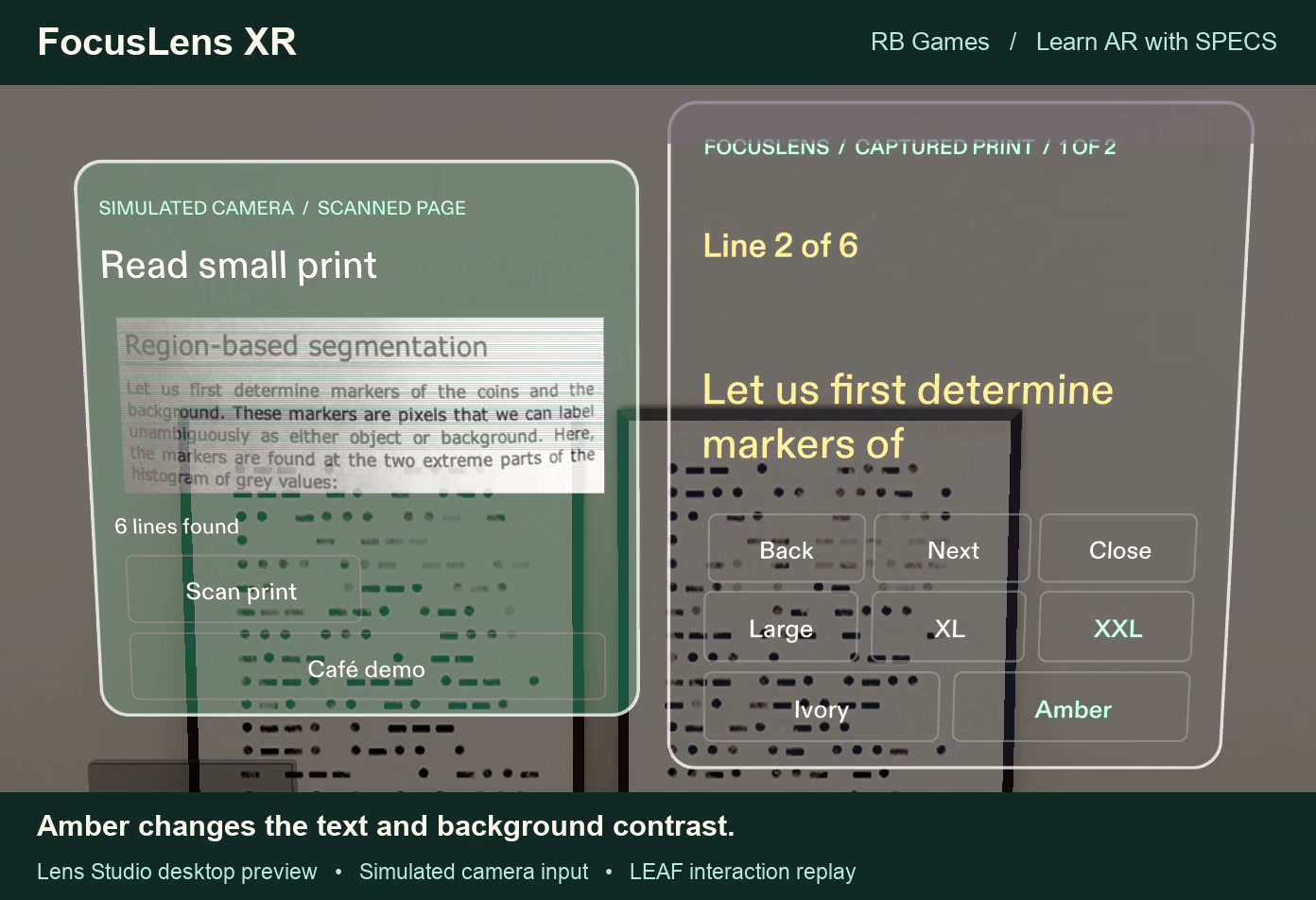
Line 2 of 6 in XXL and Amber. Lens Studio Preview uses a simulated camera image of a real scanned page.
Inspiration
I have always disliked wearing my glasses and my VR/XR glasses, this was my main inspiration for creating FocusLens XR. A café menu gave us a concrete place to start. Sometimes all you want to know is what’s in one dish and how much it costs.
What it does
Choose Scan print in the desktop preview. The Lens reads the pixels of a scanned page, finds six lines and opens the first one, “Region-based segmentation”, in a reading card beside the original image. Next and Back move one line at a time. Large, XL and XXL change the type size. Ivory and Amber change the contrast. Close puts the card away and Resume returns to the same line with the same settings. The desktop image is labelled as simulated camera input. The original three-dish café example is still available.
How we built it
For the past six months, I’ve focused on integrating AI into my development work. I want to become an AI integration expert. On FocusLens XR, I chose the reading problem and directed the project. I used OpenAI Codex to plan the Lens, build the café reader through Snap’s CLAD workflow, and test it in Lens Studio. When the largest text pushed a price outside its box, Codex used the test results to adjust the layout and check it again.
We used the Devpost Learn plan-lens skill to turn that café moment into a design brief. Snap’s CLAD workflow connected to Lens Studio on a Mac Studio through the local MCP. We built the native SPECS scene using the SPECS Base Template, Interaction Kit, UI Kit and TypeScript. LEAF checks run inside Lens Studio Preview.
The repository already contained a separate browser prototype and starter scripts. We reused the three café entries, prices and reading-size ratios from that work. The native Lens scene, selectable rows, reading card and Preview checks were built for this entry. Codex also helped implement and test the real-image reader and prepare the demo. For each scan, the Lens locates horizontal lines of print, crops them and runs an English recognition model locally with SnapML. The desktop demo uses a scanned page from scikit-image. On SPECS the Lens requests a still image through Snap’s CameraModule. That capture path awaits a hardware test.
What we learned in Preview
Our first preview showed a sunlit room. Clicking gave no feedback because the scene had no menu yet. That led to a concrete requirement: the menu must be visible on entry and the pointed row must visibly respond before a click. Testing the largest reading size also caught a price that overran its text box and a card corner that went out of view. We adjusted the text bounds and card placement.
The new reader picked up a cropped first letter during testing. After we widened the crop, Lens Studio read “histogram of grey values” from a separate image crop and returned zero lines for a blank image. All seven LEAF checks passed in Preview. Recognition can still miss spaces and punctuation. The video shows an automated LEAF replay in the actual Lens Studio preview.
What’s next
We want to take a printed menu, a label and a set of instructions to physical SPECS and check framing, focus, latency, hand input and reading comfort in different light. Optional read-aloud is a future direction.
Built With
- lens-studio
- typescript
