

Inspiration
I started learning Japanese in 2017. Once I had the core 2,000 or so kanji memorised, I started reading real books, and that was when my Japanese really took off. Reading kept me hooked in a way flashcards never did.
It also came with a lot of friction. In Japanese or Chinese, you often can't even say a word you don't know, let alone look it up. With a paper book, that meant finding the radicals, looking up the kanji, then looking up the word, then copying it into a study list. By the time I was done, I had lost my place in the story.
Since then I have wanted a reader that makes all of that disappear. Fleuron is that reader.
What it does
At heart, Fleuron is a calm, carefully made e-reader. You can adjust the typography, the page and the theme until reading feels right to you. On top of that sit a few tools that help you learn without taking you out of the book.
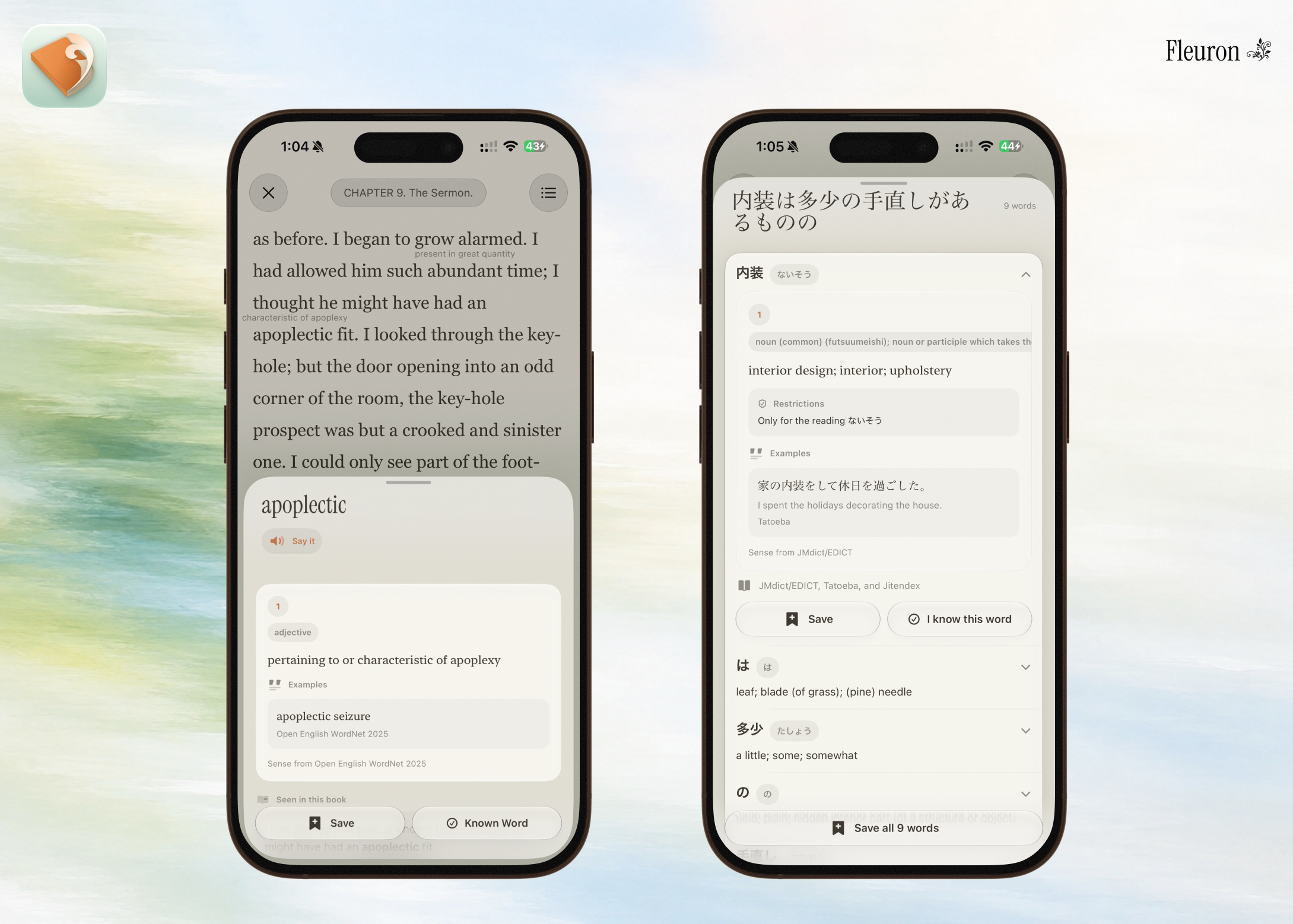
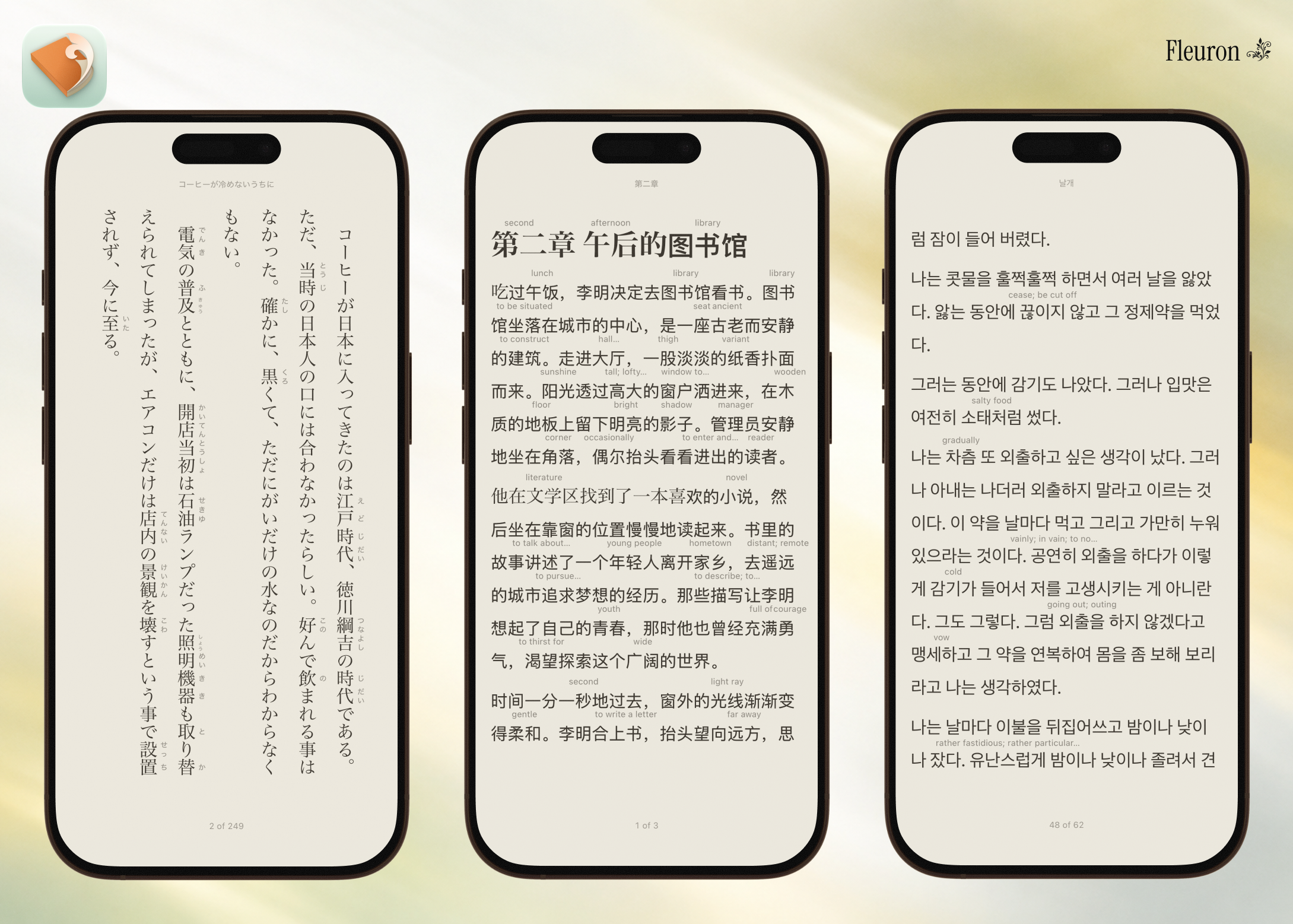
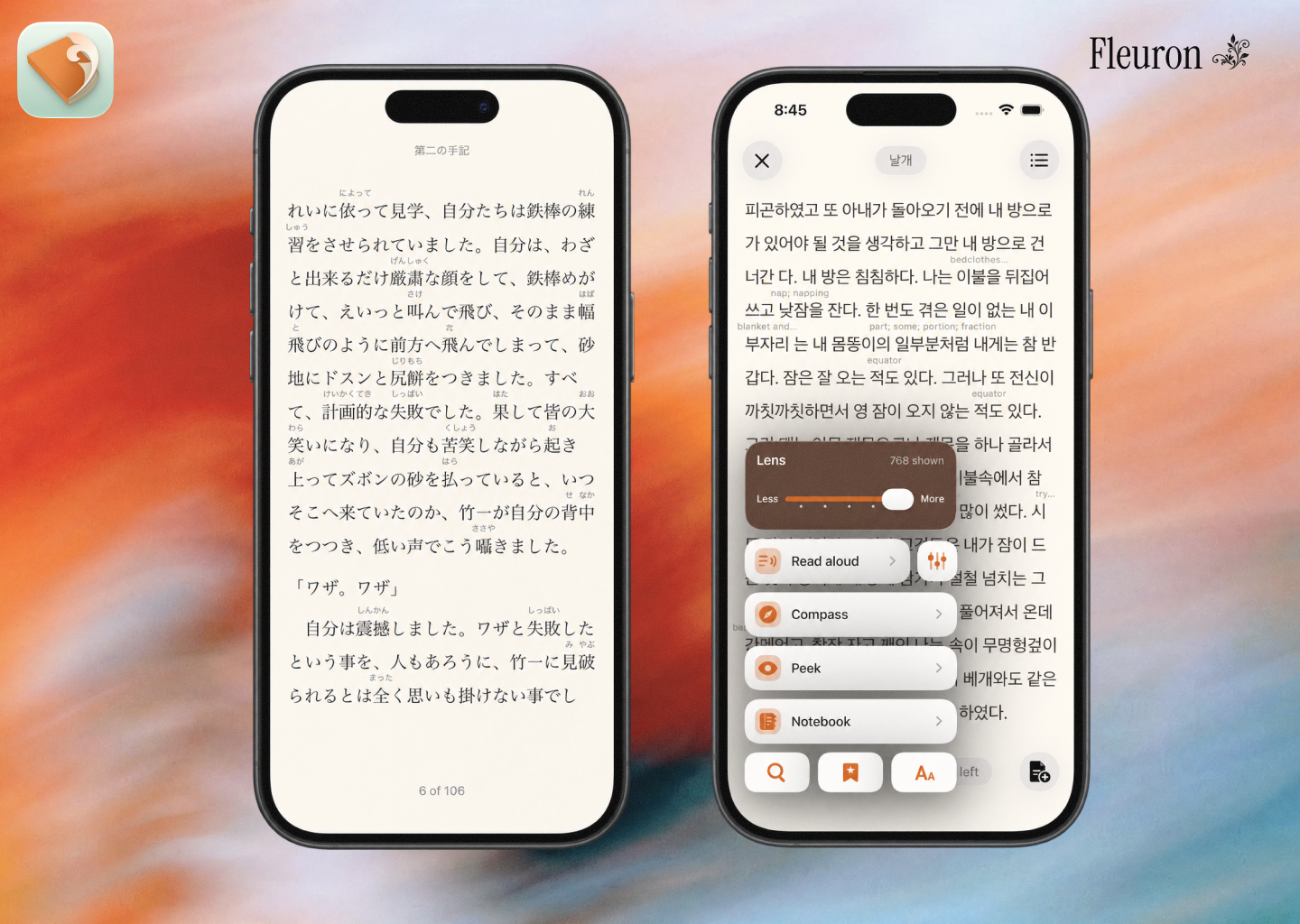
Lens. The meaning of a hard word sits just above it on the page, so you can take it in without stopping. A five-step slider sets how much help you get. If you want more, tap the word for the full entry.
Study. Knowing a word once is the first step; keeping it is the second. Words you save go into a built-in spaced-repetition system, with more than eight kinds of question to test whether you recognise and remember them.
Compass. A personal wiki for the book you're reading. The people, places and terms you meet are collected as you go, and Compass never shows you anything past the point you've reached, so it can't spoil the story. Each entry has room for your own notes, how to say a name, and who or what it appears alongside.
Notes. Notes are written in Markdown and can link to Compass entries, saved words and other notes.
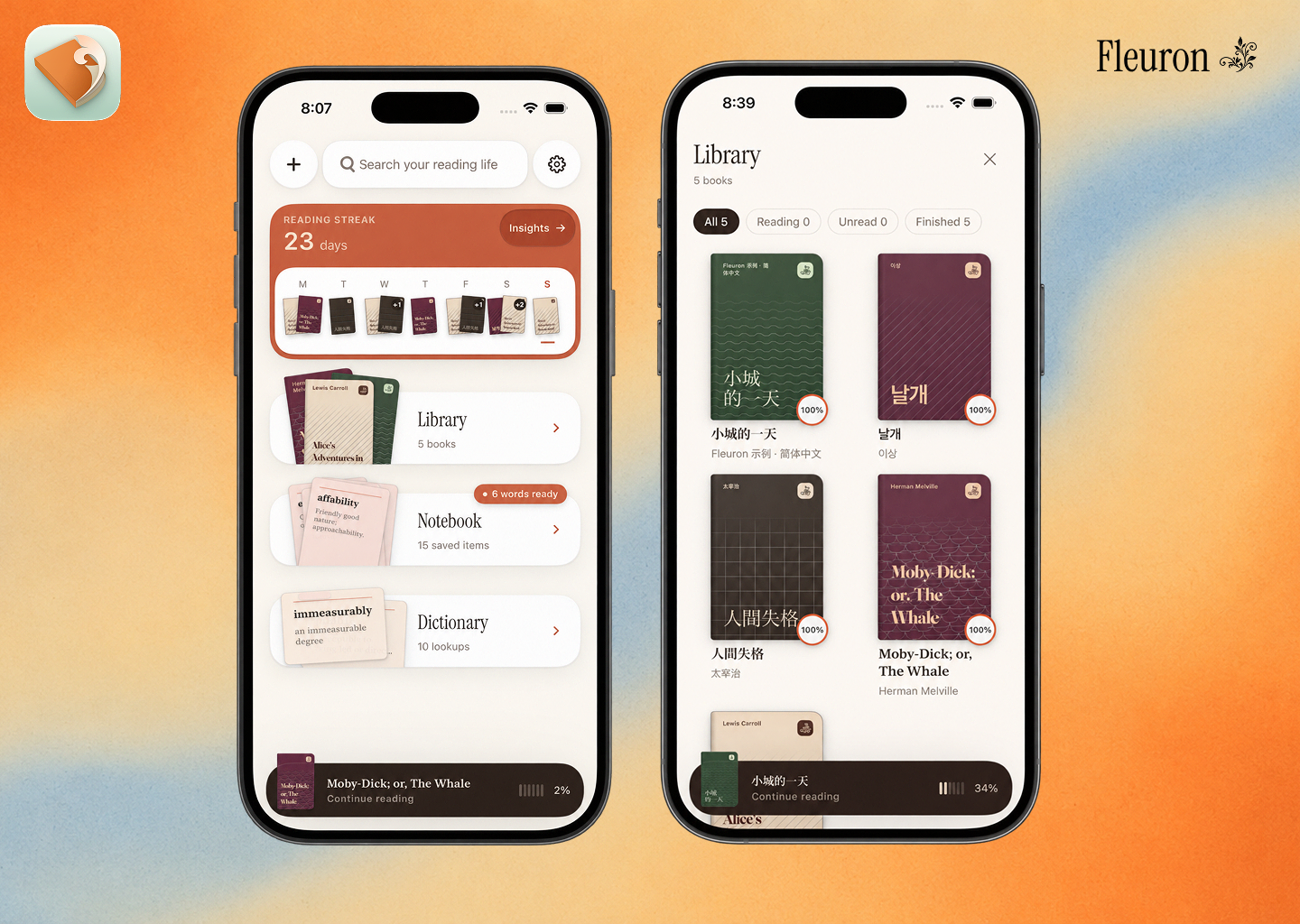
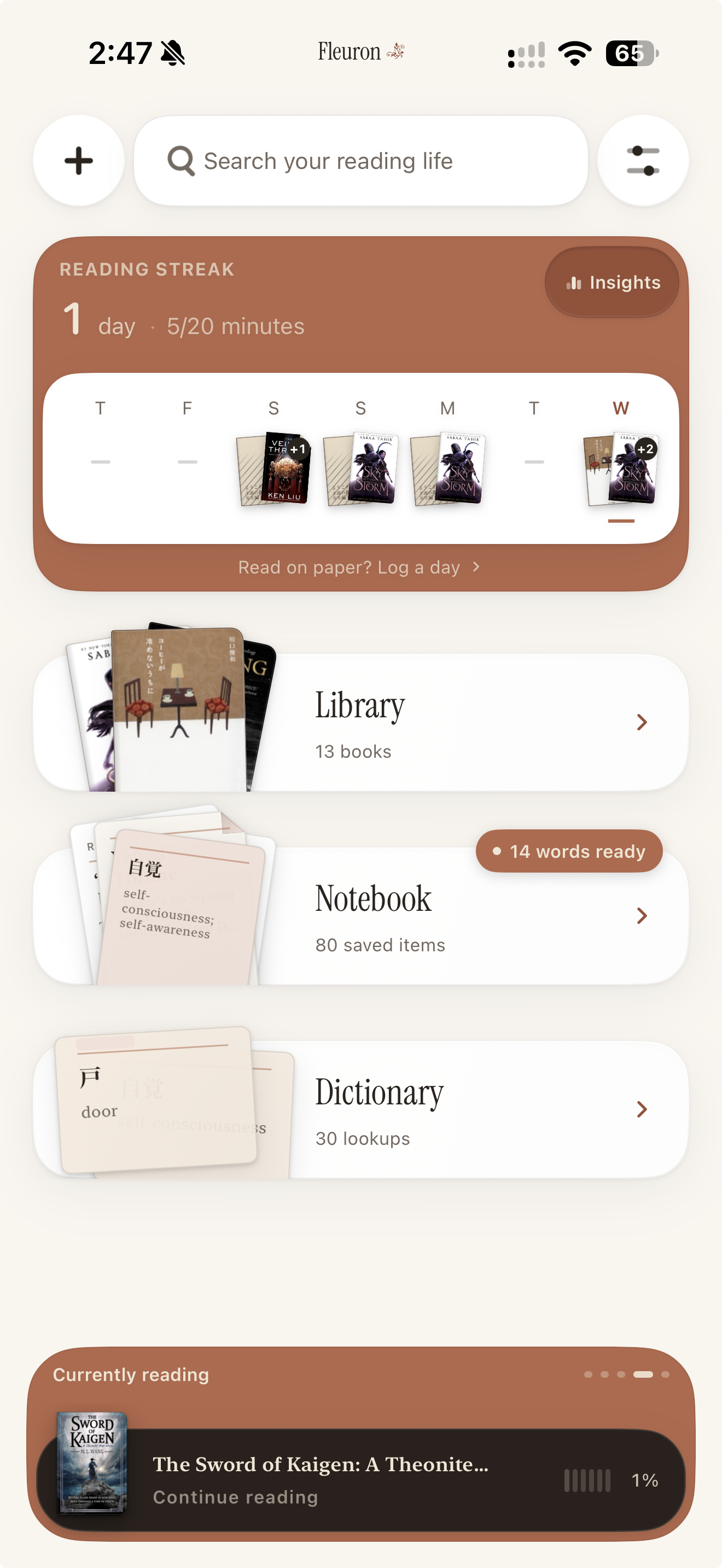
Notebook. Your notes, highlights and saved words live together in one place, and you can start a review from there.
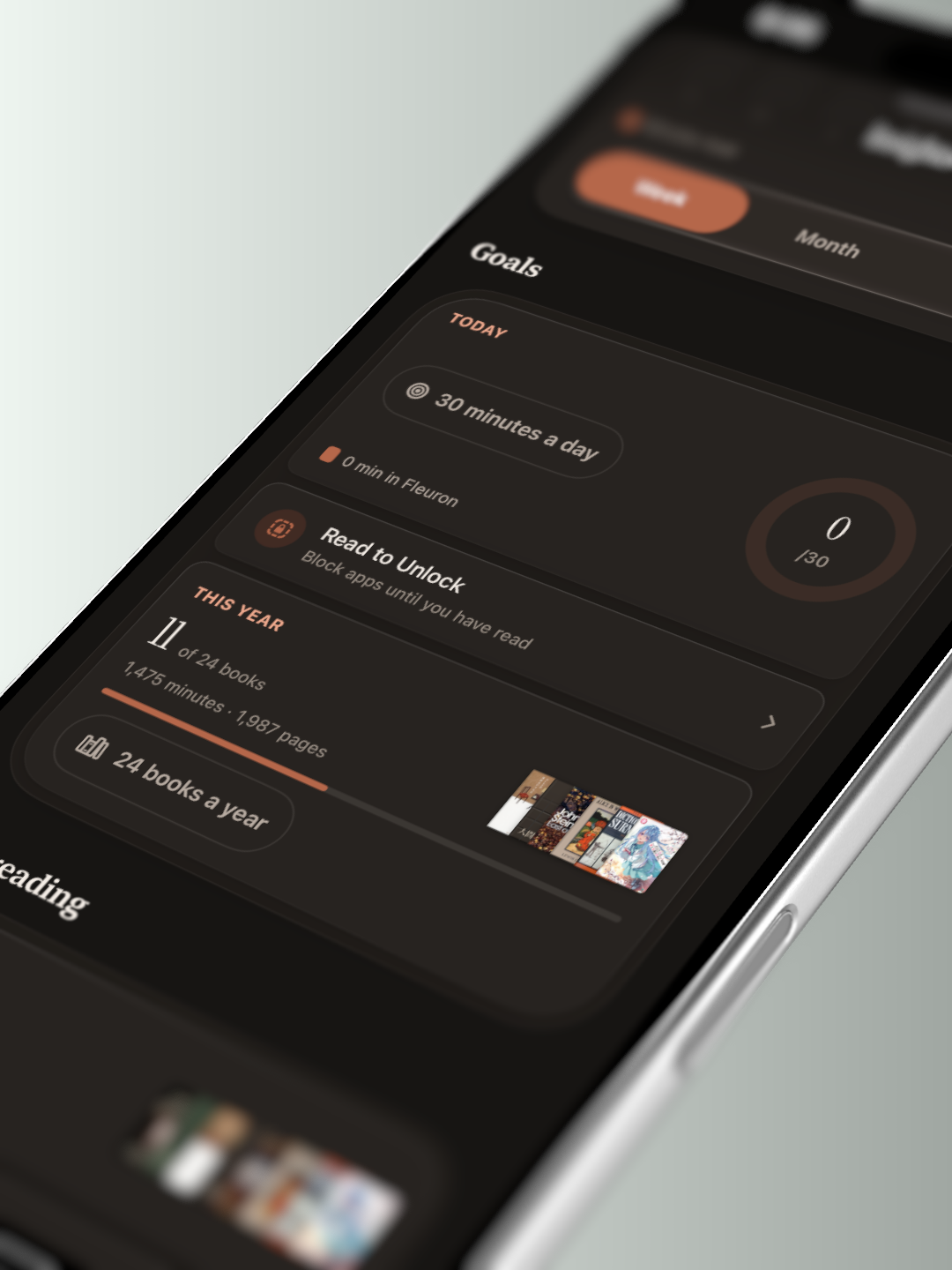
Insights. Your reading and learning, brought together in statistics that are nice to look at and actually mean something.
How I built it
Fleuron is a native iPhone and iPad app. It reads EPUB books and adds its learning tools around them: Lens, furigana and pinyin readings, the vocabulary builder and Compass. Notes, highlights, Insights, sharing, narration and iCloud sync are built on top.
Two rules shaped almost every decision
- Never teach something wrong. A wrong meaning, reading or name is worse than showing nothing, because a learner will believe it. Whenever the AI isn't sure, Fleuron shows nothing rather than guess.
- Do the hard work once, when a book is added. Splitting text into words, judging difficulty, choosing meanings and building Compass all happen when you import a book. Turning a page never waits on any of it.
The main pieces
- The page. I tried several ways to draw text on iOS and chose TextKit 2, with a renderer I built by hand. Hints and furigana are drawn into space kept free between the lines, so when a hint appears, the text doesn't move at all.
- Reading the book. The EPUB is turned into plain text, and every character keeps a fixed position. Highlights, bookmarks, Compass mentions and the spoiler boundary all hang off those positions.
- Language processing. Apple's NaturalLanguage framework splits and tags the text. Each AI task is sent to Apple's Foundation Models (on the device, or Private Cloud Compute if the reader chooses it) or to a simpler fallback that always gives the same answer.
- Japanese. MeCab with the UniDic dictionary, built into the app. More on this below.
- Dictionaries. WordNet for English, JMdict, KANJIDIC and JMnedict for Japanese, CC-CEDICT for Chinese, plus a Korean dictionary, Unihan, radicals and four frequency lists. All of them ship inside the app, so nothing is downloaded.
- Storage, in two halves. One database holds the large per-book data, which can always be rebuilt. The reader's own data (their place in each book, their words, highlights, bookmarks and notes) is kept separately and syncs through their own iCloud.
- Narration. After testing a few voices, I chose Supertonic 3, running on the device through ONNX Runtime.
- Payments. RevenueCat, with one lifetime unlock.
Challenges
1. Getting a hint right, or saying nothing
Lens puts a short meaning above a hard word, and that only helps if it's the right meaning for that sentence. "Bank" can be the side of a river or the place that holds your money, and a dictionary can't tell which one the book means.
If Fleuron picks the wrong one, it doesn't just fail to help. It teaches you something false at a moment when you have no reason to doubt it. So before building anything, I set a bar: at least nine hints in ten must be right, or the feature doesn't ship.
First attempts. Always showing the most common meaning was right about four times in ten on hard words. Apple's built-in text matching got about half right, and five variations on it did no better. Apple's on-device AI reached about eight in ten, and for a while that looked like the answer.
I was measuring the wrong thing, twice.
- I was marking myself wrong for differences no reader sees. Dictionaries split meanings very finely: "considering" has nine verb meanings that all produce the same hint. Scored on what actually appears on the page, the simplest method went from 52% to 83%.
- I was testing on the wrong words. My test set came from Alice in Wonderland, and Lens never hints at the most common 1,500 words. Of my 104 test words, 61 were ones Fleuron would never hint at, at any setting.
Doing it properly. I built a new test set from Moby-Dick, using only words Lens would really hint at. Every word was labelled by hand with the right meaning, and also with which wrong meanings would actually mislead a reader.
| Method | Right, as a reader would judge it |
|---|---|
| Most common meaning | 63% |
| Apple's on-device AI | 77% |
| Apple's text matching | 34% |
Even with generous error bars, the AI tops out around 85%. The earlier 80% had been boosted by about 14 points of easy vocabulary. One last idea was to group meanings that read the same, so there is less to get wrong. But 94 of its 120 groupings merged meanings that a reader said would mislead them, so I dropped it.
What shipped. The honest version. Where Fleuron is confident, you get a hint. Where it isn't, the word gets no hint, and a tap shows you the full entry so you can decide. It does less than the demo I could have built, and I'm fine with that. A wrong hint is worse than none, because you'll believe it and carry it into your next book.
2. Getting Japanese right
Japanese doesn't put spaces between words, and verbs and adjectives change shape all the time. Before Fleuron can judge, look up or save a word, it has to know where the word ends and what its dictionary form is.
Apple's tools split Japanese into words well, but that is all they do. Across one chapter of a novel (18,163 words), they gave a word type for none of them and a dictionary form for none of them. So about three words in ten were being looked up and explained under the wrong entry, and some of those reached the reader as wrong meanings.
It broke grammar detection too. The dictionary lists たの as an expression of emotion or emphasis. Fleuron flagged it 196 times in one novel, and almost every one was wrong: those two characters are usually the end of a verb followed by an ordinary particle. Written down, the two look identical, and only grammar tells them apart.
Choosing a tool. I expected to choose Sudachi, the modern option with a cleaner licence. It turned out Swift had no way to call it, because it's built to be used from Java or Python. MeCab, the older workhorse, was running in the app within an afternoon. Speed didn't decide it either: MeCab took 13 ms a chapter against Sudachi's 19, and both are tiny next to the 400 ms dictionary lookup they replaced.
The traps. The dictionary is 46 MB inside the app and 247 MB once unpacked, which happens the first time you open a Japanese book. Three details cost real time:
- MeCab counts positions in bytes, and the rest of Fleuron counts characters. Every highlight and note is stored as a position, so the two had to be translated or your marks would land on the wrong words.
- MeCab splits its settings at every space, and the folder it needs on iPhone is called "Application Support".
- The dictionary has two columns that both look like "the base form". The obvious one gives pronunciations instead of names, and old-fashioned forms of everyday verbs.
What it made possible. Seen through a real analyser, たの isn't a near miss. It is two different structures that happen to be spelled the same, and MeCab sees that at once. The first simple rule I wrote on top of it removed 7 of the 11 false alarms and kept 17 of the 19 real patterns. It isn't the final design, but until then there was nothing to write such rules against.
What I'm proud of
- A 1.0 built from scratch in about ten weeks: 113,000 lines of Swift, 28,000 more in tests and 792 commits, running on iPhone and iPad and in App Store review at build 12.
- A page that never moves. Meanings, furigana and pinyin appear in space set aside for them, so the text stays exactly where your eye left it.
- Holding my own features to the rule. I measured four approaches to choosing a word's meaning and dropped all four when they missed the bar. I rebuilt the test set when I found it was testing the wrong words. Lens would rather stay quiet than teach you something wrong.
- Spoiler safety built into the structure. Compass descriptions are written only from what you've already read, so the AI never sees the rest of the book. Search applies the same limit before anything else, so it can't find a name you haven't met yet.
- Real Japanese analysis on the phone: 21,532 word parts from a 33,000-character chapter in 13 ms.
- Natural narration on a phone. On an iPhone 16 Pro Max, Supertonic 3 loads in under half a second and speaks about four times faster than real time, and memory stays steady.
- Everything on your device. The dictionaries (about 39 MB) ship inside the app. There's no account, no analytics and no dictionary server. Sync uses your own iCloud, and it's free.
- Every book gets a cover. A book without artwork gets a generated one, and it looks the same everywhere it appears.
- Your notes are safe. Notes are the one thing Fleuron can't rebuild, so they are stored with the most care of anything, can be exported as Markdown, and still open correctly after a rename.
- 1,576 tests that run in 94 seconds and stayed green for the whole build.
What I learned
- Measure what the reader sees. My hint accuracy was wrong until I scored it by what actually appears on the page, not by the dictionary entry behind it.
- Test on the words the feature is for. 59% of my first test set was words Lens never touches.
- Every "free" saving has to be measured on its own. One prompt change cut response time by 37% at the same accuracy. Two changes next to it that looked just as harmless cost 8.7 and 3.9 points of accuracy.
- When "nothing happened", record why. Logging the difference between "nothing to do", "already done", "model unavailable" and "phone too hot" turned mystery bugs into questions with answers.
- Don't wait for the phone to cool down while you keep it working. The AI work was what kept it hot.
- Write down what didn't work, not only what shipped. That is the only thing that stops you walking into the same dead end three months later.
- Some bugs you only find by looking. A card spilling out of its frame, a label pushed off the edge, a cover disappearing into a background of its own colour. No test caught any of them. My eyes did.
What's next
There is a lot more on the way. A few highlights:
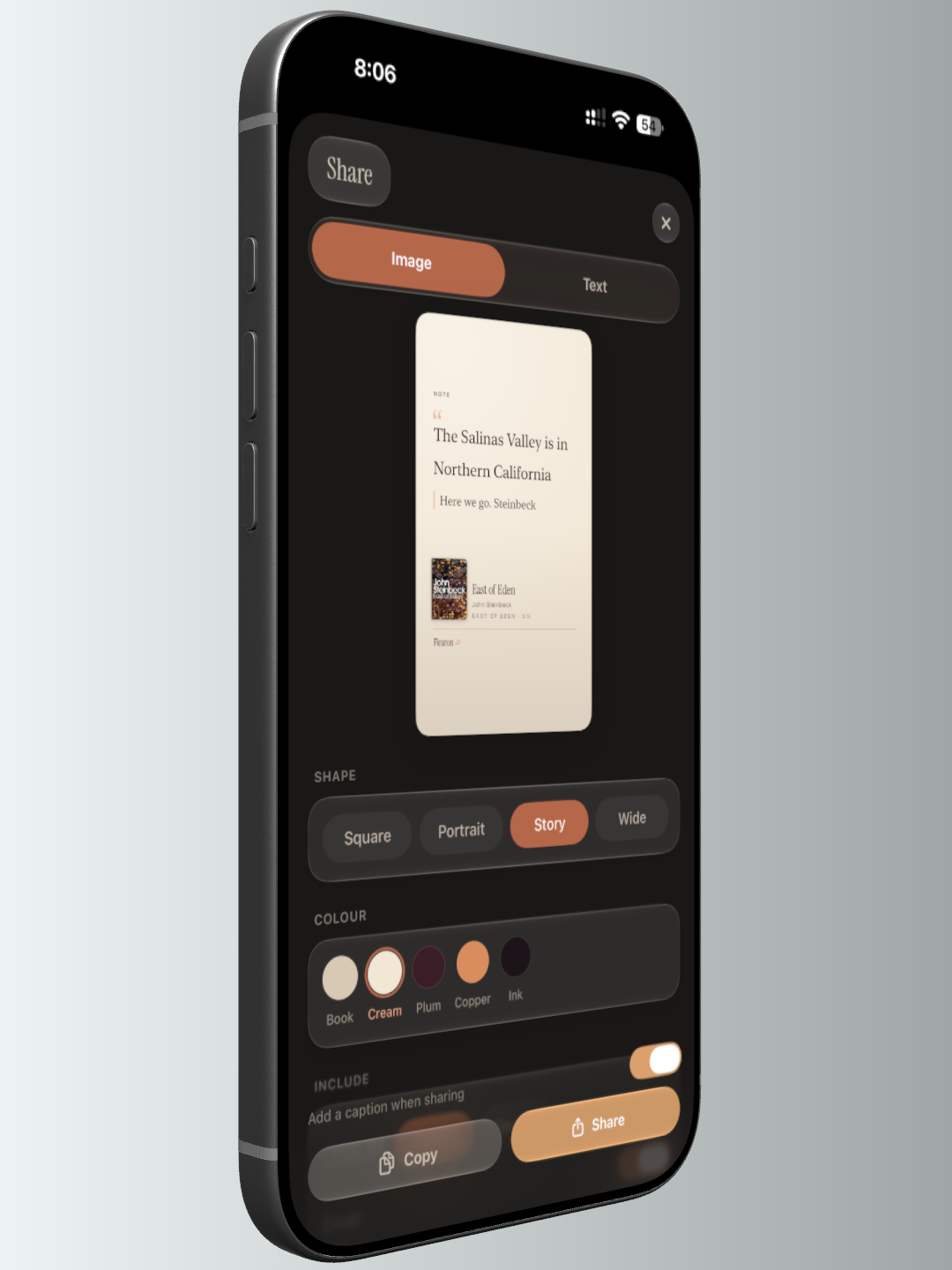
- Sharing: beautiful cards for your notes, highlights, books and reading stats.
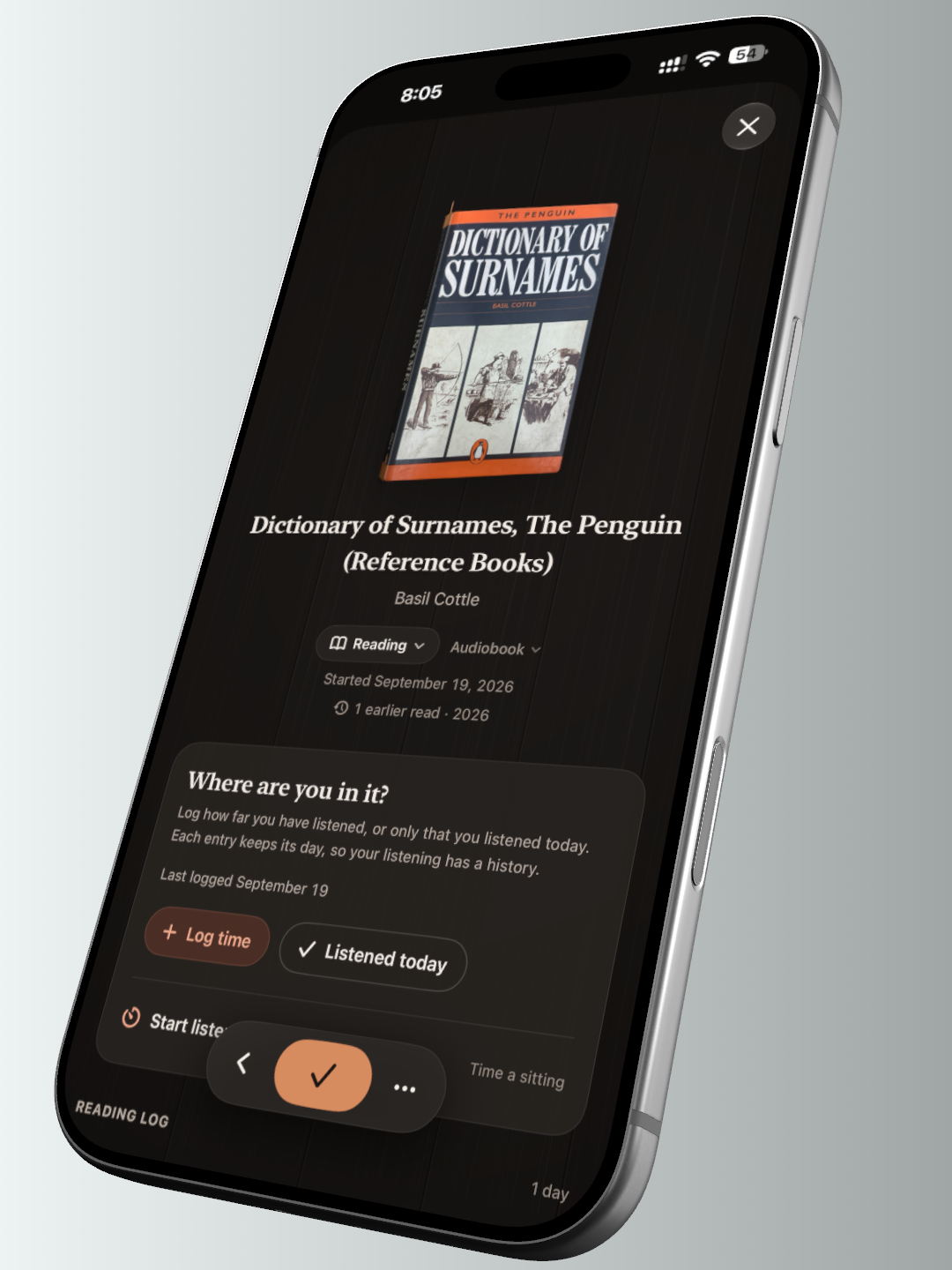
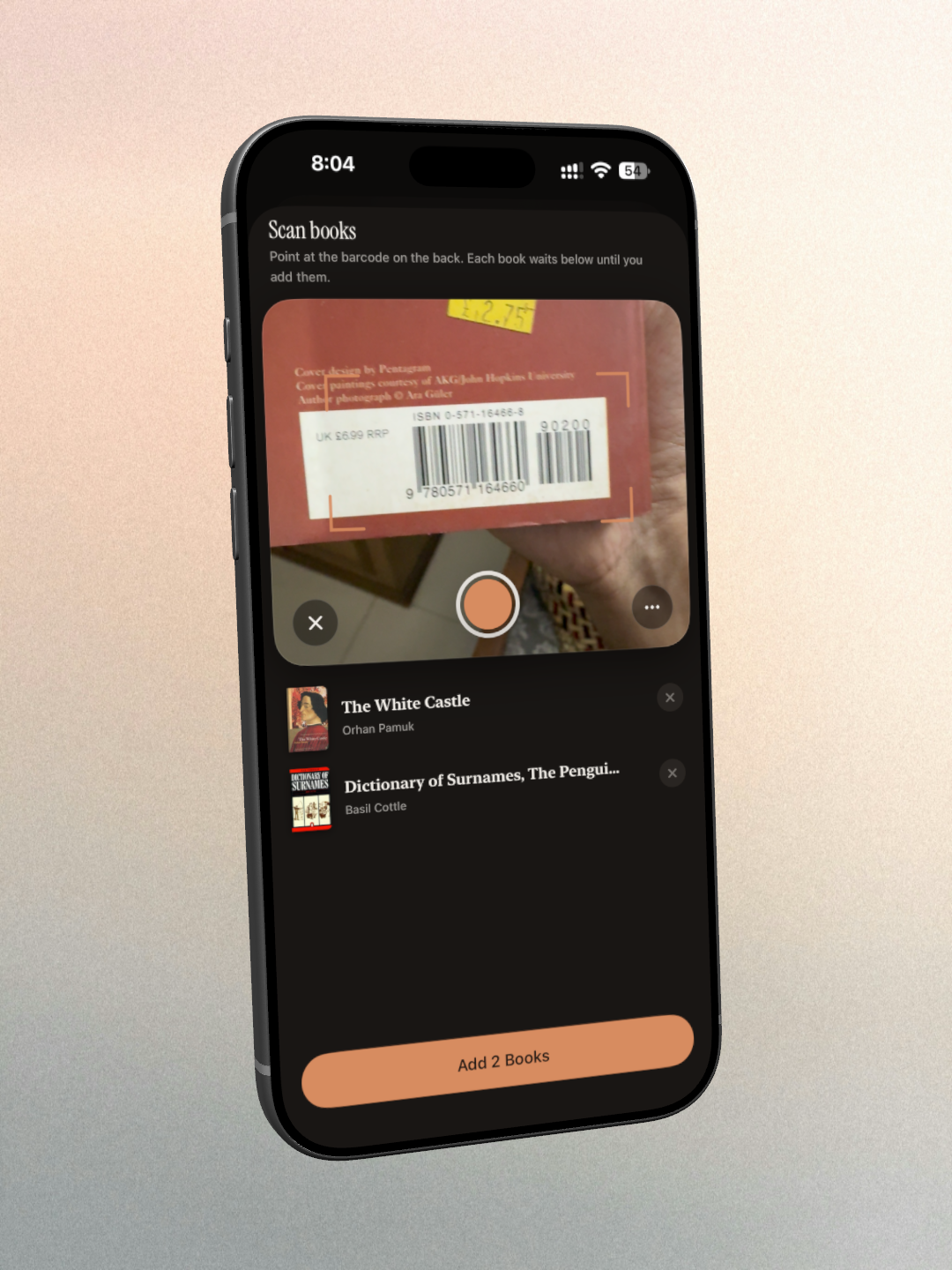
- Tracking every book you read, not only the EPUBs in Fleuron: paper books, library loans, audiobooks.
- More formats, including PDFs, even scanned ones with no text layer.
- More capable AI, added in ways that keep your reading private and add real value.

Log in or sign up for Devpost to join the conversation.