
FitChat
The problem that our product addresses is the lack of an existing digitised system for finding temporary exercise partners whenever users are looking for someone who can do some exercise together. A successful solution to the problem would be finding the nearby individuals who also want to do some exercise at the same time, and filter and rank the individuals in a ranking list. The person popped out in the top of the list is the fittest candidate having a similar age, weight, and position with the users. Users can choose one of the people in the ranking list by clicking on the corresponding person and will be redirected to a chatting screen which users can take a chat with that person to make an appointment and make friend with each other.
Welcome Screen:
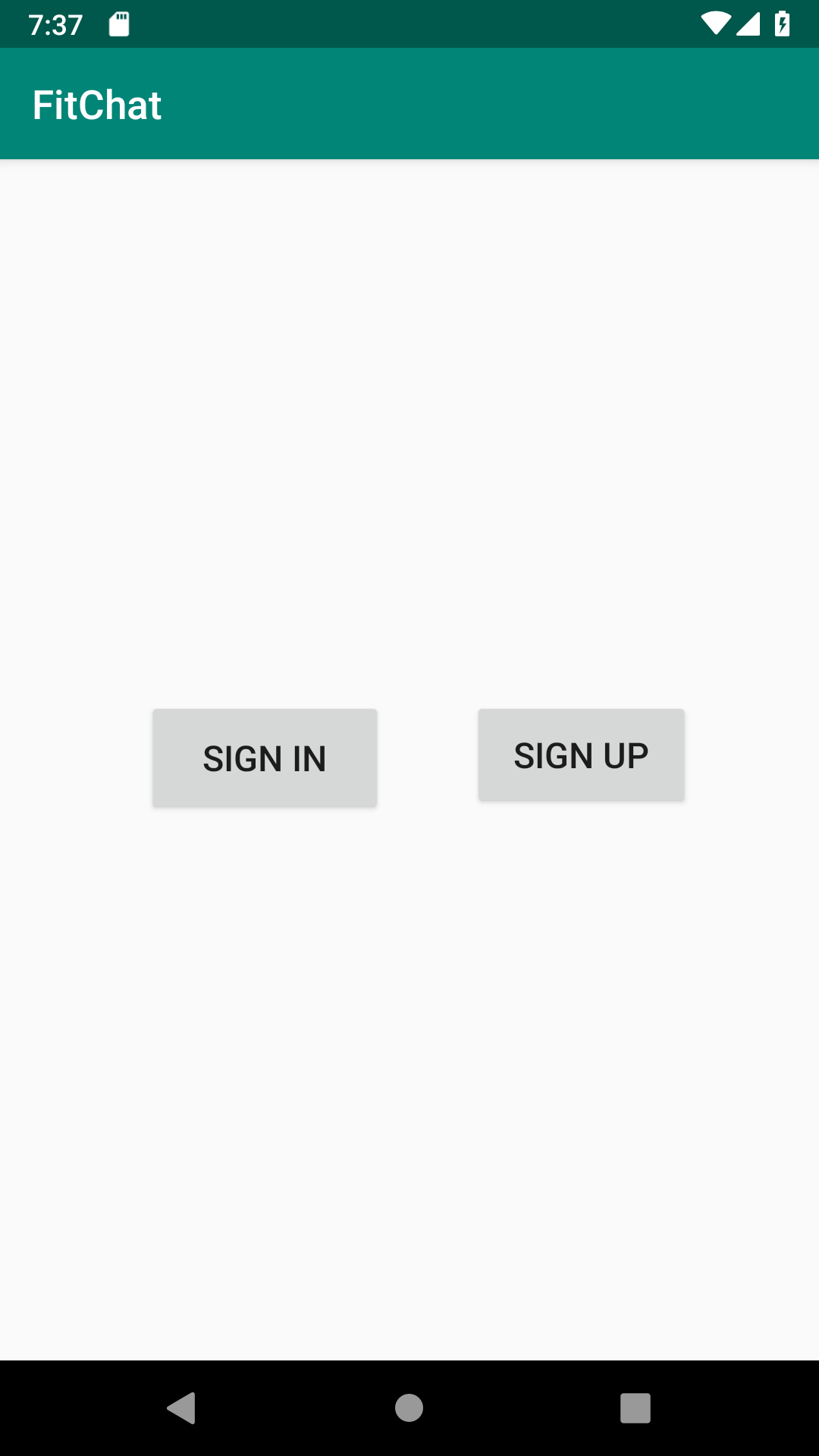
The Main Screen (See figure I) is the first page of the application when users open the app, FitChat. There are two buttons, “SIGN IN” button and “SIGN UP” button. The “SIGN IN” button is used for loginning into users’ accounts while the “SIGN UP” button is used for registering a new account.
Figure I

Login Screen:
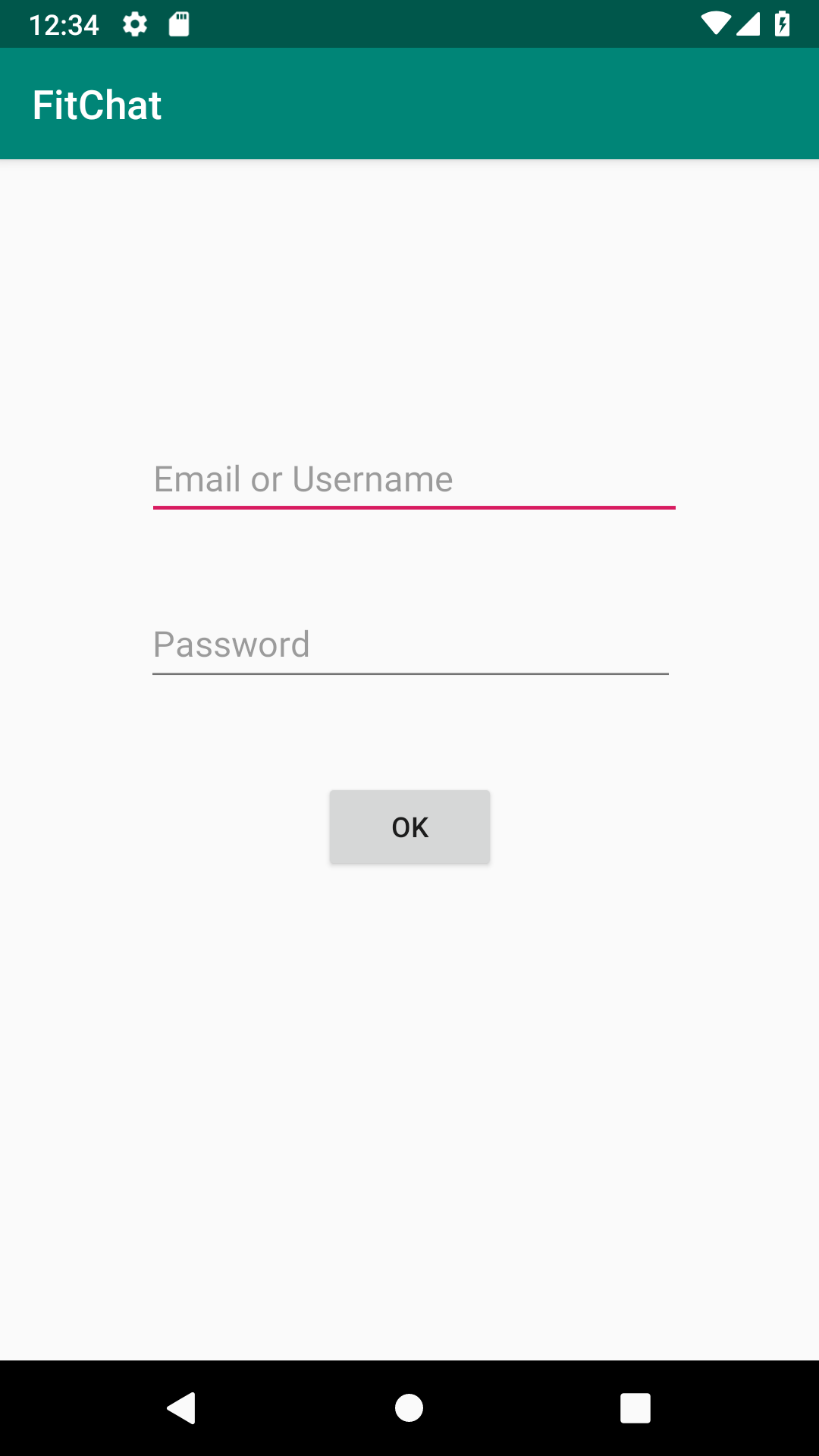
The login screen (see Figure II) is the page requiring users to type in their username and password in order to continue using the application.
Figure II

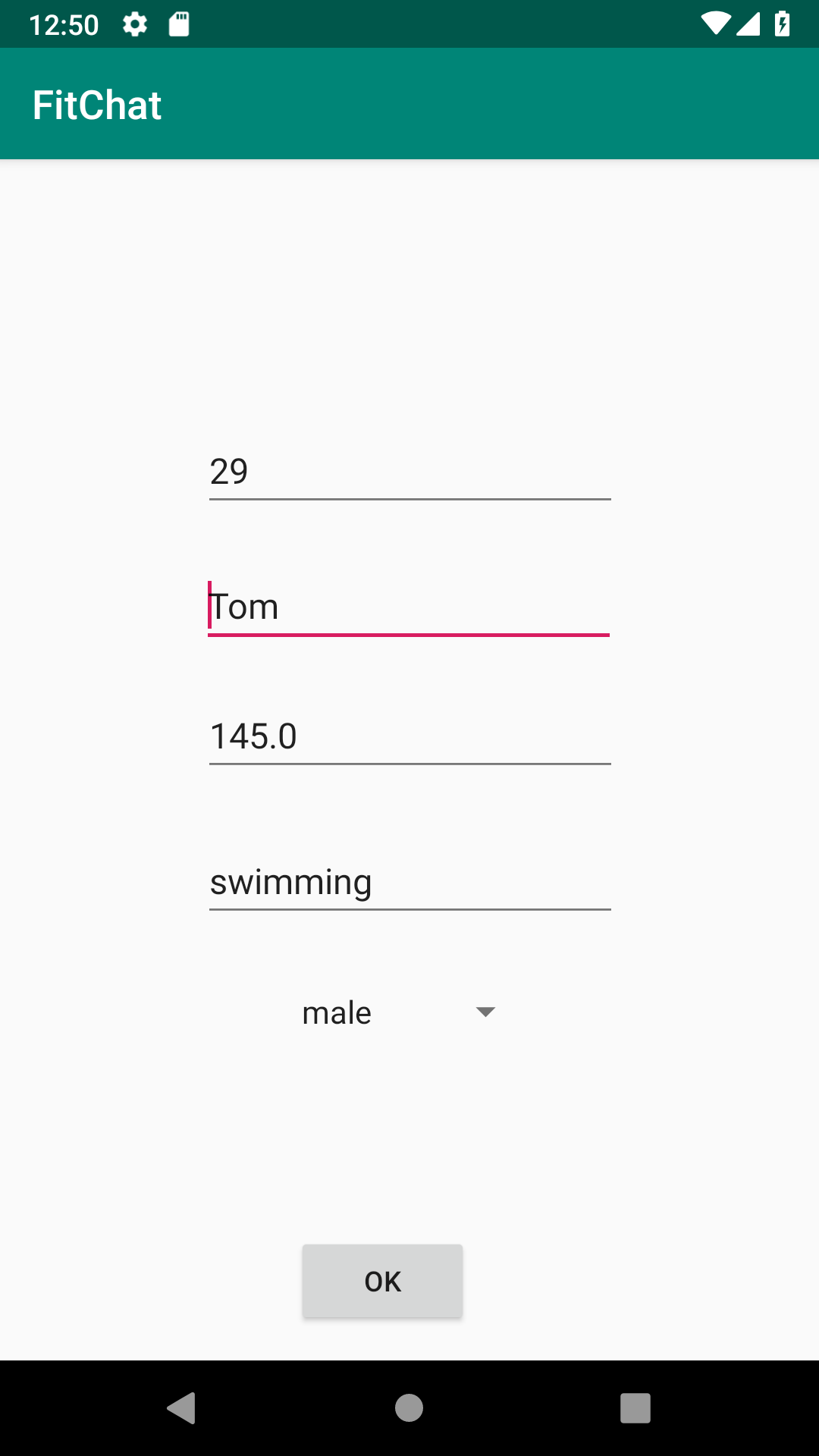
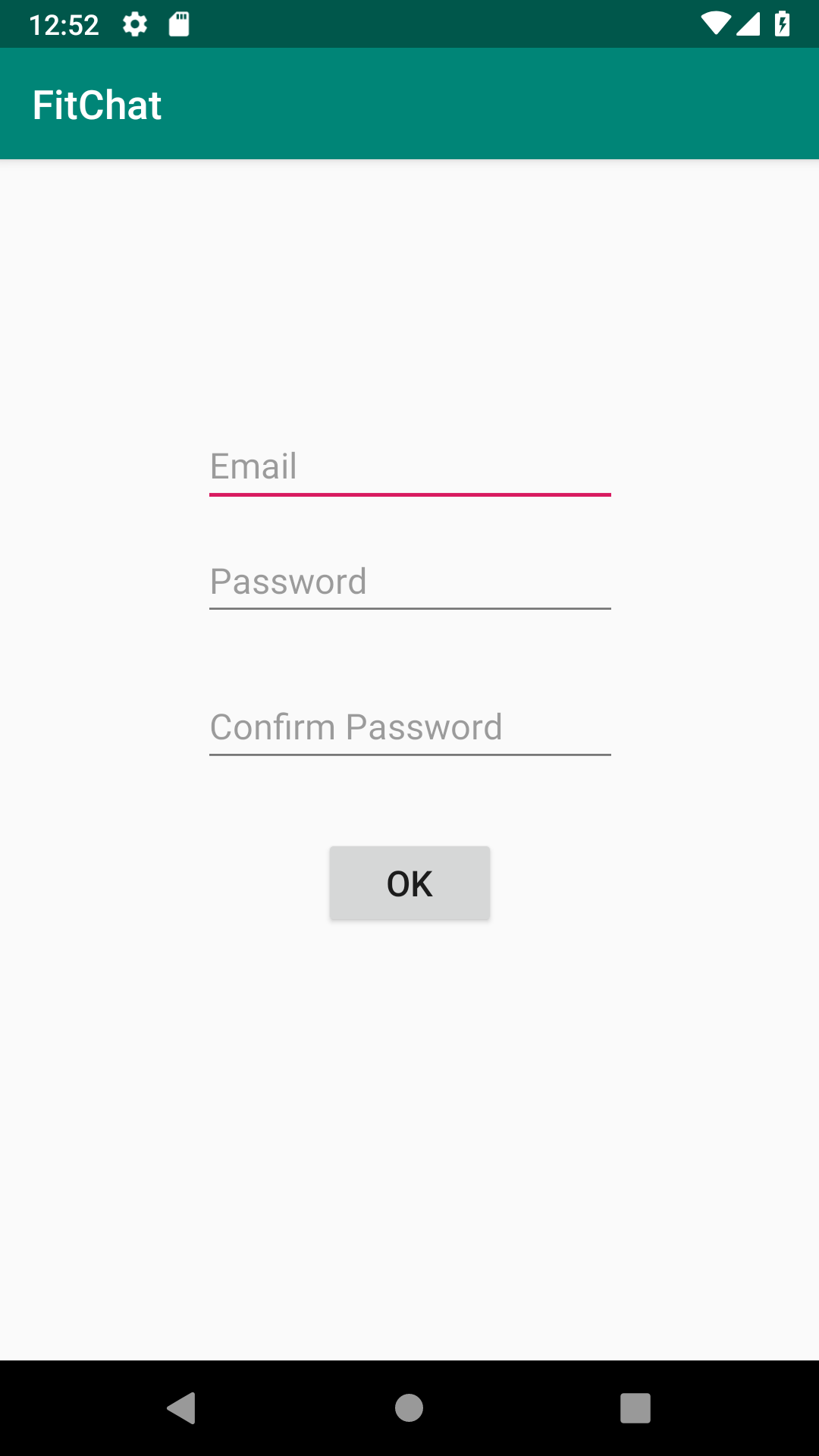
Figure III


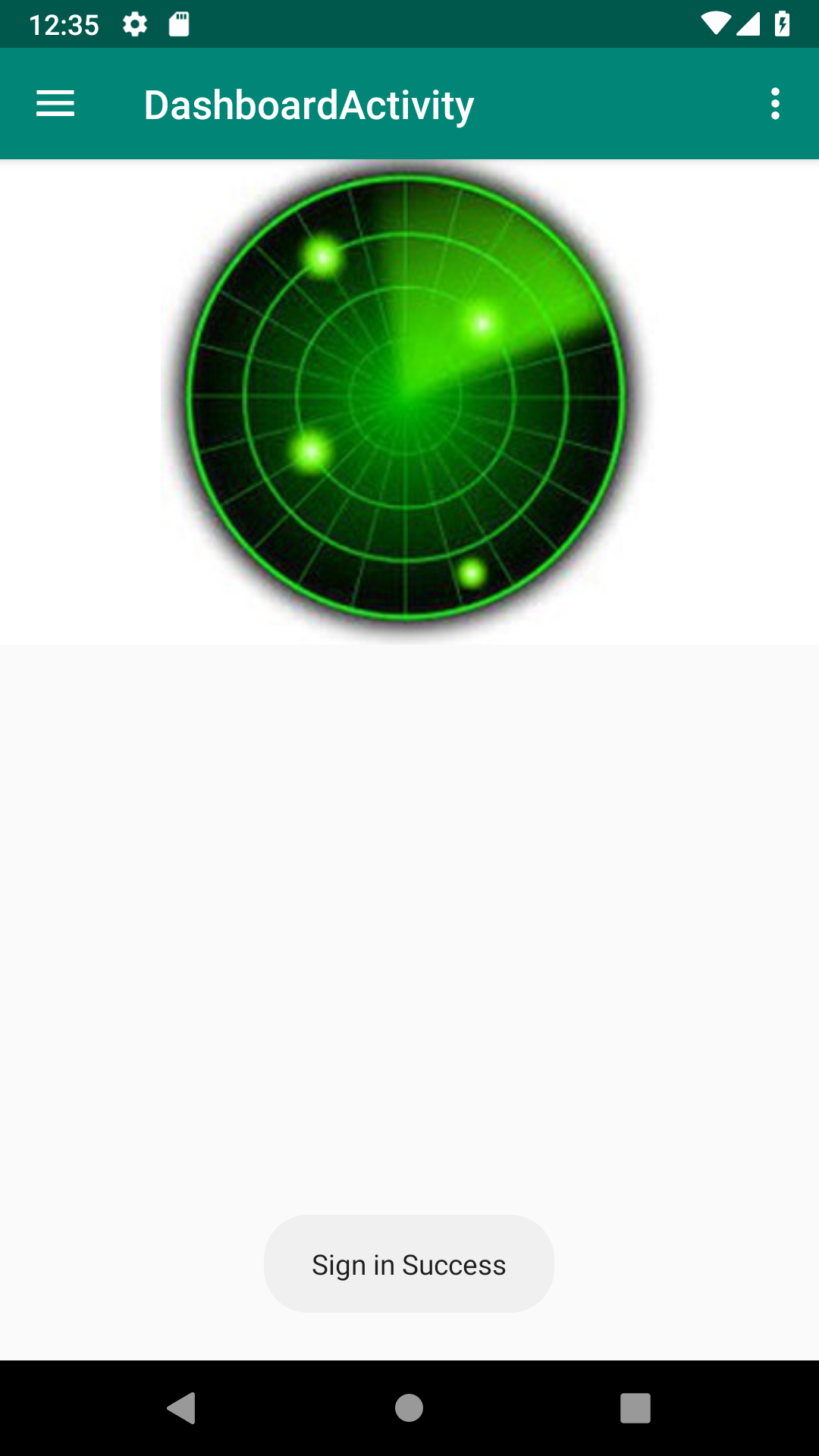
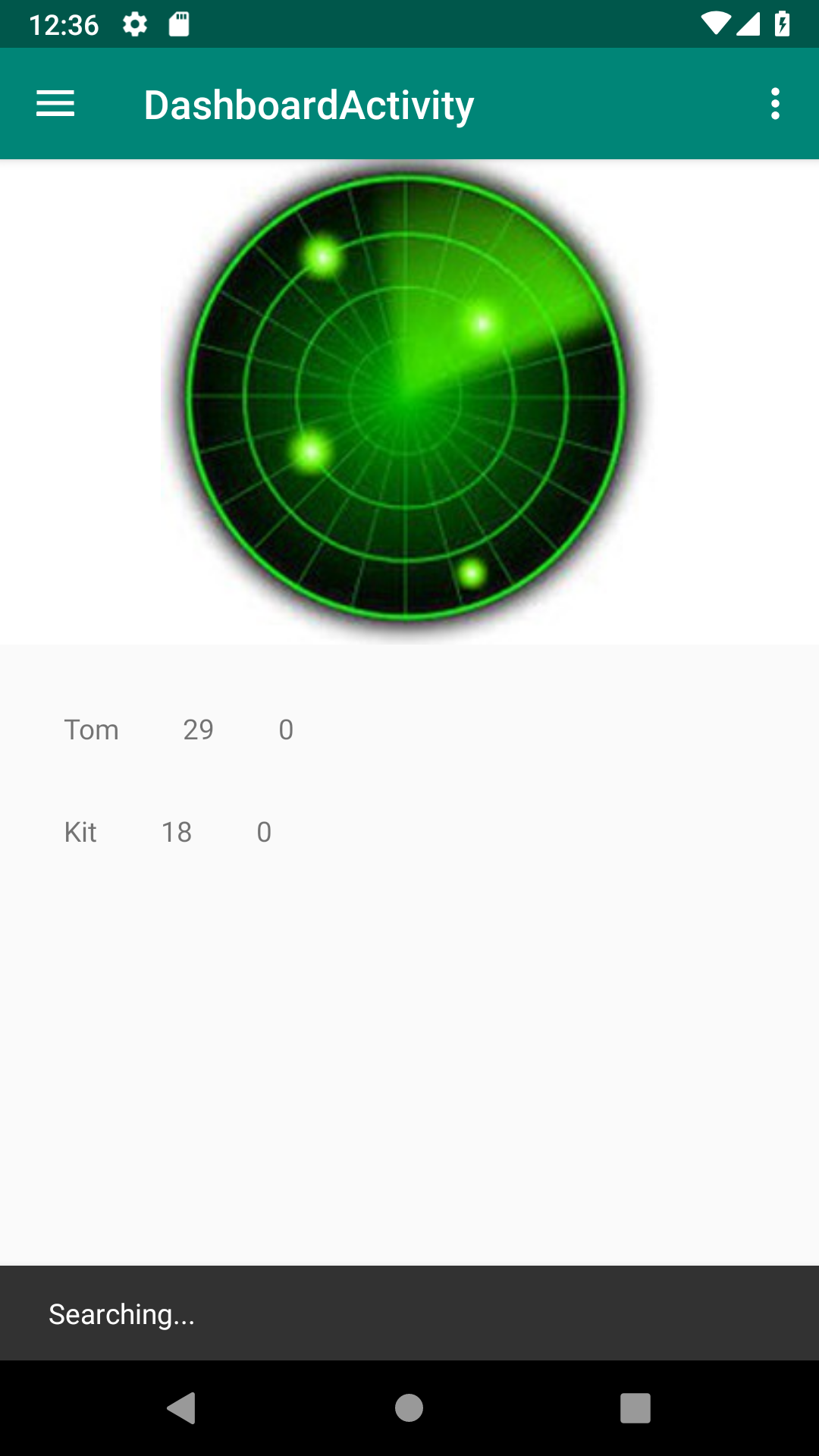
The searching screen is used for helping users to filter out a ranking list containing all the other people who also want to find an exercise partner. When users are in the searching screen, they can just click on the radar icon to let the app start to searching the potential exercise partners (See Figure V). After clicking on the radar icon, users will obtain a ranking list of all possible exercise partner (See Figure VI). The first one in the ranking list is the fittest person who have most similar age, weight, and position, and are more possible same gender than the following one in the rest of the list. Furthermore, the each item in the ranking list is clickable for users. Therefore, users can click on any item in the ranking list and will be redirected to a corresponding another user’s basic information.
Figure V

Figure VI

Figure VII

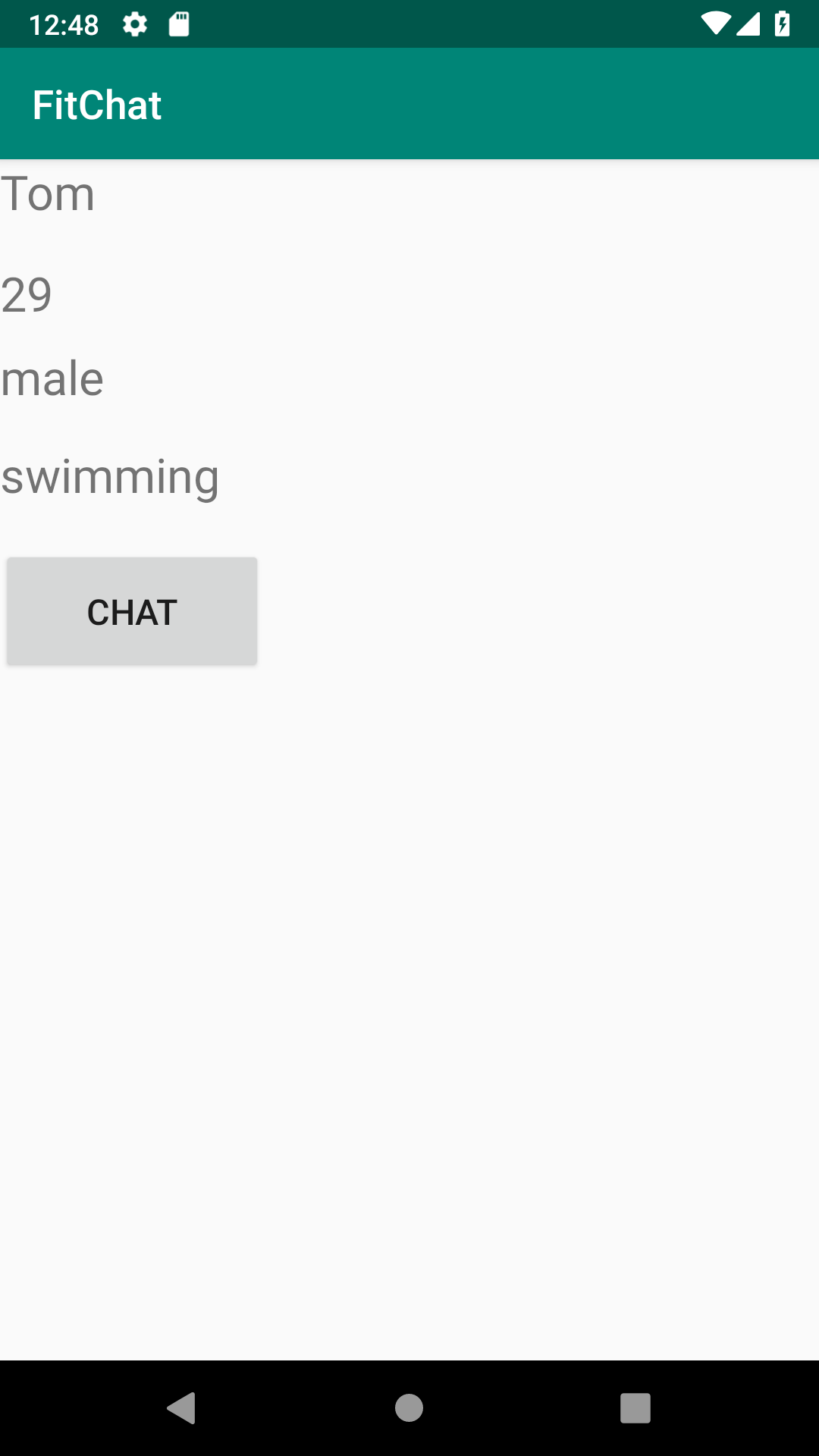
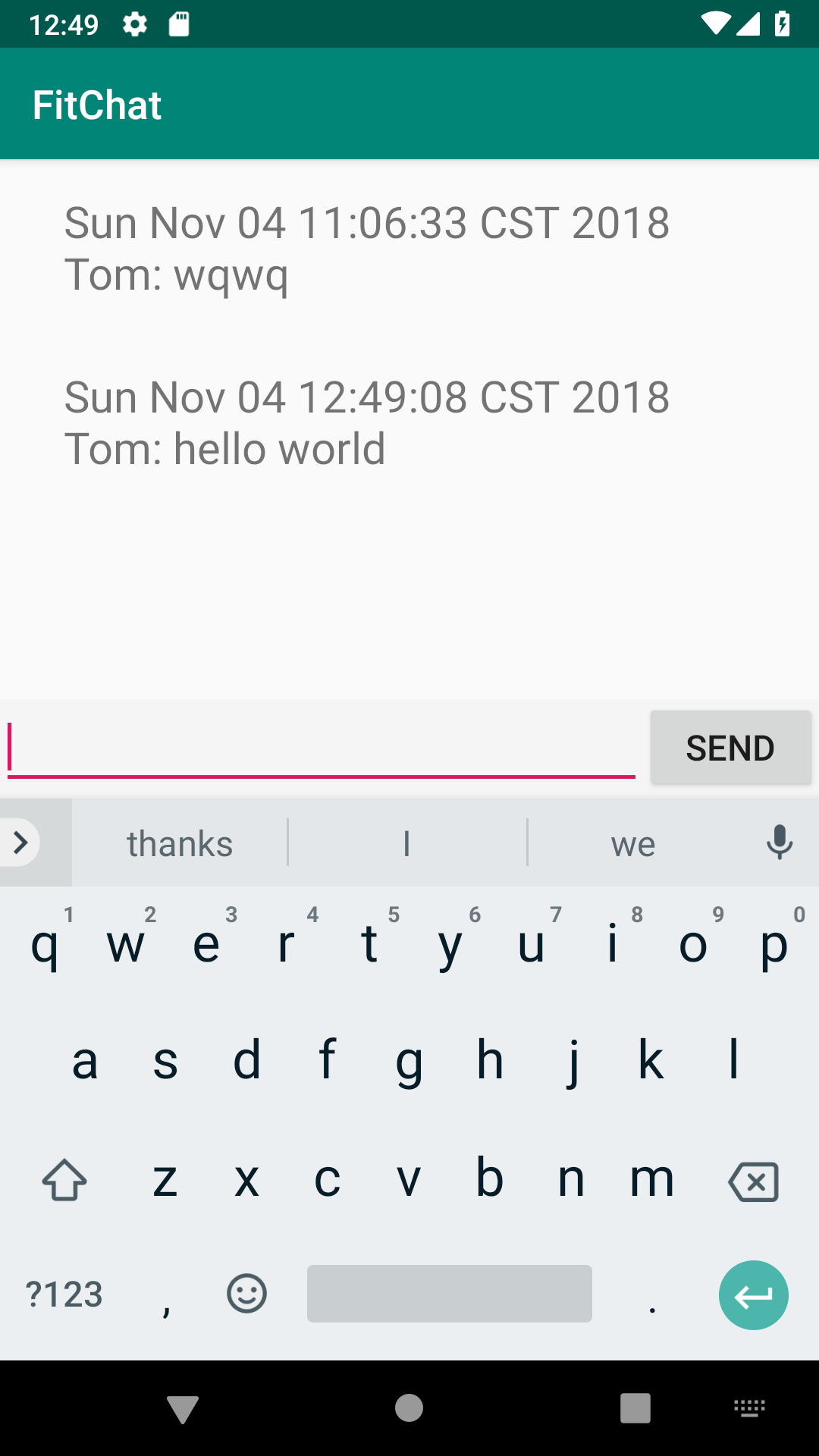
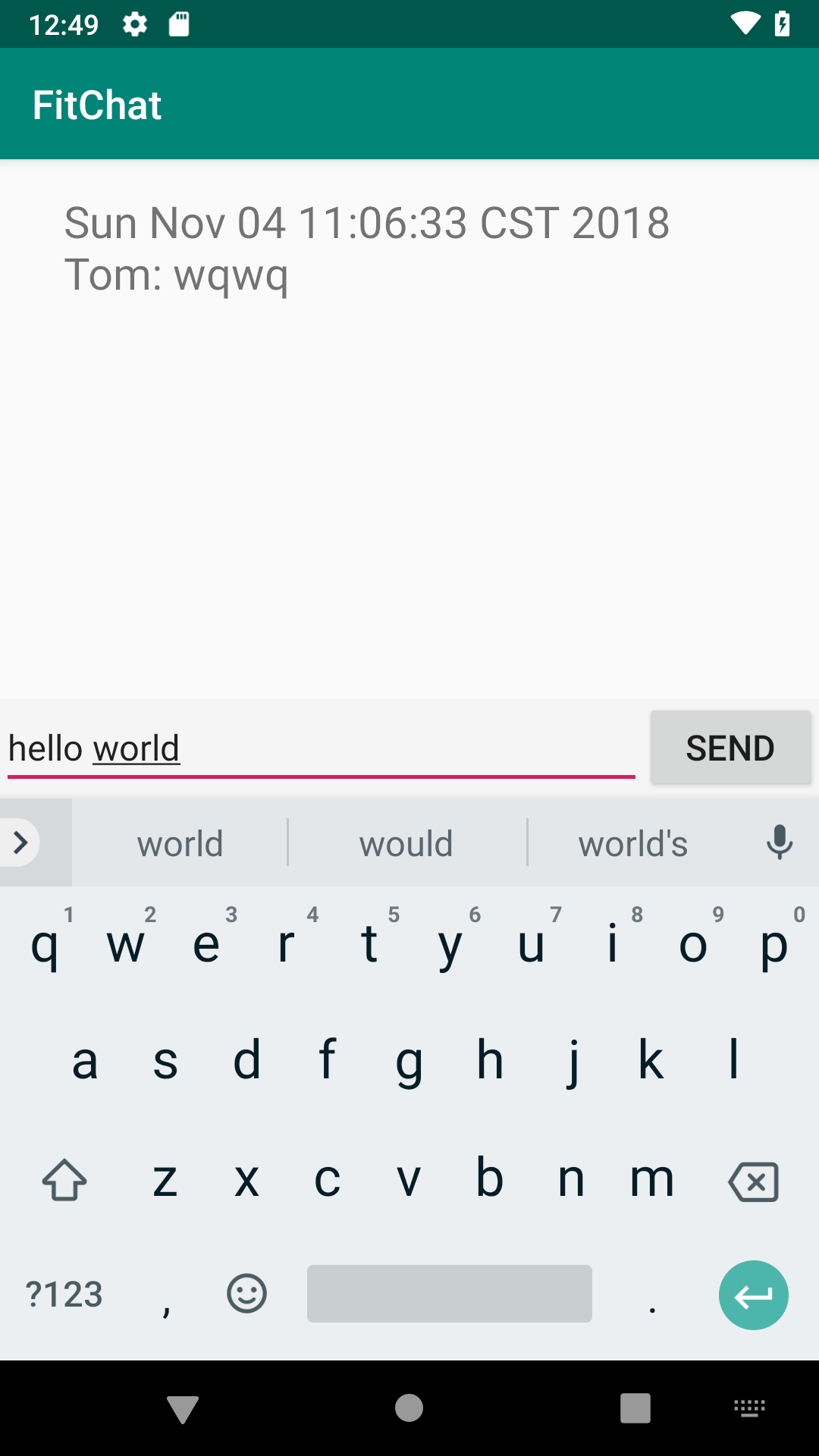
Detail Information Screen and Chatting Screen (Figure VII, VIII) Match with the best one that you like to handout and show some basic information of that person (see Figure VIII). Choose to chat and start to know about each other, say hi (see Figure IX and Figure X).
Figure VIII

Figure IX

Figure X


Log in or sign up for Devpost to join the conversation.