-
-
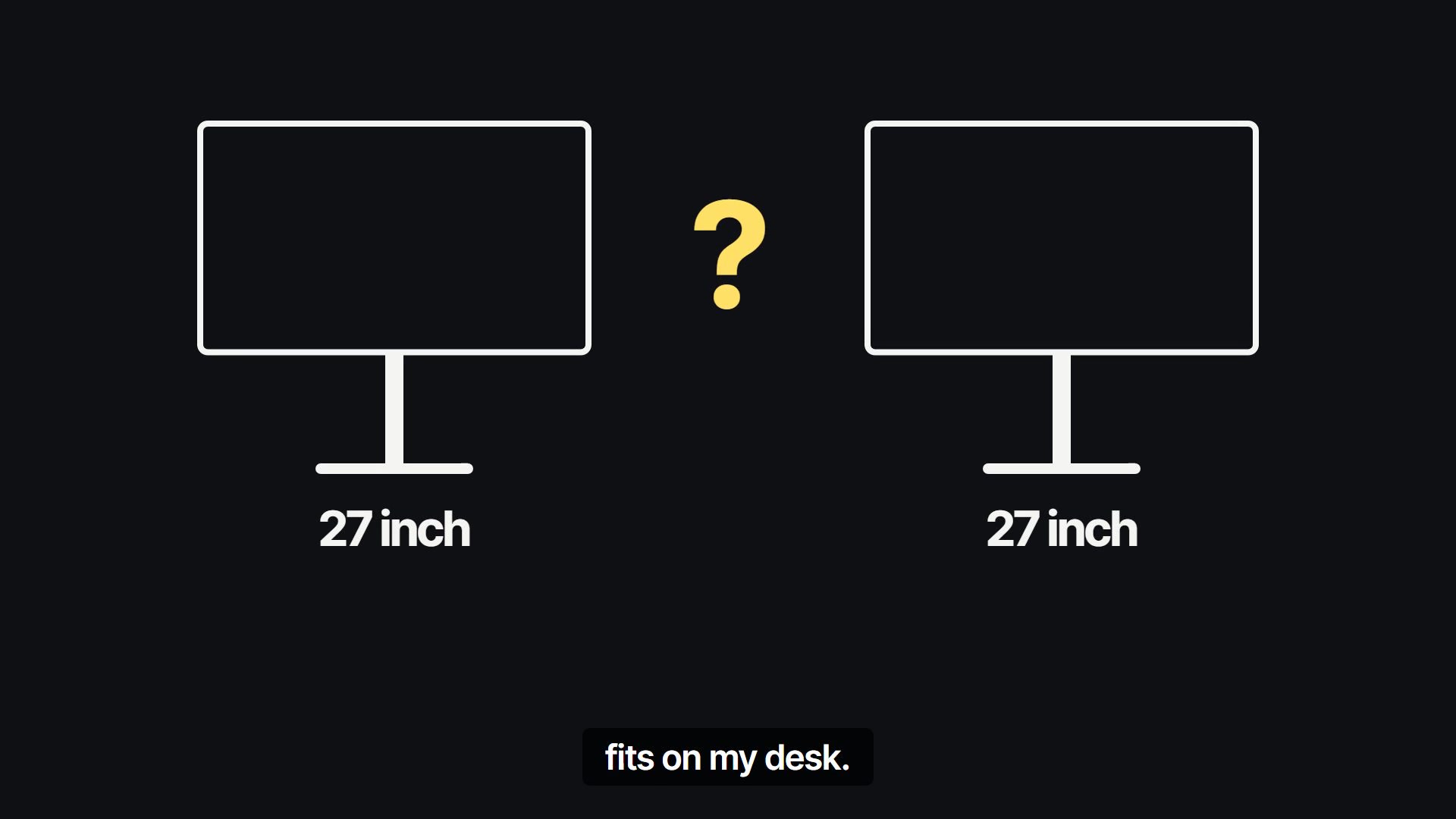
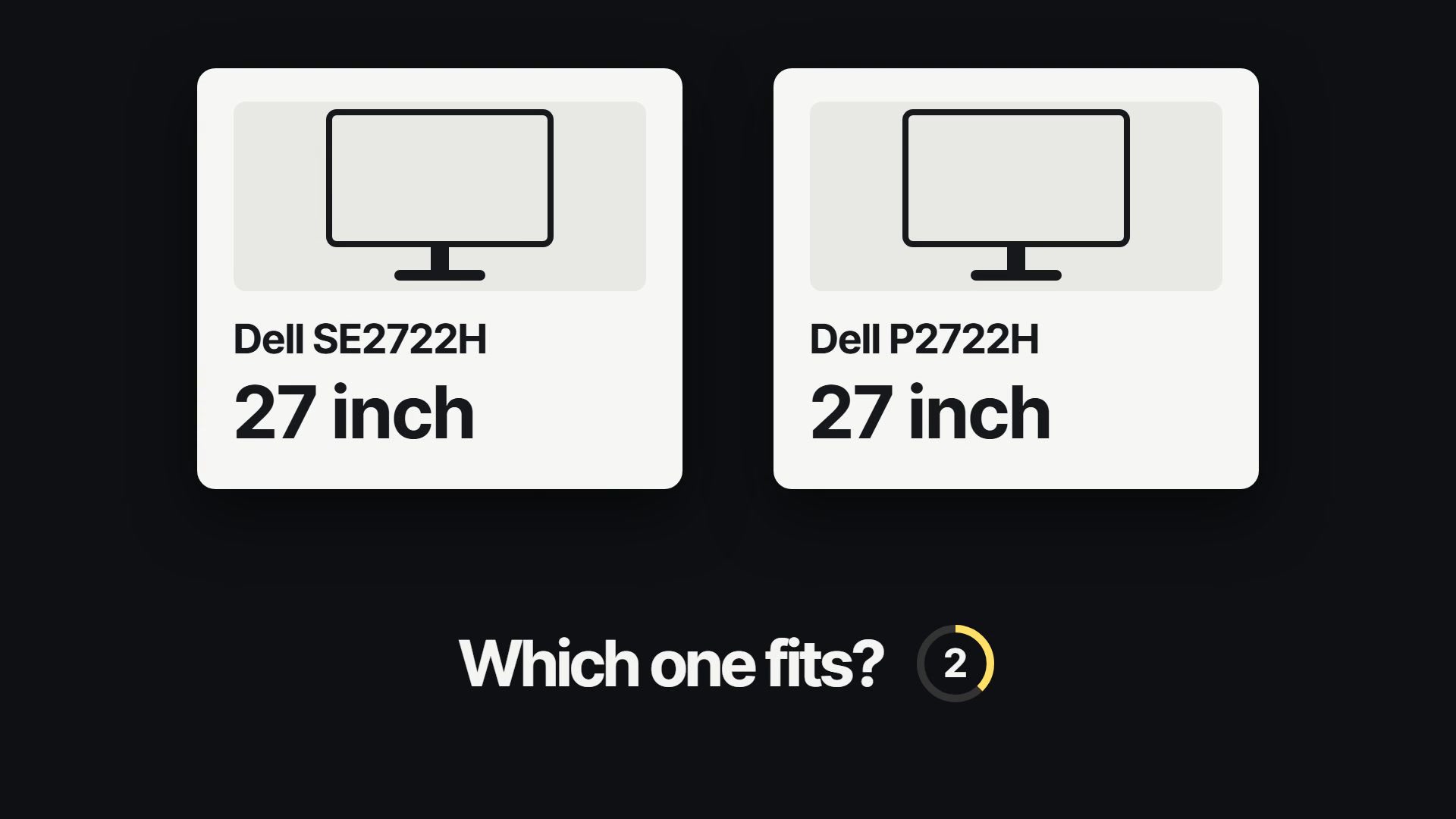
Two monitors, both "27 inch". Which one fits?
-
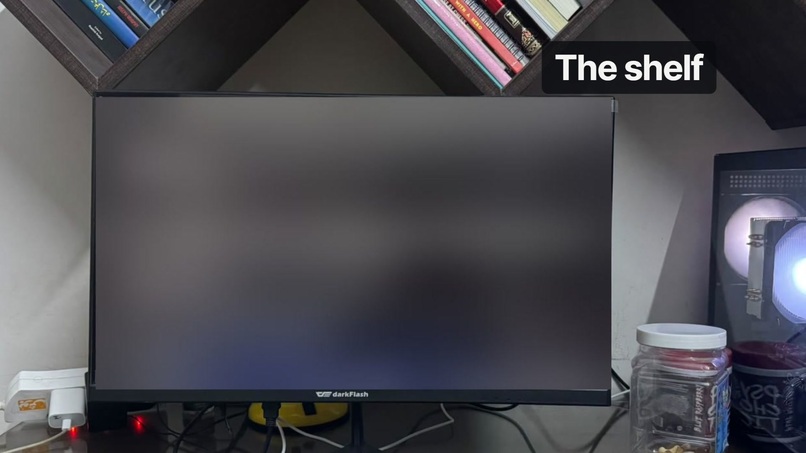
My desk. The shelf is the problem: a 40.3 cm gap.
-
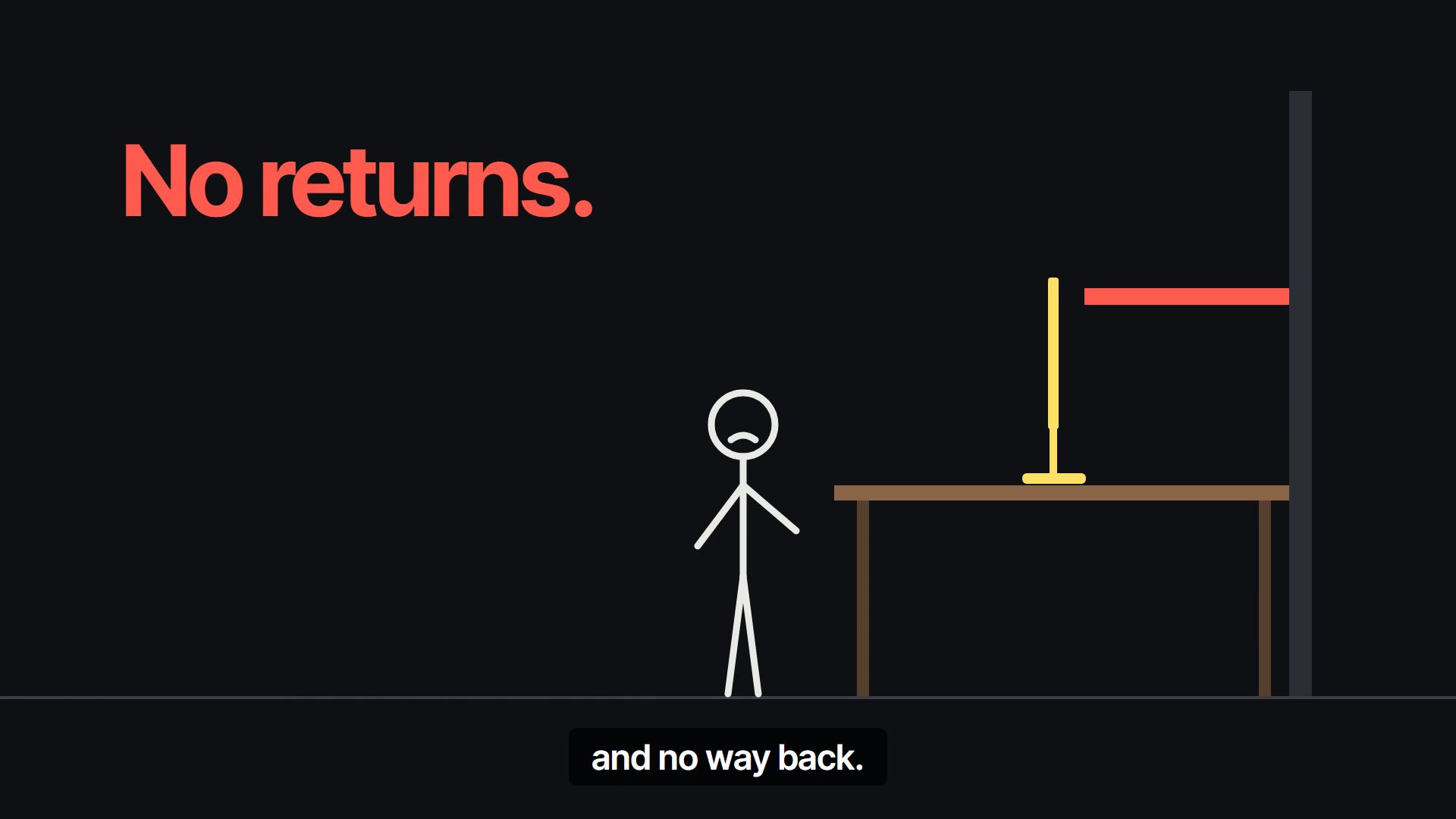
Pick wrong and you find out at home.
-
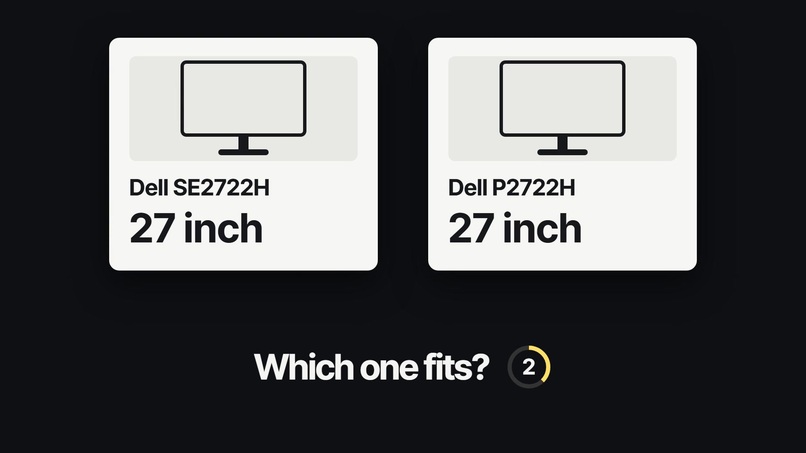
Two Dells, both 27 inch.
-

6 of 6 LEAF tests pass.
-
Fit Check: try it on your desk before you buy.
-
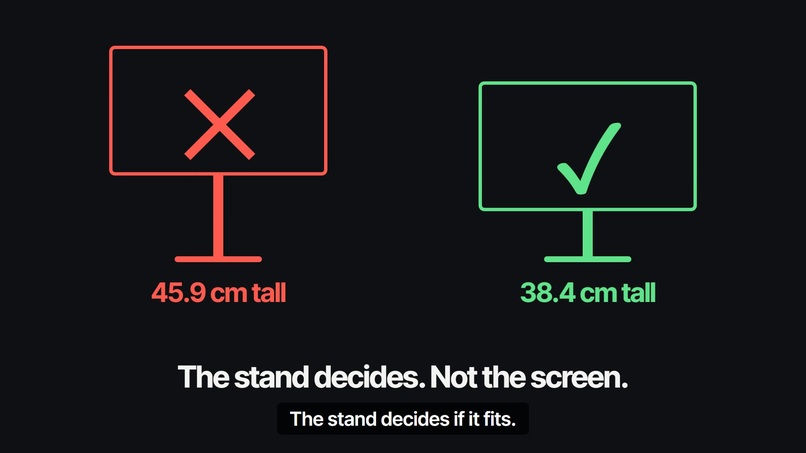
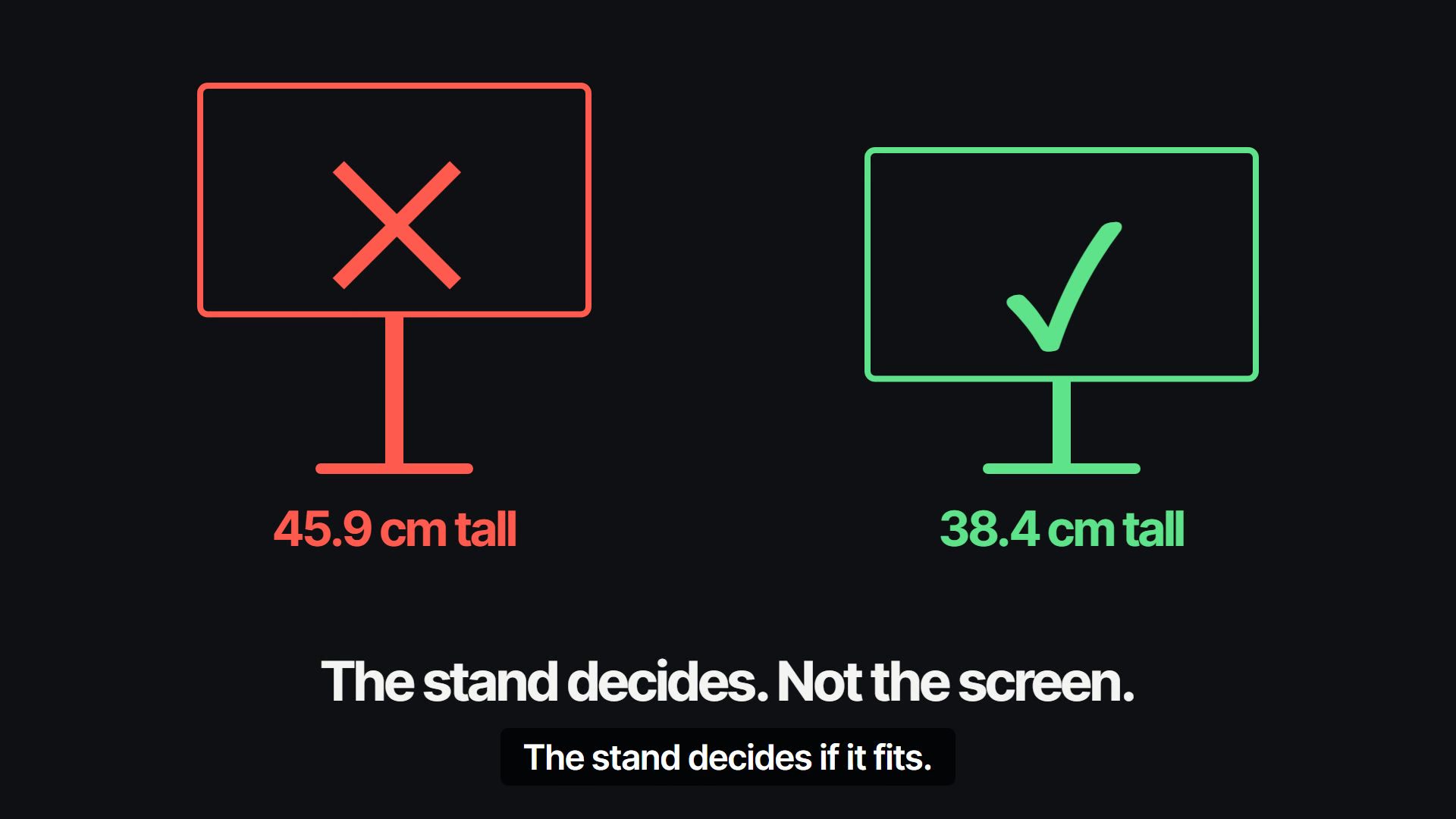
The stand decides, not the screen.
-
Fit Check: know it fits before it's on your desk.
-
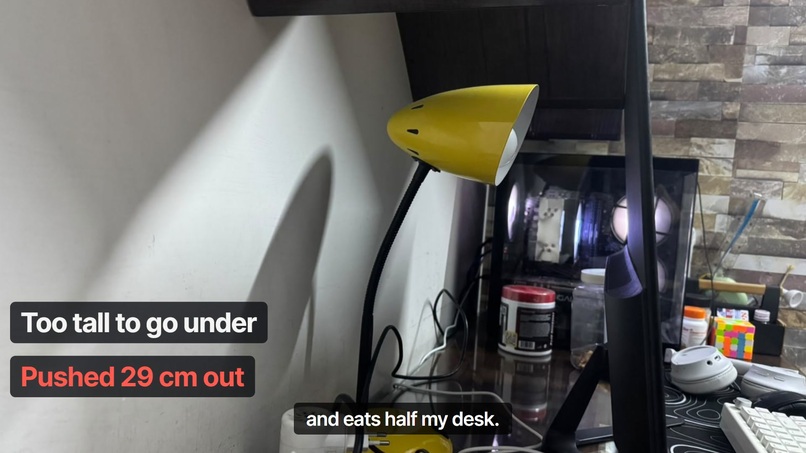
My 24 inch doesn't fit under it, so it sits 29 cm out.
-
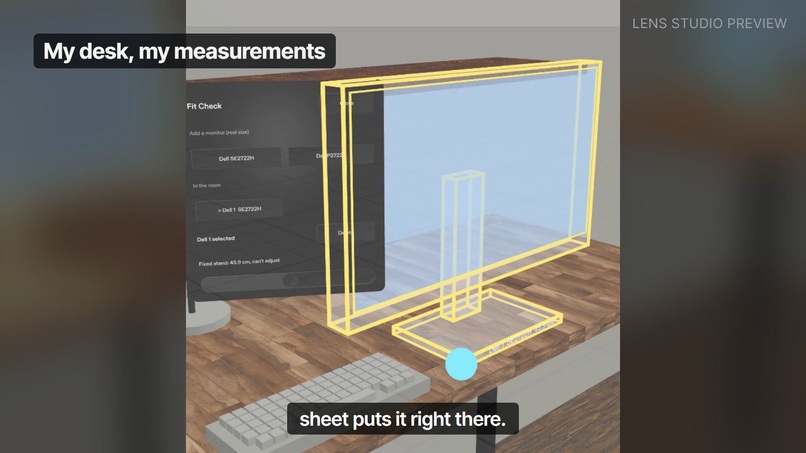
Pinch the orb, pick a monitor: it appears at real size.
-
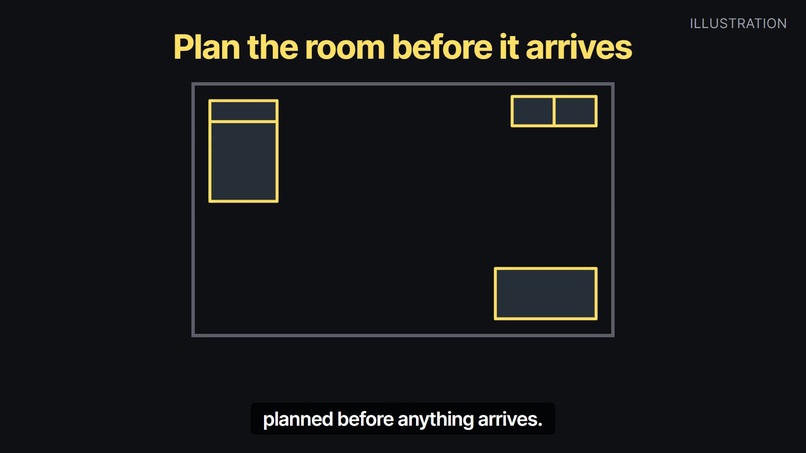
Plan a room before anything arrives (illustration).
-
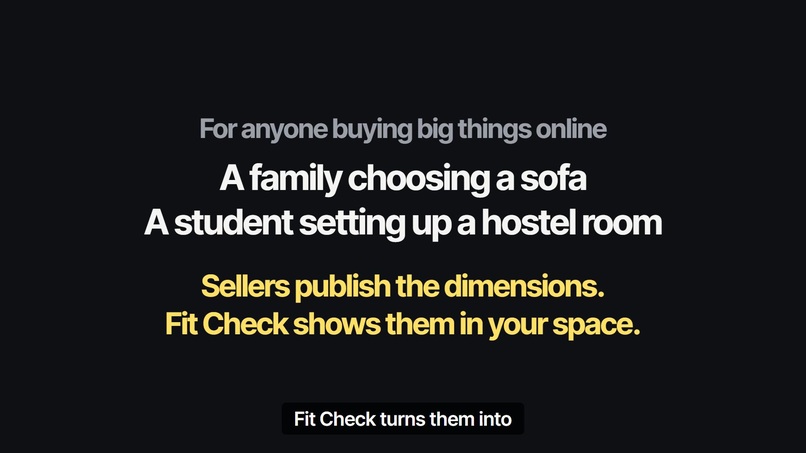
Who it's for.
-
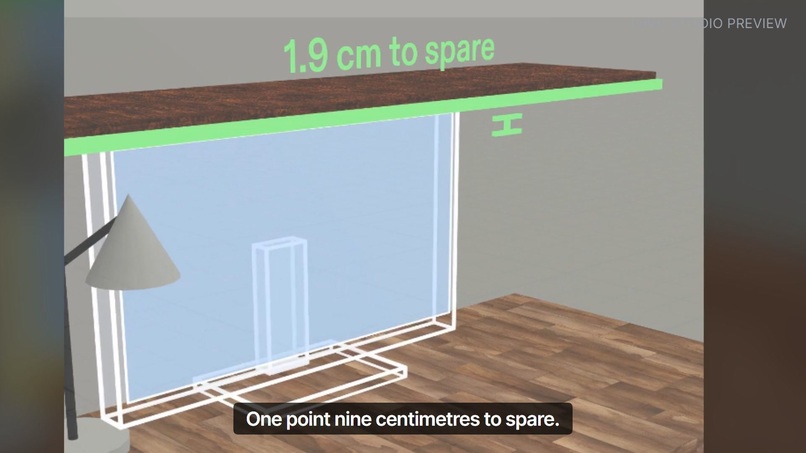
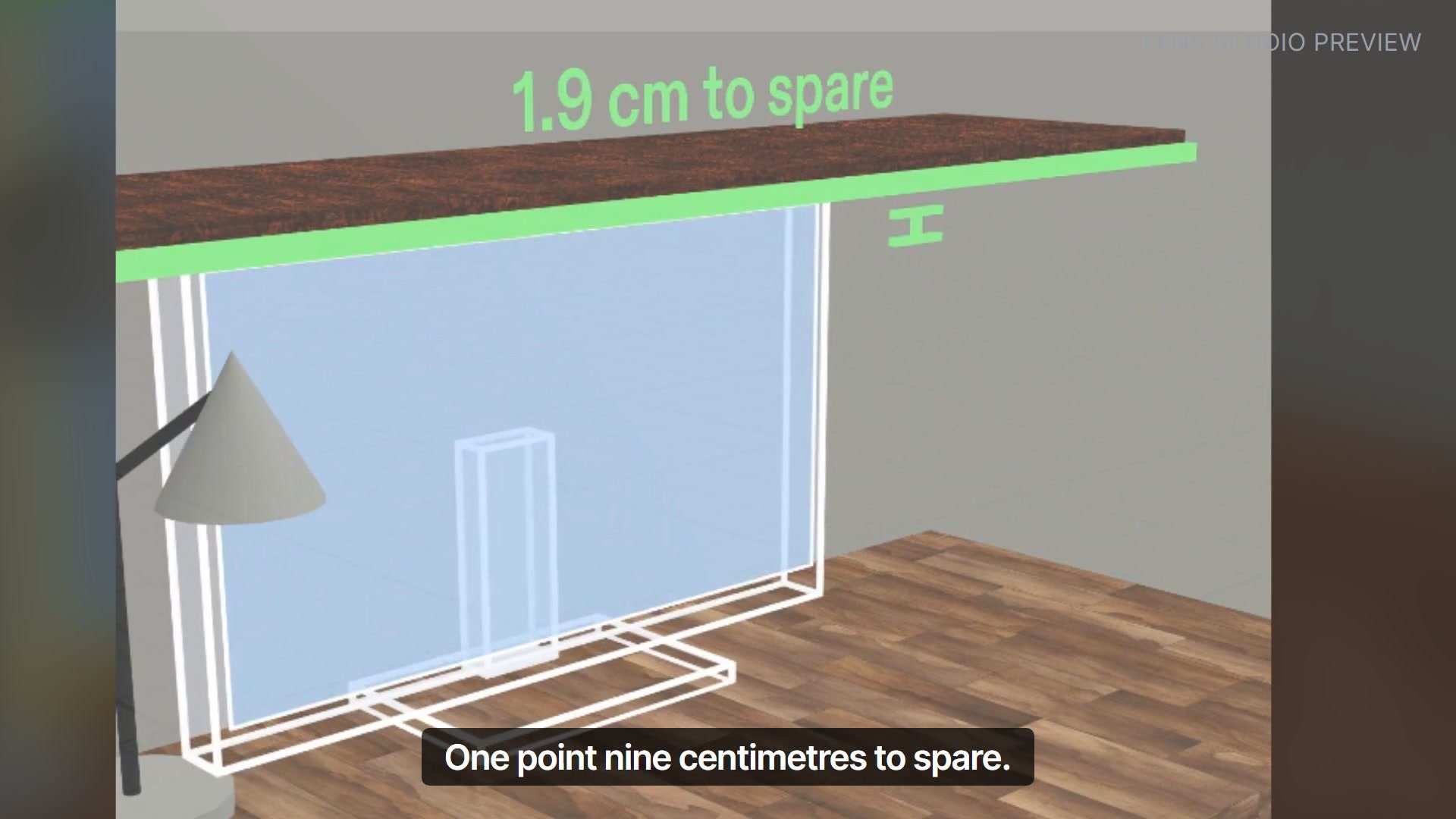
Adjustable stand at its lowest: 1.9 cm to spare.
-
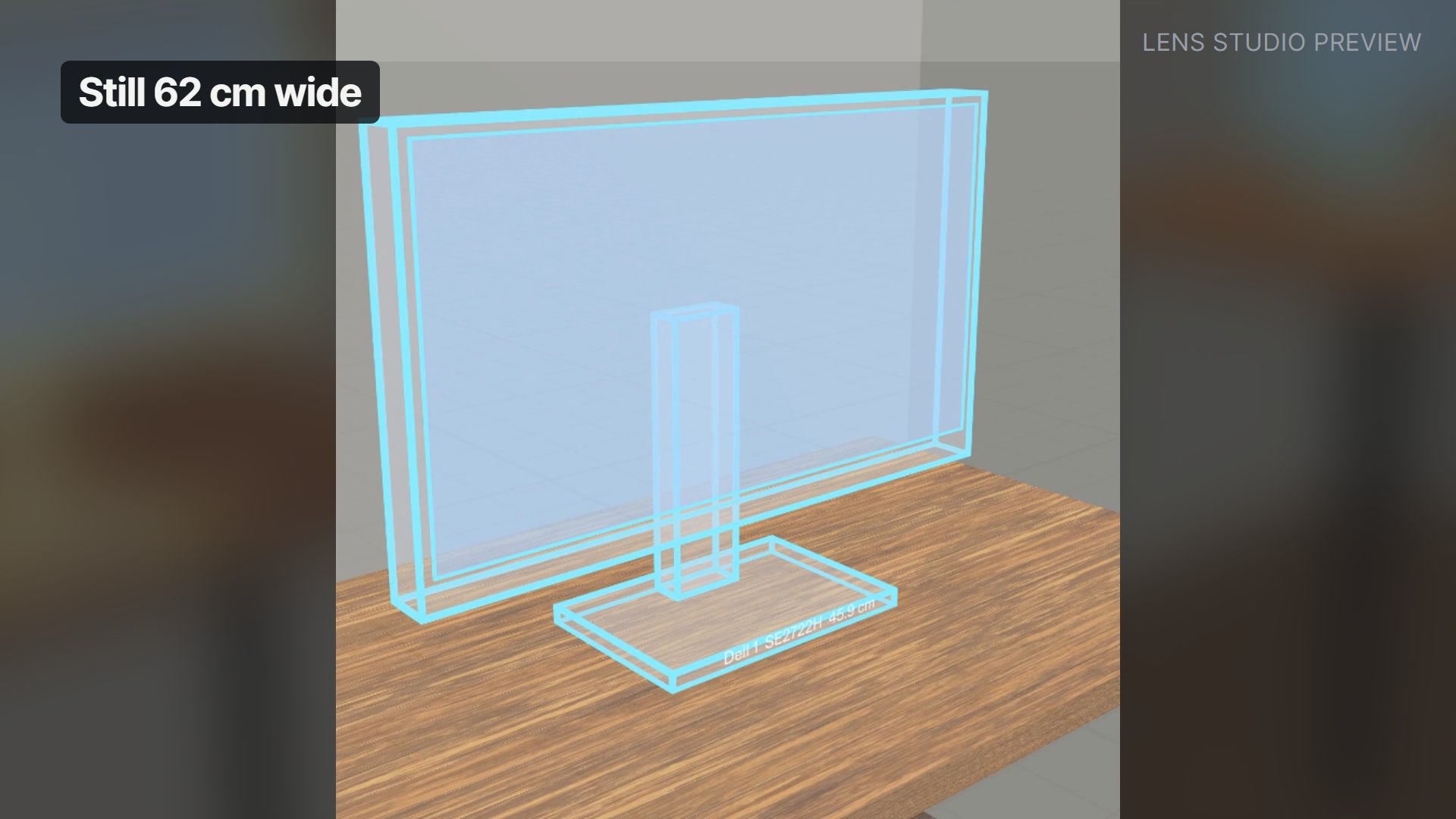
Across the room, it's still 62 cm wide.
-
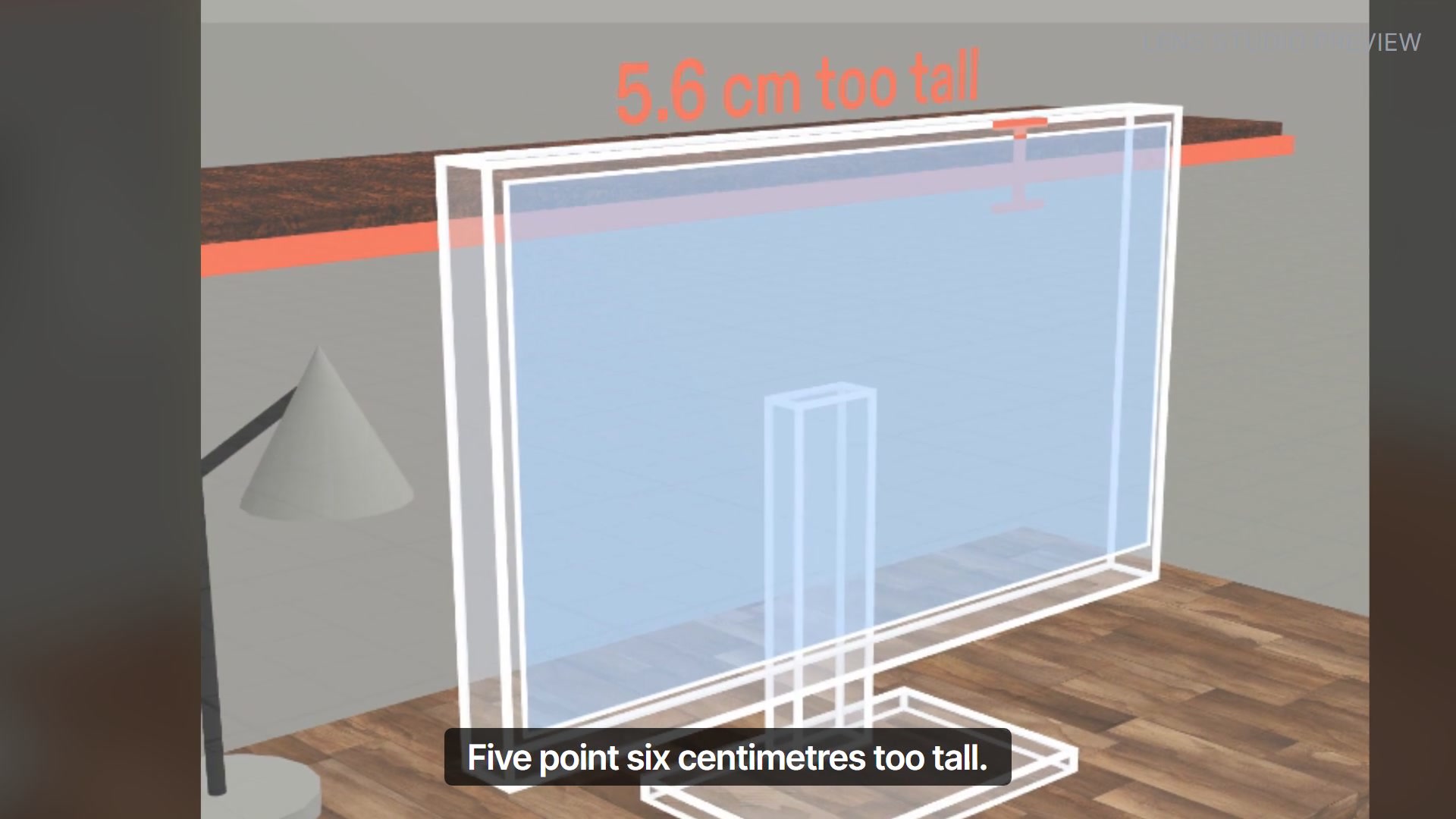
Fixed stand: 5.6 cm too tall.


Inspiration
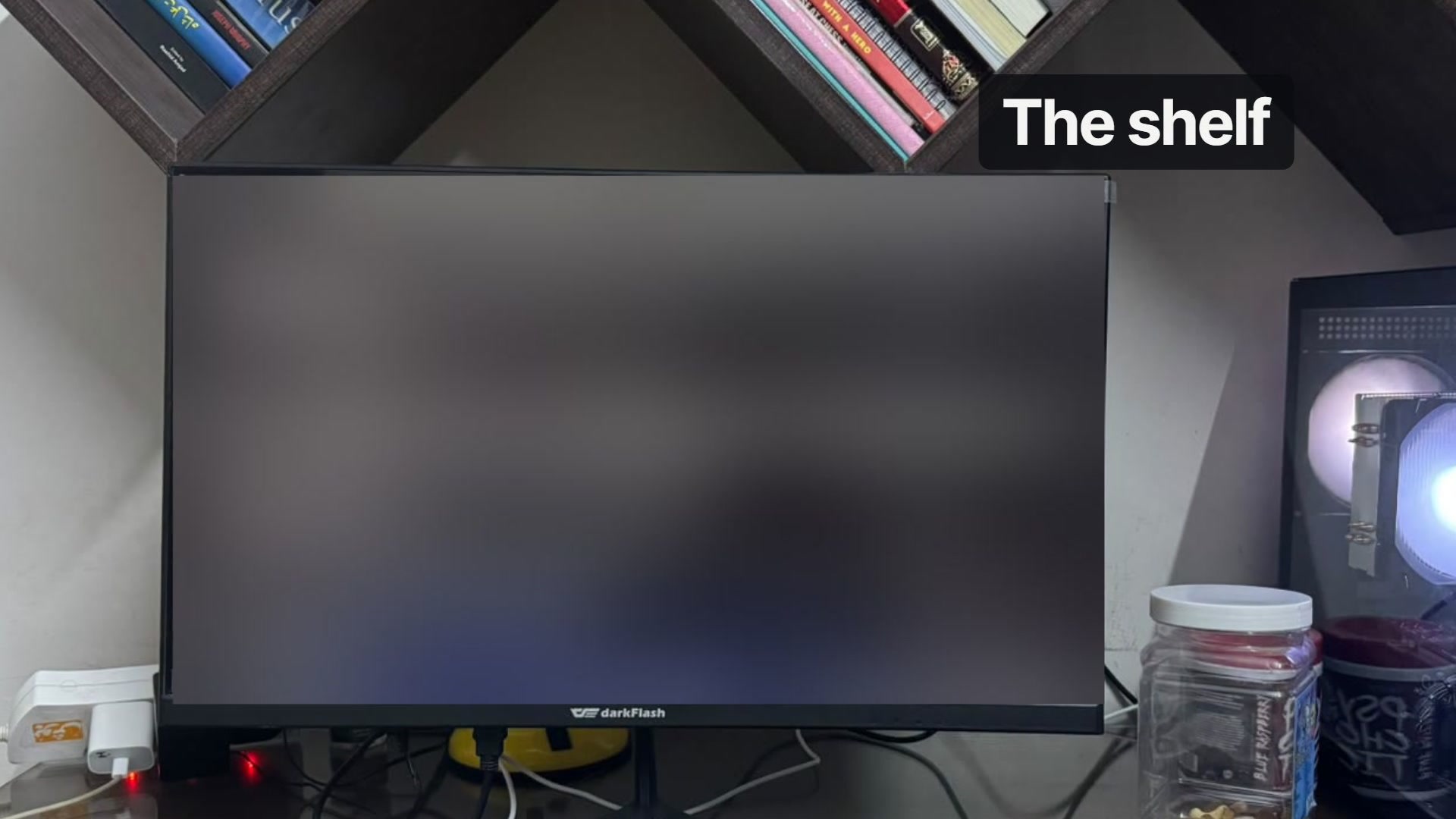
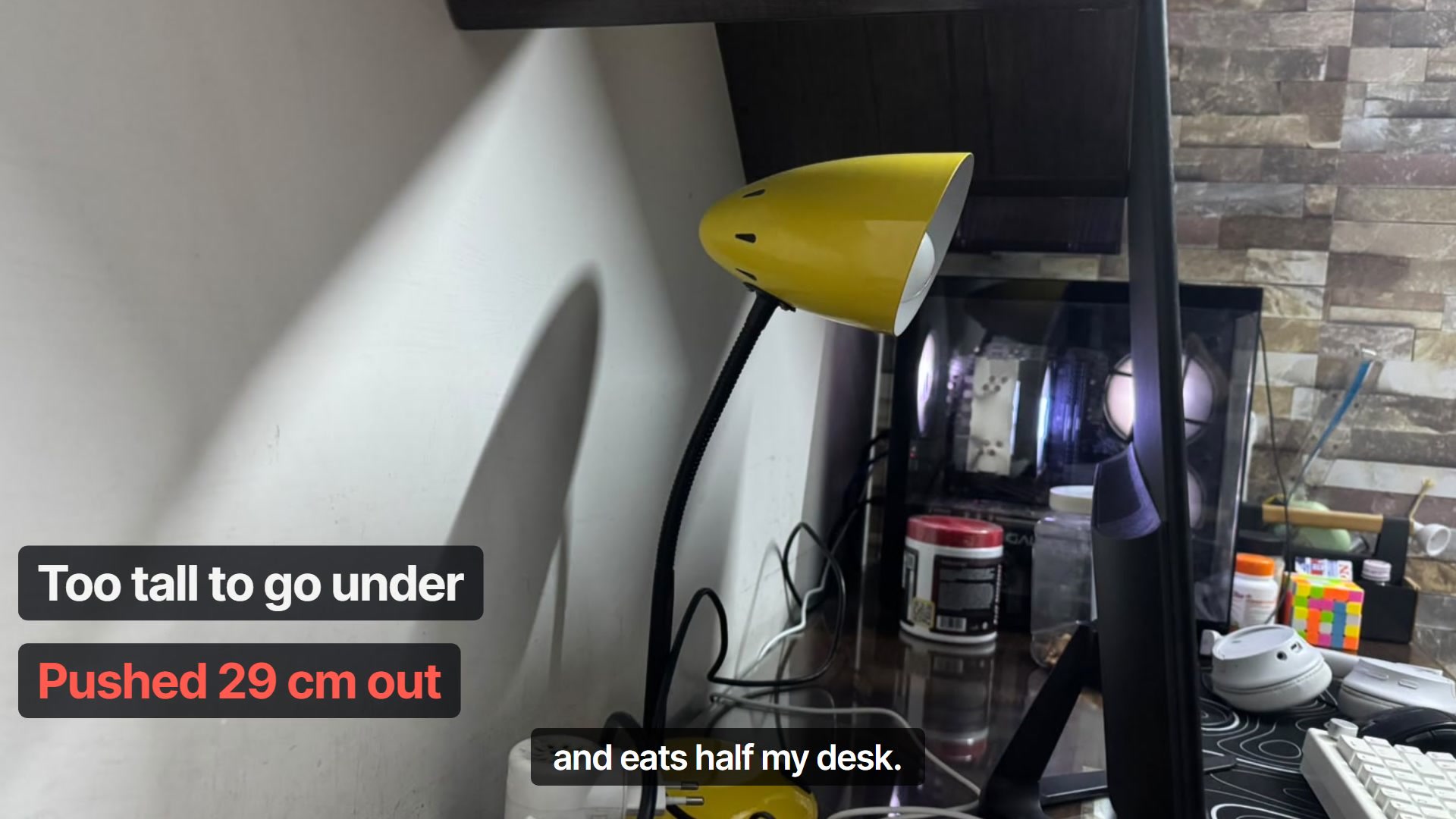
I have a 120 × 61 cm desk with a shelf above it. The gap from the desk to the lowest edge of the shelf is 40.3 cm. My 24 inch monitor doesn't fit under it, so it sits about 29 cm out from the wall and leaves me 32 cm of desk for everything else.
I wanted a 27 inch. A friend's 27 inch fitted under the shelf, because its stand went down. So I compared listings, and found two Dells that both say "27 inch" in the title:
| Stand | Height with stand | Under 40.3 cm? | |
|---|---|---|---|
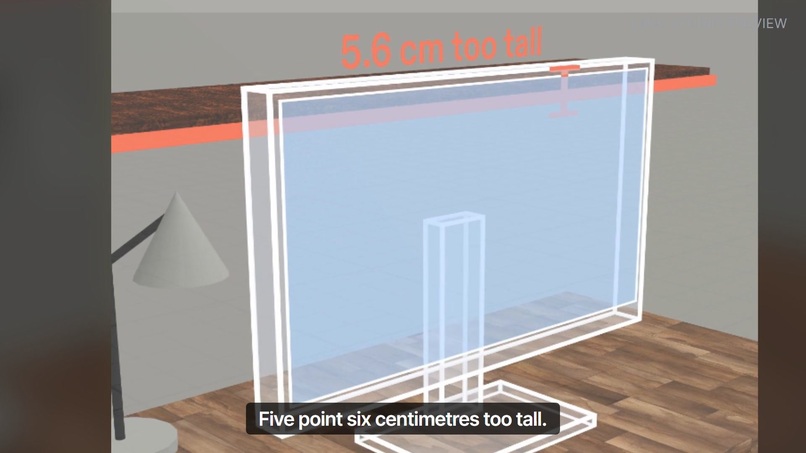
| Dell SE2722H | Fixed (tilt only) | 45.9 cm | No, 5.6 cm too tall |
| Dell P2722H | Height adjustable | 38.4 to 53.4 cm | Yes, 1.9 cm to spare |
The screen size is the headline, but the stand decides whether it fits. The listing doesn't show you that, and a phone photo of your desk doesn't either. If you pick wrong, you find out at home, holding the box.
Room-planning AR apps answer "does it fit on the floor?". Fit Check answers a different question: does it fit under the shelf? That depends on the stand at its current height, not the screen size or the footprint, so the Lens models each stand and computes the gap live.
What it does
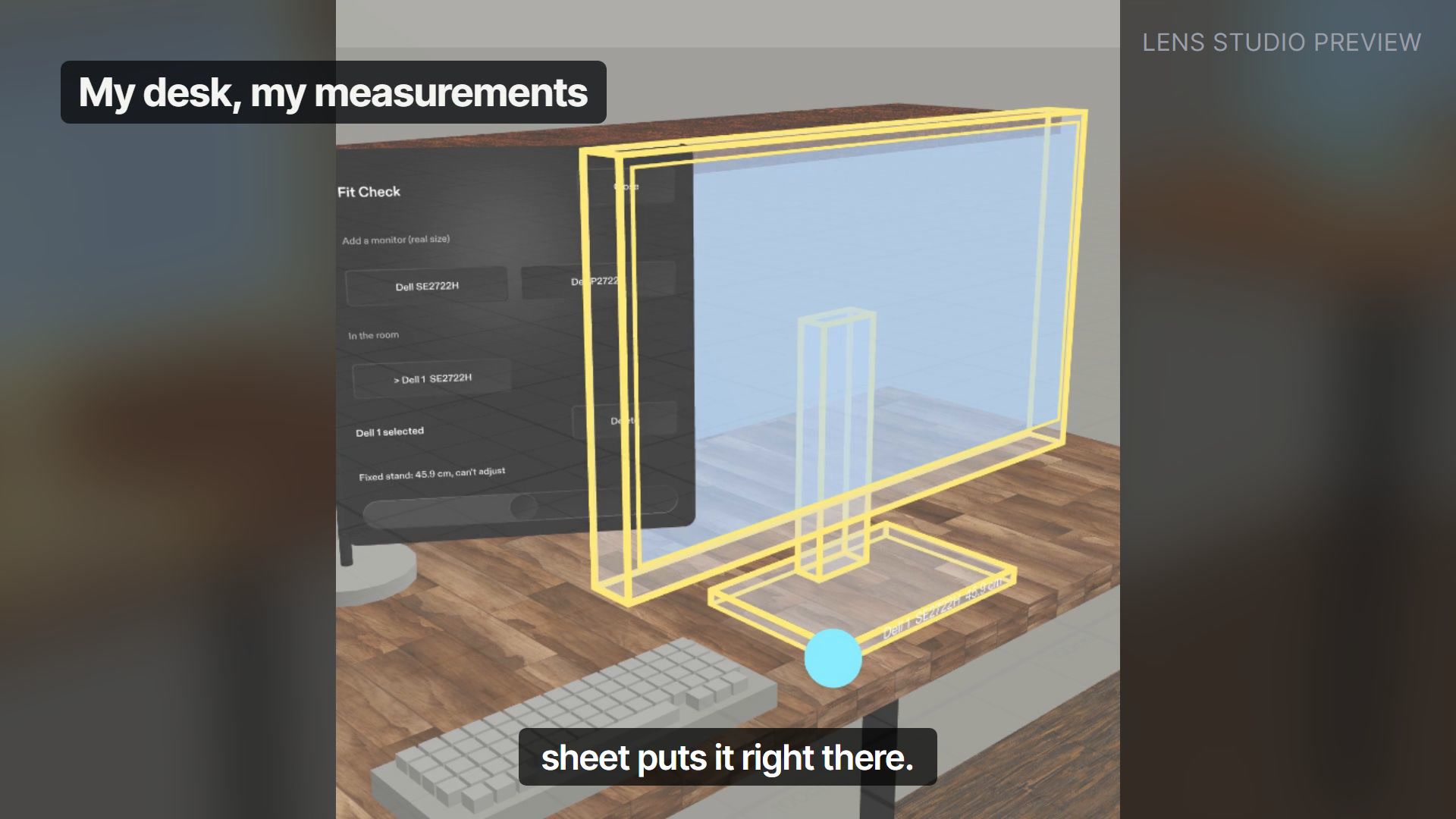
Fit Check is a Lens for Snap's SPECS glasses. It puts a monitor at its real size on your desk, built from the seller's spec sheet, and lets you try to push it where you want it.
- Open the menu. Pinch the small orb on the corner of the desk.
- Add a monitor. Pick the Dell SE2722H or the Dell P2722H. A bright ghost of it appears on the desk at real size, named Dell 1, Dell 2 and so on.
- Push it under the shelf. Grab it and slide it toward the wall. The SE2722H stops at the shelf edge, which glows red with "5.6 cm too tall".
- Change the stand. Select the P2722H and drag its height slider down to 38.4 cm (the slider is greyed out for the fixed stand). Slide it back and it goes under, with a green "1.9 cm to spare".
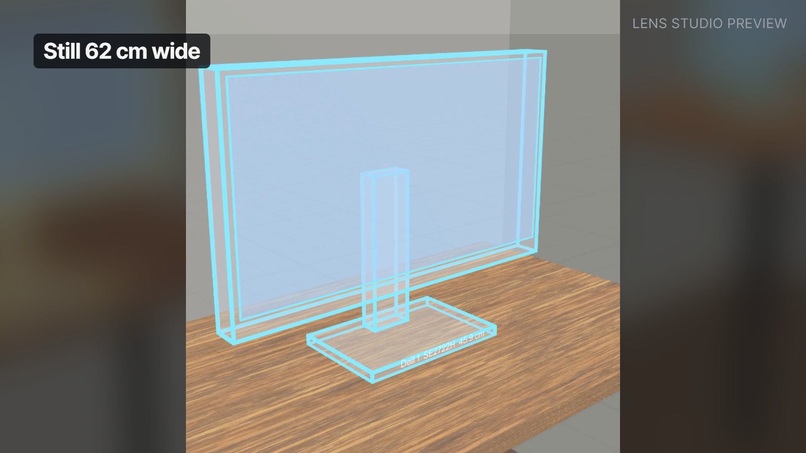
- It behaves like a real object. Drag it off the desk and it falls to the floor and lands upright. Put it on a table 2.5 m away and it looks small. Walk up to it and it's still 62 cm wide.
- Delete removes the selected monitor. Close hides the menu.
The numbers in the cue are calculated, not typed in: the monitor's height at its current stand setting minus the 40.3 cm gap.
Who it's for: anyone buying something big online. A family choosing a sofa, someone checking whether a fridge fits the kitchen gap, a student setting up a hostel room, or me with my shelf. Sellers already publish dimensions. Fit Check turns them into something you can see in your own space.
Why it needs glasses
A spec sheet is a list of numbers, and a phone shows a flat picture. The question here is spatial: will this object go under that shelf on my desk? On glasses, the monitor sits in the room at its true size, and you push it with your hand into the space it has to fit. Your hands stay free and your eyes stay on the desk.
How I built it
- Planned with Devpost's skill pack. I ran the plan-lens interview and answered it myself: the one moment (will it fit under my shelf), where everything sits, how each control works, when cues show, and five done criteria. The approved brief is in the repo at
proj/devpost/design-brief.md. - Built with Snap's CLAD in Claude Code, with Lens Studio 5.24.1 open and connected through the Lens Studio MCP. CLAD wrote 10 TypeScript components (about 1,800 lines): the room model, the monitor ghosts, the fit cue, the menu orb and menu, and a config file with the two Dell spec sheets.
- Spectacles Interaction Kit and UI Kit for grabbing, pinching, the buttons and the height slider, so everything works with the mouse in the preview and with LEAF.
- LEAF tests, one per done criterion: move on the desk, drop to the floor, real size at the far table, the shelf fit (red, then green), the menu (add, delete, close), plus a reach check that every control is within arm's length. 6 of 6 pass in the preview.
- Through the MCP, the agent moved the preview camera, took panel screenshots to check its own work, and ran the LEAF scenarios. I reviewed the screenshots and sent design notes back ("close the room", "make the screens light blue").
- The video was cut in Remotion. The Lens shots are real recordings of the Lens Studio preview. The voice is text-to-speech (edge-tts), and the sound effects were made with ffmpeg.
Design decisions
- One moment, done well. The brief was cut down to a single question you'd actually ask before buying. Room scanning, live retailer search and other furniture are out of scope.
- Bright ghosts, not dark models. The SPECS display is additive, so black shows up as transparent. The monitors are light blue see-through panes with bright outlines.
- The cue lives where the problem is. "5.6 cm too tall" sits on the shelf edge, exactly where the monitor is blocked, not in a panel off to the side.
- The menu stays out of the way. It's hidden behind an orb on the corner of the desk and opens beside the desk so it doesn't cover the shelf.
- A stand-in you can tell is a stand-in. On glasses the Lens would measure your room. In the preview, my desk, shelf, wall and a second table are built from my tape measure, and the realistic room only appears in the preview.
Challenges I ran into
- The preview has no real room. I measured my desk (120 × 61 cm, a 40.3 cm gap, a shelf 28 cm deep) and had the room built to those numbers, so the result in the preview matches what would happen at my real desk.
- My shelf is zigzag. The brief simplifies it to a straight shelf at the lowest edge height, which is the height that matters.
- Monitor depth isn't on the spec sheets. Fit Check uses 17 cm as a stated default.
- My PC. Lens Studio grew to 15 GB of memory in a long session and filled my C: drive through the page file. I restarted it, turned off hibernation and moved the video work to another drive.
- First screenshots were cluttered: orange wireframes, labels overlapping, a room open to the void. Design notes, one screenshot at a time, fixed that.
Accomplishments I'm proud of
- It answers a real question with my real numbers: 5.6 cm too tall, 1.9 cm to spare.
- All five done criteria from the brief have a LEAF test, and 6 of 6 tests pass.
- I designed it myself. The interview made me decide what the Lens does, where things go and when cues show, before any code was written.
What I learned
- Designing for glasses starts with where your eyes and hands are. Every placement in the brief (the orb at the desk corner, the menu beside the desk, the cue on the shelf edge) came from asking "where am I looking right now?"
- An additive display changes the colour palette: dark UI disappears, so everything has to be light and outlined.
- Writing done criteria as things you can check in the preview made the agent's work testable: each one became a LEAF scenario I could re-run after every change.
- What I can't know yet: whether real-size placement feels trustworthy enough to buy on. Only real glasses can answer that.
What it can't do yet
- It hasn't run on real glasses. Everything here is the Lens Studio preview; whether real-size placement feels trustworthy enough to buy on is still untested.
- The room is typed in. My desk, shelf and walls come from my tape measure, not from a scan.
- Two monitors. The Dell SE2722H and P2722H spec sheets live in a config file; other products need their numbers added by hand.
- Depth is a default. Spec sheets don't list monitor depth, so it uses 17 cm.
- A straight shelf. My zigzag shelf is simplified to its lowest edge, 40.3 cm above the desk.
What's next
- Measure the real room with the glasses instead of typing it in.
- Read dimensions straight from retailer listings, for any product with a size: sofas, fridges, beds, wardrobes.
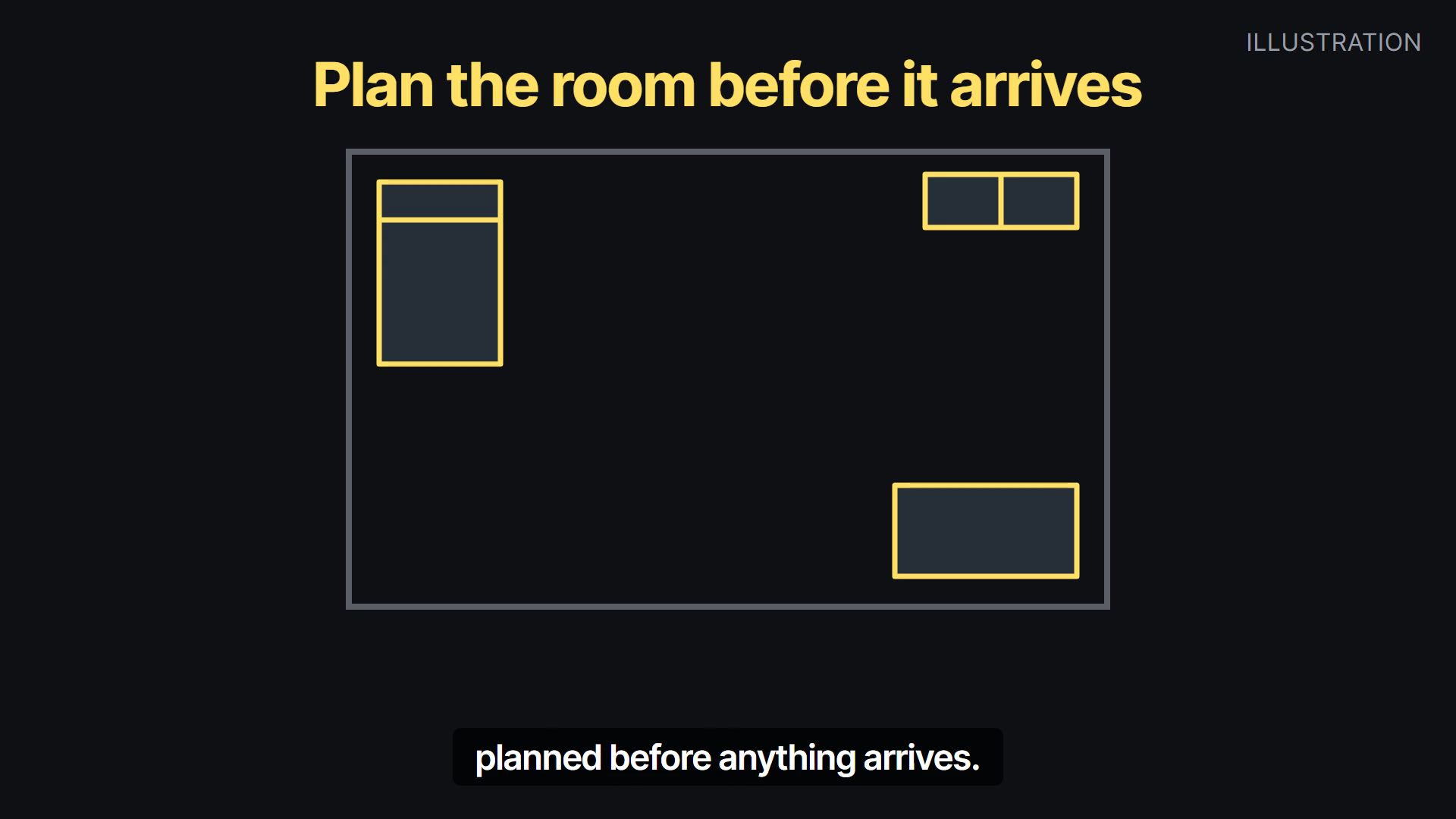
- Let you plan a whole room before anything arrives.
Built With
- clad
- claude-code
- edge-tts
- ffmpeg
- leaf
- lens-studio
- lens-studio-mcp
- remotion
- snap-specs
- spectacles
- spectacles-interaction-kit
- spectacles-ui-kit
- typescript

Log in or sign up for Devpost to join the conversation.