-
-
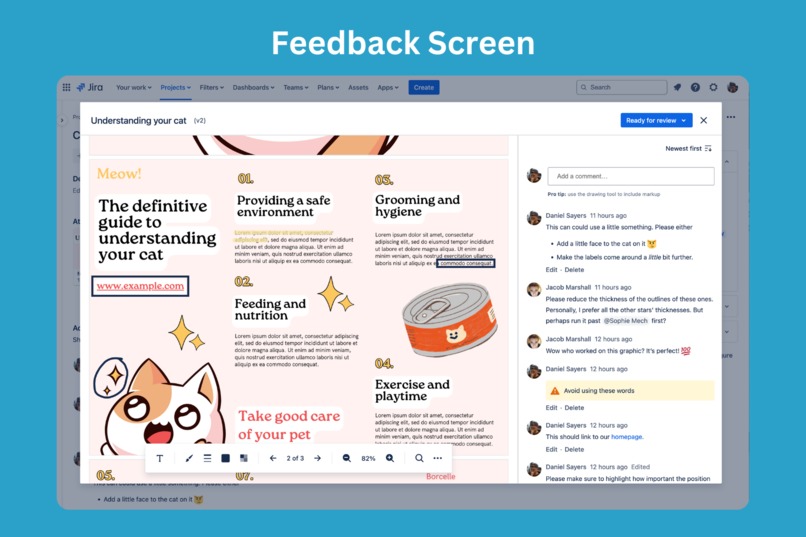
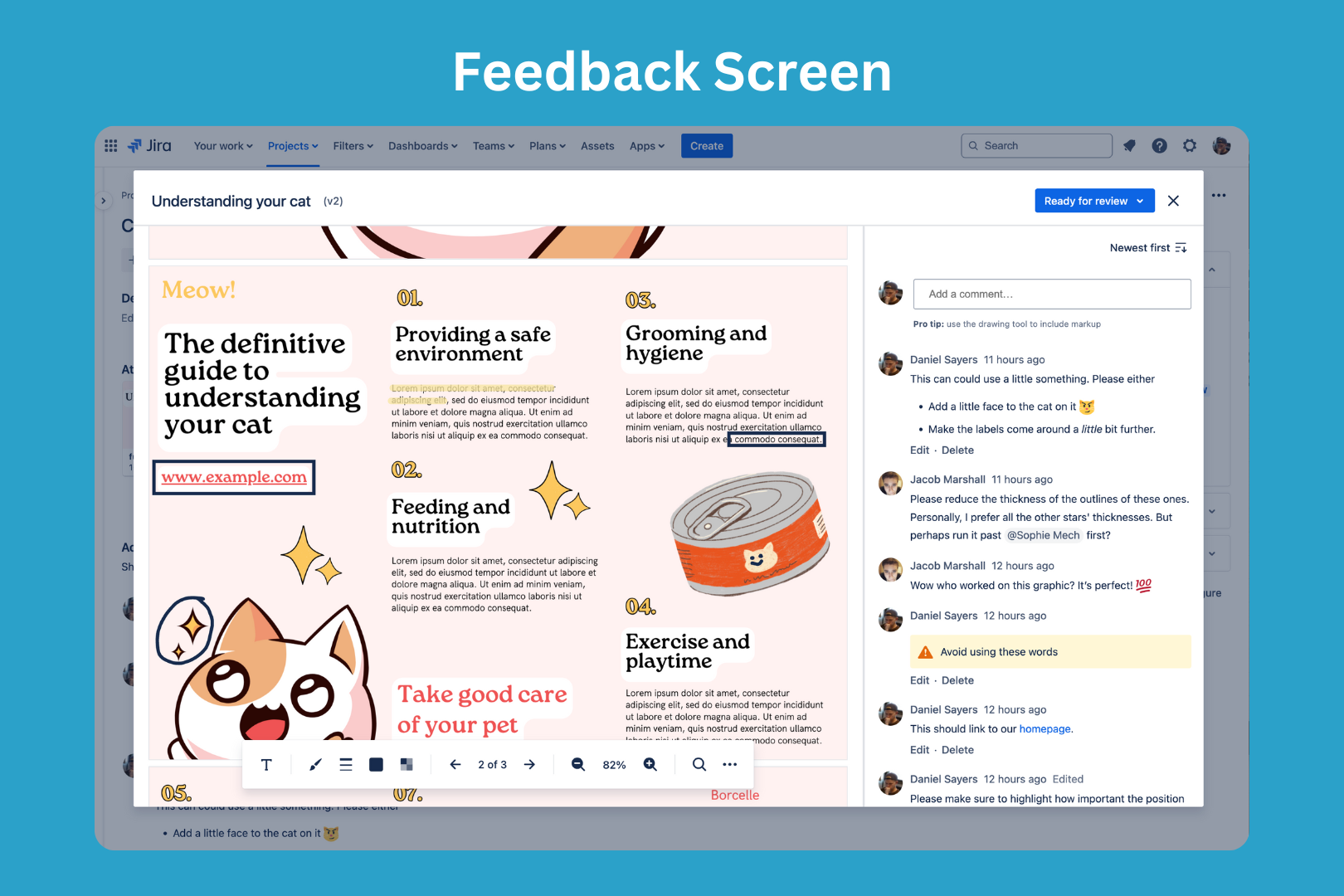
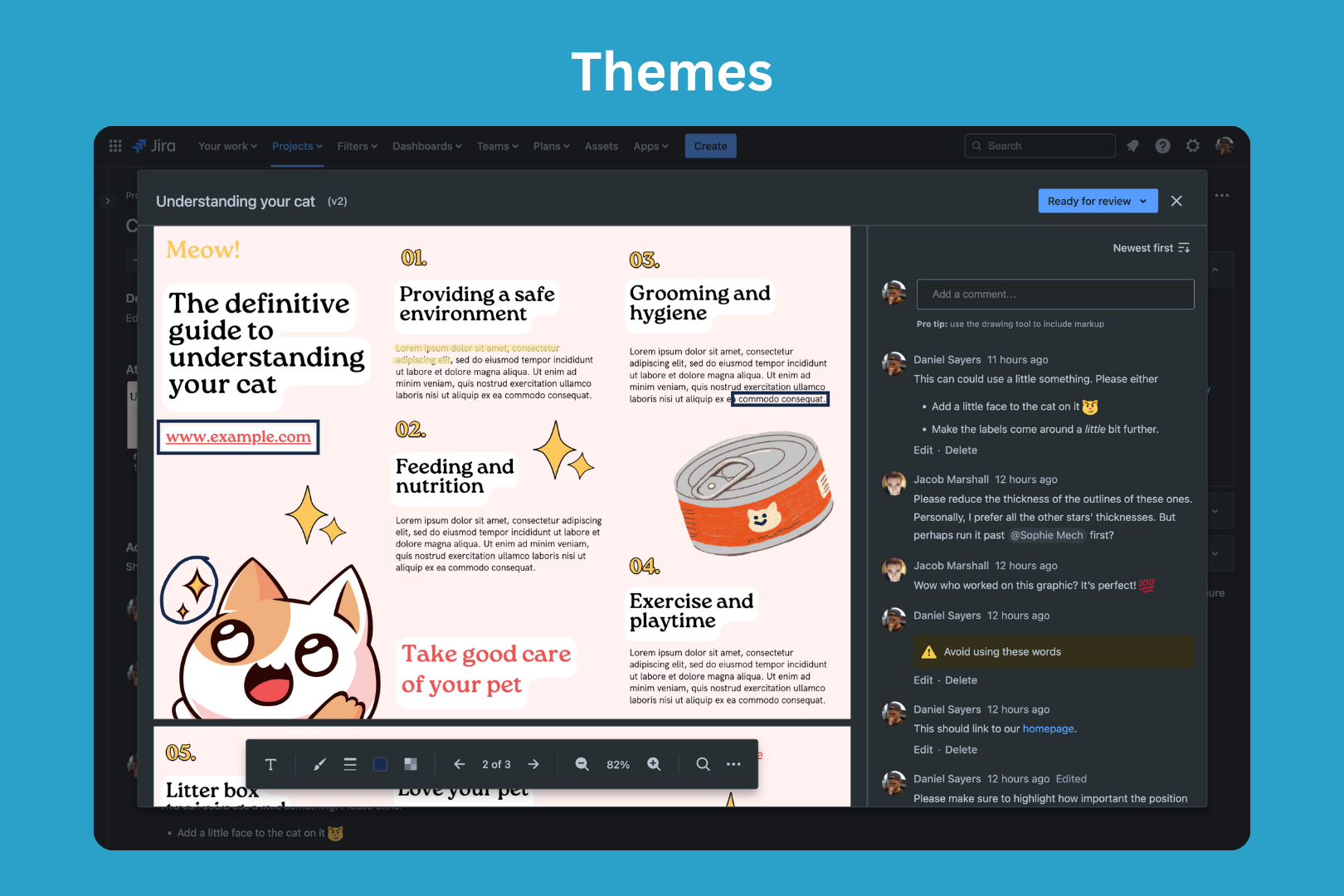
The feedback screen is a single place where users can add markup and comments on a file, set its status, and make use of advanced tools.
-
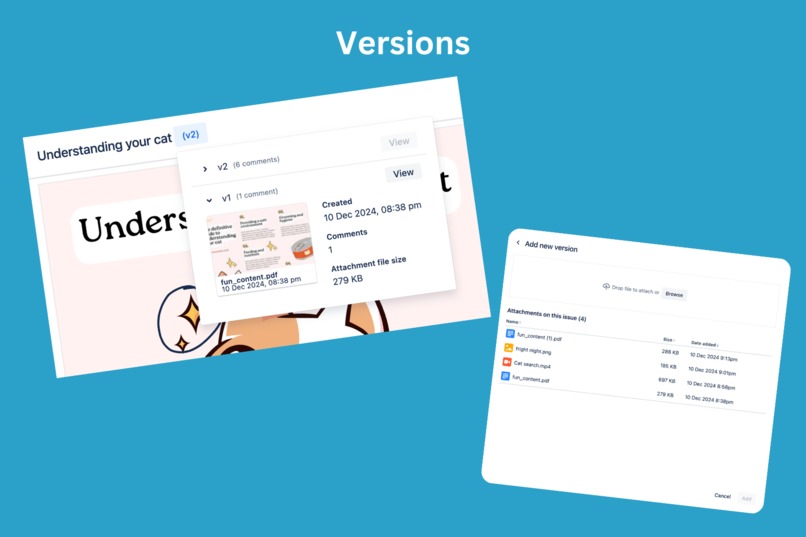
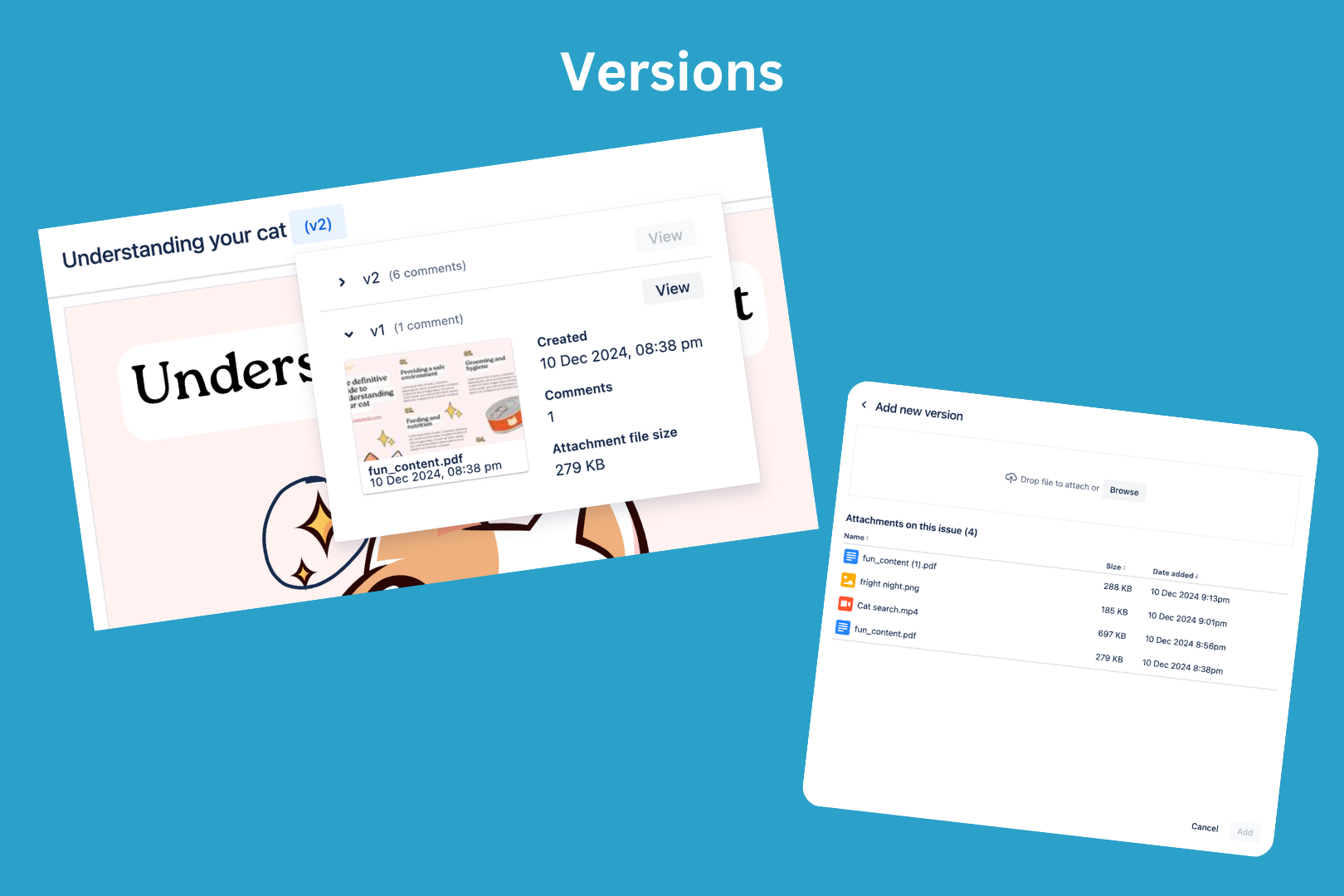
Versions are simple to add, allowing teams to easily track the progress of files throughout their creation.
-
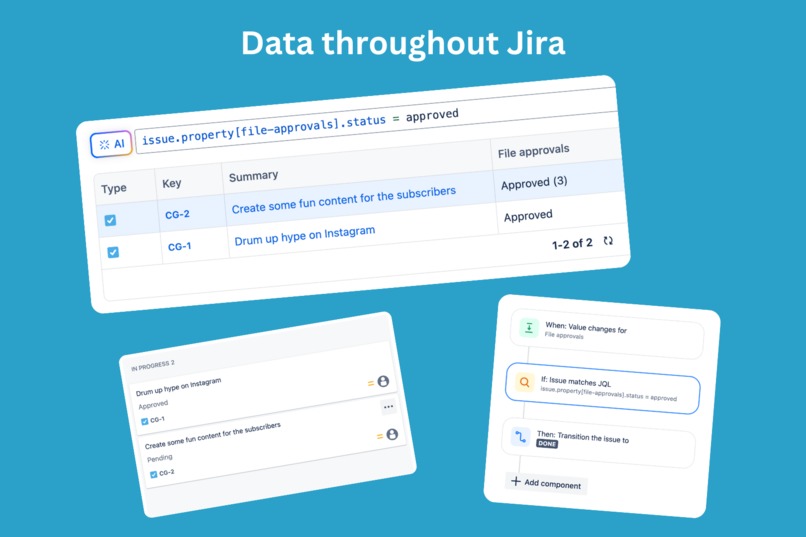
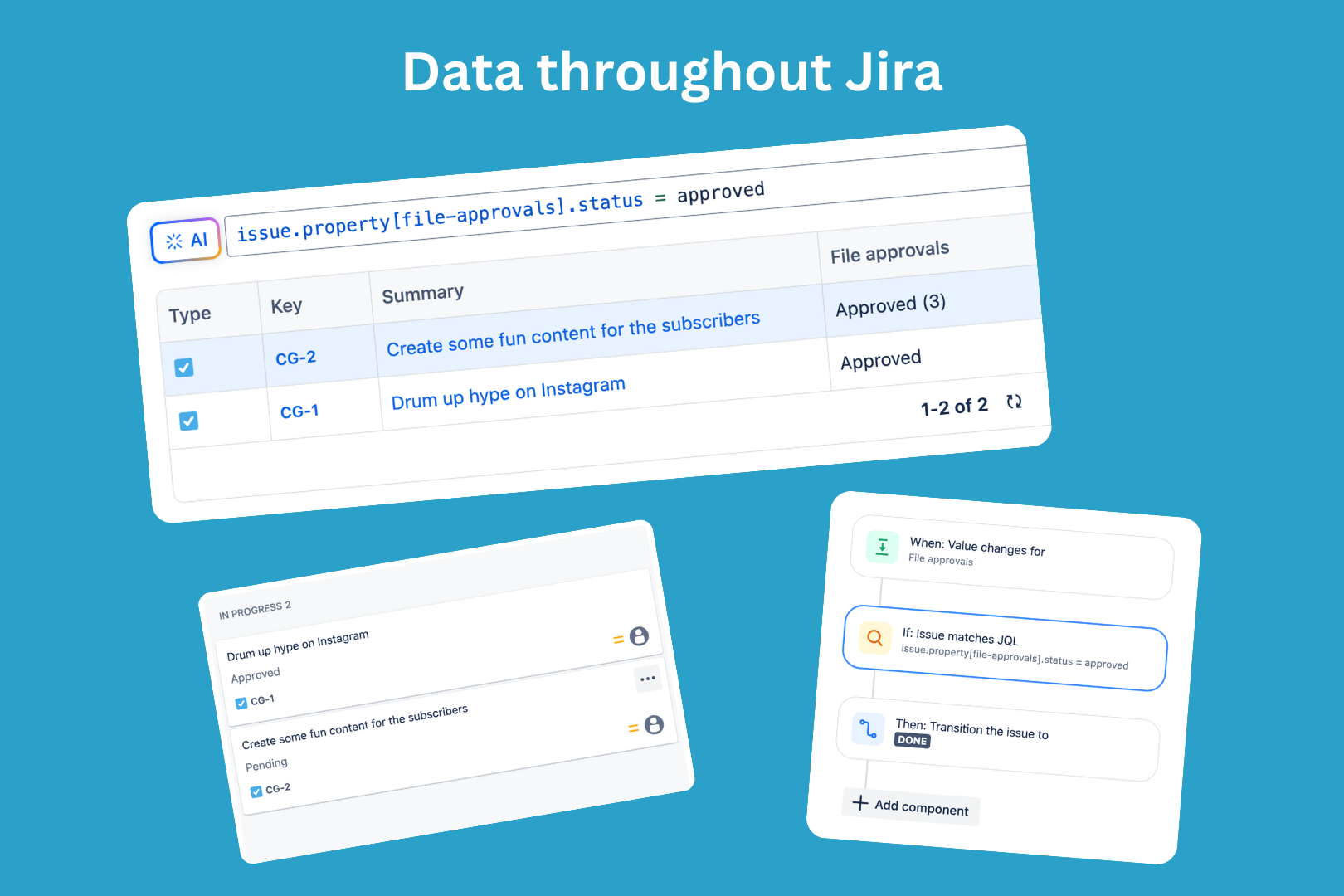
File approval data appears throughout Jira, making it easy to take advantage of all of Jira's other functionality.
-
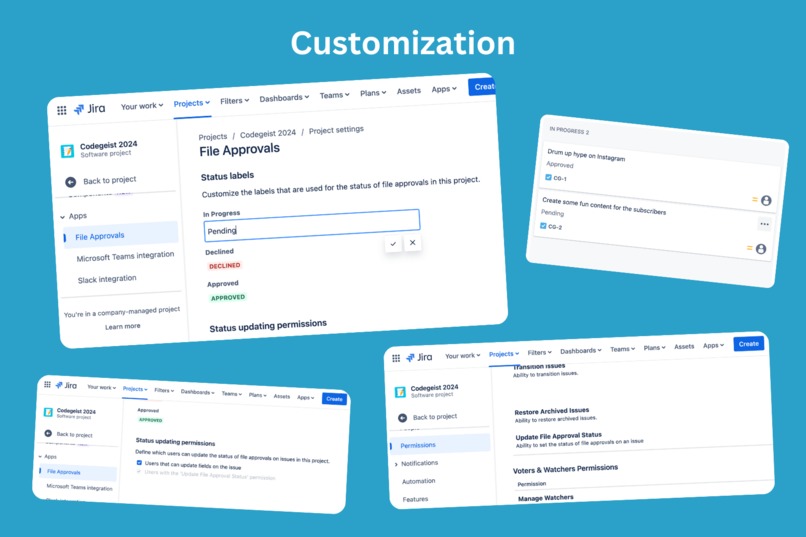
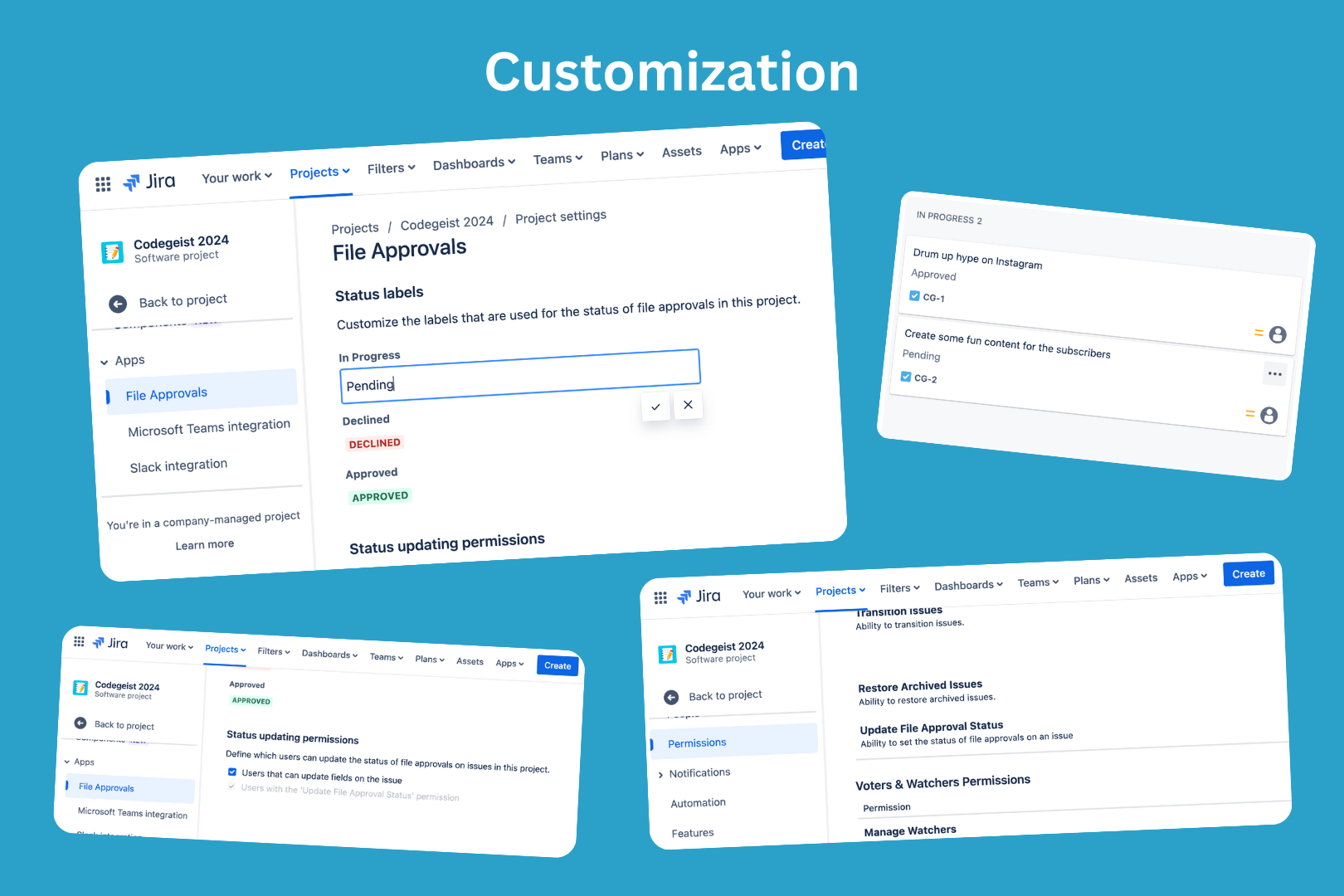
Teams can make File Approvals work the way they do, making it so they don't have to change they way they work.
-
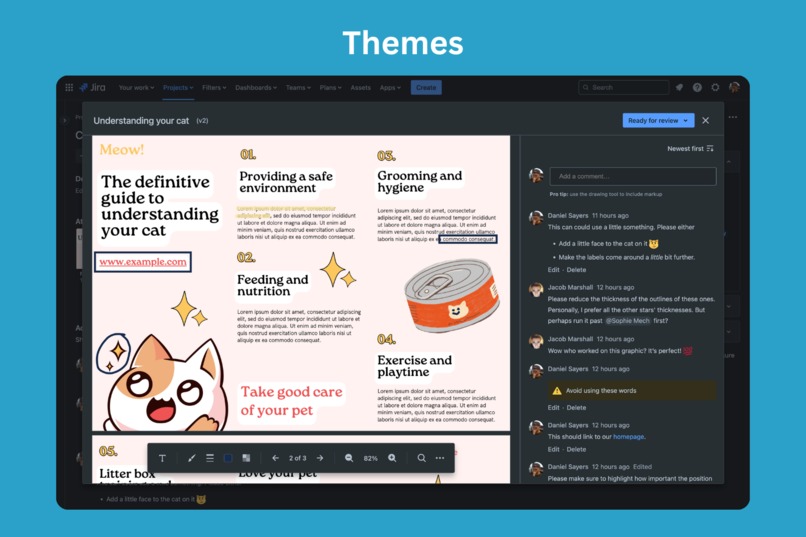
All screens look like they're built in to Jira. Everything from layout, to theming and colors feels familiar.
Inspiration
We’ve both always thought of clear communication as being one of the most, if not the most, important aspects of working as a team. Although all the text formatting tools built-in to Jira are great, there’s nothing quite like being able to point at something on your teammate’s screen and say “this part right here”.
When we searched the marketplace, all of the file-based apps that we found were based around managing attachments, rather than providing feedback on them or improving communication.
Our goal with File Approvals for Jira is to get as close to the 'pointing at the screen' experience as possible by allowing users to markup files directly. We even went one step further, by making it so that everyone can see exactly where files for an issue are up to, from the first version right through to the final approved version.
What it does
File Approvals gives Jira users the power to leave feedback on files, allowing knowledge to flow across their team. Comments take advantage of Jira’s built-in commenting system, while adding additional context, such as markup. File approval statuses let teams keep track of where files are up to, and integrate deeply throughout Jira, allowing for advanced customization, searching, and everything that Jira users are used to.
File approvals
Users can create file approvals on their issues by selecting an existing attachment or by uploading a new attachment. File approvals each have their own status, allowing users to track files using Jira’s built-in search, reports, and other tools.
Comments
Comments in File Approvals are powered using Jira’s built-in commenting system, but add important context such as markup and which page the comment is referring to.
Because commenting is built on top of Jira comments, comments are also visible from the issue’s comment section and everywhere else that comments are available in Jira. Most core features of the comment editor are supported. Users can add emojis, insert code blocks, add labels, and even mention other users, sending them a notification.
Comments also follow the same permissions as built-in comments, meaning that admins don’t have to maintain an extra set of permissions beyond the built-in ones.
Markup
Users can add markup to their comments. They have the ability to customize everything about how it displays, like the line weight, color, and opacity. File Approvals also automatically detects whether you intended to draw a line or a box and gives you a 1-click option to clean it up, perfect for unsteady hands or for people in a rush.
Clicking on markup scrolls the comment it’s associated with into view in the comment section (if it’s out of view). It also fades all other markup into the background to help the user focus on what’s important in that moment.
Markup can also be navigated through sequentially by clicking the drawing icon next to the comment’s date. This button comes in super helpful when markup spans across multiple pages, as clicking the ‘previous’ and ‘next’ buttons will scroll the page that the markup was left on into view.
PDF support
When viewing PDF files in the feedback screen, users have the power to fly through the document with ease.
- There are simple page navigation options, including the ability to jump straight to a page by number.
- The search tool can be used to search through the document, highlighting all references and making it easier for users to find what they're looking for.
- A text tool is available for selecting text within the document so users can quickly and easily reference text by copying and pasting it into their comments.
- Clicking internal links (like ones that are typically found in a table of contents) takes the user to the exact place they reference. External links integrate with the safety tools of Jira and can be clicked to open in a new tab.
- If a document contains a cover page, users can opt to lay out the pages differently (using spreads) so pages appear next to each other in the same way they would if they were printed.
- Users have even more control over the page layout, with options to lay the pages out vertically (the default), horizontally, wrapped, or just a single page at a time.
More tools
- A tool to help users zoom the document/file to various levels. There are a set of presets that help speed up this process, like fit (which zooms the file/page so it covers as much of the viewport as possible), actual size (aka 100%), and page width (which pushes the left and right edges of the page to the edges of the viewport).
- While no other tool is selected, clicking and dragging the file’s preview will naturally pan it around. Making it even easier to scroll around, especially horizontally.
Onboarding
While we truly believe that File Approvals will be quick for users to grasp, we’ve included some helpful onboardings to explain the most important features. These onboardings take a matter of seconds for users to read but set them up well.
Management
Users with the correct permissions can add, update, and delete file approvals from a single place. All file approvals on an issue are displayed in a table that contains each file approval’s name, status, version, and number of comments.
File approvals field
The displayed value of the file approvals custom field contains the most important status, taking into consideration all of the file approvals on that issue. This means that wherever users/admins are making use of the field, they will gain useful insight into the file approval’s current status. This includes places like reports/exports, cards, and even emails.
This experience should be very familiar to any user that has used the Development field on an issue to track the progress of pull requests.
Customizing status labels
For some teams, they will want to change the default 3 statuses (ready for review, declined, and approved). Admins have the ability to customize the labels from within the app’s project settings page.
Versions
New versions of a file approval can be added, either by uploading a new attachment or selecting an existing one.
Users can switch between versions super quickly by clicking the version number next to the file approval's name on the feedback screen and clicking the “view” button corresponding to that version.
How we built it
Platform
File Approvals was built entirely on top of the Forge platform. Each feature utilizes Atlassian APIs as much as possible. Because it’s built on top of Forge, customer data stays where it belongs - on Atlassian’s cloud.
Custom field
The first thing a user touches is the file approvals custom field - which has been built entirely using UI Kit. This was a deliberate decision on our end to ensure that the field could load as quickly as possible without needing to load any extra resources. It was also needed for the UI we decided to go with - which is heavily inspired by the native Development field. In fact, many of our design decisions took this into consideration.
Feedback Screen
The feedback screen, however, needed something a little more advanced, so it required us to build it using Custom UI. Using mostly Atlaskit components made it so that everything feels and functions the same way as Jira itself.
Everything else
It’s safe to say that File Approvals is not lacking in features. We worked hard to implement as many features as we feel customers need to boost productivity when providing feedback on files. Everything started with a vision board, full of ideas. As we discussed them in more depth, we knew we had a busy month ahead of us.
Challenges we ran into
- The documentation provided by Atlassian in their design system is among the best we have seen, making it feel like almost any UI we were putting together had guidelines on exactly how it should look and feel. Although this was very helpful in many situations, there were a handful of times where we had to decide between whether we would strictly follow the guidelines or interpret them a bit looser to more closely match Jira UI with similar functionality.
- Jira automatically blocks all pointer events on iframes when dragging files. We spent some time debugging this before realizing it is out of our control. Before releasing the app, we would hope to either work with Atlassian to add support for this in custom UI or we’d remove the functionality of drag and drop completely to avoid user confusion.
- We spent some time trying to figure out why project-level permissions weren’t appearing in team-managed projects even though we had found community posts saying they should. It turned out that Connect apps support project permissions in both team-managed and company-managed projects, but Forge apps only support them in company-managed. To work around this, we still added the permission for company-managed projects to take advantage of but added an extra setting inside of the project settings page that made it so that team-managed projects did not need to rely on the project permission.
- Some comment functionality was not available via the API in any way, such as comment reactions.
Accomplishments that we're proud of
- The comment experience that we have created is near feature parity with Jira’s built-in comment functionality. This involved a lot of custom code on top of Atlassian's provided components, which was challenging due to the editor components lacking lots of documentation.
- The entire app blends in with Jira and doesn’t feel like a separate third-party app. We’ve always seen Jira as a tool that you can use a million different ways, so being able to be a part of that customizability is definitely a great feeling.
What we learned
- The Forge platform has come a long way since we last checked it out. We had no idea the power of the APIs that Atlassian exposes to Forge. We thought that to build something on Forge, our only option was to use UI Kit - which we think is amazing, but wouldn’t be enough for our app idea. It appears that the Atlassian team is doing their absolute best to keep on extending the platform, to ensure more and more developers can feel comfortable with executing their ideas.
- Don’t re-invent the wheel. When we first came up with the idea of working on File Approvals, we read up on as much documentation around storage as we could, to try and pick the best option for us to use for storing comments. When it occurred to us that Jira already has amazing comment functionality... why not use them? This meant that we didn’t have to deal with typical storage quotas and rate limits - which we were originally concerned would prevent us from building what we wanted to. And after discovering we could also attach properties to comments - we knew it was the right choice.
What's next for File Approvals for Jira
- Go-to-market: Although we managed to work around many of the challenges we faced during the hackathon, there are a few that we were not completely happy with the workaround for, i.e. file drag-and-drop. Before launching File Approvals for Jira, we hope to have an opportunity to discuss if fixes are on a roadmap in the near future, or if it would be better to make changes ourselves before launching.
- Functionality: We focused on just a few file types for the hackathon. We chose PDF and images because we know that these are very common files and receive the most benefit from being able to add markup. We hope to add support for more file types going forward.
Built With
- atlaskit
- forge
- pdf.js
- typescript


Log in or sign up for Devpost to join the conversation.