-
-
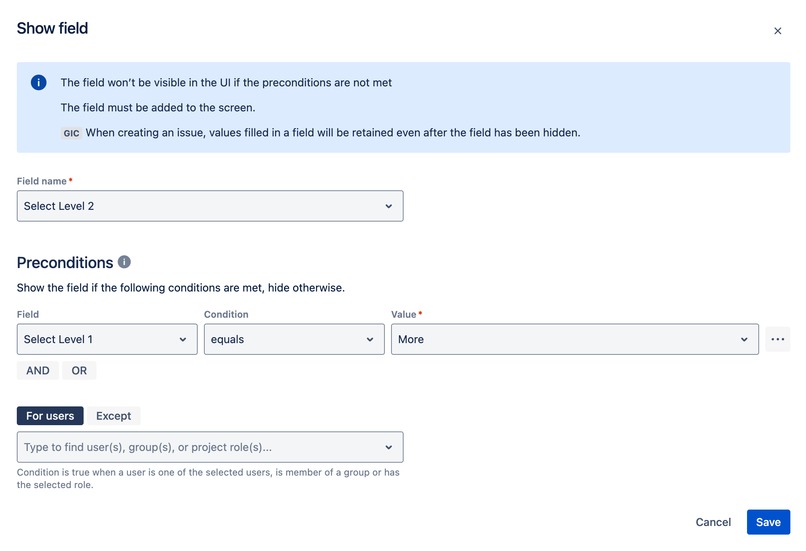
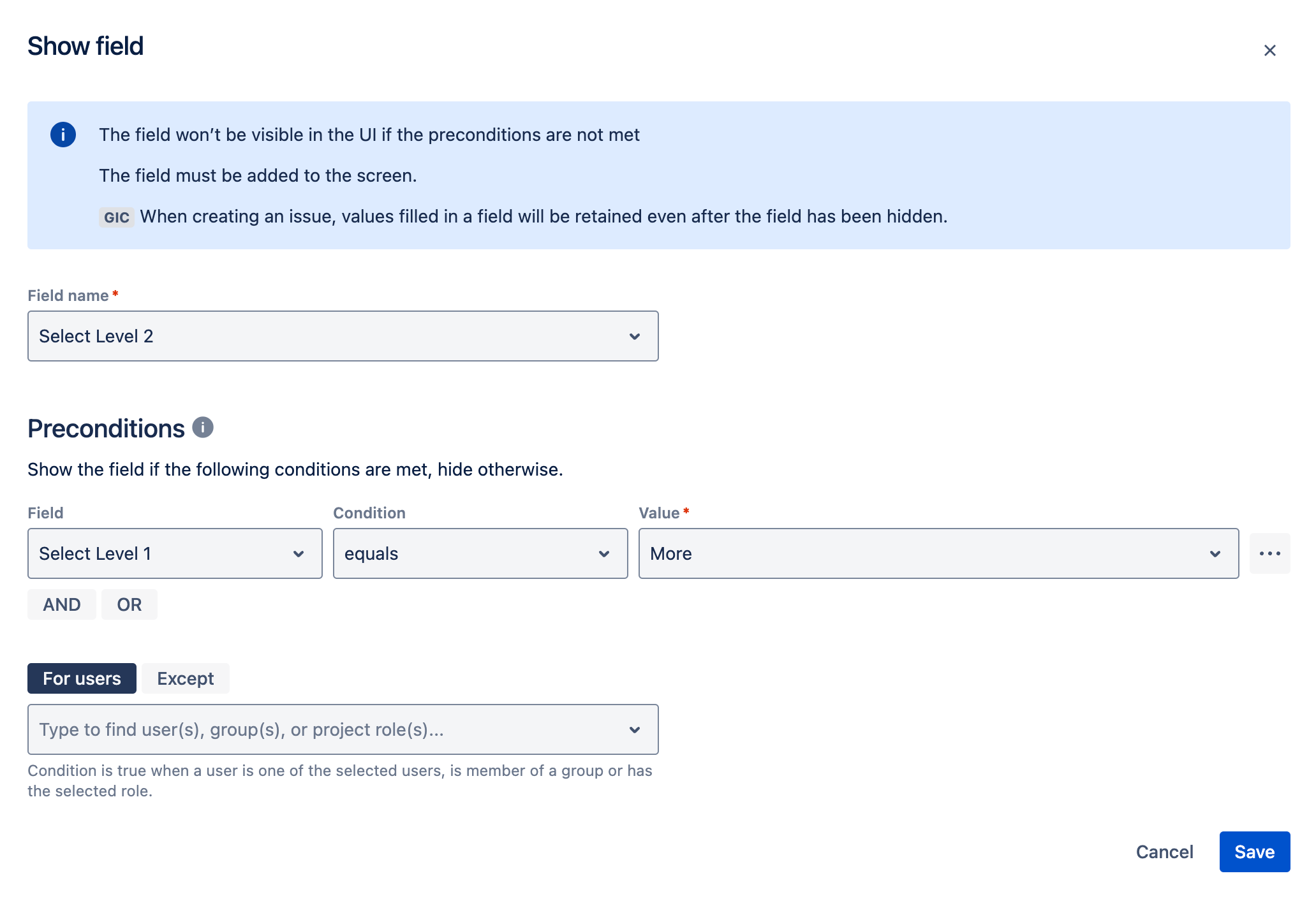
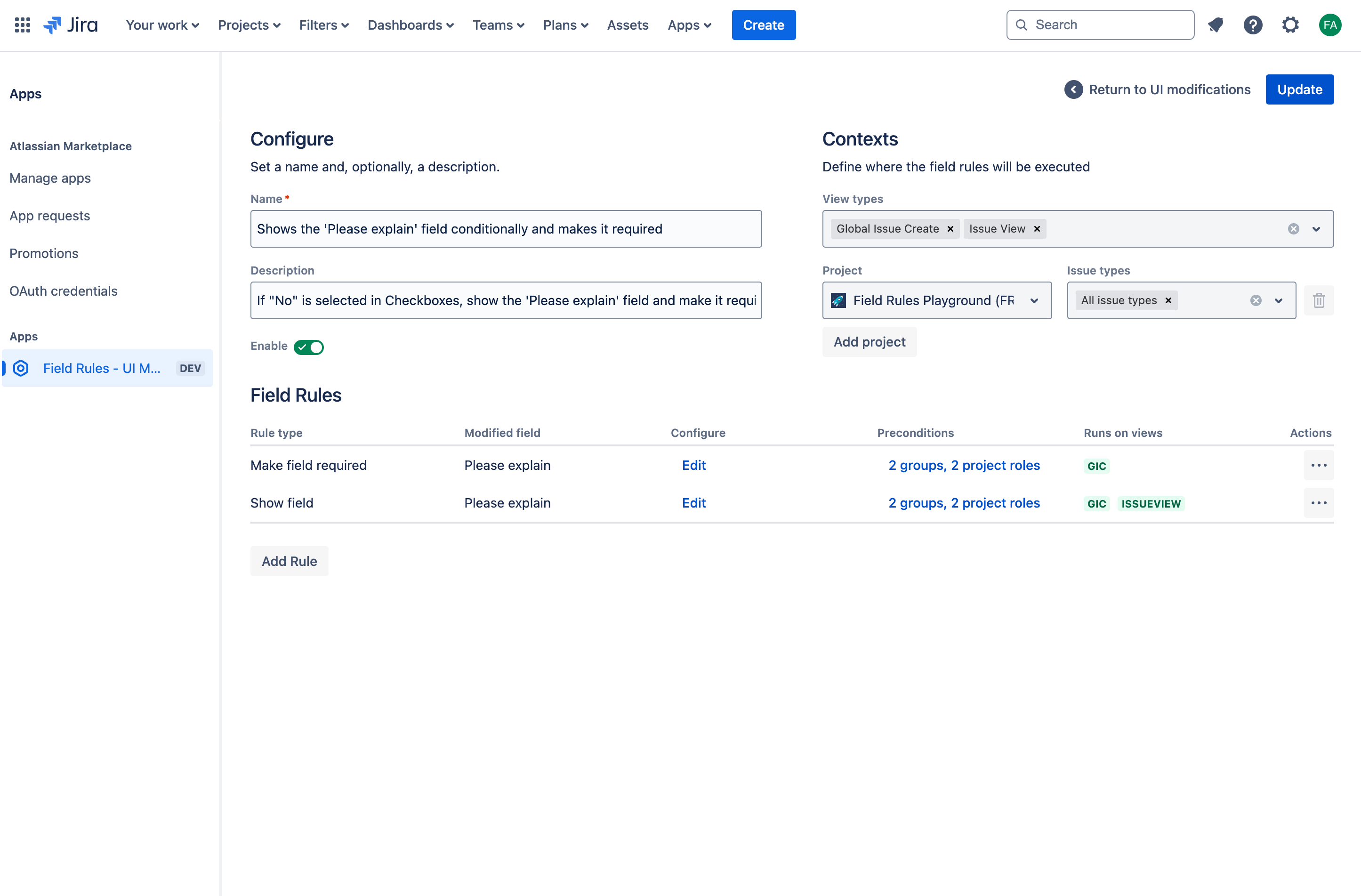
Show field rule example - multilevel selection
-
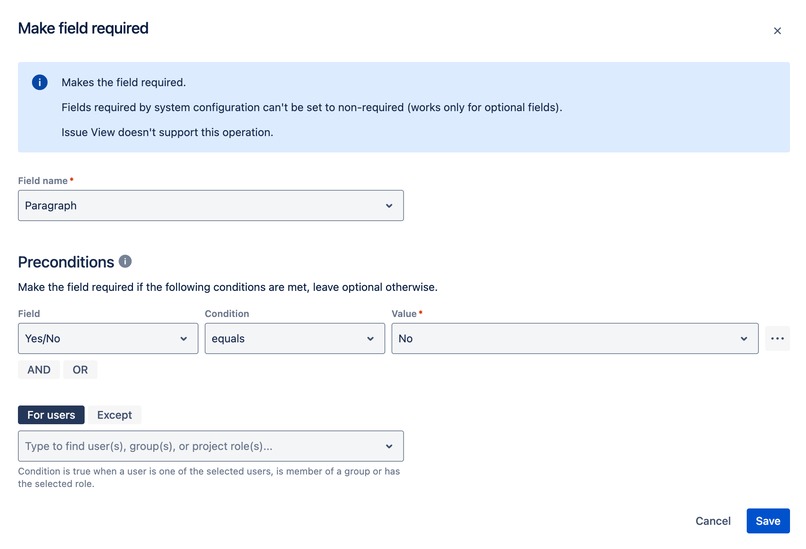
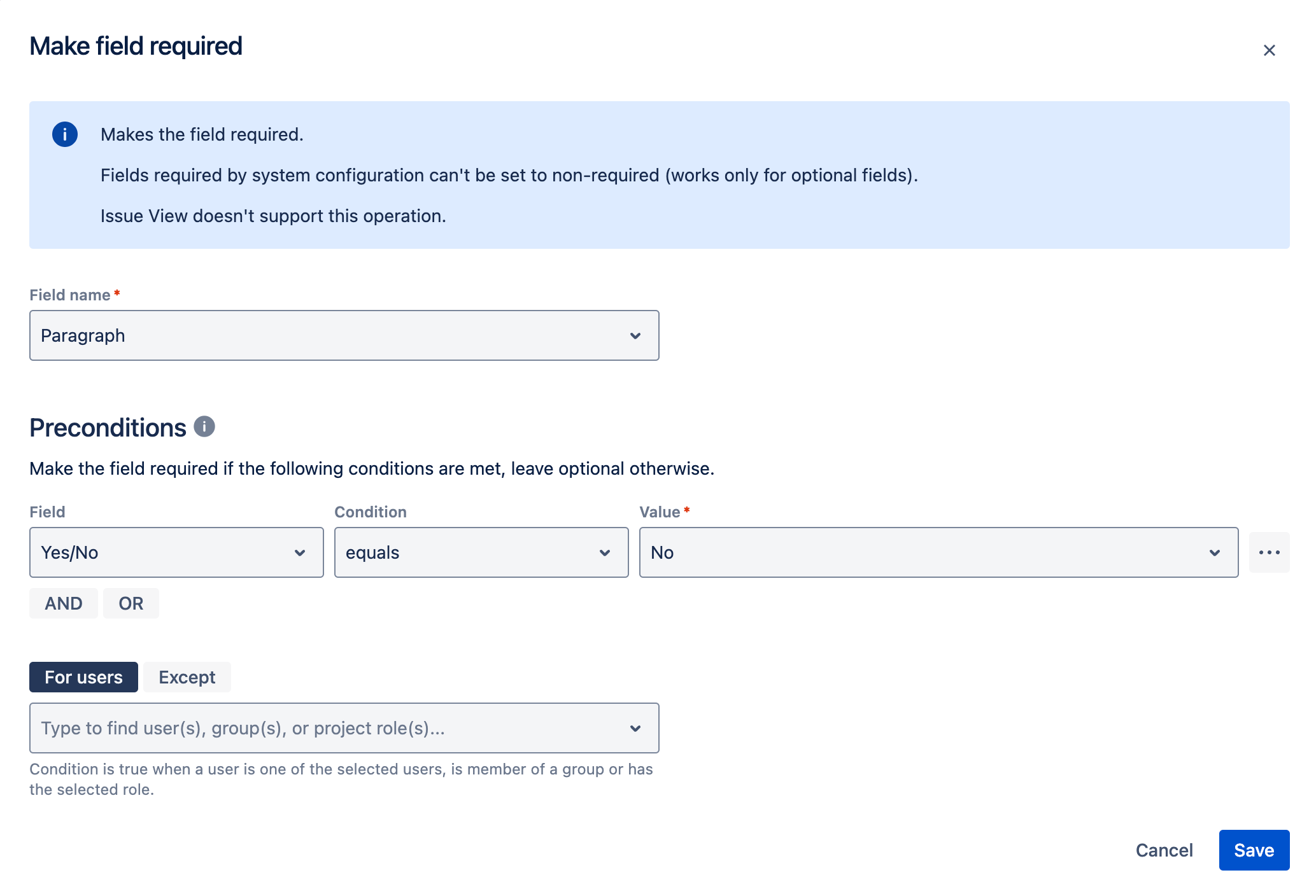
Require the user to fill in additional information in the Paragraph field when 'No' is selected in a radio button
-
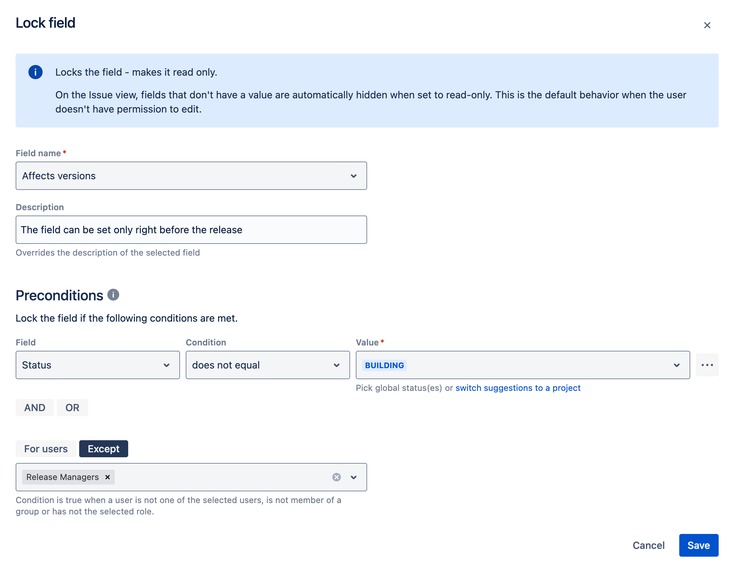
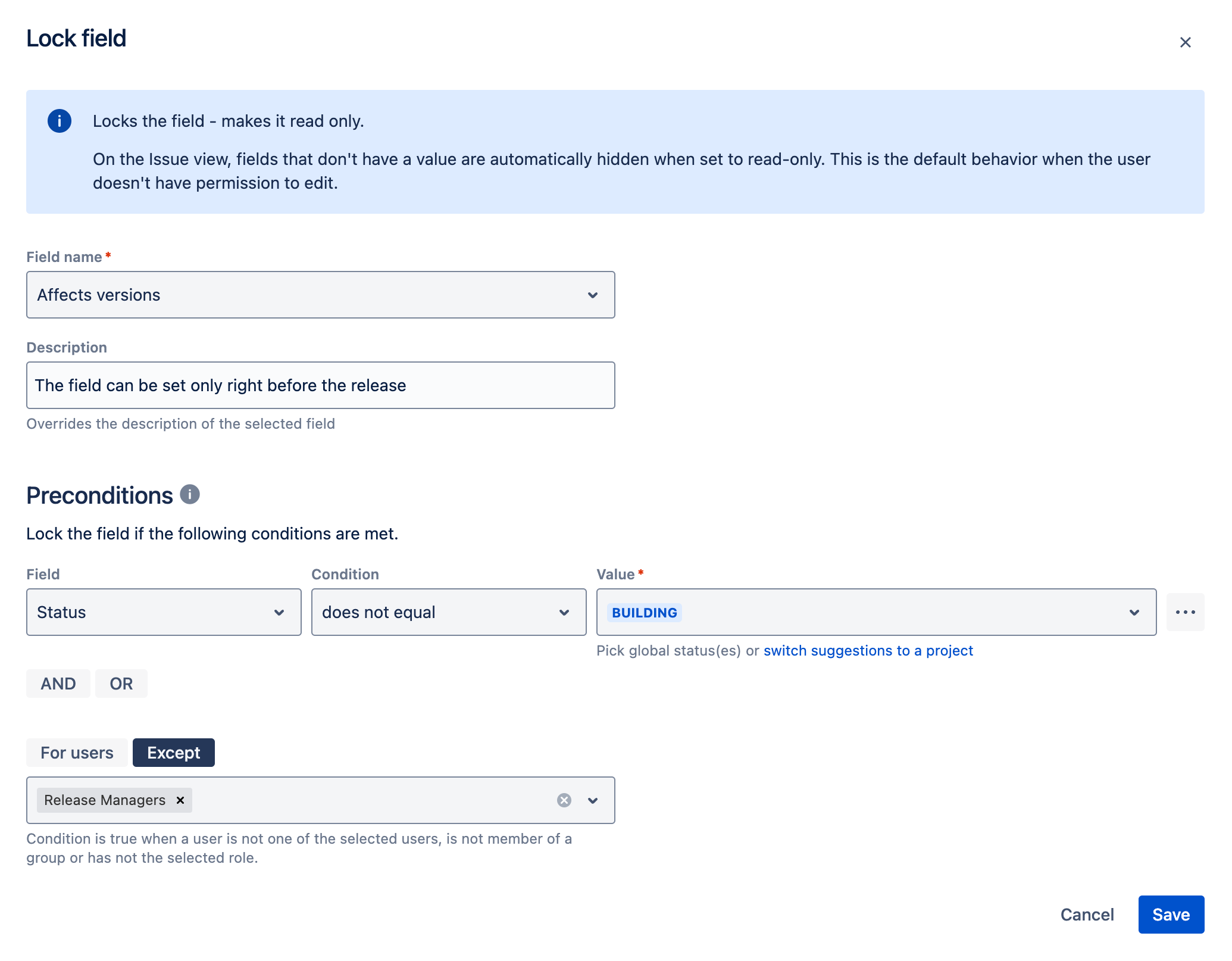
Allow editing of the Affects Versions field only in the Building status, with an exception for Release Managers.
-
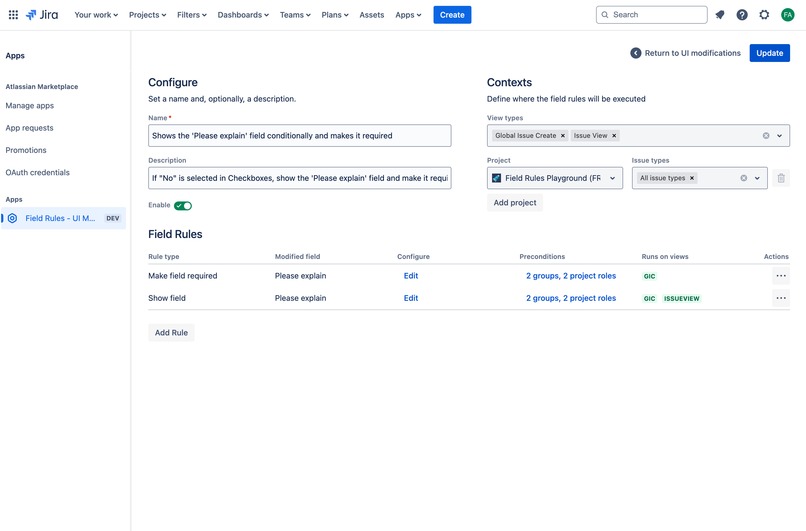
Combine different Rules in one UI modification to create more complex scenarios
-
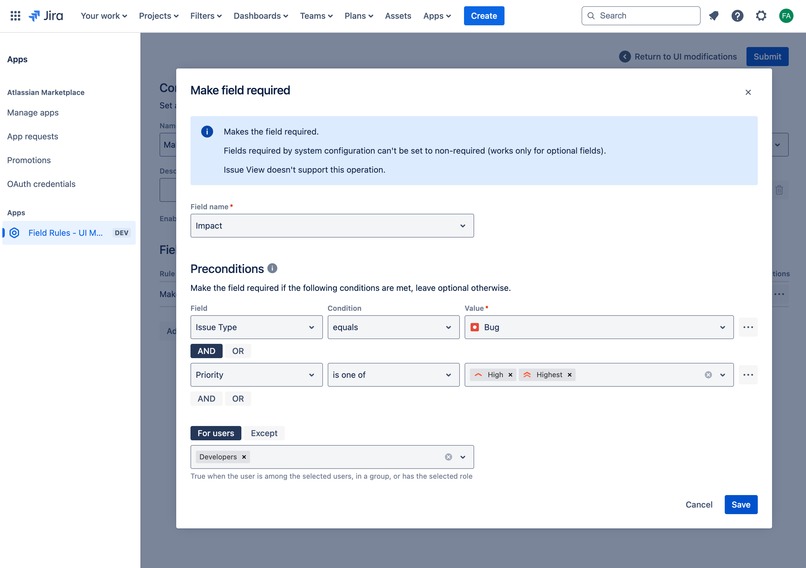
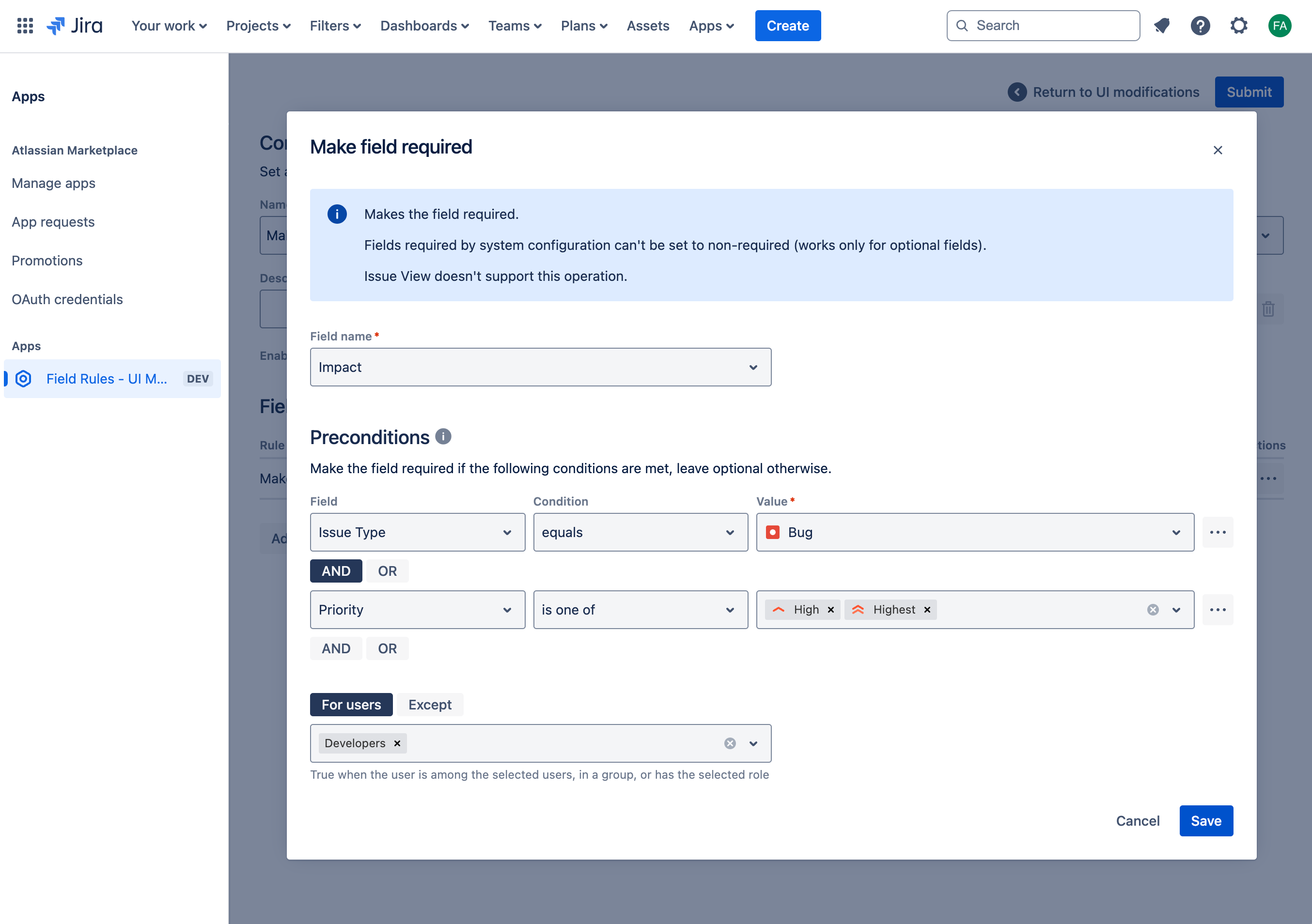
Make a field required based on issue type or priority
-
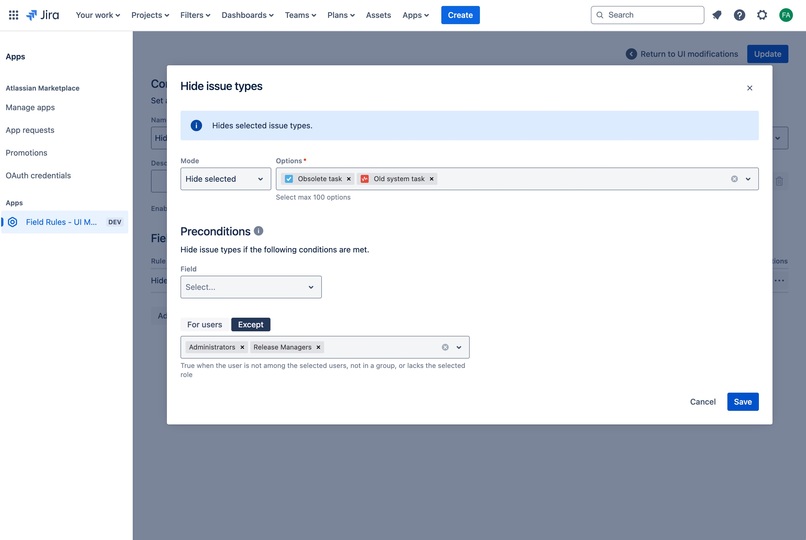
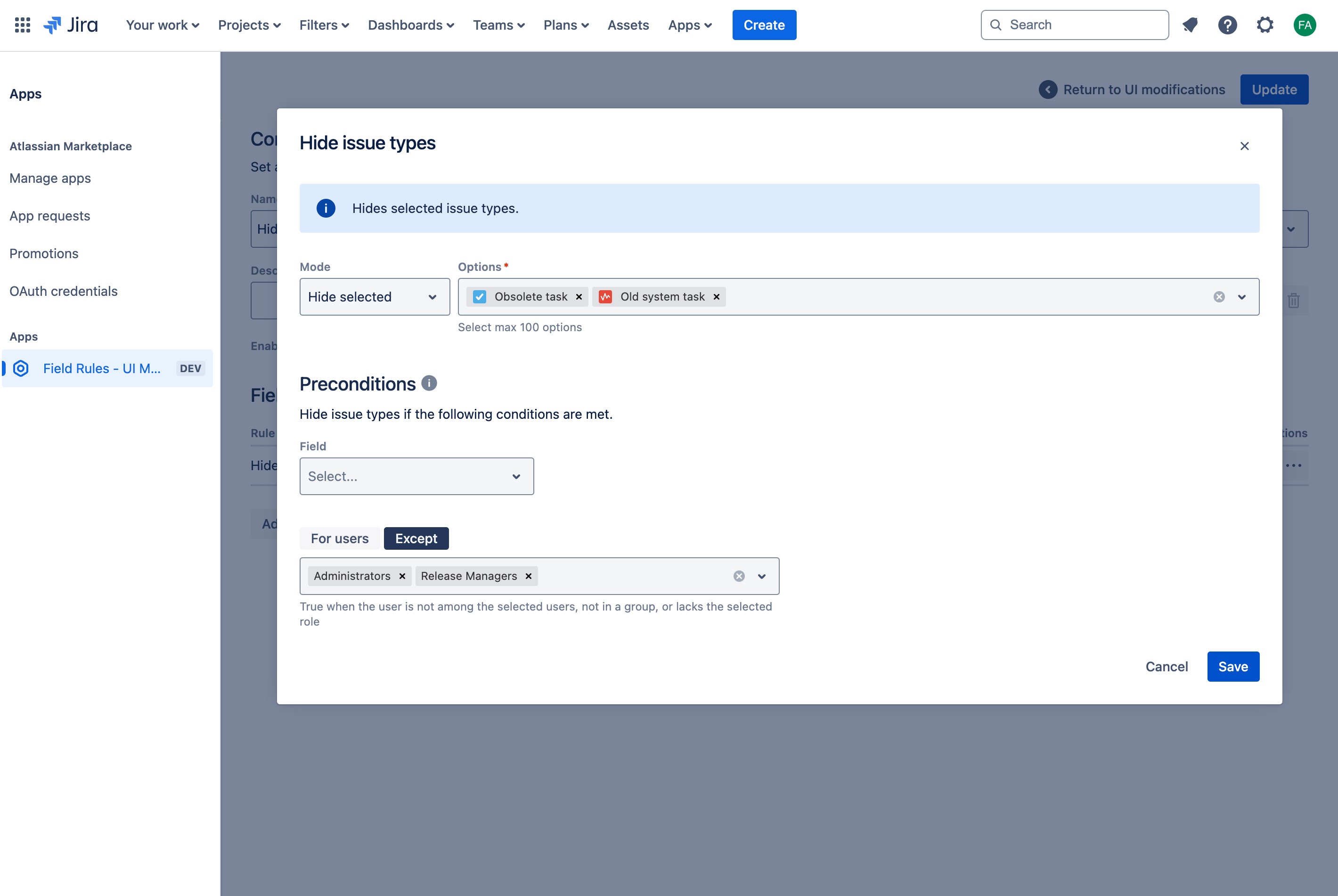
Hide obsolete issue types, with exceptions for Administrators and Release Managers project roles
-
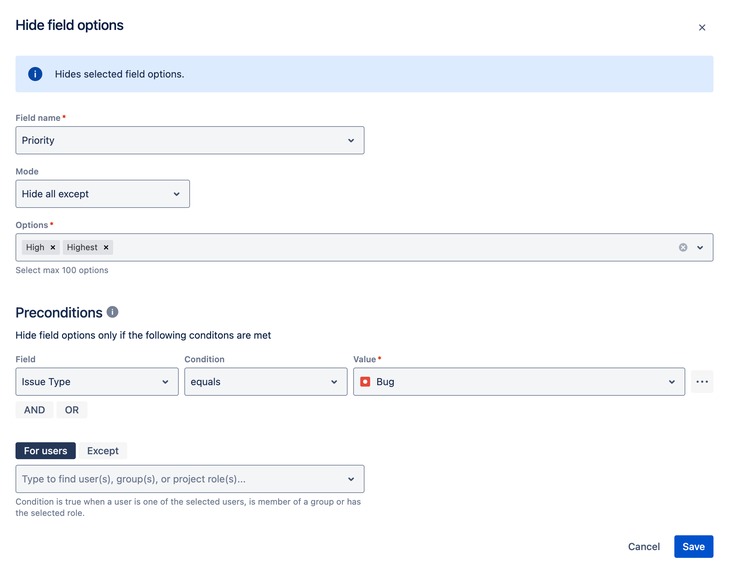
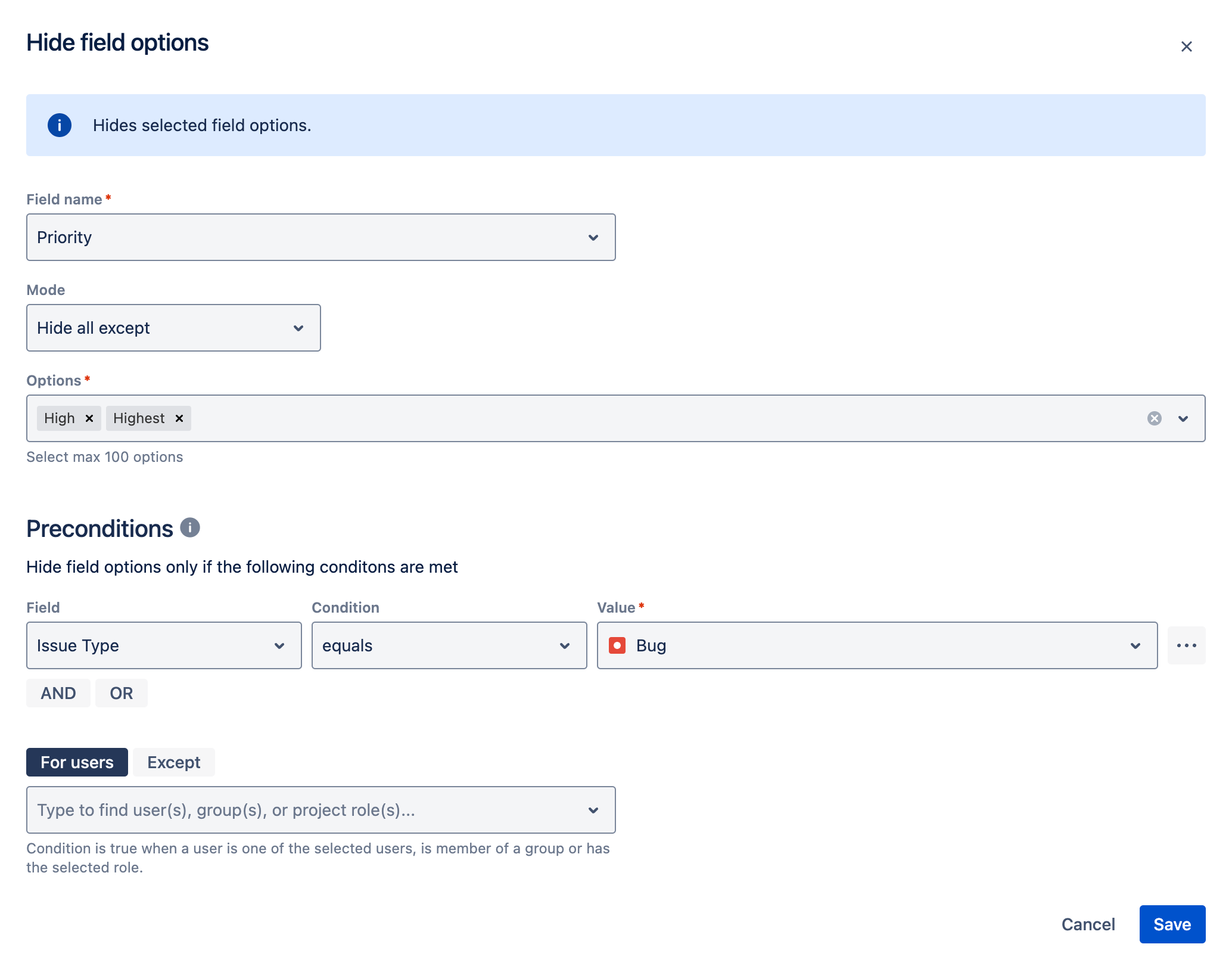
Show only High and Highest priority options for the Bug issue type
-
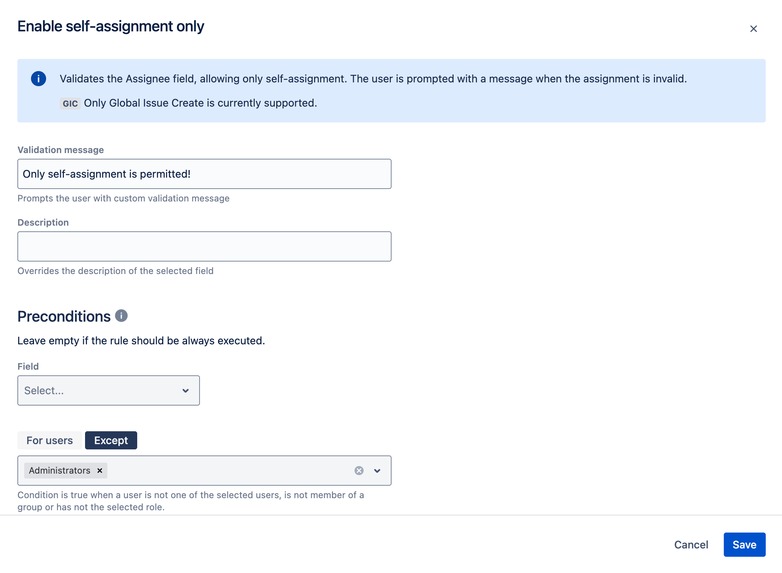
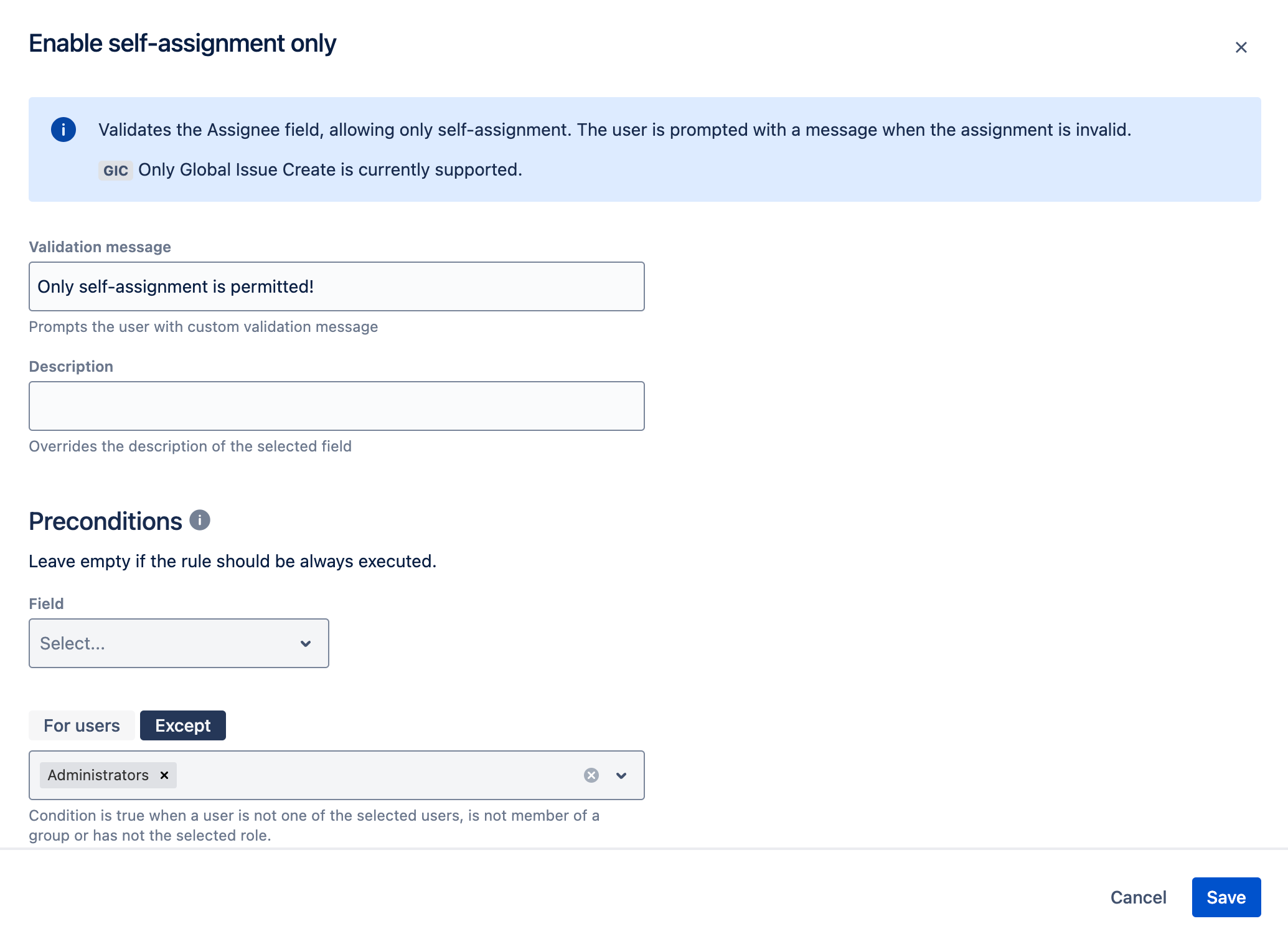
Enforce self-assignment
-
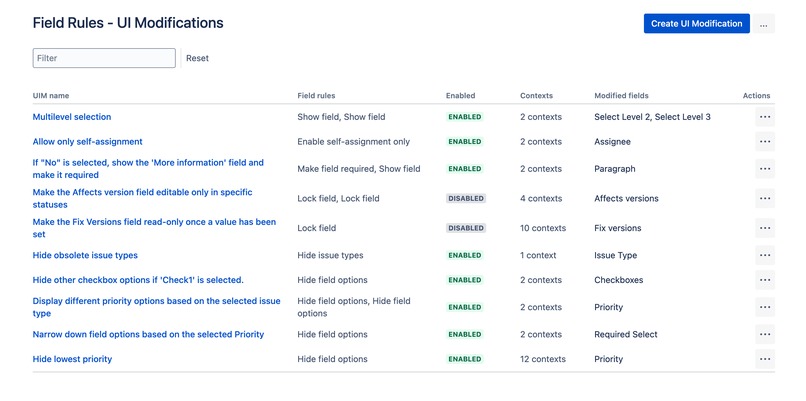
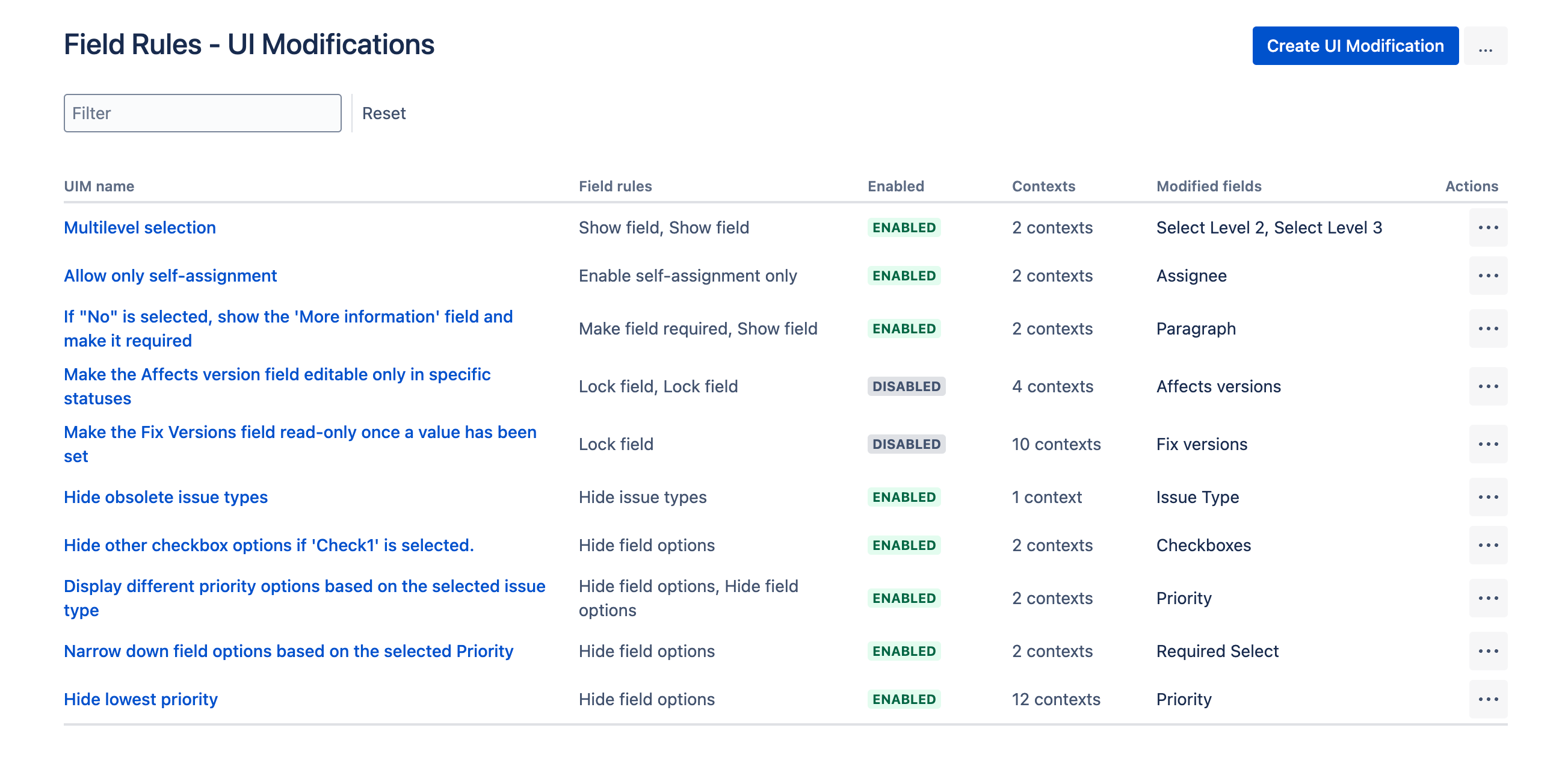
Example of several configured UI modifications
Inspiration
We believe that the need for customizing Jira views, especially issue views, has been and continues to be a key driver for developing apps. However, until the introduction of Forge and the UI Modification API, this was not possible in Jira Cloud in many areas. The UI Modification API has opened new opportunities to extend the standard configuration of Jira fields, allowing for dynamic adjustments such as making a field required, locking, or showing a field based on specific conditions. This stands in contrast to the traditional field configuration, which is static and applies uniformly to a project or issue type.
Our goal was to create an app that is user-friendly and accessible to all teams, regardless of their technical expertise. While scripting solutions and custom app development can offer powerful customization, they require in-depth knowledge of Jira's mechanics and programming skills. We wanted to provide a solution that simplifies this process, allowing teams without the time or resources for complex scripting to benefit from powerful automation and customization. This app was designed to be easy to use, enabling teams to apply dynamic field rules without needing any coding or technical background, ensuring seamless integration into their workflows and boosting productivity.
What it does
The app allows you to extend standard static field configurations with Rules that can be applied conditionally based on other fields, user roles, groups, or individuals.
Each Rule functions as a building block, and these blocks can be grouped together into scenarios called UI modifications.
Instead of creating a separate UI modification for each project, you can configure where it should be executed by specifying the relevant projects and issue types.
In summary, the app enables you to customize field behavior on issues by composing intuitive, wizard-like rules without the need to code!
Following Rules are available at this point:
- Show field
- Make field required
- Hide issue types
- Hide field options
- Lock field
- Enable Self-Assignment Only
What you can achieve
Here are some example of what you can do with the app:
- Multilevel selection: dynamically reveal only the necessary fields to improve the clarity of your issues
- Conditionally make a field required on Create Issue or Issue Transition
- Enforce assignment policies, ensuring users can only assign tasks to themselves
- Hide obsolete issue types or restrict the creation of certain types using user conditions
- Hide obsolete resolutions or narrow down the list based on other fields
- Narrow down the number of selection options for certain issue types or other requirements
Limitations apply, and some field behaviors are restricted by the UI Modifications API
How to get started
- Install the app; it is already published on the Atlassian Marketplace
- Locate the app: Field Rules - UI Modifications will appear in the Apps section of the left navigation within Jira admin settings.
- Create your first UI Modification:
- Set a clear and descriptive name for the modification
- Choose the view types, projects, and issue types where the modification will apply
- Add Fields Rules - to form a recipe for how specific fields should behave and under what conditions
For detailed step-by-step instructions, visit the app's setup guide
How we built it - UI Modification API
The app is developed using Atlassian's Forge platform, ensuring secure and seamless integration with Jira’s infrastructure. UI customisation is made possible through a low-level API called UI Modifications (UIM), available exclusively for Forge apps.
Challenges we ran into
setValue method race condition
In an attempt to create a field validation rule for IssueView, we encountered a race condition where the setValue method is overwritten by changes made by the user. The scenario is as follows:
- The user changes a field, e.g., the assignee.
- The app, based on predefined rules, reverts the change if it is not allowed (via the setValue method).
Although the setValue method is executed in response to the user’s action, it behaves inconsistently. Sometimes, the change triggered by the user is persisted, overriding the change made by the app. More details are explained here: FRGE-1420. Unfortunately, this issue prevents us from delivering the validation rule for IssueView.
Rollback for setDescription is not possible.
When conditions are no longer fulfilled, we want to roll back the description to its previous state. If the field’s description was initially empty, we aim to set it to an empty string. However, such a value is ignored, and attempting to set it to null results in an exception: FRGE-1508
Locking fields - setReadOnly(true) hides empty fields from IssueView
In the Lock Field rule, you can also set a field's description. We understand the importance of transparency, so we wanted to use the field description to inform users why they can't edit the field. However, when we tested the rule, the fields started disappearing in the Issue View instead of being locked.
After consulting with the Atlassian Team, we learned that on the Issue View, fields without a value are automatically hidden when set to read-only. This is the default behavior when the user doesn’t have permission to edit, and unfortunately, there are no plans to change it: FRGE-1454
Accomplishments that we're proud of
One of the standout features of the app is the ability to set optional preconditions, allowing you to apply rules only under specific conditions. There are two types of conditions: field-based and user-based.
With field conditions, you can test other fields that are supported and available on the screen. This means you can create conditions based on standard fields such as issue type, priority, components, versions, labels, status, assignee, reporter, summary, description, and a wide range of custom field types.
User-based conditions are also powerful, allowing you to test the current user against project roles, groups, or specific individuals. With preconditions, you can fine-tune how and when your rules are applied, ensuring your workflows adapt to your unique needs.
We are proud that the app has been reviewed and published on the marketplace so quickly and is already helping Jira admins construct better workflows and Jira users achieve their team’s needs.
What we learned
You can now remove the egress to *.atlassian.net
This has been necessary because the product domain is different from the domain where Custom UI is hosted. This has required developers to declare *.atlassian.net in the app’s permissions.
With the recent updates to Atlassian's content delivery network (CDN), all Custom UI apps now allow-list the host of the product by default. This means that we no longer need to declare egress to load media links hosted on the product domain in Custom UI apps. Great!
What's next for Field Rules - UI Modifications for Jira
More rules are on the way! We have many ideas for new rules, such as the previously mentioned Field Validation rule. The Template rule is definitely on our radar, as well as more complex rules that would apply to the entire issue, not just a single field (e.g., locking the whole issue).
We are always collecting ideas, do if you’d like to see it implemented or want to share your suggestions, please contact our support team :)
Built With
- atlaskit
- forge
- javascript
- react
- uimodificationapi


Log in or sign up for Devpost to join the conversation.